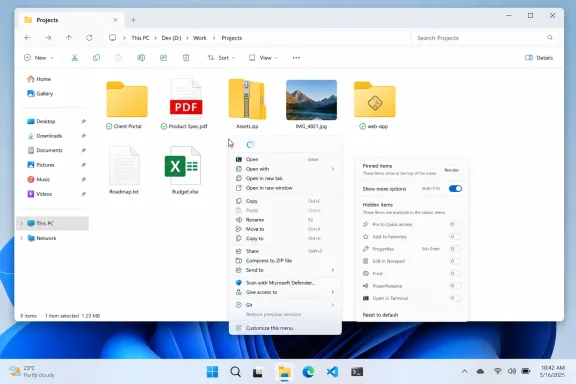
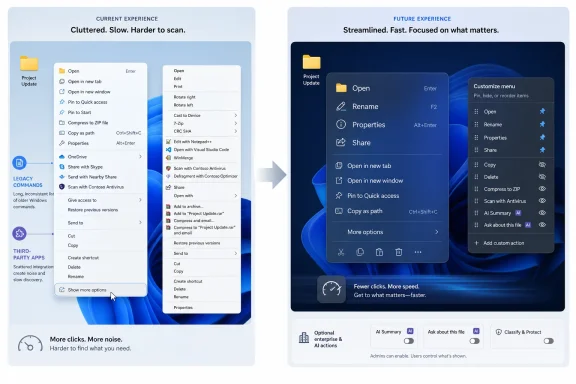
Microsoft’s Windows design leadership said on June 3, 2026, that it is working on a Windows right-click context menu refresh intended to make the menu faster, simpler by default, and configurable around the commands people use most. That promise matters because the context menu is not a decorative edge of Windows; it is one of the operating system’s most-used pieces of muscle memory. For Windows 11, Microsoft tried to solve clutter by hiding complexity behind “Show more options,” and in doing so created a new kind of friction. The company is now implicitly admitting that the right answer was never minimalism alone, but user control.
The right-click menu is easy to underestimate because it is small, transient, and usually invisible. It appears only when summoned, does its work, and disappears. But for Windows users who live in File Explorer, development folders, network shares, compressed archives, cloud-synced directories, and image libraries, that little menu is closer to a command surface than a convenience feature.
That is why Marcus Ash’s short comment on X landed harder than a typical design tease. Ash, a corporate vice president of design and research for Windows and Devices, responded to a complaint about sprawling context menus by saying Microsoft is working on making them “faster, simpler by default, configurable to what you use most,” with more to share soon. In Microsoft-speak, that is not a shipping plan, but it is a meaningful acknowledgement.
The important word is not “faster,” though Windows 11 users would gladly take it. It is not even “simpler,” because simplicity has already been tried as the headline cure. The important word is configurable.
That word changes the frame from “Microsoft knows which commands belong in front of you” to “Windows should adapt to the work you actually do.” For a company still trying to convince skeptical users that Windows 11’s interface changes are more than a coat of rounded-corner paint, that is a notable shift.
The company’s 2021 argument for the Windows 11 context menu was coherent. The old shell menu had grown over years of relatively loose extension behavior. Common commands could be separated from related commands. Apps could dump entries into the menu in ways that made attribution unclear. Rarely used actions competed with the basics every time a user right-clicked.
So Windows 11 introduced a modernized, cleaner context menu. Cut, copy, rename, share, and delete moved into a compact icon row. Common verbs were elevated. Older shell extensions and less common commands were pushed behind “Show more options,” which loaded the classic menu. No commands were supposed to vanish; they were merely demoted.
On paper, that was a compromise. In practice, it often felt like a tax. The user who needed 7-Zip, Git, PowerShell-related actions, advanced image tools, or app-specific file operations now had to right-click, pause, choose “Show more options,” and then scan the old menu anyway. Microsoft had not eliminated the old problem so much as placed a velvet rope in front of it.
The result was especially irritating because context menus are contextual. There is no single right-click menu. There are menus for folders, files, desktops, drives, shortcuts, images, scripts, archives, cloud placeholders, OneDrive paths, network locations, and multi-select groups. A command that is niche for one user may be central for another.
The Windows 11 context menu became a symbol because it interrupted workflows that had been stable for decades. Even users who liked the new design often ran into moments where the command they needed was behind the old menu. The issue was not merely that Microsoft moved things; it was that the system did not explain, learn, or offer an obvious way to pin the missing command back.
That distinction matters. A redesigned menu can be forgiven if it is opinionated but adaptable. A redesigned menu that hides the command you use twenty times a day starts to feel paternalistic.
This is why registry hacks and third-party menu editors became part of the Windows 11 right-click story almost immediately. Power users discovered ways to restore the classic menu or trim entries manually, but those fixes live outside the normal user experience. Editing shell behavior through the Registry is not customization in any humane sense; it is maintenance by incantation.
For IT departments, that is even less appealing. A one-off tweak on a hobbyist PC is one thing. A fleet-wide shell modification that may interact unpredictably with app updates, security tools, or future Windows builds is quite another. Microsoft’s failure to provide a first-party configuration layer left too many users choosing between annoyance and unsupported tinkering.
But “slow” also describes the cognitive delay created by the two-menu model. The user right-clicks, checks whether the needed command is present, remembers that it is not, clicks “Show more options,” waits for the classic menu, and then scans a different visual hierarchy. The delay is mechanical and mental.
That is where Microsoft’s new phrasing is revealing. “Faster” cannot merely mean shaving milliseconds off the menu animation. If the command remains hidden, the experience is still slower. If the first menu is clean but incomplete, and the second menu is complete but chaotic, the user still pays.
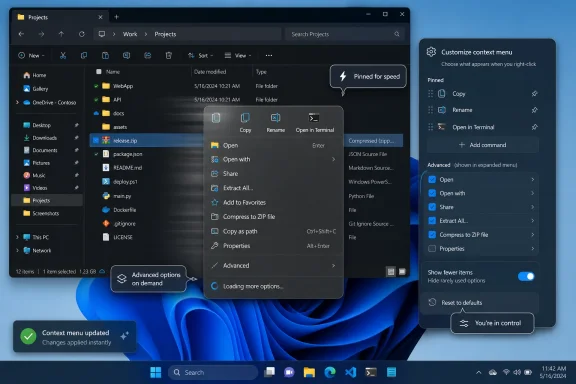
A genuinely faster context menu would prioritize the user’s observed or declared habits. If someone always reaches for “Open in Terminal,” that command should not live in exile. If someone never uses a vendor’s “Share with” action, it should not occupy prime space forever simply because the app installed a shell extension.
This is also where configuration becomes more than a power-user nicety. A context menu that can be shaped around actual behavior is a performance feature. It reduces scanning, prevents misclicks, and restores the basic promise of a shortcut: the thing you need should be where your hand expects it.
A clean default also helps new users, touch users, and people who do not know whether an unfamiliar command is safe. Windows is not just an enthusiast OS; it is the default computing environment for schools, offices, kiosks, shared family machines, and businesses where users do not administer their own devices. Reducing noise is a valid design goal.
The mistake is assuming that the default should remain the ceiling. Windows has always succeeded by serving both the person who wants to rename a photo and the administrator who wants to hash it, compress it, inspect it, scan it, copy its path, open a terminal in its directory, or hand it off to a specialized tool. The old context menu was ugly partly because it tried to serve those users at the same time, in the same list, with little discipline.
The better model is layered control. Microsoft can keep a restrained default menu while allowing users, admins, and perhaps applications under clear rules to promote, demote, group, or hide commands. That is not a retreat from simplicity. It is the only way simplicity survives contact with real workflows.
If Microsoft gets this right, “simple by default” stops meaning “simplified for everyone.” It means clean on day one, adaptable by day two, and predictable by day thirty.
That is why Windows 11’s first attempt could not be solved entirely in File Explorer. Microsoft introduced newer extension patterns and pushed legacy items behind the classic menu, but developers had to adopt the new model for their commands to show up cleanly in the modern surface. Some did. Some did not. Some never will, because old Windows software has a way of remaining useful long after its maintainers have moved on.
The next context-menu refresh will have to manage that long tail. If Microsoft simply creates a prettier layout that depends on every developer doing the right thing, users will be back where they started. Windows is not iOS; the shell cannot assume a tidy, fully modern app ecosystem.
Recent work around split context menus and better grouping points in the right direction. Putting related app actions into flyouts can reduce top-level clutter. Showing clear app attribution can help users understand which program added which command. But grouping alone does not solve the personalization problem.
A “Photos” flyout, for instance, may be elegant for some workflows and annoying for others. A developer may think five commands belong in a submenu, while a working photographer may use one of those commands constantly. That is where Microsoft’s “configurable to what you use most” language becomes the crucial promise.
Windows already asks users to manage defaults, startup apps, notifications, privacy permissions, background activity, and file associations. Context-menu entries are no less deserving of visibility. If an app can insert itself into a user’s right-click workflow, the user should be able to remove or demote it without spelunking through the Registry.
For administrators, this should also be policy-aware. Enterprise IT will want to standardize menus on shared machines, remove risky or confusing actions, preserve security-tool entries, and prevent certain apps from littering the shell. The consumer feature and the management feature are not separate problems; they are two views of the same control plane.
The challenge is avoiding another half-modern, half-legacy compromise. If the new configuration UI only manages modern context-menu extensions while legacy entries remain hidden behind “Show more options,” the fix will feel incomplete. The pain point is precisely that users must navigate both worlds.
A serious implementation would inventory both modern and legacy contributions, even if the level of control differs. It would tell the user when a command comes from Windows, from a Microsoft Store app, from a traditional desktop program, or from a system component. It would also make restoring defaults easy, because experimentation without an undo button is just another support burden.
That does not mean context-menu customization is inherently dangerous. It means the current opacity is bad design. Users often cannot tell why an entry is present, which application added it, or whether removing it will break something important. In a managed environment, that ambiguity becomes operational risk.
Security tools are a good example. Antivirus and endpoint products frequently add scan or reputation-check actions to the right-click menu. Those entries may be useful, but they also compete with less important vendor items. A configurable model could let organizations keep security actions visible while suppressing clutter from consumer apps or OEM utilities.
There is also a social-engineering angle. The more crowded and inconsistent the menu becomes, the easier it is for dubious software to blend into the noise. Clear attribution and user control would not eliminate that risk, but they would make the shell less of a dumping ground.
Microsoft has spent years tightening Windows around application permissions, SmartScreen, driver rules, and default app behavior. The context menu deserves the same philosophy: extensibility should be allowed, but it should be visible, accountable, and reversible.
The classic context menu survived inside Windows 11 because Microsoft could not simply strand decades of software. That was the right call. Removing functionality in the name of cleanliness would have created a worse backlash, particularly among the professional users most likely to depend on shell integrations.
But backward compatibility becomes corrosive when it is exposed as a permanent UX seam. “Show more options” is not just a menu item; it is an admission that Windows has two answers to the same question. One is modern and incomplete. The other is complete and messy.
The next refresh needs to collapse that distinction as much as possible. Users should not have to understand which menu generation a command belongs to. They should not have to know whether an app uses IExplorerCommand, a legacy shell extension, or a newer Windows App SDK mechanism. They should just know that the command they use is available, and the command they do not use can be hidden.
That is the difference between compatibility as a foundation and compatibility as clutter.
This pattern is not accidental. Windows 11 began with a strong visual thesis: calmer, simpler, more centered, more modern. But Windows users do not live in screenshots. They live in repetitive actions, edge cases, old software, enterprise policies, and learned shortcuts.
The context menu sits at the intersection of all those realities. It is a perfect stress test for whether Microsoft can blend modern design with practical configurability. If the company can fix this without merely adding another layer of complexity, it will have a template for other Windows surfaces.
That template should be straightforward. Defaults should be clean. Power should be discoverable. Legacy should be supported without being allowed to dominate. User preference should be respected without requiring unsupported hacks.
The danger is that Microsoft delivers only part of the promise. A faster animation, a shorter menu, or a handful of better-grouped app entries would be welcome, but not enough. The public commitment has now raised expectations beyond polish.
That uncertainty matters because Windows users have already lived through years of partial context-menu improvement. Some app support has improved. Some menu performance complaints have softened on newer builds and faster hardware. But the core split between the modern menu and classic overflow remains familiar to anyone who regularly needs commands outside Microsoft’s preferred set.
The likely path is incremental. Microsoft may first expose new developer options, then adjust File Explorer behavior, then add user-facing configuration later. That would fit the company’s usual approach, but it would also risk disappointing users who heard “configurable” and imagined a settings page with checkboxes.
Microsoft should resist the temptation to frame this as merely a developer platform improvement. Developers matter, but the complaint came from users. The pain is felt at the moment of right-clicking, not at the API boundary.
If the company wants credit for listening, it needs to ship something ordinary users can see and control.
That is where context menus go to become forests. It is also where users develop their strongest preferences. A developer may want “Open with Code” near the top for folders. A sysadmin may want terminal and path-copy actions. A home user may want image conversion and sharing tools. A security-conscious user may want scan actions visible but vendor upsell entries gone.
No default can satisfy those people simultaneously. A configurable menu can.
The Windows shell should also learn from actual use, but cautiously. Automatic promotion based on frequency could be helpful if it is transparent and reversible. But users hate interfaces that constantly rearrange themselves without consent. Muscle memory is a productivity asset, and Microsoft should not spend it casually.
The safer approach is a hybrid: recommend frequently used commands, but let the user pin them. Suggest hiding commands never used, but ask first. Let Windows be intelligent without becoming slippery.
The old context menu really was too permissive. The Windows 11 menu really was cleaner. Both statements can be true, and the failure came from pretending the second truth neutralized the cost of hiding functionality.
A better Windows design culture would start from a different premise: complexity is not always the enemy, but unmanaged complexity is. The job is not to remove every advanced action from view. The job is to make the system legible enough that users can decide what belongs in their own workflow.
That is why this promised refresh is more significant than it sounds. If Microsoft delivers configurability in a serious way, the context menu could become a rare Windows 11 redesign that admits the first attempt was incomplete and then improves on it without simply reverting.
 Microsoft Is Finally Treating the Right-Click Menu Like Infrastructure
The right-click menu is easy to underestimate because it is small, transient, and usually invisible. It appears only when summoned, does its work, and disappears. But for Windows users who live in File Explorer, development folders, network shares, compressed archives, cloud-synced directories, and image libraries, that little menu is closer to a command surface than a convenience feature.That is why Marcus Ash’s short comment on X landed harder than a typical design tease. Ash, a corporate vice president of design and research for Windows and Devices, responded to a complaint about sprawling context menus by saying Microsoft is working on making them “faster, simpler by default, configurable to what you use most,” with more to share soon. In Microsoft-speak, that is not a shipping plan, but it is a meaningful acknowledgement.
The important word is not “faster,” though Windows 11 users would gladly take it. It is not even “simpler,” because simplicity has already been tried as the headline cure. The important word is configurable.
That word changes the frame from “Microsoft knows which commands belong in front of you” to “Windows should adapt to the work you actually do.” For a company still trying to convince skeptical users that Windows 11’s interface changes are more than a coat of rounded-corner paint, that is a notable shift.
Windows 11 Solved the Old Menu by Creating a Second Problem
Microsoft was not wrong when it diagnosed the old context menu as a mess. By the Windows 10 era, right-clicking a file could produce a vertical archaeological dig of shell commands, application hooks, cloud storage actions, archive utilities, antivirus scans, media tools, editor shortcuts, and vendor-branded extras. Install enough software and the menu became less a shortcut than a scrolling disclosure statement.The company’s 2021 argument for the Windows 11 context menu was coherent. The old shell menu had grown over years of relatively loose extension behavior. Common commands could be separated from related commands. Apps could dump entries into the menu in ways that made attribution unclear. Rarely used actions competed with the basics every time a user right-clicked.
So Windows 11 introduced a modernized, cleaner context menu. Cut, copy, rename, share, and delete moved into a compact icon row. Common verbs were elevated. Older shell extensions and less common commands were pushed behind “Show more options,” which loaded the classic menu. No commands were supposed to vanish; they were merely demoted.
On paper, that was a compromise. In practice, it often felt like a tax. The user who needed 7-Zip, Git, PowerShell-related actions, advanced image tools, or app-specific file operations now had to right-click, pause, choose “Show more options,” and then scan the old menu anyway. Microsoft had not eliminated the old problem so much as placed a velvet rope in front of it.
The result was especially irritating because context menus are contextual. There is no single right-click menu. There are menus for folders, files, desktops, drives, shortcuts, images, scripts, archives, cloud placeholders, OneDrive paths, network locations, and multi-select groups. A command that is niche for one user may be central for another.
The Extra Click Became a Symbol of Windows 11’s Trust Problem
Windows users will tolerate a surprising amount of inconsistency if the system respects their habits. They have lived through Control Panel and Settings coexisting for years, multiple generations of app frameworks, overlapping backup tools, and a Start menu that changes personality every few releases. What they dislike is being told that a slower path is an improvement.The Windows 11 context menu became a symbol because it interrupted workflows that had been stable for decades. Even users who liked the new design often ran into moments where the command they needed was behind the old menu. The issue was not merely that Microsoft moved things; it was that the system did not explain, learn, or offer an obvious way to pin the missing command back.
That distinction matters. A redesigned menu can be forgiven if it is opinionated but adaptable. A redesigned menu that hides the command you use twenty times a day starts to feel paternalistic.
This is why registry hacks and third-party menu editors became part of the Windows 11 right-click story almost immediately. Power users discovered ways to restore the classic menu or trim entries manually, but those fixes live outside the normal user experience. Editing shell behavior through the Registry is not customization in any humane sense; it is maintenance by incantation.
For IT departments, that is even less appealing. A one-off tweak on a hobbyist PC is one thing. A fleet-wide shell modification that may interact unpredictably with app updates, security tools, or future Windows builds is quite another. Microsoft’s failure to provide a first-party configuration layer left too many users choosing between annoyance and unsupported tinkering.
Speed Is Not Just Performance; It Is Confidence
When users say the context menu is slow, they may mean literal latency. Windows 11’s modern UI surfaces have, at times, felt less immediate than the old Win32 shell paths they replaced. Even a fraction of a second matters when the action is repeated hundreds of times a week.But “slow” also describes the cognitive delay created by the two-menu model. The user right-clicks, checks whether the needed command is present, remembers that it is not, clicks “Show more options,” waits for the classic menu, and then scans a different visual hierarchy. The delay is mechanical and mental.
That is where Microsoft’s new phrasing is revealing. “Faster” cannot merely mean shaving milliseconds off the menu animation. If the command remains hidden, the experience is still slower. If the first menu is clean but incomplete, and the second menu is complete but chaotic, the user still pays.
A genuinely faster context menu would prioritize the user’s observed or declared habits. If someone always reaches for “Open in Terminal,” that command should not live in exile. If someone never uses a vendor’s “Share with” action, it should not occupy prime space forever simply because the app installed a shell extension.
This is also where configuration becomes more than a power-user nicety. A context menu that can be shaped around actual behavior is a performance feature. It reduces scanning, prevents misclicks, and restores the basic promise of a shortcut: the thing you need should be where your hand expects it.
Simpler by Default Only Works if Advanced Users Can Escape the Default
There is a legitimate case for a simple default menu. Most users do not need every installed application to expose itself every time a file is right-clicked. Many context-menu entries are promotional, redundant, or poorly named. Some exist because an installer decided visibility was free advertising.A clean default also helps new users, touch users, and people who do not know whether an unfamiliar command is safe. Windows is not just an enthusiast OS; it is the default computing environment for schools, offices, kiosks, shared family machines, and businesses where users do not administer their own devices. Reducing noise is a valid design goal.
The mistake is assuming that the default should remain the ceiling. Windows has always succeeded by serving both the person who wants to rename a photo and the administrator who wants to hash it, compress it, inspect it, scan it, copy its path, open a terminal in its directory, or hand it off to a specialized tool. The old context menu was ugly partly because it tried to serve those users at the same time, in the same list, with little discipline.
The better model is layered control. Microsoft can keep a restrained default menu while allowing users, admins, and perhaps applications under clear rules to promote, demote, group, or hide commands. That is not a retreat from simplicity. It is the only way simplicity survives contact with real workflows.
If Microsoft gets this right, “simple by default” stops meaning “simplified for everyone.” It means clean on day one, adaptable by day two, and predictable by day thirty.
The Developer Angle Is Where This Gets Complicated
The context menu is not just a Microsoft-owned list of commands. It is an ecosystem surface. Compression utilities, code editors, cloud storage clients, security products, media tools, source-control clients, printer software, backup agents, and device vendors all want a piece of it.That is why Windows 11’s first attempt could not be solved entirely in File Explorer. Microsoft introduced newer extension patterns and pushed legacy items behind the classic menu, but developers had to adopt the new model for their commands to show up cleanly in the modern surface. Some did. Some did not. Some never will, because old Windows software has a way of remaining useful long after its maintainers have moved on.
The next context-menu refresh will have to manage that long tail. If Microsoft simply creates a prettier layout that depends on every developer doing the right thing, users will be back where they started. Windows is not iOS; the shell cannot assume a tidy, fully modern app ecosystem.
Recent work around split context menus and better grouping points in the right direction. Putting related app actions into flyouts can reduce top-level clutter. Showing clear app attribution can help users understand which program added which command. But grouping alone does not solve the personalization problem.
A “Photos” flyout, for instance, may be elegant for some workflows and annoying for others. A developer may think five commands belong in a submenu, while a working photographer may use one of those commands constantly. That is where Microsoft’s “configurable to what you use most” language becomes the crucial promise.
The Best Version Looks Less Like a Hack and More Like Settings
The obvious missing piece is a first-party context-menu manager. It does not have to expose every shell verb with terrifying COM-era detail. It does need to let users see what is installed, which app owns which command, where that command appears, and whether it should be hidden, grouped, or promoted.Windows already asks users to manage defaults, startup apps, notifications, privacy permissions, background activity, and file associations. Context-menu entries are no less deserving of visibility. If an app can insert itself into a user’s right-click workflow, the user should be able to remove or demote it without spelunking through the Registry.
For administrators, this should also be policy-aware. Enterprise IT will want to standardize menus on shared machines, remove risky or confusing actions, preserve security-tool entries, and prevent certain apps from littering the shell. The consumer feature and the management feature are not separate problems; they are two views of the same control plane.
The challenge is avoiding another half-modern, half-legacy compromise. If the new configuration UI only manages modern context-menu extensions while legacy entries remain hidden behind “Show more options,” the fix will feel incomplete. The pain point is precisely that users must navigate both worlds.
A serious implementation would inventory both modern and legacy contributions, even if the level of control differs. It would tell the user when a command comes from Windows, from a Microsoft Store app, from a traditional desktop program, or from a system component. It would also make restoring defaults easy, because experimentation without an undo button is just another support burden.
Security Gives Microsoft a Second Reason to Clean House
The context menu is usually discussed as a usability problem, but it has a security dimension too. Shell extensions run close to the user’s file-handling workflow. Poorly written extensions can affect Explorer stability, and confusing entries can encourage users to invoke actions they do not understand.That does not mean context-menu customization is inherently dangerous. It means the current opacity is bad design. Users often cannot tell why an entry is present, which application added it, or whether removing it will break something important. In a managed environment, that ambiguity becomes operational risk.
Security tools are a good example. Antivirus and endpoint products frequently add scan or reputation-check actions to the right-click menu. Those entries may be useful, but they also compete with less important vendor items. A configurable model could let organizations keep security actions visible while suppressing clutter from consumer apps or OEM utilities.
There is also a social-engineering angle. The more crowded and inconsistent the menu becomes, the easier it is for dubious software to blend into the noise. Clear attribution and user control would not eliminate that risk, but they would make the shell less of a dumping ground.
Microsoft has spent years tightening Windows around application permissions, SmartScreen, driver rules, and default app behavior. The context menu deserves the same philosophy: extensibility should be allowed, but it should be visible, accountable, and reversible.
Microsoft’s Real Opponent Is Its Own Backward Compatibility
Every serious Windows interface debate eventually runs into the same wall: backward compatibility. The reason Windows remains valuable is also the reason it is hard to modernize. People expect old tools, old workflows, old shell hooks, and old automation patterns to keep working.The classic context menu survived inside Windows 11 because Microsoft could not simply strand decades of software. That was the right call. Removing functionality in the name of cleanliness would have created a worse backlash, particularly among the professional users most likely to depend on shell integrations.
But backward compatibility becomes corrosive when it is exposed as a permanent UX seam. “Show more options” is not just a menu item; it is an admission that Windows has two answers to the same question. One is modern and incomplete. The other is complete and messy.
The next refresh needs to collapse that distinction as much as possible. Users should not have to understand which menu generation a command belongs to. They should not have to know whether an app uses IExplorerCommand, a legacy shell extension, or a newer Windows App SDK mechanism. They should just know that the command they use is available, and the command they do not use can be hidden.
That is the difference between compatibility as a foundation and compatibility as clutter.
The Right-Click Menu Is a Test Case for the New Windows Design Philosophy
Microsoft has been slowly learning that Windows 11’s cleanest ideas often need more knobs. The Start menu has been criticized for rigidity. The taskbar lost and then gradually regained behaviors users expected. File Explorer has been modernized in stages, with performance and consistency complaints following close behind.This pattern is not accidental. Windows 11 began with a strong visual thesis: calmer, simpler, more centered, more modern. But Windows users do not live in screenshots. They live in repetitive actions, edge cases, old software, enterprise policies, and learned shortcuts.
The context menu sits at the intersection of all those realities. It is a perfect stress test for whether Microsoft can blend modern design with practical configurability. If the company can fix this without merely adding another layer of complexity, it will have a template for other Windows surfaces.
That template should be straightforward. Defaults should be clean. Power should be discoverable. Legacy should be supported without being allowed to dominate. User preference should be respected without requiring unsupported hacks.
The danger is that Microsoft delivers only part of the promise. A faster animation, a shorter menu, or a handful of better-grouped app entries would be welcome, but not enough. The public commitment has now raised expectations beyond polish.
The Calendar Is Still the Foggiest Part of the Promise
Ash’s comment did not include a release date, build number, Insider channel, or exact feature description. “More will be shared soon” is the sort of phrase that can mean a blog post next week, an Insider experiment next quarter, or a slow rollout that changes shape before reaching stable Windows users.That uncertainty matters because Windows users have already lived through years of partial context-menu improvement. Some app support has improved. Some menu performance complaints have softened on newer builds and faster hardware. But the core split between the modern menu and classic overflow remains familiar to anyone who regularly needs commands outside Microsoft’s preferred set.
The likely path is incremental. Microsoft may first expose new developer options, then adjust File Explorer behavior, then add user-facing configuration later. That would fit the company’s usual approach, but it would also risk disappointing users who heard “configurable” and imagined a settings page with checkboxes.
Microsoft should resist the temptation to frame this as merely a developer platform improvement. Developers matter, but the complaint came from users. The pain is felt at the moment of right-clicking, not at the API boundary.
If the company wants credit for listening, it needs to ship something ordinary users can see and control.
The Fix Has to Survive the First Week After Install
The most important test for a redesigned context menu is not how it looks on a clean Windows image. Clean installs are easy. The real test is a six-month-old machine with Office, Teams, OneDrive, a browser or three, a compression utility, a code editor, a PDF tool, a cloud backup client, a GPU control panel, an antivirus suite, and a few niche utilities installed.That is where context menus go to become forests. It is also where users develop their strongest preferences. A developer may want “Open with Code” near the top for folders. A sysadmin may want terminal and path-copy actions. A home user may want image conversion and sharing tools. A security-conscious user may want scan actions visible but vendor upsell entries gone.
No default can satisfy those people simultaneously. A configurable menu can.
The Windows shell should also learn from actual use, but cautiously. Automatic promotion based on frequency could be helpful if it is transparent and reversible. But users hate interfaces that constantly rearrange themselves without consent. Muscle memory is a productivity asset, and Microsoft should not spend it casually.
The safer approach is a hybrid: recommend frequently used commands, but let the user pin them. Suggest hiding commands never used, but ask first. Let Windows be intelligent without becoming slippery.
A Small Menu Carries a Large Lesson
The concrete story here is a right-click menu, but the broader lesson is about Microsoft’s relationship with its most loyal users. Windows enthusiasts and IT pros are not opposed to modernization. They are opposed to modernization that treats established workflows as debris.The old context menu really was too permissive. The Windows 11 menu really was cleaner. Both statements can be true, and the failure came from pretending the second truth neutralized the cost of hiding functionality.
A better Windows design culture would start from a different premise: complexity is not always the enemy, but unmanaged complexity is. The job is not to remove every advanced action from view. The job is to make the system legible enough that users can decide what belongs in their own workflow.
That is why this promised refresh is more significant than it sounds. If Microsoft delivers configurability in a serious way, the context menu could become a rare Windows 11 redesign that admits the first attempt was incomplete and then improves on it without simply reverting.
The Commands Windows Users Will Be Watching For
Microsoft has not yet shown the full plan, so the practical advice is to treat the promise as directional rather than imminent. Still, the company has now put three measurable goals on the table: speed, simplicity, and user-centered configuration. Those are specific enough that users and administrators can judge the result when it appears.- The new context-menu work is not confirmed as a finished feature with a public release date, so users should not expect an immediate change on stable Windows builds.
- The strongest part of Microsoft’s promise is configurability, because the current two-menu design fails users whose common commands are hidden behind “Show more options.”
- A successful redesign needs to account for both modern app extensions and legacy shell entries, or the classic menu will remain a dumping ground.
- Enterprise administrators will need policy and deployment controls if Microsoft turns context-menu management into a real Windows feature.
- The best outcome would preserve a clean default menu while letting users pin, hide, group, and identify commands without Registry edits or third-party utilities.
References
- Primary source: ZDNET
Published: Thu, 04 Jun 2026 16:38:00 GMT
Hate the right-click menu in Windows? Microsoft just promised to let you tweak it - soon
A top Microsoft VP is promising a faster, simpler, and more customizable context menu that appears when you right-click an item in File Explorer or on the Desktop.www.zdnet.com - Related coverage: tomshardware.com
How to Get Full Context Menus in Windows 11 | Tom's Hardware
Truncated context menus are Windows 11's worst feature.www.tomshardware.com - Related coverage: windowscentral.com
Microsoft breaks down how its fixing the right-click context menu in Windows 11 | Windows Central
A new developer blog post from Microsoft explains how the company is fixing the right-click context menu in Windows 11. In addition to a refreshed look, the layout and function of the ...www.windowscentral.com - Related coverage: pcworld.com
Microsoft is working on a fix for Windows 11's cluttered right-click menu | PCWorld
With the new Split Context Menu, users will see a more streamlined design that's more context-aware and less cluttered.www.pcworld.com - Official source: support.microsoft.com
File Explorer in Windows | Microsoft Support
Find and open File Explorer in Windows, and customize Quick access by pinning and removing files and folders.support.microsoft.com - Related coverage: windowsforum.com
Windows 11 Context Menus Reworked: Faster, Simpler, and Finally Configurable | Windows Forum
Microsoft’s Windows design lead said on June 3, 2026, that Windows 11 context menus are being reworked to become faster, simpler by default, and...windowsforum.com
- Related coverage: howtogeek.com
How to Find Missing Right-Click Context Menu Options on Windows 11
Reveal Windows 10-style context options from a secret menu. www.howtogeek.com
- Related coverage: techradar.com
Fed up with Windows 11's clunky right-click menu? Microsoft just dropped a hint that it could become more streamlined | TechRadar
Some apps are getting tidier context-sensitive options, and the hope is that this might be applied more broadlywww.techradar.com - Related coverage: windowslatest.com
First look: Microsoft reducing UI clutter in Windows 11, starting with right-click menu
Microsoft finally trims the Windows 11 right-click menu. We tested the new compact File Explorer context menu in Insider Build 26220.7271. www.windowslatest.com
- Related coverage: makeuseof.com
Windows 11’s Right-Click Context Menu Sucks: Here’s How I Restored the Classic One
Classic right-click, back by popular demand (or pure frustration). www.makeuseof.com
- Related coverage: maketecheasier.com
Everything You Need to Know About Windows 11 Context Menus - Make Tech Easier
This windows 10 right-click menu was overdue for a design improvement. Find out here how the Windows 11 context menus improve on that.www.maketecheasier.com - Official source: blogs.windows.com
Extending the Context Menu and Share Dialog in Windows 11
 blogs.windows.com
- Related coverage: pcgamer.com
How to fix Windows 11's right-click menus | PC Gamer
Restore Windows 11's redesigned context menus to their full, classic functionality.www.pcgamer.com - Official source: learn.microsoft.com
Contextual commanding - Windows apps | Microsoft Learn
How to use contextual commands to implement these sorts of actions in a way that provides the best possible experience for all input types.learn.microsoft.com - Related coverage: techdows.com
Microsoft details Context Menu changes in Windows 11 - Techdows
Windows 11 comes w/ a simplified, improved & modernized context menu in Windows 11 when compared w/ Windows 10. Microsoft explains context menu changes.techdows.com - Related coverage: geeky-gadgets.com
Windows 11 context menu and sharing enhancements - Geeky Gadgets
Microsoft has today released more insight into what you can expect from the Windows 11 context menu and tweaks and enhancementswww.geeky-gadgets.com