

XDA has highlighted a Windows 11 feature that remains easy to overlook: Windows Sandbox, Microsoft’s disposable virtual desktop for testing files, installers, and scripts without setting up a full VirtualBox or VMware machine.
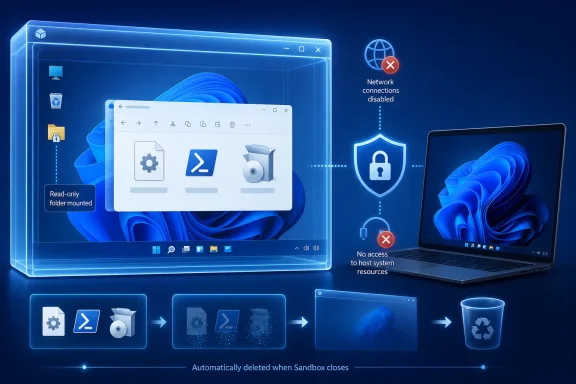
Windows Sandbox is not new, but it has become more capable. Microsoft now distributes an updated Sandbox experience through the Microsoft Store on supported Windows 11 24H2 systems, bringing a refreshed interface, runtime controls for shared folders and input devices, and preview command-line functionality. The core attraction remains unchanged: close the Sandbox window and its installed apps, files, and configuration are deleted.
Per Microsoft’s documentation, Windows Sandbox is included with Windows 11 Pro, Pro Education, Enterprise, and Education. It is not supported on Windows 11 Home. PCs also need hardware virtualization enabled, at least 4GB of RAM—8GB is recommended—1GB of available disk space, and at least two CPU cores.
Admins and enthusiasts can enable it through Turn Windows features on or off by selecting Windows Sandbox, then restarting if prompted. Microsoft also supports enabling the component with the
That is considerably less setup than downloading a third-party hypervisor, sourcing an ISO, creating a virtual disk, and installing a guest OS. Sandbox uses the local Windows installation to create an isolated, clean environment on demand rather than asking users to maintain a conventional VM image.
Those settings are not merely convenience options. Microsoft warns that networking is enabled by default, which can expose an untrusted application to an internal network. Clipboard redirection is also enabled by default, allowing files and text to move between the host and the Sandbox. Mapped folders deserve particular caution: a writable mapping gives code inside the Sandbox a route back to host data.
For inspecting a suspicious download or an untrusted PowerShell script, a sensible baseline is a
One wrinkle for Windows 11 24H2 users: Microsoft says inbox Store apps such as Notepad, Terminal, Photos, and Calculator are not currently included in Sandbox, although it says that capability is planned to return.
Windows 11 Pro, Enterprise, and Education users who test untrusted code should enable Sandbox and use a no-network configuration before reaching for a third-party VM.
Windows Sandbox is not new, but it has become more capable. Microsoft now distributes an updated Sandbox experience through the Microsoft Store on supported Windows 11 24H2 systems, bringing a refreshed interface, runtime controls for shared folders and input devices, and preview command-line functionality. The core attraction remains unchanged: close the Sandbox window and its installed apps, files, and configuration are deleted.
 Built in, but not available to everyone
Per Microsoft’s documentation, Windows Sandbox is included with Windows 11 Pro, Pro Education, Enterprise, and Education. It is not supported on Windows 11 Home. PCs also need hardware virtualization enabled, at least 4GB of RAM—8GB is recommended—1GB of available disk space, and at least two CPU cores.Admins and enthusiasts can enable it through Turn Windows features on or off by selecting Windows Sandbox, then restarting if prompted. Microsoft also supports enabling the component with the
Containers-DisposableClientVM optional feature in an elevated PowerShell session.That is considerably less setup than downloading a third-party hypervisor, sourcing an ISO, creating a virtual disk, and installing a guest OS. Sandbox uses the local Windows installation to create an isolated, clean environment on demand rather than asking users to maintain a conventional VM image.
Configuration matters for risky files
The XDA report correctly points to.wsb configuration files as the useful step beyond the default experience. These XML-based files can disable networking, map a host folder as read-only, set a startup command, control virtual GPU access, and adjust allocated memory. Microsoft also documents controls for microphone, webcam, printer, clipboard, and Protected Client mode.Those settings are not merely convenience options. Microsoft warns that networking is enabled by default, which can expose an untrusted application to an internal network. Clipboard redirection is also enabled by default, allowing files and text to move between the host and the Sandbox. Mapped folders deserve particular caution: a writable mapping gives code inside the Sandbox a route back to host data.
For inspecting a suspicious download or an untrusted PowerShell script, a sensible baseline is a
.wsb file with networking disabled and only a read-only folder mapped for the file under test. Protected Client mode adds another isolation layer through AppContainer isolation, though it can restrict copy-and-paste behavior.A sandbox, not a full VM replacement
Sandbox is best suited to short-lived validation: opening an unknown executable, checking an installer’s behavior, testing a script, or reproducing a minor issue in a clean Windows session. It is not a replacement for durable lab machines, multi-VM networks, snapshot-heavy testing, or workloads that need persistent state. Microsoft also notes that only one Sandbox instance can run at a time.One wrinkle for Windows 11 24H2 users: Microsoft says inbox Store apps such as Notepad, Terminal, Photos, and Calculator are not currently included in Sandbox, although it says that capability is planned to return.
Windows 11 Pro, Enterprise, and Education users who test untrusted code should enable Sandbox and use a no-network configuration before reaching for a third-party VM.
References
- Primary source: XDA
Published: 2026-07-18T21:30:10+00:00
I stopped downloading VirtualBox after discovering Windows 11's built-in sandbox
A desktop within my desktop comes in handy a surprising amount of times www.xda-developers.com
- Official source: learn.microsoft.com
