

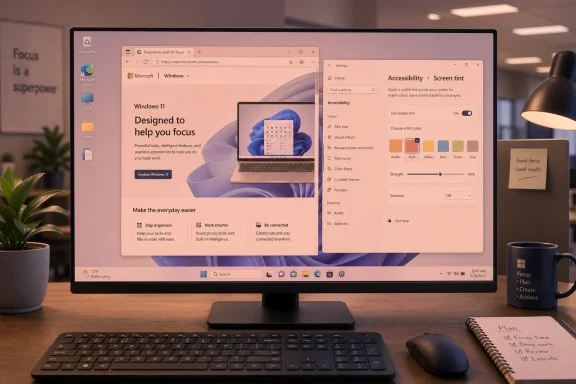
Windows 11 appears to be gaining a new accessibility-focused display option called Screen Tint, a hidden Settings page that applies a soft color overlay across the desktop. The feature, seen in preview build 26300.8289 and tested by Windows Latest, expands beyond the familiar warm glow of Night Light with amber, rose, yellow, blue, green, gray, and custom tint options. Microsoft has not formally announced Screen Tint, and the current implementation reportedly flickers or fails to apply consistently, which strongly suggests this is still early engineering work rather than a consumer-ready rollout. Even so, the direction is notable: Windows is moving from simple blue-light reduction toward more personalized visual comfort.
Windows has offered display comfort tools for years, but they have traditionally been split across different parts of the operating system. Night Light lives under display settings and reduces blue light by shifting the screen warmer, while Color filters sit in Accessibility and help users distinguish colors or compensate for color vision differences. Contrast themes, Magnifier, text sizing, and cursor customization round out a broader accessibility toolkit.
Screen Tint seems to occupy a new middle ground. It is not merely a color blindness filter, and it is not just a bedtime feature. Instead, it appears designed for people who want to soften harsh contrast, reduce visual stress, or adapt the display for different sensitivity profiles during long computing sessions.
That matters because the modern Windows desktop is used in more contexts than ever. People work under fluorescent office lighting, dock laptops to HDR monitors, read on OLED panels late at night, and spend hours inside browsers, Teams, code editors, spreadsheets, and AI tools. A single warm slider cannot address every viewing condition.
The hidden nature of the feature also fits Microsoft’s current Windows development pattern. The company frequently seeds unfinished pages, toggles, and feature IDs into Insider builds before deciding whether to document, expand, delay, or remove them. In other words, Screen Tint should be treated as a serious experiment, not a guaranteed shipping promise.
The early Settings page is said to live under Accessibility, which is an important signal. Microsoft could have placed it in System > Display beside Night Light, but Accessibility implies a broader purpose: visual accommodation, not just cosmetic preference. That distinction will matter if Microsoft eventually documents the feature for users, IT admins, and support teams.
Windows Latest reports six preset tint colors plus a Custom tint option. The presets include Calm amber, rose, soft yellow, blue, gentle green, and natural gray. A strength slider is also present, suggesting Microsoft wants users to tune intensity rather than accept a fixed overlay.
Key reported options include:
The risk is that labels can sound medical even when the underlying feature is not a treatment. Microsoft will need careful language if Screen Tint ships. A display overlay can support comfort, but it should not be marketed as a cure for migraines, photophobia, or eye strain.
Screen Tint seems more flexible. Instead of moving only along a warm-cool axis, it offers multiple colors for different visual contexts. That makes it closer to a comfort palette than a single blue-light switch.
The difference is easy to understand:
Microsoft’s existing display stack includes logic for Night Light and Adaptive Color interactions, which shows the company understands the problem. Screen Tint will need similar coordination. If it is merely painted on top of everything else, it could create unexpected results in games, video playback, creative apps, and remote desktops.
Many users do not identify as disabled, yet still struggle with harsh displays. Bright white backgrounds, thin fonts, high-contrast app layouts, and fluorescent office lighting can combine into an uncomfortable experience. Screen Tint could help users who fall between standard display settings and full accessibility accommodations.
This middle category is increasingly important. Windows is no longer just an operating system for occasional sessions at a desk. It is a workday platform, a gaming platform, a school platform, and a remote collaboration platform. Any system-level feature that reduces friction across those scenarios has practical value.
Potential accessibility benefits include:
That nuance is not just legal caution. It helps users make better decisions. Someone with recurring migraines, photophobia, or severe eye strain should still seek professional advice, while using Screen Tint as one possible accommodation in a wider toolkit.
The reported flickering and failure to apply are therefore not surprising. Early builds often expose UI before the rendering pipeline is stable. In Screen Tint’s case, flicker could indicate unresolved handoffs between Settings, the compositor, display enhancement services, or graphics drivers.
The hardest questions are practical:
Windows should provide clear indicators when Screen Tint is active. A Quick Settings tile, notification, or visible Settings state would help prevent confusion. A temporary bypass for color-critical apps would be even better.
That strategy makes sense. Windows 11’s early years were defined by visual redesign, strict hardware requirements, and controversial removals from Windows 10. The next phase needs to prove that Windows 11 can mature without constantly breaking user muscle memory.
Screen Tint fits that maturation story. It is not a flashy AI feature, and it will not headline a keynote. But for people who stare at screens all day, it could become one of those quiet features that makes the operating system feel more considerate.
Important context includes:
Screen Tint alone will not convince holdouts to upgrade. But it contributes to a larger message: Windows 11 is still evolving, and Microsoft is willing to restore or rethink areas users care about. That matters in a community still sensitive to taskbar limitations, Settings migrations, and inconsistent UI modernization.
The benefit is especially clear for users who switch between tasks. A student might prefer soft yellow while reading PDFs, amber late at night, and gray during long writing sessions. A built-in Windows control could make those changes feel normal rather than hacky.
Still, the user experience must be effortless. If Screen Tint is buried too deeply in Settings, most people will never discover it. If it conflicts with Night Light, they may abandon it after one confusing session.
Consumer-friendly requirements include:
Microsoft will need to decide whether full-screen games can override Screen Tint or whether users must disable it manually. The Xbox Game Bar could become a useful integration point. A “disable tint while gaming” option would likely be welcomed.
Education could benefit as well. Schools and universities often serve students with reading discomfort, light sensitivity, or concentration challenges. If Screen Tint can be configured without administrator complexity, it may become a practical classroom accommodation.
The enterprise question is management. IT teams will want policy controls, documentation, and predictable behavior before enabling or recommending the feature. They will also care about whether Screen Tint affects screenshots, remote assistance, exam software, virtual desktops, or secure browser environments.
Enterprise considerations include:
That is a subtle but important productivity point. Visual fatigue is not just a health concern; it affects concentration and endurance. If Microsoft can reduce that burden with a lightweight system feature, the enterprise value is real.
Apple’s ecosystem has long normalized features like Night Shift and True Tone, while mobile platforms have made color and reading comfort settings mainstream. Linux users can choose from compositors, extensions, and utilities, but the experience varies by desktop environment. Windows has the advantage of scale, but it also carries the burden of legacy compatibility.
Screen Tint could help Microsoft close a perception gap. Windows often has the underlying capability, but settings can feel fragmented. A polished Screen Tint page would signal that Microsoft is consolidating comfort controls into a more understandable experience.
Competitive angles include:
The best outcome would be cooperation. OEM apps should detect Windows-level tinting and avoid stacking duplicate filters. Monitor makers could expose accurate capabilities to Windows so the OS knows when it can safely adjust output.
Windows enthusiasts often enable hidden features with tools and feature IDs, but doing so carries risk. Experimental UI may lack migration logic, localization, error handling, accessibility validation, or performance tuning. A hidden Settings page can look almost complete while the underlying platform remains unstable.
Users should avoid treating Screen Tint as production functionality until Microsoft confirms it. Insider builds are for testing, and the Experimental channel in particular can surface ideas that change dramatically. Today’s hidden toggle can become tomorrow’s removed experiment.
A sensible first-run flow might look like this:
The second signal is integration. If Screen Tint gains a Quick Settings tile, scheduling options, policy controls, or conflict warnings, it is likely being prepared for a real release. If it remains a bare Settings page with flicker, it may be a prototype.
Windows watchers should pay attention to:
If Screen Tint ships, its success will depend on restraint: clear labels, stable rendering, honest claims, and easy escape routes for users who need accurate color. The idea is promising because it recognizes a simple truth about modern computing: people do not experience Windows only through apps and features, but through the physical strain of looking at a screen for hours. A smarter tint system will not solve every display problem, but it could make Windows 11 more humane, more flexible, and better suited to the way people actually use PCs.
Source: Windows Latest Windows 11’s hidden Screen Tint feature lets you soften your display with amber, blue, green, and more colors
 Overview
Windows has offered display comfort tools for years, but they have traditionally been split across different parts of the operating system. Night Light lives under display settings and reduces blue light by shifting the screen warmer, while Color filters sit in Accessibility and help users distinguish colors or compensate for color vision differences. Contrast themes, Magnifier, text sizing, and cursor customization round out a broader accessibility toolkit.Screen Tint seems to occupy a new middle ground. It is not merely a color blindness filter, and it is not just a bedtime feature. Instead, it appears designed for people who want to soften harsh contrast, reduce visual stress, or adapt the display for different sensitivity profiles during long computing sessions.
That matters because the modern Windows desktop is used in more contexts than ever. People work under fluorescent office lighting, dock laptops to HDR monitors, read on OLED panels late at night, and spend hours inside browsers, Teams, code editors, spreadsheets, and AI tools. A single warm slider cannot address every viewing condition.
The hidden nature of the feature also fits Microsoft’s current Windows development pattern. The company frequently seeds unfinished pages, toggles, and feature IDs into Insider builds before deciding whether to document, expand, delay, or remove them. In other words, Screen Tint should be treated as a serious experiment, not a guaranteed shipping promise.
What Screen Tint Appears to Do
A softer overlay for the whole desktop
Screen Tint reportedly adds a subtle color overlay to the Windows 11 display. Unlike an app-specific reading mode, it appears to work at the system level, affecting the overall screen experience rather than one window at a time. That makes it more powerful, but also more technically sensitive.The early Settings page is said to live under Accessibility, which is an important signal. Microsoft could have placed it in System > Display beside Night Light, but Accessibility implies a broader purpose: visual accommodation, not just cosmetic preference. That distinction will matter if Microsoft eventually documents the feature for users, IT admins, and support teams.
Windows Latest reports six preset tint colors plus a Custom tint option. The presets include Calm amber, rose, soft yellow, blue, gentle green, and natural gray. A strength slider is also present, suggesting Microsoft wants users to tune intensity rather than accept a fixed overlay.
Key reported options include:
- Amber for a Night Light-like warmer screen.
- Rose for users sensitive to headaches or fluorescent lighting.
- Soft yellow for reading discomfort and visual stress.
- Blue for glare sensitivity in bright environments.
- Green for photophobia-related comfort.
- Gray for reducing fatigue from stark black-and-white contrast.
- Custom tint for users who know exactly what overlay works for them.
Why presets matter
Presets are not just convenience labels. They reduce the burden on users who may not know how hue, saturation, brightness, contrast, and white point interact. A person who wants “less harsh white” may not know whether to choose gray, yellow, or amber.The risk is that labels can sound medical even when the underlying feature is not a treatment. Microsoft will need careful language if Screen Tint ships. A display overlay can support comfort, but it should not be marketed as a cure for migraines, photophobia, or eye strain.
How It Differs from Night Light
Night Light has a narrower mission
Night Light is one of Windows’ most familiar comfort features. Its basic job is to reduce blue light by shifting the display toward warmer tones, usually in the evening or on a schedule. It is simple, predictable, and easy to toggle from Quick Settings.Screen Tint seems more flexible. Instead of moving only along a warm-cool axis, it offers multiple colors for different visual contexts. That makes it closer to a comfort palette than a single blue-light switch.
The difference is easy to understand:
- Night Light warms the display to reduce blue-heavy output.
- Color filters alter the palette for accessibility and color distinction.
- Screen Tint appears to add a comfort-oriented overlay with multiple tint choices.
- Adaptive Color depends on hardware sensors and adjusts white point to ambient lighting.
- Contrast themes reshape system colors for stronger readability.
The overlap problem
The challenge is interaction. If a user enables Night Light, Screen Tint, HDR, a GPU vendor color profile, and a monitor’s built-in blue-light mode, the resulting image could become muddy, inaccurate, or inconsistent. Windows already has to manage these layers carefully.Microsoft’s existing display stack includes logic for Night Light and Adaptive Color interactions, which shows the company understands the problem. Screen Tint will need similar coordination. If it is merely painted on top of everything else, it could create unexpected results in games, video playback, creative apps, and remote desktops.
Accessibility Is the Real Story
Beyond cosmetic personalization
The most interesting part of Screen Tint is not that Windows might gain more colors. It is that Microsoft appears to be treating visual comfort as a first-class accessibility concern. That is a meaningful shift from “make it look pretty” to make it usable for longer.Many users do not identify as disabled, yet still struggle with harsh displays. Bright white backgrounds, thin fonts, high-contrast app layouts, and fluorescent office lighting can combine into an uncomfortable experience. Screen Tint could help users who fall between standard display settings and full accessibility accommodations.
This middle category is increasingly important. Windows is no longer just an operating system for occasional sessions at a desk. It is a workday platform, a gaming platform, a school platform, and a remote collaboration platform. Any system-level feature that reduces friction across those scenarios has practical value.
Potential accessibility benefits include:
- Lower perceived harshness on bright desktops.
- More comfortable reading during long document sessions.
- Alternative tint choices for users who dislike amber-only filters.
- A gentler path than full contrast themes.
- Custom settings for users with specific visual preferences.
- System-wide consistency instead of relying on individual app themes.
A welcome but delicate expansion
Microsoft deserves credit for exploring comfort features beyond traditional checkboxes. However, the company must avoid overclaiming. The feature should be framed as visual customization for comfort, not as clinical guidance.That nuance is not just legal caution. It helps users make better decisions. Someone with recurring migraines, photophobia, or severe eye strain should still seek professional advice, while using Screen Tint as one possible accommodation in a wider toolkit.
The Technical Challenge Under the Hood
Tinting is easy; tinting well is hard
Applying a color overlay sounds simple, but doing it cleanly across Windows is difficult. The operating system has to account for SDR and HDR content, multiple monitors, color profiles, GPU drivers, screenshots, protected video, remote sessions, and accessibility filters. A feature that works beautifully on one laptop panel may behave poorly on another external display.The reported flickering and failure to apply are therefore not surprising. Early builds often expose UI before the rendering pipeline is stable. In Screen Tint’s case, flicker could indicate unresolved handoffs between Settings, the compositor, display enhancement services, or graphics drivers.
The hardest questions are practical:
- Does Screen Tint apply to all monitors or only the primary display?
- Does it affect HDR content differently from SDR content?
- Can apps request temporary accurate color mode?
- Does it show up in screenshots or only on physical output?
- How does it interact with Night Light and Color filters?
- Will it respect per-display calibration profiles?
- Can enterprise admins manage or disable it?
Creative professionals will need safeguards
For photo editors, video colorists, UI designers, and print professionals, global tinting is dangerous if it is not obvious. A tinted display can make a neutral image look warm, cool, green, or gray without changing the file itself. That can lead to bad color judgments.Windows should provide clear indicators when Screen Tint is active. A Quick Settings tile, notification, or visible Settings state would help prevent confusion. A temporary bypass for color-critical apps would be even better.
Why Microsoft Is Testing This Now
Windows 11 is being refined in small but meaningful ways
Screen Tint arrives in the context of a broader Windows 11 cleanup cycle. Recent preview builds have shown work on modernized dialogs, update controls, Quick Settings customization, Task Manager improvements, touchpad refinements, and long-requested shell changes. Microsoft appears to be sanding down rough edges while preparing larger platform updates.That strategy makes sense. Windows 11’s early years were defined by visual redesign, strict hardware requirements, and controversial removals from Windows 10. The next phase needs to prove that Windows 11 can mature without constantly breaking user muscle memory.
Screen Tint fits that maturation story. It is not a flashy AI feature, and it will not headline a keynote. But for people who stare at screens all day, it could become one of those quiet features that makes the operating system feel more considerate.
Important context includes:
- Windows 11 25H2-era builds continue to refine existing system experiences.
- Experimental and Insider channels are surfacing hidden interface work earlier.
- Accessibility settings have become more central to everyday personalization.
- Display comfort is now a mainstream concern, not a niche request.
- Power users increasingly expect system-level controls instead of third-party utilities.
The post-Windows 10 pressure
The timing also matters because Windows 10’s consumer support era has ended, pushing more users toward Windows 11. Microsoft needs Windows 11 to feel like an upgrade rather than a forced migration. Small quality-of-life additions can help change that perception.Screen Tint alone will not convince holdouts to upgrade. But it contributes to a larger message: Windows 11 is still evolving, and Microsoft is willing to restore or rethink areas users care about. That matters in a community still sensitive to taskbar limitations, Settings migrations, and inconsistent UI modernization.
Consumer Impact
More comfort without installing another utility
For home users, Screen Tint could reduce dependence on third-party screen overlay tools. Many people already install utilities to add colored filters, dim beyond system limits, or make reading easier at night. A built-in feature would be safer, simpler, and more consistent across updates.The benefit is especially clear for users who switch between tasks. A student might prefer soft yellow while reading PDFs, amber late at night, and gray during long writing sessions. A built-in Windows control could make those changes feel normal rather than hacky.
Still, the user experience must be effortless. If Screen Tint is buried too deeply in Settings, most people will never discover it. If it conflicts with Night Light, they may abandon it after one confusing session.
Consumer-friendly requirements include:
- A Quick Settings toggle for fast access.
- Clear preset explanations written in plain English.
- A visible strength slider that responds immediately.
- Per-monitor behavior that is easy to understand.
- Compatibility with Night Light schedules.
- Reset to default for users who over-adjust the tint.
Gaming and media concerns
Gamers will have mixed feelings. On one hand, a tint could reduce harshness during long sessions. On the other, any global color shift can distort art direction, affect visibility, or interfere with HDR tone mapping.Microsoft will need to decide whether full-screen games can override Screen Tint or whether users must disable it manually. The Xbox Game Bar could become a useful integration point. A “disable tint while gaming” option would likely be welcomed.
Enterprise and Education Impact
Accessibility at scale
For enterprises, Screen Tint could become part of digital workplace ergonomics. IT departments increasingly support employees with diverse visual needs, especially in hybrid work environments where lighting and display hardware vary widely. A native Windows option is easier to support than a patchwork of third-party tools.Education could benefit as well. Schools and universities often serve students with reading discomfort, light sensitivity, or concentration challenges. If Screen Tint can be configured without administrator complexity, it may become a practical classroom accommodation.
The enterprise question is management. IT teams will want policy controls, documentation, and predictable behavior before enabling or recommending the feature. They will also care about whether Screen Tint affects screenshots, remote assistance, exam software, virtual desktops, or secure browser environments.
Enterprise considerations include:
- Group Policy or MDM controls for enabling and managing the feature.
- Documentation for help desks explaining how Screen Tint differs from Color filters.
- Compatibility testing with Teams, Edge, Office, remote desktops, and VDI.
- Clear interaction rules for Night Light, HDR, and display calibration.
- User-level customization without requiring local administrator rights.
- Audit-friendly defaults that do not surprise regulated industries.
Hybrid work makes this more relevant
Hybrid work has made display comfort harder to standardize. One employee may work under warm home lighting, another under bright office panels, and another on a laptop in a hotel room. Screen Tint could help users adapt without waiting for IT to solve the physical environment.That is a subtle but important productivity point. Visual fatigue is not just a health concern; it affects concentration and endurance. If Microsoft can reduce that burden with a lightweight system feature, the enterprise value is real.
Competitive Implications
Windows catches up with user expectations
Display comfort is no longer exotic. Phones, tablets, e-readers, and desktop operating systems all offer some mix of dark mode, warm tinting, true tone adjustment, grayscale modes, and accessibility filters. Users now expect their screens to adapt to them.Apple’s ecosystem has long normalized features like Night Shift and True Tone, while mobile platforms have made color and reading comfort settings mainstream. Linux users can choose from compositors, extensions, and utilities, but the experience varies by desktop environment. Windows has the advantage of scale, but it also carries the burden of legacy compatibility.
Screen Tint could help Microsoft close a perception gap. Windows often has the underlying capability, but settings can feel fragmented. A polished Screen Tint page would signal that Microsoft is consolidating comfort controls into a more understandable experience.
Competitive angles include:
- Apple-style display comfort without requiring specific hardware for every mode.
- Less reliance on third-party overlay apps that may break after updates.
- A stronger accessibility story for Windows PCs in education and work.
- Better personalization for large monitor and multi-display setups.
- Improved parity with mobile reading and comfort expectations.
OEMs and monitor makers may need to adapt
PC makers already ship their own display tools. Some include blue-light filters, color modes, reading modes, ambient sensors, or vendor-specific panel tuning. A native Windows tint system could either complement or compete with those utilities.The best outcome would be cooperation. OEM apps should detect Windows-level tinting and avoid stacking duplicate filters. Monitor makers could expose accurate capabilities to Windows so the OS knows when it can safely adjust output.
The Unfinished State Is Important
Hidden does not mean ready
The current evidence points to an unfinished feature. Windows Latest reported flickering and cases where colors failed to apply, and Microsoft has not publicly announced Screen Tint. That combination should temper expectations.Windows enthusiasts often enable hidden features with tools and feature IDs, but doing so carries risk. Experimental UI may lack migration logic, localization, error handling, accessibility validation, or performance tuning. A hidden Settings page can look almost complete while the underlying platform remains unstable.
Users should avoid treating Screen Tint as production functionality until Microsoft confirms it. Insider builds are for testing, and the Experimental channel in particular can surface ideas that change dramatically. Today’s hidden toggle can become tomorrow’s removed experiment.
What a finished version should include
A polished Screen Tint release would need more than presets. It would need scheduling, conflict warnings, per-display behavior, a Quick Settings entry, and accessibility documentation. It should also explain when users should choose Screen Tint versus Night Light versus Color filters.A sensible first-run flow might look like this:
- Open Settings and go to Accessibility.
- Choose Screen Tint from the visual settings area.
- Select a preset such as amber, yellow, green, blue, rose, or gray.
- Adjust strength until the display feels comfortable.
- Test common apps such as browser, Office, Teams, games, and media playback.
- Add the toggle to Quick Settings if Microsoft exposes that option.
- Disable the tint before color-critical editing or calibration work.
Strengths and Opportunities
Screen Tint’s promise is that it could turn display comfort into a more personal, flexible, and accessible part of Windows 11. If Microsoft builds it carefully, the feature could help both casual users and power users without forcing everyone into the same amber-only model.- Broader comfort choices than Night Light’s warm color temperature approach.
- Accessibility-first placement that validates visual sensitivity as a real user need.
- Custom tint support for people who already know their preferred overlay color.
- Potential Quick Settings integration for fast switching between work modes.
- Reduced dependence on third-party utilities that may conflict with Windows updates.
- Better support for long reading sessions in browsers, PDFs, Office apps, and code editors.
- A stronger Windows 11 upgrade story built around practical daily improvements.
Risks and Concerns
The same power that makes Screen Tint interesting also makes it risky. A global tint can affect every visual judgment a user makes, and Windows must handle that responsibly across hardware, drivers, apps, and accessibility layers.- Color accuracy problems for photographers, designers, video editors, and print workflows.
- Confusing overlap with Night Light, Color filters, HDR, Adaptive Color, and OEM utilities.
- Possible flicker or instability if the compositor and display pipeline are not fully ready.
- Medical overinterpretation if users treat tint presets as clinical treatment.
- Gaming and media distortion if full-screen content cannot opt out cleanly.
- Enterprise support burden if policies, documentation, and troubleshooting are incomplete.
- Multi-monitor inconsistency if external displays behave differently from laptop panels.
What to Watch Next
The next sign to watch is whether Microsoft acknowledges Screen Tint in an official Insider blog post. A documented rollout would mean the company is ready for broader feedback, while continued hidden appearances would suggest the feature remains in internal validation. Microsoft’s language will matter as much as the toggle itself.The second signal is integration. If Screen Tint gains a Quick Settings tile, scheduling options, policy controls, or conflict warnings, it is likely being prepared for a real release. If it remains a bare Settings page with flicker, it may be a prototype.
Windows watchers should pay attention to:
- Future Insider build notes for Accessibility or Display changes.
- Quick Settings customization that could expose a Screen Tint toggle.
- Night Light interaction behavior when both features are enabled.
- HDR and external monitor handling across laptops and desktops.
- Administrative controls for managed Windows environments.
If Screen Tint ships, its success will depend on restraint: clear labels, stable rendering, honest claims, and easy escape routes for users who need accurate color. The idea is promising because it recognizes a simple truth about modern computing: people do not experience Windows only through apps and features, but through the physical strain of looking at a screen for hours. A smarter tint system will not solve every display problem, but it could make Windows 11 more humane, more flexible, and better suited to the way people actually use PCs.
Source: Windows Latest Windows 11’s hidden Screen Tint feature lets you soften your display with amber, blue, green, and more colors
