

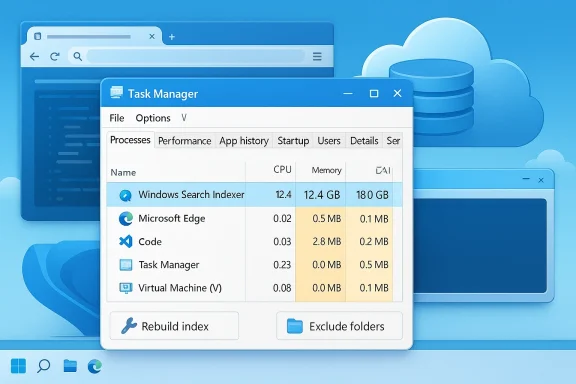
If a single Windows background service is quietly burning a gigabyte of RAM on an idle PC, it stops being a minor annoyance and starts becoming a design question about what Windows 11 is actually optimizing for. The culprit in this case is Windows Search Indexer, a long-running service that normally speeds up file and Start menu searches by keeping an index ready in the background, but which can spiral into heavy memory use when it is rebuilding, scanning a large set of files, or dealing with a corrupted index. Microsoft’s own guidance says indexing is supposed to improve search speed and that resource problems can happen when the indexer goes beyond expected limits, while a rebuild is the official first-line remedy before resorting to disabling the service entirely.
For power users juggling browser tabs, creative apps, and virtual machines on 16GB systems, that distinction matters. Windows is designed to use unused RAM aggressively for caching, preloading, and search acceleration, but the moment one service starts consuming memory without paying back its share in responsiveness, the trade-off becomes visible in Task Manager and in daily workflow friction. That is why the debate over Search Indexer is bigger than one suspicious process: it is really about the balance between instant search and predictable headroom.
Windows Search is one of those features most people only notice when it breaks. Under normal conditions, it quietly catalogs files, folder paths, and often file contents so that a query in File Explorer or the Start menu returns results almost instantly rather than forcing the operating system to scan storage live. Microsoft describes this as a device-side index that improves the speed and efficiency of searches, and it notes that users can tailor indexed locations and file types through the modern Settings app or the classic Indexing Options control panel.
That design made even more sense when hard drives were slow and mechanical latency dominated everyday PC behavior. On modern SSD-based machines, however, the search indexer’s value becomes more situational. If you mostly launch apps, keep a tidy document library, and rarely search inside file contents, the index can feel like background overhead you never consciously asked for. If you routinely search across large mail stores, code repositories, or sprawling project folders, the same service is a productivity multiplier.
The article that inspired this discussion describes a very familiar power-user scenario: a 16GB machine under sustained load, with multiple apps and browser tabs open, where every megabyte matters. In that context, the author noticed Search Indexer sitting well above normal idle behavior and, after trying repair steps first, disabled the Windows Search service to reclaim nearly a gigabyte of RAM instantly. That sequence is important because it reflects the correct escalation path: repair first, reduce scope second, disable last.
Microsoft’s troubleshooting guidance follows the same logic. The company recommends checking whether the indexer has simply become overloaded, whether the indexed scope is too large, or whether the search database needs a rebuild to restore normal operation. It also points out that if the service is indexing too many items or dealing with a damaged database, it can create resource problems including elevated memory, disk, or CPU usage.
The broader context is that Windows 11 has developed a reputation, fair or not, for background complexity. Some of that complexity is legitimate system work. Some of it is the residue of old design assumptions. And some of it is what happens when an OS tries to make search, cloud integration, telemetry, and content indexing feel seamless while still running on a huge range of hardware configurations. Search Indexer sits right in the middle of that tension.
But indexing becomes less obviously valuable if your usage is narrow. If you launch most apps from pinned taskbar shortcuts, use a third-party launcher, and rarely search deep content locally, the payoff can be marginal. In that case, any significant RAM use by the search stack feels less like “accelerating search” and more like occupying memory on speculation.
The important point is not that Search Indexer uses RAM — almost every useful Windows subsystem does — but whether it settles down once indexing work is finished. An indexer that stays busy while the machine is idle is behaving anomalously, not normally.
That is why power users often see the problem before casual users do. The more file churn your workflow creates, the more the indexer is forced to wake up, revise its database, and keep state in memory while it does so.
This matters because code repositories and small-file workloads are exactly where Windows can appear to be “doing nothing” while still consuming a surprising amount of memory. In reality, it is preparing for future search behavior that may never be used.
That creates the worst possible user experience: a process that looks idle in the abstract, but in practice never fully settles down. It is busy work disguised as background maintenance.
In practice, rebuilding can take a while, and search results may be incomplete during the process. That is inconvenient, but it is still far less disruptive than permanently disabling search without confirming that the index itself is the issue.
That approach preserves the speed benefit for useful locations while trimming the parts of the file system most likely to cause churn. It is the surgical solution, and for many users it is probably the best one.
But the gain is not “free.” It is paid for by lower search convenience. That is the central trade-off, and users should understand it before flipping the switch.
It is also more defensible on machines with modest memory, especially if you run heavy multitasking workloads. On a 16GB laptop that doubles as a workspace and a VM host, background efficiency matters more than on a roomy desktop with plenty of spare RAM.
That means the “best” configuration is not universal. It depends on how you search, what you search, and whether another app has already replaced the built-in experience.
That said, default settings are not destiny. Power users have a legitimate case for moving away from features that optimize for convenience they do not use.
For that audience, disabling Search Indexer is not anti-Windows. It is simply a way to reclaim budget from a subsystem that no longer matches their workflow.
That split matters because it explains why Microsoft is unlikely to remove indexing entirely. Instead, it will keep trying to make the feature better, more manageable, and more configurable.
This is the least visible fix and often the best long-term one because it preserves the utility of fast search where it actually matters.
The caveat is that such tools are optimized for different tasks. Some are great at filenames but not at content search. So the replacement has to match your workflow, not just your frustration.
In other words, the best optimization may be less about Windows and more about workflow discipline. That is not a glamorous answer, but it is often the most durable one.
That is why a process like Search Indexer becomes emotionally salient only on the systems that are already near the edge.
This is the hidden truth of PC tuning: the real advantage is often reduced friction, not benchmark bragging rights.
The better lesson is to inspect, measure, and then decide. Windows is too varied a platform for one-size-fits-all tuning.
The next question is whether Microsoft continues refining the search stack as a transparent service, or whether it keeps asking users to discover these trade-offs only after Task Manager makes them obvious. The best Windows tuning stories are not the ones that end with a disabled feature; they are the ones that persuade the platform to become smarter about when it should work so hard in the first place.
Source: MakeUseOf I disabled one Windows 11 service I'd never heard of and freed up nearly 1GB of idle RAM
For power users juggling browser tabs, creative apps, and virtual machines on 16GB systems, that distinction matters. Windows is designed to use unused RAM aggressively for caching, preloading, and search acceleration, but the moment one service starts consuming memory without paying back its share in responsiveness, the trade-off becomes visible in Task Manager and in daily workflow friction. That is why the debate over Search Indexer is bigger than one suspicious process: it is really about the balance between instant search and predictable headroom.
 Background
Windows Search is one of those features most people only notice when it breaks. Under normal conditions, it quietly catalogs files, folder paths, and often file contents so that a query in File Explorer or the Start menu returns results almost instantly rather than forcing the operating system to scan storage live. Microsoft describes this as a device-side index that improves the speed and efficiency of searches, and it notes that users can tailor indexed locations and file types through the modern Settings app or the classic Indexing Options control panel.That design made even more sense when hard drives were slow and mechanical latency dominated everyday PC behavior. On modern SSD-based machines, however, the search indexer’s value becomes more situational. If you mostly launch apps, keep a tidy document library, and rarely search inside file contents, the index can feel like background overhead you never consciously asked for. If you routinely search across large mail stores, code repositories, or sprawling project folders, the same service is a productivity multiplier.
The article that inspired this discussion describes a very familiar power-user scenario: a 16GB machine under sustained load, with multiple apps and browser tabs open, where every megabyte matters. In that context, the author noticed Search Indexer sitting well above normal idle behavior and, after trying repair steps first, disabled the Windows Search service to reclaim nearly a gigabyte of RAM instantly. That sequence is important because it reflects the correct escalation path: repair first, reduce scope second, disable last.
Microsoft’s troubleshooting guidance follows the same logic. The company recommends checking whether the indexer has simply become overloaded, whether the indexed scope is too large, or whether the search database needs a rebuild to restore normal operation. It also points out that if the service is indexing too many items or dealing with a damaged database, it can create resource problems including elevated memory, disk, or CPU usage.
The broader context is that Windows 11 has developed a reputation, fair or not, for background complexity. Some of that complexity is legitimate system work. Some of it is the residue of old design assumptions. And some of it is what happens when an OS tries to make search, cloud integration, telemetry, and content indexing feel seamless while still running on a huge range of hardware configurations. Search Indexer sits right in the middle of that tension.
What Windows Search Indexer Does
At its core, SearchIndexer.exe is a database builder. It watches for file system changes, reads metadata and content where configured, and stores the results in the local index so search queries can be answered quickly later. Microsoft’s documentation makes clear that the index lives on the device and that its purpose is to make searches faster and more efficient by avoiding repeated full-drive scans.Why indexing exists at all
Indexing is an old but still useful bargain: spend some resources up front so later searches feel instant. On systems with lots of documents, many folders, or content-heavy searches, that bargain is often worth it. The index also supports more advanced behaviors, like finding text inside documents instead of only matching filenames.But indexing becomes less obviously valuable if your usage is narrow. If you launch most apps from pinned taskbar shortcuts, use a third-party launcher, and rarely search deep content locally, the payoff can be marginal. In that case, any significant RAM use by the search stack feels less like “accelerating search” and more like occupying memory on speculation.
What “normal” usage should look like
Under ordinary circumstances, the indexer should not be a giant RAM consumer. Microsoft does not publish a simple universal memory cap, but its troubleshooting docs and support guidance imply that high resource usage is exceptional rather than expected, and that the first response should be to repair or rebuild the index rather than assume the service is inherently broken.The important point is not that Search Indexer uses RAM — almost every useful Windows subsystem does — but whether it settles down once indexing work is finished. An indexer that stays busy while the machine is idle is behaving anomalously, not normally.
Why It Can Hog RAM
The most plausible explanation for the unusually high memory footprint described in the article is not that Windows Search is supposed to live in gigabytes of memory, but that it was doing more work than it should have been doing. Microsoft says indexing can cause resource problems if the index grows too large, and its own guidance recommends narrowing the indexed scope or rebuilding the index when needed.Large, frequently changing folders
The most obvious trigger is a file set that changes constantly. Development directories, sync folders, download locations, and large media libraries can create a steady stream of file system events. The indexer then has to keep up, and that means more CPU, disk, and memory pressure.That is why power users often see the problem before casual users do. The more file churn your workflow creates, the more the indexer is forced to wake up, revise its database, and keep state in memory while it does so.
Content indexing is heavier than filename indexing
The article notes that indexing file contents rather than just filenames can make the service work harder. That is correct in principle: text extraction, metadata parsing, and per-file analysis are more expensive than simply cataloging names and paths. Microsoft’s documentation also notes that very small files and code-heavy directories can make the index grow disproportionately large.This matters because code repositories and small-file workloads are exactly where Windows can appear to be “doing nothing” while still consuming a surprising amount of memory. In reality, it is preparing for future search behavior that may never be used.
Corruption and rebuild loops
A damaged index is another common culprit. Microsoft’s own troubleshooting flow emphasizes rebuilding the index when search behaves badly, and it describes restart/rebuild steps as legitimate fixes for search performance problems. If the database is corrupted, the service may effectively keep trying to repair itself in the background.That creates the worst possible user experience: a process that looks idle in the abstract, but in practice never fully settles down. It is busy work disguised as background maintenance.
The Repair-First Approach
Before disabling Search Indexer outright, the article’s sequence mirrors Microsoft’s recommended escalation path: check system integrity, rebuild the search index, then consider reducing scope or disabling the service only if the problem persists. That is the right order because it distinguishes between a fixable malfunction and an intentional feature you simply no longer want.Step 1: Check system files
Running SFC and DISM makes sense when a Windows service behaves oddly. Corruption in system files can break dependent services, and Microsoft routinely treats these tools as part of the standard troubleshooting toolkit. They are not guaranteed to fix search issues, but they are a rational first checkpoint before changing service configuration.Step 2: Rebuild the index
Microsoft’s official guidance for Windows 11 search performance explicitly directs users to the Advanced indexing options and the Rebuild action when the index needs to be refreshed. That clears the existing database and starts over.In practice, rebuilding can take a while, and search results may be incomplete during the process. That is inconvenient, but it is still far less disruptive than permanently disabling search without confirming that the index itself is the issue.
Step 3: Narrow the scope
A less drastic fix is to remove large, rarely searched folders from indexing. Microsoft’s documentation explicitly recommends excluding locations with lots of small files or unnecessary data if the index is too large or resource-intensive.That approach preserves the speed benefit for useful locations while trimming the parts of the file system most likely to cause churn. It is the surgical solution, and for many users it is probably the best one.
How to Disable It
Only after the repair path fails does disabling the Windows Search service become reasonable. The steps are straightforward and the article’s walkthrough matches common Windows service management practice: openservices.msc, locate Windows Search, stop the service, and set Startup type to Disabled so it does not return after reboot. If you later want the feature back, Microsoft-supported search guidance and community troubleshooting both point users back to the same service and to the delayed-auto style of restart behavior.What this changes immediately
Once disabled, Windows stops maintaining the local search database. That frees RAM, reduces background activity, and can improve the subjective feel of a system already under pressure. In the reported case, the savings were large enough to be immediately visible in Task Manager, which is the kind of result that turns a hypothetical tweak into a practical one.But the gain is not “free.” It is paid for by lower search convenience. That is the central trade-off, and users should understand it before flipping the switch.
When disabling is defensible
Disabling search indexing is most defensible on systems where local search is already outsourced to another tool. If you use Everything, Listary, or a similar launcher/search utility, the built-in indexer may indeed be redundant. In that case, reclaiming RAM by turning it off can be sensible because you are not eliminating a workflow you still depend on.It is also more defensible on machines with modest memory, especially if you run heavy multitasking workloads. On a 16GB laptop that doubles as a workspace and a VM host, background efficiency matters more than on a roomy desktop with plenty of spare RAM.
When it is a bad idea
If you rely on File Explorer search, Start menu content search, or local Outlook indexing, disabling the service will hurt you. Microsoft’s search architecture is tightly tied to the index, and file-content queries in particular lose a lot of value without it.That means the “best” configuration is not universal. It depends on how you search, what you search, and whether another app has already replaced the built-in experience.
Search Convenience Versus System Headroom
This is where the discussion becomes more philosophical than technical. Windows 11 is full of services that exist because Microsoft assumes the operating system should be ready for the user’s next action before the user performs it. Search indexing, preloading, caching, and other background work all fit that model.Why Microsoft keeps it on by default
The default behavior is rational for most mainstream users. Instant search feels modern, and people notice responsiveness more than they notice the memory that made it possible. Microsoft’s design choice is therefore not frivolous; it is an optimization for the broadest population, not the most technical one.That said, default settings are not destiny. Power users have a legitimate case for moving away from features that optimize for convenience they do not use.
Why power users react differently
Advanced users tend to value control, predictability, and a lower background footprint. When a service consumes memory they would rather allocate to apps, VMs, or caches they understand, the built-in convenience feature begins to look expendable. That is especially true when another tool already does the same job better.For that audience, disabling Search Indexer is not anti-Windows. It is simply a way to reclaim budget from a subsystem that no longer matches their workflow.
Enterprise and consumer priorities are not identical
In enterprises, search indexing can be a support and productivity issue, not just a performance one. IT teams often care about consistent search behavior, Outlook integration, and user self-service. For consumers, especially enthusiasts, the question is usually narrower: does this feature earn its keep on my machine?That split matters because it explains why Microsoft is unlikely to remove indexing entirely. Instead, it will keep trying to make the feature better, more manageable, and more configurable.
Alternatives to a Full Disable
Many users do not need to choose between “full indexing” and “no indexing.” There is a middle path, and in practice that is often the smartest one.Trim the indexed folders
The most effective compromise is usually to keep indexing on but exclude the places that create noise. Large build directories, VM images, cache folders, and never-searched media collections are the obvious candidates. If the indexer is being dragged around by file churn, removing those locations can materially reduce its workload.This is the least visible fix and often the best long-term one because it preserves the utility of fast search where it actually matters.
Use an external launcher
A replacement tool such as Everything or Listary changes the whole equation. These utilities often provide faster filename search and app launching than Windows Search, and they do it without forcing you to keep the full Windows indexing stack enabled. That makes them attractive for people who care more about speed than about Microsoft’s built-in integration.The caveat is that such tools are optimized for different tasks. Some are great at filenames but not at content search. So the replacement has to match your workflow, not just your frustration.
Revisit storage and update habits
Sometimes a pathological index is a symptom, not the cause. If a machine has a chaotic Downloads folder, an overgrown synced workspace, or a constantly mutating code tree, the indexer may simply be doing too much. Cleaning up the underlying file organization can reduce search pressure without losing the feature entirely.In other words, the best optimization may be less about Windows and more about workflow discipline. That is not a glamorous answer, but it is often the most durable one.
Why This Matters on 16GB Systems
A one-gigabyte RAM recovery sounds dramatic because it is dramatic. On a 64GB workstation, the same reclaim would barely register; on a 16GB system with multiple active workloads, it can be the difference between smooth multitasking and the telltale stutter of memory pressure.The practical effect of idle memory pressure
Idle memory usage matters more than many users think. Windows is smart about paging and cache management, but once too many background processes demand a share of RAM, the operating system has less room to maneuver. The result can be slower app switching, heavier disk activity, and a general sense that the machine is less agile.That is why a process like Search Indexer becomes emotionally salient only on the systems that are already near the edge.
More than just numbers in Task Manager
The saved RAM is not only a statistic. It represents breathing room for the applications that actually do work. If the freed memory prevents paging during a heavy browser session, or gives a VM a little more stability, the benefit is larger than the number suggests.This is the hidden truth of PC tuning: the real advantage is often reduced friction, not benchmark bragging rights.
Why this is not universal advice
The wrong lesson would be “disable Search Indexer on every Windows PC.” That is too blunt. On machines that search constantly, the feature may save more time than it costs in RAM. On others, it may be little more than an expensive habit.The better lesson is to inspect, measure, and then decide. Windows is too varied a platform for one-size-fits-all tuning.
Strengths and Opportunities
The strongest case for this tweak is not that it is clever, but that it is reversible, measurable, and aligned with a real workload problem. If the indexer is the clear source of memory pressure, you can gain headroom without affecting core system stability. It also exposes a wider opportunity for Microsoft to make search more transparent and more controllable for advanced users.- Immediate RAM recovery when Search Indexer is genuinely misbehaving.
- Lower background churn on systems with many changing files.
- Better multitasking headroom for users on 16GB machines.
- A clean fallback for people already using third-party search tools.
- A repair path first via rebuild, scope reduction, and system checks.
- Reversible changes through the Services console if needs change later.
- A clearer user signal that Windows should expose why a service is busy.
Risks and Concerns
The downside is equally clear: disabling search indexing can make Windows feel slower in the exact places where many users still expect it to be instant. It can also break or weaken content-based search workflows and make Outlook or Explorer search less effective. The risk is not just inconvenience; it is that users may disable a service they actually needed because the symptom looked more annoying than the underlying trade-off.- Slower Start menu and File Explorer searches.
- Loss of content-based file search in many scenarios.
- Reduced usefulness for Outlook local search.
- Potential confusion when search results seem incomplete or inconsistent.
- Overreaction to a temporary index rebuild issue instead of fixing the root cause.
- Missed opportunities to solve the problem by narrowing the index scope instead.
- A false sense of victory if another background process is the real memory hog.
Looking Ahead
The broader story here is not about one service. It is about the growing expectation that Windows 11 should be both feature-rich and quiet, both capable and unobtrusive. Microsoft has an opportunity to improve that balance by giving users more visible control over search behavior, clearer explanations for background resource use, and better defaults for systems with limited RAM.The next question is whether Microsoft continues refining the search stack as a transparent service, or whether it keeps asking users to discover these trade-offs only after Task Manager makes them obvious. The best Windows tuning stories are not the ones that end with a disabled feature; they are the ones that persuade the platform to become smarter about when it should work so hard in the first place.
- Better per-folder indexing controls could reduce unnecessary background load.
- More obvious service diagnostics would help users see why RAM spikes happen.
- Improved rebuild behavior could cut the odds of runaway indexing loops.
- More nuanced defaults could differentiate between consumer and power-user installs.
- Cleaner search UI integration would make the built-in feature easier to trust.
Source: MakeUseOf I disabled one Windows 11 service I'd never heard of and freed up nearly 1GB of idle RAM
Last edited:
