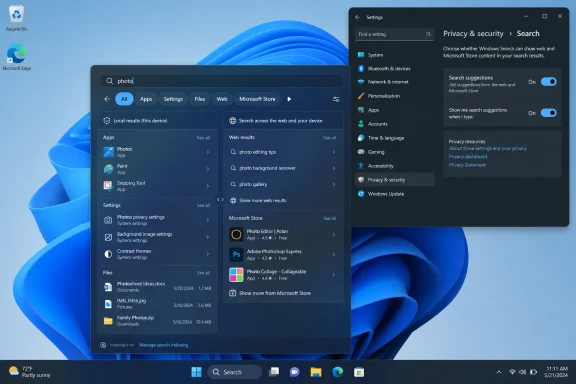
Windows 11’s redesigned Search experience should not automatically become a user-controlled feature on managed PCs. IT teams should first decide whether web and Microsoft Store discovery supports their environment, then verify that existing Search, taskbar, and Settings restrictions produce a coherent experience before Microsoft moves the change beyond the Windows Insider Experimental channel.
Microsoft began the controlled feature rollout on July 13, 2026, according to the Windows Insider blog, and has not announced a general-availability date. That uncertainty is useful: administrators have time to test whether the cleaner interface complements their support model or exposes controls that users cannot meaningfully change.
The visible improvement is straightforward. Windows Search will label apps, settings, files, web results, and Microsoft Store suggestions more clearly, while prioritizing local apps, settings, and files when they are the stronger match.
Microsoft is also adding a control under Settings > Privacy & Security > Search that lets users decide whether web and Microsoft Store suggestions appear alongside local results. For unmanaged users, this promises a cleaner way to separate local discovery from online recommendations without abandoning Windows Search entirely.
For enterprise IT, however, the new control creates a policy question. A toggle that appears available, appears locked, disappears because Settings pages are restricted, or conflicts with an existing device policy can produce four different help-desk experiences—even if all four devices ultimately return similar local results.
That makes this more than the latest visual cleanup in Windows 11 Search. It is a new point where user preference, device policy, Windows edition, taskbar configuration, and support documentation can collide.
WindowsForum has tracked Microsoft’s broader effort to improve Windows Search usability, app discovery, and result ranking. The July 2026 change narrows that work into a concrete deployment choice: allow personal control over online suggestions, or standardize Search as a managed, local-first entry point.
A practical pre-rollout review can begin with these steps:
The policy applies to Windows Enterprise, Education, and IoT Enterprise or IoT Enterprise LTSC. It does not apply to Windows Pro, which matters for organizations with mixed licensing, lightly managed branch devices, contractor systems, or PCs purchased outside the standard deployment process.
A configuration that works on Enterprise therefore cannot be assumed to establish the same experience on Pro. If users can control web and Store suggestions on one device but encounter an enforced local-only configuration on another, the discrepancy may be an edition limitation rather than failed policy processing.
The policy’s scope also clarifies the ownership decision. On supported editions, leaving
Microsoft Store suggestions deserve separate attention during testing. The new Settings control groups web and Store suggestions into the user’s discovery decision, while
That distinction is especially important where the Microsoft Store is restricted through controls outside this Search change. A Store suggestion that points toward an app users cannot obtain is technically discoverable but operationally useless, and it can generate avoidable tickets.
Once the policy is configured, users cannot change that taskbar choice in Settings. This makes it a useful companion to a deliberate Search deployment, but it controls presentation rather than deciding whether web results should be available.
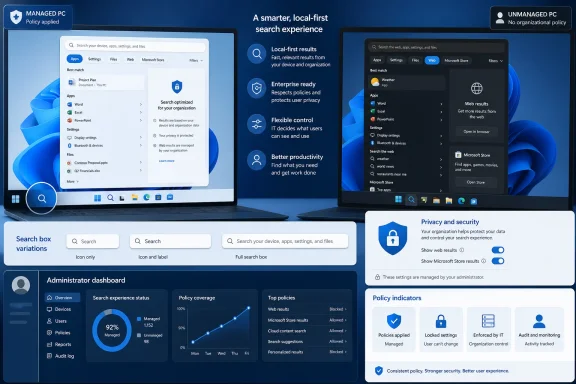
The combinations carry different expectations. A full search box suggests that Search is a primary route to apps, files, settings, and potentially online discovery. An icon-only configuration keeps the feature available without giving it the same visual prominence, while hiding Search reduces exposure but does not answer how Search should behave when invoked elsewhere.
IT should therefore test
That can be perfectly acceptable when policy defines the experience. It becomes a problem when support articles, onboarding material, or technicians instruct users to visit a page that their device configuration hides.
The safest approach is to document Search in terms of observable behavior. Tell users whether Search is expected to return local apps, settings, files, web results, and Store suggestions—not merely where a toggle would appear on an unrestricted PC.
This is also where pilot membership matters. A test group composed only of administrators will miss the locked-Settings experience faced by standard users. The validation pool should reflect the actual combinations of edition, taskbar mode, Settings access, and Search policy deployed across the fleet.
A managed local-first posture is more defensible where predictable results matter more than optional discovery. Shared devices, tightly standardized desktops, and support environments built around known local tools benefit from Search behaving consistently for every user.
Mixed environments may need both models, but the boundary should follow a deliberate device or user population rather than accidental policy coverage. In particular, the lack of
Microsoft has provided the beginnings of a better user experience, not a complete enterprise deployment model. The company has not announced when the change will reach general availability, and the Experimental rollout can still change before broader release.
The immediate task for administrators is to build a small Search acceptance test now: verify the new control, compare managed and unmanaged results, include Windows Pro where it exists, validate every enforced taskbar mode, and rewrite help-desk instructions around the experience users will actually receive. By the time Microsoft announces a wider rollout, the important decision should already be settled: whether Search is a personal discovery surface or a centrally defined route to local resources.
Microsoft began the controlled feature rollout on July 13, 2026, according to the Windows Insider blog, and has not announced a general-availability date. That uncertainty is useful: administrators have time to test whether the cleaner interface complements their support model or exposes controls that users cannot meaningfully change.
 The New Toggle Changes More Than Search’s Appearance
The visible improvement is straightforward. Windows Search will label apps, settings, files, web results, and Microsoft Store suggestions more clearly, while prioritizing local apps, settings, and files when they are the stronger match.Microsoft is also adding a control under Settings > Privacy & Security > Search that lets users decide whether web and Microsoft Store suggestions appear alongside local results. For unmanaged users, this promises a cleaner way to separate local discovery from online recommendations without abandoning Windows Search entirely.
For enterprise IT, however, the new control creates a policy question. A toggle that appears available, appears locked, disappears because Settings pages are restricted, or conflicts with an existing device policy can produce four different help-desk experiences—even if all four devices ultimately return similar local results.
That makes this more than the latest visual cleanup in Windows 11 Search. It is a new point where user preference, device policy, Windows edition, taskbar configuration, and support documentation can collide.
WindowsForum has tracked Microsoft’s broader effort to improve Windows Search usability, app discovery, and result ranking. The July 2026 change narrows that work into a concrete deployment choice: allow personal control over online suggestions, or standardize Search as a managed, local-first entry point.
Test the Intended Experience Before Testing the Interface
The first pilot should not ask whether the new Search box looks better. It should ask what users are supposed to find, what they are permitted to change, and what support staff will tell them when Search behaves differently from a personal Windows PC.A practical pre-rollout review can begin with these steps:
- Enroll representative test devices in the Windows Insider Experimental channel and confirm whether the controlled rollout has reached them. Because Microsoft is staging the feature, two otherwise similar test devices may not receive it simultaneously.
- Open Settings > Privacy & Security > Search and record whether the new web and Microsoft Store suggestions control is visible, editable, restricted, or absent.
- Search for a locally installed app, a Windows setting, and a local file. Confirm that each result is clearly labeled and that the strongest local match appears ahead of web or Store suggestions.
- Repeat the searches with web and Store suggestions enabled, then disabled. The test should establish what changes in the result set rather than relying on the toggle’s wording.
- Apply the organization’s existing web-search policy to an eligible edition and repeat the same queries. Confirm that Windows does not perform web queries or display web results when
DoNotUseWebResultsis enforced. - Test every taskbar Search presentation used by the organization: hidden, icon only, icon and label, or the full search box. Users may perceive the same result behavior differently depending on how prominently Search is presented.
- Repeat the test on devices where Settings pages are restricted. Verify that users can still understand the deployed Search behavior even if they cannot reach the page containing the new control.
- Give the resulting matrix to service-desk staff before expanding the pilot. Support guidance should describe the managed experience, not merely repeat Microsoft’s instructions for an unmanaged PC.
DoNotUseWebResults Draws an Important Edition Boundary
Microsoft’s existingDoNotUseWebResults CSP remains the clearest control for organizations that want Windows Search to stay off the web. When enabled, it prevents Search from performing web queries and prevents web results from appearing.The policy applies to Windows Enterprise, Education, and IoT Enterprise or IoT Enterprise LTSC. It does not apply to Windows Pro, which matters for organizations with mixed licensing, lightly managed branch devices, contractor systems, or PCs purchased outside the standard deployment process.
A configuration that works on Enterprise therefore cannot be assumed to establish the same experience on Pro. If users can control web and Store suggestions on one device but encounter an enforced local-only configuration on another, the discrepancy may be an edition limitation rather than failed policy processing.
The policy’s scope also clarifies the ownership decision. On supported editions, leaving
DoNotUseWebResults unconfigured makes room for the user-facing choice. Enforcing it establishes a device-level posture in which online web discovery is not a personal preference.Microsoft Store suggestions deserve separate attention during testing. The new Settings control groups web and Store suggestions into the user’s discovery decision, while
DoNotUseWebResults is specifically documented as preventing web queries and web results. Administrators should not infer unverified Store behavior from the web policy’s name; they should observe the result categories presented by the pilot devices.That distinction is especially important where the Microsoft Store is restricted through controls outside this Search change. A Store suggestion that points toward an app users cannot obtain is technically discoverable but operationally useless, and it can generate avoidable tickets.
Taskbar Policy Determines How Strongly Search Is Advertised
ConfigureSearchOnTaskbarMode controls whether Windows 11 presents Search as hidden, an icon, an icon with a label, or a full search box. It is supported on Windows 11 24H2 and later, including Pro, Enterprise, Education, and IoT Enterprise editions.Once the policy is configured, users cannot change that taskbar choice in Settings. This makes it a useful companion to a deliberate Search deployment, but it controls presentation rather than deciding whether web results should be available.
The combinations carry different expectations. A full search box suggests that Search is a primary route to apps, files, settings, and potentially online discovery. An icon-only configuration keeps the feature available without giving it the same visual prominence, while hiding Search reduces exposure but does not answer how Search should behave when invoked elsewhere.
IT should therefore test
ConfigureSearchOnTaskbarMode and DoNotUseWebResults as separate policy dimensions:- A full search box with user-controlled web and Store suggestions favors broad discovery.
- A full search box with web results blocked favors highly visible local navigation.
- An icon-only presentation can preserve access while reducing taskbar clutter.
- A hidden taskbar entry reduces visibility but should not be treated as a substitute for controlling web queries.
Locked Settings Can Turn a Useful Control Into a Support Trap
Organizations that limit access to Settings need an additional test pass. If Privacy & Security > Search is unavailable, users may never see the control Microsoft expects them to use to manage web and Store suggestions.That can be perfectly acceptable when policy defines the experience. It becomes a problem when support articles, onboarding material, or technicians instruct users to visit a page that their device configuration hides.
The safest approach is to document Search in terms of observable behavior. Tell users whether Search is expected to return local apps, settings, files, web results, and Store suggestions—not merely where a toggle would appear on an unrestricted PC.
This is also where pilot membership matters. A test group composed only of administrators will miss the locked-Settings experience faced by standard users. The validation pool should reflect the actual combinations of edition, taskbar mode, Settings access, and Search policy deployed across the fleet.
User Choice Fits Some Fleets Better Than Others
Allowing users to control web and Store suggestions is reasonable where Windows PCs are individually assigned, Settings personalization is already permitted, and online discovery is considered useful. The cleaner labels and stronger prioritization of local matches may reduce the confusion that previously drove organizations toward stricter controls.A managed local-first posture is more defensible where predictable results matter more than optional discovery. Shared devices, tightly standardized desktops, and support environments built around known local tools benefit from Search behaving consistently for every user.
Mixed environments may need both models, but the boundary should follow a deliberate device or user population rather than accidental policy coverage. In particular, the lack of
DoNotUseWebResults support on Pro can make edition composition part of the Search architecture.Microsoft has provided the beginnings of a better user experience, not a complete enterprise deployment model. The company has not announced when the change will reach general availability, and the Experimental rollout can still change before broader release.
The immediate task for administrators is to build a small Search acceptance test now: verify the new control, compare managed and unmanaged results, include Windows Pro where it exists, validate every enforced taskbar mode, and rewrite help-desk instructions around the experience users will actually receive. By the time Microsoft announces a wider rollout, the important decision should already be settled: whether Search is a personal discovery surface or a centrally defined route to local resources.
References
- Primary source: learn.microsoft.com
Policy-based in-box app removal | Microsoft Learn
This article is most useful for IT administrators managing Windows Enterprise or Education devices who need to remove preinstalled Microsoft Store apps (in-box apps) at scale. It provides step-by-step guidance for enabling policy-based app removal via Intune or Group Policy, including...learn.microsoft.com - Independent coverage: windowscentral.com
Microsoft announces major Windows 11 search overhaul that prioritizes clearer, local results, and removes ads: Huge effort to fix search on Windows is finally happening | Windows Central
Windows 11's search user experience is getting a big update, with Microsoft moving to prioritize local results, remove promotional content, and much more.www.windowscentral.com - Independent coverage: pcgamer.com
New changes to Windows 11 Start menu and search look genuinely exciting and thank the heavens that we'll be able to disable web results | PC Gamer
Keep going in this direction, please, Microsoft.www.pcgamer.com - Independent coverage: techradar.com
'We love this... except gradual rollouts': Windows 11 search is being improved in a big way, with users impatient to get these changes — and I don't blame them | TechRadar
Less clutter, more relevance — and an option to ditch web resultswww.techradar.com - Independent coverage: blogs.windows.com
Improving Windows Search Box, with less clutter and more control
Hello Windows Insiders, You’ve been asking for search that is faster, more relevant, and easier to use—whether you’re opening an app, finding a file, or changing a setting. Because the Windows Search Box is where many people start, we focusedblogs.windows.com - Primary source: WindowsForum
Windows 11 Gets Unified Search Settings for Better Usability and Privacy Control | Windows Forum
Microsoft’s ongoing evolution of Windows 11 has been characterized by a steady stream of quality-of-life improvements. While some changes are headline...windowsforum.com