

Windows 11 users whose second monitor is not detected should first verify the physical display chain, then use Windows + P, Settings > System > Display > Multiple displays > Detect, and graphics-driver troubleshooting to separate a bad cable, dock, adapter, driver, power state, or hardware limit from a Windows configuration problem. The fix is often mundane, but the failure mode feels bigger because modern display setups are no longer just “one cable, one screen.” They are a negotiation among USB-C, DisplayPort Alt Mode, Thunderbolt, docks, GPU drivers, sleep states, and Windows’ own display memory. That complexity is why the best troubleshooting path is not a magic setting, but a disciplined narrowing of the chain.
A second monitor that goes dark in Windows 11 looks like a software bug because the failure appears inside Windows. The Settings app says nothing is detected, the external panel shows “no signal,” and the user is left staring at a perfectly good monitor that worked yesterday. But the operating system is only one participant in the handshake.
Between the GPU and the panel sit cable quality, port capability, adapter support, dock firmware, monitor input selection, and sometimes a laptop vendor’s interpretation of USB-C. If any one of those fails, Windows may have nothing meaningful to display. That is why the old ritual of unplugging and replugging still works often enough to remain embarrassing.
TweakTown’s troubleshooting flow gets the order mostly right: start with the physical layer, then move inward toward Windows settings and drivers. That may sound basic, but it is the difference between fixing a real problem and burning an hour reinstalling a driver for a monitor that was simply connected to a USB-C port with no video output.
The most important mental shift is this: Windows 11 is not always failing to detect the second monitor. Sometimes the second monitor is never successfully presenting itself to Windows in the first place.
This matters most with USB-C, where the connector has become a triumph of physical convenience and semantic chaos. A laptop may have two USB-C ports that look identical, while only one supports DisplayPort Alt Mode or Thunderbolt. A user can plug a monitor into the “wrong” USB-C port and reasonably expect it to work, because the industry made the port look universal before making the capabilities obvious.
Docks and hubs add another layer. A powered Thunderbolt dock, a cheap USB-C hub, and a DisplayLink-based adapter may all be described casually as “the dock,” but they behave differently. Some pass native GPU video, some rely on compression and software drivers, and some support only one external monitor even when they have multiple physical ports.
The practical test is simple: remove the middlemen. Connect the monitor directly to the PC or laptop with a known-good cable, select the correct input on the monitor itself, and verify that the panel is awake rather than stuck in standby. If the monitor works directly but fails through a dock or adapter, Windows is no longer the prime suspect.
The trap is “PC screen only.” If that mode is active, Windows may be perfectly capable of using the external monitor while deliberately keeping it disabled. Switching to Extend is usually the right diagnostic move because it treats the external panel as additional workspace rather than a mirror or replacement.
There is a small but important patience tax here. When changing projection modes, both screens can blink, go black, or rearrange themselves for several seconds. Users often interrupt the process by unplugging the cable or changing settings again, which creates a second problem before the first has finished resolving.
For IT support desks, Windows + P is also a useful scriptable moment in human troubleshooting. It is quick, reversible, and understandable over a phone call. If the second screen lights up after pressing Windows + P and choosing Extend, the problem was not a bad monitor, bad cable, or broken GPU. It was display state.
The Identify button is just as important after the monitor appears. Multi-monitor setups often become confusing not because a screen is missing, but because Windows assigns unexpected positions or numbering. A user may think the second screen is not working when the desktop is extended to the wrong side, leaving the mouse pointer seemingly vanishing off an edge.
Resolution and scaling deserve more respect than they usually get in these guides. A monitor set to an unsupported mode can behave like a flaky connection, especially when adapters or docks are involved. Returning the display to recommended resolution and scaling is not merely cosmetic; it reduces the negotiation to a sane baseline.
This is also where Windows 11 shows both its strength and its weakness. Microsoft has invested heavily in remembering window positions and improving multi-monitor behavior over time, but the system still depends on clean detection events. When a dock wakes late, a monitor reports slowly, or a driver hiccups, the polished interface has very little to work with.
The well-known Windows + Ctrl + Shift + B shortcut is useful here, but it is often described too casually as “restarting the graphics driver.” More precisely, it forces Windows’ graphics stack to recover from certain display-related hangs or glitches. The screen may flicker and the system may beep, which can be alarming if the user is not expecting it.
If that does not help, Device Manager remains the accessible route: expand Display adapters, update the GPU driver, and if needed uninstall the device before installing a fresh driver from Intel, AMD, Nvidia, or the PC vendor. Windows Update can supply functional drivers, but laptop graphics stacks in particular may depend on vendor-specific packages for switching, docking, and power behavior.
There is a danger in overcorrecting. A clean driver reinstall can fix real problems, but it can also hide the original cause if the actual issue was a failing adapter or a dock firmware bug. Good troubleshooting preserves evidence. If the monitor works on HDMI but not through USB-C after a driver reinstall, the driver may not have been the culprit at all.
Windows, the GPU, the USB controller, the dock, and the monitor all have their own low-power states. Ideally, they wake in the correct order and renegotiate video cleanly. In the real world, one component wakes too late, another assumes the display is gone, and Windows rebuilds the desktop around a single monitor.
Disabling PCI Express Link State Power Management or preventing specific USB controllers from being powered down can help in stubborn dock and USB-C cases. These are not elegant fixes, because they trade some power efficiency for stability. On a desktop workstation, that trade may be trivial; on a laptop, it is a judgment call.
The bigger lesson is that modern standby and modern docking do not always make good neighbors. Enterprises have known this for years, which is why fleet laptop deployments often standardize on specific dock models, firmware versions, and graphics drivers. Home users discover the same truth one mysterious black screen at a time.
The most common misconception is that every port on a dock can be used at once at full capability. Some docks share bandwidth across display outputs. Some support dual displays only at lower refresh rates. Some require Thunderbolt rather than ordinary USB-C. Others rely on DisplayLink, which can be useful but introduces a software dependency that native GPU outputs do not have.
This is where hardware limits become visible. A laptop’s integrated graphics may support only a fixed number of active displays. A GPU may have four outputs but support a lower number of simultaneous independent displays under certain conditions. A dock may advertise dual 4K support, but only on specific host ports or at 30Hz rather than 60Hz.
The cleanest test is again isolation. If each monitor works alone, but one disappears when both are connected through the dock, the issue is probably not the monitor. It is the capacity or configuration of the path between the laptop and the displays.
But the detection problem is bigger than Microsoft. The PC ecosystem has normalized ports whose capabilities are invisible, docks whose marketing outpaces their constraints, and adapters that silently downshift or fail at higher resolutions. Windows then becomes the complaint desk for an industry that has made “plug and play” conditional.
That does not absolve Windows. The operating system could communicate failures more clearly. Instead of “we didn’t find another display,” it could surface whether a USB-C port lacks video capability, whether a display was seen and rejected due to mode failure, or whether a dock is reporting insufficient bandwidth. Users need fewer generic dead ends and more diagnostics that reflect the actual chain.
For sysadmins, this is not an academic complaint. A vague display failure can become a support ticket, a lost meeting, or a returned laptop. Better error reporting would reduce guesswork, especially in hybrid work setups where the IT team cannot physically inspect the cable, dock, and monitor.
That sequence matters because random troubleshooting is destructive. Users swap cables, reinstall drivers, change scaling, reboot repeatedly, and update firmware without knowing which step changed the outcome. The result is a working monitor and no understanding, which means the problem returns the next time the laptop sleeps or the dock is moved.
A more disciplined approach treats each step as a test. Does the monitor work with another computer using the same cable? Does another monitor work on the original PC? Does the display work directly but not through the dock? Does it fail only after sleep? Each answer narrows the suspect list.
This is the same logic IT professionals use at scale, translated for a home desk. Do not start with the most dramatic fix. Start with the cheapest reversible test that eliminates the largest category of causes.
Bad cables do not always fail absolutely. They may work at 1080p but fail at 4K, work at 60Hz but not 144Hz, or work when cold but fail after a dock has been running all day. Adapters can behave the same way, especially inexpensive HDMI-to-VGA or USB-C-to-HDMI units pushed near their advertised limits.
Intermittence also points toward power and wake behavior. A monitor that vanishes only after the laptop sleeps may not need a new GPU driver. It may need dock firmware, a different power plan, a powered dock instead of a passive hub, or a habit of reconnecting the dock after wake until a vendor fix appears.
This is where users should be honest about their tolerance for fiddling. If a setup is mission-critical, a flaky dock or cable is not a quirk; it is a liability. Replace the suspect component once testing points to it, rather than building a daily ritual around its failure.
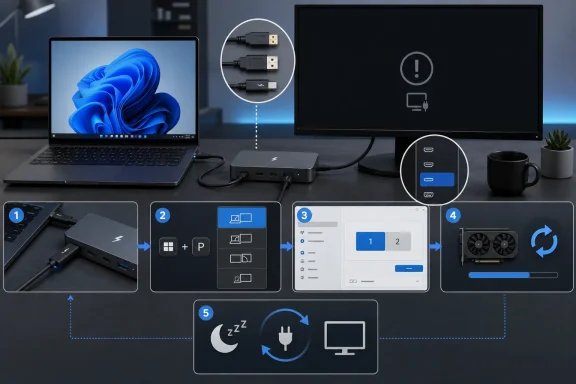 The Second Monitor Problem Is Really a Chain-of-Trust Problem
A second monitor that goes dark in Windows 11 looks like a software bug because the failure appears inside Windows. The Settings app says nothing is detected, the external panel shows “no signal,” and the user is left staring at a perfectly good monitor that worked yesterday. But the operating system is only one participant in the handshake.Between the GPU and the panel sit cable quality, port capability, adapter support, dock firmware, monitor input selection, and sometimes a laptop vendor’s interpretation of USB-C. If any one of those fails, Windows may have nothing meaningful to display. That is why the old ritual of unplugging and replugging still works often enough to remain embarrassing.
TweakTown’s troubleshooting flow gets the order mostly right: start with the physical layer, then move inward toward Windows settings and drivers. That may sound basic, but it is the difference between fixing a real problem and burning an hour reinstalling a driver for a monitor that was simply connected to a USB-C port with no video output.
The most important mental shift is this: Windows 11 is not always failing to detect the second monitor. Sometimes the second monitor is never successfully presenting itself to Windows in the first place.
The Cable Is Still the First Suspect, Even in a USB-C World
The humble cable remains the most common and least glamorous point of failure. HDMI, DisplayPort, and USB-C all carry video, but they do not carry it under the same assumptions. A cable can fit perfectly and still be wrong for the refresh rate, resolution, adapter, or port being used.This matters most with USB-C, where the connector has become a triumph of physical convenience and semantic chaos. A laptop may have two USB-C ports that look identical, while only one supports DisplayPort Alt Mode or Thunderbolt. A user can plug a monitor into the “wrong” USB-C port and reasonably expect it to work, because the industry made the port look universal before making the capabilities obvious.
Docks and hubs add another layer. A powered Thunderbolt dock, a cheap USB-C hub, and a DisplayLink-based adapter may all be described casually as “the dock,” but they behave differently. Some pass native GPU video, some rely on compression and software drivers, and some support only one external monitor even when they have multiple physical ports.
The practical test is simple: remove the middlemen. Connect the monitor directly to the PC or laptop with a known-good cable, select the correct input on the monitor itself, and verify that the panel is awake rather than stuck in standby. If the monitor works directly but fails through a dock or adapter, Windows is no longer the prime suspect.
Windows + P Is Not a Toy Shortcut
The Windows + P projection menu is easy to dismiss because it feels like a consumer shortcut meant for conference rooms and projectors. In reality, it is one of the fastest ways to determine whether Windows sees another display path but is simply configured not to use it. The four options are blunt, but useful: PC screen only, Duplicate, Extend, and Second screen only.The trap is “PC screen only.” If that mode is active, Windows may be perfectly capable of using the external monitor while deliberately keeping it disabled. Switching to Extend is usually the right diagnostic move because it treats the external panel as additional workspace rather than a mirror or replacement.
There is a small but important patience tax here. When changing projection modes, both screens can blink, go black, or rearrange themselves for several seconds. Users often interrupt the process by unplugging the cable or changing settings again, which creates a second problem before the first has finished resolving.
For IT support desks, Windows + P is also a useful scriptable moment in human troubleshooting. It is quick, reversible, and understandable over a phone call. If the second screen lights up after pressing Windows + P and choosing Extend, the problem was not a bad monitor, bad cable, or broken GPU. It was display state.
The Settings App Is Where Detection Becomes Policy
Windows 11’s Display settings are the next stop because they expose the operating system’s current understanding of the monitor topology. The relevant path is familiar by now: Settings, System, Display, Multiple displays, then Detect. If Windows has missed a hot-plug event or failed to wake a display cleanly, this can nudge the enumeration process.The Identify button is just as important after the monitor appears. Multi-monitor setups often become confusing not because a screen is missing, but because Windows assigns unexpected positions or numbering. A user may think the second screen is not working when the desktop is extended to the wrong side, leaving the mouse pointer seemingly vanishing off an edge.
Resolution and scaling deserve more respect than they usually get in these guides. A monitor set to an unsupported mode can behave like a flaky connection, especially when adapters or docks are involved. Returning the display to recommended resolution and scaling is not merely cosmetic; it reduces the negotiation to a sane baseline.
This is also where Windows 11 shows both its strength and its weakness. Microsoft has invested heavily in remembering window positions and improving multi-monitor behavior over time, but the system still depends on clean detection events. When a dock wakes late, a monitor reports slowly, or a driver hiccups, the polished interface has very little to work with.
Graphics Drivers Are the Interpreter Between Windows and the Panel
Graphics drivers sit at the heart of the problem because they translate Windows’ display model into hardware behavior. A driver bug can make a monitor disappear, refuse a valid refresh rate, mishandle sleep recovery, or fail to reinitialize a port after a cable swap. This is why driver troubleshooting belongs in the middle of the process, not at the very beginning and not as a last resort.The well-known Windows + Ctrl + Shift + B shortcut is useful here, but it is often described too casually as “restarting the graphics driver.” More precisely, it forces Windows’ graphics stack to recover from certain display-related hangs or glitches. The screen may flicker and the system may beep, which can be alarming if the user is not expecting it.
If that does not help, Device Manager remains the accessible route: expand Display adapters, update the GPU driver, and if needed uninstall the device before installing a fresh driver from Intel, AMD, Nvidia, or the PC vendor. Windows Update can supply functional drivers, but laptop graphics stacks in particular may depend on vendor-specific packages for switching, docking, and power behavior.
There is a danger in overcorrecting. A clean driver reinstall can fix real problems, but it can also hide the original cause if the actual issue was a failing adapter or a dock firmware bug. Good troubleshooting preserves evidence. If the monitor works on HDMI but not through USB-C after a driver reinstall, the driver may not have been the culprit at all.
Sleep Is Where Display Setups Go to Lose Their Memory
Many second-monitor failures do not happen when the monitor is first connected. They happen after sleep, lid close, dock reconnect, or overnight idle. That pattern points less toward a dead cable and more toward power management.Windows, the GPU, the USB controller, the dock, and the monitor all have their own low-power states. Ideally, they wake in the correct order and renegotiate video cleanly. In the real world, one component wakes too late, another assumes the display is gone, and Windows rebuilds the desktop around a single monitor.
Disabling PCI Express Link State Power Management or preventing specific USB controllers from being powered down can help in stubborn dock and USB-C cases. These are not elegant fixes, because they trade some power efficiency for stability. On a desktop workstation, that trade may be trivial; on a laptop, it is a judgment call.
The bigger lesson is that modern standby and modern docking do not always make good neighbors. Enterprises have known this for years, which is why fleet laptop deployments often standardize on specific dock models, firmware versions, and graphics drivers. Home users discover the same truth one mysterious black screen at a time.
The Dock May Be the Bottleneck, Not the Bridge
Docks are sold as simplifiers, but they are often the most complicated device in the setup. A laptop with one cable connected to two monitors, Ethernet, power, audio, and peripherals looks clean on the desk. Underneath, that cable is carrying a crowded set of protocols and compromises.The most common misconception is that every port on a dock can be used at once at full capability. Some docks share bandwidth across display outputs. Some support dual displays only at lower refresh rates. Some require Thunderbolt rather than ordinary USB-C. Others rely on DisplayLink, which can be useful but introduces a software dependency that native GPU outputs do not have.
This is where hardware limits become visible. A laptop’s integrated graphics may support only a fixed number of active displays. A GPU may have four outputs but support a lower number of simultaneous independent displays under certain conditions. A dock may advertise dual 4K support, but only on specific host ports or at 30Hz rather than 60Hz.
The cleanest test is again isolation. If each monitor works alone, but one disappears when both are connected through the dock, the issue is probably not the monitor. It is the capacity or configuration of the path between the laptop and the displays.
Windows 11 Gets Blamed for Industry Ambiguity
Windows 11 deserves scrutiny because the user experiences the failure through Windows. It also carries some baggage: multi-monitor taskbar behavior, window placement, scaling quirks, and notification access on secondary displays have all been recurring points of irritation. Users do not separate display detection from the broader feeling that Windows 11 still treats secondary monitors as secondary citizens.But the detection problem is bigger than Microsoft. The PC ecosystem has normalized ports whose capabilities are invisible, docks whose marketing outpaces their constraints, and adapters that silently downshift or fail at higher resolutions. Windows then becomes the complaint desk for an industry that has made “plug and play” conditional.
That does not absolve Windows. The operating system could communicate failures more clearly. Instead of “we didn’t find another display,” it could surface whether a USB-C port lacks video capability, whether a display was seen and rejected due to mode failure, or whether a dock is reporting insufficient bandwidth. Users need fewer generic dead ends and more diagnostics that reflect the actual chain.
For sysadmins, this is not an academic complaint. A vague display failure can become a support ticket, a lost meeting, or a returned laptop. Better error reporting would reduce guesswork, especially in hybrid work setups where the IT team cannot physically inspect the cable, dock, and monitor.
The Best Fix Is a Method, Not a Menu
The useful thing about TweakTown’s guide is not that it reveals an obscure registry setting. It does not. Its value is that it pushes users toward a sequence: physical connection, projection mode, Display settings, driver state, power behavior, hardware limits, and isolation testing.That sequence matters because random troubleshooting is destructive. Users swap cables, reinstall drivers, change scaling, reboot repeatedly, and update firmware without knowing which step changed the outcome. The result is a working monitor and no understanding, which means the problem returns the next time the laptop sleeps or the dock is moved.
A more disciplined approach treats each step as a test. Does the monitor work with another computer using the same cable? Does another monitor work on the original PC? Does the display work directly but not through the dock? Does it fail only after sleep? Each answer narrows the suspect list.
This is the same logic IT professionals use at scale, translated for a home desk. Do not start with the most dramatic fix. Start with the cheapest reversible test that eliminates the largest category of causes.
The Real Warning Sign Is Intermittence
A monitor that never works is annoying, but often easy to diagnose. A monitor that works on Tuesdays, fails after sleep, and returns after three cable reseats is worse. Intermittent failures are where second-monitor troubleshooting becomes less about Windows settings and more about marginal signal integrity or firmware timing.Bad cables do not always fail absolutely. They may work at 1080p but fail at 4K, work at 60Hz but not 144Hz, or work when cold but fail after a dock has been running all day. Adapters can behave the same way, especially inexpensive HDMI-to-VGA or USB-C-to-HDMI units pushed near their advertised limits.
Intermittence also points toward power and wake behavior. A monitor that vanishes only after the laptop sleeps may not need a new GPU driver. It may need dock firmware, a different power plan, a powered dock instead of a passive hub, or a habit of reconnecting the dock after wake until a vendor fix appears.
This is where users should be honest about their tolerance for fiddling. If a setup is mission-critical, a flaky dock or cable is not a quirk; it is a liability. Replace the suspect component once testing points to it, rather than building a daily ritual around its failure.
A Practical Order for the Black-Screen Desk
The concrete lesson is that the second monitor is not a single device in Windows’ eyes. It is the endpoint of a chain, and the chain should be tested from the outside in before the operating system is blamed or rebuilt.- Confirm that the monitor is powered on, set to the correct input, and connected with a known-good HDMI, DisplayPort, or video-capable USB-C cable.
- Bypass docks, hubs, and adapters by connecting the display directly to the PC or laptop whenever the hardware allows it.
- Use Windows + P and choose Extend or Duplicate before assuming the monitor is undetected.
- Open Windows 11 Display settings, use Detect under Multiple displays, and return resolution and scaling to recommended values if the monitor appears.
- Refresh or reinstall the graphics driver only after the physical connection and Windows display mode have been ruled out.
- Treat failures that happen after sleep or through a dock as power-management, firmware, bandwidth, or hardware-limit problems until testing proves otherwise.
References
- Primary source: TweakTown
Published: Sat, 23 May 2026 19:24:07 GMT
Second Monitor Not Detected in Windows 11? Try These Fixes
Windows 11 not detecting your second monitor? These fixes can help resolve connection, driver, and display-setting issues to get it working again. www.tweaktown.com
- Official source: support.microsoft.com
Troubleshoot external monitor connections in Windows | Microsoft Support
Find out how to troubleshoot one or more external monitors in Windows.support.microsoft.com - Related coverage: windowslatest.com
Explained: How Ctrl+Win+Shift+B is Windows 11's best shortcut to fix GPU issues
Discover the secret 'Ctrl+Win+Shift+B' keyboard shortcut & how it can help reset and debug your Windows graphics.www.windowslatest.com - Related coverage: windowscentral.com
Fix second monitor issues in Windows 10 and 11 | Windows Central
On Windows 10 and 11, you can use these steps to fix a second monitor not detected on your PC, and here's how.www.windowscentral.com - Related coverage: makeuseof.com
How to Reset Your Graphics Driver on Windows 10 & 11
Give your graphics card's drivers a quick reset with this guide. www.makeuseof.com
- Official source: answers.microsoft.com
Problem with Windows 11 (?) detecting external monitors from sleep - Microsoft Q&A
Laptop is Lenovo Yoga running Windows 11 with Intel(R) Iris(R) Xe Graphics driver. All up to date. The laptop is connected to two external monitors via USBC port and HDMI adaptor. The monitors work perfectly when the HDMI adaptor is plugged in, but…answers.microsoft.com
- Official source: cus.prod.support.services.microsoft.com
- Related coverage: tech2geek.net
How to Reset Graphics Driver in Windows 11 - Tech2Geek
The easiest and quickest way to refresh your graphics driver is to use the default keyboard shortcut. Please press the Windows, Ctrl, Shift,www.tech2geek.net - Official source: microsoft.com
Using a Monitor with a Closed Laptop | Microsoft Windows
Find out how you can use an external monitor with your laptop closed. Free up your desk space by learning how to shut your laptop while using a monitor.www.microsoft.com
- Official source: techcommunity.microsoft.com
My Laptop Doesn't Connect to the External Monitor after the Latest Windows 11 Update 16.02.2023 | Microsoft Community Hub
My Laptop Doesn't Connect to the External Monitor after the Latest Windows 11 Update as of date 16.02.2023The system does not install these updates even... techcommunity.microsoft.com
- Related coverage: techradar.com
Microsoft finally gets its act together to make Windows 11's taskbar work fully across multiple monitors | TechRadar
Notification center and calendar panels can now be accessed on secondary monitorwww.techradar.com - Related coverage: tomsguide.com
I review Windows laptops for a living, and these are the best keyboard shortcuts I found on Reddit | Tom's Guide
Be more productive and become a Windows 11 power user by mastering these useful keyboard shortcuts, which have been hand-selected from the most recommended shortcuts on Reddit.www.tomsguide.com

