

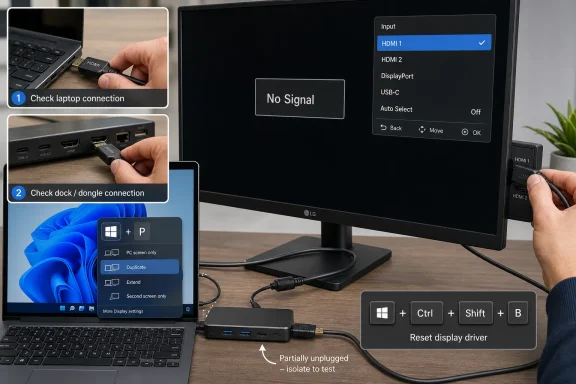
HDMI “No Signal” errors on Windows 10 and Windows 11 are usually fixed by checking the cable, selecting the correct monitor input, bypassing docks or adapters, changing Windows projection mode, forcing display detection, resetting the graphics driver, or reinstalling display and USB drivers. That answer is not glamorous, but it is useful: the blank screen is rarely the mystery it appears to be. In 2026, the modern Windows display stack is smarter than it used to be, yet it still depends on a fragile chain of ports, cables, adapters, firmware, drivers, and user settings. The trick is to troubleshoot that chain in the right order, not to immediately blame the graphics card or reinstall Windows.
A monitor that says “No Signal” is not saying your PC is dead. It is saying the monitor is not receiving a usable video stream on the input it is currently watching. That distinction matters, because it separates display failure from system failure.
If the fans are spinning, RGB lighting is on, the keyboard responds, or Windows startup sounds play, the computer may be working perfectly while the display path has failed somewhere between the GPU and the panel. HDMI makes this feel binary: either the picture appears or the monitor drops into a black screen with a terse warning. Underneath, however, there are several handshakes happening at once.
The monitor must be on the right input. The cable must carry a stable signal. The PC must be sending output through that port. Windows must be using a projection mode that includes the external display. The graphics driver must be alive enough to negotiate with the monitor.
That is why the best troubleshooting order starts outside Windows and moves inward. Begin with the things you can touch, then move to settings, then drivers, and only then start suspecting hardware failure.
Reseat the HDMI cable at both ends. Push it firmly into the PC and the monitor, and make sure the connector is not sagging under its own weight. A cable can look connected while sitting just far enough out of the socket to break the signal.
If reseating changes the behavior even briefly, the cable or port is suspect. Swap in another HDMI cable if you have one. This is not just about visible damage; HDMI cables can fail internally, and cheaper long cables are especially prone to flaky behavior at higher resolutions and refresh rates.
The same logic applies to the monitor’s input selector. Many displays have HDMI 1, HDMI 2, DisplayPort, USB-C, and legacy inputs sitting side by side. If the cable is plugged into HDMI 2 but the monitor is listening on HDMI 1, Windows can be flawless and still show nothing.
A good first pass is simple: power on the monitor, open its built-in menu using the physical buttons or joystick, and manually select the exact HDMI port you are using. Do not rely on auto-detect while troubleshooting. Auto-detect is convenient when it works and maddening when it does not.
The cleanest test is to remove all of it. Plug the monitor directly into the computer if the computer has a native HDMI port. If it does not, use the simplest known-good adapter you have, preferably one made for video output rather than a generic multiport hub doing power, USB, Ethernet, and display all at once.
This matters because USB-C is not a single promise. A USB-C port may support charging, data, DisplayPort Alt Mode, Thunderbolt, USB4, or some combination of those features. A USB-C-to-HDMI adapter that works on one laptop may fail on another if the port does not support the required display mode.
Docks add their own complications. They have firmware, power requirements, bandwidth limits, and monitor-count limits. A dock that can drive one 1080p monitor may not support two 4K displays at 60Hz. A bus-powered hub may behave differently when a charger is connected than when the laptop is running on battery.
There is also a persistent misunderstanding around splitters. A basic HDMI splitter duplicates one signal; it does not create a second independent desktop. If you are trying to extend Windows across two separate monitors using a splitter, the limitation is the hardware design, not a Windows bug.
If the PC has another HDMI port, try it. If it has DisplayPort or USB-C video output, try that with the right cable or adapter. Desktop PCs with both motherboard video outputs and a dedicated graphics card deserve special attention: if a discrete GPU is installed, the HDMI port on the motherboard may be disabled or irrelevant depending on BIOS settings and CPU graphics support.
On a tower PC, make sure the cable is plugged into the graphics card, not the motherboard, unless you deliberately use integrated graphics. This is a classic failure after moving a PC, cleaning a desk, or setting up a new monitor. The wrong HDMI port can fit perfectly and still carry no active signal.
Now test the monitor with another device. A laptop, game console, streaming box, or second PC will do. If the monitor fails with multiple devices and multiple cables, the monitor becomes the prime suspect. If it works immediately elsewhere, your original PC’s port, settings, or driver stack is where to focus.
The reverse test is useful too. Connect your PC to another display or TV. If the PC outputs correctly to that screen, the graphics adapter is probably alive, and the problem may be input selection, resolution compatibility, refresh rate, cable quality, or the original monitor itself.
This method sounds tedious, but it prevents the most expensive mistake in home troubleshooting: replacing the wrong thing. A bad cable can impersonate a dying GPU. A monitor stuck on the wrong input can impersonate a Windows driver failure. A flaky dock can impersonate all of them at once.
This setting is easy to change accidentally. A laptop used in a conference room, a PC connected to a TV, or a system restored from sleep can land in a mode that is wrong for the current setup. If Windows is set to “PC screen only,” the external monitor may receive nothing even though the cable and monitor are fine.
Press Windows logo key + P, then choose Duplicate or Extend. Duplicate mirrors the same image on both displays. Extend creates a larger desktop across them. For most desktop monitor setups, Extend is the right choice.
If you cannot see the menu because the primary display is also blank, you can still cycle modes from the keyboard. Press Windows logo key + P, press the down arrow or P again to move through the options, and press Enter. It is inelegant, but it can rescue a system that is technically running while outputting to the wrong target.
Projection mode is one of those Windows features that works so quietly most users forget it exists. That is exactly why it belongs early in the troubleshooting order.
Open Settings, go to System, then Display. Under the multiple displays area, use Detect. This forces Windows to look again for connected screens instead of relying only on the initial plug-in event.
If Windows sees the monitor after Detect, you can then arrange it, choose whether to extend or duplicate, and set the resolution and refresh rate. If Windows does not see it, that is useful information too. It suggests the problem sits lower in the stack: cable, port, adapter, dock, firmware, graphics driver, or monitor compatibility.
The Identify button is also worth using when multiple displays are connected. Windows will flash numbers on the screens it recognizes, letting you match the software layout to the physical desk. This is less about fixing “No Signal” and more about preventing the next round of confusion, especially when a monitor is active but arranged off to the wrong side of the desktop.
Display settings can also expose subtler problems. A monitor may be detected but set to a resolution or refresh rate it cannot reliably display. If the screen flickers, drops out, or shows “No Signal” after login but not during boot, try lowering the refresh rate and resolution from Windows display settings once you get a picture on another screen.
This shortcut is not magic, but it is often the right kind of blunt instrument. It can recover from a driver hang, a failed wake-from-sleep display state, or a graphics stack that has stopped presenting output correctly. Because it does not close your work, it is safer than a forced restart.
The shortcut is especially useful when the PC appears alive but the display path is stuck. It is also worth trying after connecting or disconnecting a dock, changing monitor inputs, or waking a laptop that no longer recognizes the external panel.
If the shortcut restores the display, treat that as a clue rather than a full diagnosis. A one-off driver stall is not unusual. Repeated stalls point toward an outdated graphics driver, dock firmware issue, bad adapter, unstable cable, or a sleep/resume bug.
A full restart remains the next step. Restarting clears more system state than resetting the display driver alone. A complete shutdown followed by a fresh power-on can go further still, particularly on systems affected by sleep, hibernation, or fast startup weirdness.
Open Device Manager, expand Display adapters, right-click the graphics adapter, and choose Update driver. Let Windows search automatically. Also check Windows Update, including optional driver updates if available.
For many PCs, the best driver may come from the device maker or GPU vendor rather than generic Windows Update. Intel, AMD, and NVIDIA all maintain graphics driver packages, while laptop manufacturers often publish customized versions tuned for their hardware. That distinction matters more on laptops with switchable graphics, USB-C display routing, or vendor-specific power behavior.
The right driver strategy depends on when the problem began. If HDMI stopped working after a driver update, rolling back is more logical than updating again. In Device Manager, open the adapter properties, go to the Driver tab, and use Roll Back Driver if the option is available.
If the driver seems corrupted or roll back is unavailable, uninstalling the display adapter and restarting can force Windows to reinstall it. This is not the same as deleting Windows. It removes the device instance and lets Windows rebuild the driver relationship on startup.
Driver fixes should be approached with some restraint. If you have a corporate laptop, managed workstation, or production machine, do not casually install random driver packages from third-party sites. Use Windows Update, the PC manufacturer, the GPU vendor, or your organization’s software management system.
If the display path depends on USB, unplug the dock or adapter, wait a few seconds, and reconnect it. Try another USB port. If the dock has its own power supply, disconnect power from the dock as well, then reconnect it after a short wait.
Device Manager can also be used to reset USB controllers. Under Universal Serial Bus controllers, uninstalling a problematic controller or hub and restarting allows Windows to reinstall it. This can clear a stuck device state, though it may briefly disrupt other USB peripherals.
Power management is another suspect. Windows can turn off USB devices to save power, which is sensible for battery life but sometimes unhelpful for a display adapter. In the USB Root Hub properties, the Power Management tab may include an option allowing Windows to turn off the device to save power. Disabling that option can help with displays that vanish after sleep or idle time.
There is also a broader USB selective suspend setting in advanced power options. Turning it off can keep USB display hardware awake, but it is not a free lunch on laptops. More devices staying powered means more battery drain, so it should be treated as a targeted experiment, not a permanent universal tweak.
This is more likely when the display works during boot but fails when Windows loads. The BIOS or boot logo often uses a basic low-resolution mode. Windows then loads the graphics driver and switches to the configured desktop mode. If that mode is unsupported or unstable, the monitor may drop out.
If you can access Windows on another screen, lower the external monitor’s resolution and refresh rate. Start with a conservative setting such as 1920×1080 at 60Hz, then work upward. If the monitor becomes stable at lower settings, the issue may be cable bandwidth, adapter capability, dock limits, or monitor support.
High refresh rate monitors make this more common. A cable that worked for 1080p at 60Hz may not handle 1440p at 144Hz or 4K at 120Hz. HDMI version support also matters, but the printed claims on cheap cables and adapters are not always trustworthy. Practical testing beats packaging.
The same principle applies to chains involving conversion. HDMI-to-DisplayPort and DisplayPort-to-HDMI are not interchangeable in all contexts, and some conversions require active adapters. If your setup depends on converting one standard to another, simplify it temporarily or use a known active adapter designed for that direction.
This is most relevant on desktop PCs with both integrated graphics and a dedicated GPU. Some systems disable integrated graphics when a discrete GPU is installed. Others allow both. If you want to use motherboard HDMI and graphics card outputs at the same time, firmware settings may need to permit it.
Power state also matters. Sleep and resume remain a source of display oddities, especially with docks and USB-C monitors. A monitor that works after a cold boot but fails after sleep is pointing toward power management, dock firmware, graphics driver behavior, or USB selective suspend rather than a dead HDMI port.
A complete shutdown is worth distinguishing from a restart. Restarting reloads Windows, but a full shutdown followed by disconnecting power from the monitor, dock, and PC can clear states that survive a softer cycle. For a desktop, that may mean shutting down, switching off the PSU or unplugging it briefly, then powering back up. For a laptop, it may mean shutting down, disconnecting the dock and charger, waiting, then starting with only the display attached.
Firmware updates should be handled carefully but not ignored. PC makers, dock manufacturers, and monitor vendors sometimes ship updates that fix display detection and resume problems. On business hardware, those updates are often delivered through vendor utilities or enterprise management tools.
The difference is that by this point you should have evidence. If the same monitor fails with different computers and different cables, the monitor is likely bad. If one PC cannot output to any screen through any port, the GPU or system board becomes suspect. If only one port fails while others work, the fault may be localized to that connector.
Look closely at the HDMI port. Bent pins, looseness, cracked solder joints, or a connector that wiggles excessively are bad signs. On a laptop, repeated cable strain can damage the port over time. On a desktop GPU, a heavy cable hanging from the card can stress the connector.
Monitors also have their own failure patterns. A display that briefly flashes an image and then goes black may have a backlight or power issue rather than an HDMI issue. A monitor that works only after warming up, or fails after several minutes, may be suffering from internal electronics rather than signal negotiation.
At that stage, the fix may be replacement or repair. The point of the previous steps is to make that decision with confidence. “No Signal” should not automatically send you shopping for a graphics card.
For Windows 10 and Windows 11 users, the practical sequence is clear:
If nothing works, use Windows Feedback Hub or the Get Help app to report the issue and look for current troubleshooting flows, especially after a major Windows update or driver release. But the larger lesson is that HDMI “No Signal” is rarely a single bug with a single cure. It is a symptom produced by a chain, and the winning strategy is to shorten that chain until the failing link has nowhere left to hide. As USB-C, higher refresh rates, docks, and multi-monitor workstations become even more common, Windows users will need less superstition and more method: verify the physical path, force Windows to look again, reset the driver when needed, and save the dramatic fixes for the rare cases that actually deserve them.
 The “No Signal” Message Is Usually Telling the Truth
A monitor that says “No Signal” is not saying your PC is dead. It is saying the monitor is not receiving a usable video stream on the input it is currently watching. That distinction matters, because it separates display failure from system failure.If the fans are spinning, RGB lighting is on, the keyboard responds, or Windows startup sounds play, the computer may be working perfectly while the display path has failed somewhere between the GPU and the panel. HDMI makes this feel binary: either the picture appears or the monitor drops into a black screen with a terse warning. Underneath, however, there are several handshakes happening at once.
The monitor must be on the right input. The cable must carry a stable signal. The PC must be sending output through that port. Windows must be using a projection mode that includes the external display. The graphics driver must be alive enough to negotiate with the monitor.
That is why the best troubleshooting order starts outside Windows and moves inward. Begin with the things you can touch, then move to settings, then drivers, and only then start suspecting hardware failure.
The Cable Is Boring, Which Is Why It Gets Skipped
The most common HDMI failure is also the least satisfying: the cable is loose, damaged, too long, poorly made, or connected to the wrong place. Users skip this because it feels too obvious. Technicians start here because obvious failures are still failures.Reseat the HDMI cable at both ends. Push it firmly into the PC and the monitor, and make sure the connector is not sagging under its own weight. A cable can look connected while sitting just far enough out of the socket to break the signal.
If reseating changes the behavior even briefly, the cable or port is suspect. Swap in another HDMI cable if you have one. This is not just about visible damage; HDMI cables can fail internally, and cheaper long cables are especially prone to flaky behavior at higher resolutions and refresh rates.
The same logic applies to the monitor’s input selector. Many displays have HDMI 1, HDMI 2, DisplayPort, USB-C, and legacy inputs sitting side by side. If the cable is plugged into HDMI 2 but the monitor is listening on HDMI 1, Windows can be flawless and still show nothing.
A good first pass is simple: power on the monitor, open its built-in menu using the physical buttons or joystick, and manually select the exact HDMI port you are using. Do not rely on auto-detect while troubleshooting. Auto-detect is convenient when it works and maddening when it does not.
Docks and Dongles Turn One Problem Into Five
The modern laptop desk has made HDMI troubleshooting worse. A once-simple path from PC to monitor now often runs through USB-C hubs, Thunderbolt docks, HDMI adapters, KVM switches, capture cards, splitters, and extension cables. Every extra device in that chain is another negotiation point.The cleanest test is to remove all of it. Plug the monitor directly into the computer if the computer has a native HDMI port. If it does not, use the simplest known-good adapter you have, preferably one made for video output rather than a generic multiport hub doing power, USB, Ethernet, and display all at once.
This matters because USB-C is not a single promise. A USB-C port may support charging, data, DisplayPort Alt Mode, Thunderbolt, USB4, or some combination of those features. A USB-C-to-HDMI adapter that works on one laptop may fail on another if the port does not support the required display mode.
Docks add their own complications. They have firmware, power requirements, bandwidth limits, and monitor-count limits. A dock that can drive one 1080p monitor may not support two 4K displays at 60Hz. A bus-powered hub may behave differently when a charger is connected than when the laptop is running on battery.
There is also a persistent misunderstanding around splitters. A basic HDMI splitter duplicates one signal; it does not create a second independent desktop. If you are trying to extend Windows across two separate monitors using a splitter, the limitation is the hardware design, not a Windows bug.
The Fastest Diagnosis Is Another Port, Another Screen, Another PC
Once the cable and input are verified, the next job is isolation. You are trying to find which part of the chain changes the result. That is the difference between troubleshooting and ritual.If the PC has another HDMI port, try it. If it has DisplayPort or USB-C video output, try that with the right cable or adapter. Desktop PCs with both motherboard video outputs and a dedicated graphics card deserve special attention: if a discrete GPU is installed, the HDMI port on the motherboard may be disabled or irrelevant depending on BIOS settings and CPU graphics support.
On a tower PC, make sure the cable is plugged into the graphics card, not the motherboard, unless you deliberately use integrated graphics. This is a classic failure after moving a PC, cleaning a desk, or setting up a new monitor. The wrong HDMI port can fit perfectly and still carry no active signal.
Now test the monitor with another device. A laptop, game console, streaming box, or second PC will do. If the monitor fails with multiple devices and multiple cables, the monitor becomes the prime suspect. If it works immediately elsewhere, your original PC’s port, settings, or driver stack is where to focus.
The reverse test is useful too. Connect your PC to another display or TV. If the PC outputs correctly to that screen, the graphics adapter is probably alive, and the problem may be input selection, resolution compatibility, refresh rate, cable quality, or the original monitor itself.
This method sounds tedious, but it prevents the most expensive mistake in home troubleshooting: replacing the wrong thing. A bad cable can impersonate a dying GPU. A monitor stuck on the wrong input can impersonate a Windows driver failure. A flaky dock can impersonate all of them at once.
Windows Projection Mode Can Make a Working Monitor Look Dead
Windows has a small but powerful shortcut for display routing: Windows logo key + P. It opens the projection menu, which controls whether Windows uses only the PC screen, mirrors the display, extends the desktop, or sends output only to the second screen.This setting is easy to change accidentally. A laptop used in a conference room, a PC connected to a TV, or a system restored from sleep can land in a mode that is wrong for the current setup. If Windows is set to “PC screen only,” the external monitor may receive nothing even though the cable and monitor are fine.
Press Windows logo key + P, then choose Duplicate or Extend. Duplicate mirrors the same image on both displays. Extend creates a larger desktop across them. For most desktop monitor setups, Extend is the right choice.
If you cannot see the menu because the primary display is also blank, you can still cycle modes from the keyboard. Press Windows logo key + P, press the down arrow or P again to move through the options, and press Enter. It is inelegant, but it can rescue a system that is technically running while outputting to the wrong target.
Projection mode is one of those Windows features that works so quietly most users forget it exists. That is exactly why it belongs early in the troubleshooting order.
Detection Is Not the Same as Connection
A monitor can be physically connected and still not appear in Windows display settings. That does not mean the connection is imaginary. It means Windows has not successfully registered the display as an available target.Open Settings, go to System, then Display. Under the multiple displays area, use Detect. This forces Windows to look again for connected screens instead of relying only on the initial plug-in event.
If Windows sees the monitor after Detect, you can then arrange it, choose whether to extend or duplicate, and set the resolution and refresh rate. If Windows does not see it, that is useful information too. It suggests the problem sits lower in the stack: cable, port, adapter, dock, firmware, graphics driver, or monitor compatibility.
The Identify button is also worth using when multiple displays are connected. Windows will flash numbers on the screens it recognizes, letting you match the software layout to the physical desk. This is less about fixing “No Signal” and more about preventing the next round of confusion, especially when a monitor is active but arranged off to the wrong side of the desktop.
Display settings can also expose subtler problems. A monitor may be detected but set to a resolution or refresh rate it cannot reliably display. If the screen flickers, drops out, or shows “No Signal” after login but not during boot, try lowering the refresh rate and resolution from Windows display settings once you get a picture on another screen.
The Graphics Driver Reset Is the Shortcut More People Should Know
Windows includes a keyboard shortcut that resets the graphics driver without rebooting the whole system: Windows logo key + Ctrl + Shift + B. The screen may blink, and you may hear a beep. Open apps remain open.This shortcut is not magic, but it is often the right kind of blunt instrument. It can recover from a driver hang, a failed wake-from-sleep display state, or a graphics stack that has stopped presenting output correctly. Because it does not close your work, it is safer than a forced restart.
The shortcut is especially useful when the PC appears alive but the display path is stuck. It is also worth trying after connecting or disconnecting a dock, changing monitor inputs, or waking a laptop that no longer recognizes the external panel.
If the shortcut restores the display, treat that as a clue rather than a full diagnosis. A one-off driver stall is not unusual. Repeated stalls point toward an outdated graphics driver, dock firmware issue, bad adapter, unstable cable, or a sleep/resume bug.
A full restart remains the next step. Restarting clears more system state than resetting the display driver alone. A complete shutdown followed by a fresh power-on can go further still, particularly on systems affected by sleep, hibernation, or fast startup weirdness.
Drivers Are the Fix When the Hardware Has Already Been Acquitted
Driver work should not be the first move, but it eventually becomes unavoidable. Once the cable, input, port, monitor, and projection mode have been checked, the graphics driver is the most important software layer in the chain.Open Device Manager, expand Display adapters, right-click the graphics adapter, and choose Update driver. Let Windows search automatically. Also check Windows Update, including optional driver updates if available.
For many PCs, the best driver may come from the device maker or GPU vendor rather than generic Windows Update. Intel, AMD, and NVIDIA all maintain graphics driver packages, while laptop manufacturers often publish customized versions tuned for their hardware. That distinction matters more on laptops with switchable graphics, USB-C display routing, or vendor-specific power behavior.
The right driver strategy depends on when the problem began. If HDMI stopped working after a driver update, rolling back is more logical than updating again. In Device Manager, open the adapter properties, go to the Driver tab, and use Roll Back Driver if the option is available.
If the driver seems corrupted or roll back is unavailable, uninstalling the display adapter and restarting can force Windows to reinstall it. This is not the same as deleting Windows. It removes the device instance and lets Windows rebuild the driver relationship on startup.
Driver fixes should be approached with some restraint. If you have a corporate laptop, managed workstation, or production machine, do not casually install random driver packages from third-party sites. Use Windows Update, the PC manufacturer, the GPU vendor, or your organization’s software management system.
USB Displays Bring Their Own Failure Mode
Not every “HDMI” setup is really a direct HDMI setup. Many users connect a monitor through a USB dock, DisplayLink adapter, USB-C hub, or USB-powered video device. In those cases, the USB layer can fail even when the HDMI cable is fine.If the display path depends on USB, unplug the dock or adapter, wait a few seconds, and reconnect it. Try another USB port. If the dock has its own power supply, disconnect power from the dock as well, then reconnect it after a short wait.
Device Manager can also be used to reset USB controllers. Under Universal Serial Bus controllers, uninstalling a problematic controller or hub and restarting allows Windows to reinstall it. This can clear a stuck device state, though it may briefly disrupt other USB peripherals.
Power management is another suspect. Windows can turn off USB devices to save power, which is sensible for battery life but sometimes unhelpful for a display adapter. In the USB Root Hub properties, the Power Management tab may include an option allowing Windows to turn off the device to save power. Disabling that option can help with displays that vanish after sleep or idle time.
There is also a broader USB selective suspend setting in advanced power options. Turning it off can keep USB display hardware awake, but it is not a free lunch on laptops. More devices staying powered means more battery drain, so it should be treated as a targeted experiment, not a permanent universal tweak.
The Monitor May Be Rejecting the Signal, Not Missing It
A “No Signal” message can hide a compatibility problem. The PC may be sending something the monitor cannot display reliably: a refresh rate too high for that port, a resolution beyond what the cable can handle, HDR behavior that confuses an older panel, or a color format that exposes marginal hardware.This is more likely when the display works during boot but fails when Windows loads. The BIOS or boot logo often uses a basic low-resolution mode. Windows then loads the graphics driver and switches to the configured desktop mode. If that mode is unsupported or unstable, the monitor may drop out.
If you can access Windows on another screen, lower the external monitor’s resolution and refresh rate. Start with a conservative setting such as 1920×1080 at 60Hz, then work upward. If the monitor becomes stable at lower settings, the issue may be cable bandwidth, adapter capability, dock limits, or monitor support.
High refresh rate monitors make this more common. A cable that worked for 1080p at 60Hz may not handle 1440p at 144Hz or 4K at 120Hz. HDMI version support also matters, but the printed claims on cheap cables and adapters are not always trustworthy. Practical testing beats packaging.
The same principle applies to chains involving conversion. HDMI-to-DisplayPort and DisplayPort-to-HDMI are not interchangeable in all contexts, and some conversions require active adapters. If your setup depends on converting one standard to another, simplify it temporarily or use a known active adapter designed for that direction.
The “Windows Problem” Might Be Firmware, BIOS, or Power State
The display chain begins before Windows loads. Firmware decides which graphics device initializes first, how integrated and discrete GPUs are handled, and sometimes whether motherboard display outputs are active. A setting buried in BIOS or UEFI can determine whether an HDMI port is alive.This is most relevant on desktop PCs with both integrated graphics and a dedicated GPU. Some systems disable integrated graphics when a discrete GPU is installed. Others allow both. If you want to use motherboard HDMI and graphics card outputs at the same time, firmware settings may need to permit it.
Power state also matters. Sleep and resume remain a source of display oddities, especially with docks and USB-C monitors. A monitor that works after a cold boot but fails after sleep is pointing toward power management, dock firmware, graphics driver behavior, or USB selective suspend rather than a dead HDMI port.
A complete shutdown is worth distinguishing from a restart. Restarting reloads Windows, but a full shutdown followed by disconnecting power from the monitor, dock, and PC can clear states that survive a softer cycle. For a desktop, that may mean shutting down, switching off the PSU or unplugging it briefly, then powering back up. For a laptop, it may mean shutting down, disconnecting the dock and charger, waiting, then starting with only the display attached.
Firmware updates should be handled carefully but not ignored. PC makers, dock manufacturers, and monitor vendors sometimes ship updates that fix display detection and resume problems. On business hardware, those updates are often delivered through vendor utilities or enterprise management tools.
When Hardware Finally Becomes the Leading Suspect
After all the software and configuration work, some failures really are physical. HDMI ports wear out. Monitor boards fail. Graphics cards develop faults. Cables that look fine die internally. Docks overheat or degrade.The difference is that by this point you should have evidence. If the same monitor fails with different computers and different cables, the monitor is likely bad. If one PC cannot output to any screen through any port, the GPU or system board becomes suspect. If only one port fails while others work, the fault may be localized to that connector.
Look closely at the HDMI port. Bent pins, looseness, cracked solder joints, or a connector that wiggles excessively are bad signs. On a laptop, repeated cable strain can damage the port over time. On a desktop GPU, a heavy cable hanging from the card can stress the connector.
Monitors also have their own failure patterns. A display that briefly flashes an image and then goes black may have a backlight or power issue rather than an HDMI issue. A monitor that works only after warming up, or fails after several minutes, may be suffering from internal electronics rather than signal negotiation.
At that stage, the fix may be replacement or repair. The point of the previous steps is to make that decision with confidence. “No Signal” should not automatically send you shopping for a graphics card.
The Practical Order That Saves the Most Time
The best troubleshooting order is not the most technically sophisticated one. It is the one that removes the most common failures with the least risk. That means touching the cable before touching drivers, checking projection mode before uninstalling hardware, and testing another device before assuming the monitor is dead.For Windows 10 and Windows 11 users, the practical sequence is clear:
- Reseat the HDMI cable, confirm the monitor is powered on, and manually select the exact HDMI input being used.
- Remove docks, dongles, hubs, splitters, KVM switches, and adapters until the display is connected by the simplest possible path.
- Test another port, another cable, another monitor, or another computer to isolate whether the fault follows the PC, the display, or the connection.
- Use Windows logo key + P to choose Duplicate or Extend, then use Settings to detect and identify connected displays.
- Press Windows logo key + Ctrl + Shift + B to reset the graphics driver before moving on to a full restart or shutdown.
- Update, roll back, or reinstall graphics and USB-related drivers only after the physical connection and Windows projection settings have been ruled out.
If nothing works, use Windows Feedback Hub or the Get Help app to report the issue and look for current troubleshooting flows, especially after a major Windows update or driver release. But the larger lesson is that HDMI “No Signal” is rarely a single bug with a single cure. It is a symptom produced by a chain, and the winning strategy is to shorten that chain until the failing link has nowhere left to hide. As USB-C, higher refresh rates, docks, and multi-monitor workstations become even more common, Windows users will need less superstition and more method: verify the physical path, force Windows to look again, reset the driver when needed, and save the dramatic fixes for the rare cases that actually deserve them.
References
- Primary source: Technobezz
Published: 2026-06-02T14:20:06.467923
HDMI No Signal on Your Monitor? 10 Ways to Fix It (2026) | Technobezz
You plug the HDMI cable into your monitor, the screen lights up for a second, then drops to a dark panel reading "No Signal.".www.technobezz.com - Official source: support.microsoft.com
Troubleshoot external monitor connections in Windows | Microsoft Support
Find out how to troubleshoot one or more external monitors in Windows.support.microsoft.com - Official source: learn.microsoft.com
Docked external monitor not working in Windows 10 version 1703 - Windows Client | Microsoft Learn
Address an issue in which the second monitor connected to a docking station does not work in Windows 10 version 1703.learn.microsoft.com - Related coverage: windowscentral.com
Fix second monitor issues in Windows 10 and 11 | Windows Central
On Windows 10 and 11, you can use these steps to fix a second monitor not detected on your PC, and here's how.www.windowscentral.com - Related coverage: techradar.com
Microsoft finally gets its act together to make Windows 11's taskbar work fully across multiple monitors | TechRadar
Notification center and calendar panels can now be accessed on secondary monitorwww.techradar.com - Related coverage: helpdesk.cad.rit.edu
How to Set Up Dual Monitors on Windows 11 - Knowledgebase / AV and Projection - CADTech Help Desk
PDF documenthelpdesk.cad.rit.edu
