

Windows 11 now lets you choose the name of the default
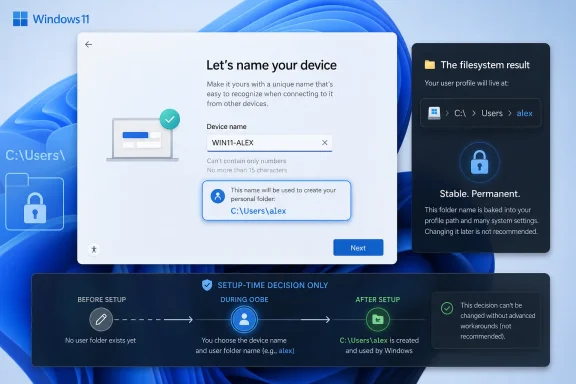
The feature appears during Windows setup on the Device Name page. If the option is shown, enter the profile folder name you want before continuing; if you skip it, Windows generates the folder name automatically as before. That timing is the entire point: this is a setup-time decision, not a safe invitation to rename an existing profile after Windows is already configured.
For years, one of Windows’ stranger first-run behaviors has lived in plain sight. A user could carefully name the PC, sign in with a Microsoft account, and personalize the desktop, only to discover later that the actual profile path under
That mattered more than Microsoft’s interface suggested. Most users do not stare at
Microsoft first surfaced the option in Windows Insider builds on October 6, 2025, when it said users could customize the default user folder name during setup. On March 13, 2026, Microsoft said the work was being expanded and clarified that the naming option is available during setup only; if skipped, Windows falls back to the default generated folder name. The May 26, 2026 optional update KB5089573 then brought the setup-time option to Windows 11 24H2 and 25H2 on the Device Name page.
That chronology matters because it shows this is not a registry hack dressed up as a feature. Microsoft is moving a long-standing workaround into the first-run experience, where the operating system can create the profile correctly before applications, Store packages, OneDrive, shell folders, and user-specific settings begin depending on it.
The result should be a profile path such as
This is not the same thing as renaming
That narrowness is good engineering and bad marketing. It will disappoint users who find the feature after they already have a machine with an ugly path, but it also avoids encouraging the kind of profile-folder surgery that has broken Windows installations for years.
For most personal PCs, the right answer is a lowercase first name, a short initials-based name, or a simple local-style account label. For a lab or test machine, names like
The obvious temptation is to use a full name. That may be readable, but it can also leak identity into logs, screenshots, crash reports, and support bundles. Windows paths have a way of traveling farther than users expect.
Spaces are another self-inflicted wound. Windows can handle spaces in paths, but many scripts, older tools, sample commands, and hastily written instructions handle them badly. A profile folder named
Support-minded family administrators should also care. If you set up PCs for relatives, a sane folder name makes remote troubleshooting less painful later. “Open
Small shops and consultants may find it useful on manually provisioned machines, especially where the machine is not part of a heavily automated imaging pipeline. A predictable local profile folder can reduce confusion when collecting logs, checking user data, or explaining where files live.
The irony is that the users most annoyed by the old behavior are often the ones with existing systems. They are also the group this feature helps least. If your current PC already has a profile folder you dislike, the safer answer remains: do not casually rename it.
Once a Windows profile exists, its folder name is referenced by registry entries, application settings, shell folders, scheduled tasks, sync clients, developer tools, cached credentials, and sometimes hard-coded third-party paths. Some of those references use environment variables correctly. Some do not. The longer the machine has been in use, the harder it is to know which is which.
There are advanced ways to create a new account, migrate data, and retire the old profile. There are also unsupported registry edits and rename procedures floating around the web. The existence of a first-party setup field should make those look less attractive, not more.
If the path bothers you enough on an existing PC, the cleanest remedy is usually a planned rebuild or a new account migration, not a manual folder rename. That sounds old-fashioned because it is. It is also the difference between a cosmetic improvement and a weekend lost to broken app profiles.
That warning does not make this new setup option useless for IT. It makes it something to test rather than celebrate blindly. There is a meaningful distinction between choosing a simple first-profile folder name during OOBE and redirecting all profiles to a different drive or custom root using deployment settings.
For enterprises, the first question is not “Can we standardize this?” It is “What else in our environment assumes the generated profile path?” Endpoint management scripts, security tools, help-desk runbooks, backup agents, DLP products, developer tooling, and line-of-business software may all have opinions about profile paths, even when nobody remembers writing them down.
The safest enterprise posture is conservative: test it on representative devices, check enrollment behavior, validate Store and inbox app behavior, confirm OneDrive and known-folder flows, and inspect management scripts before making it part of a provisioning standard. This is a small UX win, but small setup changes can have large operational blast radii when multiplied across fleets.
That shows up in mundane places. A user sends a screenshot of an error containing a path. A technician asks for a log from AppData. A developer reproduces a bug that only appears under a specific user profile. A backup restore requires confirming whether files are under the current account or an abandoned profile.
In each of those cases, a clean folder name makes the situation less ambiguous. The old behavior often created names that looked accidental, especially when Windows derived a folder name from part of an email address or account string. Users then understandably wondered whether something had gone wrong during setup.
This is why WindowsForum readers have been unusually interested in the topic. The community has already discussed the OOBE naming change, earlier Insider command-line detours, and the KB5089573 rollout because the issue sits exactly where enthusiast irritation and real-world administration overlap. It is small enough to sound trivial until you are the person debugging the path.
That mismatch was always strange. The profile folder is one of the most durable names on a Windows installation. Device names can be changed. Display names can be changed. Account pictures can be changed. The profile path, by contrast, becomes infrastructure.
By putting the choice on the Device Name page, Microsoft is implicitly admitting that the local machine identity and the user’s filesystem identity belong in the same early conversation. That is a subtle but important shift. It treats the local path as something users may reasonably care about, not an implementation detail to be discovered after the fact.
The move also softens one of Windows 11’s recurring criticisms: that setup increasingly feels like a funnel for Microsoft account and cloud-service decisions rather than a clear local configuration process. A text field for the user folder does not reverse that trend, but it is a rare case where OOBE gives power back instead of taking it away.
The default is also the path of least resistance for organizations with strict support baselines. When fleets are managed by policy, documentation, and remote tools, novelty is not automatically improvement. A custom name that helps one technician may hurt another if it diverges from expected provisioning behavior.
There is also a social dimension. Shared household PCs, school devices, and workplace machines often change users or roles. Naming a profile after a person may be perfect on a personal laptop and awkward on a machine that gets reassigned.
The right mental model is not “custom is better.” It is “custom is permanent enough that you should have a reason.” If the reason is clarity, reproducibility, or supportability, use it. If the reason is merely that the box appeared and you feel compelled to fill it, skip it.
That creates an awkward near-term period. Some Windows 11 installations will show the option; others will not. Some media will include the relevant setup bits; older media may not. Users reading about the feature may boot into setup and wonder why the field is missing.
The practical advice is to treat availability as tied to the setup environment, not merely the Windows version name on a blog post. If the Device Name page offers the custom user folder choice, use it there. If it does not, do not assume you can safely recreate the same result later by renaming folders.
For IT, the watch item is not just when the feature becomes more widely visible. It is whether Microsoft documents additional deployment behavior around it, exposes clearer policy or provisioning controls, or refines the OOBE language so users understand the decision’s permanence.
The new field does not erase those histories, but it changes their risk calculation. If Microsoft now provides a supported setup-time naming path, the burden of proof shifts against hacks for ordinary users. Why perform registry edits after profile creation when the operating system can create the intended folder before first sign-in completes?
That is especially true for Windows 11, where Microsoft account setup, OneDrive integration, Store apps, and known-folder redirection can all become involved early in the user experience. The later you intervene, the more you are untangling assumptions rather than setting preferences.
This is the feature’s real virtue. It does not make Windows more powerful. It makes the correct moment more obvious.
For personal clean installs, I would choose a short lowercase name without spaces and move on. For test VMs, I would choose a role-based name that makes screenshots and logs obvious. For business deployments, I would wait until the organization has validated the behavior against its provisioning and application stack.
That is not timid advice. It is proportional advice. Windows profiles are boring until they break, and then they become the center of the machine.
C:\Users\<name> profile folder during setup on new Windows 11 24H2 and 25H2 installs that include the May 26, 2026 optional update KB5089573. The practical verdict is simple: use it on fresh personal installs, lab machines, and carefully controlled provisioning flows where path clarity matters; leave the default alone on existing PCs and conservative enterprise deployments unless you have tested the whole build process.The feature appears during Windows setup on the Device Name page. If the option is shown, enter the profile folder name you want before continuing; if you skip it, Windows generates the folder name automatically as before. That timing is the entire point: this is a setup-time decision, not a safe invitation to rename an existing profile after Windows is already configured.
 Microsoft Turns a Hidden Annoyance Into a Setup Decision
For years, one of Windows’ stranger first-run behaviors has lived in plain sight. A user could carefully name the PC, sign in with a Microsoft account, and personalize the desktop, only to discover later that the actual profile path under C:\Users had been generated from a truncated name, account alias, or some other opaque setup input.That mattered more than Microsoft’s interface suggested. Most users do not stare at
C:\Users every day, but power users, developers, support technicians, backup tools, scripts, sync clients, and troubleshooting guides absolutely do. A weird profile folder name is not just cosmetic when it becomes part of file paths copied into terminals, logs, documentation, support tickets, and automation.Microsoft first surfaced the option in Windows Insider builds on October 6, 2025, when it said users could customize the default user folder name during setup. On March 13, 2026, Microsoft said the work was being expanded and clarified that the naming option is available during setup only; if skipped, Windows falls back to the default generated folder name. The May 26, 2026 optional update KB5089573 then brought the setup-time option to Windows 11 24H2 and 25H2 on the Device Name page.
That chronology matters because it shows this is not a registry hack dressed up as a feature. Microsoft is moving a long-standing workaround into the first-run experience, where the operating system can create the profile correctly before applications, Store packages, OneDrive, shell folders, and user-specific settings begin depending on it.
The Actual Procedure Is Short, but the Timing Is Non-Negotiable
The way to use the new option is intentionally mundane. Start a new Windows 11 setup on a supported 24H2 or 25H2 installation that includes KB5089573 or later applicable setup media, proceed through the out-of-box experience, and stop on the Device Name page. If the custom user folder field is available, type the folder name you want Windows to create underC:\Users, then continue setup.The result should be a profile path such as
C:\Users\alex, C:\Users\maria, C:\Users\labadmin, or another plain name you selected. The important constraint is that this applies while Windows is creating the first profile. If you continue without using it, Windows generates the folder name automatically and setup proceeds normally.This is not the same thing as renaming
C:\Users\oldname in File Explorer. It is not a post-install Settings toggle. It is not a migration tool. Microsoft’s framing is narrow: make the decision during setup, or accept the generated name.That narrowness is good engineering and bad marketing. It will disappoint users who find the feature after they already have a machine with an ugly path, but it also avoids encouraging the kind of profile-folder surgery that has broken Windows installations for years.
The Best Name Is Boring, Stable, and Script-Friendly
If you use the option, do not get clever. The bestC:\Users folder name is short, plain, stable, and unlikely to change with your display name, employer, domain, or preferred online handle.For most personal PCs, the right answer is a lowercase first name, a short initials-based name, or a simple local-style account label. For a lab or test machine, names like
testuser, admin, lab, or winuser are more useful than whimsical handles. For a developer workstation, the name should be something you will not regret seeing in build logs, terminal prompts, paths, and screenshots.The obvious temptation is to use a full name. That may be readable, but it can also leak identity into logs, screenshots, crash reports, and support bundles. Windows paths have a way of traveling farther than users expect.
Spaces are another self-inflicted wound. Windows can handle spaces in paths, but many scripts, older tools, sample commands, and hastily written instructions handle them badly. A profile folder named
C:\Users\Alex Chen may look friendly in Explorer, but C:\Users\alex is easier to quote, type, parse, and troubleshoot.The People Who Should Use This Immediately Are Not the People Who Wanted a Rename Button
The users who benefit most are those about to install Windows anyway. Enthusiasts doing a clean install should use it, because it costs almost nothing and prevents a tiny annoyance from becoming permanent. Developers should use it because predictable home paths make terminals, package caches, build tooling, and documentation cleaner.Support-minded family administrators should also care. If you set up PCs for relatives, a sane folder name makes remote troubleshooting less painful later. “Open
C:\Users\mike\Downloads” is easier than decoding a truncated Microsoft account alias over a phone call.Small shops and consultants may find it useful on manually provisioned machines, especially where the machine is not part of a heavily automated imaging pipeline. A predictable local profile folder can reduce confusion when collecting logs, checking user data, or explaining where files live.
The irony is that the users most annoyed by the old behavior are often the ones with existing systems. They are also the group this feature helps least. If your current PC already has a profile folder you dislike, the safer answer remains: do not casually rename it.
Existing PCs Are Where This Feature Becomes a Trap
The most dangerous misunderstanding is assuming this update means Microsoft now endorses profile folder renaming generally. It does not. The change is about naming the profile at creation time, before the ecosystem of per-user assumptions hardens around the path.Once a Windows profile exists, its folder name is referenced by registry entries, application settings, shell folders, scheduled tasks, sync clients, developer tools, cached credentials, and sometimes hard-coded third-party paths. Some of those references use environment variables correctly. Some do not. The longer the machine has been in use, the harder it is to know which is which.
There are advanced ways to create a new account, migrate data, and retire the old profile. There are also unsupported registry edits and rename procedures floating around the web. The existence of a first-party setup field should make those look less attractive, not more.
If the path bothers you enough on an existing PC, the cleanest remedy is usually a planned rebuild or a new account migration, not a manual folder rename. That sounds old-fashioned because it is. It is also the difference between a cosmetic improvement and a weekend lost to broken app profiles.
Microsoft’s Enterprise Warning Still Hangs Over the Feature
Microsoft’s own deployment guidance has long warned that changing profile folder locations or names can carry support and app-compatibility tradeoffs. In particular, custom profile paths in deployment scenarios are not something administrators should treat casually, and moving profile locations can put Microsoft Store apps and modern Windows assumptions into uncomfortable territory.That warning does not make this new setup option useless for IT. It makes it something to test rather than celebrate blindly. There is a meaningful distinction between choosing a simple first-profile folder name during OOBE and redirecting all profiles to a different drive or custom root using deployment settings.
For enterprises, the first question is not “Can we standardize this?” It is “What else in our environment assumes the generated profile path?” Endpoint management scripts, security tools, help-desk runbooks, backup agents, DLP products, developer tooling, and line-of-business software may all have opinions about profile paths, even when nobody remembers writing them down.
The safest enterprise posture is conservative: test it on representative devices, check enrollment behavior, validate Store and inbox app behavior, confirm OneDrive and known-folder flows, and inspect management scripts before making it part of a provisioning standard. This is a small UX win, but small setup changes can have large operational blast radii when multiplied across fleets.
The Support Win Is Bigger Than the Feature Sounds
The best argument for the feature is not aesthetics. It is support clarity. A predictable path reduces friction whenever a human has to reason about the file system.That shows up in mundane places. A user sends a screenshot of an error containing a path. A technician asks for a log from AppData. A developer reproduces a bug that only appears under a specific user profile. A backup restore requires confirming whether files are under the current account or an abandoned profile.
In each of those cases, a clean folder name makes the situation less ambiguous. The old behavior often created names that looked accidental, especially when Windows derived a folder name from part of an email address or account string. Users then understandably wondered whether something had gone wrong during setup.
This is why WindowsForum readers have been unusually interested in the topic. The community has already discussed the OOBE naming change, earlier Insider command-line detours, and the KB5089573 rollout because the issue sits exactly where enthusiast irritation and real-world administration overlap. It is small enough to sound trivial until you are the person debugging the path.
First-Run Personalization Finally Reaches the File System
Windows 11’s setup experience has increasingly tried to personalize the machine before the desktop appears. Microsoft asks about accounts, device naming, privacy choices, backup, services, and cloud integration, but the local profile folder remained oddly implicit. The user could name the device, but not the home directory that would sit at the center of the account.That mismatch was always strange. The profile folder is one of the most durable names on a Windows installation. Device names can be changed. Display names can be changed. Account pictures can be changed. The profile path, by contrast, becomes infrastructure.
By putting the choice on the Device Name page, Microsoft is implicitly admitting that the local machine identity and the user’s filesystem identity belong in the same early conversation. That is a subtle but important shift. It treats the local path as something users may reasonably care about, not an implementation detail to be discovered after the fact.
The move also softens one of Windows 11’s recurring criticisms: that setup increasingly feels like a funnel for Microsoft account and cloud-service decisions rather than a clear local configuration process. A text field for the user folder does not reverse that trend, but it is a rare case where OOBE gives power back instead of taking it away.
The Default Is Still the Right Choice for Many Users
For all that, many users should ignore the option. If you do not know what you want the folder to be called, the default is fine. A generated profile folder name may be inelegant, but it is a normal Windows outcome and generally invisible to people who live in Documents, Pictures, Desktop, Start, and search.The default is also the path of least resistance for organizations with strict support baselines. When fleets are managed by policy, documentation, and remote tools, novelty is not automatically improvement. A custom name that helps one technician may hurt another if it diverges from expected provisioning behavior.
There is also a social dimension. Shared household PCs, school devices, and workplace machines often change users or roles. Naming a profile after a person may be perfect on a personal laptop and awkward on a machine that gets reassigned.
The right mental model is not “custom is better.” It is “custom is permanent enough that you should have a reason.” If the reason is clarity, reproducibility, or supportability, use it. If the reason is merely that the box appeared and you feel compelled to fill it, skip it.
Optional Update Today, Baseline Expectation Tomorrow
KB5089573 is an optional preview update, which means cautious administrators will not treat it the same way they treat a broad mandatory servicing baseline. The presence of the feature in 24H2 and 25H2 through that update is still important because setup changes often preview what users later experience as normal Windows behavior.That creates an awkward near-term period. Some Windows 11 installations will show the option; others will not. Some media will include the relevant setup bits; older media may not. Users reading about the feature may boot into setup and wonder why the field is missing.
The practical advice is to treat availability as tied to the setup environment, not merely the Windows version name on a blog post. If the Device Name page offers the custom user folder choice, use it there. If it does not, do not assume you can safely recreate the same result later by renaming folders.
For IT, the watch item is not just when the feature becomes more widely visible. It is whether Microsoft documents additional deployment behavior around it, exposes clearer policy or provisioning controls, or refines the OOBE language so users understand the decision’s permanence.
The Old Workarounds Look Worse Now
Before this feature, enthusiasts had several unsatisfying choices. They could create local accounts in specific ways, use deployment customization, manipulate OOBE paths through scripts, or perform risky post-install rename procedures. Some approaches worked in narrow circumstances, but none felt like a consumer-grade answer.The new field does not erase those histories, but it changes their risk calculation. If Microsoft now provides a supported setup-time naming path, the burden of proof shifts against hacks for ordinary users. Why perform registry edits after profile creation when the operating system can create the intended folder before first sign-in completes?
That is especially true for Windows 11, where Microsoft account setup, OneDrive integration, Store apps, and known-folder redirection can all become involved early in the user experience. The later you intervene, the more you are untangling assumptions rather than setting preferences.
This is the feature’s real virtue. It does not make Windows more powerful. It makes the correct moment more obvious.
The Sensible Rule Is to Name New Profiles, Not Repair Old Ones
The clean dividing line is installation state. New install, visible setup option, clear naming preference: use it. Existing install, already-created profile, vague annoyance: leave it alone unless you are prepared for a proper migration.For personal clean installs, I would choose a short lowercase name without spaces and move on. For test VMs, I would choose a role-based name that makes screenshots and logs obvious. For business deployments, I would wait until the organization has validated the behavior against its provisioning and application stack.
That is not timid advice. It is proportional advice. Windows profiles are boring until they break, and then they become the center of the machine.
The Small Box on the Device Name Page Changes These Decisions
This feature is easy to overstate and easy to dismiss, so the useful answer lives in the middle. It is not a revolution in Windows setup, but it is a rare improvement that removes a familiar irritant at the only moment when removing it is clean.- You should use the custom
C:\Usersfolder name option during setup if you are performing a fresh Windows 11 install and want a short, predictable profile path. - You should skip the option if you are unsure what name to use, because Windows will generate a normal default folder name and continue setup.
- You should not treat the feature as permission to rename an existing profile folder after Windows is already installed.
- You should avoid spaces, full names, jokes, temporary labels, and employer-specific names unless you are certain they will age well.
- You should test the behavior before adopting it in managed deployments, especially where Store apps, OneDrive, scripts, backup tools, or provisioning workflows depend on profile assumptions.
- You should remember that this is available during setup only, so the decision belongs in your clean-install checklist, not your post-install tweaking routine.
C:\Users naming option is the kind of Windows change that looks microscopic from Redmond and meaningful at the keyboard: a small field, shown early, that prevents a needless annoyance from becoming part of a machine’s identity. The users who benefit most will be the ones disciplined enough to use it only when Windows is being born, not when an existing installation is already carrying years of assumptions, shortcuts, sync relationships, and application state. If Microsoft continues in this direction, the next real improvement would be more setup choices that expose durable local consequences before the first desktop loads, because Windows is at its best when it lets users make explicit decisions at the moment those decisions are still safe.References
- Primary source: learn.microsoft.com
Customize the out-of-box experience (OOBE) | Microsoft Learn
Customize the Windows out-of-box experiencelearn.microsoft.com - Independent coverage: support.microsoft.com
- Primary source: WindowsForum
Name Your Windows 11 C:\Users Folder During Setup — A Small UX Win | Windows Forum
Windows 11’s setup experience has long been a battleground between convenience, cloud integration, and user expectations — and the latest Insider changes...windowsforum.com

