Microsoft’s May 26, 2026 optional Windows 11 preview update, KB5089573, adds a setup-time option to choose the name of the user profile folder under
The Windows user profile folder is not decorative. It is where the operating system stores the user’s desktop, downloads, documents, pictures, application data, and much of the invisible scaffolding that makes a Windows session feel personal. For anyone who opens Terminal, writes scripts, configures development tools, or simply pays attention to paths,
The problem became especially visible in the Windows 10 and Windows 11 era because Microsoft increasingly pushed consumer setup toward Microsoft account sign-in. Instead of asking the user to choose a traditional local account name first, Windows could derive the profile folder from the Microsoft account identifier. In many cases, that meant taking the first five characters of the email address and turning them into the folder name.
That behavior was never elegant. It looked like an implementation shortcut had escaped into the product experience, which is often the worst kind of Windows oddity: not broken enough to trigger emergency repair, but irritating enough to become part of the platform’s folklore. Users learned workarounds, power users built habits, and administrators quietly added it to the list of reasons a “clean” Windows install still required a checklist.
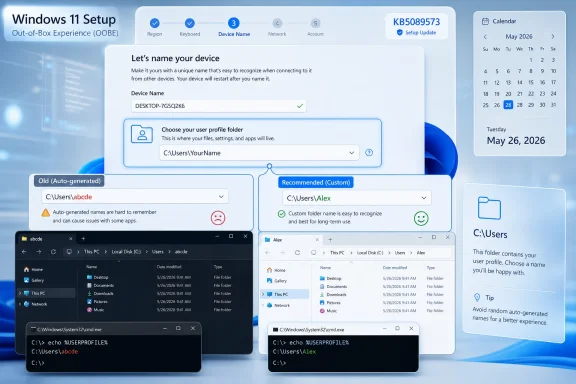
KB5089573 changes that equation for new setups. Microsoft’s release notes say users can now choose a custom user folder name on the Device Name page during Windows setup. If the step is skipped, Windows continues with the default folder name, which means Microsoft has not thrown away the old path-generation logic. It has put a supported front door in front of it.
The placement matters. By putting the field on the Device Name page, Microsoft is treating the profile folder as part of the out-of-box experience rather than as an obscure account-management artifact. That is the correct framing. Naming the PC and naming the human-facing home path are both acts of ownership, and Windows has historically been oddly comfortable giving users control over the former while improvising the latter.
That is why the annoyance carried more emotional weight than its size suggested. A user folder name is not a marketing surface, a widget, or a Start menu recommendation. It is basic territory. When Windows names it after the first few characters of an email address, it reminds users that the local PC has become downstream of Microsoft’s account strategy.
For ordinary users, the damage was mostly aesthetic. The folder looked strange in File Explorer, in screenshots, in backup paths, and in command prompts. For power users, the damage was procedural. Scripts, virtual machines, local development environments, game mod paths, build tools, and automation routines often assume predictable directory structures. A profile folder generated from an email prefix adds one more variable to a system that already has too many.
The obvious objection is that serious administrators can control provisioning through enterprise tools, unattended setup, imaging, Autopilot, local account creation, or post-install customization. That is true, but it misses the cultural point. Windows is used by everyone from domain administrators to hobbyist developers spinning up test VMs at midnight. The fact that the best answer was often “do something unsupported-looking before Windows gets there” was exactly the problem.
Microsoft appears to have recognized that. The earlier Insider testing showed the company experimenting with this change before it reached the production optional update channel. By the time it arrived in KB5089573, the feature was no longer just a rough-edge fix for Windows enthusiasts. It was part of a broader attempt to make setup feel less like a funnel and more like an operating system installation.
There are technical reasons for that restraint. A Windows profile path is referenced by the registry, user environment variables, application configuration files, scheduled tasks, shell folders, services, shortcuts, development tools, sync clients, and sometimes brittle third-party software. Renaming the folder after the fact can work if done carefully, but it is not the kind of operation Microsoft wants to expose casually in Settings.
That does not make the limitation feel better. For the user who has been living with a mangled folder name for years, Microsoft has effectively said: we agree this was bad, but our supported fix is for your next PC. The cleanest consumer remedy remains a fresh install, a factory reset, or a new machine. That is a lot of disruption to correct a five-character decision made in the first minutes of setup.
This is where Windows’ long tail becomes a product-management trap. Microsoft can add a setup option without breaking installed systems, but it cannot easily undo the consequences of not having offered the option in the first place. The result is a fix that will age well but arrive unevenly. New devices will benefit immediately; existing systems will carry the scar until they are replaced, rebuilt, or manually repaired by users willing to take responsibility for the risk.
It is also why Microsoft’s wording is careful. The company describes the experience as easier during setup only, not as a general profile-renaming feature. That distinction will disappoint users, but it is the difference between a low-risk setup improvement and a support nightmare.
That gradual rollout matters here because the feature affects setup. A user might install the update, reset a machine, and still not see the new field if Microsoft has not enabled the feature for that device or installation path yet. That is an especially awkward edge case because the only way to test the improvement is to go through the most consequential consumer workflow Windows has.
Microsoft’s Controlled Feature Rollout system has become a recurring source of ambiguity in Windows coverage. A feature can be “in” an update, “rolling out” to users, and still absent from a particular PC. That model helps Microsoft limit blast radius when something misbehaves, but it also makes Windows feel less deterministic. Two machines on the same build can behave differently, and users are left wondering whether they are missing an update, a flag, a region setting, or luck.
For enterprises, this ambiguity is familiar and usually manageable. For enthusiasts and small shops, it is maddening. A setup-time folder naming field is not like a new Copilot panel or a redesigned flyout; if it is missing when the user needs it, the opportunity is gone. Microsoft should be especially clear about when this field becomes broadly available in installation media, recovery images, and OEM-preloaded systems.
The broader rollout expected with the June 2026 Patch Tuesday release should reduce the uncertainty, but the underlying issue remains. Windows has entered an era where “installed the update” and “received the feature” are not always the same event. That is defensible engineering. It is also a communications tax Microsoft keeps passing to users.
The practical advice is simple: choose a short, plain, boring folder name. Use letters and maybe numbers. Avoid spaces if you work with scripts, older tools, mod managers, build systems, or cross-platform development environments. Windows can handle Unicode and spaces in many contexts, but the ecosystem around Windows is not always as careful as Windows itself.
That is not an argument against personalization. It is an argument for understanding that this folder is infrastructure, not a vanity label.
This is also why Microsoft’s decision to put the option early in setup is smart. The user folder name should be chosen before applications are installed, before cloud sync tools attach themselves, before development environments create caches, and before scripts start referencing paths. A profile path is one of those choices that becomes more expensive to change with every minute the machine is used.
In a test VM, a bad user folder name is not catastrophic. It is just another bit of friction layered onto a workflow that already includes ISO downloads, account prompts, update waits, driver installs, snapshot management, and activation quirks. But repeated friction changes how people feel about a platform. Windows 11 has often been criticized less for any one giant flaw than for a series of decisions that make the user feel managed instead of served.
For developers, consistency matters. Toolchains frequently generate paths under the user profile. Package managers cache files there. IDEs store configuration there. Terminals open there. Documentation often assumes a profile path that resembles the username. When the folder name is a clipped email prefix, every tutorial, screenshot, and script becomes just slightly less clean.
For IT departments, the change is less revolutionary but still useful. Larger organizations already have ways to enforce naming conventions, but not every organization is large. Small businesses, consultants, and education environments often rely on semi-manual setup. A visible field during OOBE gives those users a supported way to avoid profile names that look accidental.
The fix also helps Windows look less sloppy. That should not be dismissed. Operating systems earn trust through hundreds of small signals. A random-looking home directory sends the opposite signal, especially to users coming from platforms where account names and home folders are generally more transparent.
The new folder naming field does not reverse that strategy. It makes Microsoft account setup less annoying. That is valuable, but it is not the same as restoring a first-class local account path for every edition and scenario. In fact, the feature could be interpreted as Microsoft smoothing over one of the visible complaints caused by its account-first model.
There is a pragmatic reading and a cynical reading. The pragmatic reading is that Microsoft knows most users will continue through Microsoft account setup, so it is fixing the rough edges in that flow. The cynical reading is that Microsoft would rather add a field than reopen the policy debate over local identity. Both can be true.
Windows enthusiasts should resist the temptation to treat this as a complete victory. The ability to name
That tension will not disappear because one folder name field arrived. If anything, the field highlights the tension. Microsoft is acknowledging that users care about local identity while continuing to route much of the setup experience through cloud identity.
That matters because Windows 11’s reputation has been shaped by rough edges as much as by requirements. The operating system arrived with strict hardware rules, redesigned UI pieces, removed or delayed taskbar capabilities, and a setup experience that often felt more opinionated than helpful. Microsoft has spent the years since gradually filling gaps, restoring options, and sanding down behaviors that should have been smoother at launch.
The user folder issue is a perfect example of belated polish. Nobody bought or rejected Windows 11 solely because of a five-letter directory. But lots of people noticed it, complained about it, worked around it, and filed it under “Microsoft being Microsoft.” Those impressions accumulate.
There is a lesson here for the Windows team. Power users do not only care about giant architectural changes. They care about whether the defaults are intelligible. They care about whether a system path makes sense. They care about whether setup respects choices before the machine becomes hard to change. A platform used by more than a billion people cannot make every detail configurable, but it should be especially careful with details that become permanent.
There is a difference between a better future setup and a repaired existing installation. This change is the former. The users most annoyed by the old behavior are also the users most likely to consider reinstalling just to fix it, but that is a drastic move for a cosmetic-path problem unless the machine was due for a rebuild anyway.
Microsoft’s fix for the five-letter user folder is small, late, and limited, but it is still the right kind of Windows change: it gives users control before the operating system turns a default into a dependency. The company should take the same lesson into the rest of setup, where identity, updates, privacy, recovery, and device ownership are still too often presented as flows to complete rather than choices to understand. Windows does not need every installation screen to become a control panel, but it does need to remember that the first few minutes of a PC’s life can shape years of irritation—or years of quiet confidence.
C:\Users on new Windows 11 24H2 and 25H2 installations. That sounds microscopic until you remember how often Windows turns identity into infrastructure. For years, Microsoft account setup could leave users with a five-character fragment of an email address baked into one of the most visible paths on the machine. The fix is welcome, overdue, and revealing: Microsoft has solved the annoyance only at the exact moment when it is easiest for Windows, not necessarily when it is most useful for users.
 Microsoft Finally Admits the Folder Name Was Part of the Setup Experience
The Windows user profile folder is not decorative. It is where the operating system stores the user’s desktop, downloads, documents, pictures, application data, and much of the invisible scaffolding that makes a Windows session feel personal. For anyone who opens Terminal, writes scripts, configures development tools, or simply pays attention to paths, C:\Users\abhij or C:\Users\john1 is not a harmless quirk. It is a small paper cut in a place the user sees constantly.The problem became especially visible in the Windows 10 and Windows 11 era because Microsoft increasingly pushed consumer setup toward Microsoft account sign-in. Instead of asking the user to choose a traditional local account name first, Windows could derive the profile folder from the Microsoft account identifier. In many cases, that meant taking the first five characters of the email address and turning them into the folder name.
That behavior was never elegant. It looked like an implementation shortcut had escaped into the product experience, which is often the worst kind of Windows oddity: not broken enough to trigger emergency repair, but irritating enough to become part of the platform’s folklore. Users learned workarounds, power users built habits, and administrators quietly added it to the list of reasons a “clean” Windows install still required a checklist.
KB5089573 changes that equation for new setups. Microsoft’s release notes say users can now choose a custom user folder name on the Device Name page during Windows setup. If the step is skipped, Windows continues with the default folder name, which means Microsoft has not thrown away the old path-generation logic. It has put a supported front door in front of it.
The placement matters. By putting the field on the Device Name page, Microsoft is treating the profile folder as part of the out-of-box experience rather than as an obscure account-management artifact. That is the correct framing. Naming the PC and naming the human-facing home path are both acts of ownership, and Windows has historically been oddly comfortable giving users control over the former while improvising the latter.
The Five-Letter Folder Was a Symptom of Microsoft Account Gravity
The strangest part of the old behavior was not merely that Windows truncated an email address. It was that the truncation exposed how much of the Windows setup flow had been reorganized around Microsoft’s online identity system. The local machine’s most important user path was being named by a cloud account string, and not even by the user-friendly display name attached to that account.That is why the annoyance carried more emotional weight than its size suggested. A user folder name is not a marketing surface, a widget, or a Start menu recommendation. It is basic territory. When Windows names it after the first few characters of an email address, it reminds users that the local PC has become downstream of Microsoft’s account strategy.
For ordinary users, the damage was mostly aesthetic. The folder looked strange in File Explorer, in screenshots, in backup paths, and in command prompts. For power users, the damage was procedural. Scripts, virtual machines, local development environments, game mod paths, build tools, and automation routines often assume predictable directory structures. A profile folder generated from an email prefix adds one more variable to a system that already has too many.
The obvious objection is that serious administrators can control provisioning through enterprise tools, unattended setup, imaging, Autopilot, local account creation, or post-install customization. That is true, but it misses the cultural point. Windows is used by everyone from domain administrators to hobbyist developers spinning up test VMs at midnight. The fact that the best answer was often “do something unsupported-looking before Windows gets there” was exactly the problem.
Microsoft appears to have recognized that. The earlier Insider testing showed the company experimenting with this change before it reached the production optional update channel. By the time it arrived in KB5089573, the feature was no longer just a rough-edge fix for Windows enthusiasts. It was part of a broader attempt to make setup feel less like a funnel and more like an operating system installation.
The Catch Is That Existing PCs Are Still Stuck With Yesterday’s Decision
The most important limitation is also the most predictable one: the new user folder naming option is available during setup only. That means existing Windows 11 users do not suddenly get a safe, supported button to renameC:\Users\oldna to C:\Users\ActualName. If the profile already exists, Microsoft is not offering a general-purpose repair tool.There are technical reasons for that restraint. A Windows profile path is referenced by the registry, user environment variables, application configuration files, scheduled tasks, shell folders, services, shortcuts, development tools, sync clients, and sometimes brittle third-party software. Renaming the folder after the fact can work if done carefully, but it is not the kind of operation Microsoft wants to expose casually in Settings.
That does not make the limitation feel better. For the user who has been living with a mangled folder name for years, Microsoft has effectively said: we agree this was bad, but our supported fix is for your next PC. The cleanest consumer remedy remains a fresh install, a factory reset, or a new machine. That is a lot of disruption to correct a five-character decision made in the first minutes of setup.
This is where Windows’ long tail becomes a product-management trap. Microsoft can add a setup option without breaking installed systems, but it cannot easily undo the consequences of not having offered the option in the first place. The result is a fix that will age well but arrive unevenly. New devices will benefit immediately; existing systems will carry the scar until they are replaced, rebuilt, or manually repaired by users willing to take responsibility for the risk.
It is also why Microsoft’s wording is careful. The company describes the experience as easier during setup only, not as a general profile-renaming feature. That distinction will disappoint users, but it is the difference between a low-risk setup improvement and a support nightmare.
The Optional Update Channel Makes the Fix Real but Not Universal
KB5089573 is a preview cumulative update for Windows 11 version 24H2 and 25H2, moving those releases to OS builds 26100.8524 and 26200.8524. As an optional preview update, it is available before the next mandatory Patch Tuesday cycle, but it is not the same thing as saying every eligible PC has the feature today. Optional updates are Microsoft’s staging ground: production-quality, but still voluntarily installed and often paired with gradual rollout controls.That gradual rollout matters here because the feature affects setup. A user might install the update, reset a machine, and still not see the new field if Microsoft has not enabled the feature for that device or installation path yet. That is an especially awkward edge case because the only way to test the improvement is to go through the most consequential consumer workflow Windows has.
Microsoft’s Controlled Feature Rollout system has become a recurring source of ambiguity in Windows coverage. A feature can be “in” an update, “rolling out” to users, and still absent from a particular PC. That model helps Microsoft limit blast radius when something misbehaves, but it also makes Windows feel less deterministic. Two machines on the same build can behave differently, and users are left wondering whether they are missing an update, a flag, a region setting, or luck.
For enterprises, this ambiguity is familiar and usually manageable. For enthusiasts and small shops, it is maddening. A setup-time folder naming field is not like a new Copilot panel or a redesigned flyout; if it is missing when the user needs it, the opportunity is gone. Microsoft should be especially clear about when this field becomes broadly available in installation media, recovery images, and OEM-preloaded systems.
The broader rollout expected with the June 2026 Patch Tuesday release should reduce the uncertainty, but the underlying issue remains. Windows has entered an era where “installed the update” and “received the feature” are not always the same event. That is defensible engineering. It is also a communications tax Microsoft keeps passing to users.
The Naming Rules Are Sensible, but the Best Name Is Still Boring
Microsoft is not giving users unlimited freedom over the folder name, nor should it. Windows file naming rules still apply. Reserved characters such as angle brackets, colons, quotation marks, slashes, pipes, question marks, and asterisks are off-limits. Reserved device names such as CON, PRN, AUX, NUL, COM1, and LPT1 remain special cases because Windows still carries compatibility obligations dating back decades.The practical advice is simple: choose a short, plain, boring folder name. Use letters and maybe numbers. Avoid spaces if you work with scripts, older tools, mod managers, build systems, or cross-platform development environments. Windows can handle Unicode and spaces in many contexts, but the ecosystem around Windows is not always as careful as Windows itself.
That is not an argument against personalization. It is an argument for understanding that this folder is infrastructure, not a vanity label.
C:\Users\Alex is better than C:\Users\Alex Work Laptop 2026. A profile path should be readable, stable, and unsurprising. The new field gives users control; it does not repeal decades of software that has made assumptions about paths.This is also why Microsoft’s decision to put the option early in setup is smart. The user folder name should be chosen before applications are installed, before cloud sync tools attach themselves, before development environments create caches, and before scripts start referencing paths. A profile path is one of those choices that becomes more expensive to change with every minute the machine is used.
A Small Setup Field Carries Outsized Weight for Developers and Testers
The loudest applause for this change will probably come from people who install Windows more often than normal humans should. Developers, reviewers, IT pros, lab administrators, and VM-heavy enthusiasts live inside setup flows. They notice the difference between a cleanly named profile and an arbitrary stub because they see it over and over.In a test VM, a bad user folder name is not catastrophic. It is just another bit of friction layered onto a workflow that already includes ISO downloads, account prompts, update waits, driver installs, snapshot management, and activation quirks. But repeated friction changes how people feel about a platform. Windows 11 has often been criticized less for any one giant flaw than for a series of decisions that make the user feel managed instead of served.
For developers, consistency matters. Toolchains frequently generate paths under the user profile. Package managers cache files there. IDEs store configuration there. Terminals open there. Documentation often assumes a profile path that resembles the username. When the folder name is a clipped email prefix, every tutorial, screenshot, and script becomes just slightly less clean.
For IT departments, the change is less revolutionary but still useful. Larger organizations already have ways to enforce naming conventions, but not every organization is large. Small businesses, consultants, and education environments often rely on semi-manual setup. A visible field during OOBE gives those users a supported way to avoid profile names that look accidental.
The fix also helps Windows look less sloppy. That should not be dismissed. Operating systems earn trust through hundreds of small signals. A random-looking home directory sends the opposite signal, especially to users coming from platforms where account names and home folders are generally more transparent.
The Local Account Debate Is Still Lurking Behind the Curtain
The user folder change will inevitably be read through the larger argument over Microsoft account requirements in Windows 11 setup. Microsoft has spent years nudging, and in many consumer scenarios forcing, users toward online sign-in during OOBE. Workarounds have appeared, disappeared, and changed names as Microsoft adjusts the setup experience.The new folder naming field does not reverse that strategy. It makes Microsoft account setup less annoying. That is valuable, but it is not the same as restoring a first-class local account path for every edition and scenario. In fact, the feature could be interpreted as Microsoft smoothing over one of the visible complaints caused by its account-first model.
There is a pragmatic reading and a cynical reading. The pragmatic reading is that Microsoft knows most users will continue through Microsoft account setup, so it is fixing the rough edges in that flow. The cynical reading is that Microsoft would rather add a field than reopen the policy debate over local identity. Both can be true.
Windows enthusiasts should resist the temptation to treat this as a complete victory. The ability to name
C:\Users\Alex during setup is good. The broader question of how much choice users have during Windows installation remains unsettled. Microsoft is still balancing telemetry, services, account recovery, Store integration, OneDrive, device encryption, and security defaults against the older PC expectation that the person in front of the keyboard owns the first account decision.That tension will not disappear because one folder name field arrived. If anything, the field highlights the tension. Microsoft is acknowledging that users care about local identity while continuing to route much of the setup experience through cloud identity.
Windows 11 Is Learning That Polish Is Not Optional
KB5089573 is not only about user folder naming. The same update cycle has drawn attention for broader performance work, shell responsiveness improvements, Bluetooth Shared Audio support on compatible hardware, Task Manager changes for NPU visibility, and other quality-of-life additions. The profile-folder option belongs in that constellation. It is not a headline feature in the old sense, but it is part of making Windows feel less careless.That matters because Windows 11’s reputation has been shaped by rough edges as much as by requirements. The operating system arrived with strict hardware rules, redesigned UI pieces, removed or delayed taskbar capabilities, and a setup experience that often felt more opinionated than helpful. Microsoft has spent the years since gradually filling gaps, restoring options, and sanding down behaviors that should have been smoother at launch.
The user folder issue is a perfect example of belated polish. Nobody bought or rejected Windows 11 solely because of a five-letter directory. But lots of people noticed it, complained about it, worked around it, and filed it under “Microsoft being Microsoft.” Those impressions accumulate.
There is a lesson here for the Windows team. Power users do not only care about giant architectural changes. They care about whether the defaults are intelligible. They care about whether a system path makes sense. They care about whether setup respects choices before the machine becomes hard to change. A platform used by more than a billion people cannot make every detail configurable, but it should be especially careful with details that become permanent.
The New Setup Choice Tells Users to Wait Before Wiping Anything
The practical lesson is more cautious than celebratory. If you are buying a new Windows 11 PC after this feature is broadly available, look for the user folder name field during setup and use it. If you are creating fresh VMs, test machines, or lab installs, the feature should eventually save a ritual of workarounds. If you are already living with an ugly profile folder, do not assume KB5089573 gives you a safe in-place rename button.There is a difference between a better future setup and a repaired existing installation. This change is the former. The users most annoyed by the old behavior are also the users most likely to consider reinstalling just to fix it, but that is a drastic move for a cosmetic-path problem unless the machine was due for a rebuild anyway.
- The new custom user folder name option arrives with Windows 11 KB5089573, the May 26, 2026 optional preview update for versions 24H2 and 25H2.
- The option appears during Windows setup on the Device Name page, and Microsoft says it applies during setup only.
- Existing user profiles do not gain a simple supported rename path through this update.
- Users should choose short, plain folder names because profile paths are still touched by scripts, tools, caches, shortcuts, and legacy software.
- Because Microsoft is using gradual rollout mechanisms, installing the optional update does not guarantee every setup path will immediately show the new field.
- The feature should become more dependable as it moves from optional preview availability into the broader cumulative update cycle.
Microsoft’s fix for the five-letter user folder is small, late, and limited, but it is still the right kind of Windows change: it gives users control before the operating system turns a default into a dependency. The company should take the same lesson into the rest of setup, where identity, updates, privacy, recovery, and device ownership are still too often presented as flows to complete rather than choices to understand. Windows does not need every installation screen to become a control panel, but it does need to remember that the first few minutes of a PC’s life can shape years of irritation—or years of quiet confidence.
References
- Primary source: Windows Latest
Published: Fri, 29 May 2026 10:45:46 GMT
Microsoft is killing Windows 11's awkward 5-letter user folder name after years of complaints, but only for new setups
My 2026 optional update lets Windows 11 users choose a proper user folder name during setup instead of the first five letters of email ID. www.windowslatest.com
- Related coverage: windowscentral.com
Microsoft rolls out Windows 11 KB5089573 update that makes your PC genuinely faster and more responsive | Windows Central
Windows 11 update KB5089573 is now generally available as Microsoft's non-security preview update for May, and is packing genuinely notable performance improvements.www.windowscentral.com - Official source: support.microsoft.com
- Related coverage: windowsreport.com

Windows 11 KB5089573 Rolls Out With Low Latency Profile and Other Improvements
Microsoft released KB5089573 for Windows 11 24H2 and 25H2 with Shared Audio, faster Search, and Windows Setup improvements.
windowsreport.com
- Related coverage: notebookcheck.net
Windows 11 update KB5089573: Shared audio & partition fix - Notebookcheck News
Microsoft's KB5089573 preview adds Shared Audio and NPU tracking to Windows 11, while flagging an EFI partition install failure on older OEM hardware. www.notebookcheck.net
- Related coverage: guidingtech.com
How to Rename the User Folder in Windows 11 - Guiding Tech
Want to rename the user folder in Windows 11? Here are two ideal ways to rename the user folder per your preferences.www.guidingtech.com

- Official source: catalog.update.microsoft.com
- Related coverage: winbuzzer.com
New Optional Windows 11 Update Enables Faster App Launches
Windows 11 KB5089573 is reaching optional preview users with faster app launches through Low Latency Profile, though activation may still roll out separately.winbuzzer.com - Related coverage: techspot.com
Microsoft is rolling out its Windows 11 CPU-boosting update – here's how to enable it | TechSpot
Microsoft lists the change in update KB5089573 as a "General Performance" improvement, saying it accelerates app launches and core shell experiences such as the Start menu, Search,...www.techspot.com