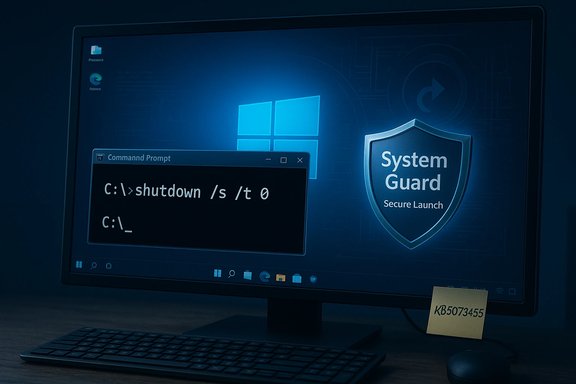
• Thread Author
A patch released in January 2026 is causing some Windows 11 PCs to restart when users try to shut them down or put them to sleep, and Microsoft has published an emergency workaround while it works on a permanent fix.

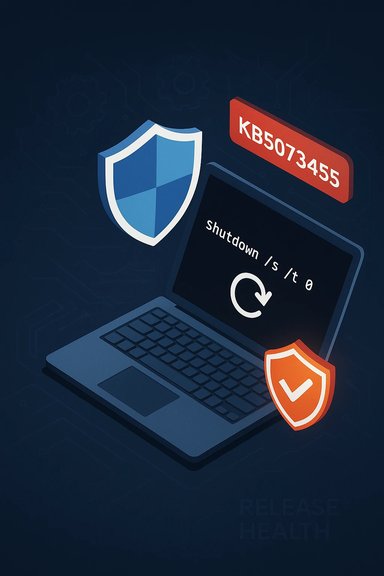
A laptop screen glows with a secure launch shield, power symbol, and a shutdown command.Background / Overview​

Microsoft shipped its January cumulative updates on January 13, 2026. One of those updates—distributed to Windows 11, version 23H2 Enterprise and IoT editions as KB5073455—introduced a regression that can cause systems with System Guard Secure Launch enabled to fail to power off or enter hibernation. Instead of powering down, affected devices sometimes restart immediately after a shutdown or hibernate request. Microsoft acknowledged the problem in its Release Health advisory and instructed users to use a command-line shutdown until a fix is available. This is not a universal problem: the issue is narrow in scope (Enterprise and IoT SKUs of Windows 11 23H2 with Secure Launch enabled), but the impact is operationally significant for those who rely on deterministic power-state behavior—especially laptops (battery drain), managed fleets, and automated maintenance workflows. Independent reporting and community telemetry corroborate Microsoft’s advisory.

What exactly is broken — the technical high level​

Secure Launch, servicing, and power intent​

System Guard Secure Launch is a virtualization‑based security feature that hardens the early boot path against firmware-level attacks by establishing a secure, measured environment before the OS kernel loads. That early virtualization boundary changes assumptions about the platform state during startup and shutdown. When servicing operations (the work Windows Update performs to replace files and commit changes) must do offline commits during reboot/shutdown, the OS needs to preserve the user’s final power intent (shutdown, restart, or hibernate) through multiple stages. On a subset of Secure Launch–enabled configurations, that orchestration has been disrupted by the January servicing change—so the final decision has been misinterpreted and the machine comes back instead of powering off.

Why the symptom is intermittent and environment-dependent​

The failure mode is inherently environment-dependent because it sits at the intersection of several moving parts:
  • Multi‑phase servicing (staging + offline commit) that may require intermediate reboots.
  • Fast Startup / hybrid shutdown semantics that change how kernel state is persisted.
  • Firmware and driver interactions that can force a restart to replace in‑use components.
  • The virtualization boundary introduced by Secure Launch that modifies the boot-time state.
These variables make reproducibility difficult in lab testing and explain why the bug affects only some devices, even among those that meet the broad criteria.

Who’s affected​

  • Windows 11, version 23H2 — Enterprise and IoT SKUs that have the January 13, 2026 update (KB5073455) installed.
  • The device must have System Guard Secure Launch enabled; consumer Home/Pro editions and machines without Secure Launch are largely not impacted.
While the affected population is relatively small compared to the entire Windows install base, many organizations run Enterprise or IoT images with Secure Launch enabled for compliance or firmware hardening—so the practical impact can be concentrated in specific fleets or device classes.

How the bug presents in real-world use​

Users and administrators have reported consistent symptoms:
  • Choosing Shut down or Hibernate results in the device restarting and returning to the sign‑in screen rather than powering off.
  • Hibernation is unavailable as a workaround—Microsoft explicitly says there is no workaround to make hibernate behave correctly while the regression exists.
  • The symptom can lead to overnight battery drain on laptops and break scripted maintenance windows or imaging workflows that expect a deterministic power off.
Cloud/remote desktop customers are also dealing with a separate but contemporaneous regression affecting Azure Virtual Desktop (AVD) authentication after January updates; Microsoft issued a Known Issue Rollback (KIR) for that problem. These are distinct regressions that appeared from the same servicing window but differ in scope and cause.

Microsoft’s published guidance and the emergency workaround​

Microsoft’s Release Health advisory and related support channels recommend a clear, manual workaround to guarantee a shutdown while the vendor prepares a corrective update:
  • Open Start, type cmd, and select Command Prompt.
  • In the Command Prompt window, run:
    shutdown /s /t 0
This command requests an immediate, explicit shutdown and will power the device off despite the regression. Microsoft warns that there is currently no workaround for hibernation and recommends saving work frequently because devices that fail to hibernate might deplete battery power if left unattended. Important operational notes:
  • The workaround is manual and must be used each time a guaranteed power‑off is required.
  • Running this command will forcibly shut down the machine—save in-progress work first.
  • There is no supported way to force hibernation until Microsoft ships a fix.

How to check whether your machine is vulnerable​

Follow this checklist to determine exposure:
  • Confirm Windows 11 edition and build:
  • Open Settings → System → About or run winver. If you’re on version 23H2 Enterprise or IoT, continue to the next checks.
  • Check installed updates:
  • Open an elevated Command Prompt and run:
    DISM /online /get-packages | findstr 5073455
  • Or view Settings → Windows Update → Update history and look for KB5073455 (installed on or after January 13, 2026).
  • Verify whether System Guard Secure Launch is enabled:
  • On many systems this is enabled via Group Policy, firmware settings, or OEM provisioning; check your device’s security configuration or ask your IT team.
  • If all conditions match, assume the device is at risk and adopt the workaround until Microsoft distributes a fix.

Steps for home users, power users, and administrators​

Home / single PC users​

  • If you rely on hibernation or predictable shutdowns and you run an Enterprise/IoT image (uncommon for most consumers), consider pausing installation of the January 13 updates until Microsoft issues a corrective package or you can validate behavior on a test machine.
  • If the update is already installed and you need a guaranteed power off, use the emergency Command Prompt workaround: shutdown /s /t 0. Save work first.

IT administrators and managed fleets​

  • Inventory and scope: identify devices with KB5073455 and Secure Launch enabled across your estate.
  • Apply mitigation for AVD if relevant: Use Microsoft’s Known Issue Rollback (KIR) where applicable for the separate AVD regression, and provide alternate connection guidance (AVD Web client or classic Remote Desktop client) for affected users.
  • Consider gating the January rollouts: pause or roll back the update in critical rings until a tested remediation is available.
  • If immediate atomic fixes are required for production systems, test the emergency shutdown command and educate users on saving work; do not rely on hibernation until Microsoft confirms a fix.

How to safely roll back or uninstall the January update (administrators only)​

Uninstalling a cumulative update will remove security fixes and should be treated as a last resort. If the operational impact of the restart-on-shutdown bug outweighs the risk of unpatched vulnerabilities in a controlled environment, administrators can:
  • Identify the KB package and confirm dependencies.
  • Use centralized management tools (WSUS, SCCM, Intune/Endpoint Manager) to remove the update from affected devices, or
  • Block further deployment to production rings and deploy the Known Issue Rollback (KIR) artifact where Microsoft has published one for related regressions.
Caveats:
  • Removing a security LCU reduces protection and may expose endpoints to known vulnerabilities.
  • Test rollback procedures on representative hardware before mass deployment.

Risks, trade‑offs, and why this matters beyond annoyance​

This issue illustrates several broader points about modern OS servicing:
  • Security vs. availability trade-off: Monthly security rollups are essential, but when they cause availability regressions in critical subsystems (power management, remote access), organizations must weigh risk and mitigation carefully.
  • Hidden costs: On laptops, a device that restarts instead of hibernates can exhaust batteries overnight, cause data loss, or disrupt scheduled maintenance and imaging operations.
  • Complexity of modern boot chains: Features like Secure Launch and Fast Startup interact with the servicing stack in subtle ways; a behavior that looks like a simple UI mismatch can involve kernel-level orchestration and firmware interactions.
  • Testing and staged rollout: This regression underscores why pilot rings and telemetry‑driven rollouts are essential for fleets with diverse hardware.

What Microsoft has done and what to expect next​

Microsoft has publicly documented the regression on its Release Health page and advised the emergency shutdown command while it prepares a corrective update. The vendor’s public guidance states a fix will be delivered in a future update; however, Microsoft has not committed to a specific timeline in the advisory. Independent reporting and community threads confirm Microsoft’s advisory and recommend standard mitigation playbooks for administrators. Cautionary note on timelines and unverifiable claims:
  • Any forecast about exactly when Microsoft will push the remedial update is speculative until the company publishes an update or a hotfix KB. Treat predictions about precise release dates as unverified unless Microsoft posts them in Release Health or a KB entry.

Practical checklist — what to do right now (concise)​

  • Confirm whether your devices have KB5073455 installed and Secure Launch enabled.
  • If affected, save work frequently and use the emergency shutdown:
  • Open Command Prompt and run: shutdown /s /t 0.
  • For fleets: inventory affected devices, consider pausing deployment for critical rings, and prepare a KIR or rollback plan if operational impact is severe.
  • Do not rely on hibernation—there is currently no workaround for hibernate behaviour.
  • Monitor Microsoft’s Release Health dashboard and official KB pages for the fix.

Defensive recommendations and long-term posture​

  • Maintain a staged update policy: pilot → broad → production. Deploy January updates to pilot devices first and verify shutdown/hibernate semantics on representative hardware.
  • Increase telemetry and logging for affected devices: collect msinfo32, Event Viewer logs, and any firmware OEM logs useful to provide to Microsoft if you need escalation.
  • For laptops used by knowledge workers, communicate the risk and the emergency shutdown technique to reduce the chance of data loss or drained batteries.
  • Re-evaluate Secure Launch deployment policies in environments where deterministic shutdown semantics are operationally critical—balancing security requirements with practical availability needs.

Why this is a useful case study for IT teams​

This regression highlights how a security-focused servicing change can have outsized practical consequences. The problem is not merely cosmetic: it affects power management (a basic user expectation), automation, and battery lifecycle in ways that matter in production. It reinforces the principle that low-level features—boot hardening, virtualization boundaries, and servicing orchestration—require thorough, representative testing across diverse firmware and driver ecosystems.
Administrators should treat this incident as a reminder to:
  • Run targeted tests for update-and-shutdown flows as part of patch validation.
  • Keep communication channels open with end users when updates affect predictable behaviors.
  • Use Known Issue Rollback (KIR) artifacts and other surgical mitigations where possible instead of blunt uninstalls.

Conclusion​

Microsoft’s January 13, 2026 cumulative update KB5073455 introduced a regression that can cause some Windows 11 23H2 Enterprise and IoT devices with System Guard Secure Launch enabled to restart instead of shutting down or hibernating. Microsoft has acknowledged the issue and published an emergency workaround—run shutdown /s /t 0 from Command Prompt—to force a clean power off until a patched update is released. The issue is limited in scope but significant where it appears, and it underscores the fragility of interactions between the servicing stack, virtualization-based security, firmware, and power-management features. Administrators should inventory exposure, apply conservative rollout policies, and prepare mitigation or rollback procedures; single-PC users who are affected should save frequently and use the command-line shutdown to avoid lost work or battery drain. Monitor Microsoft’s Release Health and KB announcements for the permanent fix; any precise ETA should be treated as unconfirmed until Microsoft publishes it in its advisory channels.
Source: PCMag Windows 11 Bug Stops Some PCs Shutting Down: Here Is Microsoft's Temporary Fix
 

Microsoft has confirmed that January’s Patch Tuesday caused a regression that can leave some Windows 11 systems unable to power off or enter sleep/hibernation — affected machines instead restart — and the bug is tied to Secure Launch / Secure Boot interactions in the January 13, 2026 cumulative updates.

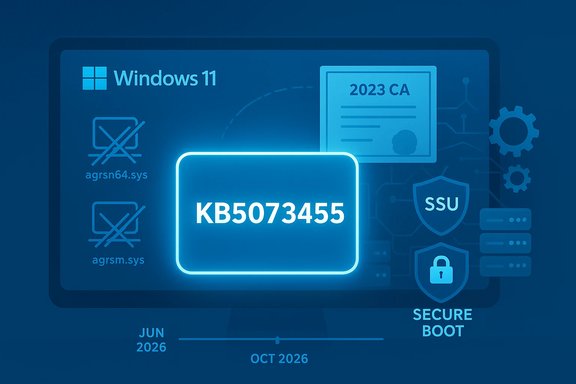
Blue cyber-security scene with a calendar, Windows logo, shield badge, and a shutdown command on a laptop.Background​

January’s security rollup for Windows 11 shipped on January 13, 2026 and bundled servicing stack and cumulative updates intended to close many vulnerabilities and improve platform reliability. Among the fixes and platform changes were updates touching Secure Boot certificate handling and the servicing orchestration that runs during offline update commits. Microsoft’s official support note for the Windows 11 23H2 cumulative package (KB5073455) documents a known issue where systems with System Guard Secure Launch (a virtualization-based Secure Boot/firmware protection) may restart instead of shutting down or hibernating after the update. Industry outlets and community reporting picked up the same problem within hours of rollout, and administrators began flagging the symptom at scale inside enterprise fleets and vendor support channels. Independent reporting and forum diagnostics also called out a related but separate January regression that disrupts Azure Virtual Desktop (AVD) and Windows 365 authentication from the Windows App client; Microsoft published mitigations for that issue as well.

What Microsoft declared (the facts)​

Official symptom and guidance​

  • Symptom: After installing the January 13, 2026 update (KB5073455), some PCs with System Guard Secure Launch enabled are unable to shut down or enter hibernation; they restart instead.
  • Temporary workaround for shutdown: Microsoft documents a manual command-line shutdown as the interim method: open Command Prompt and run shutdown /s /t 0 to forcibly power off. There is no vendor-supplied workaround for entering hibernation at time of the advisory; users should save work and avoid relying on hibernation until a fix ships.
  • Timeline: The update and its known-issue note were published on January 13, 2026, and Microsoft stated a resolution will be released in a future update.

Related AVD / Windows 365 problem​

  • Separately, Microsoft acknowledged that the January rollup caused credential-prompt failures in Remote Desktop connections via the Windows App, producing authentication errors (for example, 0x80080005) and preventing AVD/Cloud PC sessions from launching. Microsoft advised fallbacks and provided Known Issue Rollback (KIR) guidance for managed environments.
These are the load-bearing, vendor-confirmed points; they appear verbatim in Microsoft’s KB and Release Health notes and are echoed across multiple industry reports and community channels.

Why this matters: technical anatomy and real-world impact​

How Secure Launch changes the game​

System Guard Secure Launch inserts a virtualization-based boundary early in the boot chain to validate firmware and platform integrity. That boundary changes boot-time and runtime assumptions compared with a “conventional” boot flow, and any servicing or orchestration logic that coordinates offline update commits must preserve the user’s power intent across multiple phases (download → staging → offline commit → final action). When any element in that chain misreports intent or encounters timing/driver races, the orchestrator may choose a safer path — restart — instead of performing the requested shutdown or hibernate. This is precisely the class of interaction Microsoft’s servicing and release notes point to.

Practical consequences​

  • Laptops that should hibernate overnight instead reboot and stay powered, causing battery drain and possible data-loss risk if users assume the device slept.
  • Automation that relies on deterministic shutdown semantics (imaging, overnight maintenance, scripted reprovisioning) can fail or produce inconsistent states.
  • For organizations that mandate Secure Launch for compliance or firmware hardening, the issue is material because the security posture itself is exposing a fragility in update sequencing.

Who is affected (scope and uncertainty)​

Microsoft’s KB entry for KB5073455 lists the known issue under Windows 11, version 23H2. The advisory specifically calls out devices with Secure Launch enabled as showing the restart-on-shutdown symptom. That is the authoritative scope statement. Industry reporting generally confirms the same narrow scope, noting the most visible impact is observed in enterprise and IoT fleets where Secure Launch and related hardening are more common. Several outlets and forum threads indicate the practical blast radius is primarily Enterprise/IoT devices with Secure Launch enabled, while typical consumer Home/Pro devices are far less likely to be affected — but the KB text centers the technical precondition (Secure Launch) rather than listing SKUs exclusively. Administrators should therefore verify whether Secure Launch is enabled in their fleet rather than assuming SKU alone is the determinant. Caveat about SKU exclusivity: some media and community posts described the update as “offered only for Enterprise and IoT SKUs.” Microsoft’s KB lists the update for Windows 11, version 23H2 broadly; community evidence indicates the operational exposure is concentrated in Enterprise/IoT cases because those SKUs are likelier to have Secure Launch enforced. Administrators should not treat SKU labels alone as definitive — check device configuration for Secure Launch and the specific package installed. This nuance is important and often confused in early reporting.

Workarounds, mitigations and immediate actions​

For affected end users (short, urgent steps)​

  • Save your work frequently. Hibernation cannot be relied on while the issue persists.
  • If you must power off and your normal shutdown path returns you to the sign-in screen, open an elevated Command Prompt and run:
    shutdown /s /t 0
    This forces a clean shutdown until Microsoft ships a permanent fix. Note: this must be repeated each time you need to ensure a power-off.

For administrators and IT teams (prioritized playbook)​

  • Inventory — Identify which devices have the January updates installed and whether Secure Launch is enabled. Use centralized management tools, Intune, or scripting to collect the following: installed KB list (via DISM /online /get-packages), Secure Launch status (from host firmware policy or OS attestation), and device model/firmware.
  • Gate rollouts — Pause or hold further deployment of the January KB to production rings until you validate on pilot hardware if your fleet includes many Secure Launch-enabled machines.
  • Communicate — Inform end users about the manual shutdown command and the lack of a hibernate workaround, and publish instructions for saving work and conserving battery until fixed.
  • For AVD/Cloud PC environments (separate AVD regression): deploy Microsoft’s Known Issue Rollback (KIR) artifact for the AVD authentication bug or instruct users to use the Web client or classic Remote Desktop client while the vendor remediation is prepared.

When to uninstall vs. when to mitigate​

Uninstalling cumulative LCUs is possible but has trade-offs: removal often involves DISM and can be complex because the combined package may include a Servicing Stack Update (SSU) that is not straightforward to remove. For most organizations, Microsoft’s mitigations (KIR for AVD, command-line shutdown for Secure Launch) are preferable to wholesale uninstalls, which reintroduce security exposure. Test rollback procedures in a lab before applying them at scale.

How to identify if your device is exposed (practical checks)​

  • Check the update: run winver or inspect installed packages via PowerShell/DISM to confirm KB5073455 (or the January LCU) is present.
  • Check Secure Launch status: inspect System Guard/Virtualization-based security settings that enable Secure Launch (these are often configurable via Intune/device firmware or group policy). The presence of Secure Launch is the primary precondition called out in Microsoft’s advisory.
  • Functional test: with no pending user activity, invoke a shutdown or select Update and shut down. If the device returns to the sign-in screen or reboots instead of powering off, the symptom is present. If so, power off using the explicit command-line workaround and collect logs for later triage.

The technical analysis — why this regression is plausible and hard to fully prevent​

Modern Windows cumulative updates perform both online staging and offline commit phases that can require service orchestration across reboots. Several complex factors make power-state regressions plausible:
  • Multi-phase servicing: Staged file replacements and offline commits can require intermediate reboots; the servicing stack must carry the user’s final intent (shutdown vs restart) through these phases. A mis-synced flag or a race condition can flip the intent.
  • Fast Startup / hybrid shutdown semantics: On many desktops and laptops, Fast Startup preserves kernel session state to speed boot — a hybrid path that changes shutdown semantics and makes offline servicing decisions more conditional.
  • Virtualization boundaries: Secure Launch introduces virtualization boundaries earlier in boot and runtime; that changes assumptions in the servicing stack about firmware state and timing, creating previously unseen edge cases when servicing logic is modified.
  • Driver/firmware diversity: The enormous diversity of OEM firmware, device drivers, and security agents means certain timing or handoff sequences can surface only under real-world telemetry — not every lab can reproduce every permutation.
All these factors explain why Microsoft had to stage the remediation: the fix touches the servicing orchestration layer rather than a single device driver, and staged rollouts plus telemetry-driven gating are prudent to limit regression blast radius.

Community signals and unverified reports — handle with caution​

Community threads and early reporting flagged other symptoms after the January updates (GPU black screens, gaming frame-rate drops on some NVIDIA configurations, and peripheral anomalies). These reports are plausible given driver/firmware sensitivity, but they are heterogeneous and not universally reproducible. Treat these as anecdotal early signals until vendors or Microsoft confirm reproducible repro steps and a root cause. Administrators should collect reproducible telemetry (event logs, msinfo32, driver versions, BIOS) and share that with OEMs/ISVs for triage if they see such problems in their fleets.

Recommended phased response plan (concise checklist)​

For enterprise and managed environments​

  • Immediately inventory: map KB installs and Secure Launch enablement across devices.
  • Pause further KB5073455 deployments to production rings with significant Secure Launch presence.
  • For AVD/Cloud PC customers: apply Microsoft’s KIR where appropriate or direct users to the Web or classic RDC client.
  • Communicate: issue end-user guidance for manual shutdown and hibernation avoidance.
  • Test remediation on a pilot ring as Microsoft releases engineered fixes. Validate update-and-shutdown semantics and any collateral regressions.

For power users and small businesses​

  • If you’re on a laptop and depend on hibernation, defer the January LCU on machines with Secure Launch enabled until the fix is confirmed in your environment. Use the explicit shutdown command as needed.

Microsoft’s response posture — strengths and gaps​

Strengths:
  • Rapid acknowledgment: Microsoft publicly documented both the AVD authentication and Secure Launch shutdown issues within its KB/Release Health notes and published interim mitigation guidance. That quick disclosure reduces the troubleshooting blind spot for admins.
  • Targeted mitigations: A Known Issue Rollback (KIR) for the AVD authentication problem preserves the remaining security baseline while disabling only the offending change — a surgical alternative to uninstalling the whole LCU.
Gaps and risks:
  • No hibernation workaround: Microsoft explicitly says there is no workaround to restore reliable hibernation for affected systems at this time, which is a meaningful operational gap for laptop users.
  • Communication nuance: early reports sometimes conflated SKU distribution with actual exposure (Secure Launch configuration is the technical trigger), creating confusion in support channels; clearer, device-focused guidance would reduce misrouting of incidents.

What to expect next and monitoring checkpoints​

  • Short-term: Microsoft intends to ship a resolution in a future update; given the enterprise impact, an out-of-band hotfix or an early cumulative follow-up is plausible if telemetry shows broad exposure. Administrators should monitor Microsoft’s Release Health dashboard and KB updates for an explicit remedial package and test the fix in a pilot ring as soon as it becomes available.
  • Medium-term: Validate that the remediation preserves power intent across a representative set of hardware, firmware, and third-party agents. Watch for collateral regressions (e.g., Task Manager regressions, driver issues) that sometimes accompany servicing-stack fixes.

Final assessment — practical takeaway for Windows administrators and power users​

The January 13, 2026 cumulative rollup addressed important security concerns but introduced two separate, vendor-confirmed regressions: an AVD/Cloud PC authentication failure and a Secure Launch-related shutdown/hibernate regression. Microsoft’s published guidance gives immediate, pragmatic steps (KIR for AVD, shutdown /s /t 0 for Secure Launch shutdown), but the lack of a hibernation workaround and the complexity of servicing-stack fixes underline the operational trade-offs of rapid monthly rollups. Administrators should prioritize inventory and gating, pilots and clear user communications, while power users should take conservative choices on production machines that rely on hibernation or AVD workflows.

Quick reference (one-page summary)​

  • Problem: Some Windows 11 (23H2) devices with Secure Launch restart instead of shutting down or hibernating after the Jan 13, 2026 update (KB5073455).
  • Immediate user workaround: Run shutdown /s /t 0 from Command Prompt to force a shutdown. No hibernation workaround available.
  • Related issue: KB5074109 causes AVD/Windows 365 authentication failures; use KIR or alternate clients until fixed.
  • Admin priorities: Inventory Secure Launch, pause rollouts to at-risk rings, deploy KIR for AVD as needed, and pilot fixes when Microsoft releases them.

The January patch window shows the constant trade-off between security urgency and operational stability: updates that harden boot-time trust and firmware protections can expose unexpected orchestration edges when applied across the variety of real-world hardware and agents. The vendor-confirmed guidance gives administrators and users an explicit path to reduce immediate risk; the next important milestone is Microsoft’s remedial update and broad field validation across representative hardware — test and validate before broad rollout.
Source: heise online Windows 11 23H2: Problems with Sleep and Shutdown after January Patch Day
 

A newly disclosed Windows 11 regression tied to Microsoft’s January 13, 2026 cumulative updates can prevent certain PCs from powering off or entering hibernation — affected machines instead restart — and Microsoft has published a narrow workaround while engineering prepares a permanent fix.

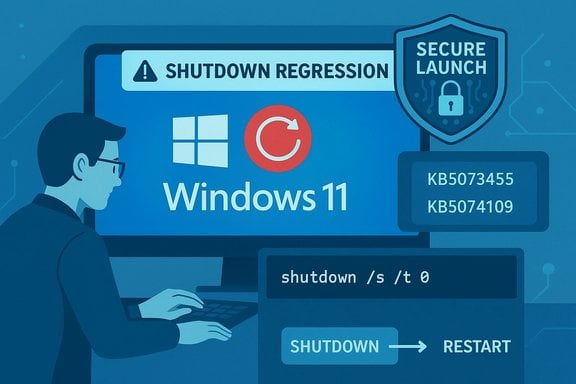
Windows 11 display with a red 'Shutdown Restart' warning on a server workstation.Background​

The problem surfaced in the January 13, 2026 update cycle and is documented on Microsoft’s support pages for the January cumulative update KB5073455. Microsoft’s advisory says the regression affects devices where System Guard Secure Launch is enabled; the affected servicing package is the Windows 11, version 23H2 cumulative update distributed on January 13. The vendor’s immediate guidance is an emergency, manual shutdown command that forces a clean power-off while a future update is prepared. Independent reporting and community threads corroborated Microsoft’s note within hours of the rollout and stressed that the issue is narrow in scope — primarily Enterprise and IoT SKUs running 23H2 where Secure Launch is active — but operationally consequential where it appears.

What’s broken and why it matters​

The symptom, in plain terms​

  • When users select Shut down or attempt to Hibernate, some affected systems will immediately restart instead of powering off.
  • If hibernation is attempted, Microsoft currently states there is no workaround — hibernate remains unreliable until a fix is shipped.
  • Microsoft’s interim instruction to obtain a true shutdown is to run the command shutdown /s /t 0 from an elevated Command Prompt after saving work.
Those are the vendor-confirmed, load-bearing claims; they appear verbatim in the KB and Release Health notes. The inability to hibernate and the restart-on-shutdown behavior can lead to lost unsaved work, drained batteries on laptops, failed overnight maintenance tasks, and unpredictable automation outcomes (for example, imaging or scripted shutdown sequences that expect a deterministic off state).

The technical anatomy (high level)​

System Guard Secure Launch is a virtualization-based protection that establishes a measured, trusted environment during early boot to defend against firmware-level threats. Because Secure Launch changes the early boot and runtime boundary, it also changes assumptions about servicing orchestration — the set of steps Windows Update performs when it commits offline changes during reboot or shutdown sequences.
Modern cumulative update servicing can require multiple offline commit stages. The system must preserve the user’s final power intent (shutdown, restart, or hibernate) across those stages. On some Secure Launch configurations, Microsoft’s servicing orchestration no longer reliably preserves that final intent following the January update, and the orchestrator chooses a safer — but wrong for the user — path: restart. That is the class of interaction Microsoft describes in its advisory.

Scope: who is affected​

  • Operating System: Windows 11, version 23H2 (the January 13 cumulative update is KB5073455 for 23H2).
  • Editions: The LCU in question is offered primarily for Enterprise and IoT SKUs of 23H2; that aligns with Microsoft’s advisory and community reporting. Consumer Home and Pro systems are far less likely to be affected because they rarely enforce Secure Launch in the same way.
  • Configuration requirement: System Guard Secure Launch must be enabled on the device for the symptom to appear. That is the critical precondition. If Secure Launch is disabled, devices are unlikely to show the restart-on-shutdown behavior caused by this update.
Put simply: the issue is not “every Windows 11 PC”; it is a configuration-dependent regression that concentrates impact in environments that require Secure Launch as part of firmware hardening or compliance baselines.

Verifying exposure: step-by-step checks​

Administrators and power users should confirm exposure before taking action. The following checks rely on vendor-recommended tools and simple OS utilities.
  • Confirm OS and recent patch:
  • Run Win+R → type winver → Enter to check the Windows 11 version and build. Look for 23H2 if applicable.
  • Inspect Update history via Settings → Windows Update → Update history and search for KB5073455 or an update installed on/after January 13, 2026. For scripted checks, you can use DISM to list installed packages:
  • DISM /online /get-packages | findstr 5073455
  • These methods are commonly used in support and management workflows to confirm an LCU’s presence.
  • Confirm Secure Launch status:
  • Microsoft’s guidance shows how to configure and verify System Guard Secure Launch. Use System Information (msinfo32) and check the values under Virtualization-based Security Services Running and Virtualization-based Security Services Configured; Secure Launch should appear if it is active. The official Learn article documents GUI, Group Policy, registry, and MDM paths to enable/verify Secure Launch.
  • Administrators can also check the registry path: HKEY_LOCAL_MACHINE\SYSTEM\CurrentControlSet\Control\DeviceGuard\Scenarios\SystemGuard and look for the DWORD value Enabled = 1 to indicate configuration. Microsoft documents this registry key as part of Secure Launch enablement and verification.
  • Functional test (if the update is already installed and you can spare a test machine):
  • With work saved, command a shutdown or select Update and shut down. If the machine restarts instead of powering off, the symptom is present.
  • If the symptom is confirmed, follow the emergency shutdown procedure described below and escalate for fleet-level mitigation if you manage multiple devices.

Microsoft’s temporary workaround (what to do right now)​

Microsoft’s vendor-provided interim guidance is deliberately short and conservative: save your work, then force a clean power-off by running this command in an elevated Command Prompt:
  • shutdown /s /t 0
That command instructs Windows to perform an immediate shutdown (no wait time). It is Microsoft’s recommended temporary method to ensure a device actually powers off rather than restarts, and it must be executed each time you need a guaranteed shutdown while the regression remains unresolved. Microsoft explicitly notes there is no equivalent workaround for hibernation. Operational notes:
  • Always save work before invoking the command — it will close apps and power off the machine immediately.
  • For helpdesk or remote scenarios, you can push that command via remote scripting tools or management platforms (SCCM/MEM/Intune) to affected endpoints as a short-term safety measure.
  • For managed fleets, prefer Microsoft’s Known Issue Rollback (KIR) or other surgical mitigations where Microsoft has published them (not all regressions will have KIRs). KIRs disable the specific change causing a regression without uninstalling the entire LCU and are the preferred enterprise route when available.

Enterprise impact and recommended playbook​

This incident is small in scope but high in consequence for organizations that enforce Secure Launch at scale. The following recommended playbook balances security posture with operational continuity.
  • Inventory and triage:
  • Identify all devices with KB5073455 installed and Secure Launch enabled. Use Intune, WSUS, SCCM, or a simple DISM/Get-WindowsUpdateInventory script to collect package presence and registry flags.
  • Group affected devices by role (laptop, server, kiosk, IoT) and by criticality (production, test, pilot).
  • Communicate and educate:
  • Publish brief, clear guidance to end users and helpdesk staff: save work, use shutdown /s /t 0 if a clean shutdown is required, and avoid relying on hibernation until Microsoft resolves the regression. Include exact command text to reduce error.
  • Gate and pilot:
  • Pause or hold further January rollouts for rings that include Secure Launch–enabled machines until you can validate behavior in a test ring with representative hardware and OEM firmware versions. For many organizations, blocking a problematic LCU in critical rings is the prudent option.
  • Prefer KIR over wholesale uninstall:
  • If Microsoft publishes a Known Issue Rollback for the specific regression in your environment, test and deploy that before considering mass uninstall of the cumulative update. Uninstalling security LCUs reintroduces CVE exposure and can be disruptive, so treat it as a last resort.
  • Collect telemetry:
  • Gather Event Viewer logs, msinfo32 dumps, Windows Update logs, and firmware versions for affected devices. If you need to escalate to Microsoft, precise telemetry accelerates triage.

Risk assessment: strengths and weaknesses of the response​

What Microsoft did well​

  • Microsoft documented the problem publicly and provided an explicit temporary workaround to force a true shutdown — that clarity reduces uncertainty for administrators and end users.
  • The advisory is narrow and transparent about the preconditions (KB5073455 installed + Secure Launch enabled), which helps IT teams target mitigation rather than blanket rollbacks.

What remains risky or unresolved​

  • There is no workaround for hibernation, which is significant for laptop users and scenarios that rely on hibernate semantics for power/battery management. Microsoft has not provided a timeline for the fix, and any ETAs available in public discourse are speculative until Microsoft publishes follow-up KBs or Release Health updates. Administrators should treat schedule predictions as unverified.
  • The regression highlights how tightly coupled security hardening (Secure Launch) and servicing orchestration are. Fixes that alter boot-time trust or servicing logic can have unforeseen side effects across diverse OEM firmware and driver ecosystems. This makes broad validation and test-ring discipline essential; organizations should not assume preview-stage fixes will be problem-free even when they address critical security gaps.

Practical scripts and commands (quick reference)​

  • Force immediate shutdown (user action):
  • Open Start → type cmd → right-click Command Prompt → Run as administrator.
  • Type: shutdown /s /t 0
  • Press Enter. Save work beforehand.
  • Verify presence of KB (manual/scripted):
  • DISM: DISM /online /get-packages | findstr 5073455
  • Settings: Settings → Windows Update → Update history → Search for KB5073455.
  • Verify Secure Launch:
  • GUI: Start → type System Information (msinfo32) → check “Virtualization-based Security Services Running” and “Virtualization-based Security Services Configured.”
  • Registry check (for scripted/remote checks): HKEY_LOCAL_MACHINE\SYSTEM\CurrentControlSet\Control\DeviceGuard\Scenarios\SystemGuard\Enabled = 1 indicates configuration.

Timeline and verification notes​

  • January 13, 2026: Microsoft shipped January cumulative updates; KB5073455 is the package associated with Windows 11, version 23H2. Microsoft’s KB and Release Health notes list the restart-on-shutdown regression tied to Secure Launch as a known issue.
  • January 16, 2026 onward: Microsoft and independent outlets continued to confirm the advisory and to clarify the narrow scope (Enterprise/IoT + Secure Launch). Community telemetry surfaced real-world examples and admin playbooks.
Be cautious: predictions about when Microsoft will publish the corrective update are speculative until Microsoft releases a follow-up KB or updates its Release Health entry. Any timeline not posted by Microsoft itself should be treated as unverified.

Longer-term lessons for IT teams and power users​

  • Test shutdown and hibernate flows as part of any patch validation regime. A small UI promise (Update and shut down) masks a complex orchestration path that can break when servicing logic interacts with new security boundaries.
  • When rolling out security-hardening features (Secure Launch, Credential Guard, VBS) at scale, include repair/recovery and rollback playbooks for maintenance windows that depend on deterministic power-state behavior.
  • Prefer surgical mitigations (KIR) when available rather than full uninstalls of security updates. A KIR can neutralize the regression without removing the security fixes in the LCU.
  • Keep users informed with short, clear instructions. When deterministic shutdown behavior matters (imaging labs, overnight scripts, battery-managed fleets), communicate the emergency command and the reason for it so users do not lose work or power unexpectedly.

Conclusion​

This January 2026 regression underscores two interlocking realities of modern OS maintenance: security hardening and servicing orchestration are deeply interdependent, and even tightly scoped updates can have outsized operational effects where specific security features are enabled. Microsoft has published a clear, conservative workaround — shutdown /s /t 0 — and has flagged the problem in its KB/Release Health notes for Windows 11, version 23H2 (KB5073455). Administrators should inventory exposure, gate further rollouts for sensitive rings, and prefer KIR-based mitigations where Microsoft makes them available. Home users should verify whether their machines are in the narrow affected set (23H2 Enterprise/IoT with Secure Launch) before taking disruptive actions. Monitor Microsoft’s KB and Release Health entries for the official remedial update; until then, save work frequently and use the emergency shutdown when a true power-off is required.
Source: PCMag UK Windows 11 Bug Stops Some PCs Shutting Down: Here Is Microsoft's Temporary Fix
 

Microsoft’s January cumulative rollup for Windows 11 has introduced a pair of verifiable, practical regressions — one that can cause certain 23H2 systems to restart when users expect them to shut down or hibernate, and another that breaks some Azure Virtual Desktop / Cloud PC authentication flows — while community reports have also flagged gaming and NVIDIA performance anomalies that remain unconfirmed. Microsoft published the January 13, 2026 cumulative updates and accompanying release notes; the reboot-on-shutdown symptom is tied to Windows 11, version 23H2 devices with System Guard Secure Launch enabled (the package commonly referenced is KB5073455), and Microsoft’s immediate guidance is to use an explicit command-line shutdown until a fix ships.

Laptop displays a shutdown error screen with a glowing shield, surrounded by Azure Virtual Desktop and Cloud PC icons.Background / Overview​

Windows servicing has become a multi-layered, multi-phase operation: monthly cumulative updates (LCUs), servicing stack updates (SSUs), and targeted mitigations like Known Issue Rollbacks (KIRs) are applied across a broad range of hardware and firmware configurations. When an update must perform offline commit phases during a shutdown or boot sequence, the OS must preserve the user’s final power intent (shutdown vs. restart vs. hibernate) across those stages. The intersection of that servicing orchestration with virtualization-based protections such as System Guard Secure Launch creates fragile edges where a change in sequencing or timing can flip the machine back into a restart path. This is the high-level technical class Microsoft and independent diagnostics point to for the January regressions.
The January 13, 2026 rollups shipped as combined SSU + LCU packages for supported Windows 11 branches. On 23H2 the update is distributed as KB5073455 (OS build numbers appear on the KB page), and on 24H2/25H2 the larger family is KB5074109. Both packages contain security fixes and quality improvements — addressing dozens of CVEs and other issues — but also carry the two distinct, vendor-confirmed regressions that administrators and power users have been triaging since rollout.

What broke — symptoms and immediate realities​

Shutdown / hibernate regression (23H2 + Secure Launch)​

  • Symptom: Devices running Windows 11, version 23H2 that have System Guard Secure Launch enabled may restart when a user selects Shut down or Hibernate, instead of powering off or entering hibernation. Hibernation is explicitly reported by Microsoft as unreliable while the regression exists.
  • Scope: The behavior is configuration-dependent. The most widely reported impact is on Enterprise and IoT SKUs where Secure Launch is commonly enforced; Home/Pro consumer devices are far less likely to exhibit the problem because Secure Launch is seldom enabled by default in those configurations. That nuance is central: this is not an across-the-board consumer outage but a targeted regression with outsized operational consequences in fleets that rely on deterministic power state behaviour.
  • Immediate vendor guidance: Microsoft’s documented, pragmatic workaround to guarantee a shutdown is to run an elevated Command Prompt and execute: shutdown /s /t 0 — a one-shot, manual instruction that forces an immediate power-off. Microsoft notes there is currently no workaround for hibernation. Administrators are advised to inventory their estate, confirm which devices have the January LCU installed, and check whether Secure Launch is enabled before deciding on broader mitigations.

Azure Virtual Desktop / Cloud PC authentication regression​

  • Symptom: Separately, some environments experienced credential prompt failures when launching Azure Virtual Desktop RemoteApp or Cloud PC sessions using the Windows App client, commonly manifesting as authentication errors that prevent session establishment. Microsoft published a Known Issue Rollback (KIR) for the affected update family to surgically disable the change causing that specific client-side regression for managed environments.
  • Operational impact: For organizations that depend on AVD or Windows 365 Cloud PCs as primary desktops, such client-side failures can be immediately blocking for remote workers. Microsoft’s KIR allows IT to disable the offending change while leaving other security fixes in place — a preferable alternative to removing the entire LCU.

Why this matters: practical consequences​

Small changes at the servicing or boot boundary can create outsized operational headaches:
  • Laptops that should hibernate overnight but instead remain powered on will drain batteries, potentially losing unsaved work and disrupting travel or shift operations.
  • Deterministic automation and imaging workflows that rely on a clean power-off will fail or produce inconsistent results when machines unexpectedly reboot during those sequences. This affects imaging labs, overnight maintenance windows, and scripted reprovisioning.
  • Cloud-desktop outages (even if client-side) break user productivity at scale and can create high-priority incidents for helpdesks. Microsoft’s KIR mitigations and fallback guidance (use the AVD Web client or classic Remote Desktop client) are immediate stopgaps but still require IT action and communication.

How to verify exposure (step-by-step checks)​

  • Confirm Windows version and build: press Win+R, type winver, and verify you’re on Windows 11, version 23H2 for the shutdown regression check.
  • Check installed KBs: open an elevated Command Prompt or PowerShell and run:
  • DISM /online /get-packages | findstr 5073455
    This reports whether KB5073455 is present on the system.
  • Confirm Secure Launch status: use System Information (msinfo32) and inspect Virtualization-based Security Services Running and Virtualization-based Security Services Configured, or check the registry path HKEY_LOCAL_MACHINE\SYSTEM\CurrentControlSet\Control\DeviceGuard\Scenarios\SystemGuard for an Enabled DWORD. If Secure Launch is active, the device is in the at-risk cohort.
  • Functional test (use a sacrificial test machine if possible): Save work, then select Update and shut down or normal shutdown. If the machine restarts instead of powering off, the symptom reproduces. If reproduced, follow mitigation steps below.

Immediate mitigations and operational playbook​

For individual users / power users​

  • If you need a guaranteed power-off right now, run an elevated Command Prompt and execute:
  • shutdown /s /t 0
    This forces an immediate shutdown; save your work first. Microsoft documents this as the official emergency workaround.
  • If you rely heavily on hibernate, avoid installing the January 13 updates on a production laptop until the vendor releases a confirmed fix, or validate behaviour on a test machine.
  • Consider creating a full image backup or system restore point before making changes or removing updates. Uninstalling cumulative LCUs is possible but has trade-offs and is often not recommended for most consumers.

For IT administrators (priorities and checklist)​

  • Inventory and map exposure:
  • Query installed packages centrally (DISM /online /get-packages or management tooling).
  • Query Secure Launch/VBS enablement via Intune/MDM or endpoint telemetry.
  • Gate rollouts:
  • Pause or hold KB5073455 deployment to production rings that include Secure Launch–enforced devices until you validate on pilot hardware.
  • Deploy KIR where relevant:
  • For the AVD/Cloud PC authentication regression in KB5074109, test and deploy Microsoft’s KIR artifact to affected OUs or groups to re-enable connectivity while a permanent fix is developed.
  • Communicate clearly:
  • Notify users that hibernation may be unreliable, instruct them to save frequently, and publish the change-control steps for emergency shutdown commands.
  • If rollback is necessary:
  • Test uninstall procedures in a lab first. Removing combined SSU+LCU packages can be complex; surgical mitigations (KIR) are often safer than full uninstalls.

The NVIDIA performance reports — what’s reported, what’s confirmed​

Shortly after the January update window, community threads and some technical forums reported GPU/graphics performance degradations (FPS drops, stuttering, black screens) on systems running NVIDIA GeForce hardware. A thread title circulating on enthusiast forums summarized the claim as “New Windows update ruins Nvidia GeForce GPU performance.” Important caveats:
  • These gaming/GPU reports are heterogeneous and hardware/driver-dependent. Community reproductions vary by OEM firmware, GPU driver version, and local configuration. File-level diagnostics in community threads show many cases where a driver rollback or reinstall resolved the problem, suggesting driver–OS interactions are the likely culprit rather than a universal Windows-level throttling.
  • At the time of reporting, major vendors (Microsoft and NVIDIA) had not published a single, unified advisory confirming a widespread, OS-level performance regression tied to the January LCU packages. That means the gaming claims should be treated as credible early signals but unverified at scale.
Practical steps for gamers and GPU-dependent users:
  • Check GPU driver version and update history: compare current driver builds to the vendor’s release notes. If you’re on a newly installed driver that coincided with the update, test rolling back to the last-known-stable driver using Display Driver Uninstaller (DDU) in safe mode, then re-test.
  • Run controlled benchmarks and frame-time logging: synthetic FPS is a weak indicator — examine frame-time consistency, 99th-percentile frame times, and stutter metrics to characterize any regression precisely.
  • Test on a clean image or secondary machine: avoid conflating unrelated software (overlay tools, capture utilities, third-party anti-cheat) with the OS-level change.
  • If regression persists after a driver rollback, collect msinfo32, driver logs, and DMPs and escalate to vendor support (NVIDIA) with concrete telemetry. Community reports are useful to vendors but need traceable artifacts to be actionable.

Critical analysis — the strengths and risks in Microsoft’s response​

Notable strengths​

  • Rapid acknowledgement and targeted mitigation: Microsoft documented the Secure Launch shutdown symptom and published tactical mitigations (the explicit shutdown command) and a KIR workflow for the AVD authentication regression. Those actions give administrators surgical choices that avoid wholesale rollback of important security fixes.
  • Use of KIR as an instrument: Rolling back a narrow behavioral change rather than the entire cumulative update preserves critical CVE fixes while limiting operational impact for affected scenarios. That demonstrates an operational maturity in servicing tooling.

Potential risks and weaknesses​

  • Testing coverage limits: The regression highlights a persistent industry challenge — representative testing across the combinatorial space of firmware, OEM provisioning, virtualization-based security (VBS) settings, and third‑party drivers. Secure Launch changes the boot boundary and therefore increases the chance that servicing logic will misinterpret intent in a subset of environments. The update’s impact on mission-critical automation and battery-sensitive devices underscores that testing gaps remain.
  • No hibernate workaround: The absence of a vendor-supplied workaround for hibernation increases the operational pain. For devices that rely on hibernate for long-term battery preservation (field devices, traveling users), the only true options are to avoid the update or accept manual mitigation — both imperfect choices.
  • Communication friction: Early KB entries and release notes sometimes lag behind rapidly evolving field reports; organizations need tight telemetry and rapid pilot validation to avoid user-impacting surprises. The nuance that the issue is configuration-dependent (Secure Launch-enabled devices) is easy to miscommunicate as “all Windows 11 machines,” which drives unnecessary panic among consumer audiences.

Longer-term operational recommendations​

  • Make power-state validation part of update validation: Add test cases that verify update+shutdown+hibernate semantics on representative hardware with Secure Launch and VBS enabled as part of standard patch-testing pipelines.
  • Expand telemetry for early detection: Endpoint management platforms should capture post-update power-state outcomes and forward telemetry for centralized triage. Measuring the rate of unexpected restarts vs. expected restarts during upgrade windows provides a leading indicator that an update’s offline sequencing logic is misbehaving.
  • Prioritize KIR familiarity: IT teams that manage AVD / Cloud PC estates should incorporate KIR deployment and rollback testing into patch playbooks so they can respond quickly without removing full security packages.
  • For security-obsessed environments that mandate Secure Launch: validate firmware/UEFI provisioning flows with your OEMs and pilot every LCU on actual images before broad deployment. The cost of a small fleet outage can be far higher than the cost of a conservative patch ring strategy.

Conclusion​

January’s servicing window demonstrates an uncomfortable but important truth: modern operating-system updates are simultaneously essential and brittle. The January 13, 2026 cumulative packages contain vital security fixes, but they also surfaced two distinct, vendor-confirmed regressions — a restart-on-shutdown problem on 23H2 devices with System Guard Secure Launch enabled (KB5073455) and an AVD/Cloud PC authentication regression addressed via KIR in the 24H2/25H2 family (KB5074109) — both of which require pragmatic, test-driven responses from IT teams and cautious behavior from power users. Microsoft’s emergency guidance (run shutdown /s /t 0 to force a clean power-off) and the availability of KIR are useful immediate options, but they are stopgaps until a permanent fix is validated and deployed. Community reports of gaming and NVIDIA performance regressions should be treated as early-warning signals: they merit careful, reproducible testing (DDU clean-slate driver tests, frame-time telemetry, and msinfo32 dumps) before drawing broad conclusions or making mass rollback decisions. The operational lesson is straightforward: validate updates against your actual device estate — especially if you enforce Secure Launch or depend on cloud-desktop ecosystems — and maintain clear communication channels so users understand both the risks and the short-term mitigations that administrators can enact.
Monitor Microsoft’s Release Health and the specific KB pages for the remedial update and validated fixes; test any remedial package in a pilot ring across representative Secure Launch and GPU-sensitive hardware before broad deployment.
Source: gHacks Technology News https://www.ghacks.net/2026/01/16/w...vidia-geforce-gpu-performance-reports-claim/]
 

Microsoft has confirmed that January’s Patch Tuesday updates for Windows 11 have produced a sharply focused but disruptive regression: after installing the January 13, 2026 cumulative updates some systems running Windows 11 version 23H2 with virtualization‑based Secure Launch enabled may fail to power down or enter sleep/hibernation — instead they restart immediately. The bug is documented in Microsoft’s Release Health advisory and the company has published a temporary command‑line shutdown workaround while engineering prepares a permanent fix.

Windows 11 screen showing System Guard Secure Launch, a January 2026 calendar, and security icons.Background / Overview​

The January 2026 update window delivered multiple cumulative updates across Windows 11 branches. The headline packages include KB5074109 for Windows 11 24H2/25H2 and KB5073455 for Windows 11 23H2. Both updates contain dozens of security fixes and assorted reliability changes; assorted downstream changes — notably distribution of updated Secure Boot certificates and protections targeting firmware attack vectors — were included as part of this servicing wave. Shortly after rollout, two separate regressions were reported and later confirmed by Microsoft: a client‑side authentication failure that affected Azure Virtual Desktop (AVD) / Windows 365 connections, and a power‑state regression that affects shutdown/hibernation on 23H2 systems configured with System Guard Secure Launch. This article explains what’s broken, why it matters, how to confirm exposure, the official workarounds and mitigations, and practical guidance for both administrators and power users balancing security and availability.

What Microsoft has acknowledged​

The shutdown / sleep regression (KB5073455)​

  • Symptom: After installing the January 13, 2026 cumulative update for Windows 11, version 23H2 (KB5073455), some devices where System Guard Secure Launch (the virtualization‑based Secure Boot/firmware protection) is enabled will restart instead of shutting down or hibernating. Microsoft’s advisory explicitly describes this behavior and identifies the condition (Secure Launch enabled) required for the symptom to appear.
  • Scope: The problem is configuration‑dependent — it concentrates on Windows 11 23H2 Enterprise and IoT SKUs where Secure Launch is commonly enforced. Consumer Home/Pro devices are far less likely to be affected because Secure Launch is typically not configured or enforced on those platforms by default.
  • Official interim guidance: Microsoft documents a single command‑line workaround to force a shutdown:
  • Open Command Prompt and run: shutdown /s /t 0
  • Microsoft states there is no available workaround for entering hibernation at this time; users should save work and avoid relying on hibernation until the issue is fixed.

The AVD / Windows 365 regression (KB5074109)​

  • Separate but concurrent: A different January update family (KB5074109 for 24H2/25H2 and related builds) caused credential‑prompt and authentication failures for the Windows App connection method used to reach Azure Virtual Desktop and Windows 365 Cloud PCs. Microsoft issued mitigations via a Known Issue Rollback (KIR) and recommended using the Web client or classic Remote Desktop client until the remediation was widely applied.

Technical context — Secure Launch, Secure Boot, and the update surface​

System Guard Secure Launch is part of Windows’ virtualization‑based security (VBS) family: it hardens the early boot path, measures and attests firmware and pre‑kernel code, and is designed to prevent sophisticated firmware‑level attacks. Secure Launch works in concert with Secure Boot and other Device Guard/Credential Guard features and relies on both firmware and OS integration to function correctly. Because it touches early boot and runtime enforcement, changes to the servicing stack, certificate handling, or boot‑time checks can have outsized, configuration‑specific consequences. January’s updates also included preparations for Secure Boot certificate rotation: Microsoft is proactively distributing certificate updates ahead of a planned expiration window, and that process requires careful platform checks to avoid bricking devices. The Microsoft KBs released with this Patch Tuesday bundle explicitly reference Secure Boot certificate distributions and Safe OS dynamic updates for 23H2 devices. While the certificate changes are intended to be protective, they add another variable in a complex firmware/OS interaction surface.

Who is affected — an administrator’s triage map​

  • Primary exposure:
  • Windows 11, version 23H2 devices that have System Guard Secure Launch enabled.
  • Most commonly encountered on Enterprise and IoT SKUs where Secure Launch is enforced for compliance and firmware‑integrity reasons.
  • Less likely to be affected:
  • Home and Pro users who have never enabled Secure Launch or who use typical OEM defaults. Most consumer systems do not enforce the secure‑launch baseline in the same way as managed enterprise fleets.
  • Why the scope matters: the regression is not a universal Windows failure — it is a configuration‑specific regression caused by interactions between the new update code paths and Secure Launch runtime checks on certain hardware/firmware stacks. That is why broad consumer noise and enterprise telemetry both exist but the majority of consumer devices remain unaffected.

Reproducing and confirming the symptom​

Quick checks (safe, read‑only)​

  • Check whether the update is installed:
  • Open Settings > Windows Update > Update history and verify you’ve installed the January 13, 2026 cumulative update (look for KB5073455 on 23H2 systems). Microsoft’s KB note lists the update and known issues.
  • Verify Secure Launch is enabled:
  • Use System Information (MSInfo32) and review the “Virtualization‑based Security Services Running” and “Virtualization‑based Security Services Configured” fields; Secure Launch will appear when configured and running.
  • Registry check (for scripting): look for the key HKEY_LOCAL_MACHINE\SYSTEM\CurrentControlSet\Control\DeviceGuard\Scenarios\SystemGuard\Enabled = 1; this indicates Secure Launch is configured. Use caution when reading or editing the registry.
  • Reproduce carefully:
  • Save all work and attempt a normal Shut down or Hibernate. If the machine restarts instead of powering off, the symptom matches Microsoft’s advisory. If you observe this and Secure Launch is enabled, the update‑related regression is likely present.

Official workaround and mitigation options​

Immediate user workaround​

  • Save all work.
  • Open Command Prompt (Start > type cmd > Enter).
  • Execute: shutdown /s /t 0
This forces a clean shutdown immediately and is Microsoft’s documented interim workaround while a repair update is developed. Note that there is no official workaround to restore reliable hibernation — Microsoft explicitly says no sleep/hibernation workaround is available at this time.

For IT administrators: mitigations and controls​

  • Inventory devices that have Secure Launch enabled. Use an MDM, Group Policy, or scripting to detect the registry flag or inspect MSInfo32 entries remotely. Systems with Enabled=1 and the KB5073455 package installed are the highest priority for mitigation.
  • Pause deployments: Delay or pause automated rollout rings (Intune/WSUS/Autopatch) for groups that enforce Secure Launch until Microsoft publishes a corrective update and your lab validation is complete. This reduces exposure while keeping security posture controlled.
  • Consider Known Issue Rollback (KIR) where applicable: For the separate AVD/Windows 365 regression (KB5074109), Microsoft issued a KIR and shipped Group Policy MSI templates for enterprise rollouts. IT can use the KIR mechanism to disable only the problematic change without reverting the entire update. KIRs are a surgical mitigation for non‑security code regressions; consult Microsoft’s KIR guidance for details. (Note: KIR applies to the AVD/Windows 365 problem rather than the Secure Launch shutdown regression at the time of writing.
  • Uninstalling cumulative updates: Microsoft’s KB notes caution that combined packages that include an SSU can’t always be rolled back via wusa.exe; where necessary the supported uninstall method is DISM /Remove‑Package using the exact package name. This is a heavy‑handed step and should be considered last resort after testing.
  • Test and validate: Before re‑enabling Secure Launch or rolling the update to production rings, validate a full shutdown/hibernation cycle in a representative test lab (diverse OEM firmware and driver sets). Because Secure Launch depends on platform support, vendor firmware updates and driver compatibility affect the outcome.

Practical risks and trade‑offs​

  • Operational impact
  • Laptops or mobile devices that cannot reliably hibernate may experience increased battery drain or unexpected restarts that interrupt users and break scheduled maintenance tasks.
  • Managed fleets that depend on predictable shutdown/hibernate for imaging, backups, or remote maintenance will be disrupted without coordinated mitigation.
  • Security vs availability
  • Secure Launch is designed to guard against sophisticated boot/firmware attacks. Disabling or permanently rolling back Secure Launch for convenience trades measurable security benefit for operational predictability. Administrators should weigh the temporary relief of disabling Secure Launch against the longer‑term exposure to firmware attacks, especially on high‑risk endpoints. Microsoft and security frameworks generally advise preserving Secure Launch where it is required by policy or regulation.
  • Complexity of servicing and certificates
  • The January updates included Secure Boot certificate distribution to address certificate expirations and maintain the ability to boot securely in the future. Delaying these updates across an entire organization risks certificate expiry problems later this year; but immediate application produced this unforeseen interaction. Organizations must balance near‑term stability and long‑term boot integrity.

Concrete, step‑by‑step recommendations​

For IT administrators (ranked priorities)​

  • Inventory: Identify devices with System Guard Secure Launch enabled and confirm which devices installed KB5073455. Use MDM reports, Group Policy queries, or remote registry checks.
  • Pause: Place an immediate hold on targeted update rings that include Secure Launch devices until testing completes. Use Intune/WSUS policies to block or defer KB5073455 where appropriate.
  • Communicate: Notify affected users that temporary manual shutdown via shutdown /s /t 0 is the recommended procedure; advise saving work and avoiding hibernation. Provide a step‑by‑step guidance email or intranet post.
  • Deploy mitigations for the unrelated AVD issue where needed: apply the KIR MSI and Group Policy to stop the AVD regression on managed machines (KB5074109 guidance). Restart devices per the KIR instructions to activate the policy.
  • Test fixes: When Microsoft publishes the follow‑up update, validate on a representative set of hardware (diverse OEMs, firmware, peripheral drivers) before broad deployment.

For power users and small business owners​

  • Save work frequently and shut down using the documented workaround:
  • Press Windows key, type cmd, press Enter.
  • In the Command Prompt window, type shutdown /s /t 0 and press Enter.
  • If you’re on a consumer Home/Pro device and are not using Secure Launch explicitly, you are unlikely to be affected; check MSInfo32 virtualization‑based security entries if unsure.
  • Avoid changing Secure Boot / Secure Launch settings in BIOS/UEFI unless you fully understand the security implications. Firmware toggles can cause unrelated boot or platform integrity issues.

What to expect next — timelines and likely fixes​

Microsoft has indicated it will release a corrected update in a future servicing release and has used the KIR mechanism to mitigate the separate AVD regression. Historically, Microsoft’s response pattern for widely impactable regressions is to either (a) publish a KIR for non‑security code changes or (b) ship an out‑of‑band cumulative update that corrects the regression. Because the Secure Launch regression touches virtualization‑based security, a targeted hotfix or out‑of‑band LCU is the most probable route, though Microsoft’s public timetable remains the authoritative source. Administrators should monitor the Windows Release Health dashboard and the KB pages for confirmed remedial updates.

Critical analysis — strengths, weaknesses and risk posture​

  • Strengths in Microsoft’s response:
  • Rapid acknowledgement: Microsoft documented the issue quickly in its KB/Release Health notes, including an explicit command‑line workaround and guidance for enterprises. This transparency allows IT operations to adopt immediate mitigations.
  • KIR infrastructure: The Known Issue Rollback mechanism enables surgical mitigation for non‑security regressions (used for the AVD/Cloud PC problem) without full uninstalls, minimizing collateral risk for managed environments.
  • Weaknesses and operational risks:
  • Narrow testing surface: The regression demonstrates that even well‑scoped security changes (certificate rotations, Secure Launch logic) can produce platform‑specific failures that slip through large‑scale testing. Diversity of OEM firmware and driver ecosystems complicates validation.
  • Incomplete interim options: There is no workaround for hibernation at the time of the advisory; the only practical user workaround is a manual forced shutdown command. For distributed fleets, manual actions are impractical at scale.
  • Risk tradeoffs for organizations:
  • Disabling or rolling back Secure Launch to recover shutdown/hibernate behavior degrades boot‑time protections against firmware attacks. That choice should be weighed against business continuity needs and regulatory requirements within each organization.

Final verdict and practical takeaway​

January’s security rollups fixed significant vulnerabilities and included proactive Secure Boot certificate updates — actions aligned with long‑term platform security. However, the emergence of a targeted shutdown/hibernate regression on Windows 11 23H2 devices with System Guard Secure Launch enabled is a salient reminder that security hardening can interact with the platform in unexpected ways across heterogeneous firmware ecosystems.
For enterprises, the immediate priorities are inventory, pause, and targeted mitigations (including KIR where applicable), together with a disciplined validation of Microsoft’s forthcoming corrective update. For individual users, the risk is lower if Secure Launch is not enabled, but anyone seeing restart‑on‑shutdown should follow Microsoft’s advice: save work and use shutdown /s /t 0 until a fix arrives.
Operationally, this incident should trigger two long‑term actions for IT teams:
  • Strengthen update validation pipelines to include shutdown/hibernate transitions and Secure Launch telemetry across representative hardware.
  • Preserve the ability to apply targeted KIR policies or controlled deferrals without wholesale rollback of security patches.
Microsoft’s documentation and the industry reporting converge on the same diagnostic picture: a configuration‑dependent regression introduced by the January 13, 2026 updates, with a clear (if imperfect) set of interim mitigations and a patch expected in a future release. Administrators and vigilant users should act now to identify exposure, apply the documented workarounds, and plan for controlled remediation once Microsoft releases the corrective update.

Quick reference: actionable commands and checks​

  • Force immediate shutdown (documented workaround):
    shutdown /s /t 0.
  • Check Secure Launch (quick):
  • Open System Information (MSInfo32) → review “Virtualization‑based Security Services Running / Configured.”
  • Registry indicator (scriptable):
  • HKEY_LOCAL_MACHINE\SYSTEM\CurrentControlSet\Control\DeviceGuard\Scenarios\SystemGuard\Enabled = 1 indicates Secure Launch configured. Use with caution.
  • Uninstall caveat:
  • If you must remove a combined SSU+LCU, MS advises using DISM /Remove‑Package with the package identity; wusa.exe may not remove combined packages due to SSU inclusion. Test thoroughly before rollbacks.

The advisory landscape is shifting as Microsoft and the broader ecosystem validate fixes; tracking the Windows Release Health dashboard and the specific KB pages for KB5073455 and KB5074109 remains the most reliable way to learn when a permanent resolution is published.
Source: gHacks Technology News Windows 11 23H2: January Updates Break Sleep Mode and Shutdown - gHacks Tech News
 

Microsoft has confirmed that January’s Patch Tuesday produced two separate, high‑visibility regressions that are already disrupting workflows: a shutdown/hibernation regression affecting some Windows 11 23H2 systems with System Guard Secure Launch enabled, and a concurrent Outlook issue that breaks classic POP account profiles after the KB5074109 update. Both problems are narrowly scoped but operationally painful where they appear, and Microsoft has published interim guidance while engineering works on permanent fixes.

Split-screen: secure laptop with gear icon and shield; patch notes reveal known issue.Background / Overview​

January 13, 2026’s cumulative updates for Windows 11 included the Latest Cumulative Update (LCU) packages delivered as KB5073455 (Windows 11, version 23H2) and KB5074109 (24H2/25H2 and other branches). These packages carry a substantial set of security and quality fixes, but also brought two vendor‑confirmed regressions that surfaced within hours of rollout: one that can cause affected machines to restart rather than shut down or hibernate, and another that can make classic Outlook POP profiles hang or fail to exit. Microsoft documented both items in its support channels and listed interim mitigations for administrators and users.
  • KB5073455 (January 13, 2026) — documented known issue: systems with System Guard Secure Launch enabled may restart instead of shutting down or entering hibernation after installing the update. Microsoft’s emergency guidance to force a shutdown is the command: shutdown /s /t 0. There is no workaround for hibernation at the time of the advisory.
  • KB5074109 (January 13, 2026) — a separate regression where classic Outlook POP account profiles may hang, fail to exit, or freeze; the issue is under investigation by Microsoft and marked as investigating in the support entry for the product.
Community telemetry, vendor advisories, and independent tech outlets picked up and expanded on the vendor statements rapidly; the pattern of community reproductions helped Microsoft triage and publish known‑issue guidance and mitigations.

Why this matters: scope, configuration and real‑world impact​

Who is affected​

The shutdown/hibernate regression is configuration‑dependent. Microsoft explicitly ties the symptom to machines that have System Guard Secure Launch enabled — a virtualization‑based early‑boot protection used most often in enterprise and IoT images for firmware hardening and compliance. The LCU noted as KB5073455 is distributed for Windows 11, version 23H2 and primarily appears on Enterprise and IoT SKUs where Secure Launch is commonly enforced; consumer Home/Pro machines are far less likely to be affected because Secure Launch is typically not active by default. The Outlook POP problem is tied to KB5074109 and appears when a user has a classic POP account profile in Outlook for Microsoft 365. Microsoft’s support entry lists Outlook not exiting properly and hangs/freezes as reported symptoms and marks the issue investigating. The vendor has not posted a permanent workaround in the product advisory as of the latest update.

Real‑world consequences​

  • Laptops that should hibernate overnight may instead reboot and stay powered on, causing unexpected battery drain and potential data loss if users assume the device is sleeping.
  • Deterministic power‑state behavior matters for imaging, scripted maintenance, overnight patch windows, and power‑sensitive deployments; a restart instead of a shutdown breaks automation and scheduled tasks.
  • Classic POP Outlook users who rely on the app for mail may be unable to close or restart Outlook cleanly, impacting productivity and raising helpdesk tickets in environments that still use POP profiles.
Community reports indicate reproductions across a range of OEM hardware in enterprise fleets, but the precise per‑OEM scope and the hardware‑level triggers (firmware interactions, driver sets, third‑party security agents) are not exhaustively published by Microsoft — that means certain claims about exact affected models remain not fully verifiable until Microsoft’s fix has broader validation. Administrators should treat the vendor advisory as authoritative for configuration and mitigation, while community reproductions are useful signals for testing and triage.

Technical anatomy: why a security update can change power behavior​

Modern Windows servicing and the shutdown/hibernate flows are multi‑stage orchestrations. The key technical ingredients that make this class of regression possible are:
  • System Guard Secure Launch: an early virtualization boundary that measures and validates platform firmware and boot components. It fundamentally changes the boot/shutdown chain and the assumptions a servicing orchestrator makes about platform state. If the servicing stack miscommunicates the user’s final power intent across the multi‑stage offline commit process, the system may default to a restart rather than a shutdown. Microsoft documents how Secure Launch is configured and how to verify it in System Information (MSInfo32).
  • Multi‑phase servicing: modern cumulative updates stage changes while Windows runs, then perform offline commits during reboot or shutdown. Some patches require intermediate reboots; the orchestration must carry user intent (shutdown, restart, hibernate) across those phases.
  • Fast Startup / hybrid shutdown semantics: Fast Startup (hybrid shutdown) persists kernel session state and can change the path offline servicing takes; this can interact with offline‑commit logic to produce different final power states.
  • Driver/firmware interactions: a driver or firmware component that requires an actual restart for safe replacement may force the orchestrator to prefer restart semantics.
  • Third‑party agents and security stacks: telemetry agents, disk encryption, or endpoint security products can create subtle timing or state information that the servicing stack must handle correctly.
This combination makes the failure mode intermittent and environment‑dependent, which is why the issue can reach production fleets before being widely reproduced in lab environments.

What Microsoft has said and what it recommends now​

  • Microsoft has published a support entry for KB5073455 (Windows 11 23H2) documenting the restart‑on‑shutdown symptom when Secure Launch is enabled and lists an immediate manual workaround for guaranteeing a shutdown: run the command shutdown /s /t 0 from an elevated Command Prompt. Microsoft states there is currently no workaround for hibernation.
  • For the Outlook POP issue tied to KB5074109, Microsoft’s support note marks the problem as investigating and describes symptoms (Outlook not exiting, hangs/freezes) while engineering works to identify root causes. The support article was updated in mid‑January as the issue emerged.
  • For the separate Azure Virtual Desktop (AVD) authentication regression that emerged from the same update wave, Microsoft published a Known Issue Rollback (KIR) for managed environments and recommended alternate connection methods (AVD Web client, classic Remote Desktop client) while a fix is prepared. The existence of a KIR is important because it enables managed deployments to surgically toggle a problematic change without uninstalling the entire security LCU.
Microsoft’s willingness to acknowledge and document the problems, and to publish KIR artifacts where appropriate, is a positive sign: it gives enterprise administrators surgical remediation tools that avoid the binary choice between security (keep the LCU) and availability (uninstall the LCU). That said, KIR deployment requires device management capacity (Intune, Group Policy, WSUS/ConfigMgr) and rapid operational coordination.

Recommended immediate steps — for administrators and power users​

Follow the checklist below in the order shown. The steps prioritize minimizing risk while preserving security posture where possible.

Quick detection and triage​

  • Confirm build and installed KBs:
  • Run winver to see Windows version and OS build.
  • To find the installed KB on a device: open an elevated Command Prompt and run:
  • DISM /online /get-packages | findstr 5073455 (or the corresponding KB number).
  • Verify whether System Guard Secure Launch is configured and running:
  • Open System Information (msinfo32) → look under Virtualization‑based Security Services Configured and Virtualization‑based Security Services Running for Secure Launch entries. Microsoft documents verification steps.
  • Check Outlook POP profiles:
  • For devices that have Outlook POP profiles, note whether Outlook is failing to exit or freezes after a restart — collect event logs and Outlook logs if possible to speed vendor triage.

If you manage devices (Intune, WSUS, ConfigMgr)​

  • Inventory first: detect devices with KB5073455/KB5074109 installed and those with Secure Launch enabled.
  • Gate or pause deployment to production rings until you pilot the Microsoft remediation or validate the inclusion of a fix. Use Windows Update for Business deferral policies or WSUS/ConfigMgr ring controls.
  • If AVD is mission‑critical, deploy Microsoft’s KIR rather than uninstalling the whole LCU — KIR reverses a specific change and preserves the rest of the security baseline.
  • Prepare communication to end users: explain known issues, expected behavior, and the emergency workaround to force shutdowns.

If you’re an individual or small organization​

  • If you see the restart symptom and need a guaranteed shutdown, open an elevated Command Prompt and run:
  • shutdown /s /t 0
  • Consider adding a desktop shortcut that runs that command (run as Administrator) to avoid repeated steps.
  • If Outlook POP profiles are hanging and you can’t wait for a fix, consider temporarily uninstalling KB5074109 on a single machine after weighing security implications — but prefer to wait for Microsoft remediation or follow helpdesk guidance that preserves security where possible.

Step‑by‑step: how to check and mitigate (concise)​

  • Open Settings → System → About or type winver to confirm Windows 11 version and build.
  • Open an elevated Command Prompt and run:
  • DISM /online /get-packages | findstr 5073455
  • DISM /online /get-packages | findstr 5074109
  • To force a shutdown (immediate workaround for KB5073455 symptom):
  • Open Command Prompt (Admin) and run: shutdown /s /t 0
  • To verify Secure Launch:
  • Run msinfo32 → look for Virtualization‑based Security Services Configured/Running entries; Secure Launch should appear when configured.
  • For managed fleets, deploy KIR (if applicable) via device management to address AVD regressions without uninstalling the entire LCU.

Risk assessment: security vs availability trade‑offs​

  • Uninstalling an LCU such as KB5074109 or KB5073455 removes important security fixes; doing so across a fleet exposes devices to vulnerabilities the package remedied. This is a heavy trade‑off that should be avoided unless absolutely necessary. Use KIR when available because it mitigates the regression without removing security updates.
  • Manual workarounds (shutdown /s /t 0) are safe for individual use but poor long‑term operational solutions for fleets because they require human action and do not address hibernation failures.
  • Pausing deployment reduces exposure to regressions but may delay important security coverage. The proper operational balance is to pilot widely and gate production rings, using telemetry and representative hardware to validate fixes before broad rollout.
  • The underlying fragility exposed here is not just a Microsoft problem — it is a systemic reality of delivering coordinated firmware/OS security changes across a huge range of hardware, drivers, and third‑party agents. In practice, enterprises should bake update‑and‑shutdown flows into their validation test plans going forward.

Why this happened and how Microsoft handled it — critical analysis​

Microsoft’s servicing model (monthly cumulative updates) is necessary: it delivers critical fixes to a massive install base. But it also composes many changes across subsystems (SSU + LCU + drivers + certificates) and therefore exposes a broad attack surface for regressions.
Strengths of Microsoft’s response:
  • Transparency: Microsoft documented both issues in support entries quickly, and where possible published targeted mitigations (KIR) or a clear emergency workaround (shutdown command). This clarity helps administrators triage quickly.
  • Surgical remediation options: The ability to deploy a Known Issue Rollback provides a surgical tool that preserves security while addressing availability issues — a mature operational capability for managed enterprises.
Weaknesses and risks:
  • Configuration blind spots: Many enterprises may not have accurate cross‑platform inventories for features like Secure Launch; the symptom’s dependence on that setting means exposure is hidden until devices are tested.
  • Human friction: The emergency workaround for KB5073455 is manual and impractical at scale; administrators must balance speed versus risk when deciding to uninstall updates or deploy KIR.
  • Testing limitations: The outage highlights how representative testing for servicing must include firmware permutations, OEM agent interactions, and third‑party security products — an expensive matrix to test comprehensively.
  • Communication lag: Although Microsoft documented the problems, details about root causes and per‑OEM scope remain limited until a fix is validated; organizations must therefore make decisions under uncertainty.

Practical policy recommendations for IT teams​

  • Treat monthly cumulative updates as operational events, not routine background patches. Build a rapid test pipeline for update‑and‑shutdown flows that includes:
  • Representative OEM hardware (Dell, Lenovo, HP) used in production images.
  • A sample of firmware versions and driver sets that reflect fleet diversity.
  • Endpoint security/AV stacks and management agents deployed in production.
  • Maintain a controlled pilot ring where updates are validated for at least 48–72 hours before wider rollout; extend pilot length for changes that touch firmware or boot‑time protections.
  • Keep KIR and KMS (Known Issue Rollback, diagnostic) processes documented and practiced. KIR should be part of the incident runbook for update regressions.
  • Communicate proactively with end users: explain known issues, safety steps (save work, use shutdown /s /t 0 when a forced power off is required), and expected timelines for remediation. Clear, simple user messaging reduces helpdesk load.
  • Monitor Microsoft’s Release Health and support pages and subscribe to vendor feeds for rapid alerts; automate telemetry collection for post‑update behavioral anomalies (unexpected restarts, failed hibernation, lingering Outlook processes).

Closing assessment: what to expect next​

Microsoft says it will ship fixes in a future cumulative update. Given the enterprise focus and the operational impact, an out‑of‑band hotfix or an early follow‑up CU is plausible if telemetry indicates broad exposure; in other cases the fix will be folded into the next scheduled rollup after validation. Administrators should monitor Microsoft Release Health and the KB pages for explicit remedial packages, and plan to validate any Microsoft hotfix on pilot devices before broad deployment. The incident is a useful reminder that the modern Windows servicing pipeline must balance security urgency against operational stability. The existence of KIR and Microsoft’s published emergency guidance are positive operational controls, but they are not substitutes for robust validation, rapid telemetry, and conservative rollout policies.

Quick reference (one‑page summary)​

  • Problem 1: KB5073455 — Windows 11 23H2 Enterprise/IoT with System Guard Secure Launch enabled may restart instead of shutting down or hibernating; emergency workaround: shutdown /s /t 0; no hibernation workaround available.
  • Problem 2: KB5074109 — Outlook classic POP profiles may hang or fail to exit; Microsoft is investigating and has not published a permanent workaround; uninstalling the update may restore behavior but is a security trade‑off.
  • Immediate admin actions:
  • Inventory devices for KB presence and Secure Launch status (msinfo32).
  • Pilot/hold deployments for at‑risk rings.
  • Use KIR for AVD issues rather than uninstalling the entire LCU.
  • End‑user interim action:
  • Use shutdown /s /t 0 to force a power‑off if affected; save work frequently; avoid relying on hibernation on affected devices.

The January cumulative updates fixed a substantial number of vulnerabilities but also exposed how tightly coupled boot‑time hardening, firmware, and servicing orchestration have become. The vendor’s documentation and targeted mitigations give administrators practical, immediate levers to reduce impact — but they also underline that patch management now requires deeper hardware and configuration awareness than ever before. Treat this event as a prompt to update validation playbooks, inventory Secure Launch deployments, and ensure your update rings are able to absorb and respond to this kind of regression quickly.

Source: PCWorld https://www.pcworld.com/article/303...ate-is-causing-windows-11-shutdown-problems/]
 

Microsoft has confirmed that a recent January cumulative update for Windows 11 — KB5073455, released on January 13, 2026 — introduced a regression that causes some Windows 11, version 23H2 systems with System Guard Secure Launch enabled to restart instead of shutting down or entering hibernation, and the company’s interim guidance is to perform a manual command-line shutdown while a proper fix is prepared.

Two laptops in a cyber-security scene: one with a warning sign, the other executing a shutdown command.Background​

Windows 11 cumulative update KB5073455 (OS Build 22631.6491) shipped as Microsoft’s January 13, 2026 security rollup for Windows 11, version 23H2. The update is part of the monthly Patch Tuesday cadence and contains numerous security fixes and quality improvements. Shortly after deployment, administrators and end users began reporting a consistent symptom on a narrow class of devices: issuing a shutdown or hibernate command resulted in an immediate restart instead of a power-off. Microsoft investigated and documented the problem as a known issue that is triggered when System Guard Secure Launch is configured and running on the device. The vendor’s published interim workaround for ending a session is to run the command:
shutdown /s /t 0
Microsoft’s advisory explicitly notes that there is currently no workaround for hibernation — hibernate operations may also fail on affected devices — and that a resolution will be delivered in a future update.
This article breaks down what’s happening, why the issue matters, who’s likely to be affected, and practical steps both home users and IT teams can take to mitigate risk until Microsoft ships a patch.

Overview: what the bug looks like in the wild​

  • Symptom: Choosing Shut down or attempting Hibernate sometimes causes the device to reboot rather than power off.
  • Trigger: The regression appears on devices where System Guard Secure Launch (a virtualization-based early-boot protection) is enabled.
  • Scope: The issue is concentrated in Windows 11, version 23H2 and is most commonly observed on Enterprise and IoT SKUs where Secure Launch is frequently enforced; consumer Home/Pro machines are less commonly affected because Secure Launch is typically not configured there by default.
  • Vendor guidance: Microsoft has documented the issue and recommends the emergency command-line shutdown (shutdown /s /t 0) as a manual workaround. Microsoft has not provided a timeline for the fix and warns that hibernation has no temporary workaround at this time.
These are vendor-affirmed facts; community telemetry and independent reporting from multiple industry outlets corroborate both the symptom and Microsoft’s short-term guidance. The combination of a security rollup and an unexpected regression highlights the interplay between low-level security features, firmware, and power management.

Background technical context: what is System Guard Secure Launch?​

To understand why shutdown behavior might be affected, it helps to understand what System Guard Secure Launch does.
  • System Guard Secure Launch is a virtualization-based security capability that tightens the platform’s early-boot path. It uses Dynamic Root of Trust for Measurement (DRTM) techniques and virtualization boundaries to measure and protect firmware and early boot code from tampering.
  • It depends on platform features such as TPM 2.0, UEFI Secure Boot, and hardware virtualization extensions (Intel VT-x / AMD-V). On supported devices, Secure Launch can be enabled by OEM firmware and configured by Group Policy or MDM.
  • Secure Launch is part of a family of technologies (System Guard, Virtualization-Based Security, Credential Guard, Secured-core PC features) whose goal is to mitigate firmware and boot‑level attacks such as bootkits and rootkits.
Because Secure Launch introduces virtualization and measurement at the earliest stages of startup, it also inserts additional runtime paths and handlers that interact with the OS kernel and the platform firmware. That extra surface area — combined with servicing changes introduced by cumulative updates — creates a plausible route for a power-state regression to surface after a patch is applied.

Why this matters: practical impacts and risks​

Although the affected population is relatively small when measured against the global Windows install base, the impact can be severe in the environments that matter.
  • Enterprise fleets and managed IoT deployments often require Secure Launch for compliance and device hardening. If those devices cannot reliably shut down or hibernate, operational workflows break.
  • Laptops and mobile devices affected by the bug can suffer battery drain: failing to hibernate or shut down reliably means the OS may remain in a runnable state or perform an uncontrolled restart that returns to the lock screen — both scenarios can consume power and cause battery depletion overnight.
  • Automated maintenance, imaging, and power-management scripts used in corporate environments frequently rely on deterministic shutdown/hybrid sleep behavior. A restart-instead-of-shutdown regression can cause scheduled tasks, UPS countdowns, or update maintenance windows to fail in unpredictable ways, increasing support cost and incident risk.
  • Hibernation loss is particularly painful for mobile users and remote service scenarios. When hibernation is unreliable and no workaround is available, users must save work more often and avoid relying on the convenience of hibernate-to-disk.
  • Uninstalling a security update as a “fix” is a risky trade-off. The January rollup contains many CVE fixes and other security improvements. Rolling those back to restore shutdown behavior may expose devices to vulnerabilities that the organization cannot afford to accept.
In short: the operational cost of the bug is concentrated where system security features are required, and the risk trade-offs are non-trivial — especially when a cumulative security update is involved.

Confirming exposure: how to tell whether your device is at risk​

Before taking action, administrators and users should confirm whether the device is both on Windows 11, version 23H2 and has KB5073455 installed, and whether System Guard Secure Launch is enabled.
Quick checks:
  • Check the Windows version and build:
  • Settings > System > About, or Settings > Windows Update > Advanced options > OS build. Verify you are on Windows 11, version 23H2 with the January 13, 2026 cumulative installed.
  • Verify the KB is installed:
  • Settings > Windows Update > Update history > View installed updates and look for KB5073455.
  • Or use PowerShell as an administrator:
  • Get-HotFix | Where-Object { $_.HotFixID -eq "KB5073455" }
  • If Get-HotFix does not list it, check Windows Update history or use Get-CimInstance on Win32_QuickFixEngineering.
  • Check whether System Guard Secure Launch is running:
  • Run msinfo32 (System Information) and look for Virtualization-based Security Services Running or Virtualization-based Security Services Configured. If Secure Launch or related services are listed as running, the device likely has Secure Launch enabled.
  • Alternatively, open Settings > Privacy & security > Device security > Core isolation (firmware protection) and verify Secure Launch / firmware protection status.
If all three are true — 23H2 + KB5073455 installed + Secure Launch enabled — your device is in the known affected group.

Immediate mitigation and user workarounds​

Microsoft’s documented interim workaround is simple but manual: use the command-line shutdown.
  • Emergency shutdown command:
  • Open Command Prompt (recommended: run as Administrator) and run:
  • shutdown /s /t 0
  • This forces the system to power off immediately (timeout 0 seconds).
  • Creating a convenient shortcut (desktop):
  • Right-click the desktop and choose New > Shortcut.
  • For location, enter: shutdown /s /t 0
  • Name the shortcut (for example, "Force Shutdown").
  • (Optional) Right-click the shortcut > Properties > Advanced and check Run as administrator to ensure it runs with elevated privileges if needed.
  • Script or Group Policy deployment:
  • For managed fleets, create a small script or deploy the shortcut via a software distribution tool (SCCM/Intune) so affected users can easily power off without navigating menus.
  • Important caveats:
  • The emergency command is a manual workaround for shutdown only. Microsoft explicitly states there is currently no workaround to restore hibernation reliably.
  • Frequent reliance on forced shutdowns is not ideal; save work first and ensure any unsaved state is committed before issuing the command.
These measures reduce day-to-day friction but do not address the root cause; they are stopgap solutions suitable for individual productivity and short-term fleet mitigation.

Admin guidance: how enterprise IT teams should respond​

For IT teams, this regression is a test case in balancing security and availability. A disciplined, conservative approach is recommended.
  • Inventory and identify exposure
  • Query devices to determine which machines have KB5073455 installed and which have Secure Launch enabled. Use PowerShell (Get-HotFix / Get-CimInstance) and WMI queries or centralized management tools.
  • Pause or throttle deployment rings
  • If KB5073455 is still being rolled out, consider holding the update in pre-production, broad, or critical rings until Microsoft publishes a remediation patch. Use update deferral or approval controls in WSUS, Configuration Manager, or Intune to delay deployment where operational risk is unacceptable.
  • Prepare a rollback plan (with caution)
  • Uninstalling a cumulative security update can remove many security fixes. If operational impact is severe and cannot be tolerated, plan and test rollback procedures in a controlled environment. Prioritize devices where Secure Launch is required for compliance only if the business can accept the security risk.
  • Consider Known Issue Rollback (KIR)
  • Microsoft sometimes issues a KIR for regressions; KIRs are safer than uninstalling an LCU because they flip runtime flags rather than removing security updates. If the vendor publishes a KIR for the specific regression, evaluate using it. Note: KIRs are not available for all problems.
  • Communicate clearly with users
  • Notify end users about the issue, provide simple instructions (save work, use the shutdown shortcut), and set expectations about hibernation reliability. Clear communication will reduce help-desk volume.
  • Monitor Microsoft Release Health and support channels
  • Track Microsoft’s Release Health entry and official KB updates for a patch or KIR. Do not assume release dates; treat them as speculative until Microsoft publishes an update.
  • Test remediation widely before mass deployment
  • When Microsoft releases a fix, validate it across representative firmware/driver combinations before pushing to production. Low-level features interact in complex ways; adequate testing reduces the chance of another regression.
These steps preserve security posture while protecting availability, and they keep the remediation process auditable and reversible.

Why this happened: a short technical analysis​

The interaction between servicing changes and virtualization-based security is delicate. Cumulative updates often touch kernel-mode components, the power manager, or initialization code paths. On platforms where Secure Launch introduces additional firmware and hypervisor-mediated checks at boot and runtime, subtle differences in state transitions can lead to power-state mishandling.
Potential contributing factors include:
  • A change in the servicing stack or power manager that altered shutdown intent handling in a code path exercised only when Secure Launch is active.
  • Firmware or driver behavior that assumes a particular shutdown sequence; when virtualization-based security changes early initialization, the timing and state transitions can differ.
  • Differences between SKU images (Enterprise vs. Home) where Secure Launch is configured by default in corporate images but not on consumer images, making the regression visible primarily in managed environments.
Pinpointing the exact root cause requires vendor-level telemetry and source-level debugging; the appropriate place to get that is Microsoft’s engineering teams. The immediate symptom — reboot instead of power-off — suggests the shutdown path was diverted back into an initialization or resume path, likely by a misinterpreted power intent at a low level.

Strengths and weaknesses of Microsoft’s response​

Strengths
  • Timely acknowledgement: Microsoft publicly documented the regression and updated Release Health with the symptom and a temporary workaround. Clear, vendor-backed guidance reduces investigative overhead for IT teams.
  • Surgical mitigations for related problems: For a separate January regression that impacted Azure Virtual Desktop/Cloud PC authentication, Microsoft provided a Known Issue Rollback (KIR) to toggle the offending change without removing the entire security baseline. That demonstrates the company’s capacity to provide more targeted mitigations when feasible.
Weaknesses / Risks
  • No hibernation workaround: The lack of any workaround for hibernate increases user pain, especially on laptops that rely on hibernate for battery conservation.
  • No committed timeline: Microsoft’s advisory states a fix will arrive in a future update but does not guarantee a specific ETA. The uncertainty complicates planning for IT teams that must weigh security versus availability.
  • Potential for operational confusion: Community reports initially conflated SKU distribution and exposure; organizations must carefully interpret the advisory (23H2 Enterprise/IoT with Secure Launch) to avoid overreaction such as uninstalling critical security updates across all endpoints.
Overall, the vendor response is responsible and appropriate, but it exposes the limits of stopgap measures where low-level firmware security features are involved.

Practical playbook: what to do right now (concise checklist)​

  • Verify whether devices in scope have KB5073455 installed and Secure Launch enabled.
  • If you run a managed environment, pause or throttle further rollout until you can test.
  • For affected individual machines, use the command-line workaround: shutdown /s /t 0.
  • Create and deploy a desktop shortcut or script that runs shutdown /s /t 0 for ease of use.
  • Avoid uninstalling the security update unless you accept the security implications and have tested rollback procedures.
  • If you manage mobile fleets, advise users to save work frequently and avoid relying on hibernation until the vendor issues a fix.
  • Monitor Microsoft Release Health and official KB updates for remediation and KIR announcements.
  • When Microsoft publishes a patch, perform staged validation across representative hardware and firmware variants before broad deployment.
Use this checkable, prioritized list to reduce friction and maintain control across environments.

Longer-term lessons for IT teams and admins​

The incident is a valuable case study in modern endpoint management:
  • Treat low-level platform security features as first-class test vectors during update validation. Include Secure Launch‑enabled images in validation rings where possible.
  • Use staggered deployment rings with telemetry checks focused on power-state transitions and other behavioral regressions that firmware interactions tend to affect.
  • Maintain a clear rollback and communication plan for security updates that may affect operational behavior. Because uninstalling LCUs can remove important CVEs, prefer KIR-style mitigations when available.
  • Automate detection and inventory of platform security features (Secure Launch, TPM state, virtualization-based security) so rollout decisions can be driven by accurate exposure data.
  • Keep firmware and drivers on representative test devices up to date; mismatches between firmware expectations and OS servicing can amplify regressions.
Sensible validation and inventory reduce the surprise factor when monthly rollups interact with device-specific features.

What to watch next​

  • Microsoft’s Release Health and KB pages for KB5073455: look for updated advisories, KIR activations, or a replacement patch that specifically lists the shutdown/hibernate regression as resolved.
  • KIR availability: while Microsoft used KIR for the separate AVD authentication regression in the same update family, no KIR was initially published for the Secure Launch shutdown regression. If a KIR appears, it will be a lower-risk remediation than uninstalling the LCU.
  • Cumulative patch updates: Microsoft typically ships follow-up updates or out-of-band fixes for regressions that affect device availability. Plan for a staged rollout and expanded validation when the fix appears.
  • OEM and firmware advisories: because Secure Launch interacts with OEM firmware and DRTM features, watch vendor channels (OEM release notes) for any guidance about firmware settings or patches that may interact with the Microsoft fix.
Any timeline reported in third-party venues should be treated as provisional until Microsoft publishes an official KB update or Release Health notice.

Conclusion​

The January 13, 2026 cumulative update KB5073455 for Windows 11, version 23H2 introduced a configuration‑dependent regression: devices running System Guard Secure Launch can restart rather than shut down or hibernate. Microsoft has acknowledged the issue and provided a single, pragmatic workaround — use a forced command-line shutdown (shutdown /s /t 0) — but has not yet provided a hibernation workaround or a firm timeline for a fix.
For home users the immediate pain can be mitigated with a desktop shutdown shortcut; for enterprise administrators the correct response is measured triage: inventory affected systems, throttle or pause rollouts where feasible, avoid blunt uninstall of security updates without testing, and prepare to validate and deploy Microsoft’s remediation when it arrives. The incident underscores the complexity of modern endpoint security: virtualization-based protections like Secure Launch raise the bar for firmware attacks, but they also add test vectors that servicing teams must validate across diverse hardware and firmware ecosystems.
Until the vendor supplies a definitive patch, prioritize data protection (save work frequently), follow Microsoft’s guidance, and keep an eye on official release channels for the remedial update.

Source: PCWorld Some Windows 11 PCs aren't shutting down anymore after the latest update
 

Windows 11 security concept highlighting KB5073455 patch and Secure Boot shield.
Microsoft released the January 13, 2026 cumulative update for Windows 11, version 23H2 — KB5073455 (OS Build 22631.6491) — bringing a focused set of security patches, quality improvements pulled from December’s optional preview, and a handful of reliability fixes for core Windows components. The package also bundles the latest servicing stack update (SSU) to improve future update reliability and introduces a controlled rollout mechanism for updated Secure Boot certificates ahead of certificate expirations in mid‑2026. Administrators and power users should treat this as a priority security update, but also a release that requires targeted testing: certain legacy modem drivers are removed, and a narrow but operationally significant shutdown/hibernate regression has since been confirmed on a subset of devices with System Guard Secure Launch enabled.

Background / Overview​

Windows cumulative updates typically combine security fixes with reliability improvements and optional preview fixes that proved stable. KB5073455 follows that pattern: it consolidates fixes from December’s preview (KB5071417) and the usual spate of security bulletins for January 2026, while also adding a servicing stack update (SSU) to harden update installation.
Two operational themes stand out for organizations and enthusiasts:
  • Microsoft is actively preparing device fleets for expiring Secure Boot certificates by introducing a phased certificate deployment mechanism in Windows updates.
  • The update removes several old modem drivers for compatibility and stability reasons — a change that can disable legacy modem hardware that depends on those drivers.
Both items have practical consequences: Secure Boot certificate changes are time‑sensitive (expirations begin in June 2026), and driver removals can break hardware that some environments still rely upon.

What KB5073455 actually changes — the essentials​

This section breaks down the concrete technical changes and fixes included in KB5073455, stated in plain language so you can quickly assess impact.

Security fixes and cumulative improvements​

  • The update includes the January 2026 security fixes for Windows 11, combining those with the non‑security quality improvements previously shipped in the December optional preview. This means systems that install KB5073455 receive both immediate security mitigations and the tested stabilizations from the preview release.
  • Several resolved vulnerabilities are part of the broader monthly security bulletin; applying the update keeps systems current against known exploitation paths.

Servicing Stack Update included (SSU)​

  • KB5073455 is distributed together with the latest Servicing Stack Update for the Windows 11 servicing branch. The SSU hardens the component that applies updates so future update installations are more reliable. Installing the SSU together with the LCU (latest cumulative update) is Microsoft’s recommended method to avoid update installation failures.

Modem driver removals (compatibility)​

  • KB5073455 explicitly removes several legacy modem drivers from Windows:
    • agrsm64.sys (x64)
    • agrsm.sys (x86)
    • smserl64.sys (x64)
    • smserial.sys (x86)
  • Consequence: hardware that requires those drivers will no longer function after the update. If you operate legacy dial‑up, embedded modem hardware, or specialized serial‑modem equipment, inventory those systems before broad deployment.

Remote Desktop Protocol (RDP) reliability fix​

  • The update addresses an RDP-related bug where connections can fail unexpectedly and require a restart. This fix targets environments that rely heavily on remote desktop and remote management tools.

Application stability and text entry crashes​

  • KB5073455 resolves an input-related issue that could cause applications — including Outlook, Microsoft Teams, Microsoft Edge, Google Chrome, and Excel — to close unexpectedly when users entered text. The patch improves application resilience across text entry scenarios.

WinSqlite3.dll update​

  • A Windows core component, WinSqlite3.dll, was updated because some security products previously misidentified that component as vulnerable. This change reduces false positive malware flags and prevents unnecessary interruptions, while clarifying that application‑bundled copies of sqlite3.dll are separate and must be updated by the app vendor if flagged.

Secure Boot certificate deployment (phased)​

  • Starting with this and related updates, Microsoft’s rollout includes high‑confidence device targeting logic that identifies devices eligible to automatically receive the new Secure Boot certificates (the 2023 CA replacements). Devices will receive new certificates only after demonstrating sufficient successful update behavior, enabling a phased, safer deployment.
  • Why this matters: several Microsoft-signed Secure Boot certificates issued in 2011 are scheduled to begin expiring from June 2026, with others following in October 2026. Devices that do not receive new certificates before expiration risk losing the ability to receive Secure Boot updates and could face boot security degradation or compliance issues.

Timeline and urgency: Secure Boot certificates expiring in 2026​

  • Several Microsoft-supplied Secure Boot certificates (notably the KEK CA 2011 and certain UEFI CAs) will begin expiring in June 2026, with other Microsoft production PCA certificates reaching end‑of‑life by October 2026.
  • Microsoft’s guidance is explicit: devices must be moved to the updated 2023 certificate set before the old CAs expire to keep Secure Boot protections and maintain the ability to receive fixes for boot components.
  • The certificate rollout via Windows updates is being done conservatively and targeted — but the deadline is real. Admins should begin verification and remediation activities now; leaving this to automatic background updates without inventory checks is risky for closed or offline environments.

Known issues and operational caveats​

When Microsoft published KB5073455, their update page initially stated “no known issues.” However, subsequent release‑health updates and vendor reporting have identified a configuration‑specific regression that organizations must treat seriously.

Shutdown / hibernate regression for Secure Launch systems​

  • Symptom: On some systems where System Guard Secure Launch is enabled, devices with KB5073455 installed may restart when instructed to shut down or attempt to hibernate, rather than powering off. Hibernation may fail outright.
  • Scope: The regression concentrates on Windows 11, version 23H2 devices that have System Guard Secure Launch enabled — a configuration more common in Enterprise and IoT images used for hardened deployments. Consumer Home and Pro systems are far less likely to be affected unless Secure Launch was specifically enabled.
  • Microsoft response and interim guidance: Microsoft has acknowledged the issue and provided an emergency workaround — use the command line to force a shutdown:
    1. Open an elevated Command Prompt or PowerShell window.
    2. Run: shutdown /s /t 0
      This forces an immediate shutdown. Note: there is no current workaround for hibernation; avoid reliance on hibernate for affected systems until a fix is released.
  • Operational impact: For laptops or devices reliant on predictable power‑state behavior (imaging farms, overnight maintenance, battery‑conservation policies), this regression can cause battery drain, break scripted shutdowns, or disrupt maintenance windows. Administrators should flag affected units and delay broad deployment in those groups until a fix is available or apply targeted mitigations.

Modem hardware compatibility (driver removal)​

  • Because several legacy modem drivers are removed, systems using that hardware will stop functioning after the update. Environments still running dial‑up or custom serial‑modem appliances must inventory and, where possible, plan an alternative driver strategy or hold updates until replacements are available.

Cross‑checks and validation (how we confirmed the details)​

  • The contents of KB5073455 (build number, list of removed modem drivers, RDP and text‑entry fixes, WinSqlite3.dll update, and the inclusion of an SSU) are documented in Microsoft’s official cumulative update release notes for January 13, 2026.
  • Microsoft’s release‑health advisories and guidance pages explicitly describe the upcoming Secure Boot certificate expirations and the phased update approach being used to deliver new certificates to eligible devices.
  • Independent reporting and security outlets corroborated both the security content and the Secure Launch shutdown regression after broader rollout; this additional reporting confirmed Microsoft’s later advisory and the emergency workaround instructions.
Where items were time‑sensitive (for example, the “no known issues” statement that later changed), it’s important to treat the KB entry and release‑health dashboards as the authoritative source and to monitor release health updates closely during rollout.

Practical checklist — what to do now (for home users, power users, and admins)​

This checklist is organized by typical user role and gives tactical next steps you can follow immediately.

For home users and single‑PC power users​

  • Apply the update via Windows Update when it appears for your device to stay protected.
  • If you do not use legacy modem hardware, there’s limited reason to block this update — the update is primarily security‑focused and includes fixes that reduce false positives from security software.
  • If your PC is configured with advanced boot hardening (Secure Launch) and you notice restart behavior on shutdown, use the command shutdown /s /t 0 to force power off and watch for Microsoft follow‑up patches.

For small business admins and power users​

  1. Inventory devices for:
    • Any hardware that depends on the removed modem drivers.
    • Systems with System Guard Secure Launch enabled (use msinfo32 or check the Device Guard registry flags).
  2. Pilot KB5073455 in a small, representative group for at least 48–72 hours.
  3. For devices with Secure Launch enabled: test shutdown and hibernation flows as part of your pilot. If you observe the restart behavior, postpone deployment to that group and notify stakeholders.
  4. For legacy modem hardware: identify replacement drivers or hold the update on those devices until you have a mitigation strategy.
  5. Maintain an updated recovery plan and ensure you have tools to force shutdown remotely or script an emergency shutdown where necessary.

For enterprise and managed‑fleet admins​

  1. Create a targeted test plan for Secure Boot/Secure Launch. Ensure you have a representative fleet of firmware versions, OEMs, and models.
  2. Use your management tooling to scan for:
    • Devices with Secure Launch enabled (msinfo32, registry, Intune scripts).
    • Devices that report the driver files being removed.
  3. Deploy KB5073455 to a small canary group first. Monitor power‑state behavior, RDP reliability, and application stability metrics.
  4. If you run closed networks or WSUS environments, manually approve and stage the Secure Boot certificate updates well in advance of June 2026. Offline systems will not receive automatic certificate updates and will need manual action to re‑establish Secure Boot certificate continuity.
  5. If you use imaging, automation, or overnight power workflows, ensure remediation or Known Issue Rollback (KIR) options are available before broadeners rollout.

How to verify update and certificate status (commands and quick checks)​

Use these safe, read‑only checks to validate your device’s state.
  • Check Windows build and installed KB:
    • Settings → System → About or Settings → Windows Update → Update history.
    • Or run in PowerShell (admin): Get-HotFix | Where-Object { $_.HotFixID -eq 'KB5073455' }
  • Confirm Secure Boot is enabled:
    • Open PowerShell (admin) and run: Confirm-SecureBootUEFI
    • The command returns True if Secure Boot is active.
  • Check Secure Boot certificate presence (quick PowerShell snippet):
    • To inspect active DB for the presence of the new 2023 CA strings (example pattern):
    • ([System.Text.Encoding]::ASCII.GetString((Get-SecureBootUEFI db).bytes) -match 'Windows UEFI CA 2023')
    • For more formal queries or bulk inventory, install and use a Secure Boot PowerShell module or the UEFIv2 module and run its certificate inspection cmdlets.
  • Verify Secure Launch configuration:
    • Use System Information (msinfo32) and look for “Virtualization‑based Security Services Running” and “Virtualization‑based Security Services Configured.” If Secure Launch is configured and running it will appear in these fields.
    • For scripted checks, examine the DeviceGuard registry area (HKEY_LOCAL_MACHINE\SYSTEM\CurrentControlSet\Control\DeviceGuard\Scenarios\SystemGuard) for Enabled = 1.
  • Force a shutdown (emergency workaround for affected Secure Launch systems):
    • Open elevated Command Prompt or PowerShell and run:
    • shutdown /s /t 0
    • Save work first — this forces an immediate shutdown.

Risks and caveats — what could go wrong​

  • Legacy hardware breakage: The explicit removal of legacy modem drivers means equipment using those drivers will be nonfunctional after the update. Risks rise in vertical markets that still rely on PSTN modems or serial modem adapters in production devices.
  • Power‑state disruption in hardened fleets: The Secure Launch shutdown/hibernate regression is limited in scope but heavy in impact for affected devices. Laptops can run out of battery, scripted maintenance windows can fail, and customers/line‑of‑business workflows may be disrupted.
  • Certificate rollout timing: While Microsoft’s phased approach reduces the chance of mass breakage, offline or fully locked down firmware fleets (air‑gapped systems, locked WSUS) may not receive the CA updates automatically and must be prepared with manual remediation ahead of June 2026.
  • False‑positive detection of sqlite variants: Although WinSqlite3.dll in Windows has been updated to avoid false positives, application-specific sqlite3.dll copies are managed by application vendors. If third‑party apps continue reporting vulnerable sqlite3.dll, update the application from its vendor or the Microsoft Store where applicable.

Recommendations and best practices​

  • Treat KB5073455 as a priority security package for systems without the identified configuration prerequisites (Secure Launch off, no legacy modems). Patch promptly.
  • For hardened and enterprise fleets:
    • Run a targeted canary deployment first.
    • Verify shutdown/hibernate behavior on Secure Launch systems.
    • Maintain an emergency script or management task to issue shutdown /s /t 0 when forced power‑off is needed.
  • Inventory legacy hardware ahead of any mass rollout. Replace or isolate systems that require the removed modem drivers.
  • For certificate readiness:
    • Begin a certificate‑inventory plan now; use the PowerShell checks and OEM provisioning guidance.
    • Schedule firmware and OEM updates for models where manufacturer firmware changes are required.
    • If you manage isolated systems, plan a manual certificate remediation path well in advance of June 2026.
  • Keep update telemetry and Windows Release Health dashboards under watch. Microsoft’s advisory content can change during active rollouts; the “no known issues” statement can be superseded by a release‑health notice, as seen in this cycle.

Final assessment — why KB5073455 matters​

KB5073455 is a routine‑looking cumulative update with important and time‑sensitive implications. On the positive side, it consolidates security fixes, addresses application‑level crashes, tightens RDP reliability, and repairs a Windows core component to reduce spurious security alerts. The included SSU improves the robustness of future update installations, which is always beneficial.
On the risk side, the removal of legacy modem drivers is a blunt action that can break older hardware without warning. More concerning for enterprises is the configuration‑specific shutdown/hibernate regression affecting devices with System Guard Secure Launch enabled; while narrow in scope, the operational impact is not trivial. Finally, Secure Boot certificate expiry creates a deadline that requires planning and verification across fleets — automatic updates will help most devices, but closed or managed environments must take proactive steps.
In short: install the update where appropriate, but don’t treat this as a push‑button routine. Inventory, test, and stage carefully — particularly for Secure Launch and legacy modem use cases — and ensure certificate readiness long before June 2026 to avoid boot‑level security and compliance problems.

Source: WinCentral Windows 11 23H2 update KB5073455 (Build 22631.6491). Download LinkWindows 11 23H2 update KB5073455 (Build 22631.6491) — Security Fixes & Key Improvements. Download Link - WinCentral
 

Microsoft has confirmed that the January 13, 2026 cumulative update for Windows 11 — delivered as KB5073455 for version 23H2 — introduced a configuration-dependent regression that can leave some systems unable to power off or enter hibernation: affected machines with System Guard Secure Launch enabled may restart instead of shutting down, and hibernation is currently unreliable. Microsoft documents a one‑shot workaround to force an immediate shutdown (run the command shutdown /s /t 0), but it has not provided a fix timetable and warns there is no workaround for hibernation at this time.

Windows desktop showing a System Guard shield, a shutdown command, and a “Shutting down” alert.Background / Overview​

The January Patch Tuesday rollup addressed a wide range of security and reliability issues, but also changed several low‑level servicing and boot behaviors that interact with virtualization‑based protections. On January 13, 2026 Microsoft published the cumulative package for Windows 11, version 23H2 (KB5073455, OS Build 22631.6491). Shortly after deployment, Microsoft’s Release Health notes and community telemetry showed two vendor‑acknowledged regressions in the same servicing wave: a shutdown/hibernation regression affecting 23H2 systems configured with System Guard Secure Launch, and separate Azure Virtual Desktop / Windows 365 authentication failures tied to the We latter appears in the broader update family for other Windows branches). System Guard Secure Launch is a virtualization‑based early‑boot protection that uses a Dynamic Root of Trust for Measurement (DRTM) to verify and harden the boot path, helping defend firmware and pre‑OS code from tampering. Because Secure Launch inserts a virtualization boundary and measured launch step into the startup sequence, it also changes how servicing operations and offline commit stages must preserve the user’s final power intent (shutdown, restart, or hibernate). The regression appears when that orchestration is disrupted: the OS can misinterpret the final intent and choose a restart path instead of powering off. Microsoft’s documentation and guidance make clear this is a configuration‑dependent problem — the device must have Secure Launch enabled for the symptom to appear. Independent outlets and community threads confirmed users seeing the same symptom: the screen briefly goes black, fans and other components remain powered, and the machine returns to the sign‑in screen or reboots instead of powering off — an especially bad outcome for laptops because it can drain the battery overnight. Microsoft’s interim guidance is pragmatic but manual: use the Command Prompt workaround to force a shutdown and save work frequently until a remediating update is published.

How the bug shows up (symptoms and triggers)​

  • Symptom: Choosing Shut down or attempting Hibernate results in the device restarting or returning to the sign‑in screen instead of powering off or entering hibernation.
  • Trigger: Devices running Windows 11, version 23H2 where System Guard Secure Launch is enabled and KB5073455 is installed.
  • Scope: The issue is configuration‑dependent and has been observed primarily on Enterprise and IoT SKUs where Secure Launch is commonly enabled; Home and Pro consumer devices are far less likely to be affected because Secure Launch is seldom enforced on those images by default.
Real‑world reports indicate the failure is intermittent across hardware vendors (Dell, HP, Lenovo and others) and is most visible when hibernation is attempted or during update commit phases where offline servicing must occur. The practical risks include lost unsaved work, overnight battery drain for laptops, broken automation nance scripts that assume a deterministic power‑off, and disruptive helpdesk incidents in managed fleets. Community and vendor troubleshooting threads quickly flagged the problem and helped Microsoft escalate it to a documented# Immediate mitigation: what to do now
If you or your organization are affected, follow these steps to reduce data‑loss and battery risks until Microsoft ships a fix.

Quick checks to confirm exposure​

  • Confirm your Windows version and build: press Win+R → type winver → Enter. Look for Windows 11, version 23H2.
  • Check whether KB5073455 is installed:
  • Open an elevated Command Prompt or PowerShell and run:
  • DISM /online /get-packages | findstr 5073455
  • Or view Settings → Windows Update → Update history for KB5073455.
  • Verify whether System Guard Secure Launch is configured/running:
  • Open System Information (msinfo32.exe) and look under “Virtualization‑based Security Services Running / Configured.”
  • Or check the registry key HKEY_LOCAL_MACHINE\SYSTEM\CurrentControlSet\Control\DeviceGuard\Scenarios\SystemGuard\Enabled (value 1 indicates enabled).

Immediate user workaround (documented by Microsoft)​

  • To force a clean shutdown: open Command Prompt (elevated is not strictly required for this command) and run:
    shutdown /s /t 0
    This instructs Windows to shut down immediately and bypasses the hang that otherwise leads to restart. Microsoft documented this exact temporary measure. Save all work before running the command.

Why the command is preferable to a hard power‑off​

  • Running shutdown /s /t 0 performs a normal OS shutdown sequence, letting applications close cleanly and letting NTFS and the file system flush data. That dramatically reduces the risk of file corruption compared with holding the physical power button down to force a power cut.
  • A hard power‑off can corrupt open files, impede journaled file‑system recovery, and sometimes damage stateful applications (databases, VMs). Use the command where practical; reserve physical power‑button forced shutdowns only for unresponsive systems when no other option exists.

No hibernation workaround yet​

  • Microsoft explicitly states there is currently no workaround to restore reliable hibernation on affected systems. If your workflow depends on hibernation (e.g., laptops that close lids and hibernate overnight), the recommended practice is to save work frequently and use a forced shutdown when you need a guaranteed power‑off. Microsoft says a fix will be released in a future update.

Impact beyond shutdown: concurrent regressions in January updates​

The shutdown/hibernate regression is not the only issue in the January seft also acknowledged a separate problem that affected Azure Virtual Desktop (AVD) and Windows 365 Cloud PC connectivity via the Windows App client after the January updates (KB5074109 and related packages). That problem caused instantaneous authentication errors or failed session launches for some users. Microsoft offered mitigations via a Known Issue Rollback (KIR) for managed environments and recommended alternate connection methods — use the Windows App Web Client or the classic Remote Desktop client — until the remediation was broadly applied. A third, emerging issue reported to Microsoft affects classic Outlook POP account profiles: some profiles may hang or freeze after the patches. Microsoft has marked this as an “investigating” problem and has not yet published full symptom details or scope. Administrators should monitor Microsoft’s Release Health and product support channels for updates.

Technical analysis — why Secure Launch can interact badly with shutdown logic​

Understanding the root class of the problem helps explain why this regression is narrow in scope but high in consequence.
  • Secure Launch and virtualization boundaries: System Guard Secure Launch creates a DRTM (Dynamic Root of Trust for Measurement) path that reinitialize, trusted state early in boot. That introduces a virtualization boundary and additional early‑boot handlers that change the platform state machine compared to a machine without Secure Launch. The Secure Launch path depends on TPM measurements, firmware features, and virtualization extensions (Intel VT‑x/AMD‑V), and often ties into secured‑core OEM provisioning.
  • Servicing offline commits and power intent: Modern cumulative updates often require one or more offline commit phases that execute during a reboot or shutdown. Windows must preserve the user’s final power intent across these phases (for example, the user selected Shut down, not Restart). Changes in servicing orchestration or timing — particularly in the code paths that interact with Secure Launch’s virtualization boundary — can cause the orchestrator to choose a restart path erroneously when it attempts to finalize replacements and apply changes. The result is that a shutdown request is misapplied and the machine reboots instead of powering off.
  • Heterogeneity of firmware and drivers: Because Secure Launch depends on firmware and platform features, small differences in OEM firmware, SMM handlers, or third‑party driver behavior can make the failure intermittent and hard to reproduce in lab tests. That heterogeneity is why Microsoft tied the known issue to the configuration (Secure Launch enabled) rather than a single vendor/driver.
This combination of virtualization‑anchored boot hardening plus complex offline servicing sequences explains why the regression can be narrow yet operationally damaging in affected fleets.

Practical guidance for administrators (checklist and commands)​

For IT teams responsible for fleets,prioritized checklist:
  • Inventory and scope exposure
  • Detect which machines have KB5073455 installed (or the January 2026 LCU family) with:
  • DISM /online /get-packages | findstr 5073455
  • Detect which endpoints have Secure Launch enabled:
  • Use msinfo32 → check “Virtualization‑based Security Services Running / Configured”
  • Or query the registry key at HKEY_LOCAL_MACHINE\SYSTEM\CurrentControlSet\Control\DeviceGuard\Scenarios\SystemGuard\Enabled.
  • ause further deployment of the January rollup to production rings that include Secure Launch machines until you validate the exposure in a pilot group.
  • Validate update‑and‑shutdown flows on representative hardware and firmware versions (include laptops that rely on hibernation).
  • Communicate
  • Send clear end‑user guidance to affected users (particularly laptop users) explaining the temporary workaround (shutdown /s /t 0) and instructing them to save work frequently and avoid relying on hibernation until the fix is published. Provide simple instructions for running the shutdown command and a desktop shortcut if helpful.
  • Deploy mitigations
  • For AVD/Windows 365 connectivity incidents, consider applying Microsoft’s Known Issue Rollback (KIR) guidance where appropriate to surgically disable only the offending change while retaining other security fixes. Use Microsoft’s published KIR procedures for controlled application.
  • Avoid blunt uninstall as a first resort
  • Uninstalling an LCU removes security fixes and can expose systems. If you must remove a combined SSU+LCU package, test carefully — DISM with the package identity is the supported route to remove complex combined packages. Use uninstall only after risk evaluation and in emergency cases.
  • Prepare telemetry and diagnostics
  • Collect Event Log samples, msinfo32 snapshots, BIOS/UEFI versions, Secure Boot and TPM configuration, and exact KB package identities for Mge. This data helps both Microsoft and OEM partners replicate the condition and validate fixes.

Risk assessment: security vs. stability​

This incident underscores a recurring operational paradox: cumulative updates are essential to close critical vulnerabilities, but bundling many changes into a single servicing wave increases the chance of edge‑case regressions in complex platform configurations.
Strengths in Microsoft’s response so far:
  • Rapid public acknowledgement and a documented workaround reduce helpdesk uncertainty.
  • KIR mechanisms provide a targeted mitigation for cloud/AVD issues that preserves the rest of the security baseline.
Risks and remaining gaps:
  • There is no hibernation workaround at present, which is a concrete operational gap for laptop users and night‑time maintenance windows.
  • Microsoft has not published numbers on how many devices are impacted, leaving organizations to estimate exposure from telemetry and inventory.
  • Heterogeneous OEM firmware interactions make testing and complete validation difficult for both Microsoft and enterpre the affected population is narrow but can concentrate in compliance‑oriented fleets (Enterprise and IoT images with Secure Launch), the practical impact is often high for those organizations even if the overall Windows install base is not broadly affected.

What to expect next​

Microsoft states it will “release a resolution for this issue in a future update.” Given the operational risk for managed fleets and the availability of KIR for the Azure/AVD regression, possibln out‑of‑band cumulative or a hotfix targeted at the specific servicing orchestration path that misinterprets shutdown intent on Secure Launch configurations.
Administrators should:
  • Monitor Microsoft’s Release Health and KB pages for KB updates or remedial packages.
  • Test any candidate fix in a pilot ring that includes varied OEM firmware versions, laptops, and desktop images that represent production diversity.
  • Validate update‑and‑shutdown behavior thoroughly before wide deployment.

Final assessment and concrete takeaways​

  • The core fact: KB5073455 (January 13, 2026) can cause Windows 11, version 23H2 systems with System Guard Secure Launch enabled to restart instead of powering off; hibernation is unreliable on affected systems. Microsoft documents shutdown /s /t 0 as the immediate workaround and promises a future fix.
  • If you manage endpoints with Secure Launch enabled, treat this as a high‑priority operational issue: inventory devices, pause or gate broader rollouts, and communicate the manual shutdown workaround to users to reduce battery drain and data‑loss risk.
  • If you rely on Azure Virtual Desktop/Windows 365 and the Windows App is failing to authenticate after the January updates, follow Microsoft’s KIR guidance and use alternate clients (Web client or classic Remote Desktop client) while remediation is applied.
  • Do not habitually uninstall security updates; use KIR or targeted mitigations where possible. Uninstalling LCUs removes security fixes and should be a last resort after risk evaluation and testing.
  • Expect a follow‑up Microsoft update. In the meantime, preserve user productivity by distributing the shutdown command, collecting telemetry for impacted devices, and validating fixes in an appropriate pilot ring.
This incident is an important reminder that modern endpoint security and firmware hardening — while crucial for protecting against sophisticated firmware and boot‑level attacks — also introduces test vectors and interdependencies that must be validated across diverse hardware and firmware ecosystems. The recommended short‑term strategy is pragmatic: protect data now (save often), use the documented safe shutdown command when needed, and prepare to validate and roll out Microsoft’s remediation as soon as it arrives.

Source: How-To Geek The latest Windows 11 update is causing PCs to refuse to shut down
 

Microsoft’s January cumulative update has an ugly side effect on a small but consequential slice of Windows 11 PCs: after installing KB5073455, some systems configured with System Guard Secure Launch will restart when users expect them to shut down or enter hibernation — and Microsoft’s interim remedy is a manual command-line shutdown until engineering ships a fix.

A Windows desktop shows a Command Prompt with a shutdown command beside a System Guard shield.Background / Overview​

For years Windows users have reported a deceptively simple problem: choosing Update and shut down in the Start menu sometimes left PCs on — the machine would apply updates but then boot back to the lock screen instead of powering off. That mismatch between UI label and behavior produced real-world headaches: drained laptop batteries, failed overnight maintenance windows, and irritation for admins and home users alike. Microsoft addressed that long‑running bug in an optional preview cumulative update (KB5067036) published in October 202orchestration fix intended to preserve the user’s power intent after update servicing. January’s Patch Tuesday (January 13, 2026) brought multiple cumulative updates across Windows 11 branches. While the security fixes are important, one of those packages (KB5073455 for Windows 11, version 23H2) introduced a regression that affects a narrow configuration set: systems where System Guard Secure Launch is enabled. On affected machines, normal shutdown or hibernate requests sometimes e restart. Microsoft documented the regression and published an emergency workaround: run an explicit shutdown command from Command Prompt.

What happened (the facts you can verify)​

  • The January 13, 2026 cumulative update for Windows 11, version 23H2, is published as KB5073455 (OS build strings appear on the official KB page). Microsoft’s support documentation lists an advisory stating that “some PCs with Secure Launch enabled may restart instead of shutting down or hibernating.”
  • Microsoft’s immediate, vendor‑documented workaround to force a shutdown is to run:
    shutdown /s /t 0
    This instructs Windows to initiate an immediate, orderly shutdown and is the recommended interim step until a corrected update ships. Microsoft also explicurrently no workaround for hibernation.
  • The October 28, 2025 optional preview update KB5067036 contained the long-awaited correction for the older “Update and shut down” behavior and was staged via Insider/preview channels before broader rollout. That patch resolved the earlier, intermittent mismatch where Update-and-shutdown could behave like Update-and-restart.
These points are verifiable in Microsoft’s support documentation and have been corroborated by multiple independent technology outlets and community telemetry.

Why the symptom appears: technical anatomy​

At a high level this is not a UI bug — it’s a race/sequence problem in a multi‑phase servicing and power-management pipeline that touches firmware, virtualization, and the OS servicing stack.

System Guard Secure Launch​

System Guard Secure Launch is a virtualization-based, early‑boot hardening feature that raises the bar on firmware/boot‑loader integrity checks. It establishes a measured, protected boot environment using virtualization to prevent certain classes of boot‑time tampering. That virtualization boundary changes assumptions about system state at early boot and during transitions, and it inserts extra runtime paths that the servicing stack must account for. On some hardware+firmware+driver combinations the January servicing change appears to have caused the final power intent (shutdown vs. restart vs. hibernate) to be misapplied, producing a restart instead of power-off.

Servicing orchestration and offline commits​

Modern cumulative updates use staged operations: staging while the OS runs, offline servicing during a reboot/shutdown to replace in‑use files, and final commits at the next boot. Preserving the user’s intended final state across those stages requires precise orchestration. If the servicing decision tree believes a restart is requem integrity (for example to complete an offline commit that can’t finish during hybrid shutdown), it will choose the safer restart path. That’s the logical class of error the KB note alludes to: a servicing orchestration edge case, aggravated by virtualization boundaries introduced by Secure Launch and by hybrid shutdown semantics such as Fast Startup.

Fast Startup and hybrid shutdown​

Fast Startup (a hybrid shutdown mode used by many Windows configurations) preserves kernel session state to speed boot times. That hybrid sequence changes the shutdown path and can complicate servicing decisions. Disabling Fast Startup has been a commonly suggested workaround in other servicing-edge scenarios, but it’s not a guaranteed fix and it incurs longer cold boot times. Administrators must weigh tradeoffs before toggling Fast Startup in productiono is affected
  • The problem is configuration-dependent, concentrated on devices running Windows 11, version 23H2, where the Enterprise or IoT SKUs commonly enable System Guard Secure Launch. Consumer Home and Pro devices are much less likely to be impacted because Secure Launch is seldom enforced by default on those SKUs.
  • Because the issue requires the specific Secure Launch condition and the January package, it affects a relatively small percentage of all Windows 11 devices — but the operational impact can be severe where ittery drain, broken automation, imaging failures). The precise size of the population is not disclosed publicly and is effectively unverifiable from public telemetry; treat any numeric estimates as speculative. Flag: the exact global incidence is unknown.

Immediate checks: how to confirm exposure (step-by-step)​

If you want to know whether your PC is at risk, follow these steps in order. Each step is short and verifiable.
  • Check Windows edition and build
  • Press Win+R → type winver → Enter.
  • Look for Windows 11, version 23H2 and the OS build number. I you’re unlikely to be affected by KB5073455’s specific regression.
  • Confirm the update is installed
  • Open an elevated Command Prompt or PowerShell and run:
    DISM /online /get-packages | findstr 5073455
  • Or open Settings → Windows Update → Update history and look for KB5073455 installed on or after January 13, 2026.
  • Check whether Secure Launch is enabled
  • Open System Information (msinfo32.exe) and review “Virtualization‑based Security Services Running / Configured.” If System Guard or Secure Launch is listed as running/configured, the device meets the key condition Microsoft identified. Alternatively, a registry check is scriptable:
    HKEY_LOCAL_MACHINE\SYSTEM\CurrentControlSet\Control\DeviceGuard\Scenarios\SystemGuard\Enabled
    A value of 1 indicates Secure Launch is configured. Use caution modifying DeviceGuard keys; consult your security policy and firmware vendor first.
  • Validate behavior (use a test device)
  • If all the above match, reproduce the symptom on a test device before touching production machines: attempt a normal shutdown/hibernate and watch whether the system restarts. Record logs and timestamps if you need to escalate to Microsoft support.

The documented workaround and how to use it safely​

  • Microsoft’s recommended e a shutdown is to run the command:
    shutdown /s /t 0
    This performs an orderly OS shutdown and is preferable to a hard power cycle (holding the power button), which can risk file-system corruption and data loss. Save open work before running this command.
  • Important operational notes:
  • The workaround is manual and must be used each time a guaranteed power‑off is needed.
  • The workaround does not restore hibernation behavior. Microsoft explicitly warns that there is no workaround for hibernate at present. If your workflow , save frequently and avoid relying on hibernate until a fix ships.
  • Safer alternast)
  • Use Update and restart when you want to ensure updates install and the device ends up in a controlled state; after the restart completes, you can then perform a normal shutdown if required.
  • Pause the January updates on sensitive rings while Microsoft delivers a corrective package; evaluate security vs. availability tradeoffs befordministrator guidance: triage, pilot, and response
For IT teams the balance is delicate: KB5073455 contains security fixes that may be critical to deploy quickly, but the regression undermines deterministic shutdown semantics on Secure Launch–enabled images. Follow a conservative operational path:
  • Inventory and prioritize
  • Identify devices with Secure ck which have KB5073455 installed. Devices in imaging, automation pipelines, or those that rely on hibernate should be prioritized for remediation or targeted policy adjustments. Use your management tools (SCCM, Intune, PDQ, etc. to query the DeviceGuard registry key and update history at scale.
  • Pilot fixes, not fleets
  • Test fixes and rollbachardware matrixes: common OEMs, typical firmware versions, and models with typical drivers. Don’t assume a single-device test proves fleet-wide safety given firmware diversity.
  • Use Known Issue Rollback (KIR) and management controls
  • For other regressions associated with the same servicing window (for example, Azure Virtual Desktop authentication failures in KB5074109), Microsoft has used Known Issue Rollback mechanisms and targeted mitigations; track KIR advisories and apply where appropriate to managed rings.
  • Rollback considerations
  • Uninstalling combined SSU+LCU packages can be nontrivial. Microsoft’s guidance for removing combined updates recommends careful use of DISM with the package identity; using wusa.exe may not work for combined packages that include the SSU. Back up before attempting rollbacks and validate BitLocker/WinRE readiness after changes.
  • Communication and user education
  • Inform affected users and helpdesk tworkaround (shutdown /s /t 0) and the hibernation limitation. Provide clear, scripted steps for forcing a shutdown and encourage saving work frequently if they rely on hibernate. This reduces helpdesk noise and prevents unnecessary data loss incidents.

Practical mitigation options for home users and power users​

  • If you are a home user on a consumer Home or Pro SKU, you are unlikely to be affected because Secure Launch is rarely enabled by default. indows build and update status using winver and Windows Update history.
  • If you are affected and need an immediate deterministic shutdown:
  • Use shutdown /s /t 0 rather than holding the power button.
  • Alternatively, choose Update and restart instead of Update and shut down, then manually shut down after the restart completes. This is a low-friction workaround that avoids repeated manual commands.
  • If you rely on hibernation daily (e.g., lid‑close hibernate workflows), consider temporarily pausing the January update on the device (Windows Update → Pause updates) and consult OEM or IT support for a safe remediation path. Note that delaying security updates risks exposure; weigh that risk carefully.

Broader context: tradeoffs, staging, and lessons​

This an ongoing tension in platform servicing:
  • Security vs. stability: Monthly security rollups are essential, but changes that touch the boot chain and servicing stack can reveal fragile edges in diverse firmware ecosystems. System Guard Secure Launch raises platform security but necessarily reshapes boot sequences and increases the attack surface for sequencing regressions.
  • Staged rollout is prudent — and imperfect: Microsoft used Insider and preview channels to stage a prior fix for the long‑standing Update-and-shutdown mismatch (KB5067036). That patch fixed the decade-old annoyance but also surfaced a collateral regression (a Task Manager behavior bug) in the preview channel, illuspreviews can both fix and introduce issues. Administrators should pilot preview updates on representative devices, collect telemetry, and only promote fixes to broad rings after validation.
  • Observability matters: When servicing problems are intermittent and configuration-dependent, having thorough diagnostic telemetry — firmware versions, driver lists, Secure Launch state, and exact update payloads — speeds triage. Administrators should instrument their fleets to capture this context and escalate to Microsoft when reproducible diagnostics are available.

What to watch next (how and when this will likely resolve)​

  • Microsoft historically documents known‑issue notes on the KB page and in Release Health, then ships a corrective update in a subsequent cumulative or targeted release once engineering verifies the patch. Follow the KB5073455 and Windows Release Health entries for authoritative timing and package identifiers.
  • Expect a fix to arrive in a follow-up cumulative update or as an out‑of‑band servicing package for affected branches. When that update appears, validate the fix on a test matrix before broad deployment, and watch for collateral regressions as with the earlier KB5067036 preview.
  • Until then, use Microsoft’s emergency workaround, pilot cautiously, and preserve backups and change windows that allow for safe rollbacks if needed.

Recommended checklist (concise, actionable)​

  • For single PC/home users:
  • Confirm Windows version with winver.
  • If on Windows 11 23H2 and behavior is present, use shutdown /s /t 0 to guarantee a shutdown and avoid relying on hibernation until fixed.
  • Consider installing KB5067036 on supported 24H2/25H2 devices if you want the earlier Update-and-shutdown correction; test for other side effects first.
  • For IT administrators:
  • Inventory Secure Launch state across the fleet.
  • Identify devices with KB5073455 installed and categorize risk (imaging, hibernate reliance, laptop fleets).
  • Pilot corrective updates on representative hardware.
  • Use Known Issue Rollback and management controls where Microsoft publishes them.
  • Communicate an emergency procedure (shutdown /s /t 0) to affected users and helpdesk staff.

Final analysis and risks​

This January regression is narrow in scope but high in operational visibility where it appears. The load-bearing facts are clear and vendor-affirmed: KB5073455 (January 13, 2026) can cause reboot‑on‑shutdown on devices with System Guard Secure Launch enabled, and Microsoft’s interim guidance is an explicit command-line shutdown while an engineering fix is prepared. The broader lesson is that hardening features that touch the earliest boot phases (Secure Launch, Virtualization‑Based Security) interact with servicing logic in ways that can expose fragile sequencing assumptions. Administrators should treat security rollups as high-priority but also as needing controlled pilots on representative hardware matrices. The October 2025 KB5067036 preview demonstrates both the value of staged fixes and the risk that optional previews can introduce collateral issues; that duality argues for measured adoption strategies.
A cautionary note: public telemetry does not reveal how many devices are impacted, nor which OEM/firmware combinations are more likely to fail — those are internal signals that only Microsoft and OEM partners can fully enumerate. Any attempt to estimate population size outside of Microsoft-supplied telemetry should be treated as speculative.

Microsoft’s immediate workaround is simple and safe when performed correctly: use shutdown /s /t 0 to force an orderly power‑off, and avoid hibernation until the vendor marks the issue resolved. Administrators should inventory exposure, pilot fixes, and balance security urgency with operational stability — and watch the Windows Release Health and KB pages for the permanent remedy.
This article synthesizes Microsoft’s published KB notes and Release Health guidance with independent reporting and community diagnostics to provide a practical, verifiable, and actionable briefing for both home users and IT professionals.

Source: HotHardware Windows 11 Update Breaks Shutdown On Some PCs, Here's The Workaround
 

Microsoft has warned that a January security rollup can leave some Windows 11 machines unable to shut down or enter hibernation — instead the devices restart — and it has published an emergency, manual shutdown workaround while engineers prepare a permanent fix. rosoft released its January 2026 cumulative updates on January 13, 2026, as part of the Patch Tuesday cadence. One of the packages, published for Windows 11, version 23H2 (KB5073455), is documented to introduce a configuration‑dependent regression: systems with System Guard Secure Launch enabled may restart when a user requests Shutdown or Hibernate. Microsoft’s published KB entry for the January 13 package lists the behavior and the temporary workaround for shutdown. At the same time, a separate but contemporaneous update family (KB5074109) produced credential‑prompt and authentication failures for Azure Virtual Desktop (AVD) and Windows 365 Cloud PC connections when using the Windows App client. Microsoft acknowledged and documented that issue as well, and it issued mitigations including Known Issue Rollback (KIR) guidance for managed environments. This feature story unpacks the technical mechanics behind the problem, the practical impact for users and administrators, the official mitigations and sensible operational responses, and the risk calculus for teams balancing security vs. availability in production environments.

Windows 11 shutdown regression alert with a secure-launch shield and reboot commands.Overview of the issue and immediate guidance​

The symptom in plain language​

  • On affected systems, choosing Shut down or requesting Hibernate may not power the machine off; instead, the device restarts and returns to the sign‑in screen.
  • Hibernation is explicitly noted by Microsoft as unreliable for impacted devices; there is currently no vendor-provided workaround to restore hibernate semantics.

Microsoft’s interim guidance​

Microsoft’s published, one‑line manual workaround to guarantee a true shutdown is:
  • Open the Search box and type: cmd
  • Launch Command Prompt (elevated if possible)
  • Run: shutdown /s /t 0
This forces an immediate shutdown and is the documented interim step until Microsoft ships a permanent fix. Microsoft also urges users to save work frequently because hibernation behavior is not reliable while the issue persists.

Technical context: why an update can change shutdown behavior​

What is System Guard Sm Guard Secure Launch** is a virtualization‑based, early‑boot hardening feature designed to protect the platform from firmware and boot‑loader attacks. It establishes a measured, isolated environment (a Dynamic Root of Trust for Measurement/DRTM and virtualization boundary) before the OS kernel fully runs. Secure Launch alters the boot and early runtime boundary compared with a conventional boot flow; that change can surface in servicing and power‑state transitions where low‑level orchestration matters.​

Servicing, offline commits, and "power intent"​

Monthly cumulative updates are not simple file copies. They are complex, multi‑stage operations that can require offline commit phases during shutdown or reystem files can be replaced. The OS must preserve the user’s final power intent (for example, restart vs. shutdown vs. hibernate) across these phases. If that intent is lost, altered, or misinterpreted because of timing races, driver interactions, firmware differences, or virtualization‑layer changes (like Secure Launch), the final action can be wrong — typically choosing restart as the “safe” or default path. The observed behavior is consistent with such an orchestration failure.

Why virtualization-based protections are brittle with servicing logic​

Virtualization‑based security shifts the ordering and visibility of early boot components. Serviceviously assumed a standard platform state may encounter different responses when a virtualization boundary is present. Those differences are easy to miss in test matrices that do not include every OEM firmware variant, driver set, or feature‑flag combination. For Secure Launch, which is more commonly enforced in Enterprise and IoT images, the edge case exposure grows, and that is why the regression is narrowly scoped yet operationally painful where it appears.

Scope — who’s affected and how to verify exposure​

Affected builds and configurations​

  • Operating system: Windows 11, version 23H2 (the January 13 cumulative package is **KB507345591).
  • Configuration precondition: System Guard Secure Launch must be enabled on the device. Microsoft’s advisory states the symptom appears only when Secure Launch is active. ([support.microsoft.com](January 13, 2026—KB5073455 (OS Build 22631.6491) - Microsoft Support most likely to see the behavior: Enterprise and IoT SKUs of Windows 11 23H2, because Secure Launch is commonlyages. Home and Pro consumer machines are less likely to be affected.

How to check if you’re exposed​

  • Confirm build/patch: Run Win+R → type winver and press Enter; look for Windows 11 23H2 and an install date on/after January 13, 2026, or check Update History for KB5073455.
  • Inventory Secure Lormation (msinfo32) and inspect virtualization and System Guard entries, or check the registry key:
    HKEY_LOCAL_MACHINE\SYSTEM\CurrentControlSet\Control\DeviceGuard\Scenarios\SystemGuard\Enabled = 1 (scriptable but use caution).
  • Command‑line check for the installed package (scriptable for fleet): DISM /online /get-packages | findstr 5073455.
If both the KB and Secure Launch are present, the device matches the documented preconditions for the restart‑on‑shutdown regression.

Symptoms, real‑world reports and collateral issues​

How the failure commonly appears​

  • The machine appears to begin shutting down: display goes black, fans spin down briefly — then the system immediately restarts or returns to the sign‑in screen. Laptop batteries may remain powered and drain overnight.
  • Hibernate requests either fail outright or lead to unpredictable results. Microsoft states there is currently no workaround for hibernation; affected devices should not rely on it.

Collateral January regressions (coincident but separate)​

  • Azure Virtual Desktop / Windows 365 credential prompt failures: The January 2026 KB5074109 family caused authentication/connectivity problems for AVD and Cloud PC sessions when using the Windows App client; Microsoft acknowledged the service impact and offered mitigations and fallback methods (web client or classic Remote Desktop) while issuing a KIR for managed fleets.
  • Other anecdotal reports: community threads and vendor-support forums flagged additional, less‑widespread anomalies (e.g., Outlook POP hangs, occasional gaming/NVIDIA regressions). These reports remain secondary and in many cases unconfirmed against Microsoft release notes. Treat single‑vendor claims as signals for further testing rather than definitive proof.

Microsoft’s canonical mitigation and practical alternatives​

Microsoft’s documented emergency workaround (repeat)​

  • To force a shutdown: open Command Prompt and run: shutdown /s /t 0. This is Microsoft’s officially documented i work before running the command.

Practical steps for end users​

  • Save your work frequently. If hibernation is part of your normal workflow, avo the issue is resolved.
  • Use the explicit shutdown command when you need a guaranteed power‑off. Bookmark the command or create a small script/shortcut for convenience:
  • Create a desktop shortcut with the target: shutdown /s /t 0
  • Right‑click → Properties → Advanced → Run as administrator (if required)
  • Use that shortcut to power off reliably until Microsoft publishes a fix.
  • If you must preserve battery overnight on an affected laptop and the machine won’t hibernate, consider fully shutting down via the command or removing the device from a power‑sensitive role until patched.

Practical steps for administrators​

  • Inventory: Identify devices that have installed KB5073455 and those with Secure Lntralized telemetry, Intune/WSUS reporting, or scripts (DISM /online /get-packages, msinfo32 exports).
  • Gate & pilot: Pause deployment for critical rings until representative pilot devices have valiate behavior. For many organizations, the risk of exposing user devices to security fixes may still be lower than the availability impact of a regression — do a risk assessment based on device roles.
  • Consider KIR or surgical rollback only if Microsoft publishes a KIR or targeted mitigation. Microsoft typically prefers a KIR for client‑side regressions when feasible rather than a full rollback; for the AVD issue (KB5074109) Microsoft issued KIR guidance previously. Administrators should follow Microsoft’s official remediation channels before performing mass uninstalls.

Operational risks and why this matters​

More thA restart when a user expects a shutdown is not merely annoying. It has material operational consequences:​

  • Battery drain on laptops that are assumed to be hibernated overnight, producing unexpectedly depleted devices the next morning.
  • Failure of overnight maintenance windows, imaging tasks, and scripted automation that relies on deterministic power‑off behavior. Nightly update orchestration and data collection can be disrupted.
  • User data risk when hibernation or shutdown semantics change mid‑workflow, increasing the chance of lost unsaved work. Microsoft’s guidance to save frequently is a pragmatic recognition of this risk.

Security vs. availability trade‑off​

The January rollup closed numerous security holes — it is substantive and high priority for many organizations — which makes the decision to pause or rollback non‑trivial. Leaving the update uninstalled reduces immediate regression risk but reintroduces exposure to patched vulnerabilities. Conversely, keeping the update protects security posture but accepts availability risk for affected devices. Administrators must weigh the business-critical nature of their endpoints, compliance requirements, and threat‑model exposure when choosing a mitigation path.

What to expect next (and how to treat timelines)​

Microsoft has acknowledged the issue in its Release Health and KB documentation awill be delivered in a future update. The company has not committed to a specific release date for the fix in its advisory; any public ETA not published by Microsoft itself should be treated as speculative until an official KB or Release Health update appears. For the AVD/Cloud PC authentication failure tied to KB5074109, Microsoft moved more quickly to mitigate the service impact and issued rollback/mitigation guidance while stabilizing backend services. That pattern — KIR/targeted mitigation for client‑side regressions, more rapid fixes for service‑impacting regressions — is a plausible indicator for how Microsoft will respond to the Secure Launch shutdown regression, but timelines remain unconfirmed. Caution: do not rely on unofficial workarounds that require editing Secure Boot/firmware settings or disabling Secure Launch in bulk unless you have a tested, reversible plan and understand the security implications. Disabling Secure Launch lowers platform hardening and may break compliance controls in some organizations.

Recommended playbook (concise operational checklist)​

  • Confirm exposure:
  • Run winver and check Update history for KB5073455 (installed on/after January 13, 2026).
  • Verify whether System Guard Secure Launch is enabled (msinfo32 or the registry flag).
  • Short‑term mitigation:
  • Instruct affected users to save work frequently and use an explicit shutdown shortcut or Command Prompt: shutdown /s /t 0. ([support.microsoft.com](January 13, 2026—KB5073455 (OS Build 22631.6491) - Microsoft Support:
  • Gate rollout to critical rings and expand pilot testing on representative hardware and firmware sets.
  • If operational impact is severe, consult Microsoft support, explore KIR guidance, and prepare a controlled rollback plan; prefer KIRs to massable.
  • Monitoring and escalation:
  • Track Microsoft Release Health and the KB page for KB5tive fix notice. Do not rely on third‑party timelines for remediation. ([support.microsoft.com](https://support.microsoft.com/en-us...2631-6491-2b25841a-1d56-4e3d-9331-6f79872efea
  • Post‑fix validation:
  • When Microsoft issues a remedial update, validate shutdown and hibernation behavior across all OEMs and driver sets in a pilot ring before broad deployment.

Critical analysis: strengths, gaps and risks​

Notable strengths of Microsoft’s response​

  • Microsoft documented the regression publicly, including the narrow precondition (Secure Launch enabled), and pproducible emergency workaround (shutdown /s /t 0). Public documentation helps administrators triage quickly and implement mitigations.
  • For the AVD/Cloud PC regression, Microsoft combined service‑side mitigation with KIR guidance — an operationally mature approach that minimizes broad rollbacks while restoring user access.

Gaps and outstanding concerns​

  • No workaround for hibernation: Microsoft’s admission that hibernation currently has no workaround leaves a persistent user‑experience gap and increases the risk of battery drain on portable devices. That gap is operationally meaningful for mobile workforces.
  • Narrow but consequential scope: Because Secure Launch is often a compliance requirement for enterprise/IoT devices, the regression disproportionately impacts environments that have the least tolerance for availability surprises. That compound effect — security‑required feature causing operational disruption — is a thorny trade‑off.
  • Testing coverage questions: The regression underscores the difficulty of covering every firmware/driver/configuration combination in pre‑release testing. Enterprises should expect to add shutdown/hibernate flows to patch validation matrices going forward.

Risk summary​

  • Immediate user risk: potential data loss from unreliable hibernation and unexpected restarts, plus battery drain for laptop users.
  • Operational risk: disrupted automation and maintenance windows, and helpdesk load from confused users.
  • Security risk from rollback: uninstalling the patch restores prior functionality but reintroduces exposure to the vulnerabilities addressed by the January rollup. Administrators must balance these competing risks.

Final recommendations​

  • Treat Microsoft’s KB and Release Health notices as authoritative: follow the documented checks and the emergency shutdown workaround until a fix is released.
  • For mission‑critical fleets where Secure Launch is mandated, expand pilot testing to include shutdown/hibernate flows and ensure rollback/KIR plans are in place before broad deployment.
  • Communicate clearly with users: explain the temporary behavior, provide the shutdown shortcut/command, and instruct users not to rely on hibernate. Clear user guidance reduces helpdesk load and prevents data loss.
  • Monitor Microsoft’s Release Health and the specific KB pages for KB5073455 and KB5074109 for remediation notices; treat any third‑party timeline claims as provisional until Microsoft confirms them.

Microsoft’s January patch cycle delivered important security fixes, but the Secure Launch shutdown regression highlights how tightly coupled low‑level security primitives are to platform servicing logic — and how fragile that coupling can be in diverse device ecosystems. The documented manual workaround provides a predictable short‑term mitigation, but organizations should treat this incident as a reminder: staged deployments, real‑world pilot validation of power‑state behavior, and robust rollback or KIR plans are essential parts of a modern Windows servicing strategy.

Source: www.filmogaz.com Microsoft Warns of Windows Update Shutdown Failure
 

Microsoft’s January cumulative updates for Windows 11 landed with a mixed bag: important security and reliability fixes, but also a narrowly scoped regression that can leave some systems restarting when users expect them to shut down — and a separate Insider-channel update that quietly adds modernized Account Settings and WebP wallpaper support. The practical fallout is immediate for IT teams that enforce advanced boot hardening: devices with System Guard Secure Launch enabled and the January 13, 2026 cumulative update (KB5073455) installed can restart instead of powering off or reliably entering hibernation, and Microsoft’s documented interim remedy is a manual command-line shutdown while a permanent fix is prepared. c

A digital visualization related to the article topic.Background / Overview​

Windows servicing is a multi-stage process: monthly Latest Cumulative Updates (LCUs) and Servicing Stack Updates (SSUs) stage files while the OS runs, then complete offline commits during shutdown or the next boot. Features that alter the early-boot path — notably virtualization-based protections like System Guard Secure Launch — insert additional measured and virtualized steps which change timing and state across that servicing pipeline. When orchestration misaligns, the final power intart vs. hibernate) can be lost or misapplied, producing the symptom reported after the January 13 update.
Concurrently, Microsoft published Beta-channel Insider updates (delivered as KB5074157 / Build 26220.7653) that modernize certain Settings dialogs to WinUI and add small personalization features such as support for .webp desktop backgrounds. These are separate items in the same servicing window and affect different audiences — the Secure Launch regression is an operational problem for managed fleets, while KB5074157 is a preview-quality user-experience improvement for Insiders.

What broke: the Windows 11 shutdown bug explained​

The symptom, in plain terms​

On affected machines, choosing Shut down (or attempting to hibernate) results in the screen briefly going dark, fans remaine returning to the sign-in screen or restarting instead of powering off. Hibernation is also unreliable on impacted systems, and Microsoft has explicitly stated there is currently no workaround to force hibernation.

The trigger: KB5073455 + Secure Launch​

Microsoft’s January 13, 2026 cumulative update for Windows 11, version 23H2 — published as KB5073455 (OS Build 22631.6491) — contains the regression. The vendor’s advisory ties the failure condition to devices that have System Guard Secure Launch configured and running; the update is offered principally for Enterprise and IoT SKUs of 23H2, which is where Secure Launch is most commonly enforced. Consumer Home and Pro devices, which typically do not enable Secure Launch by default, are far less likely to be affected. These facts are stated in Microsoft’s KB entry and corroborated by independent reports.

Why it happens: a technical anatomy​

  • Modern cumulative updates often require offline servicing passes executed across shutdown/boot transitions. The servicing stack must preserve the user's final power intent across stages.
  • System Guard Secure Launch inserts virtualization-based measurements and boundaries into the earlualization boundary changes assumptions about system state at early boot and during transitions.
  • If the servicing orchestration or SSU/LCU sequencing miscommunicates or fails to preserve the final power intent, the OS may choose a restart path (a safer default for completing offline commits) insteadpractice, this is a sequencing/race-class regression that appears only on certain firmware/driver/system configurations.

Who is affected — scope and practical impact​

A concentrated population, not a universal failure​

The issue is configuration‑dependent:
  • Primary exposure: Windows 11, version 23H2 machines with System Guard Secure Launch enabled, predominantly on Enterprise and IoT SKUs.
  • Lower exposure: Home and Pro consumer devices that do not have Secure Launch configured by polng.

Real-world risks​

  • Overnight battery drain for laptops that should have powered off or hibernated.
  • Lost unsaved work when the device restarts unexpectedly.
  • Broken automation, imaging workflows, and scripted maintenance windows that expect determiics.
  • Helpdesk churn for fleets where Secure Launch is enforced for compliance or firmware hardening.

Confirming exposure: step-by-step checks​

Administrators and power users should vction.
  • Confirm Windows edition and build:
  • Run Win+R → type winver → Enter, and look for Windows 11 version 23H2 and the relevant OS build.
  • Check installed updates:
  • From an elevated Command Prompt run:
    DISM /online /get-packages | findstr 5073455
  • Or check Settings → Windows Update → Update history for KB5073455.
  • Verify Secure Launch is configured:
  • Open System Information (msinfo32.exe) and look under “VirtualizServices Running / Configured.” Secure Launch will be listed if enabled.
  • Programmatic check (for scripting/inventory): inspect the registry key HKEY_LOCAL_MACHINE\SYSTEM\CurrentControlSet\Conrios\SystemGuard and verify the DWORD value Enabled = 1. Microsoft documents these verification steps.
  • Functional test (on a non-critical machine after saving work):
  • Issue a normal shutdown or “Update and shut down.” If the device restarts instead of powering off, the symptom is present.

Microsoft’s interim guidance and immediate workarounds​

The recommended emergency shutdown​

Microsoft’s published, vendor-documented workaround to guarantee a clean power-off is to run an explicit shutdown command:
shutdown /s /t 0
Run this in an elevated Command Prompt (or push it via management tooling). This instructs Windows to perform an immediate, orderly shutdown and is the recommended short-term step until a corrected update ships. Save all work before running it — this closes apps and powers down immes preferable to a hard power-off:
  • shutdown /s /t 0 lets Windows complete its shutdown sequence, flush file system caches, and close applications cleanly, greatly reducing the risk of data corruption versus holding the physical power button.

No workaround for hibernationcrosoft explicitly states there is currently no workaround to force hibernation on affected devices. If your workflows or users rely on hibernate semantics,risk scenario until the vendor’s fix lands.​

Operational mitigations for administrators​

  • Inventory devices for Secure Launch enablement and installed KBs; use central telemetry to map exposure.
  • Pause or gate rollouts to critical rings until pilot validation completes.
  • Where available and appropriate, apply Microsoft’s Known Issue Rollback (KIR) artifacts for related regressions (note: KIRs are relevant for select problems such as the AVD regression in the same window and require management toCommunicate an emergency procedure (how to run shutdown /s /t 0) to helpdesk staff and affected users, especially laptop users who risk overnight battery drain.

Cross-checking the broader January update wave​

The January servicing wave included multiple packages across Windows 11 branches:
  • KB5073455 for Windows 11 23H2 (shutdown regression on Secure Launch-enabled systems).
  • KB5074109 for Windows 11 24H2/25H2 (addresses other issues but produced a separate regression that affected Azure Virtual Desktop / Windows 365 access for some customers). Microsoft documented the AVD authentication failure and delivered mitigations including a KIR and guidance to use alternate clients. This is a distinct problech shutdown bug but arrived in the same servicing window.
Independent reporting and community telemetry quickly corroborated both vendor advisories, supplying field reproducibility and urgency that helped Microsoft triage and publish known‑issue guidance.

KB5074157 (Insider) — what’s changing on the UX side​

While the Secure Launch regression is a reliability/regression issue, KB5074157 (Insider Beta build 26220.7653) is a preview-quality update focused on incremental UX improvements:
  • Modernized Account Settings dialogs under Settings > Accounts > Other users, rebuilt on the WinUI framework with dark mode support.
  • Support for .webp files as desktop wallpapers, allowing users to set .webp images in Personalization → Desktop Background.
  • Performance tweaks to Copilot prompt suggestions in Click to Do and various Taskbar/Start menu fixes rolling out gradually to Beta Channel Insiders.
Thehannel preview features and are being rolled out gradually; they do not relate to the security/regression issues affecting production cumulative updates. Administrators and Insiders should treat KB5date and apply it only in testing rings or Insider devices.

Critical analysis — strengths, weaknesses, and risks​

Notable strengths in Microsoft’s response​

  • Microsoft documented the issue with clear preconditions (KB number, affected version, and Secure Launch requirement), which helps triage and inventorying across managecrosoft.
  • Thefe, minimally invasive workaround (shutdown /s /t 0) that preserves filesystem integrity compared with forced power-offs.
  • For separate AVD authentication regressions, Microsoft used Known Issue Rollback (KIR) where applicable, allowing surgical mitigation in managed environments without uninstalling the entional weaknesses and risk vectors
  • The regression’s root cause — an orchestration mismatch between the servicing stack and virtualization-based Secure Launch — underscores fragile interactions in complex boot and servicing surfaces. That fragility emerges most readily when many platform variables (firmware versions, OEM provisioning, third‑party agents, Fast Startup settings) intersect. This makes pre-release testing across representative OEM/firmware matrices hard to fuck of a hibernation workaround is a practical risk for laptop fleets and kiosks that rely on suspend/hibernate semantics to preserve state or save power.
  • LCUs that also include SSUs and certificate distributions increases the chance that a single bundle includes both security fixes and subtle changes that interact unexpectedly with advanced harnistrators must balance security urgency with tested deployment rings.

Long-term implications​

This incident is a case study: *security hardening that touche Launch, Secure Boot, TPM/DRTM chains) materially changes system sequencing and state, and therefore requihat specifically exercises Update+Shutdown and hibernate flows across representative hardware. Organizations that enforce strict firmware-level protections must adopt staged rollouts and robust telemetry to detect such edge cases early.

Practical checklist — what to do right now​

  • For single-PC users:
  • Confirm windows 11 23H2 and has KB5073455 installed.
  • If affected and you need a guaranteed power‑off, run: shutdown /s /t 0. Save work first.
  • Avoid relying on hibernation until Microsoft confirms a remediation.
  • For administrators and IT teams:
  • Inventory devices for Secure Launch enablement and KB installation status using msinfo32, DISM, and central telemetry.
  • Pause or gate rollouts to production rings until pilot devices validate shutdown/hibernate behavior.
  • If your environment is affected and you use AVD/Cloudt’s KIR guidance for related regressions and deploy KIR where appropriate.
  • Prepare remote scripting to push shutdown /s /t 0 to endpoints befs or when deterministic power-off is required.

Where to watch for the fix and what to validate when it arrives​

  • Monitor Microsoft’s Release Health and the KB page for KB5073455 for official remediation notes and package identifiers. When Microsoft publishes a remedial update, validate it across:
  • Representative OEM firmware versions and driver stacks used in your fleet.
  • Laptops and desktop classes, with and without Fast Startup enabled.
  • Systems running common third‑party endpoint agents (disk encryption, telemetry agents) that can affect shutdown sequencing.
  • Validate both shutdown and hibernate semantics and ensure automated imaging and maintenance jobs perform predictably in your pilot ring before broad deployment. Collect Event Viewer logs, msinfo32 outputs, and firmware version reports to provide reproducible diagnostics to Microsoft and OEM partners if escalation is required.

Final assessment — balancing security and availability​

The January servicing window delivered significant security and quality fixes, including power-management stabilizations, NPU battery fixes, and Secure Boot certificate management changes. However, the introduction of a configuration-dependent regression that affects shutdown/hibernation on Secure Launch-enabled devices is a stark reminder that hardening features which operate at the earliest boot stages raise testing and orchestration complexity. Microsoft’s immediate advice — an orderly, explicit shutdown command — is practical and safe, but it is an operational burden that IT teams entorying, gated rollouts, and clear communications to end users. Separately, Insider updates such as KB5074157 signal steady UX refinement and small feature additions (modernized Account Settings and .webp wallpaper support) that are safe to pilot on test hardware and Insider rings but should not be conflated with production-quality security rollups. This episode underscores two enduring lessons for Windows administrators and power users:
  • Maintain staged update policies (pilot → broad → production) and representative hardware test matrices that include firmware variants and third-party agents.
  • Keep robust telemetry and simple fallback procedures (documented commands, remote script pushes, and KIR readiness) so you can preserve both security posture and operational availability in the face of unexpected regressions.

The combination of a focused security rollup (KB5073455) and an unrelated Insider preview (KB5074157) makes January’s Windows servicing window notable for both its fixes and its operational lessons. Administrators should inventory exposure, communicate emergency shutdown procedures to affected users, and validate any remedial update thoroughly before mass deployment; Insiders and desktop enthusiasts can evaluate the modernized Account Settings and WebP desktop background support in Beta-channel deployments if they want to preview the incremental UX work Microsoft is rolling out.

Source: Tbreak Media https://tbreak.com/windows-11-shutd...ount-settings-ui-and-webp-wallpaper-support/]
 

Microsoft’s January Patch Tuesday has produced a sharp, configuration‑dependent regression: after installing the January 13, 2026 cumulative updates some Windows 11 PCs configured with System Guard Secure Launch are failing to power off or enter hibernation — instead they restart — and Microsoft’s immediate, vendor‑documented workaround is to force a shutdown from the command line until a patch ships.

Blue-tinted tech setup with multiple screens; center monitor shows “shutdown /s /t 0” and a shield icon.Background / Overview​

The problem traces to the January 13, 2026 cumulative servicing wave for Windows 11. On devices running Windows 11, version 23H2 the patch identified as KB5073455 (OS Build 22631.6491) introduced a regression that, on systems with Secure Launch enabled, can cause a normal shutdown or hibernate action to reappear as a restart. Microsoft has published the behaviour as a known issue and documented an interim workaround: run the explishutdown /s /t 0 to guarantee a power‑off until engineering releases a permanent fix. This is not a universal outage — the failure mode is narrowly scoped to 23H2 devices where the virtualization‑based boot hardening feature System Guard Secure Launch is active, which is common on enterprise and IoT images but rare on consumer at said, the impact is operationally meaningful for laptop fleets (battery drain and potential overheating), imaging/automation workflows, kiosk and IoT devices, and managed endpoints that must preserve deterministic shutdown semantics.

What exactly is broken plain terms​

  • When affected devices receive KB5073455 and you choose Shut down or attempt Hibernate, the screen may go black and fans may continue spinning — then the machine returns to the sign‑in screen or restarts instead of powering off. Thbattery drain on laptops and breaks maintenance windows that rely on predictable power states.

The trigger and scope​

  • Affected OS: Windows 11, version 23H2 (KB5073455, January 13, 2026).
  • Required configuration to reproduce: System Guard Secure Launch enabled (virtualization‑based early‑boot protection).
  • SKUs mainly impacted: Enterprise and IoT images where Secure Launch is commonly enforced; consumer Home/Pro devices are unlikely to be affected unless Seitly enabled.

Official status and immediate guidance​

  • Microsoft’s release notes and Release Health advisory list the issue as a known regression and state that a resolution will be delivered in a future update. Until then the recommended, documented workaround to guarantee a shutdown is to run the command shutdown /s /t 0 from Command Prompt. Microsoft also states there is no workaround for hibernation at this time.

Why thisnatomy)​

At a technical level this is not a simple UI bug — it’s an orchestration problem between the Windows servicing stack, power management, and virtualization‑based security boundaries introduced by Secure Launch.
  • Modern cumulative updates use multi‑phase servicing: an LCU (Latest Cumulative Update) often stages changes while Windows runs, then performs one or more offline commits during reboot/shutdown and finalizes on next boot. That process relies on pfinal power intent (shutdown versus restart versus hibernate) across state transitions.
  • System Guard Secure Launch inserts an early‑boot virtualization boundary and additional measurements (DRTM‑style steps). Those changes reshape timing and state assumptions at the earliest platform stages. If servicing sequencing (SSU + LCU orchestration) is altered such that the final powinterpreted, the system can erroneously choose the restart path — often a safer fallback for completing offline commits — instead of powering off.
  • Hybrid shutdown / Fast Startup semantics complicate the picture further because kernel session persown execution paths and can interact unpredictably with offline servicing steps. Firmware and driver interactions on particular OEM platforms add another layer of variability, which explains why the regression is intermittent and hardware/firmware dependent.
This intersection of low‑level security hardening and servicing orchestration is exactly the fragile edge the January update exposed: a timing/race‑class regression in the servicing/power manager handshake when virtualization‑based protections are active.

How to confirm whether your PC these checks in order; they’re safe and read‑only unless you make changes yourself.​

  • Confirm Windows version and build:
  • Press Win+R, type winver, and press Enter. Look for Windows 11, version 23H2 and the OS build that corresponds to KB5073455.
  • Check whether KB5073455 iings → Windows Update → Update history (look for KB5073455 dated January 13, 2026), or run in an elevated prompt:
  • DISM /online /get-packages | findstr 5073455.
  • Verify Secure Launch status:
  • Open System Information (msinfo32.exe) and review the “Virtualization‑based Security Serured” fields — Secure Launch should appear if active.
  • For scripted checks: inspect the registry key
  • HKEY_LOCAL_MACHINE\SYSTEM\CurrentControlSet\Control\DeviceGuard\Scenarios\SystemGuard\Enabled
  • Value 1 indicates Secure Launch configured. Use caution when reading or editing the registry.
  • Functional test (use a non‑critical machine and save work first):
  • With the update installed and Secure Launch enabled, select Shut down or Update and shut down. If the device restarts or returns to the sign‑in screen instead of powering off, the symptom matches Microsoft’s advisory.

The safe, temporary fix: force a shutdown (what to run)​

Microsoft’s documented interim workaround is straightforward and significantly safer than forcing a hard power cut.
  • Open Start, type cmd, press Enter to openated is recommended but not required for this command).
  • Run the command:
  • shutdown /s /t 0
Explanation:
  • /s tells Windows to shut down.
  • /t 0 sets the timeout to zero seconds so the shutdown proceeds immediately.
This performs a normal OS shutdown sequence (closing apps, flushing filesystems) and is far safer than holding the physical power button to kill power — that hard power‑off risks file system corrory state. Repeat this manual step whenever you need a guaranteed power‑off until Microsoft’s fix is in your ring.

Additional user convenience optioshortcut for one‑click shutdown:​

  • Right‑click Desktop → New → Shortcut.
  • For location, enter: shutdown /s /t 0
  • Name it “Force Shutdown” and (optionally) assign an icon and set it to run as administrator.
  • For power users: place the command in a script and pin it toit via management tooling (Intune, SCCM) to affected devices.

Operational playbook for IT administrators​

This incident is a useful test of disciplined patch management and mitigation controls. Recommended steps:
  • Inventory exposure now:
  • Ident3455 installed and with Secure Launch enabled (use msinfo32, registry checks, or centralized telemetry).
  • Gate and pilot:
  • Pause deployments to rings that include Secure Launch systems until you validate the behaviour on representative hardware (laptops, desktops, kiosk devices, IoT appliances). Run 48–72 hour pilot windows and explicitly test shutdlows.
  • Communicate to users and helpdesk:
  • Publish a brief, clear advisory that explains the issue, the emergency shutdown command shutdown /s /t 0, and the instruction to save work before using it. Prioritize laptop users who risk overnight battery drain.
  • Prefer surgical mitig
  • If Microsoft publishes a Known Issue Rollback (KIR) for a specific regression applicable to your environment, test and apply the KIR rather than uninstalling the whole LCU. KIRs can disable the offending change while preserving other security fixes. Nranteed for all regressions.
  • Avoid wholesale uninstall unless necessary:
  • Removing a cumulative update eliminates security fixes; if you must uninstall, use tested, supported uninstall paths (DISM with package identity) and apply compensating controls. Uninstalling combined SSU+LCU packages can be non‑trivial.
  • Collect telemetry for escalation:
  • Gather Event Viewer logs, msinfo32 snapshots, firmware/BIOS versions, and exact KB package identities to speed triage with Microsoft or OEM partners. Granular diagnostics materially accelerates engineering validation.

Concurrent Outlook POP issue (separate but related January regressions)​

The January servicing wave also brought a separate, Microsoft‑acknowledged issue ook POP profiles after installing KB5074109 (the update family for Windows 11 24H2/25H2). A Microsoft support advisory documents that Outlook may not exit properly or may hang — the Outlook and Windows teams are investigating and the status isting*. There is no permanent workaround published yet; the vendor recommends following the advisory and participating in the Learn forums for updates. This issue is distinct from the Secgression but emerged from the same January servicing window.

Risk assessment — concrete real‑world impacts​

  • Laptops: overnighossible overheating in closed bags* if a machine thought to be powered off remains active during transit — a genuine safety and reliability concern.
  • Data integrity: forcible hard power‑offs increase file system and application corruption risk; the shutdown /s /t 0 workaround helps avoid this by letting the OS shut down cleanly.
  • Automation and imaging: non‑deterministic shutdown/restart behaviour breaks scripted maintenance windows, imaging farms, and zero‑touch scenarios that assume deterministic power states.
  • Helpdesk load: unexpected restarts and hibernate failures generate s for corporate fleets and education deployments.

Strengths and limits of Microsoft’s response​

Strengths:
  • Microsoft acknowledged the regression publicly and added it to Release Health/Known Issue lists; the vendor documented a clear, safe interim workaround (shutdown /s /t 0) and has a path to deliver a correction in a future update.
Limits and risks:
  • The fix timetable is unspecified — Microsoft says a resolution will appear in a future update but has not published a precise ETA. Administrators should treat exact timelines as unconfirmed until Microsoft posts a remealth update.
  • No workaround for hibernation is available l gap is meaningful for users who rely on hibernate to preserve session state and battery life.
  • Public telemetry does not reveal the exact size or OEpopulation, so estimating fleet exposure requires local inventory and logging. Extculative until Microsoft or OEMs publish counts. Treat such estimates cautiously.

ons — concise checklist​

For home users and single‑PC power users:
  • Check Winver and Update history for KB5073455 (Jan 13, 2026).
  • If affected and you need to guarantee mmand: shutdown /s /t 0. Save work first.
  • Avoid relying on hibernate until Microsoft confirms the fix.
  • If you prefer not to risk instability and the device is not managed, consider pausing the update temporarily — but weigh the security trade‑off of delaying patching.
For IT administrators:
  • Inventory devices for KB presence and Secure Launch enablemend registry checks).
  • Pause or gate KB5073455 rollouts for rings containing Secure Launch machines.
  • Publish user guidance with the emergency command and ensure helpdesk scripts can push it.
  • Prefer Known Issue Rollback (KIR) if Microsoft publisession; otherwise pilot remedial updates in representative hardware rings before broad deployment.
  • Collect telemetry (Event Viewer, msinfo32 dumps, BIOS/UEFI versions) for escalation to Microsoft or OEMs if you need a targeted diagnosis.

What to watch next​

  • Monitor Microsoft’s Release Health and the KB5073455 entry for any remedial update or an out‑of‑band (OOB) hotfix. Microsoft’s usual patterns are to publish an out‑of‑band update if an issue is widespread and severe, or include the correction in the next Patch Tuesday cycle — but do not assume timing until Microsoft specifies it.
  • Watch for OEM firmware/driver updates: because the issue depends on firmware and driver interactions in some cases, OEMs may publish guidance or compatibility notes for specific models. Collect model/BIOS versions when triaging.
  • For the Outlook POP issue tied to KB5074109, follow Microsoft’s Outlook support advisory for status and mitigations; it is listed as “Investigating” and the Outlook and Windows teams are collaborating. ([s

Final analysis — balancing security vs. operational continuity​

The January 13, 2026 servicing wave closed important security gaps and delivered platform fixes, but it a intersection between servicing orchestration and virtualization‑based boot hardening. The shutdown regression is narrow in scope but high in consequence for the device classes it affects. Administrators must balance the need to apply security updates (LCUs address dozens of CVEs) with the operational requirement for deterministic shutdown semantics.
Practical, measurable actions — inventory, pilot, communicate, andmergency shutdown command when required — will minimize user disruption while preserving a secure posture. The central technical lesson is persistent: low‑level hardening features (Secure Launch, VBS, Secure Boot) interact with servicing logic in ways that require representative hardware testing and conservative rollout strategies in managed fleets.
Until Microsoft ships the corrective update, the safest path for affected systems is the manual shutdown workaround (shutdown /s /t 0), increased user awareness, and cautious patch ring management. Monitor Microsoft’s official advisories for the remedial package and validate fixes in a pilot ring before broad deployment.
Conclusion: the January 13, 2026 cumulative updates brought important security and reliability work, but also introduced a targeted shutdown/hibernate regression on Windows 11 23H2 devices with Secure Launch enabled. The emergency command‑line shutdown is the recommended stopgap; administrators should inventory affected devices, gate rollouts, and prepare to validate Microsoft’s promised fix when it arrives.
Source: Tbreak Media Windows 11 shutdown bug: How to fix Secure Launch issue
 

Microsoft’s January security rollup has produced an awkward aftershock: for a narrow but important set of Windows 11 devices, the latest patch is preventing machines from shutting down or entering hibernation and instead forcing an immediate restart.

Security dashboard shows KB5073455 with System Guard Secure Launch, while the laptop shows 'Shutdown blocked'.Background​

The problem is tied to the January 13, 2026 cumulative update for Windows 11, version 23H2, distributed as KB5073455 (OS build 22631.6491). The update is part of Microsoft’s Patch Tuesday security bundle and was published alongside companion updates for other servicing branches. Microsoft’s official advisory and multiple independent reports confirm that some devices with System Guard Secure Launch enabled will restart instead of shutting down or hibernating after installing this package. System Guard Secure Launch is a virtualization‑based security feature designed to harden the early boot path and guard against firmware‑level threats. It is commonly deployed in managed, enterprise, kiosk, and IoT fleets and can be enabled through Group Policy, MDM, Windows Security settings, or the registry. Because Secure Launch changes the platform’s startup and shutdown orchestration, regressions in servicing code that interacts with those mechanisms can have outsized, deterministic effects on power-state behavior.

Overview of the symptom and scope​

  • Symptom: Attempting to shut down or hibernate an affected device causes an immediate restart rather than a power-off or hibernate transition. This affects both manual shutdowns initiated by users and scripted shutdowns used in automation workflows.
  • Scope: The issue is configuration‑dependent. Microsoft’s advisory limits the scope to Windows 11, version 23H2, Enterprise and IoT editions where System Guard Secure Launch is enabled. Consumer Home or Pro systems are much less likely to be affected unless the Secure Launch configuration has been applied by management tooling.
  • Timeline: The update was released on January 13, 2026; Microsoft updated Release Health and support channels to document the known issue within days of deployment. The vendor has promised a corrective update in a future release but has not provided a precise remediation date.

Why this matters: operational impact​

For many organizations the problem is more than an annoyance. Deterministic power-state behavior is central to several operational tasks:
  • Battery preservation on mobile workstations and field devices — a failed hibernate can drain batteries overnight and lead to unexpected downtime.
  • Scheduled maintenance and imaging workflows depend on machines reliably powering off before post‑maintenance sequencing runs; a restart in lieu of shutdown can break automation and prolong maintenance windows.
  • Kiosks, point-of-sale systems, medical devices, and industrial IoT units often have bespoke power-state expectations; inadvertent restarts can expose devices to data inconsistency or service interruption.
  • Security tradeoffs become acute: delaying installation reduces the risk of the reboot/hibernate regression but leaves machines exposed to a large security update that addresses many vulnerabilities. January’s patch cycle had a heavy security focus, addressing over a hundred CVEs across Microsoft products.
The practical upshot is a complex, two‑sided risk calculation for administrators: patch and encounter availability/regression risk, or postpone and accept elevated exposure to known and actively exploited vulnerabilities. The January packages fix a substantial number of CVEs — independent trackers and national CERT advisories list the January set in the 112–114 CVE range — so skipping the update is not a neutral choice.

Technical anatomy: what likely went wrong​

System Guard Secure Launch imposes additional virtualization boundaries and measurements early in the boot sequence. Those protections change how the operating system and firmware coordinate the platform’s power‑intent signals during servicing operations (the file replacements and offline commits that occur when updates are applied).
When the servicing stack (SSU) or cumulative update (LCU) changes the sequencing or state handoff without preserving the final power intent across the reboot/shutdown pipeline, the result can be a misinterpreted state: the OS believes a restart is required and brings the platform back up instead of completing an orderly shutdown or hibernate. Community diagnostics and Windows engineering notes point specifically at the orchestration between Secure Launch’s early virtualization boundary and the update commit/boot flow as the locus of failure. That interaction explains why the effect is tightly scoped: only devices where Secure Launch is configured and running will hit the regression, and only the servicing combinations delivered in the January rollup trigger the behavior.

What Microsoft has published (official guidance)​

Microsoft documented the condition in the Windows release health documentation for Windows 11, version 23H2:
  • The vendor explicitly states that "after installing the January 13, 2026, Windows security update (KB5073455) for Windows 11, version 23H2, some PCs with Secure Launch are unable to shut down or enter hibernation. Instead, the device restarts."
  • Microsoft’s published interim guidance to force a shutdown is to run: shutdown /s /t 0 from an elevated Command Prompt.
  • Microsoft also notes that there is no available workaround for hibernation at the time of the advisory and that a resolution will be delivered in a future update.
These vendor statements form the baseline for corporate response, but they are deliberately narrow — the guidance is a stopgap rather than a fix.

Independent reporting and community telemetry​

Industry and community outlets rapidly reproduced and amplified Microsoft’s advisory. BleepingComputer, several security blogs, Windows community forums, and IT operations threads verified both symptom and scope soon after the rollup’s release. Administrators posted real‑world cases, including some that reported the emergency shutdown command did not behave as expected in every environment. This heterogeneous telemetry highlights that while Microsoft’s advisory was accurate, local hardware/firmware combinations and management configurations can produce variant behaviors.

Immediate workarounds and mitigation steps​

For teams responsible for affected devices, follow a disciplined, staged response. The options below are ordered by safety and reversibility.

1. Identify impacted systems (detect first)​

  • Check update history: Settings > Windows Update > Update history — look for KB5073455 on 23H2 devices.
  • Verify Secure Launch: Use System Information (msinfo32) and examine the “Virtualization‑based Security Services Running” and “Virtualization‑based Security Services Configured” fields. Alternatively, query the registry at HKEY_LOCAL_MACHINE\SYSTEM\CurrentControlSet\Control\DeviceGuard\Scenarios\SystemGuard\Enabled = 1 for scripted detection. Do not edit the registry unless you intend to change configuration.

2. Use the documented emergency shutdown​

  • Interim command: open Command Prompt (elevated) and run:
  • shutdown /s /t 0
  • This forces an immediate, orderly shutdown and is Microsoft’s recommended temporary method to guarantee the device powers off. Save work before issuing the command because it will close applications as part of the shutdown sequence.
Caveat: Multiple community reports indicate the shutdown command does not always succeed in every environment. If a device continues to reboot after executing the command, escalate to troubleshooting with telemetry and consider isolating the device from networked operations until a fix ships.

3. Consider uninstalling the LCU where acceptable​

  • Microsoft documents that for combined SSU + LCU packages you must use DISM to remove just the LCU; wusa.exe uninstall will not work because the SSU is combined with the LCU. The general steps are:
  • Run DISM /online /get-packages to list installed packages and identify the LCU package name.
  • Run DISM /online /remove-package /PackageName:<LCU-package-name> to remove the LCU component.
  • This is a potentially disruptive operation and should only be performed after testing. Removing the LCU reintroduces security risk; plan compensating controls if you choose rollback.

4. Pause or defer deployment in managed environments​

  • Use your patch management tooling (WSUS, SCCM/Endpoint Configuration Manager, Intune, or third-party RMM) to block or pause deployment of KB5073455 to machines where Secure Launch is configured until the corrective release is available.
  • Communicate clearly with stakeholders: explain the availability/regression trade-off and provide explicit timelines for next steps and user‑level mitigations (saving work, manual shutdown procedure).

5. Avoid disabling Secure Launch as a first response​

  • Disabling Secure Launch removes a security control that defends against firmware‑level attacks. Turning it off en masse to avoid the reboot regression is a high-risk, last‑resort option for environments that cannot accept the restart behavior and where the vendor workaround has failed. If considered, it should be a documented exception with compensating monitoring and a well‑defined rollback plan.

Practical checklist for IT teams (step‑by‑step)​

  • Inventory: list devices running Windows 11 23H2 Enterprise/IoT and identify those with Secure Launch enabled.
  • Prioritize: determine which endpoints absolutely must have deterministic shutdown/hibernate behavior (laptops, kiosks, IoT builds).
  • Test: validate the emergency shutdown command and, if needed, test DISM rollback in a lab image before executing in production.
  • Mitigate: apply temporary mitigations (force shutdown command, manual checks, scheduled maintenance windows) and document exceptions.
  • Communicate: inform users and service owners about the issue, recommended behavior (save work, avoid unattended hibernation), and expected timeline for vendor remediation.

Risk analysis: security vs. availability​

The January rollup is security‑heavy — independent trackers place the patch set at roughly 112–114 CVEs, including critical issues and actively exploited flaws. That context changes the calculus: delaying the update can leave endpoints open to real exploitation. Conversely, deploying without validation risks operational disruption in Secure Launch deployments. Key decision drivers for administrators:
  • If devices face remote attack surfaces (Internet facing, remote desktop exposure, or untrusted software flows), prioritize security and accept temporary mitigations for the shutdown regression.
  • If devices are heavily dependent on deterministic power-state transitions (kiosk fleets, managed imaging labs, autonomous field devices), consider pausing the update until the vendor releases a fix or isolate updates to test rings first.
Both choices carry costs; the recommended path is to adopt risk-based segmentation: accelerate patching for high‑risk endpoints, defer or validate on purpose for operationally critical devices, and maintain compensating controls.

What to watch for next​

  • Microsoft’s Release Health and Update History pages will be the authoritative source for when a patch that resolves the regression is available. The vendor has stated a fix will arrive in a future update and is actively investigating. Monitor the Release Health advisory for the Windows 11, version 23H2 servicing line.
  • Expect community‑reported telemetry to identify hardware/firmware permutations where the emergency workaround fails. If you observe that behavior, collect logs, Event Viewer traces, and repro steps before reaching out to vendor support. Community threads and Microsoft Q&A remain useful channels for early triage signals.
  • If a separate, related regression is relevant to your environment (for example, Azure Virtual Desktop/Windows 365 credential failures reported alongside the January rollup), track Known Issue Rollback (KIR) guidance from Microsoft; for some AVD regressions Microsoft published KIR actions that can be applied to managed environments. The shutdown regression itself does not currently have a KIR and requires the update/rollback/patching approaches described above.

Strengths and weaknesses of Microsoft’s response​

Microsoft’s response has strengths worth noting: the vendor documented the condition quickly, published interim guidance, and confirmed the regression’s scope and configuration triggers. Those steps are useful because they allow administrators to triage rapidly and avoid chasing generic troubleshooting rabbit holes. Microsoft also provides clear rollback guidance for combined SSU+LCU packages — a practical detail that matters to imaging and update teams. But there are tradeoffs and weaknesses in the current vendor handling:
  • The documented interim workaround (shutdown /s /t 0) is manual and non‑scalable. For large fleets or devices physically remote, the guidance is operationally thin.
  • Microsoft’s advisory explicitly states there is no workaround for hibernation, leaving laptop users and mobile workers vulnerable to battery depletion and data loss if unattended.
  • Some community reports indicate the emergency shutdown command may fail in certain firmware or vendor-driver combinations — a sign that the regression is not uniform and that vendor coordination (OEM firmware updates) might be required in some cases.

Recommendations for Windows power users and home IT​

  • Most home users on Windows 11 Home or Pro are unlikely to be affected because Secure Launch is typically not configured by default on consumer devices. Confirm your settings if you manage an advanced security configuration.
  • If you are unsure whether you are affected, open System Information (msinfo32) and look for virtualization-based security fields; check Update history for KB5073455 and only take action if both conditions are present.
  • If your machine is affected and you must power it off reliably, run the emergency shutdown command after saving work: shutdown /s /t 0. If that does not work, disconnect from the network, document behavior, and prepare for manual intervention.

Final assessment​

The January 13, 2026 security rollup for Windows 11 (KB5073455) presents a real operational problem for a specific category of devices: Enterprise and IoT systems configured with System Guard Secure Launch. Microsoft’s acknowledgment and interim guidance are helpful and technically accurate, but the available workaround is limited and not universally effective. IT teams must balance the high security value of the January updates — which address well over a hundred vulnerabilities including actively exploited flaws — against the availability and battery‑life risks introduced by the regression. The recommended posture for administrators is pragmatic and risk‑based: inventory and identify, prioritize endpoints by exposure and operational need, validate the emergency shutdown in test rings, use DISM rollback only after lab verification, and hold a narrow deferral for mission‑critical devices that cannot accept the restart behavior. Maintain close monitoring of Microsoft’s release notes and be prepared to apply the corrective update as soon as it is published. This incident is a reminder that even high‑priority security updates can interact in subtle ways with advanced platform protections. The best defense is a layered process: robust patch testing, clear telemetry and inventory, and a documented escalation path for exceptions — so security and availability remain aligned rather than in conflict.

Source: Cyber Press https://cyberpress.org/windows-11-users-report-shutdown-failures/]
 

Windows 11 screen shows a 'Shutdown Forced' banner in a blue-lit server room.
Microsoft’s January 13, 2026 cumulative update for Windows 11 (KB5073455) produced a configuration‑dependent regression that can leave Enterprise and IoT devices with System Guard Secure Launch enabled unable to power off or hibernate — instead the systems sometimes restart immediately after the shutdown/hibernate request, and Microsoft’s only immediate, documented workaround is a forced, command‑line shutdown until a permanent fix ships.

Background / Overview​

The January Patch Tuesday releases included a combined servicing stack and Latest Cumulative Update (LCU) package for Windows 11, version 23H2 distributed as KB5073455 (OS Build 22631.6491). Microsoft’s Release Health entry for the package lists a known issue: after installing KB5073455, some systems configured with System Guard Secure Launch may not complete a standard shutdown or hibernation cycle and will instead reboot. The vendor states that the update is targeted at Enterprise and IoT editions of 23H2. Independent reporting and community telemetry confirmed the symptom within hours of the rollout, and IT professionals began raising operational concerns because the bug directly impacts deterministic power-state behavior on managed fleets.

What exactly is happening​

Symptom in plain language​

  • When an affected device receives KB5073455 and the user selects Shut down (or attempts Hibernate), the screen may dim or go black, fans may continue to spin, and the machine returns to the sign‑in screen or restarts instead of powering off.
  • There is currently no Microsoft‑documented workaround for hibernation; hibernate attempts remain unreliable on impacted systems.
  • Microsoft’s documented temporary method to obtain a real shutdown is to run the command shutdown /s /t 0 from an elevated Command Prompt. This forces an immediate shutdown but is manual and must be repeated when a guaranteed power‑off is required.

The trigger and scope​

The failure is configuration dependent — it has been observed primarily on machines that meet both of these conditions:
  • Running Windows 11, version 23H2 with KB5073455 installed (the January 13, 2026 cumulative update).
  • System Guard Secure Launch is configured and running on the device (commonly enforced on Enterprise and IoT images).
Because Secure Launch inserts a virtualization‑based boundary and additional early‑boot measurements, it changes the startup/shutdown orchestration compared with consumer configurations. That is the narrow intersection where the regression appears. Consumer Home and Pro devices are far less likely to be affected unless Secure Launch was explicitly enabled.

Technical anatomy — why a security hardening change can affect shutdown​

System Guard Secure Launch is part of Windows’ virtualization‑based security (VBS) family. It uses Dynamic Root of Trust for Measurement (DRTM) techniques and a virtualization boundary to measure and harden firmware and pre‑kernel code at the earliest stages of boot. That early boundary alters timing, runtime paths, and assumptions the operating system makes during offline servicing commits (the work Windows Update performs when it stages and finalizes a cumulative update across shutdown/boot transitions). Modern cumulative updates often perform multi‑phase servicing: staging files while the OS is running, then committing those changes during offline OS transition stages (shutdown/reboot). The OS must preserve the user’s final power intent (shutdown vs. restart vs. hibernate) across those phases. When Secure Launch is active, the additional virtualization boundaries and boot‑time measurements can change the orchestration and timing. If the servicing logic misinterprets or fails to persist the final power intent through the added Secure Launch paths, it can select a safe fallback — restart — instead of completing a shutdown or hibernate. Microsoft’s advisory points to this class of interaction as the likely cause.

Confirmed facts and cross‑checks​

  • Microsoft’s official KB for KB5073455 explicitly documents the known issue: affected devices may restart instead of shutting down or entering hibernation after the January 13, 2026 update. Microsoft published the documented workaround to force shutdown via the command line and said a resolution will be provided in a future update.
  • Independent technical outlets such as BleepingComputer and BetaNews reported the same vendor‑acknowledged behavior and reproduced the guidance from Microsoft's Release Health advisory. These reports corroborate the vendor statement and help establish that the behaviour was visible across multiple hardware vendors and managed fleets.
  • Community threads and Microsoft Q&A entries include real‑world reproductions (Lenovo, Dell, HP reported in vendor forums) and occasional reports that the command‑line workaround did not help in all environments — an important community signal that the regression may have additional, environment‑specific manifestations. Those field reports underscore why admins should pilot fixes on representative hardware before broad rollout.

Practical impact — who should care and why​

  • Enterprise device fleets that enable Secure Launch for compliance, Secured‑core policies, or firmware hardening are the most affected. These fleets often include thousands of laptops and mobile workstations where hibernation and predictable shutdown behavior are operational necessities.
  • IoT and kiosk deployments that depend on deterministic shutdown for maintenance windows, imaging, or battery preservation risk failed maintenance cycles and degraded device availability.
  • Laptop users in affected fleets face battery drain if a device fails to hibernate overnight and instead reboots or stays partially powered.
  • Managed service providers (MSPs) and sysadmins face helpdesk spikes and must decide whether to pause rollout, deploy surgical mitigations (Known Issue Rollback/KIR), or push the command‑line workaround via remote management toolchains.
Although the affected population is a small slice of the global Windows install base, the operational consequences can be material for organizations that depend on deterministic power-state behavior and have Secure Launch widely enforced.

Immediate mitigations and recommended actions​

The following checklist is arranged by role and urgency. The recommendations balance immediate operational safety with security posture.

For single‑PC users and knowledge workers​

  1. Check whether KB5073455 is installed: Settings → Windows Update → Update history, or run from an elevated command prompt:
    • DISM /online /get-packages | findstr 5073455
  2. Confirm whether Secure Launch is configured and running:
    • Open System Information (msinfo32) and look under Virtualization‑based Security Services Running and Virtualization‑based Security Services Configured for a Secure Launch/System Guard entry. Microsoft’s guidance lists this as the verification method.
  3. If you are affected and need to power off now, save your work and use:
    • shutdown /s /t 0
      This forces a shutdown. Be aware that it must be repeated whenever a guaranteed power‑off is required.
  4. Avoid relying on Hibernate until Microsoft releases a fix. Save work frequently and shut down manually when done.

For administrators and IT teams (recommended priority actions)​

  • Inventory and scope:
    • Identify which systems have KB5073455 installed and whether Secure Launch/System Guard is enabled. Use centralized telemetry and scripting to query msinfo32 outputs and registry flags for DeviceGuard scenarios. Microsoft documents the registry location for Secure Launch configuration and msinfo32 as verification mechanisms.
  • Pause or gate deployment:
    • If you use update rings (Windows Update for Business, WSUS, or EMM/Intune), pause deployment of KB5073455 to production rings until a corrective update is validated in a pilot ring.
  • Known Issue Rollback (KIR) and surgical mitigations:
    • Monitor Microsoft’s Release Health for availability of a KIR or out‑of‑band remediation; deploy KIR where appropriate to managed rings. Microsoft has used KIR previously to mitigate similar client‑side regressions.
  • Remote workaround push:
    • If necessary, push a remote script to affected machines to run shutdown /s /t 0 at kiosk or maintenance windows, or provide clear user guidance for forced shutdown until the fix arrives.
  • Logging and escalation:
    • Collect Event Viewer logs, msinfo32 outputs, firmware versions, and reproduction steps for any machines where the command‑line workaround fails; these artifacts speed Microsoft/OEM triage if escalation is required. Community threads show that some deployments reported the workaround did not always resolve the symptom, making logs vital.

How to check if Secure Launch is enabled (verified procedure)​

Microsoft documents multiple ways to enable and verify Secure Launch:
  • Use System Information (msinfo32):
    • Start → System Information → check Virtualization‑based Security Services Running / Virtualization‑based Security Services Configured. A running Secure Launch / System Guard entry indicates the feature is active.
  • Registry (for scripted checks or MDM):
    • HKEY_LOCAL_MACHINE\SYSTEM\CurrentControlSet\Control\DeviceGuard\Scenarios\SystemGuard\Enabled = 1 indicates Secure Launch has been configured (the registry may be present even if msinfo32 shows it not running; firmware and platform pre‑requisites must also be met). Microsoft documents the registry keys for configuration.
  • Group Policy / MDM:
    • DeviceGuard policies (Configure System Guard Launch) and Group Policy settings control Secure Launch in managed environments. Verify GPO/MDM settings for consistency before acting.

Why the official workaround is imperfect — and community caveats​

Microsoft’s suggested workaround (shutdown /s /t 0) is an expedient method to force immediate shutdown but has practical limitations:
  • It is manual and cannot be relied on for unattended hibernation workflows or automated maintenance that expects the OS to hibernate.
  • Field reports in community forums indicate that the command did not universally resolve every reproduction; some admins reported the same restart behavior even after running the command. That suggests the regression might have environment‑specific expressions tied to firmware, OEM drivers, or other platform agents. Those community signals merit caution and validation in pilot rings.
Because of these limitations, the recommended enterprise posture is to pause or gate the KB5073455 rollout for mission‑critical rings and to rely on KIR or an out‑of‑band fix from Microsoft when available.

Assessment of Microsoft’s response and timeline expectations​

Microsoft acknowledged the regression publicly on its Release Health page and committed to delivering a resolution in a future update. The vendor also published an interim workaround and recommended that users avoid relying on hibernation. Those are appropriate triage steps: vendor acknowledgement, an interim mitigation, and a promise of a corrective update.
However, the advisory lacks a precise timeline for the fix and — importantly — there is no single, robust workaround for the hibernation failure or for environments where the shutdown workaround fails. That gap places the burden on IT teams to choose between:
  • Accepting the security risk of delaying patching,
  • Deploying the patch and accepting operational risk, or
  • Implementing targeted mitigations and staged ring policies.
Operationally, the safest course for large fleets is to adopt a conservative rollout (pilot → broad → production), increase telemetry around power-state transitions, and prepare KIR/rollback mechanisms should the practical impact be unacceptable. These are standard risk‑management tradeoffs for platform servicing that intersects low‑level security features.

Longer‑term lessons for administrators and OEMs​

  • Expand test matrices: include representative firmware/UEFI versions, OEM drivers, and Secure Launch configurations in update validation pipelines to catch boot/servicing edge cases earlier.
  • Improve telemetry around power intent: ensure in‑field logs capture the final power intent at offline commit stages so servicing sequences can be diagnosed faster when regressions occur.
  • Maintain surgical rollback readiness: use Known Issue Rollback (KIR) mechanisms where possible to reduce the need to fully uninstall critical security patches.
  • Communicate clearly with end users: for laptop users in managed fleets, provide crisp instructions (save work frequently, use the command workaround) and explain why a conservative rollout may be required.
These operational investments reduce the fragility of applying important security fixes to fleets that also enforce advanced boot‑level protections such as Secure Launch.

Quick actionable checklist (concise)​

  • Confirm whether you have KB5073455 installed.
  • Check whether System Guard Secure Launch is configured and running (msinfo32 or registry).
  • If affected, avoid relying on hibernation. Save work frequently.
  • To force shutdown now: runshutdown /s /t 0 from Command Prompt (manual workaround).
  • For fleets: pause/batch update rollout, collect logs, and prepare to deploy a KIR or remediation once Microsoft issues it.

Known unknowns and cautionary notes​

  • There are community reports that the command‑line workaround does not always work in all environments; this implies the regression may have additional dependencies (drivers, OEM firmware peculiarities, or third‑party agents). Those reports are not fully triaged and require OEM/Microsoft escalation to be reliably explained. Treat field assertions of workaround failure as actionable data points to gather logs and escalate.
  • Microsoft’s KB and Release Health advisories state a fix will be included in a future update but do not publish an ETA; treat any third‑party guesses about release timing as speculative until Microsoft posts an update or an out‑of‑band patch.

Conclusion​

The KB5073455 regression that can cause Windows 11 23H2 devices with System Guard Secure Launch enabled to restart instead of shutting down or hibernating is a good illustration of the complexity introduced when deep platform security intersects update servicing. Microsoft documented the problem and provided a limited, manual workaround—shutdown /s /t 0—but left hibernation unsupported until a corrective update arrives.
For administrators, the pragmatic path is to inventory exposure, pause broad deployment to critical rings, gather diagnostic telemetry, and prepare for surgical mitigations (KIR or controlled rollback) while monitoring Microsoft’s Release Health for the remedial package. Individual users who encounter the symptom should verify Secure Launch and KB installation, save work frequently, and use the documented shutdown command as required.
This episode underlines an enduring trade‑off: advanced boot‑time protections raise baseline resilience against firmware‑level threats, but they also increase the surface area for unexpected interactions with servicing orchestration. Conservative rollout policies, representative test matrices, and rapid escalation channels remain the best defenses for organizations balancing security and operational availability.
Source: Cyber Press https://cyberpress.org/windows-11-users-report-shutdown-failures/
 

The January Patch Tuesday cumulative rollup for Windows 11 has produced a configuration‑dependent regression that, in some environments, prevents affected machines from powering off or entering hibernation — instead they immediately restart. The regression is tied to the January 13, 2026 security update distributed as KB5073455 for Windows 11, version 23H2, and is narrowly scoped to Enterprise and IoT SKUs that have System Guard Secure Launch (Secure Launch) enabled. Administrators and power‑users should treat this as a high‑priority operational risk: avoid broad deployments to at‑risk rings, inventory affected devices, and apply targeted mitigations rather than blanket uninstalls of security updates.

A monitor displays a blue Shutdown screen with a shield and checkmark in a data center.Background / Overview​

Microsoft’s January servicing wave included multiple cumulative packages addressing security and reliability across Windows 11 builds. One of those packages — KB5073455 (OS Build 22631.6491) — was released on January 13, 2026 for Windows 11, version 23H2 and accompanies the usual Patch Tuesday servicing stack updates. Soon after deployment, field reports and vendor advisories documented a notable regression: on devices where System Guard Secure Launch is enabled, selecting Shut down or attempting to Hibernate can produce an immediate restart instead of powering off.
This behavior is not a universal outage across all Windows installations. It is configuration‑dependent and appears primarily in environments where Secure Launch is enforced — typically managed Enterprise images and IoT device builds. Microsoft has acknowledged the condition and documented a short‑term workaround to force a shutdown via command line while engineering prepares a permanent fix in a future update.

What exactly happened​

When KB5073455 is installed on a Windows 11, version 23H2 device with Secure Launch enabled, a normal shutdown or hibernate request may not complete as expected. The screen may briefly go dark and the fans may continue to spin, then the system restarts to the sign‑in screen instead of powering off. Hibernation attempts can fail outright.
Key technical facts verified against vendor advisories and community telemetry:
  • The update in question is KB5073455, released January 13, 2026.
  • The affected OS is Windows 11, version 23H2 (build strings associated with the package include OS Build 22631.6491).
  • The regression appears only when System Guard Secure Launch is enabled.
  • The update is primarily targeted at Enterprise and IoT SKUs where Secure Launch is commonly configured.
  • Microsoft’s documented interim workaround to power off an affected device is to run the immediate shutdown command: shutdown /s /t 0.
  • Microsoft states there is no available workaround to restore hibernation behavior at the time of the advisory and is working on a resolution to be delivered in a future update.
Administrators testing the command workaround should note community reports that the shutdown /s /t 0 approach may not be successful in every case. For some deployments, affected devices still restarted when the command was issued. That underscores the importance of careful validation in your environment before assuming the workaround will work universally.

Why Secure Launch matters and why this regression is narrowly scoped​

What is System Guard Secure Launch?​

Secure Launch is a virtualization‑based protection introduced to harden the platform’s boot path against firmware‑level attacks such as bootkits and rootkits. It leverages virtualization features to validate early‑boot components and ensure that the platform enters a trusted state before handing off to the OS. Because Secure Launch operates at a very early stage of the platform initialization, it interacts with firmware, virtualization, and crucial OS power‑state paths.

Why the bug is configuration‑dependent​

Secure Launch is typically enabled only on machines that require a higher assurance baseline—managed enterprise endpoints, specialized IoT hardware, and hardened kiosk or AT‑scale devices. Consumer Home and Pro editions rarely have Secure Launch enabled by default. That configuration difference explains why the regression has broad visibility in enterprise telemetry yet minimal impact for most home users.
Because Secure Launch touches early initialization and power‑state transitions, a servicing change that affects the system’s shutdown/hibernation handoff or virtualization state can produce exactly the restart symptom being observed. The narrow scope suggests the update touched servicing or security orchestration code paths that interact with Secure Launch’s expectations during shutdown commits.

How to determine whether your devices are at risk​

Inventory and triage are the first steps. Use the following checks to identify devices that may be susceptible:
  • Verify the installed update:
  • Open Settings → Windows Update → Update history and look for KB5073455 (Windows 11, version 23H2).
  • Or run in an elevated command prompt:
  • DISM /online /get-packages | findstr 5073455
  • Check whether System Guard Secure Launch is enabled:
  • Open System Information: type msinfo32 and press Enter.
  • Under System Summary, look for fields such as Virtualization‑based Security Services Running and Virtualization‑based Security Services Configured. If System Guard Secure Launch or related VBS services are listed as running/configured, Secure Launch is active.
  • For scripted checks, confirm registry keys:
  • HKEY_LOCAL_MACHINE\SYSTEM\CurrentControlSet\Control\DeviceGuard\Scenarios\SystemGuard\Enabled = 1 indicates the scenario is configured.
  • Confirm SKU and build:
  • In Settings → System → About, check Edition to determine if the device runs Enterprise or IoT SKUs.
  • Note the OS build string in About or run winver to confirm 23H2 build strings.
  • Reproduce carefully:
  • If you have a lab device or a small pilot ring, test a controlled shutdown/hibernate cycle after applying the update, and test whether shutdown /s /t 0 succeeds.
Documenting this inventory will let you identify the subset of devices that should be blocked or staged and prevents unnecessary rollback across the entire environment.

Immediate mitigations and step‑by‑step workarounds​

The vendor’s public guidance provides a short‑term pathway to power off affected devices and to reduce operational impact while a patch is being prepared.
Emergency shutdown workaround (vendor documented):
  • Open the Start menu, type cmd and select Command Prompt.
  • Run:
  • shutdown /s /t 0
  • This instructs Windows to initiate an immediate shutdown.
Caveats and additional considerations:
  • The shutdown command may not restore hibernation behavior. Microsoft’s advisory explicitly states that there is no workaround for hibernation at the time of their advisory.
  • Community reports indicate that shutdown /s /t 0 does not always succeed on every affected system. Test this in your environment before relying on it in automation or scripts.
  • Avoid using forced power button shutdowns and hard resets where possible; those risk data loss and file system corruption.
  • If a device must be shut down remotely or from management tooling, ensure the tooling invokes a graceful shutdown (the equivalent of shutdown /s /t 0) rather than a restart.
For Azure Virtual Desktop / Windows 365 authentication regressions associated with the January servicing wave (a separate but contemporaneous problem), Microsoft provided alternative connection paths:
  • Use the Remote Desktop client rather than the Windows App.
  • Use the Windows App web client as a fallback while a targeted mitigation or Known Issue Rollback is applied.
Where Microsoft published a Known Issue Rollback (KIR) or Group Policy to mitigate a regression (as was done for some January issues), use KIR instead of uninstalling the entire security update. KIR allows selective rollback of the change causing the regression while leaving the security fixes in place — a far better security posture than complete uninstalls.

For enterprise admins: recommended response plan (prioritized)​

  • Pause broad deployment to non‑pilot rings
  • Immediately halt automatic deployment to production rings that include devices with Secure Launch enabled until you can validate behavior and understand exposure.
  • Inventory and segment affected endpoints
  • Use centralized inventory (Intune, SCCM/ConfigMgr, WSUS) to list devices running 23H2 with the KB5073455 package and with System Guard Secure Launch configured.
  • Use Known Issue Rollback (KIR) where available
  • If Microsoft published KIR/Group Policy guidance for a specific regression in your environment, implement that targeted rollback instead of uninstalling the LCU.
  • Patch‑management tradeoffs: do not reflexively uninstall
  • Understand the security tradeoff: removing a security update may restore availability but reintroduces mitigated vulnerabilities. Use targeted KIR or selective holds where possible.
  • Communicate to end users and helpdesk staff
  • Provide clear guidance: save work frequently, avoid relying on hibernation for now, and use the command‑line shutdown if a graceful power‑off is needed. Equip helpdesk with the inventory list for rapid triage.
  • Validate shutdown automation and maintenance windows
  • Automation that relies on deterministic shutdown behavior (imaging, overnight maintenance) must be revalidated. Introduce conditional checks in scripts to avoid unexpected reboots.
  • Monitor vendor channels for patch cadence
  • Track Microsoft’s release health dashboard and advisories for scheduled fixes and KIR packages. Plan to evaluate and deploy the fix in a controlled way once released.

Technical analysis: what might be going wrong (informed speculation)​

Microsoft’s advisory ties the symptom to Secure Launch, which operates at the intersection of virtualization, firmware integrity checks, and OS power‑state transitions. Potential technical vectors for regression include:
  • Servicing orchestration during offline update commits: cumulative updates alter binaries and the servicing stack. A subtle timing or ordering change during the final offline commit phase could leave a virtualization‑assisted guard state inconsistent with the shutdown/hybernate handler.
  • Interaction between VBS/Hypervisor state and power transitions: Secure Launch depends on hypervisor boundaries being in a predictable state. If servicing changes certain kernel components or the order of module unload during shutdown, the hypervisor may interpose a restart to recover a perceived integrity violation.
  • ACPI / firmware handshake regressions triggered only with Secure Launch enabled: Secure Launch’s checks may alter expected ACPI behavior or interpret firmware responses differently, producing an automatic recovery (restart) instead of power off.
These are reasonable hypotheses given the symptom set, but vendors are best positioned to identify root cause via telemetry and engineering triage. Until Microsoft releases the formal root cause and a fixed package, these remain plausible technical possibilities rather than certainties.

Broader context: why January patch cycles frequently draw attention​

January Patch Tuesday historically bundles broad security updates after a period where some vulnerabilities are actively exploited. The combination of large LCUs, servicing stack updates, and broad platform touches increases the chance that edge configurations (special firmware, vendor drivers, or hardened configurations like Secure Launch) surface unexpected regressions.
Two operational realities amplify the impact:
  • Enterprises often deploy cumulative updates rapidly to maintain security posture, which concentrates exposure when a regression slips into a widely distributed package.
  • Hardened configurations (Secure Launch, stringent VBS policies) are less common in consumer devices but are mission‑critical for organizations; when regressions occur, they affect large device populations in productive use, increasing ticket volume and disruption.
These conditions mean IT teams must balance speed of deployment with careful validation, particularly in rings where high‑assurance configurations are enforced.

Risks of indiscriminate responses and recommended safeguards​

Several reactive strategies can cause more harm than good:
  • Uninstalling security updates across the estate to regain availability exposes systems to patched vulnerabilities and is not an ideal long‑term strategy.
  • Disabling Secure Launch as a blanket workaround may temporarily eliminate the symptom but strips systems of a critical firmware integrity control, increasing risk from rootkits and boot‑level compromise.
  • Relying on end users to manually run command‑line workarounds at scale is error‑prone and inconsistent.
Better, safer practices include:
  • Implementing KIR where provided to surgically remove the regressing change.
  • Using device management tooling to pause updates for targeted rings while allowing non‑impacted devices to remain protected.
  • Establishing a rapid validation lab with representative Secure Launch configurations that match production to verify fixes before broad rollout.

Practical checks and sample commands​

  • Check for the update:
  • DISM /online /get-packages | findstr 5073455
  • Confirm Secure Launch (scriptable indicator):
  • Inspect: HKEY_LOCAL_MACHINE\SYSTEM\CurrentControlSet\Control\DeviceGuard\Scenarios\SystemGuard\Enabled
  • Force immediate shutdown (interim workaround):
  • Open elevated Command Prompt or run via management tool:
  • shutdown /s /t 0
  • If you must uninstall KB (last resort):
  • Settings → Windows Update → Update history → Uninstall updates
  • Or via command (with caution):
  • wusa /uninstall /kb:5073455
Note: Uninstalling the LCU should be considered a last‑resort mitigation and only after assessing the security exposure.

Microsoft’s response and expected timeline​

Microsoft has characterized the issue as a known problem and indicated a resolution will be delivered in a future update. For simultaneous January regressions that impacted Azure Virtual Desktop and Windows 365 connections (a separate KB), Microsoft used mitigations including Known Issue Rollback and targeted guidance to use alternate connection clients. For the Secure Launch shutdown regression, expect a fix in an upcoming cumulative or out‑of‑band update; enterprises should monitor vendor advisories and test any released hotfix in a controlled environment before broad deployment.
Because vendor timelines can vary, administrators should plan for an iterative remediation approach: validate the vendor fix in a pilot ring, deploy KIR where appropriate, and only then push the corrected LCU at scale. If a hotfix lands, validate both shutdown/hibernate behavior and any dependent automation or maintenance tasks.

What this incident reveals about modern Windows servicing​

This regression highlights several systemic realities:
  • The complexity between security hardening features (like Secure Launch) and servicing is high; changes to servicing orchestration or low‑level components can produce regressions that emerge only on hardened configurations.
  • Enterprises that adopt advanced security controls gain stronger protections but also bear greater risk from edge regressions; operational maturity and staged deployment become critical.
  • Known Issue Rollback and Group Policy mitigations are indispensable tools that let organizations strike a balance between security and availability without wholesale uninstalls.

Final recommendations — a concise checklist for IT teams​

  • Immediately pause automatic deployment of KB5073455 to production rings containing devices with Secure Launch.
  • Inventory devices for KB5073455 install state and Secure Launch configuration.
  • Implement KIR where Microsoft provides it — prefer targeted rollback over uninstalling security updates.
  • Test the shutdown /s /t 0 command in your environment; do not assume it will work universally.
  • Avoid disabling Secure Launch or other protections as a long‑term fix.
  • Communicate guidance to helpdesk and users: save frequently, avoid hibernation, and follow documented workarounds.
  • Prepare to validate Microsoft’s forthcoming fix in a pilot ring before organization‑wide deployment.

Conclusion​

The January 13, 2026 cumulative update KB5073455 for Windows 11 23H2 exposed a sharply scoped but operationally significant regression: systems with System Guard Secure Launch enabled may restart instead of shutting down or hibernating. Microsoft has acknowledged the issue and published an interim command‑line shutdown workaround, while promising a permanent fix in a future update. For enterprises, the prudent path is targeted mitigation, careful inventorying, and staged validation — balancing immediate availability needs with the security posture that these updates are meant to preserve. Blanket uninstalls or disabling of core protections may restore short‑term convenience but risk long‑term exposure. The episode is a reminder that sophisticated platform protections and servicing complexity demand disciplined rollout practices, representative validation labs, and the use of surgical tooling such as Known Issue Rollback to maintain both security and reliability.

Source: PhoneArena Cell Phone News
 

Microsoft’s January Patch Tuesday has produced a narrowly scoped but disruptive regression: after installing the January 13, 2026 cumulative update for Windows 11 (published as KB5073455), some devices that have System Guard Secure Launch enabled may restart instead of shutting down or entering hibernation — and Microsoft’s only short-term workaround is a manual, command-line shutdown until a fix ships.

Cybersecurity-themed illustration of a laptop showing a Windows shutdown command, shield icons, and patch KB5073455.Background / Overview​

The January 2026 servicing wave shipped on January 13, 2026, as part of Patch Tuesday and included a combined Servicing Stack Update (SSU) and Latest Cumulative Update (LCU) for multiple Windows 11 branches. For Windows 11, version 23H2 that package is identified as KB5073455 (OS Build 22631.6491). Microsoft’s release documentation and its Release Health dashboard record a configuration-dependent known issue: systems with System Guard Secure Launch enabled may fail to complete a normal shutdown or hibernation sequence and instead restart immediately. The same servicing window also produced a second, separate regression that impacted Azure Virtual Desktop (AVD) and Windows 365 connections via the Windows App client; Microsoft documented credential-prompt failures for some builds and advised administrators to use alternate clients or a Known Issue Rollback (KIR) while a remediation was prepared. That AVD/Cloud PC problem is tracked under KB5074109 for other Windows branches.

What is happening (the facts)​

  • The offending package for the shutdown regression is KB5073455 for Windows 11, version 23H2, released January 13, 2026. Microsoft lists this item in its KB and Release Health entries.
  • The observed symptom: when a user or script selects Shut down or Hibernate, affected devices sometimes immediately restart and return to the sign‑in screen rather than powering off or entering hibernation. Microsoft’s Release Health entry confirms this behavior.
  • The common precondition is System Guard Secure Launch being enabled. This virtualization-basedon changes boot semantics and is commonly enforced in Enterprise and IoT images; consumer Home/Pro devices rarely have it enabled by default. Microsoft explicitly ties the issue to Secure Launch configurations.
  • Microsoft’s documented interim workaround to guarantee a shutdown is to run an explicit shutdown command from an elevated Command Prompt:
    shutdown /s /t 0
    Microsoft warns there is no workaround for making hibernation behave correctly while the regression exists.
  • For the separate AVD/Windows 365 problem, Microsoft advised alternate connection options (Remote Desktop classic client or the AVD web client) and used a Known Issue Rollback (KIR) in managed environments while engineers prepared a fix. ([learn.microsoft.com](https://learn.microsoft.com/en-us/windows/release-health/statushese are the vendor-confirmed, load-bearing points; independent industry outlets and community diagnostics picked up the same symptoms within hours of rollout.

Why this matters: technical anatomy and real-world impact​

How Secure Launch changes shutdown semantics​

System Guard Secure Launch inserts a virtualization-based boundary early in the boot chain to validate firmware and platform integrity. That virtualization boundary changes runtime and boot assumptions conal boot flows. Modern cumulative updates often require multi-phase offline servicing during reboot/shutdown sequences; the servicing orchestration must preserve the user’s final power intent (shutdown, restart, or hibernate) across those stages.
When servicing logic, the servicing stack, firmware, or virtualization boundary miscommunicate the final intent — because of timing races, driver interactions, or sequencing differences — the orchestrator can choose a safer action (restart) instead of the requested shutdown. The January servicing changes appear to have introduced such a sequencing/regression on a subset of Secure Launanavem.

Practical consequences​

  • Laptops that should hibernate overnight may instead reboot and remain powered on, leading to battery drain, potential heating, and risk of unsaved work lost if users assume the device slept.
  • Deterministic shutdown semantics are crucial for imaging, scripted maintenance, overnight patch windows, kiosk deployments, and IoT devices. A restart in place of a shutdown can break automation and leave devices in an unexpected state.
  • Helpdesk burden increases as users report machines “refusing to shut down,” while administrators must triage whether a device is affected by the configuration-dependent bug.

Scope and scale​

Microsoft’s advisory and Release Health notes limit the scope to Windows 11, version 23H2 installations where Secure Launch is enabled — mainly Enterprise and IoT SKUs. That makes the problem narative to the full Windows install base, but highly visible* for fleets where Secure Launch is mandated for compliance or firmware hardening. Microsoft’s published guidance does not provide a device-count estimate; public telemetry doesn’t reveal how many endpoints are affected, and any third-party estimates should be treated as speculative until Microsoft publishes telemetry.

Verified timeline and vendor messaging​

  • January 13, 2026 — Microsoft distributed the January cumulative updates, including KB5073455 (23H2) and KB5074109 (24H2/25H2 area) as part of Patch Tuesday. The KB entries list the OS build strings and release notes.
  • Withinunity reports, industry outlets, and administrators began reporting restart-on-shutdown symptoms and AVD credential prompt failures; Microsoft acknowledged the problems in Release Health and published interim guidance and mitigations.
  • Microsoft advised a command-line shutdown workaround for the Secure Launch/23H2 case and alternate AVD connection options or KIR for the Cloud PC/AVD case while engineering worked on a permanent remediation.
Independent reporting and community threads corroborated the vendor’s advisory, and multiple outlets summarized Microsoft’s guidance within the same timeframe.

Recommendations: what to do now​

Below are concise, actionable steps for different audiences — home users, power users, and IT administrators — arranged so they can be executed quickly.

For home users and single-PC power useWindows build: run winver (Windows Key → type winver → Enter). If you’re on Windows 11 23H2, proceed with the checks below. If you’re on Home/Pro and didn’t enable Secure Launch, the chance of being affected is low.​

  • Check iftalled: Settings → Windows Update → Update history, or run an elevated Command Prompt and query package lists:
DISM /online /get-packages | findstr 5073455
If the package is installed and you experience restart-on-shutdown behavior, use the workaround below.
  • To force a shutdown (workaround): open Command Prompt (Run as administrator) and run:
shutdown /s /t 0
Save your work first — this is a forced, immediate shutdown. Microsoft documents this exact command as the interim method.
  • Avoid relying on hibernation on affected devices until Microsoft confirms a permanent fix. Microsoft notes there is currently no workaround to make hibernation behave correctly while the regression exists.

For IT administrators and managed fleets​

  • Inventory exposure: query your device management system (SCCM/Intune/etc. for machines with KB5073455 installed and whether System Guard Secure Launch is enabled.
  • Gate rollout for critical rings: pause or hold the January 13 rollup for production-critical devices until you validate the update on representative hardware, especially laptops and kiosk/IoT endpoints.
  • Use Known Issue Rollback (KIR) where Microsoft provides it (primarily for the AVD/Windows App regression) and communicate alternate connection methods to users (Remote Desktop classic client or the AVD web client).
  • For forced shutdown needs, instruct helpdesk staff to run: shutdown /s /t 0 (and ensure users save work first). Consider scripting a safe shutdown wrapper for technicians, but be mindful that uninstalling the LCU reintroduces the security fixes it contained.
  • Pilot any remedial upd a controlled test matrix across OEMs and firmware revisions before broad deployment. The root trigger likely depends on firmware, driver, and third‑party security agent combinations.

How to check Secure Launch status (quick guide)​

  • Open Windows Security → Device security ls. If Secure Launch is enabled, you’ll see related indicators there.
  • In enterprise environments, Secure Launch may be enforced by Group Policy, provisioning packages, OEM firmware settings, or management tooling — consult your device configuration baseline. If in doubt, treat the device as potentially affected and validate behavior in a lab image.
Note: exact UI labels and availability depend on edition and OEM firmware. If you cannot easily confirm via the UI, consult your OEM or management baseline documentation.

Risk analysis: why this slipped through and what it reveals​

Notable strengths in Microsoft’s handling​

  • Microsoft’s Release Health dashboard and the KB ecosystem provided a single authoritative channel for affected customers and administrators to find vendor guidance quickly.
  • The vendor issued practical, immediate mitigations (command-line shutdown; KIR guidance and alternate clients) rather than leaving customers to third-party speculation. That helped reduce downtime and provided deterministic steps for technicians. ([learn.micarn.microsoft.com/en-us/windows/release-health/status-windows-11-23H2)

Systemic weaknesses and operational risks​

  • The regression underscores how deeply coupled modern Windows servicing is to virtualization-based security features, firmware, and OEM drivers. When early-boot hardening features like Secure Launch interact with offline servicing orchestration, subtle sequencing issues can produce user-visible failures.
  • Multi-phase servicing and diverse OEM firmware combinations make exhaustive lab coverage impossible, which increases the probability that narrow but severe regressions will escape preview rings and appear in production. The result is that security rollups — which many organizations treat as mandatory — can impose operational risk if rollouts are not conservatively staged.
  • Uninstalling a cumulative update is a blunt instrument: it restores expected power behavior but reopens the security exposures the LCU fixed. Administrators face a difficult trade-off between availability and security. Any rollback strategy must weigh those competing risks carefully.

When a fix can be expected (and how to watch for it)​

Microsoft’s Release Health entry for the issue lists the problem as Confirmed and states that a resolution will be released in a future update; the vendor’s timeline is typically measured in days to weeks for regressions of this nature and may include an out‑of‑band (OOB) patch if severity and prevalence justify it. Always treat any external predictions of a precise remediation date as provisional; rely on Microsoft’s Release Health and KB updates for definitive timings. To monitor progress:
  • Subscribe to the Windows Release Health page for your Windows branch.
  • Watch the KB entry for KB5073455 (23H2) and the KB for the branch where you run devices (e.g., KB5074109 for 24H2/25H2) for updated “Known issues” and resolution notes.

Frequently asked operational questions (short answers)​

  • Will uninstalling KB5073455 fix the problem?
  • Yes, removing the cumulative update will remove the regression in m removes the security fixes in that package. Uninstall only as a last resort and after weighing security implications.
  • Is my consumer laptop at risk?
  • Probably not unless Secure Launch was explicitly enabled by OEM or management tooling. Microsoft’s advisory targets Enterprise and IoT SKUs where Secure Launch is commonly enforced. Validate on your device to be sure.
  • Is there a remote/scriptable workaround for hibernation?
  • No vendor‑documented workaround exists for hibernation while this issue is active; Microsoft’s guidance explicitly states hibernation remains unreliable until a fix ships.

Long-term lessons for Windows update strategy​

  • Treat security rollups as essential but risky: they fix critical vulnerabilities and improve platform hygiene, yet they must be deployed with staged pilot rings and robust telemetry to catch environment-specific regressions.
  • Include power-state validation (shutdown, hibernate, update-and-shutdown) in your patch validation matrix — especially for fleets that enforce boot hardening features like Secure Launch or Virtualization‑Based Security (VBS).
  • Maintain a documented rollback and communication plan: unlocking quick, safe uninstalls or KIR actions and calmly communicating a known workaround reduces helpdesk strain and prevents data loss.

Conclusion​

The January 13, 2026 cumulative update for Windows 11, KB5073455, introduced a configuration-dependent regression that can cause some Secure Launch–enabled systems to restart instead of shutting down or hibernating. Microsoft confirmed the issue on its Release Health dashboard and documented a precise, manual workaround — shutdown /s /t 0 — while engineering prepares a permanent fix. Administrators and power users should inventory affected devices, gate the January rollouts for critical rings, and apply Microsoft’s mitigations where appropriate. The incident is a pointed reminder that low-level security hardening features and the servicing stack operate in a fragile, interdependent space — one that requires conservative deployment strategies, representative testing, and clear remedial plans.
(For administrators, a concise checklist: 1) identify devices with KB5073455 installed and Secure Launch enabled; 2) pilot fixes on representative hardware; 3) apply KIR or hold updates for production rings when appropriate; 4) educate users/helpdesk on the shutdown /s /t 0 workaround and the need to save work before forcing a shutdown.

Source: PhoneArena https://www.phonearena.com/news/january-security-update-breaks-windows-shutdown-feature_id177417]
 

Microsoft’s January Patch Tuesday has generated a sharply focused but consequential regression: the cumulative update for Windows 11, version 23H2 (KB5073455, OS Build 22631.6491), can cause some Secure Launch–enabled systems to restart instead of shutting down or entering hibernation, and Microsoft’s only immediate, documented mitigation for a guaranteed power‑off is a forced, command‑line shutdown until a corrective update ships.

Tech illustration of Windows 11 shutdown, January Patch Tuesday, with a security shield on a circuit board.Background​

The January 13, 2026, Patch Tuesday wave included a combined Servicing Stack Update (SSU) and Latest Cumulative Update (LCU) for Windows 11, version 23H2, published as KB5073455 (OS Build 22631.6491). That rollup bundled important security and stability work, including changes touching Secure Boot certificate handling and servicing orchestration used during offline update commits. Within hours of broad rollout, a configuration‑dependent regression was reported and acknowledged by Microsoft: devices that have System Guard Secure Launch enabled may restart when the user requests a shutdown or an attempt to hibernate. Microsoft documents a temporary workaround — run the command shutdown /s /t 0 — and says a permanent fix will be delivered in a future update. ([windowscentral.com](The first Windows 11 OS update for 2026 is now rolling out with big fixes is narrowly scoped but operationally significant where it appears: it concentrates on Enterprise and IoT SKUs of 23H2 where Secure Launch is commonly enforced by policy or OEM provisioning. Consumer Home and Pro devices are far less likely to be affected unless Secure Launch was explicitly enabled. Independent reporting and community telemetry corroborated the vendor advisory within hours of publication.

What exactly is broken​

When an affected system has KB5073455 installed and Secure Launch configured, issuing a normal shutdown or attempting hibernation can produce one of the following observable behaviors:
  • The disps continue to spin, but the machine returns to the sign‑in screen or restarts instead of powering off.
  • Attempts to hibernate may fail outright, with no vendor workaround available at the time of the advisory.
  • The documented interim method to force a real power‑off is shutdown /s /t 0 run from an elevated Command Prompt; Microsoft warns hibernation remains unreliable.
This is not a universal outage. The failure mode is a permutation of three elements: the January servicing changes (KB5073455), Windows 11 23H2, and System Guard Secure Launch being active. Remove any one of those conditions and the symptom typically does not occur.

Technical anatomy: why a security hardening update can break shutdown​

At a high level the regression stems from an interaction between modern servicing orchestration and virtualization‑based early‑boot protections:
  • Multi‑phase servicing: LCUs often stage files while Windows runs and perform offline commits during reboot or shutdown. The servicing stack must preserve the user’s final power intent (shutdown vs restart vs hibernate) across these stages.
  • System Guard Secure Launch: Secure Launch establishes a virtualization boundary verow (a DRTM‑style measurement) to harden firmware and pre‑kernel code. That boundary changes boot semantics, timing, and state assumptions the OS and servicing stack rely on.
  • Orchestration mismatch: If the servicing commit phases or servicing‑stack logic misinterpret or fail to persist the final power intent when Secure Launch alters the boot path, the system may choose a conservative fallback — restart — in order to complete the offline commit, rather than honoring the user’s request to power off or hibernate.
In practice the result is an orchestration race or a mis-specified transition in the servicing state machine when Secure Launch is present. That explains why the behavior is intermittent across hardware vendors and configurations: subtle firmware/driver interactions and OEM provisioning differences affect reproducibility.

Who is affected — scope and scale​

  • Primary exposure: Windows 11, version 23H2 devices with *Syste enabled and KB5073455 installed. Enterprise and IoT images are the largest at‑risk groups because Secure Launch is commonly enforced for compliance in those environments.
  • Less likely: consumer Home/Pro devices that use OEM defaults and have not had Secure Launch explicitly configured.
  • Variability: the bug is configuration‑dependent and hardware/firmware‑sensitive; vendor telemetry and community reports show device‑level variability across Dell, HP, Lenovo and other OEMs.
Microsoft’s advisory does not report a global install-count estimate for impacted devices, so exact scale remains unknown; administrators should assume any managed fleet with enforced Secure Launch could be ed otherwise.

Immediate mitigations and practical workarounds​

Short‑term options differ by urgency and risk appetite.
  • Force shutdown (documented Microsoft workaround): open an elevated Command Prompt and run:
  • shutdown /s /t 0
    This triggers an immediate, orderly shutdown and is Microsoft’s official stopgap for guaranteeing a power‑off. Always save work before using this forced shutdown.
  • Avoid hibernation on affected devices: Microsoft explicitly states there is currently no workaround to restore reliable hibernation on impacted systems; do not rely on hibernate until a fix ships.
  • For enterprise fleets using Azure Virtual Desktop / Cloud PC: Microsoft issued Known Issue Rollback (KIR) mitigations for a separate January regression (KB5074109) affecting AVD authentication. Administrators should apply KIRs where available for that separate problem and follow alternate client guidance (Remote Desktop) until KIR or a patch is broadly deployed.
  • Inventory and validate: query your management tooling (SCCM/Intune) for:
  • Devices with KB5073455 installedystem Guard Secure Launch enabled.
  • Prioritize validation on laptops, kiosk units, and IoT endpoints where deterministic power states are critical. Quick checks include:
  • DISM /online /get-packages | findstr 5073455 to detect package presence.
  • Open System Information (msinfo32) and review “Virtualization-based Security Services Running / Configured.” Registry indicator (scriptable): HKEY_LOCAL_MACHINE\SYSTEM\CurrentControlSet\Control\DeviceGuard\Scenarios\SystemGuard\Enabled = 1 indicates Secure Launch configured (use with caution).
  • Avoid blanket uninstalls in production: removing combined SSU+LCU packages is non‑trivial; Microsoft recommends using DISM /Remove‑Package with the package identity and warns `wu combined packages reliably. Test removal in lab environments before actioning at scale.

Diagnostic steps: collect reproducible data before escalation​

When a device exhibits the restart‑on‑shutdown symptom, collect standard forensic artifacts to speed vendor/OEM triage:
  • Event Viewer logs from the System and Setup channels around the shutdown time.
  • msinfo32 output (save the report), including virtualization‑based security fields.
  • Firmware/UEFI version strings and OEM model identifiers.
  • Installed package list showing KB5073455 (DISM or Windows Update history).
  • Memory dump or kernel logs if the device produces abnormal behavior during offline commit.
    Providing reproducible diagnostics to Microsoft or OEM partners dramatically reduces triage time and helps identify vendor‑specific firmware interactions.

Operational impact and critical risks​

The practical consequences are concrete for IT operations and end users:
  • Battery drain on laptops: hibernation failures or restart-instead-of-shutdown can leave machines powered overnight, draining batteries and increasing failure/return tintenance and imaging workflows: scripted shutdowns that expect a deterministic power‑off (for example, to trigger a BIOS update or imaging sequence) can fail or leave devices in an inconsistent state.
  • Kiosks, POS, medical, and industrial devices: unexpected restarts can disrupt services, compromise data consistency, or violate compliance controls for controlled power states.
  • Helpdesk burden: increased tickets and shadow IT attempts to roll back updates can create operational chaos.
  • Security vs availability trade‑off: pausing the January cumulative update reduces immediate risk from the reboot bug but leaves endpoints exposed to many security fixes contained in the same rollup; conversely, deploying the update promptly improves security posture but risks operational disruption on managed fleets.

Recommended response playbook (prioritized)​

  • Inventory: identify all 23H2 machines with KB5073455 and Secure Launch enabled.
  • Pause rollout: halt automatic broad deployments to production rings until representative validation is complete.
  • Pilot tests: validate the emergency shutdown command (shutdown /s /t 0) and confirm whether hibernate fails across device models in a small pilot ring.
  • Communicate: issue clear guidance to affected user groups with step‑by‑step instructions for the forced shutdown and advice to save work and avoid hibernate.
  • Use targeted mitigations: where AVD/Cloud PC authentication is impacted (KB5074109), apply Known Issue Rollback or use alternate clients as documented by Microsoft.
  • Coordinate with OEMs: if Secure Launch is mandated, engage OEM partners for firmware/UEFI checks and known compatibility notes.
  • Monitor Microsoft Release Health and the KB page for the remedial package; test any remedial update in a pilot ring before mass deployment.

What Microsoft has publicly stated (vendor position)​

Microsoft’s support entry for KB5073455 lists the known issue: after installing the January 13, 2026 security update, systems with System Guard Secure Launch enabled may restart instead of shutting down or entering hibernation. Microsoft’s immediate guidance is to run shutdown /s /t 0 to force a shutdown, and the vendor states there is no available workaround for hibernation at that time. Microsoft indicated a resolution will be provided in a future update. For the separate AVD/Cloud PC authentication problem tied to the January wave, Microsoft applied a Known Issue Rollback and recommended fallback clients while engineering prepares a fix.

Analysis: strengths, weaknesses, and systemic lessons​

Strengths of Microsoft’s approach in this window
  • The January rollup addressed a broad range of security issues and included protective changes (e.g., Secure Boot certificate handling) that, in aggregate, improve platform security posture for firmware threat vectors. Those proactive certificate and NPU‑power fixes are valuable and address real, exploitable risks.
  • Microsoft rapidly documented the regression in Release Health and published an explicit, if limited, interim command‑line workaround for administrators to use immediately.
Weaknesses and operational risks
  • The regression highlights a perennial testing gap: hardening features that modify early‑boot semantics (like Secure Launch) multiply the possible interactions with the servicing stack, and real‑world firmware diversity makes exvalidation exceedingly difficult.
  • The available workaround is manual and incomplete: shutdown /s /t 0 does not address unreliable hibernation, and some community reports suggest even the forced shutdown may not be universally effective on every affected device. That leaves fleets exposed to intermittent failure modes that are difficult to script around.
  • The combined SSU+LCU delivery model complicates rollbacks and removal for administrators; removing a combined package can be non‑trivial and must be treated as a last resort with thorough lab testing.
Operational and strategic lessons
  • For organizations: maintain representative device test matrices unch and diverse firmware versions; pilot every LCU across those matrices before broad deployment.
  • For Microsoft and ecosystem partners: improved preflight telemetry and phased rollouts keyed to Secure Launch readiness signals may reduce blast radius for hardening changes. The industry would benefit from stronger OEM-Microsoft coordination on Secure Launch provisioning and clear compatibility matrices for mission‑critical device classes.

Practical Q&A (concise answers IT teams will need)​

  • Should you uninstall KB5073455? No, not as a first step — test the Microsoft‑documented workaround in your environment, inventory exposure, and gate rollouts. Uninstalling combined SSU+LCU packages is complex and risky; use DISM removal only after careful lab validation.
  • Is Secure Launch the root cause? Secure Launch is the required configuration for the bug to appear; the servicing orchestration introduced by KB5073455 interacts badly with Secure Launch in certain firmware stacks. The exact root causeegression, and Microsoft attributes the symptom to interactions with Secure Launch.
  • Can end users disable Secure Launch to avoid the bug? Disabling Secure Launch is not a recommended workaround for managed fleets — it reduces the device security posture and can have policy or compliance implications. Any change to Secure Launch should be approved by security and tested thoroughly.

Conclusion​

The January 13, 2026, Windows 11 servicing wave delivered important security and reliability fixes but produced a narrowly scoped, high‑impact regression for systems that combine 23H2 + KB5073455 + System Guard Secure Launch: those devices may restart instead of shutting down or entering hibernation. Microsoft has documented the condition, provided a practical (if manual) mitigation — shutdown /s /t 0 — and committed to a future remedial update. Administrators must now balance security urgency against availability risk: inventory affected endpoints, pause broad rollouts to critical rings, pilot fixes on representative firmware, and communicate clear, immediate instructions to users. The episode underscores a broader lesson: as platform hardening moves earlier into the boot path, update orchestration and real‑world firmware diversity demand more rigorous, representative testing and closer OEM–vendor coordination before broad deployment.

Source: heise online https://www.heise.de/en/news/Window...utdown-after-January-Patch-Day-11143969.html]
 

Microsoft has confirmed that the January 13, 2026 cumulative update for Windows 11 (KB5073455, OS Build 22631.6491) introduced a configuration‑dependent regression: on systems with System Guard Secure Launch enabled, selecting Shut down or attempting Hibernate can cause the machine to restart or return to the sign‑in screen instead of powering off. Microsoft documents a single, manual interim remedy — run the command shutdown /s /t 0 to force an immediate shutdown — and warns there is currently no workaround for hibernation until a corrective update ships.

Desk setup featuring a neon 'System Guard' shield and a laptop displaying a shutdown command.Background​

The issue surfaced after Microsoft’s January Patch Tuesday servicing wave. For Windows 11, version 23H2 the combined servicing stack and Latest Cumulative Update (LCU) was delivered as KB5073455 on January 13, 2026. Microsoft posted a Release Health advisory identifying the problem as a known issue for devices with System Guard Secure Launch enabled and confirmed that a permanent fix would be issued in a future update.
This regression is narrowly scoped but operationally significant. It is configuration‑dependent — the device must both be running Windows 11, version 23H2 with KB5073455 installed and have Secure Launch configured and running. That combination is common in enterprise and IoT images where early‑boot hardening is enforced, and uncommon on consumer Home/Pro devices that typically do not enable Secure Launch by default.

What exactly is happening​

The observable symptom​

  • When a user chooses Shut down or attempts Hibernate, the screen may dim, fans may continue to spin, and the device either:
  • Restarts immediately and returns to the sign‑in screen, or
  • Fails to enter hibernation reliably (hibernate is currently unreliable on affected systems).
Microsoft’s published interim guidance to force a true shutdown is to run the command shutdown /s /t 0 from an elevated Command Prompt. The vendor explicitly states there is no workaround for restoring hibernation behavior while the issue exists.

Why Secure Launch matters​

System Guard Secure Launch is a virtualization‑based early‑boot protection (part of the Virtualization‑Based Security family) that establishes a measured, trusted environment during platform initialization. It uses Dynamic Root of Trust for Measurement (DRTM) techniques and inserts a virtualization boundary early in the boot chain to help defend firmware and pre‑OS code from tampering.
That virtualization boundary changes timing and state expectations across boot and shutdown transitions. Modern LCUs and Servicing Stack Updates (SSUs) often perform multi‑phase servicing that must preserve the user’s final power intent (shutdown vs restart vs hibernate) across staging and offline commit stages. The January servicing changes appear to have disrupted that orchestration in certain Secure Launch configurations, so the system can misinterpret the user’s intent and choose a restart as a safe fallback.

Scope and who’s at risk​

This is not a universal Windows outage. The practical risk is concentrated where three conditions intersect:
  • Windows 11, version 23H2 with the January 13, 2026 update (KB5073455) installed.
  • System Guard Secure Launch is configured and running on the device.
  • The device is an Enterprise/IoT image or an OEM build that enforces Secure Launch.
Because Secure Launch is commonly enabled in managed fleets, the bug has been most visible in enterprise and IoT deployments; home users are less likely to encounter it unless they explicitly enabled Secure Launch. Community telemetry and independent technology outlets confirmed the symptom within hours of rollout and echoed Microsoft’s configuration‑dependent advisory.

Real‑world impact​

The regression can produce several tangible operational headaches:
  • Drained laptop batteries — devices that should hibernate overnight may reboot and remain powered, draining battery and potentially overheating.
  • Lost or unsaved work — users relying on hibernation risk lost edits if the system restarts unexpectedly.
  • Broken automation and maintenance — deterministic shutdown semantics are critical for imaging, overnight maintenance windows, and scripted workflows. A restart in place of a shutdown can break automation.
  • Increased helpdesk burden — administrators must triage which devices are affected, apply mitigations, and educate users about the manual workaround.
  • Kiosk/IoT reliability — devices expected to remain off or enter low‑power states may not behave as intended, creating service interruptions in specialized deployments.
Microsoft and the community emphasize the operational seriousness despite the relatively small affected population because many enterprise deployments require deterministic power management.

How to confirm whether a device is affected​

Perform these safe, read‑only checks. Save work before testing any functional shutdown.
  • Confirm the Windows version and build:
  • Press Win+R, type winver, and press Enter. Look for Windows 11, version 23H2 and an OS build matching KB5073455 (OS Build 22631.6491).
  • Check whether KB5073455 is installed:
  • Settings → Windows Update → Update history and look for KB5073455 (dated January 13, 2026).
  • Or run in an elevated Command Prompt:
    DISM /online /get-packages | findstr 5073455.
  • Verify Secure Launch status:
  • Open System Information: Run msinfo32.exe, and under System Summary review Virtualization‑based Security Services Running and Virtualization‑based Security Services Configured. If Secure Launch or System Guard is listed as running/configured, Secure Launch is active.
  • For scripted checks, review this registry key (read-only):
    HKEY_LOCAL_MACHINE\SYSTEM\CurrentControlSet\Control\DeviceGuard\Scenarios\SystemGuard\Enabled — a value of 1 indicates System Guard (Secure Launch) is configured. Use caution when reading or editing the registry.
  • Functional test (use a non‑critical machine and save work first):
  • With KB5073455 installed and Secure Launch active, choose Shut down from the Start menu. If the device restarts or returns to the sign‑in screen instead of powering off, it matches the vendor‑described symptom. Microsoft’s advisory and community reproductions outline this exact observable behavior.

Short‑term mitigations and recommended actions​

Microsoft’s only published, vendor‑documented workaround to guarantee a shutdown is running shutdown /s /t 0 from an elevated Command Prompt. This forces an immediate, orderly shutdown and is the recommended interim step for end users who must power off a device. Microsoft warns that there is currently no workaround for hibernation.
Important operational guidance and options for administrators:
  • Inventory and triage first. Identify devices that match the three‑condition intersection (23H2 + KB5073455 + Secure Launch). Use the checks above and script bulk inventory where possible.
  • Communicate to users and helpdesk. Instruct affected users to save work frequently, avoid hibernation, and use the documented shutdown command when they need to guarantee power off. Provide explicit step‑by‑step instructions and communicate the expected behavior until a fix ships.
  • Pilot before broad rollout. If KB5073455 is still staged in your rings, consider holding the update in production until Microsoft publishes a remediation, or shift the package to a smaller pilot ring for validation. Use Known Issue Rollback (KIR) tools if available for managed environments instead of immediate broad uninstalls.
  • Avoid disabling Secure Launch as a long‑term fix. While disabling Secure Launch might hide the symptom, it reduces platform security and can violate compliance requirements. Prefer surgical mitigations (KIR or update hold) and test Microsoft’s remediation before changing core security features.
  • Uninstalling the update is a blunt instrument. Uninstalling KB5073455 may restore expected shutdown behavior but also removes security fixes delivered in that rollup. If you choose to uninstall, evaluate the security trade‑offs and only do so as a temporary, measured step in fully controlled environments. Microsoft’s advisory encourages administrators to use controlled rollout and KIR approaches.

Step‑by‑step checklist for IT teams​

  • Run discovery scripts to list devices with KB5073455 and Secure Launch.
  • Notify helpdesk teams and prepare standard responses and user instructions (including the shutdown command).
  • Hold or ring‑fence the update in production if the risk profile of your fleet makes it prudent.
  • Pilot any remediation (KIR or future Microsoft update) on representative hardware and firmware combinations.
  • Validate the Microsoft fix across your critical device profiles before mass deployment.
These steps reflect vendor guidance and practical experience from the community and field engineers.

Technical analysis — how a security update can alter shutdown semantics​

This regression illustrates a fragile interplay between three complex subsystems: low‑level servicing, virtualization‑based security, and power‑state management.
  • Multi‑phase servicing: Modern cumulative updates stage files while the OS is running, then commit changes during offline stages that occur during shutdown or reboot. The servicing orchestration must persist the user’s final power intent across these phases.
  • Virtualization boundaries: Secure Launch introduces a virtualization boundary and early boot measurements that alter timing and state expectations for the platform. That boundary creates additional runtime paths the servicing stack must account for when preserving power intent.
  • Fallback behavior: If the orchestration fails to persist or interpret the final power intent, the OS may select a safer fallback — restart — to ensure offline commits complete. That logic helps prevent incomplete updates but is the root cause of the incorrect shutdown outcome in affected configurations.
Because the fault sits at the intersection of firmware, virtualization, drivers and servicing sequencing, reproducibility can vary by OEM model and BIOS/firmware revision. Microsoft’s advisory and community troubleshooting summaries make this technical anatomy clear and explain why the regression is intermittent across hardware vendors.

What’s verified and what remains uncertain​

Verified facts (vendor‑confirmed and corroborated by independent outlets and community telemetry):
  • The package in question is KB5073455 (Windows 11, version 23H2) released January 13, 2026.
  • Microsoft’s Release Health and KB advisory list a known issue where systems with System Guard Secure Launch enabled may restart instead of shutting down or hibernating.
  • The documented interim workaround to force a shutdown is shutdown /s /t 0. There is no Microsoft‑documented workaround for hibernation at this time.
Points that remain environment‑dependent or less verifiable:
  • Exact per‑OEM, per‑model susceptibility (which BIOS/firmware combinations exacerbate the issue) has not been exhaustively published by Microsoft; community reports indicate variability across Dell, HP, Lenovo, and other hardware, but those observations remain anecdotal until validated by broad vendor testing. Treat these vendor‑level claims as probable but not fully enumerated.
  • Some community reports note the shutdown /s /t 0 approach may not succeed on every affected device under all circumstances. That means the documented workaround can be inconsistent in practice and should not be relied on as universally bulletproof. Exercise caution, and pilot any remediation.

What to watch for next​

  • Microsoft will publish a remediation in a future cumulative update or via a servicing rollback mechanism. Monitor Microsoft’s Release Health dashboard and the KB entry for KB5073455 for an update and explicit remediation notes. Until Microsoft publishes the fix, expect vendors and independent outlets to document specific test results and any OEM firmware guidance.
  • When Microsoft releases the fix, validate it in a controlled pilot ring that includes representative hardware, firmware, and policy configurations — especially devices with Secure Launch enabled.
  • If you manage a fleet, consider a staged rollout and retain the ability to roll back to a pre‑fix state should unexpected side effects appear.

Practical end‑user advice​

  • If your device is affected, save work frequently and avoid using Hibernate until you see Microsoft’s remediation.
  • When you need to power off the PC immediately, run an elevated Command Prompt and execute: shutdown /s /t 0. This is Microsoft’s documented interim workaround.
  • If you’re unsure whether your device has Secure Launch enabled, check msinfo32 or contact your IT administrator for confirmation. End users should not disable Secure Launch themselves; that reduces device security and may be restricted in managed environments.

Final assessment​

The KB5073455 shutdown regression underscores the trade‑offs that arise when low‑level security hardening meets complex servicing logic. Microsoft’s quick acknowledgment and guidance (an emergency shutdown command and a promise to fix the regression in a future update) are appropriate first steps, but the incident highlights several systemic lessons for organizations:
  • Maintain representative pilot rings that include hardened configurations (Secure Launch, VBS) when testing monthly updates.
  • Prefer surgical mitigations (Known Issue Rollback, update holds) to wholesale disabling of security features.
  • Keep clear communication channels with end users and helpdesk staff so manual mitigations can be applied without risking data loss or confusion.
Until Microsoft publishes and ships a tested remediation, the prudent path for administrators is inventory → communication → targeted mitigation (pilot/KIR/hold) → validation of the vendor fix. For individual users, the best immediate approach is to avoid hibernation, save work, and use the documented shutdown command when a guaranteed power‑off is required.
The bug is narrowly scoped but operationally meaningful — a reminder that even essential security updates can have unintended consequences in hardened environments. Monitor Microsoft’s Release Health notices for the definitive patch and validate it across your hardware and firmware combinations before broad deployment.

Source: Sportskeeda Tech https://tech.sportskeeda.com/laptop...tdown-bug-microsoft-confirms-kb5073455-issue/
 

Microsoft has confirmed that its January 13, 2026 cumulative update for Windows 11 (KB5073455) introduced a configuration‑dependent regression that can leave some systems restarting when users expect them to shut down or hibernate, and the company’s interim guidance is an explicit command‑line shutdown while engineering prepares a permanent fix.

Laptop screen displays System Guard Secure Launch with shield icon and a shutdown command overlay.Background / Overview​

The January Patch Tuesday delivery included multiple Latest Cumulative Update (LCU) packages across Windows 11 branches. The package most relevant to this problem is KB5073455 for Windows 11, version 23H2 (OS Build 22631.6491). Microsoft’s release‑health advisory documents a known issue: on devices where System Guard Secure Launch is enabled, a shutdown or hibernation request may result in an immediate restart instead of a power‑off. Independent reporting and community telemetry reproduced and amplified the vendor advisory within hours of rollout, confirming both the symptom and orkaround: run the command shutdown /s /t 0 from an elevated Command Prompt to force an immediate shutdown. Multiple technology outlets independently verified the KB entry and demonstrated the behavior on affected hardware. This is a narrow, configuration‑dependent regression: it concentrates on Windows 11 23H2 Enterprise and IoT SKUs where System Guard Secure Launch is commonly enforced. Consumer Home/Pro systems are far less likely to be affected because Secure Launch is seldom enabled on those setups by default.

What’s actually happening: the observable symptom set​

  • Symptom: Selecting Shut down or attempting Hibernate on an affected device causes the system to restart or return to the sign‑in screen rather than powering off or entering a hibernate state.
  • Trigger: The regression is triggered when KB5073455 is installed on a device that has System Guard Secure Launch enabled and running.
  • Scope: Primarily Windows 11 23H2 Enterprise and IoT editions. Not a universal consumer outage.
Microsoft’s advisory explicitly notes there is currently no workaround for hibernation; the only immediate, vendor‑documented technique to force a shutdown is the command:
  • Open Start, type cmd, right‑click Command Prompt and choose “Run as administrator.”
  • Enter: shutdown /s /t 0
That command asks Windows to perform an immediate, orderly shutdown. It is a manual, one‑shot step and must be repeated whenever you need a guaranteed power‑off. Microsoft says it will provide a resolution in a future update.

Technical anatomy: why a servicing update can flip shutdown into restart​

Understanding this regression requires a short primer on how modern cumulative updates are applied and how Secure Launch changes the early‑boot surface.

System Guard Secure Launch — what it is and why it matters​

System Guard Secure Launch is a virtualization‑based early‑boot hardening technology. It uses Dynamic Root of Trust for Measurement (DRTM) techniques, TPM measurements, and virtualization boundaries to ensure firmware and pre‑OS code are validated before handing control to the kernel. Because it inserts an extra virtualization boundary early in the boot flow, it changes timing and control assumptions that servicing and power‑management code make about platform state transitions.

Servicing orchestration and “final power intent”​

Monthly LCUs commonly perform staging while the OS is running and require one or more offline commit stages that execute during shutdown or the next boot. The servicing stack must persist a user’s “final power intent” (shutdown vs. restart vs. hibernate) across these offline stages. If that intent flag is lost, misinterpreted, or if timing changes introduced by virtualization boundaries interfere with the sequencing of offline commits, the orchestrator may choose a safer or fallback action — typically a restart — rather than performing a final power‑off. This is exactly the class of interaction Microsoft indicates in its advisory.

Why the bug is intermittent and environment‑dependent​

The failure mode sits at the intersection of:
  • multi‑phase servicing (staging + offline commits),
  • firmware/UEFI behavior and OEM implementations,
  • virtualization‑based security (Secure Launch / VBS / Credential Guard),
  • driver and third‑party security agent interactions, and
  • Fast Startup / hybrid shutdown semantics.
Because these variables vary widely across devices, reproducing the problem in lab conditions is nontrivial. That explains why the regression appears only on some models and not others, even within fleets that nominally meet the same criteria.

Who’s affected — practical scope and impact​

  • Affected OS: Windows 11, version 23H2 with KB5073455 installed (OS Build 22631.6491).
  • Editions: Largely Enterprise and IoT SKUs where System Guard Secure Launch is commonly enforced.
  • Consumer risk: Home and Pro devices are unlikely to be affected because Secure Launch is typically not enabled by default.
  • Real‑world consequences:
  • Laptops that should hibernate overnight instead reboot and remain powered, causing battery drain and potential data loss if users assume the device slept.
  • Automation and imaging scripts that rely on deterministic shutdown semantics can fail, causing maintenance windows and provisioning workflows to break.
  • Helpdesk load increases as users report unexpected restarts and lost session states.

How to confirm exposure — step‑by‑step checks​

Administrators and power users should verify exposure before taking corrective action. Use these vendor‑aligned checks:
  • Confirm the LCU:
  • Settings → Windows Update → Update history → look for KB5073455 (installed on/after January 13, 2026).
  • Or run in an elevated command prompt:
  • DISM /online /get-packages | findstr 5073455 to list installed packages.
  • Confirm OS build:
  • Win+R → type winver → Enter to see the Windows version and build string (look for 23H2 / build number near 22631.6491).
  • Check Secure Launch / System Guard status:
  • Run msinfo32.exe (System Information) and review Virtualization‑based Security Services Configured and Virtualization‑based Security Services Running. If System Guard or Secure Launch appears there, it’s configured/running.
  • For registry confirmation (read‑only check): verify the key HKEY_LOCAL_MACHINE\SYSTEM\CurrentControlSet\Control\DeviceGuard\Scenarios\SystemGuard\Enabled — a value of 1 indicates System Guard is configured. Use caution when inspecting the registry.
  • Functional test (use a non‑critical machine and save work first):
  • With KB5073455 present and Secure Launch active, choose Shut down from the Start menu. If the device restarts or returns to the sign‑in screen rather than powering off, it matches the vendor‑described symptom.

Immediate mitigations and operational guidance​

There is no single “perfect” fix right now — Microsoft has acknowledged the issue and is preparing a remediation. Until then, here are practical steps ranked by safety and operational appropriateness.

For individual users (consumer / single PC)​

  • Use the emergency, vendor‑documented command to force shutdown:
  • Open elevated Command Prompt and run: shutdown /s /t 0. Save work first — it’s a forcible shutdown.
  • If you rely on hibernation, avoid applying the January LCU on machines where hibernate is essential (for example, field laptops used offline) until Microsoft publishes a fix.
  • As a last resort, uninstall the LCU on a single, non‑managed machine if the availability impact outweighs the security risk. Uninstalling removes security fixes and is not recommended for most users. Test carefully.

For IT administrators and managed fleets​

  • Inventory first: identify which machines have KB5073455 installed and whether Secure Launch is enabled. Use telemetry, SCCM/ConfigMgr, Intune, or scripts to map exposure.
  • Pause deployments: temporarily block or defer the January LCU on production rings until a corrective update is available. Use Windows Update for Business rings, WSUS, or your EMM policy to gate the roll‑out.
  • Known Issue Rollback (KIR): for the separate Azure Virtual Desktop / Windows 365 authentication regression tied to the broader January rollout, Microsoft has published a Known Issue Rollback path (KIR) and Group Policy/MSI guidance for managed environments. KIRs are appropriate for certain non‑security regressions and can be deployed via Group Policy/Intune; consult Microsoft’s KIR documentation for details. Note: the Secure Launch shutdown regression currently has no KIR announced; Microsoft’s KB page indicates a fix will ship in a future update.
  • Communicate: tell users on affected devices about the temporary command‑line shutdown method and stress the need to save work frequently until a fix is available. For laptop fleets, warn about overnight battery drain risk if devices are expected to hibernate.
  • Pilot a fix: once Microsoft publishes a corrective update, validate it in a controlled pilot cohort covering a representative cross‑section of hardware vendors and firmware versions before broad rollout.

Risk analysis: security vs. availability trade‑offs​

This regression forces a difficult trade‑off for administrators. Applying KB5073455 closes a substantive set of security vulnerabilities included in the January rollup; delaying the update preserves expected power semantics but leaves endpoints exposed to the vulnerabilities the update addressed.
Key considerations:
  • Threat model: If your environment is exposed to active threats that the January security update mitigates, delaying installation could introduce tangible risk to the business.
  • Operational criticality: If deterministic shutdown or hibernation is central to nightly maintenance windows, imaging workflows, or battery‑critical field operations, the availability impact may justify delaying the LCU in targeted rings until the fix arrives.
  • Compensating controls: Where possible, apply compensating controls (network segmentation, endpoint detection and response tuning, reduced remote admin exposure) if you decide to delay the January LCU on specific cohorts.
In short: there is no one‑size‑fits‑all answer. Teams must weigh the security benefit of the LCU against the operational cost of the regression and choose a deployment strategy that minimizes business impact.

Deeper technical mitigation options and cautionary notes​

  • Disabling Secure Launch is technically possible through Group Policy, MDM, or registry changes, but doing so reduces the platform’s boot hardening and may violate security baselines required for compliance. Microsoft Learn documents how Secure Launch is configured and how to verify its operation; any decision to disable it must be weighed against compliance and threat model implications.
  • Known Issue Rollback (KIR) is an enterprise‑grade mechanism Microsoft uses to surgically disable a problematic non‑security change; it requires deploying MSI policy definitions and restarting devices. KIRs are not available for all regressions and are applied selectively. The KIR process and Group Policy deployment is documented by Microsoft and is intended for managed environments that cannot tolerate a full uninstall.
  • Uninstalling an LCU is straightforward on single machines but removes bundled security fixes. For managed fleets, mass uninstall is rarely a viable long‑term strategy because reintroducing vulnerabilities at scale is risky. Favor gating, KIRs where applicable, and staged rollout controls instead.

Timeline and vendor commitments — what to watch for​

Microsoft’s official KB entry for KB5073455 documents the known issue and states that a resolution will be released in a future update. At the time of this writing, Microsoft had not posted a precise ETA for the fix; some vendor and industry outlets reported that engineering aims to ship an out‑of‑band or next cumulative update to remediate the problem, but until the update appears on Microsoft’s release channels that timeline remains subject to change. Treat any rumored dates as provisional until Microsoft publishes the updated KB or release‑health note. Administrators should monitor the Windows release‑health dashboard and the KB update history pages for:
  • a corrected LCU/patch that explicitly states the Secure Launch shutdown regression is resolved,
  • a KIR MSI if Microsoft elects to provide a rollback mechanism for this specific regression, or
  • additional guidance about mitigations or firmware/driver updates from OEMs.

Recommendations — practical checklist for the next 72 hours​

  • Inventory: identify all devices that have KB5073455 installed and whether Secure Launch is configured/running. Use central telemetry and the msinfo32 / registry checks noted above.
  • Communicate: issue a short advisory to end users on exposed devices describing the symptom, the emergency shutdown command, and the need to save work frequently.
  • Gate deployments: pause or defer the January LCU on production rings where deterministic shutdown semantics are critical. Use Update Rings / WSUS / Intune as applicable.
  • KIR readiness: if your environment relies on AVD/Cloud PC connectivity (a separate but co‑occurring regression), prepare to deploy KIR Group Policy artifacts as documented by Microsoft to mitigate that issue while awaiting a fix.
  • Pilot validation: when Microsoft releases a fix, validate it on pilot devices from multiple OEMs and firmware revisions before broad deployment.

Critical assessment — strengths, risks, and lessons learned​

Strengths:
  • Microsoft’s transparency: the vendor quickly documented the known issue on its KB and Release Health channels and published an explicit workaround for forced shutdowns. That rapid vendor communication lets administrators triage and plan mitigations.
  • Targeted scope: because the regression is configuration‑dependent (Secure Launch must be enabled), the overall population affected is limited compared with a platform‑wide outage. That makes surgical mitigations (gRisks:
  • Operational impact in hardened fleets: Enterprise and IoT fleets that enable Secure Launch for compliance or firmware protection may face disproportionate operational disruption (battery drain, failed maintenance scripts).
  • Patch fatigue and trust erosion: delivering a security rollup that introduces pregressions — even narrowly scoped ones — undermines trust in the monthly servicing model, increasing the burden on IT to pilot every update more conservatively.
  • Trade‑off dilemma: organizations must balance the security benefits of the January fixes against the practical availability costs of the regression — a nontrivial decision when the LCU addresses real vulnerabilities.
Lessons:
  • Representative testing matters: virtualization‑based security and firmware diversity create brittle edges. Extensive representative testing across OEM firmware permutations and virtualization feature sets is not optional for updates that touch the boot/servicing stack.
  • Communication and tooling: rapid vendor communication, better update targeting, and enhanced KIR tooling for enterprise administrators reduce the friction when regressions occur.

Final verdict and operational stance​

The January 13, 2026 cumulative update KB5073455 corrected numerous security and quality issues but introduced a narrowly scoped, configuration‑dependent regression that can cause some Windows 11 23H2 devices with System Guard Secure Launch enabled to restart instead of shutting down or hibernating. Microsoft’s published emergency remedy — shutdown /s /t 0 — is a practical, short‑term mitigation for forced shutdowns, but there is no current workaround for hibernation and no publicly posted ETA for the permanent fix beyond “a future update.” Enterprises should treat this as a classic availability vs. security trade‑off: inventory exposure, gate the update where operational impact is unacceptable, prepare to deploy KIRs for related regressions where Microsoft provides them, and pilot Microsoft’s corrective patches before broad rollout. For individuals, the emergency shutdown command and cautious postponement (if feasible) are the pragmatic paths while awaiting Microsoft’s remediation.
This incident underscores a wider reality: as Windows deepens its reliance on virtualization‑based protections and firmware‑anchored features, the servicing stack must evolve in lockstep — and so must enterprise validation and deployment practices.
Conclusion: The fix is a matter for Microsoft engineering and OEM validation teams, but the immediate steps for administrators and users are clear: verify exposure, apply short‑term mitigations, and prioritize conservative deployment until a tested, vendor‑released correction arrives.
Source: WebProNews https://www.webpronews.com/windows-11-update-bug-forces-restarts-over-shutdowns-in-2026-patch/]
 

Back
Top