

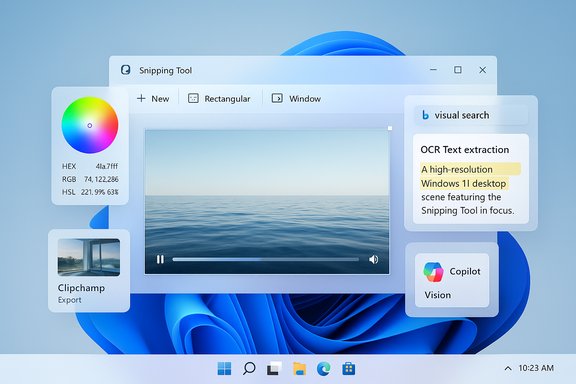
Windows 11’s Snipping Tool has quietly evolved from a one‑trick screenshot utility into a compact visual toolkit that can record video, extract editable text, pick exact colors, run image searches, and even hand off clips to Clipchamp — all without leaving the capture workflow. What used to be a handful of separate tools (screen recorder, OCR, color picker, GIF maker, reverse‑image search) is now bundled into the Snipping Tool experience, and that consolidation changes both everyday productivity and enterprise risk calculations in meaningful ways. This feature unpacks eight of the most useful — and least obvious — capabilities, verifies how they work, and evaluates when to use the Snipping Tool and when a dedicated third‑party app still makes sense.
Microsoft has steadily expanded the Snipping Tool since Windows 11’s launch, folding in features that previously lived in separate utilities or PowerToys modules. Recent updates delivered a built‑in Text Extractor (OCR), a color picker (with HEX/RGB/HSL values), screen recording with simple trimming and Clipchamp export, GIF export for short clips, and a direct pathway to Bing Visual Search and Copilot for image analysis. Many of these additions first arrived to Windows Insiders and are now rolling into broader channels through Microsoft Store updates and staged rollouts; availability may vary by build and region. These changes shift the Snipping Tool’s role: it’s no longer just a capture-and-save utility but a first‑class input into editing, analysis, and web search workflows. That consolidation is convenient, but it also raises questions about accuracy, privacy, and whether the integrated features replace more powerful standalone tools.
However, organizations and power users should weigh convenience against control. Visual Search and Copilot actions can move data off device. OCR accuracy and GIF limits are practical constraints. Where compliance, precision editing, or production‑grade output is required, dedicated tools remain the right choice.
If you rely on screenshots for business workflows, treat the Snipping Tool as a productivity multiplier that accelerates low‑ and medium‑risk tasks. Where risk or quality requirements are higher, layer in policy, testing, and alternative tooling to maintain control.
The Snipping Tool’s transformation from a humble screenshot app into a multipurpose capture and analysis hub is now complete enough that power users and casuals alike should revisit their screenshot workflows — just don’t forget to check which Snipping Tool version you’re running and whether the cloud‑backed actions are appropriate for your content and risk profile.
Source: PCMag 8 Unexpected Things the Windows 11 Snipping Tool Can Do (That Aren't Just Screenshots)
 Background / Overview
Microsoft has steadily expanded the Snipping Tool since Windows 11’s launch, folding in features that previously lived in separate utilities or PowerToys modules. Recent updates delivered a built‑in Text Extractor (OCR), a color picker (with HEX/RGB/HSL values), screen recording with simple trimming and Clipchamp export, GIF export for short clips, and a direct pathway to Bing Visual Search and Copilot for image analysis. Many of these additions first arrived to Windows Insiders and are now rolling into broader channels through Microsoft Store updates and staged rollouts; availability may vary by build and region. These changes shift the Snipping Tool’s role: it’s no longer just a capture-and-save utility but a first‑class input into editing, analysis, and web search workflows. That consolidation is convenient, but it also raises questions about accuracy, privacy, and whether the integrated features replace more powerful standalone tools.1. Edit Your Video — Trim, Save, and Send to Clipchamp
What it does
The Snipping Tool can record a selected region of the screen and open the resulting clip in a lightweight playback window that lets you trim the start and end points. For more advanced editing, the preview includes an Edit in Clipchamp button that launches Microsoft’s Clipchamp editor so you can splice, add audio, auto‑caption, and export at higher resolutions.How to use it (quick)
- Press Win + Shift + R (or open Snipping Tool and switch to recording mode).
- Draw the capture area and start recording.
- Stop to open the preview; click Trim to shorten the clip, or select Edit in Clipchamp for full editing.
Why it matters
- For short demonstrations, bug repros, or tutorial snippets, quick trimming inside the Snipping Tool saves a round trip to a separate editor.
- Clipchamp integration gives an upgrade path to multi‑track timelines, captions, and better exports when needed.
Limits and caveats
- The Snipping Tool’s built‑in editor is basic: trims and simple saves. Heavy editing (transitions, multi‑clip timelines, color grading) still belongs in Clipchamp or Premiere.
- Clipchamp functionality and reliability vary by account type (Personal vs Work) and regional rollouts — expect some users to see different behavior.
2. Save Your Video as an Animated GIF
What it does
From the Snipping Tool playback window you can export a recorded clip as an animated GIF. The export offers low and high quality options and is intentionally limited to the first 30 seconds of a recording to control file size. GIF creation is fast and ideal for social sharing or embedding short demos.Why this is handy
- GIFs are perfect for silent micro‑tutorials, quick reactions, and compact visual examples for chat or social platforms.
- Built‑in export eliminates the need to convert MP4s in a separate tool.
Practical limits
- GIFs have no separate audio channel; use them only when sound isn’t required.
- The 30‑second cap and the inherent inefficiency of GIF compression mean this is for quick shares — not production content.
3. Set a Timer for a Screenshot
What it does
The Snipping Tool offers a Delay snip (3, 5, or 10 seconds) so you can prepare transient UI states — hover menus, context menus, or dialog boxes that disappear when you switch focus. This is the same idea as classic delayed screenshots but integrated into the modern Snipping flow.Quick steps
- Click the Delay icon, pick the delay, then choose New and the capture mode. The tool waits the specified seconds before snapping.
When to use
- Capturing dropdowns, multi‑step menus, or ephemeral tooltips that vanish when you click away.
4. Mark Up and Edit an Image — Pens, Shapes, Emojis, Crop
What it does
After capture the Snipping Tool opens a markup canvas where you can draw (ballpoint/pen), highlight, erase, add shapes (arrow, circle, square), insert emoji, and crop the image. The editor is designed for rapid annotations and quick visual clarifications. You can also send the image to the Photos app for deeper edits.Benefits
- Fast annotations for documentation, bug reports, or sharing corrections.
- Built‑in shapes and opacity controls help produce cleaner visuals than simple scribbles.
Limits
- The Snipping Tool’s image editor is not a replacement for Photoshop or Affinity Photo; it’s optimized for speed and simplicity. For layered edits or precise pixel work, use a full editor.
5. Extract Text From an Image (OCR / Text Extractor)
What it does
The Snipping Tool includes a Text Extractor that runs OCR on a selected area and returns editable text you can copy to the clipboard. The feature supports actions like Copy all text, Copy as table (when structured data is detected), and Quick Redact for email addresses or phone numbers in some builds. Microsoft first announced this Text Extractor for Windows Insiders and documented the capture flow.How to use it (concise)
- Press Win + Shift + S or open Snipping Tool and click the Text Extractor button.
- Drag a rectangle around the text. The tool highlights detected text; use Copy all text or select portions manually.
Why it matters
- Saves time retyping and makes snapshots of diagrams, receipts, or slides instantly editable.
- “Copy as table” can significantly reduce data‑entry work when capturing screenshots of tabular data — an obvious win for analysts and admins.
Accuracy and limits
- OCR is excellent on printed, clear fonts and high‑contrast screenshots, but accuracy degrades on stylized, small, or blurred text. Proofreading remains necessary. Microsoft’s PowerToys Text Extractor demonstrates similar behavior and recommends checking output for errors.
Enterprise considerations
- The OCR runs on the device for standard Text Extractor flows, but Visual Search actions may upload images to Bing (see section on Visual Search). Administrators should verify whether images (and extracted text) are sent off‑device before enabling workflows in regulated contexts.
6. Copy a Color — HEX, RGB, HSL Values
What it does
Snipping Tool’s Color Picker lets you pick any pixel on screen and return its color in HEX, RGB, or HSL formats. This is a small but useful tool for designers, front‑end developers, and anyone matching UI colors. Microsoft rolled a color picker into Snipping Tool via Insider updates, and media outlets have highlighted the addition.How to use it
- Open Snipping Tool (Win + Shift + S), select New, choose the Color Picker icon on the mini toolbar, then click the pixel to capture its value. Toggle between HEX/RGB/HSL as needed.
Why it matters
- Eliminates the need to install a separate color‑picker utility for quick work. It supports zooming for pixel‑accurate selection on high‑DPI displays.
Comparison with PowerToys
- PowerToys Color Picker is a full standalone utility with history and advanced formatting. Snipping Tool’s picker is optimized for quick, disposable picks inside the capture workflow. Use PowerToys when you need saved palettes or extended formats.
7. Run a Visual Search with Bing (Google Lens–style)
What it does
The Snipping Tool can hand a captured image to Bing Visual Search to find visually similar images, identify objects, extract or translate text, and even solve equations detected in the image. The Visual Search command opens the results in your default browser and surfaces context‑aware actions like Translate, Text extraction, and Solve. Microsoft describes Visual Search behavior in support pages and added the Snipping Tool integration through Insider updates.Flow (short)
- Capture a region in Snipping Tool and choose Quick markup.
- Select Visual Search with Bing from the canvas or See more menu. A browser tab opens with Bing Visual Search results and action buttons.
Benefits
- Instantly turn a screenshot into a research query: identify products, read text in other languages, or get math help.
- Uses the same visual‑search capabilities available in Edge and the Bing apps.
Privacy and data flow
- Visual Search is a cloud service: the image is uploaded to Bing for analysis. Microsoft’s documentation states that uploaded images may be used to improve services, so sensitive or proprietary screenshots should not be sent to the cloud without approval. Admins in regulated environments should treat Visual Search as an external data flow and evaluate policy accordingly.
8. Ask Copilot for Help — AI Context from a Snip
What it does
You can send a capture to Windows Copilot (the Ask Copilot action) and pose natural‑language questions about the image — for example, summarizing text, extracting steps, or asking for clarification. Copilot shows a thumbnail of the captured area and accepts follow‑up prompts. This leverages the Copilot app’s screen‑understanding features.When it’s useful
- Turning screenshots into a conversational query is powerful for research, troubleshooting, or transforming images into editable instructions. Copilot Vision experiments also point to richer screen‑aware assistance, though availability and capabilities depend on device type and subscription tiers.
Limits and trust
- Copilot’s answers depend on the underlying models and the image quality. Treat suggested edits or extracted content as assistive, not authoritative. For sensitive content, be mindful that Copilot interactions can involve cloud processing and that commercial Copilot features may require specific licenses.
Strengths: Why this matters to Windows users
- Unified workflow: The Snipping Tool now handles capture → edit → analyze without bouncing between multiple apps. That saves time for documentation, help desks, and content creators.
- Replacement for casual third‑party tools: For many users the Snipping Tool now replaces small utilities (basic OCR, color pickers, short screen recordings). That lowers friction for less technical people.
- Accessible on‑device OCR: Fast transfers from image to editable text speed up note taking and research. Microsoft’s own PowerToys Text Extractor demonstrates the same value proposition for power users.
Risks and tradeoffs: Privacy, accuracy, and rollouts
- Cloud handling of images: Any Snipping Tool feature that invokes Visual Search or Copilot may upload image data to Microsoft services. That introduces privacy and compliance risks for screenshots containing PII, medical records, or proprietary screenshots. Enterprises should assume images leave the device when those actions are used and set policy accordingly.
- Feature availability varies: Many features first appeared in Insider builds and are being rolled out via Microsoft Store / staged rollouts. Your mileage will vary by build, channel, and region — don’t assume everyone on a team has the same capabilities at the same time. Check the Snipping Tool version and Windows Update cadence before planning workflows.
- Accuracy limits of OCR and AI: OCR is reliable for clear, printed text but degrades with stylized fonts, low contrast, or noisy backgrounds. Likewise, AI analysis from Visual Search or Copilot can make mistakes; always verify critical outputs.
- Not a replacement for professional tools: While the Snipping Tool is convenient, professionals still need specialized software for advanced video editing, precision color management, or high‑accuracy OCR on complex documents. Use the Snipping Tool for quick tasks and defer to dedicated apps for production work.
Practical tips and recommended workflows
- For quick reusable visuals: use Win + Shift + S to capture, annotate in Snipping Tool, then save as PNG for documentation.
- For short demos: record with Win + Shift + R, trim in Snipping Tool, export GIF for chat or export MP4 and open in Clipchamp for final edits.
- For extracting data tables: try Text Extractor’s Copy as table option and then paste into Excel; proofread the result. If accuracy matters for business data, validate against the source.
- For design work: use Snipping Tool’s color picker for fast grabs, but install PowerToys Color Picker or a professional eyedropper if you need palettes, history, or CMYK support.
- For sensitive screenshots: avoid Visual Search and Copilot unless you verify cloud handling and have approval. Use local workflows (Text Extractor on device or PowerToys) where possible.
Final analysis — what this evolution means
The Snipping Tool’s expansion reflects a broader trend: operating systems are absorbing “utility” features that used to live in the third‑party ecosystem. That benefits users by lowering setup friction and centralizing simple tasks, but it also concentrates capability and responsibility in the OS vendor. For everyday use — quick annotations, short recordings, copying text from images, and single‑pixel color grabs — the Snipping Tool is now a first‑stop tool that will cover most needs.However, organizations and power users should weigh convenience against control. Visual Search and Copilot actions can move data off device. OCR accuracy and GIF limits are practical constraints. Where compliance, precision editing, or production‑grade output is required, dedicated tools remain the right choice.
If you rely on screenshots for business workflows, treat the Snipping Tool as a productivity multiplier that accelerates low‑ and medium‑risk tasks. Where risk or quality requirements are higher, layer in policy, testing, and alternative tooling to maintain control.
The Snipping Tool’s transformation from a humble screenshot app into a multipurpose capture and analysis hub is now complete enough that power users and casuals alike should revisit their screenshot workflows — just don’t forget to check which Snipping Tool version you’re running and whether the cloud‑backed actions are appropriate for your content and risk profile.
Source: PCMag 8 Unexpected Things the Windows 11 Snipping Tool Can Do (That Aren't Just Screenshots)
