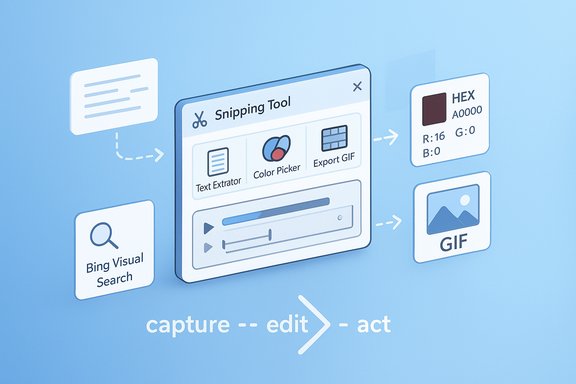
Windows 11’s Snipping Tool has quietly graduated from a basic screenshot utility to a surprisingly capable visual toolkit — and once you know what’s hiding behind the camera icon, it can shave minutes off common tasks, replace a handful of third‑party utilities, and change how you capture, edit, and act on information on your PC.
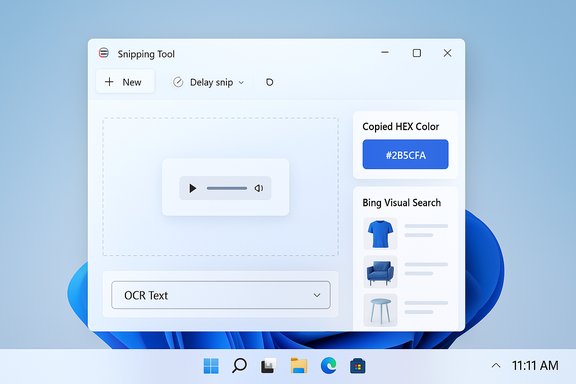
Since its reinvention for Windows 11, the Snipping Tool has received steady feature updates that broaden its remit beyond static screenshots. Microsoft has layered in screen recording, inline editing and annotations, a built‑in color picker, optical character recognition (OCR) that extracts editable text from images, and links into cloud services such as Bing Visual Search and Copilot. Those changes have been rolled out via the Microsoft Store and Windows Insider channels, so feature availability can vary by build and by staged rollout. This article explains eight practical — and sometimes unexpected — ways to use the Snipping Tool beyond a simple screenshot, verifies key technical details against official and community sources, and examines strengths, real‑world limits, and privacy or enterprise risks you should weigh before adopting each workflow.
For everyday users and teams that prize speed and simplicity, Snipping Tool’s expanded toolkit is a clear productivity win. For regulated environments and users with high‑precision OCR needs, it’s a useful first step — but not a wholesale replacement for specialized tools or organizational policy controls.
Use the Snipping Tool as a Swiss‑army knife for quick visual work — but treat cloud‑based visual search and AI analysis like any external service: beneficial when convenient, and auditable when your workflow demands it.
Source: PCMag 8 Surprising Things the Windows 11 Snipping Tool Can Do Beyond Screenshots
 Background
Since its reinvention for Windows 11, the Snipping Tool has received steady feature updates that broaden its remit beyond static screenshots. Microsoft has layered in screen recording, inline editing and annotations, a built‑in color picker, optical character recognition (OCR) that extracts editable text from images, and links into cloud services such as Bing Visual Search and Copilot. Those changes have been rolled out via the Microsoft Store and Windows Insider channels, so feature availability can vary by build and by staged rollout. This article explains eight practical — and sometimes unexpected — ways to use the Snipping Tool beyond a simple screenshot, verifies key technical details against official and community sources, and examines strengths, real‑world limits, and privacy or enterprise risks you should weigh before adopting each workflow.1. Record and edit short screen videos (trim, export, and send to Clipchamp)
What it does
The Snipping Tool now includes a lightweight screen recorder that captures an area of your display and opens the recording in a small playback/editor window. From that window you can play back the clip, trim the start and end using two timeline markers, save, copy, or share the file, or send the recording to Clipchamp for deeper edits.How to use it
- Press Win + Shift + R (or open Snipping Tool and choose Recording mode).
- Select the region (or full screen) and record.
- When the preview opens, click Trim to set the start/end handles and Apply.
- For advanced edits — multi‑clip timelines, filters, audio tracks, and high‑quality exports up to 1080p — choose Edit in Clipchamp.
Why this matters
- Quick trimming inside the Snipping Tool removes the need to round‑trip short clips into a separate editor for trivial edits.
- Clipchamp integration gives users a path to professional editing without hunting for additional software.
Practical limits
- Snipping Tool’s editor is basic (trim/crop/quick save); heavy editing belongs in Clipchamp.
- For long form content or multi‑camera captures, a full video editor is still required.
2. Export recordings as animated GIFs (fast sharing)
What it does
You can convert recorded screen clips into animated GIFs directly from Snipping Tool’s preview window. The feature supports choosing a low or high quality GIF and limits GIFs to the first 30 seconds of a recording (if your clip is longer, Snipping Tool will export the initial 30 seconds). This feature began rolling out to Insiders and is making its way to broader channels.Best practices
- Keep GIFs short (under 30 seconds) — the tool enforces a practical length cap to limit file size.
- Use GIFs for micro‑tutorials, reaction clips, or short demonstrations that don’t require audio (GIFs do not carry separate audio channels).
Comparison note
Clipchamp also supports GIF creation from short MP4s and images, which gives you advanced controls when you need them — but Snipping Tool’s built‑in GIF export is faster for quick, ephemeral sharing.3. Delay snips to capture transient UI elements
What it does
The Snipping Tool includes a Delay snip option (3, 5, or 10 seconds) that lets you prepare the screen — open menus, expand tooltips, or navigate transient dialogues — before the capture is taken. This is useful when a UI element disappears as soon as you switch focus.How to use it
- Click the Delay icon on the Snipping Tool toolbar, choose a delay, then select New and choose the capture mode. The app will wait the chosen seconds before capturing the selected region.
Use cases
- Grabbing context menus, timed error dialogs, or menu chains that vanish when you click away.
- Preparing a sequence for a tutorial where the menu must be visible at capture time.
4. Mark up and edit images inline (pens, shapes, undo/redo, crop)
What it does
After a capture, Snipping Tool opens a preview editor with markup tools: Ballpoint pen, Highlighter, Eraser, Shapes (rectangle, circle, arrow), emojis, and cropping handles. There’s also undo/redo and quick markup during the capture flow. Some Insider builds extend this with native text insertion so you can type annotations directly on the image.Practical tips
- Double‑click the Ballpoint pen to switch modes for precise ink.
- Use Shapes and Outline color to make callouts stand out.
- For heavy image edits, send the image to Photos or Clipchamp (if it’s a video frame you need to stylize).
Strengths and limits
- The editor is fast, non‑destructive, and designed for quick annotations — perfect for troubleshooting screenshots or short how‑tos.
- It’s not a replacement for full image editors (no layers, no advanced filters).
5. Extract text from images with built‑in OCR (Text Extractor)
What it does
Snipping Tool’s Text Extractor runs OCR on a selected region and presents selectable, editable text. You can copy all recognized text, copy it as a table when structured data is detected, remove line breaks, and enable automatic copy behavior so the text is pushed directly to the clipboard. Microsoft documented this rollout to Windows Insiders and the feature is now in staged releases.How to use it
- Press Win + Shift + S (or open Snipping Tool) and choose Text Extractor.
- Drag a rectangle around the text.
- Use the Text Actions in the preview to Copy all text, Copy as table, or redact email/phone strings where supported.
Why this is significant
- It brings the convenience of PowerToys’ Text Extractor natively to Windows without extra installs. Microsoft PowerToys still exists for power users, but Snipping Tool gives more casual users immediate OCR.
Accuracy and caveats
- OCR is reliable for clear, printed screen fonts and high‑contrast text. Accuracy drops for tiny fonts, stylized typefaces, or blurred photos.
- For heavily formatted documents or archival scans, specialized OCR suites still produce superior fidelity. Treat Snipping Tool OCR as a fast, pragmatic solution — not a replacement for professional OCR workflows.
6. Pick and copy on‑screen colors (HEX, RGB, HSL)
What it does
The Snipping Tool includes a Color Picker that samples a pixel on your screen and reports its value in HEX, RGB, or HSL formats. That value is copyable so designers and developers can reuse exact colors in web or graphic work.How to use it
- From the Snipping Tool capture mini toolbar, select the Color Picker icon, choose the desired format, and click the pixel you want to sample.
When to use it
- Pull brand colors from a website.
- Match colors in documentation or design mockups without cross‑checking palettes.
7. Run a Visual Search with Bing (reverse image search, OCR, translation, math)
What it does
Snipping Tool can hand a capture off to Bing Visual Search — a Google Lens–style service — which opens results in your default browser. Visual Search can find visually similar images, extract and translate text, solve math equations, and surface product matches or shopping cards. The Snipping Tool’s Visual Search option performs a cloud‑based analysis (the image is uploaded to Bing) and opens a results page with action buttons.Important privacy note
Visual Search uploads the chosen image to Microsoft servers. That behavior is deliberate: cloud processing enables richer analysis (translation, shopping matches, math solving). If your image includes proprietary or personally sensitive content (PHI, PII, confidential diagrams), sending it to a cloud service may violate your privacy or corporate policies. Enterprises should treat Visual Search as a cloud action and evaluate whether to allow or restrict it.How to use it
- Capture a region with Win + Shift + S.
- In the preview, choose Visual Search with Bing (right‑click or “See more” menu).
- A browser tab opens with Bing Visual Search results (Text, Translate, Solve, Shopping).
Risks and governance
- There is limited visibility in the Snipping Tool UI into retention or training‑data policies for images uploaded to Bing. Administrators should pilot the feature and inspect network logs, or disable the Visual Search endpoint where policy requires.
8. Ask Copilot about an image (Copilot Vision and “Ask Copilot” integration)
What it does
Snipping Tool can surface captured content directly into Windows Copilot workflows: you can choose Ask Copilot on a capture to open Copilot with a thumbnail of the snip and pose questions about its content. This leverages Copilot Vision and the broader Copilot platform for natural‑language interactions about images — for example, summarizing text, explaining UI elements, or offering suggested next steps. Microsoft’s push toward agentic AI in Windows also puts Copilot at the center of future cross‑app experiences.How it works
- Capture a region, then pick Ask Copilot from the Quick Markup toolbar. Copilot opens with the image context and a prompt box ready for your question.
Practical use cases
- Translate or summarize captured text using Copilot’s language capabilities.
- Ask for step‑by‑step instructions based on a settings screen or error dialog you captured.
- Use Copilot to expand a captured snippet into a checklist or email draft.
Data handling and transparency
- Copilot interactions may involve cloud processing. For sensitive images, check Copilot’s privacy and enterprise configuration options before using the feature in regulated environments. The Ask Copilot taskbar integration is opt‑in in many Insider builds, underscoring Microsoft’s effort to keep AI features user‑controlled.
How to get features if they’re missing (update routes and rollout caveats)
- Update Snipping Tool via the Microsoft Store (Library → Get updates) — many Snipping Tool features ship through the Store, not a core OS update.
- Some features roll out through Windows Insider channels or server‑side flags. If an article or demo shows a feature you don’t have (for example, GIF export or Text insertion), it may be gated to Insiders or a phased deployment.
- For enterprise devices, feature enablement can be constrained by group policies, Intune app settings, or curated Store controls; coordinate with IT before expecting universal availability.
Strengths — Why Snipping Tool now matters
- Native convenience: Built‑in OCR, screen recording with trimming, GIF export, color sampling and basic editing mean fewer third‑party installs for everyday tasks.
- Speed: Common micro‑workflows (copy text from an image, trim a short clip, export a GIF) are reduced to a couple of clicks, which compounds into real time savings for frequent users.
- Accessibility benefits: On‑device OCR helps screen readers and other assistive tech by converting images and screenshots into selectable text with minimal friction.
- Straightforward upgrade path: Microsoft’s Store‑delivered updates let the company iterate on the Snipping Tool more often than via major OS releases.
Risks and limitations — what to watch for
- Cloud uploads (privacy): Visual Search with Bing and Copilot‑based image analysis send data to Microsoft servers. For screenshots containing sensitive or regulated content, those cloud handoffs may be unacceptable. Enterprises must test and define policy.
- OCR accuracy constraints: Built‑in OCR is fast but not infallible. Expect errors with handwritten text, tiny or stylized fonts, or low‑contrast images. Validate critical text before relying on it.
- Feature gating & version uncertainty: Documentation and community posts reference specific Snipping Tool builds where features first appear, but these numbers are provisional during staged rollouts. Verify availability on target machines rather than assuming parity from a published screenshot.
- Telemetry and retention questions: There is limited in‑app visibility about how uploaded images might be retained or used for model training; organizations should seek clarity from Microsoft if compliance is a concern.
Quick workflows and pro tips
- Copy text from a paused video frame:
- Pause the video on the text.
- Press Win + Shift + S → Text Extractor → draw around the text.
- Click Copy all text or use automatic copy.
- Make a 10‑second product demo GIF:
- Win + Shift + R → record the region.
- Stop → Export GIF → choose quality and export (or copy to clipboard). Keep it under 30 seconds for full conversion.
- Grab a color to paste into CSS:
- New Snip → Color Picker → select HEX.
- Paste into your stylesheet or design tool.
- Run a reverse image lookup on a product:
- Snip the product image → Visual Search with Bing → review shopping cards and product info (note: this will upload the image to Bing).
Verification and cross‑checks
Key claims in this article were verified against Microsoft’s Insider announcements and community documentation. The Text Extractor rollout and its controls (Copy all text, Copy as table, automatic copy) were detailed in the Windows Insider blog and reflected in community testing notes. GIF export and the 30‑second cap were documented in an official Windows Insider post announcing GIF export in Snipping Tool builds. PowerToys’ Text Extractor remains an independent implementation that Microsoft recommends as an alternative for power users — its documentation validates the OCR concept and shortcut behavior. Where community sources described new typed‑text insertion features or server‑side gating, those were flagged as preview behavior and not yet universally available; treat preview demonstrations as indicative but not definitive until Microsoft publishes stable release notes. If a specific number or behavior is critical to your workflow (for example, an enterprise policy that disallows any data upload), confirm the current behavior on a test device and inspect network logs when running Visual Search or Copilot image actions. The staged nature of feature rollouts means exact build numbers and availability windows can change.Final verdict
The modern Snipping Tool is no longer just for screenshots — it’s a compact capture, edit, and discovery hub that will replace several quick‑use third‑party utilities for most users. Its strengths are convenience, native integration, and a pragmatic set of features aimed at saving time: on‑device OCR, simple trimming, GIF creation, color picking, and direct links into Bing and Copilot make everyday tasks smoother. However, those benefits come with trade‑offs: some capabilities rely on cloud services (raise privacy flags), OCR is not perfect for complex documents, and staged rollouts mean you may not see every feature immediately.For everyday users and teams that prize speed and simplicity, Snipping Tool’s expanded toolkit is a clear productivity win. For regulated environments and users with high‑precision OCR needs, it’s a useful first step — but not a wholesale replacement for specialized tools or organizational policy controls.
Use the Snipping Tool as a Swiss‑army knife for quick visual work — but treat cloud‑based visual search and AI analysis like any external service: beneficial when convenient, and auditable when your workflow demands it.
Source: PCMag 8 Surprising Things the Windows 11 Snipping Tool Can Do Beyond Screenshots