

Microsoft’s rebuilt Start menu for Windows 11 is rolling out as part of Microsoft’s October/November 2025 servicing preview, and you can either wait for the supported server‑side activation or enable it immediately on machines that already have the updated servicing bits — but doing so requires caution, backups, and an understanding of trade‑offs.
Microsoft delivered the code for the redesigned Start menu inside an optional, non‑security preview package (KB5067036) targeted at Windows 11 versions 24H2 and 25H2. The update places the entire installed‑apps surface on the main Start page in a single, vertically scrollable canvas, adds three distinct “All apps” presentation modes, and adapts the layout to different screen sizes and DPIs. Microsoft is distributing the binaries via the preview servicing channel but is activating the experience using staged, server‑side feature flags; installing the preview does not guarantee immediate visual activation on every device. Why this matters: the change addresses one of the most persistent user complaints about Windows 11 — the split between Pinned apps and the separate All apps page — by placing everything on one canvas and offering flexible views (Category, Grid, List) and clearer controls for the previously intrusive Recommended area. Early testers report the redesign improves discoverability for large app collections, but preview bits and staged activation create short‑term inconsistency across devices and come with expected preview‑era caveats.
Overview of ViVeTool
Source: gHacks Technology News Here is how you enable the new Windows 11 Start menu right now - gHacks Tech News
 Background / Overview
Microsoft delivered the code for the redesigned Start menu inside an optional, non‑security preview package (KB5067036) targeted at Windows 11 versions 24H2 and 25H2. The update places the entire installed‑apps surface on the main Start page in a single, vertically scrollable canvas, adds three distinct “All apps” presentation modes, and adapts the layout to different screen sizes and DPIs. Microsoft is distributing the binaries via the preview servicing channel but is activating the experience using staged, server‑side feature flags; installing the preview does not guarantee immediate visual activation on every device. Why this matters: the change addresses one of the most persistent user complaints about Windows 11 — the split between Pinned apps and the separate All apps page — by placing everything on one canvas and offering flexible views (Category, Grid, List) and clearer controls for the previously intrusive Recommended area. Early testers report the redesign improves discoverability for large app collections, but preview bits and staged activation create short‑term inconsistency across devices and come with expected preview‑era caveats. What changed: the new Start, explained
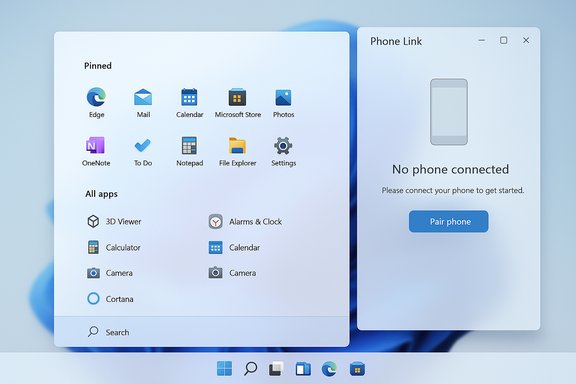
The redesign is pragmatic rather than radical: it fixes a workflow friction point and adds options that let users choose how they browse their apps.- Single, scrollable Start surface — Pinned apps, the Recommended section (if enabled), and the All apps inventory appear on a continuous vertical canvas so there’s no extra page hop to reach your installed applications.
- Three All apps views — Category view (auto‑grouped buckets like Productivity, Games, Communication), Grid view (dense alphabetical grid for fast visual scanning), and List view (classic alphabetical list for keyboard‑first users). The OS remembers your chosen view.
- Responsive layout and density — Start adapts to screen width and DPI; on large displays you can see more pinned columns and categories, while small screens get a compact layout.
- Phone Link companion — a new mobile‑device button can open a collapsible Phone Link panel inside Start to surface calls, messages, and photos from a paired phone (availability depends on phone pairing and regional gates).
- More direct controls for Recommended — toggles in Settings → Personalization → Start let you hide or minimize the Recommended feed so your installed apps take visual priority.
Supported (recommended) path: how to get the new Start safely
If you prefer to stay fully supported and minimize risk, follow the official route.- Confirm your Windows version and build: press Windows+R, type winver, and press Enter. The preview is associated with provisioning builds in the 26100.xxxx and 26200.xxxx families used for the October 2025 preview packaging; common builds mentioned in early coverage include 26100.7019 and 26200.7019.
- Opt into the Release Preview or optional preview updates if you want the preview bits sooner: Settings → Windows Update → Windows Insider Program → Get started → choose Release Preview (or enable “Get the latest updates as soon as they’re available” if you prefer optional updates).
- Open Settings → Windows Update → Check for updates. Install the optional preview listed as KB5067036 if it appears under Optional updates. Reboot when prompted.
- Wait for Microsoft’s staged enablement: after the preview is installed Microsoft flips server‑side feature flags for groups of devices. If the new Start does not appear immediately, wait 24–72 hours and check again. This preserves Microsoft’s support model and keeps your device inside tested update workflows.
- You keep Microsoft’s standard update and support guarantees.
- You avoid unsupported local changes to feature flags and reduce risk of preview‑only regressions.
- Uninstall is straightforward: you can remove the preview update via Settings → Windows Update → Update history → Uninstall updates if necessary.
Unsupported (community) path: forcing the Start with ViVeTool
Enthusiast communities have long used ViVeTool — an open‑source utility that flips Windows Feature Management flags — to surface staged UI elements early. If you choose this path, understand it is unofficial and carries risk: features are gated server‑side and local flags can conflict with backend gating, causing partial or broken experiences.Overview of ViVeTool
- ViVeTool is actively maintained; the project’s GitHub releases show version v0.3.4 with updated feature dictionaries and explicit 24H2/25H2 support. Download the correct ZIP for your CPU (Intel/AMD vs ARM64).
- Install the required preview bits (KB5067036) or confirm your build is in the 26100/26200 preview family (winver). Having the matching binaries present increases the chance the local flags will reveal the full UI.
- Download the latest ViVeTool release from its official GitHub releases page and extract it to a folder (example: C:\ViVeTool). Choose the Intel/AMD ZIP unless you have an ARM64 device.
- Open Windows Terminal or Command Prompt as Administrator (right‑click → Run as administrator).
- Change directory to the ViVeTool folder:
cd C:\Users\YOURUSERNAME\Downloads\ViVeTool‑v0.3.4‑IntelAmd - Run the community‑reported enable command (variants exist depending on build and what the testers found works for them). Examples commonly shared by the community include:
- Minimal: vivetool /enable /id:47205210
- Compound (reported to work on certain preview builds): vivetool /enable /id:47205210,49221331,49381526,49402389,49820095,55495322
- Alternate compound that appears in community guides: vivetool /enable /id:57048231,47205210,56328729,48433719
After running the command, restart the PC. - If you enabled the Phone Link companion separately, community posts note additional IDs (for example: 48697323 or the umbrella IDs such as 48433719) and the need to open/update the Phone Link app after enabling. Results vary by device and backend gating.
- Use vivetool /disable /id:<id> or vivetool /reset /id:<id> and reboot. If you installed KB5067036 and later decide to leave the preview, uninstall the optional update via Settings → Update history → Uninstall updates.
- ViVeTool toggles are community‑discovered mappings of numeric IDs to feature gates — Microsoft doesn’t publish a public mapping and IDs can change between builds. Expect fragility.
- Because Microsoft controls some companion services server‑side, flipping local flags may not fully restore the feature if Microsoft’s backend still restricts parts of the experience.
Known issues, community reports and real risks
Preview updates and manual feature‑flag toggles have produced real problems for some users. Before changing flags or installing preview packages, read these cautionary notes.- Task Manager duplication bug: multiple reputable outlets and community reports documented a KB5067036‑related bug where Task Manager could spawn duplicate windows that are hard to close and which accumulate memory. Microsoft acknowledged the issue in some channels and told users it’s working on a fix. This is a prime example of why optional previews should be pilot‑tested before broad deployment.
- Broken search or Start responsiveness: several community threads describe Start search or keyboard input not working after enabling experimental feature flags, or the Start menu failing to open entirely until the flags are reverted. These regressions are more common in preview builds or after locally flipping gates.
- Compatibility and enterprise policy interactions: staged feature activation can make two identically imaged devices behave differently. Administrators may see unexpected interactions with Group Policy, MDM profiles, or EDR/AV agents that rely on predictable shell behavior. Test images, manage pilot rings, and validate logon flows and legacy shell extensions.
- Partial/fragmented experiences: because some companion features (Phone Link panel, Copilot‑adjacent functions, on‑device AI) are region‑ or hardware‑gated, enabling local flags may reveal only a subset of the intended experience.
- Back up first: create a full system image or at minimum a System Restore point before flipping flags. This reduces recovery time if things go wrong.
- Use test devices: only enable flags on non‑production machines or in an isolated test environment.
- Keep a recovery plan: know how to boot into Safe Mode, use a secondary admin account, or uninstall an optional MSU from the recovery environment if Start or sign‑in is broken.
- Wait for the cumulative release: major changes shipped in optional preview channels typically appear in general cumulative updates after telemetry validation — waiting is safer for mission‑critical endpoints.
Enterprise guidance and deployment checklist
For IT teams planning to manage or pilot the new Start, follow a conservative rollout strategy:- Pilot in a representative ring (variety of device models, user types, and geographic regions).
- Validate Group Policies, MDM profiles, and CSPs that touch Start/Taskbar/Recommended behavior; confirm that your management tooling continues to enforce the desired settings.
- Run compatibility tests for line‑of‑business apps and any shell extensions — Start changes can surface regressions in legacy hooks.
- Prepare user communications: explain the new views (Category/Grid/List), how to hide Recommended, and what to expect during the staged rollout to reduce helpdesk calls.
- Maintain a rollback plan: document how to uninstall KB5067036 and revert any ViVeTool toggles if the pilot uncovers unacceptable regressions.
My assessment: strengths, limits, and where Microsoft should go next
Strengths- The redesign corrects a clear usability misstep by making All apps accessible without an extra click, which materially improves discoverability for users with many installed apps. The addition of flexible views is a sensible way to surface different browsing modes for different users.
- The responsive layout is a modern expectation — larger monitors and high‑DPI laptops benefit when the UI adapts density and adds columns rather than leaving blank space.
- Giving users a simple toggle to hide Recommended content is the right move for those who want a minimal launcher free of suggestions.
- Auto‑categorization is a convenience, but current implementations can misclassify apps or produce categories users can’t edit. Power users will want manual grouping or persistent, user‑managed categories. Early community notes show this is still a gap.
- Staged server‑side gating improves stability across the fleet, but it complicates troubleshooting and creates inconsistent UX across identical devices — a real source of support churn for IT teams. Microsoft must provide clearer admin tooling and telemetry to help businesses reconcile staged variances.
- The presence of preview bugs (Task Manager duplication, search input regressions) demonstrates the cost of shipping new UI with optional updates. Microsoft should accelerate fix cadence for preview channels and provide clearer “known issues” documentation alongside preview KBs.
- Add manual category editing and a simple “pin group” management UI for power users and admins.
- Publish clearer guidance for enterprises on feature flagging and staged enablement behavior; consider an enterprise‑controlled override (with careful guardrails) for predictable rollouts.
- Harden preview KB stability by forcing a minimal‑risk subset for the preview channel and prioritizing known‑issue fixes before broader cumulative release.
Quick reference: commands, checks and rollback
- Check version/build: press Windows+R, type winver, and press Enter. The relevant preview builds commonly referenced are 26100.7019 and 26200.7019.
- Official safe path: Settings → Windows Update → Check for updates → install optional preview KB5067036 (then reboot). Wait for server‑side activation.
- ViVeTool (community) example commands:
- vivetool /enable /id:47205210
- vivetool /enable /id:47205210,49221331,49381526,49402389,49820095,55495322
- vivetool /disable /id:<id> (to revert)
Always run from an elevated terminal in the folder where you extracted ViVeTool, then restart. - If you experience severe regressions, uninstall KB5067036 via Settings → Update history → Uninstall updates, or use your recovery image to return to a known good state.
Conclusion
The new Windows 11 Start menu is a practical, overdue correction to a long‑standing UX complaint: it restores immediate access to your apps, adds viewing modes to match varied workflows, and scales more intelligently across modern displays. For most users and enterprise fleets the safest course is to install the optional preview when available and allow Microsoft’s staged rollout to flip the feature on when telemetry shows it’s safe. Power users who accept the risk can accelerate access with ViVeTool, but they should do so only on non‑critical machines, after a full backup, and with an expectation that some elements may remain server‑side gated or partially broken until Microsoft completes the broader rollout. The redesign is an important usability win — but the presence of preview bugs and the fragmented rollout model are reminders that user experience improvements must be balanced against reliability and predictable management for businesses.Source: gHacks Technology News Here is how you enable the new Windows 11 Start menu right now - gHacks Tech News
