

Microsoft’s latest Start menu adjustments for Windows 11 quietly do something the operating system has struggled to deliver since its launch: they put the app launcher back into the hands of the user and make it materially more useful — while also exposing new trade‑offs that administrators and privacy‑minded users need to understand.
For decades the Start menu has been Windows’ central navigation hub. Windows 11’s initial release reimagined that hub with a pared‑down, centered design. Over successive updates Microsoft experimented with dynamic “Recommended” content, tighter integration with cloud services and advertising, and AI features that sometimes felt at odds with the straightforward purpose of launching apps. The result was a split user base: some appreciated Microsoft’s attempt to surface relevant content and cross‑device continuity, while many others found the menu cluttered, non‑customizable, and occasionally intrusingve.
A recent wave of updates — staged through Microsoft’s controlled feature‑rollout process and exposed via enablement packages in the servicing branches — has introduced a more flexible Start experience. These changes, now appearing for larger groups of users, aim to reduce the friction that made the Start menu feel bloated and slow to navigate. While not a total restoration of the Windows 7 or Windows 10 Start menu, the redesign gives power and clarity back to the basic task of finding and launching apps.
To make the experience truly complete Microsoft should consider:
Likewise, features tied to staged rollouts may appear in different permutations across accounts, Insider rings, and regions. If a particular toggle or layout is not visible on a device, it typically reflects Microsoft’s controlled rollout and not an error on the PC.
The redesign is not perfect: no native resize control, coupled settings that surprise users, and a slow, staged rollout create friction. But the changes are practical, reversible, and manageable — and they mark a recognition that productivity starts with straightforward tools that let people launch apps and files without fighting the operating system.
For most users the net result will be a faster path from keypress to app; for administrators the update is a reminder to pilot, document, and communicate change. In a Windows era defined by incremental rollout and AI experiments, this is an example of reducing noise and restoring a familiar, low‑friction experience — exactly what the Start menu should do.
Source: SlashGear Windows 11 Just Fixed One Of Its Biggest Problems - SlashGear
 Background
For decades the Start menu has been Windows’ central navigation hub. Windows 11’s initial release reimagined that hub with a pared‑down, centered design. Over successive updates Microsoft experimented with dynamic “Recommended” content, tighter integration with cloud services and advertising, and AI features that sometimes felt at odds with the straightforward purpose of launching apps. The result was a split user base: some appreciated Microsoft’s attempt to surface relevant content and cross‑device continuity, while many others found the menu cluttered, non‑customizable, and occasionally intrusingve.A recent wave of updates — staged through Microsoft’s controlled feature‑rollout process and exposed via enablement packages in the servicing branches — has introduced a more flexible Start experience. These changes, now appearing for larger groups of users, aim to reduce the friction that made the Start menu feel bloated and slow to navigate. While not a total restoration of the Windows 7 or Windows 10 Start menu, the redesign gives power and clarity back to the basic task of finding and launching apps.
What changed: the practical highlights
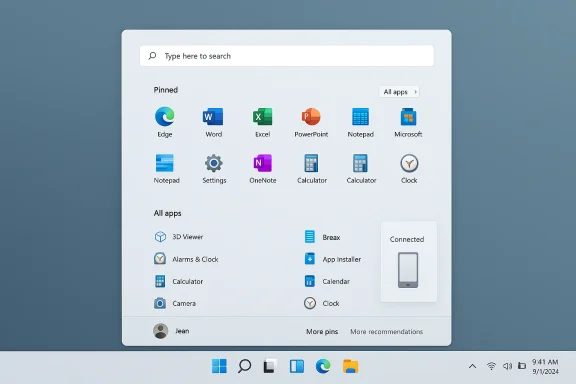
The update bundles a set of incremental but meaningful UI and behavior changes that alter how the Start menu surfaces apps, recommendations, and linked mobile content.- All apps integrated into the main Start surface — The full list of installed apps is now accessible inside the main Start page instead of behind a tiny, separate button. That eliminates one extra click and brings the app library into the primary focus area.
- Multiple All‑Apps display modes — Users can choose between different views for All apps (commonly described as Category, Grid/Alphabetical Grid, and List). The Grid view produces a denser, icon‑first layout for faster visual scanning, while List gives a traditional alphabetical column.
- Pinned apps layout improvements — The pinned area can be expanded and collapsed into a larger grid, reducing the need to flip through pages of pins. The Start layout offers options to show more pins vs. more recommendations to tune density.
- Recommended content toggle — The Recommended section (recent files, recently added or most used apps, and website suggestions) remains, but it is now easier to suppress that content. Turning it off via Settings hides the recent‑items feed — and, crucially, also disables the same “recent files” surface in Jump Lists and File Explorer. That behavior is intentional but introduces a trade‑off.
- Phone Link / mobile pane integration — On systems paired with a phone, a small mobile pane can be shown or collapsed inside Start, letting the PC surface recent calls, messages, and photos without leaving the Start surface.
- Distribution via staged rollout — Microsoft is delivering these changes as part of the servicing cadence and enablement packages that turn on code already staged in prior cumulative updates. That explains why some users see the new Start immediately while others must wait.
What hasn’t changed (and what users still want)
- No native resize control — Unlike Windows 10, the new Start menu cannot be resized by dragging edges. Users and independent outlets have tested toggles and different display modes and report the menu occupies a fixed vertical size regardless of pin count or view. That leaves some screen real estate feeling wasted on smaller displays.
- No formal sectioning/grouping for pinned items — There is still no built‑in way to create named categories or collapsible folders for pinned entries comparable to classic Start menu groups. Users who prefer a tidy, categorized layout will still rely on third‑party shell replacements or keep apps on the taskbar.
- Search still surfaces web and store cruft — Searching from Start continues to return web results and Store recommendations by default. Those can be adjusted but require additional user configuration and, in some corporate contexts, policy workarounds.
- Recommended header remains visible — Turning off recommended items clears the feed, but the header and structural space often remain. That design choice can leave an empty section or simply replace the content with the All apps view, depending on settings.
Why this matters: usability and discoverability
The Start menu’s core job is simple: help users find programs and files quickly. Over the last few years, Microsoft layered discovery and AI features on top of that fundamental purpose. The new approach takes a step back and says: make the app list faster and let people choose whether they want recommendations.- Faster app discovery — The Grid view and the relocation of All apps to the main surface make visual search faster. For people with many installed apps, an alphabetical grid reduces the cognitive cost of hunting for icons.
- Single‑pane navigation — Bringing pins, recommendations, and the app list into a single scrollable surface removes the need to open multiple panes and makes keyboard navigation more consistent.
- Configurability — Giving users explicit toggles for how much recommendation content to show (and making it possible to favour pins) responds directly to long‑standing user requests.
Privacy and policy trade‑offs
Not all changes are ergonomics wins without downsides. The Recommended feed is powered by local activity signals and, in some deployments, by cross‑device history (including websites). Turning off recommendations clears that convenience, but leaving them on reintroduces telemetry‑adjacent behaviors that organizations and privacy‑conscious individuals must evaluate.- Turning off Recommended disables Jump List recents — Microsoft’s settings tie recent‑items visibility across Start, Jump Lists, and File Explorer. This is by design and convenient for some users, but for users who want to remove file recommendations from Start while keeping Jump Lists, it’s a blunt instrument. Administrators should be aware: disabling the feed in the UI will remove recent files everywhere.
- Website suggestions and personalization — Microsoft has added website suggestions to the Recommended area for some users; those entries come from browsing history and can be disabled at the settings level. Enterprises can manage the behavior centrally via Group Policy or MDM configuration.
- Auditing and control for admins — Microsoft exposes Group Policies and MDM CSPs to remove Recommended from Start, hide personalized websites in the feed, and control inbox app provisioning. Those controls are essential for organizations that must lock down surfaces for compliance, and they reinforce the importance of testing the rollout before a wide enterprise deployment.
Deployment realities: staggered rollout and enablement packages
The Start menu changes are not a single global “flip.” Microsoft stages features using telemetry, account signals, and enablement packages layered on servicing branches. That delivery model has practical consequences:- Machines kept fully updated may already have the code for the new Start; an enablement package or feature flag flips the experience on.
- Some users will receive the redesign earlier than others depending on device telemetry, Insider ring membership, and Microsoft’s rollout targeting.
- For IT pros, the update can be validated in Release Preview or on pilot rings using the enablement package workflow — enabling the feature for a small group before wider rollout is a best practice.
Risks and potential stability issues
Any user‑interface change that alters how people interact with the OS invites compatibility and discoverability problems.- Third‑party Start replacements — Tools that replace or modify the Start menu or taskbar (StartAllBack, Open‑Shell, and similar) may break or be broken by Start redesigns. Users who rely on these replacements for productivity should test updates in a controlled environment before installing cumulative updates.
- Scripted customizations and enterprise images — Organizations that configured Start layout via provisioning packages or scripts may find those settings applied differently once the new Start surface is activated. Validate imaging and OOBE flows after enabling the update.
- Feature coupling surprises — The coupling between the Recommended feed and Jump Lists has been a surprise to many users who turned off recommendations only to find recent documents gone everywhere. That design trade‑off should be called out when change control or user training is planned.
- Visual and accessibility concerns — The larger Start surface occupies much more vertical space on common laptop displays. Users with small screens or those who rely on screen magnification may find the new size less usable. Microsoft’s accessibility updates are improving assistive features, but a lack of a resize control remains a material complaint.
How to tune the new Start menu (practical steps)
The redesign is configurable. The following steps summarize the most important user‑facing controls to tune Start for speed, privacy, or discovery.- Open Settings (Windows + I) and go to Personalization > Start.
- Under Layout:
- Choose More pins to prioritize pinned apps, or choose More recommendations to favour suggested content.
- Under Recommended settings:
- Toggle Show recently added apps, Show most used apps, and Show recently opened items in Start, Jump Lists, and File Explorer to control the Recommended feed. Note: turning off recent items will also clear recent files from Jump Lists and File Explorer.
- Open Start and choose the All apps view and look for a small View or drop‑down to change between Category, Grid/Name Grid, and List views (labels can vary by build).
- If you have a paired phone and prefer not to show the mobile pane: collapse it using the phone icon or toggle Show mobile device in Start under Personalization > Start.
- For enterprise control: use Group Policy or your MDM solution to set policies that hide the Recommended section, remove recently added lists, or disable personalized website entries.
Practical recommendations by user type
- Everyday users who want simplicity: Switch to Grid view, choose More pins, and unpin extraneous apps. Keep frequently used apps on the taskbar for one‑click access. If privacy is a concern, disable recently opened items.
- Power users who rely on recent files: Keep Recommended enabled but reduce web and Store noise by adjusting search settings and carefully managing which items are pinned. Use Quick Access in File Explorer for alternative recent‑file workflows.
- IT administrators and fleet managers: Pilot the new Start on a segmented device group. Test Group Policy/MDM controls for removing Recommended content and validating Jump List behavior. Communicate changes to users and provide brief how‑to guidance to avoid support burden.
- Users who demand classic behavior: Consider reputable third‑party shell utilities that restore classic menus and resizing if the native Start does not meet needs. These utilities carry their own compatibility risks and should be tested.
Strengths and the path forward
This redesign is notable because it respects the core function of Start: launching apps quickly and predictably. The addition of Grid/List/Category views and better integration of All apps into the main surface are pragmatic, usability‑first changes. Giving users a clear way to toggle recommendations (even with its caveats) is a step toward addressing one of Windows 11’s loudest complaints.To make the experience truly complete Microsoft should consider:
- Adding a native resize handle for Start to restore the fine‑grained control users had in Windows 10.
- Offering more advanced organization within pinned items (folders, named groups) without forcing users to install third‑party tools.
- Decoupling the visibility of Jump List recents from Start recommendations so users can disable one surface without losing the other.
- Improving the discoverability of setting paths for these options during out‑of‑box setup to reduce surprise.
Caveats and unverifiable claims
Some detailed descriptions circulating in independent coverage — for example, the precise number of icons displayed per row in the expanded pinned grid — are inconsistent between outlets and depend on device DPI, scale settings, and build variations. A claim that the Start grid shows exactly eight apps per row may be true on specific hardware and scaling configurations but is not universally verifiable across all builds and displays. Readers should treat such numeric claims as illustrative rather than absolute until confirmed on their own devices.Likewise, features tied to staged rollouts may appear in different permutations across accounts, Insider rings, and regions. If a particular toggle or layout is not visible on a device, it typically reflects Microsoft’s controlled rollout and not an error on the PC.
Conclusion
Microsoft’s recent Start menu tweaks represent the most user‑friendly course correction Windows 11 has seen for that core UI element. By giving users denser app grids, a unified All apps surface, and clearer toggles for recommendations, Microsoft restored much of the Start menu’s original utility without abandoning the platform’s new design language.The redesign is not perfect: no native resize control, coupled settings that surprise users, and a slow, staged rollout create friction. But the changes are practical, reversible, and manageable — and they mark a recognition that productivity starts with straightforward tools that let people launch apps and files without fighting the operating system.
For most users the net result will be a faster path from keypress to app; for administrators the update is a reminder to pilot, document, and communicate change. In a Windows era defined by incremental rollout and AI experiments, this is an example of reducing noise and restoring a familiar, low‑friction experience — exactly what the Start menu should do.
Source: SlashGear Windows 11 Just Fixed One Of Its Biggest Problems - SlashGear
