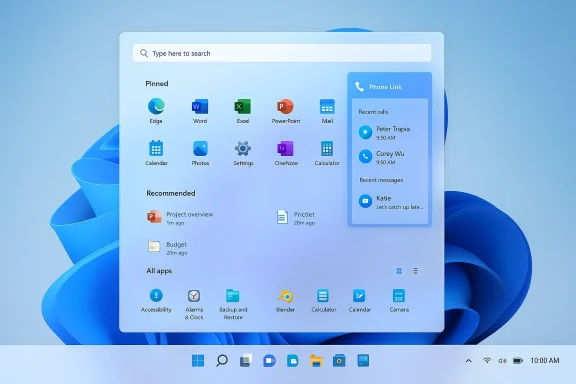
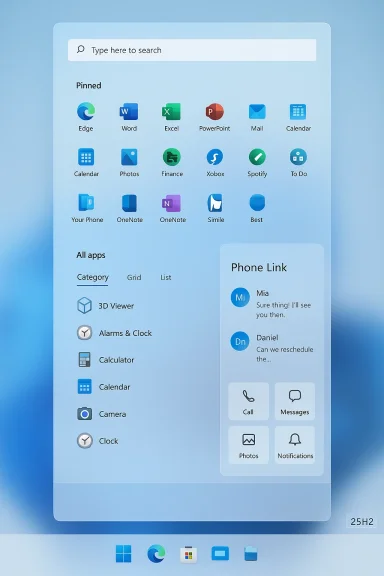
Microsoft has quietly begun turning on a dramatically redesigned Start menu for Windows 11 as part of the 25H2/24H2 servicing wave — a single, vertically scrollable launcher that promotes the full All apps list to the main surface, adds Category/Grid/List views for app discovery, and surfaces a Phone Link mobile panel directly inside Start — and Microsoft is delivering it via phased enablement so some machines will see the change before others.
For most of Windows 11’s life the Start menu remained a contested UI element: compact, icon-centric, and split between pinned items and a separate All apps page. Microsoft’s new design collapses those panes into a single, continuous surface intended to make app discovery faster and more phone-like — the All apps experience now appears as an option on the front page rather than behind a separate tap. The change was previewed throu optional preview updates in late 2025 and then widened to more users through Patch Tuesday servicing in early 2026.
This release is being distributed primarily as an enablement package (often called an eKB) layered on top of the 24H2 servicing branch, meaning the binaries were often already present on many devices and Microsoft flips featurerough small updates — a delivery method that reduces download size but produces a staggered, A/B rollout across Windows Update. IT teams and enthusiasts should expect inconsistent visibility across seemingly identical devices until Microsoft completes the gradual deployment.
Why this matters in practice:
Strengths for admins:
Microsoft’s Start redesign is a meaningful correction of several pain points that have dogged Windows 11 since launch. It modernizes discovery, brings useful phone continuity into a central UI, and gives users more control over recommendations — but it also doubles down on certain design trade‑offs (big visual surface, automated categories, and a locked taskbar posture) that will leave a portion of the user base yearning for finer controls. For most users and organizations the pragmatic next step is to pilot the enablement package, adjust Start settings to taste, and document any third‑party compatibility needs before rolling the change to everyone.
Source: TechJuice Microsoft Widens Rollout of Redesigned Windows 11 Start Menu in 25H2 Update
 Background / Overview
For most of Windows 11’s life the Start menu remained a contested UI element: compact, icon-centric, and split between pinned items and a separate All apps page. Microsoft’s new design collapses those panes into a single, continuous surface intended to make app discovery faster and more phone-like — the All apps experience now appears as an option on the front page rather than behind a separate tap. The change was previewed throu optional preview updates in late 2025 and then widened to more users through Patch Tuesday servicing in early 2026.This release is being distributed primarily as an enablement package (often called an eKB) layered on top of the 24H2 servicing branch, meaning the binaries were often already present on many devices and Microsoft flips featurerough small updates — a delivery method that reduces download size but produces a staggered, A/B rollout across Windows Update. IT teams and enthusiasts should expect inconsistent visibility across seemingly identical devices until Microsoft completes the gradual deployment.
What’s changed: the new Start surface explained
The redesign is more than a cosmetic tweak — it reorganizes Start into three primary areas and introduces multiple discovery modes:- Pinned apps — a larger, denser grid of pinned icons that can show more rows/columns on high‑DPI or wide displays.
- Recommended items — the recent-files / suggestions feed remains present but can be hggles in Settings > Personalization > Start.
- All apps — promoted to the main Start surface and viewable in three modes: Category, Grid, and List. The Category view groups apps into buckets like Productivity, Developer Tools, Games, and Other.
- The menu is vertically scrollable and generally taller than the previous Start surface; on many devices it consumes a large portion of the vertical space to present categories and pins at a glance. Early reporting shows variation by screen resolution and scaling, with some machines rendering the menu at roughly 60–and others appearing even taller depending on DPI and column count. Microsoft has acknowledged concerns about the menu’s footprint, but as of current releases it has not exposed a manual resize handle.
- The All apps view remembers your last selected layout (Category/Grid/List), so users who prefer density can revert to Grid or List while others may keep Category as default.
- A collapsible Phone Link panel is accessible from Start (a small device button), surfacing phone notifications, recentttery state, and even quick mirroring actions on supported devices. This tightens Microsoft’s cross-device continuity story and reduces context switching for users who frequently reach for their phones.
Category, Grid, and List — how they work
- Category: System-generated groups of related apps that aim to speed discovery for users with large application cataar automatically when the OS detects clusters of similar apps; they are not user-editable in current releases.
- Grid: A denser, icon‑first presentation similar to older Start layouts for users who prefer visual scanning.
- List: A classic alphabetical listing that benefits keyboard/search-oriented users.
Delivery and rollout: how Microsoft is shipping this update
Microsoft has used several distribution vectors:- Insider preview builds — initial testing and iterative feedback in Dev, Beta, and Release Preview channels throughout 2024–2025.
- Optional preview cumulative updates (e.g., KB5067036) — early non‑security preview packages that enabled broader testing among Release Preview Insiders in October 2025.
- Patch Tuesday updates — the January 2026 Patch Tuesday cumulative update (reported as KB5074109 / builds 26200.7623 for 25H2 and 26100.7623 for 24H2) accelerated visibility for mainstream users, and subsequent Februarye.g., KB5077181) expanded activation to more devices. These security/quality updates often include staged feature flips that broaden the rollout.
Phone Link in Start: continuity that reduces context switching
Phone Link is no longer just a separate app — Microsoft surfaced a collapsible Phone Link sidebar within the Start chrome. The panel exposes:- Message previews and replies, grouped by app
- Recent phone photos (including iCloud‑synced images where supported)
- Call status and quick call actions
- A “Send to my phone” share target in context menus
- Single‑click phone mirroring on supported Android devices
Privacy and personalization: hide what you don’t want
One of the most requested changes from users was the ability to remove the Recommended feed that surfaced recent files, websites, and store suggestions. Microsoft added explicit toggles in Settings > Personalization > Start to:- Show recently added apps
- Show recommended files in Start
- Show websites from browser history
- Show recommendations for tips and store suggestions
The screen‑space debate: taller Start menus and low‑resolution screens
The most visible friction point is the menu’s vertical footprint. Reports vary — on some devices the new Start covers roughly 60–70% of the vertical space; other observers reported menus approaching 90% on lower‑resolution or default‑scaled displays. That range depends on display resolution, scale factor (125%, 150% etc.), and column counts for pinned icons. Microsoft has said it’s aware of concerns about height and density, but there is no resize handle in current releases.Why this matters in practice:
- Users on 1366×768 laptops, small convertible tablets, or vertical monitors will feel the menu is dominant and potentially disruptive.
- Multimonitor setups with mixed DPI scaling can produce inconsistent Start sizes across displays.
- Some interactions (drag‑and‑drop to pin, flyouts) may behave differently when the Start surface occupies most of the vertical viewport.
Microsoft’s stance on resizability and taskbar movement
Two frequent user requests are (a) a manual Start resize control and (b) the ability to reposition the taskbar to the top or sides. Microsoft’s public posture through this rollout has been cautious:- On Start resizing: Microsoft acknowledged user feedback about the menu’s large footprint but, in current servicing releases, has not introduced a freeform resize control and has indicated there are no immediate plans to ship one in the initial rollout. Multiple reports relay Microsoft saying the feature is under consideration but not planned in the near term.
- On taskbar repositioning: the Taskbar has been fixed to the bottom since Windows 11’s original release. Restoring full movement and resizability is an engineering project with compatibility, animation, and accessibility implications; reporting suggests Microsoft is prototyping and validating such changes but historically has resisted reintroducing movement without careful testing. Enterprises and power users should not expect broad taskbaStart resizing to ship immediately.
Enterprise impact and IT guidance
Fility perspective the changes introduce both benefits and new tasks:Strengths for admins:
- The enablement-package model keeps image management simpler — most binaries are in-servicing and activation is often a small package with a short reboot window. That reduces the burden of large OS re‑imaging when adopting 25H2 features.
- Staged feature flips and A/B testing mean inconsistent experiences across the fleet. Admins should expect variation even within the same build numbers.
- The automated Category grouping and limited manual layout controls reduce deterministic configuration for shared or kiosk systems.
- Some toggles that hide Recommended content may change the behavior of other user-facing surfaces (Jump Lists, File Explorer recent items), and organizations with strict UX expectations should verify behavior in test images before broad rollout.
- Pilot the enablement package (eKB) in a representative lab image and document Start behavior per profile.
- Use Group Policy and MDM controls to lock or disable features where possible; inventory any dependencies on Jump Lists or recent-file surfaces.
3 to end users and provide short training or screenshots showing how to hide Recommended, switch All apps layout, or pin frequently used apps. - If third‑party Start/taskbaidate them against the target cumulative updates and pause feature installs until vendors confirm compatibility.
Alternatives: restoring the classic Start or moving the taskbar
For users who cannot accept the new Start footprint or the lack of taskbar movement, established third‑party solutions exist:- StartAllBack and Start11 — commercial products that restore classic-like Start layouts and provide taskbar repositioning options.
- ExplorerPatcher — a community project that restores many legacy behaviors, including vertical taskbars and older Start designs.
- Open Shell — an open-source Start replacement that can mimic Windows 7/10 Start styles.
- They may break or require updates after cumulative Windows releases.
- Enterprises should treat them as unsupported for managed fleets and prefer native Microsoft controls where possible.
- Security posture and supply‑chain considerations are relevant when installing community or commercial shell modifiers.
Risks, edge cases, and unresolved items
- Accessibility parity: early Insider feedback lists some touch and gesture gaps (swipe-up behavior, drag-and-drop) that reduce parity for tablet-first users. Microsoft has indicated work remains here.
- Category determinism: system‑controlled categories cannot be manually edited, which complicates training or scripted deployments that rely on predictable app placement.
- Regional and device limits: Phone Link features vary by device and region; iPhone support is present but more limited than Android in many integrations.
- Unverifiable tall‑menu claims: independent reports differ on exact percentages for menu height (some say ~70%, others report as high as ~90% under specific conditions). Because rendering depends heavily on display resolution and scale settings, any single percentage should be treated as illustrative rather than definitive. Users should confirm behavior on their own hardware.
Practical tips for everyday users
- If the new Start feels too large:
- Switch All apps to Grid or List to increase density.
- Turn off Recommended items in Settings > Personalization > Start to reclaim vertical space.
- Enable “Show all pins by default” if you prefer having all favorites visible without extra clicks.
- If you worry about Phone Link privacy:
- You can hide the Phone Link panel from within Start or uninstall/disable Phone Link from Apps & features; the panel is optional and not required for core Start functionality.
- If you manage devices:
- Pilot updates and capture screenshots of Start behavior for training materials; add a short note to your support KB explaining how to toggle Recommended and switch app views.
Final assessment: strengths, trade‑offs, and who benefits
Strengths:- The redesign addresses a long‑standing usability complaint by placing the full All apps surface where users expect it, reducing clicks and making app discovery faster for many users. The multiple All apps views cater to different discovery styles (visual, list/search, or category-based). Phone Link integration brings useful cross‑device continuity directly into Start.
- The larger visual footprint and lack of resizability will frustrate users on smaller displays and those who prefer ultra-compact launchers. The Category view’s lack of manual control is a pragmatic trade‑off favoring automated discovery over power-user determinism. The staged enablement model reduces upgrade friction but complicates fleet consistency.
- Users with large app catalogs, high‑resolution displays, or hybrid phone/PC workflows will gain the most from the new Start design.
- Privacy‑conscious users and administrators who disliked forced recommendations will appreciate the new toggles to hide Recommended content.
- Tablet-first users and those on small or low‑resolution screens are the least well-served by the initial release and should adjust settings or test third‑party alternatives if necessary.
Microsoft’s Start redesign is a meaningful correction of several pain points that have dogged Windows 11 since launch. It modernizes discovery, brings useful phone continuity into a central UI, and gives users more control over recommendations — but it also doubles down on certain design trade‑offs (big visual surface, automated categories, and a locked taskbar posture) that will leave a portion of the user base yearning for finer controls. For most users and organizations the pragmatic next step is to pilot the enablement package, adjust Start settings to taste, and document any third‑party compatibility needs before rolling the change to everyone.
Source: TechJuice Microsoft Widens Rollout of Redesigned Windows 11 Start Menu in 25H2 Update