

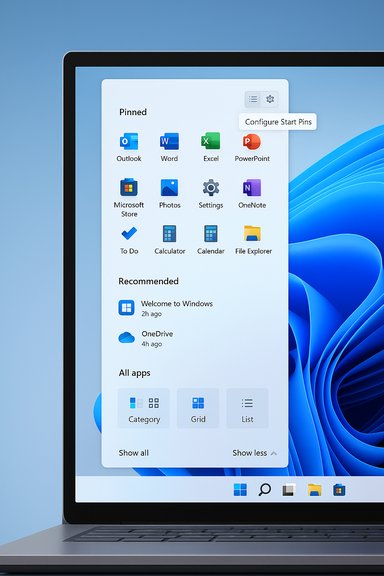
Microsoft’s November cumulative for Windows 11, KB5068861, quietly pulled a visible — and for many users, unwelcome — redesign of the Start menu into the mainstream build, replacing the compact, two-pane Start experience with a single, much taller, vertically scrollable canvas that places pinned apps, recommended content, and the full app list on one surface.
Microsoft released the November 11, 2025 cumulative update for Windows 11 (KB5068861), delivering builds in the 26200.x and 26100.x families for 25H2 and 24H2 channels. The package is primarily a security-and-quality rollup but also includes several user-interface refinements and feature tweaks. Among the more visible changes is a redesigned Start menu that shifts to a single-page, scrollable design and adds new presentation modes and personalization toggles. The update also contains a notable operational change for IT: a Boolean option in the Configure Start Pins policy that allows admins to apply pinned apps once at first-sign-in and then let users modify and keep their layout thereafter.
These changes are being rolled out gradually via Microsoft’s phased feature-gating, so not every device that installs the November cumulative will see the new Start immediately — the UI can be enabled server-side over days or weeks.
The administrative policy change — the apply once boolean for Start pins — is an important operational tweak. It allows IT to provision a default pinned layout for new users while ensuring users can personalize and save changes after the first sign-in. For enterprises that deploy standardized images and pinned layouts, that behavior reduces friction between policy-driven provisioning and end-user customization.
The primary concerns raised by users and IT pros include:
From an operational and journalistic standpoint, the change is notable not because it introduces novel capabilities, but because it alters a high-frequency touchpoint for every Windows user. That makes measured rollout, robust pilot testing, and clear communication essential. Administrators should test the new policy behavior and edge-case interactions immediately; end users who dislike the larger Start should use the new personalization toggles and companion-app controls as a first line of defense.
Microsoft’s decision not to provide an immediate, supported way to revert to the older Start design places the onus on careful deployment planning and user education. If your device or your organization values compact, low-friction interfaces, treat this update as a user-experience change that requires validation rather than purely a security-and-bug-fix rollup.
Conclusion: the redesign has sound goals and several practical wins, but the implementation’s one-size-fits-most approach to canvas size leaves room for improvement. Until Microsoft offers more granular controls or an official opt-out, the safest course for managed environments is cautious piloting, targeted communication, and readiness to adjust deployment plans based on real-world feedback.
Source: PCWorld Windows 11's newly revamped Start menu design is annoyingly large
 Background
Microsoft released the November 11, 2025 cumulative update for Windows 11 (KB5068861), delivering builds in the 26200.x and 26100.x families for 25H2 and 24H2 channels. The package is primarily a security-and-quality rollup but also includes several user-interface refinements and feature tweaks. Among the more visible changes is a redesigned Start menu that shifts to a single-page, scrollable design and adds new presentation modes and personalization toggles. The update also contains a notable operational change for IT: a Boolean option in the Configure Start Pins policy that allows admins to apply pinned apps once at first-sign-in and then let users modify and keep their layout thereafter.These changes are being rolled out gradually via Microsoft’s phased feature-gating, so not every device that installs the November cumulative will see the new Start immediately — the UI can be enabled server-side over days or weeks.
Overview of the new Start menu
The redesigned Start menu transforms the previous, relatively compact Start surface into a vertical canvas that contains three stacked zones:- Top: pinned apps (now with the option to show more pins by default).
- Middle: a Recommended area that surfaces recently used documents, apps, and installs (this section can be hidden).
- Bottom: the complete app list, moved from a separate page into the main Start canvas and visible by default.
- Category view: apps grouped by function (productivity, games, creativity, communication, etc. for activity-focused discovery.
- Compact Grid view: denser tiles for faster scanning, suited to wide or high-resolution displays.
- Classic List view: the familiar alphabetical list for users who prefer a traditional layout.
What changed and why it matters
At first glance, the redesign is an attempt to balance discoverability and customization. By moving the complete app inventory onto the main canvas and adding flexible views, Microsoft reduces the number of steps needed to find less-frequently used apps. For users who keep many installations, the category and grid modes can speed navigation. The added ability to show more pinned apps and to hide the Recommended feed increases personalization and reduces noise for users who prefer a curated Start surface.The administrative policy change — the apply once boolean for Start pins — is an important operational tweak. It allows IT to provision a default pinned layout for new users while ensuring users can personalize and save changes after the first sign-in. For enterprises that deploy standardized images and pinned layouts, that behavior reduces friction between policy-driven provisioning and end-user customization.
Early reports and key concerns
Despite the intended improvements, early hands-on reports highlight a trade-off: the new Start menu is significantly larger than before. Third-party testing and coverage from independent outlets indicate that the Start canvas can fill a very high percentage of vertical screen space — in some cases approaching 90% of a 1080p display, and in other combinations actually filling the entire screen when the Phone Link companion appears alongside Start. Those figures stem from field tests rather than a Microsoft specification, so results may vary by device, DPI scaling, and whether companion apps are active.The primary concerns raised by users and IT pros include:
- Excessive vertical footprint on laptops and low-resolution displays, which reduces visible desktop context when Start is open.
- No supported option to revert to the old Start in consumer-facing settings — Microsoft’s rollout does not include a "keep legacy Start" toggle that restores the previous two-pane experience.
- Inconsistent rollout behavior across an organization due to server-side gating, leading to mixed user experiences after a single cumulative update is applied.
- Potential accessibility and muscle-memory regressions for longstanding desktop users who rely on compact layouts or keyboard workflows.
Technical details and verified changes
The November cumulative (KB5068861) ships build families tied to 25H2 and 24H2 and lists the Start menu enhancements among its UI improvements. Verified elements in the update include:- A single, vertically scrollable Start canvas consolidating Pinned, Recommended, and All apps.
- Three All apps presentation modes (Category, Grid, List).
- Show all / Show less controls to expand/collapse the app list region.
- New personalization toggles to show more pinned apps or hide Recommended content.
- An administrative policy update: a Boolean option in Configure Start Pins allowing admins to apply start menu pins once at provisioning and then allow user changes to be preserved.
- Other UI fixes and feature additions in the same rollup include battery icon refinements, optional persistent battery percentage on the taskbar, and Task Manager cleanup to prevent background instances remaining after closing.
Strengths: what this redesign does well
The Start redesign includes several thoughtful, user-facing improvements:- Improved discovery: Bringing the all-apps list to the main surface eliminates an extra step and makes rarely used apps easier to find.
- Flexible presentation: The three views accommodate different mental models — activity-based (Category), dense scanning (Grid), and simple alphabetical search (List).
- Better personalization: Options to show more pins and to hide Recommended let users tailor Start for productivity rather than passive suggestions.
- Admin-friendly provisioning: The "apply once" pins policy respects both enterprise configuration needs and users’ desire to personalize after initial provisioning.
- Small but meaningful UX fixes: Additional changes in the same update (battery icon improvements, taskbar percentage option, Task Manager reliability fix) address longstanding user requests and reduce friction for mobile users.
Risks and weak points: what to watch for
The redesign also introduces real downsides that IT teams and power users must evaluate:- Screen real estate problems on 1080p and lower displays. The tall canvas was designed to adapt, but in practice it can dominate the visual workspace on smaller screens.
- No supported rollback to the legacy Start. There is no official consumer setting to permanently restore the older layout once the redesigned Start is enabled on a device, leaving dissatisfied users without an easy escape route short of complex workarounds or system rollbacks.
- Feature-gating inconsistency. Server-side rollouts mean colleagues can end up with different Start behavior under the same OS build, complicating training and documentation.
- Third-party and shell tool compatibility. Utilities that extend or modify the Start menu or shell could behave unexpectedly; IT should test third-party overlays and management tools after deployment.
- Potential accessibility regressions. Larger canvases and grouped views may interfere with assistive workflows unless Microsoft provides equivalent navigation affordances for keyboard and screen-reader users.
- Edge-case interactions with companion apps. Reports indicate Phone Link can cause Start to occupy the entire screen; other app interactions (dock utilities, on-screen widgets) may produce similar layout issues.
Recommended actions for end users
If you’re an individual user who receives the redesigned Start, a few practical steps can improve the experience immediately:- Open Settings > Personalization > Start to:
- Toggle Show more pins if you want extra pinned shortcuts available.
- Hide Recommended if you prefer a cleaner surface focused on apps.
- Use the All apps view switches to test Category, Grid, and List modes; keep the mode that best matches how you search for apps.
- If Phone Link or other companion apps cause Start to feel overwhelming, close or disable those companion panes and re-evaluate Start behavior.
- If the new layout is genuinely problematic on your machine and you cannot tolerate it, consider pausing feature updates or deferring the November cumulative until Microsoft offers an option or a patch that addresses sizing complaints.
Recommended actions for IT administrators
For organizations planning broad deployment, follow a conservative pilot-and-rollout approach:- Pilot the update on a representative sample of devices:
- Include laptops with 1080p displays, docking station setups, tablets, and high-DPI desktops.
- Validate Group Policy and MDM behavior:
- Test the Configure Start Pins apply once boolean on fresh user profiles to confirm provisioning semantics match your intentions.
- Test critical third-party tooling:
- Validate RMM, shell utilities, and helpdesk tooling for compatibility with the new Start behavior and taskbar changes.
- Document and communicate:
- Prepare short internal guidance explaining the new Start layout, how to change views, and how to hide Recommended content to avoid a spike in helpdesk tickets.
- Use phased rollout:
- Take advantage of staged deployment and canary rings; monitor feedback channels and telemetry to catch device classes where the Start canvas behaves poorly.
- Prepare recovery steps:
- If you must roll back, have an image or update-uninstall plan ready and ensure affected users know how to access support.
Troubleshooting and mitigation tips
When Start behaves badly — fills too much of the screen, becomes unresponsive, or impacts workflows — try these troubleshooting steps:- Restart explorer.exe to recover from a UI glitch.
- Reboot the device if explorer restarts don’t help.
- Check for updated drivers for display adapters and docking stations; display scaling and driver behavior can change Start layout.
- Disable Phone Link and other companion apps temporarily to confirm if they interact with Start in unexpected ways.
- Use Feedback Hub to file reproducible reports that include device model, DPI scaling, and display resolution details.
Accessibility and power-user considerations
Power users and accessibility professionals should evaluate the redesign against established workflows:- Keyboard users will want to verify that tabbing and arrow navigation remain consistent and fast. The longer canvas may require more keystrokes to reach items if not optimized.
- Screen reader users must confirm that grouping, Expand/Collapse controls, and the new category semantics are announced properly.
- Users relying on compact start behavior or who use hotkeys extensively may find the vertical layout increases cognitive load.
What Microsoft should consider next
To reduce friction and address legitimate complaints, Microsoft could:- Add a built-in opt-out to restore the previous Start layout for users who prefer it.
- Provide finer control over vertical density — for example, a slider to compress the Start canvas on lower-resolution displays.
- Publish official guidance about Phone Link interactions and other companion apps that affect Start layout.
- Increase transparency around phased rollouts so IT can anticipate mixed-experience states within the same AD/tenant.
- Offer explicit accessibility release notes detailing keyboard and screen-reader behavior changes.
Final assessment
The Start redesign in the November cumulative is a mixed bag: it advances discoverability and personalization with practical admin controls, but the design’s increased vertical footprint is a real pain point for users on smaller displays and in mixed-device environments. For many users on laptops and constrained-resolution screens the new layout will feel intrusive; for users on widescreen or 4K panels it will often be an improvement.From an operational and journalistic standpoint, the change is notable not because it introduces novel capabilities, but because it alters a high-frequency touchpoint for every Windows user. That makes measured rollout, robust pilot testing, and clear communication essential. Administrators should test the new policy behavior and edge-case interactions immediately; end users who dislike the larger Start should use the new personalization toggles and companion-app controls as a first line of defense.
Microsoft’s decision not to provide an immediate, supported way to revert to the older Start design places the onus on careful deployment planning and user education. If your device or your organization values compact, low-friction interfaces, treat this update as a user-experience change that requires validation rather than purely a security-and-bug-fix rollup.
Conclusion: the redesign has sound goals and several practical wins, but the implementation’s one-size-fits-most approach to canvas size leaves room for improvement. Until Microsoft offers more granular controls or an official opt-out, the safest course for managed environments is cautious piloting, targeted communication, and readiness to adjust deployment plans based on real-world feedback.
Source: PCWorld Windows 11's newly revamped Start menu design is annoyingly large
