

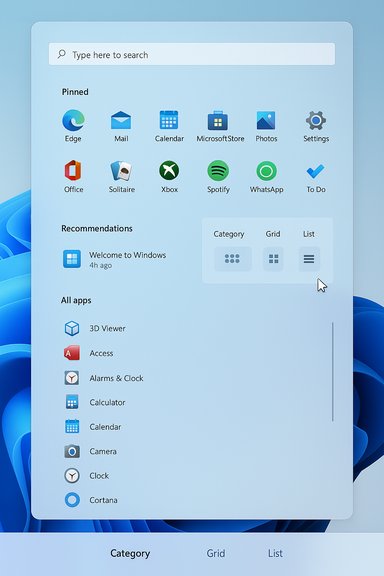
Microsoft’s November 2025 Windows 11 refresh has finally delivered the long‑teased Start menu overhaul — but the change is not subtle: the Start menu is now a single, vertically scrollable surface that combines Pins, Recommendations, and the full All apps index, and on many screens it occupies far more vertical real estate than the classic Windows 11 launcher did.
Microsoft’s Start menu has been the lightning rod of Windows UX debates for years. Windows 10 offered a flexible, resizable Start area with Live Tiles and the option to run Start full‑screen or dock it vertically; Windows 11 reset that approach toward a centered, minimalist grid with a separate All apps page and a prominent Recommended feed. The November 2025 refresh reverses that latter decision by promoting the All apps inventory to the main page and offering multiple presentation modes to better match how people actually search for and launch programs. This redesign first appeared in preview channels earlier in late 2025 and was folded into the November cumulative update KB5068861 (OS builds 26200.7171 for 25H2 and 26100.7171 for 24H2). Microsoft shipped the bits in servicing updates while continuing to enable the feature progressively via server‑side gating — which means installing the KB may be necessary but not always sufficient to show the new Start immediately.
Source: Windows Latest It’s not just you: Windows 11’s new Start menu really is huge
 Background
Microsoft’s Start menu has been the lightning rod of Windows UX debates for years. Windows 10 offered a flexible, resizable Start area with Live Tiles and the option to run Start full‑screen or dock it vertically; Windows 11 reset that approach toward a centered, minimalist grid with a separate All apps page and a prominent Recommended feed. The November 2025 refresh reverses that latter decision by promoting the All apps inventory to the main page and offering multiple presentation modes to better match how people actually search for and launch programs. This redesign first appeared in preview channels earlier in late 2025 and was folded into the November cumulative update KB5068861 (OS builds 26200.7171 for 25H2 and 26100.7171 for 24H2). Microsoft shipped the bits in servicing updates while continuing to enable the feature progressively via server‑side gating — which means installing the KB may be necessary but not always sufficient to show the new Start immediately. What changed: the redesign explained
One surface, three views
The new Start menu is a single, vertically scrollable canvas that hosts:- Pinned apps at the top.
- The Recommended area (optional and hideable).
- The full All apps inventory immediately accessible by scrolling.
- Category view — apps are automatically grouped by function (Productivity, Entertainment, Utilities, etc., surfacing frequently used items inside groups.
- Grid view — a denser, more horizontal tile grid arranged alphabetically for fast scanning on wide displays.
- List view — a compact, traditional A→Z list for keyboard power users.
Phone Link built into Start
A small phone icon now sits next to the Start search field; when you click it the Phone Link panel expands as a collapsible sidebar inside Start, surfacing calls, messages, photos, and simple continuity actions for paired Android or iOS devices. The Phone Link control is phased by market and may vary in functionality by platform during rollout.Density, columns and adaptive layout
Microsoft built the Start canvas to be responsive to screen size and DPI. Published defaults illustrate how the layout scales:- On larger monitors: up to 8 columns of pinned apps, 4 category columns, and 6 recommended items.
- On smaller devices: the counts drop (commonly cited as 6/3/4 for columns/recommendations).
The size debate: anecdote vs. system behavior
Multiple outlets and hands‑on reports confirm the redesigned Start has a larger visible surface area by default and that its layout adapts to screen size. Microsoft documents the change in KB5068861 and independent coverage demonstrates the same behavior in previews. That said, claims about exact percentages — for example, that the Start menu occupies “about 90% of the vertical screen space” on a specific laptop — are environment‑dependent observations and cannot be generalized without knowing display size, resolution, scaling, and which view was active. One outlet’s measurement (a 14‑inch 1920×1080 screen at 100% scale) is a valid real‑world datum for that configuration, but it should be treated as an anecdote rather than a universal property of the redesign. Readers should expect the Start’s height to vary considerably based on hardware and display settings.Strengths: why this redesign is defensible
- Fewer clicks to find apps. Folding All apps into the main surface reduces the repeated tap/click many users complained about since Windows 11 debuted.
- Multiple presentation modes. Category, Grid and List views serve different workflows: task‑oriented, visual scanning, and keyboard search respectively.
- Better use of large screens. On high‑DPI and widescreen displays the Start can expose more content and feel less sparse than the centered Windows 11 Start did.
- Granular control over Recommendations. Microsoft added explicit toggles to hide recently added apps, recommended files, and web suggestions so users can collapse the Recommended area entirely.
- Cross‑device continuity. Phone Link in Start is a legitimate convenience for users who move content between phone and PC frequently.
Risks and downsides: what to watch for
- Perceived bloat on small displays. The Start surface can dominate vertical space on 14‑inch or smaller laptops, especially at 100% or 125% scaling. That leads to the “Start is huge” complaints many users are voicing after upgrading. Treat early reports as hardware‑specific feedback rather than a universal indictment.
- Staged rollout creates inconsistency. Microsoft uses server‑side feature gating. Two identical machines with the same build may show different Start behavior until the feature is flipped for both — a challenge for IT and help desks.
- Enterprise governance and compatibility. Organizations that lock Start layouts, pin policies, or script UI behavior should validate policy interactions; not all management tooling may immediately account for the new layout. Admins should pilot before broad deployment.
- Accessibility and muscle memory disruption. Any radical change to how apps are discovered affects screen‑reader flows, keyboard navigation, and long‑standing muscle memory for users who relied on the older two‑page flow. Accessibility testing is still necessary across view modes.
- No easy rollback for staged feature flips. Once Microsoft enables the new Start on your machine via server flags, there is no simple “go back” button; rolling back may require uninstalling updates or using unsupported community tools, each with trade‑offs.
Practical advice: how to manage the Start menu size and behavior
If the new Start feels too large on your PC, try these steps (ordered from safest to more advanced). Each step includes why it works and exactly where to find the setting.- Check your Windows build and update status
- Press Windows+R, type winver, and press Enter to confirm your OS build number. The November 2025 cumulative is KB5068861 (OS builds 26200.7171 / 26100.7171). Use Windows Update or the Microsoft Update Catalog to install the combined SSU+LCU if needed.
- Turn off the Recommended area
- Settings > Personalization > Start: disable “Show recently added apps,” “Show most used apps,” “Show recommended files,” and related toggles. This collapses the Recommended feed and often moves your app list up under the pins, producing a cleaner, more app‑centric Start. This is one of the simplest, supported ways to regain vertical space.
- Switch Start view
- Open Start > Settings (gear) or Settings > Personalization > Start: switch between Category, Grid and List views to see which density feels best. List view is typically the most compact.
- Adjust Display scale and text size
- Settings > System > Display > Scale: increasing scale (125%, 150%) will increase UI size but can alter layout density in unexpected ways. Conversely, if the Start looks huge because icons appear large, try a slightly higher scale on high‑DPI displays (e.g., 150% on 4K) to shift how Start allocates space. Also try Settings > Accessibility > Text size to fine‑tune legibility without harming overall layout. These changes are device‑specific; test until you find the least‑bad compromise.
- Use a higher physical resolution when possible
- If you have an external monitor, the Start canvas often looks less intrusive on 4K or larger displays. The Start appears denser and relatively smaller at higher resolutions and appropriate scaling.
- For enthusiasts: viVeTool (unsupported)
- Community tools like ViVeTool can force‑enable or toggle preview features. PureInfoTech documented specific IDs for the new Start and other features (for example: vivetool /enable /id:47205210 for the new Start). This is unsupported by Microsoft and carries risk; only advanced users should consider it, and only after backing up the system.
- For admins: pilot and policy validation
- Pilot the update in controlled rings, validate Group Policy/Intune behavior around Start, and test accessibility flows with your assistive tech stacks. Microsoft’s staged rollout model requires active telemetry watching and a communications plan for users.
Technical verification: what we can and cannot confirm
- Confirmed: KB5068861 (released November 11, 2025) includes the redesigned Start menu and updates builds to 26200.7171 (25H2) and 26100.7171 (24H2). Microsoft’s support bulletin documents the cumulative and lists the UI changes as improvements bundled from the prior optional preview.
- Confirmed: The Start redesign combines Pinned, Recommended and All apps into a single, vertically scrollable canvas and offers Category, Grid and List views. Phone Link integration exists as a toggle/icon in Start. Independent outlets and Microsoft’s notes corroborate these features.
- Corroborated: The Start menu adapts its layout according to display size and DPI; larger screens will show more columns and recommended items. This behavior is documented and was measured in hands‑on previews.
- Anecdotal / hardware dependent: Exact measurements such as “90% of vertical screen height” are observer‑dependent and vary by resolution, scaling, and the active Start view. Those specific figures should be treated as single‑device observations unless reproduced across a range of test hardware.
UX analysis: tradeoffs, intent and long‑term direction
The redesign signals a pragmatic shift in Microsoft’s posture toward the Windows desktop: fewer artificial separation points, more adaptive layout logic, and closer ties to cross‑device features and on‑device AI. The company appears to be modernizing Start to match behavior mobile users already expect: a single app drawer that surfaces everything. This is sensible for discoverability, but there are notable tradeoffs.- The move favors one‑size‑fits‑many adaptive defaults rather than returning full, granular control to users (e.g., exact pixel resizing or vertical taskbar placement). That will please the majority who want less friction, but it will annoy power users who prized Windows 10’s configurability.
- Server‑side gating reduces regression risk at scale but creates inconsistent experiences across identical hardware — a support headache for IT and a source of confusion for users who believe “updates should behave the same.”
- The redesign opens new avenues for discoverability (and monetization) via Recommendations and integrations, so the tension between helpful suggestions and intrusive bloat will persist. The new toggle options are an attempt to strike balance, but vigilance is required.
Conclusion
The November 2025 Start menu redesign is one of the most consequential Windows 11 UX changes since the OS launched: it reunites Pinned, Recommended and All apps into a single, scrollable surface while adding Category, Grid and List views and tighter Phone Link integration. Microsoft shipped the work as part of KB5068861 and is enabling the experience gradually, which explains the mix of excitement and frustration among users experiencing a very large Start on some screens. For most users the new Start will be an improvement in discoverability and flexibility. For those who find it too large on their laptop display, there are supported remedies: hide Recommended, switch to List view, and experiment with display scaling; for admins, pilot deployments and policy validation are essential. Advanced users can force features with community tools, but that route is unsupported and risky. The redesign is conceptually sound — it aligns Start with modern single‑surface launchers — but its ultimate reception will hinge on Microsoft’s responsiveness to feedback about density, accessibility and enterprise manageability as the rollout continues.Source: Windows Latest It’s not just you: Windows 11’s new Start menu really is huge
