

Windows 11’s Start menu redesign is the latest Microsoft UI makeover to generate a polarized reaction from users: praised by some for integrating a single, scrollable app surface and deeper Phone Link/AI hooks, but slammed by others for being oversized, tightly controlled, and surprisingly uncustomizable. The update—delivered through staged previews and the November 2025 servicing stream—has left a split community: people who like the new layout, people who tolerate it, and a loud contingent who say it’s “basically a second desktop” that resurrects the Windows 8 feeling of being forced into a full-screen launcher. This piece unpacks what changed, why Microsoft likely made those choices, what’s broken (and why opinions are so sharp), which workarounds exist, and what both users and Microsoft should consider next.
Microsoft has long treated the Start menu as the interface element most entwined with how people actually use Windows, and the Windows 11 redesign is the latest step in a decades-long evolution from Windows 95 to Windows 10 and beyond.
Why that matters: users who keep a tight, compact pinned grid on older Start layouts lose an immediately familiar density. If you were used to two small rows of pinned icons and an unobtrusive recent files area, the new surface can feel visually wasteful.
Where Microsoft misstepped is not in ambition but in the degree of automation and the absence of user-editable controls. Taking away the ability to organize your own app categories and shipping a large, unresizable canvas without density controls turned a nuanced interface experiment into a polarizing user-experience issue.
For now, the practical path for frustrated users is simple: switch to List view, hide Recommended, and either wait for more customization knobs from Microsoft or—if you accept the risks—use a third‑party Start replacer. For enterprises, test thoroughly and manage expectations with your user base.
The underlying lesson is classic: bold UI changes must preserve the agency of people who’ve lived with Windows for years. Get that balance right, add a few missing toggles, and the Start menu’s new direction could be accepted widely. Leave it locked down, and the debate will continue—louder than ever.
Source: TechRadar https://www.techradar.com/computing...ome-hate-and-triggering-windows-8-flashbacks/
 Background and rollout: how we got here
Microsoft has long treated the Start menu as the interface element most entwined with how people actually use Windows, and the Windows 11 redesign is the latest step in a decades-long evolution from Windows 95 to Windows 10 and beyond.- The change first shipped in preview channels as part of an optional October 2025 update (preview KB5067036) and was folded into the November 2025 servicing stream (Patch Tuesday KB packages). The underlying bits have been distributed via servicing updates and are being enabled gradually with server-side feature gating, so installing the update doesn’t guarantee immediate access.
- Eligible builds for the preview included the 24H2 and 25H2 servicing builds; Microsoft’s support notes and major outlets confirm the Start redesign is tied to those servicing packages and to staged enablement logic.
- Because Microsoft is flipping the feature progressively, two identical systems can show different Start menus for days or weeks, which is why many users report “I don’t have it yet” while others suddenly see a much larger Start.
What changed: the anatomy of the new Start menu
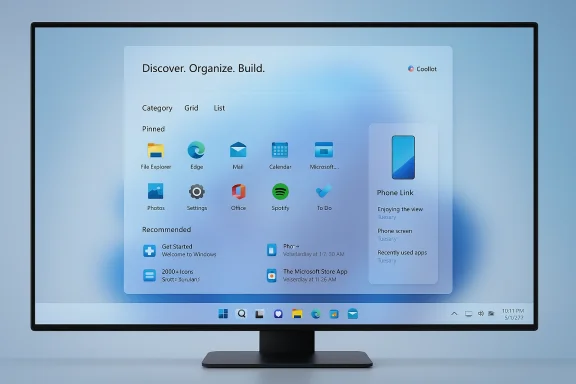
At the highest level, Microsoft has replaced the two‑page Pinned + All‑Apps model with one continuous, vertically scrollable Start surface. That consolidation is paired with three main conceptual areas and multiple view modes.A single, vertically scrollable surface
- The Start canvas now combines Pinned, Recommended, and All into one continuous space so everything is reachable with a single open + scroll.
- The rationale is clearer discoverability and fewer clicks: you no longer need to open “All apps” as a separate page to see lesser-used apps. For touchscreen and large displays, this mirrors mobile launchers and some third-party PC launchers.
Three views for the All apps area
Microsoft added three ways to present the full installed-app inventory:- Category view — apps are automatically grouped into functional buckets (e.g., Productivity, Games, Entertainment). Frequently used apps can be surfaced inside groups.
- Grid view — an alphabetically-ordered grid with wider spacing for scanning on wide panels.
- List view — a compact, classic A→Z list for keyboard and minimalist users.
Responsive sizing: more columns on larger screens
- The interface adapts to resolution and scale. On larger displays, the pinned area can show up to eight apps per row, while smaller displays see fewer columns (commonly described as 6‑column vs 8‑column modes).
- That adaptability means the perceived size of Start varies widely across devices and is affected by DPI scaling and monitor resolution. Where some see a compact panel, others get what feels like an almost full‑screen surface.
Phone Link and Copilot hooks
- Start gains a dedicated Phone Link toggle that expands a mobile sidebar inside the Start surface, showing recent phone activity and quick phone actions without launching a separate app.
- The redesign also positions Start as a landing zone for deeper Copilot/AI workflows—Microsoft has clearly built-in hooks that will allow future integrations to surface in this canvas.
Policy and admin changes
- Microsoft updated Start-related policy bits (for example, a new Boolean to apply Start pins once for admins), and some enterprise settings were clarified in the November servicing notes. However, the rollout model and feature flags mean admins will see inconsistent exposure unless they manage updates tightly.
Why people are upset: size, control, and classification
The backlash has a few identifiable axes: perceived monotony of the large canvas, lack of manual customization in the new category model, and the inconsistency of a staged rollout.1) It feels too big — sometimes overwhelmingly so
Several threads and hands‑on reports describe the new Start as feeling "huge" or "basically a second desktop." Observers measured different vertical coverage (some reporting Start filling the majority of the screen height on certain configurations). That said, the actual coverage is variable: resolution, scaling, and selected view (Category vs List) all change the footprint. Claims like "90% of the screen height" are anecdotal and depend on your specific device, but the perception that the UI is far larger than the previous Start is broadly consistent across many reports.Why that matters: users who keep a tight, compact pinned grid on older Start layouts lose an immediately familiar density. If you were used to two small rows of pinned icons and an unobtrusive recent files area, the new surface can feel visually wasteful.
2) Categories are machine-made and locked down
One of the most repeated complaints: apps get grouped into categories automatically by Microsoft’s classification logic, and users cannot rename groups, manually move apps between groups, or create/delete groups. The result:- Steam, game launchers, or Office apps can end up scattered into multiple buckets or buried in a catch‑all “Other” group.
- Conversely, List view bypasses the problem, which many users prefer.
3) Inconsistent rollout and the “where’s mine?” frustration
Because Microsoft staged the rollout with feature flags, many users are puzzled that they installed the required KB yet still lack the new Start. That inconsistency amplifies community outrage: it feels like the UI is being weaponized in small A/B tests rather than rolled out transparently.What’s actually configurable today (and how to reduce friction)
If you’ve already received the new Start or are advising others, here are the practical levers available right now.- You can switch All apps to List or Grid to avoid the Category view if you dislike automated groups.
- You can hide the Recommended section: Microsoft provided settings to disable recent files and app suggestions for a cleaner Start.
- You can pin and unpin apps in the pinned area (within the constraints of the pinned grid).
- The Phone Link panel is toggleable so you can collapse that if you don’t want cellular content showing.
- Rename categories, manually reassign apps to categories, or create your own category groups in the Category view.
- Resize the Start canvas via a drag grip or density slider; there is no built-in width or height control beyond changing display scaling (which is a blunt and undesirable instrument).
Workarounds and third‑party options (with warnings)
Windows power users aren’t sitting idly by. Two classes of responses have emerged: enabling the new Start early via community flag tools, or replacing Start entirely with third‑party shells.- ViVeTool (community tool): advanced users have used ViVeTool to flip the feature flags that enable the new Start on systems where the binary is present but server-side gating hasn’t flipped. Community-cited feature IDs are widely shared; however, ViVeTool remains an unsupported, community approach. It can expose experimental features and should be used only by users who can recover a system if something breaks. Do not run such tools on managed or production machines.
- Third‑party Start mods: tools like StartAllBack, Start11, Open Shell, and community injectors like Windhawk provide ways to restore an older or more compact Start menu experience. These utilities are popular because they restore customization, but they’re not without trade-offs: some use code injection hooks that could interact badly with anti-cheat software for games, or create quirks after major Windows servicing updates. Enterprises should be cautious about deploying them on fleets.
- Try switching the All apps view to List.
- Disable the Recommended items in Settings > Personalization > Start.
- If you still want the old Start, some users choose to remain on earlier servicing bases (e.g., opting out of optional preview KBs) until Microsoft provides more knobs.
Design rationale: what Microsoft is trying to achieve
It helps to posit why Microsoft shipped this rather than a simple refinement of the older Start.- Microsoft is standardizing a mobile-like single-surface launcher that improves discovery for the long tail of installed apps on modern devices, especially on large or touch-capable displays.
- Grouping and categorization are intended to help users who don’t remember app names but know the task they want to complete (i.e., “Games” vs “Productivity”). Auto‑grouping scales well for devices with many apps.
- The Phone Link toggle and Copilot hooks suggest Microsoft sees Start as a place to surface cross-device continuity and AI-powered suggestions—turning Start into a workflow hub, not merely an app list.
- By shipping the new Start via staged enablement, Microsoft can monitor real‑world telemetry and iteratively tweak classification, density, and stability.
Strengths: where the new Start legitimately helps
Don’t let the heat of the backlash obscure useful improvements.- Discoverability — for users with many apps, everything being available via one surface reduces clicks and page-switching.
- View flexibility — List and Grid views let you trade density for visual spacing; many users like the new grid for scanning.
- Easier to hide recommendations — Microsoft finally made it possible to remove the Recommendations area without hacks, which many power users appreciate.
- Phone Link integration — the inline mobile sidebar is genuinely useful for people who frequently move content between phone and PC.
- Adaptation to modern displays — the larger canvas fits modern high-resolution monitors and touchscreen/handheld devices better than the old compact Start.
Risks and downsides: what could go wrong
- Loss of user agency — the absence of manual category editing runs counter to longstanding Windows expectations about personalization, increasing reliance on third‑party tools.
- Visual waste on small workflows — for users with focused workflows, the larger Start adds friction rather than solving it.
- Enterprise inconsistency — staged rollouts can create patchwork user experiences that complicate helpdesk workflows and policy enforcement.
- Encouraging unsupported hacks — widespread use of ViVeTool and third‑party launchers increases the support burden and can introduce security or stability surface area.
- Accessibility implications — larger canvases and auto-grouping can impact users who rely on muscle memory, keyboard navigation, or assistive tech; Microsoft will need to ensure category labels, focus order, and keyboard support are robust.
Practical advice for users and admins
For users:- If you like the ideas but hate the default Category view, switch to List or Grid, and hide Recommended in Personalization settings.
- Avoid changing global DPI or scaling solely to force a “smaller” menu; that creates other UI and readability problems.
- If you don’t want the new Start, staying on earlier servicing levels or delaying optional preview updates will often keep the old layout until Microsoft adds more options.
- If you’re comfortable with risk and can recover your machine, the community has documented ViVeTool flags that can force the UI; treat this as experimental.
- Treat the staged rollout as a policy and support issue. Assume some machines will see the new Start and others won’t.
- Test on a small ring before broad exposure; verify keyboard navigation, screen-reader behavior, and deployment of pinned items.
- If you need consistent employer-controlled Start layouts, rely on Microsoft’s documented policy controls (the November servicing notes added pin configuration policies) rather than vendor or community hacks.
- Warn users about third‑party Start utilities: they can be useful but may conflict with security tools or update flows.
What Microsoft should consider next
The community feedback is loud and specific. To de-escalate friction and align the product with long-time Windows expectations, Microsoft has several clear, high‑value options:- Ship manual category management: allow renaming, creating, and moving apps between categories. This is a straightforward UX extension that would satisfy many critics overnight.
- Add density/dimension settings: offer a simple “Compact / Comfortable / Spacious” toggle or an explicit resize handle for the Start canvas so users tailor the footprint without changing system scaling.
- Improve classification transparency: show why an app was classified into a group and provide a “move to …” quick action to correct misclassifications.
- Provide an enterprise rollout toggle or Group Policy that makes the new Start opt‑in/opt‑out in a predictable manner across a fleet, reducing helpdesk confusion.
- Communicate better: explain staging logic and provide a simple “why you don’t have this yet” diagnostics pane in Settings.
Final verdict: promising concept, unfinished execution
The new Windows 11 Start menu represents a clear design push: a modern, single-surface launcher tuned for large displays, touch, and cross-device experiences. The idea has merit and some tangible benefits, especially when you use List or Grid views or rely on the Phone Link pipeline.Where Microsoft misstepped is not in ambition but in the degree of automation and the absence of user-editable controls. Taking away the ability to organize your own app categories and shipping a large, unresizable canvas without density controls turned a nuanced interface experiment into a polarizing user-experience issue.
For now, the practical path for frustrated users is simple: switch to List view, hide Recommended, and either wait for more customization knobs from Microsoft or—if you accept the risks—use a third‑party Start replacer. For enterprises, test thoroughly and manage expectations with your user base.
The underlying lesson is classic: bold UI changes must preserve the agency of people who’ve lived with Windows for years. Get that balance right, add a few missing toggles, and the Start menu’s new direction could be accepted widely. Leave it locked down, and the debate will continue—louder than ever.
Source: TechRadar https://www.techradar.com/computing...ome-hate-and-triggering-windows-8-flashbacks/
