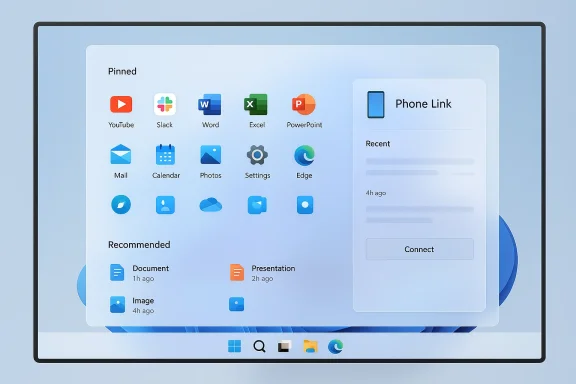
Microsoft has quietly begun replacing the familiar Windows 11 Start menu with a much larger, single-page design that rearranges pinned apps, promotes Microsoft’s recommendations, and folds the complete app list into the main surface — and it’s rolling out now as part of the late‑2025 feature and security updates.
The Start menu has been Windows’ most consistent user touchpoint since 1995, but it has also been a frequent battleground between usability, advertising, and evolving design trends. Windows 11 initially shipped with a compact, centered Start surface that downplayed the classic hierarchical app list and removed live tiles. That minimalist approach placated some users while frustrating others who relied on quick visual scanning and spatial muscle memory. Over time Microsoft has iterated, and the most recent changes — deployed in staged updates across October–November 2025 — mark the most significant Start menu overhaul since Windows 11’s launch.
This new design was included in Microsoft’s late‑2025 servicing releases for Windows 11 versions 24H2 and 25H2 and became visible to broader audiences after the November cumulative updates. The shift reflects both Microsoft’s continuing attempt to unify mobile‑style paradigms (such as a single-scroll surface and collapsible mobile panels) and its desire to surface content that it considers valuable to users — including promoted apps and quick access to a connected phone.
Because Microsoft is doing a phased deployment, not every device receives the new Start immediately. Some machines see the layout as soon as they install the cumulative update; others get it gradually as Microsoft enables the feature server‑side. For users who prefer to force the new Start menu immediately, community tools have been used to flip the hidden feature flags — a method I’ll discuss below along with the risks involved.
Important: forcing features with third‑party tools can have unintended consequences (edge cases, telemetry inconsistencies, and possible incompatibility with future servicing). Proceed only if you understand the risks and have backups or a recovery plan.
But the execution is blunt. Shrinking the choice to keep the old compact Start and making the Recommended removal indirect steers many users into an experience they did not ask for. The visual scale on smaller screens and the break with long‑standing spatial muscle memory guarantees strong reactions from power users, accessibility advocates, and organizations that rely on consistent desktop experiences across fleets.
Microsoft has softened some complaints by making aspects configurable and by shipping fixes alongside the redesign. Still, the rollout style — staged and partially server‑side — means troubleshooting and support will be more complex for the next few months.
For power users and IT professionals, this requires active management: evaluate the update in pilots, adjust personalization settings, and decide whether to adopt Microsoft’s new approach or rely on third‑party starters. For everyday users, the change will either feel like a welcome simplification or an annoying reorganization.
Either way, this redesign signals Microsoft’s continued push to make Start a more discovery‑forward surface — and it’s a reminder that even the smallest UI elements can provoke big conversations about control, privacy, and productivity.
Source: bgr.com Your Windows 11 Start Menu May Look A Little Different Soon - BGR
 Background
The Start menu has been Windows’ most consistent user touchpoint since 1995, but it has also been a frequent battleground between usability, advertising, and evolving design trends. Windows 11 initially shipped with a compact, centered Start surface that downplayed the classic hierarchical app list and removed live tiles. That minimalist approach placated some users while frustrating others who relied on quick visual scanning and spatial muscle memory. Over time Microsoft has iterated, and the most recent changes — deployed in staged updates across October–November 2025 — mark the most significant Start menu overhaul since Windows 11’s launch.This new design was included in Microsoft’s late‑2025 servicing releases for Windows 11 versions 24H2 and 25H2 and became visible to broader audiences after the November cumulative updates. The shift reflects both Microsoft’s continuing attempt to unify mobile‑style paradigms (such as a single-scroll surface and collapsible mobile panels) and its desire to surface content that it considers valuable to users — including promoted apps and quick access to a connected phone.
What changed: the new Start menu, explained
A single, vertically scrollable Start surface
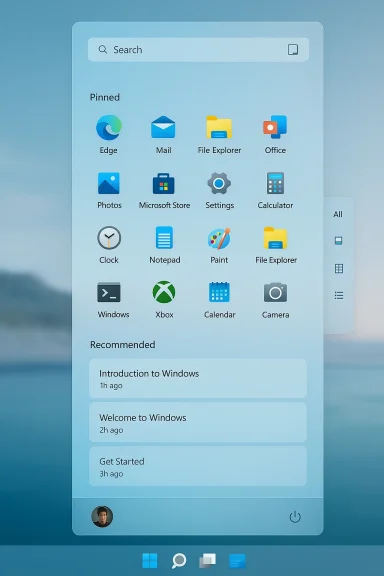
The most visible change is that the Start menu now occupies a much larger vertical canvas. Instead of a small centered popover, launching Start produces a tall, scrollable surface divided into three primary regions:- Pinned — Your manually pinned applications, shown in a denser, multi‑column grid.
- Recommended — A suggestion area that surfaces recently used files, suggested apps, and (when enabled) promoted Microsoft Store content.
- All — The full apps list moved into the primary surface; it can be shown in multiple views.
Multiple views for the All apps list
Microsoft added view modes that change how the All apps area is presented:- Category view — Groups apps by type or category, surfacing often‑used groups at the top.
- Grid (alphabetical) view — Presents apps in a compact alphabetical grid for fast scanning.
- List (classic) view — A more traditional vertical list.
Pinned apps: more density, fewer pages
Pinned apps are now shown in a denser grid (up to eight icons per row on larger screens), with the default collapsed view offering two rows and a toggle to “Show more” or “Show less.” This introduces faster visual density for keyboard and mouse users but breaks the three‑row spatial layout many long‑time users have relied upon.Recommended area — optional, but buried
The Recommended section continues to show recently used files and apps, and it can also include suggested apps from the Microsoft Store. Microsoft has provided a way to disable Recommended, but it’s not a single‑click “hide Recommended” button; instead, users must turn off multiple toggles in the Start personalization settings to fully remove the feed. When hidden, recent‑file visibility and some jump‑list behaviors are affected.Phone Link integration
A new mobile device button now appears near Search in the Start surface. When you have a phone connected via Phone Link (formerly Your Phone), the Start menu can expand a collapsible sidebar showing recent phone activity, messages, photos, and quick actions. The idea is to surface a light version of the phone experience without switching apps.Small but important UI and reliability tweaks
The late‑2025 updates that introduced the redesign also included other UI and reliability changes: a refreshed battery icon and optional persistent battery percentage in the taskbar, an important Task Manager shutdown fix, and a number of underlying servicing and HTTP.sys protocol corrections. These non‑Start fixes shipped in the same cumulative updates, so users installing the November package receive both UX and security improvements together.When and how this arrived
Microsoft staged the rollout through the standard servicing channels. The redesign was included in optional and preview packages in late October 2025 and reached a wider audience with the November 2025 cumulative updates for Windows 11 versions 24H2 and 25H2. The November cumulative update packages were published in mid‑November 2025 (the formal security update release dated November 11, 2025 in Microsoft’s servicing notes).Because Microsoft is doing a phased deployment, not every device receives the new Start immediately. Some machines see the layout as soon as they install the cumulative update; others get it gradually as Microsoft enables the feature server‑side. For users who prefer to force the new Start menu immediately, community tools have been used to flip the hidden feature flags — a method I’ll discuss below along with the risks involved.
How to control the new Start menu (what you can and cannot change)
Microsoft placed the new Start menu’s toggles under Settings > Personalization > Start. The controls are straightforward, but some useful options are intentionally indirect.- You can switch the All apps view between Category, Grid, and List.
- You can expand or collapse the Pinned area with “Show more / Show less.”
- You can disable the Recommended feed — but you must individually switch off the options that feed that area (recent files, frequently used apps, and recommended app suggestions). There is no single “Disable Recommended” master switch.
- If Phone Link is connected, you can expand or collapse the phone sidebar from inside Start.
Important: forcing features with third‑party tools can have unintended consequences (edge cases, telemetry inconsistencies, and possible incompatibility with future servicing). Proceed only if you understand the risks and have backups or a recovery plan.
Deep analysis: strengths, pain points, and real user impact
Strengths — meaningful improvements
- Faster access to all apps: Putting the All apps list in the primary surface removes an extra click for many users. If you frequently search for apps in the full listing, the scrollable view reduces friction.
- Adaptation to large displays: On large monitors and high‑DPI setups, the expanded Start surface makes better use of space and reduces the need to hunt through tiny columns.
- View options provide flexibility: Category and grid views give more ways to arrange and scan your app list; that helps users who prefer groupings versus raw alphabetical lists.
- Phone Link inclusion is pragmatic: Many people use their PC and phone together; surfacing a condensed phone panel inside Start reduces context‑switching for quick tasks like checking recent photos or messages.
- Ability to remove Recommended (if you dig): Microsoft did provide a path to remove suggested content and recent files, which addresses privacy‑minded and distraction‑averse users — albeit with more clicks than some would like.
Weaknesses and risks — why the reaction is sharp
- It’s visually and spatially larger than many users want: The new Start menu can occupy a very large percentage of the screen on 1080p and lower resolutions. Reports and tests show it can extend much closer to the top edge than the old design, and with Phone Link enabled it can appear nearly full‑screen on some configurations. This sudden change disrupts muscle memory built over years.
- No official “keep old Start” option: Users who prefer the compact Windows 11 Start or a classic layout do not get a straightforward toggle to keep the previous behavior. That forces third‑party tools or patch‑forcing for dissenters.
- Recommended still feels like product placement: Although you can disable Recommended by turning multiple settings off, the fact that the default design prominently includes promoted store items has reignited debates about advertising inside core OS UI.
- Usability regressions for some workflows: Users who relied on the three‑row pinned layout, the old paging dots, or quick mouse‑wheel page switches are encountering a learning curve and, in some cases, reduced efficiency.
- Phased rollout complicates support: Because the change is server‑side phased, help desks and IT documentation now need to account for mixed experiences across fleets: two identical devices could show different Start menus depending on rollout flags.
Accessibility and muscle memory
Accessibility professionals and power users are right to be skeptical. A change in spatial layout affects users who rely on physical positioning, consistent icon rows, and predictable cursor movement. While the Start menu’s keyboard navigation remains, anything that scrambles spatial predictability increases cognitive load for users with disabilities or those dependent on fast, sightless navigation.Enterprise and IT impact
For enterprise admins and managed environments the new Start menu is a mixed bag:- Training and documentation: Admins will need to update user training materials and quick‑reference guides. The consolidated All apps list and new view options mean screenshots and help workflows change.
- Group Policy and management: Microsoft’s enterprise controls still allow admins to configure Start layout and to limit certain personalization options, but some of the new server‑side rollout gating complicates predictable behavior. IT departments that patch to the November cumulative update can expect a phased feature rollout; thorough pilot testing is essential.
- Third‑party Start replacements: Vendors like Stardock’s Start11 continue to offer Start menu replacements and customization. Enterprises using such tools should test compatibility; vendors are already shipping updates to handle 25H2 idiosyncrasies. Expect some friction on mobile or touch‑heavy devices in mixed environments.
- Deployment cadence: Because the Start redesign was rolled into an overall cumulative update that also fixed important bugs, many organizations will install the security fixes and then be surprised by behavior changes. The safest course is to pilot the update on a subset of devices before broad deployment and to document rollback and recovery steps.
Privacy and advertising: what to watch for
The Recommended area’s mix of recent files and promoted apps raises two concerns:- Privacy — Recommended surfaces recent files and app activity. If you share a device or want to minimize surfaceable activity, disable the recent files and frequent apps toggles. Hiding Recommended removes that surface but also changes some jump‑list and recent‑file visibility behavior that some workflows rely on.
- Advertising — Microsoft has periodically promoted Store content inside Start. While the company frames this as “suggestions,” it behaves like a curated app promotion area for some users. The ability to turn these suggestions off is present but intentionally indirect — critics argue that a single master toggle would be cleaner for users who do not want promotional content inside essential UI.
Power‑user tips, workarounds, and safe toggles
If you want to shape the new Start menu without forcing unsupported flags, here are practical, low‑risk steps:- Open Settings > Personalization > Start.
- Turn off “Show recently opened items in Start, Jump Lists, and File Explorer” to eliminate recent files from Recommended.
- Turn off any toggles labeled “Show recently added apps” or “Show most used apps” to reduce Suggested content.
- Use the view selector in Start to pick the All apps presentation (Category, Grid, List) that best matches how you scan applications.
- Back up your system or create a restore point first.
- Understand that using such utilities changes hidden feature flags and is not officially supported.
- Expect that future cumulative updates may reintroduce or alter the flags, requiring reapplication of the tool or vendor updates.
Compatibility and performance considerations
- Smaller screens and low DPI: On laptops with 1080p displays or smaller tablets, the expanded Start surface can feel overwhelming and may cover too much of the workspace. Users on such devices should experiment with the collapsed Pinned state and hide Recommended where appropriate.
- Touch devices: The single‑page, scrollable Start aligns with touch paradigms. However, some touch gestures and swipe behaviors are still OS‑dependent and may behave differently across devices.
- Third‑party tools and overlays: Utilities that modify shell behavior or taskbar interactions may need updates. Vendors have released patches for the 25H2 rollout; enterprise admins should coordinate vendor updates in testing cycles.
Verdict: an evolutionary push that will divide users
The new Start menu in Windows 11 is a deliberate tradeoff: Microsoft prioritized a unified, scrollable Surface that brings the full app list into immediate view and integrates phone content. For many users — especially those on large displays, or those who appreciated Apple‑ and Android‑style single‑page launchers — this is a productivity win. The added view modes and Phone Link convenience are genuine usability improvements.But the execution is blunt. Shrinking the choice to keep the old compact Start and making the Recommended removal indirect steers many users into an experience they did not ask for. The visual scale on smaller screens and the break with long‑standing spatial muscle memory guarantees strong reactions from power users, accessibility advocates, and organizations that rely on consistent desktop experiences across fleets.
Microsoft has softened some complaints by making aspects configurable and by shipping fixes alongside the redesign. Still, the rollout style — staged and partially server‑side — means troubleshooting and support will be more complex for the next few months.
Practical recommendations for readers
- If you like experimentation: install the November cumulative update and try the new Start menu. Use the Settings controls to tailor the view and hide Recommended content if you prefer a quieter experience.
- If you manage devices in an organization: pilot the update on a small set of endpoints, update documentation and training materials, and coordinate with third‑party Start menu vendors to ensure compatibility.
- If you depend on spatial muscle memory or have accessibility needs: test keyboard navigation and consider delaying broad deployment until Microsoft provides more granular toggles or until third‑party replacements are validated.
- If you’re privacy‑conscious: disable recent items and suggested content under Settings > Personalization > Start to minimize what the Recommended area can surface.
- If you prefer the old layout and are considering third‑party tools: choose reputable vendors and test extensively. Keep backups and a recovery plan in case a future system update interferes with the replacement.
Conclusion
The Windows 11 Start menu redesign is one of those updates that will be praised and criticized in equal measure. It modernizes access to apps, brings phone integration into an oft‑used surface, and offers new organizational views — clear improvements for many users. Yet it replaces a well‑understood, compact experience with a much larger, opinionated layout that default‑exposes recommendations and promoted content.For power users and IT professionals, this requires active management: evaluate the update in pilots, adjust personalization settings, and decide whether to adopt Microsoft’s new approach or rely on third‑party starters. For everyday users, the change will either feel like a welcome simplification or an annoying reorganization.
Either way, this redesign signals Microsoft’s continued push to make Start a more discovery‑forward surface — and it’s a reminder that even the smallest UI elements can provoke big conversations about control, privacy, and productivity.
Source: bgr.com Your Windows 11 Start Menu May Look A Little Different Soon - BGR