

Microsoft has pushed the redesigned Start menu to the broad Windows 11 population as part of the November 11, 2025 Patch Tuesday cumulative update (KB5068861), bringing a long‑requested single, scrollable Start surface, multiple All‑apps views, tighter Phone Link integration, and a raft of complementary Copilot+ and system improvements — while keeping the rollout deliberately staged to avoid breaking millions of desktops.
Microsoft first shipped the code for the new Start experience as an optional preview (KB5067036) in late October 2025 and used a staged, server‑side enablement model during testing. That preview packaged the UI work alongside several Copilot+ features and taskbar refinements; the November cumulative update KB5068861 moved those preview items into the supported servicing channel and began enabling them more broadly across Windows 11 versions 24H2 and 25H2. The Start redesign is not a simple skin change. It rethinks how apps and recent content are surfaced, and Microsoft has explicitly treated exposure as a controlled experiment: binaries may already be present on many devices after installing preview packages, but the visible experience is turned on in waves so telemetry can be monitored and regressions contained. That delivery model matters for IT teams and enthusiasts alike.
That said, the release is a reminder that even incremental UX and security advances require disciplined rollout and thorough compatibility testing. The staged activation model is the right balance for minimizing disruption, but it also leaves organizations to manage a mixed fleet in the near term. Administrators should pilot the update, validate key workflows, and coordinate communication with end users to ensure expectations match the gradual reality of feature‑flagged rollouts.
The redesigned Start is available now to devices that receive KB5068861 and have had the Start flag enabled by Microsoft; if you don’t see it yet, check for optional preview packages (if you’re comfortable with previews), or wait for the staged activation to reach your device. For enterprise deployments, plan a measured pilot, test Administrator Protection, and validate any dependencies on third‑party shell components before broad rollout.
Source: Thurrott.com Microsoft Starts Rolling Out Redesigned Start Menu to All Windows 11 Users
 Background
Microsoft first shipped the code for the new Start experience as an optional preview (KB5067036) in late October 2025 and used a staged, server‑side enablement model during testing. That preview packaged the UI work alongside several Copilot+ features and taskbar refinements; the November cumulative update KB5068861 moved those preview items into the supported servicing channel and began enabling them more broadly across Windows 11 versions 24H2 and 25H2. The Start redesign is not a simple skin change. It rethinks how apps and recent content are surfaced, and Microsoft has explicitly treated exposure as a controlled experiment: binaries may already be present on many devices after installing preview packages, but the visible experience is turned on in waves so telemetry can be monitored and regressions contained. That delivery model matters for IT teams and enthusiasts alike. What’s included in KB5068861 (high‑level)
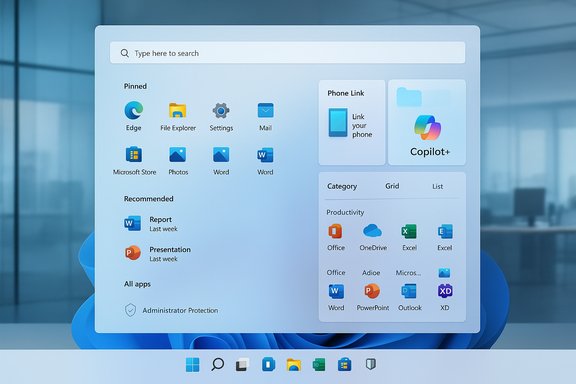
- Redesigned Start menu: a single vertical canvas that integrates Pinned, Recommended, and All apps; three All‑apps views (Category, Grid, List); and a responsive layout that adapts to display size.
- Copilot+ (on‑device AI) improvements: Click to Do enhancements (streamlined prompt box, translation, unit conversion, new selection modes), File Explorer hover commands and Copilot prompts, Voice Access upgrades including fluid dictation and language support, and improved semantic Windows Search on Copilot+ PCs.
- Taskbar and battery UX: colored battery icons (green/yellow/red) to convey charging and health states, an option to show battery percentage in the taskbar, and lock‑screen parity for the new icons.
- Administrator Protection (preview): a new just‑in‑time elevation model that isolates admin tokens and requires explicit authorization (Windows Hello) for privileged actions; configurable via Windows Security, Intune, or Group Policy.
- Quality fixes: Task Manager termination bug fix, fixes for gaming handhelds failing to remain in low‑power states, and multiple File Explorer and storage stability improvements.
Redesigned Start menu — deep dive
The new layout and views
The Start menu has been rebuilt around a single, vertically scrollable surface that folds Pinned apps, Recommended content, and the full All‑apps index into one canvas. That eliminates the older split between Pinned and a separate All‑apps page and reduces clicks for users with large app libraries. The All section offers three presentation modes:- Category view — system‑generated buckets such as Productivity, Games, Creativity and Communication. Frequently used apps are surfaced inside each bucket.
- Grid view — a denser, tile‑style alphabetical grid for visual scanning.
- List view — the classic A→Z list that power users prefer.
Phone Link integration and discoverability
A new mobile device button appears next to the search box, expanding a collapsible Phone Link side panel that surfaces notifications, messages, calls, and photos from a paired phone. This change moves basic continuity features inside Start, making cross‑device workflows faster without launching a separate Phone Link app. The Phone Link integration is optional and respects your pairing and privacy settings.Controls and user choice
Microsoft added explicit toggles in Settings → Personalization → Start to let users hide Recommended content, suppress recently added apps or most used lists, and show all pinned apps by default. Those controls address long‑standing complaints about in‑Start recommendations and restore a quick path to a more app‑centric Start. However, some category groupings are currently system‑driven rather than user‑editable — a notable omission for power users who want deterministic organization.Rollout mechanics and activation timing
Important operational note: installing the preview or cumulative update may be necessary but is not always sufficient to see the new Start immediately. Microsoft uses server‑side feature‑flighting (staged enablement), so devices receive the experience in waves to let telemetry and stability signals be evaluated before broader exposure. Organizations should expect an inconsistent experience across fleets until Microsoft completes the phased rollout. For those who cannot wait, community tools like ViVeTool can flip feature flags—but that path is unsupported and carries risk.Copilot+, Click to Do, File Explorer, Voice Access, and Windows Search
Copilot+ device gating and what it means
A number of the new AI features are Copilot+‑gated: they appear only on devices that meet Microsoft’s hardware and licensing requirements for on‑device Copilot experiences (Copilot+ PCs). Those features include advanced Click to Do capabilities, File Explorer hover actions that suggest Copilot prompts, Fluid Dictation in Voice Access, and the improved semantic Windows Search rollout on Copilot+ machines. Administrators should inventory devices if they plan to rely on these features at scale.Click to Do improvements (Copilot+ PCs)
Click to Do’s prompt box has been streamlined for faster interaction with Copilot. New actions include:- On‑screen translation of selected text.
- Unit conversions for length, area, volume, height, temperature, and speed.
- Freeform and rectangle selection tools to pick objects on screen.
File Explorer integration (Copilot+ PCs)
When signed in with a Microsoft account, hovering over a file in File Explorer’s Home view shows quick actions such as Open file location and Ask Copilot. Microsoft originally planned two further File Explorer Home changes — surfacing recommended files for MSA users and allowing third‑party cloud providers to integrate with File Explorer Home — but those have been delayed to a future update. Administrators should note the MSA dependency and that end users will be able to opt out of recommended‑file surfacing.Voice Access and Windows Search
Voice Access can now use Fluid Dictation to improve real‑time grammar, punctuation, and filler‑word handling. Improved Windows Search — the semantic search experience — has been rolled out on Copilot+ PCs through controlled rollout. These accessibility and search improvements, while welcome, depend on device capabilities and feature flags.Taskbar and battery UX changes
Microsoft updated the battery icon family to be more informative at a glance: green indicates charging and healthy state, yellow indicates battery‑saver (or lower than the configured threshold), and red indicates critically low battery. There’s also a toggle to show battery percentage directly in the taskbar — a frequently requested tweak that reduces the number of clicks needed to view battery details. Microsoft plans to extend the battery icons to the lock screen in a future flight as well. These changes were tested in Insider builds and are now part of the November cumulative update. Practical impact: battery color coding and percentage on the taskbar reduce surprise shutdowns and speed decision‑making on mobile devices. For IT admins, note that increasing the icon length or enabling percentage may affect narrow taskbar layouts in tightly provisioned kiosk or thin‑client environments.Administrator Protection — a security rethink
What it does
Administrator Protection introduces a just‑in‑time elevation model that creates an isolated, system‑managed admin account to issue non‑persistent elevated tokens. The feature enforces explicit authorization for each admin task (Windows Hello integrated authentication is supported) and breaks the traditional model where admin tokens could be persistently leveraged, reducing attack surface for privilege escalation.How to enable and manage
Administrator Protection is available in preview and can be enabled locally from Windows Security → Account protection (Preview), via Microsoft Intune (Settings Catalog/OMA‑URI), or by Group Policy and CSP. A reboot is required for changes to take effect. For enterprise deployments the feature includes ETW events for monitoring elevations and supports Group Policy/CSP controls for consent behavior.Why this matters
From a security posture perspective, Administrator Protection is one of the more consequential changes in recent Windows 11 servicing: it converts transient admin access into a first‑class, auditable control and helps contain the typical UAC attack vectors tied to shared user profile access. However, because it breaks certain legacy assumptions about token persistence, organizations should pilot the feature to validate compatibility with management agents, backup software, imaging workflows, and remote management tools before wide deployment.Quality fixes and delayed features
KB5068861 includes several important bug fixes:- Task Manager fix: closing Task Manager with the Close button will now fully terminate the process.
- Gaming handhelds: resolved an issue that prevented devices from staying in low‑power states, which caused accelerated battery drain.
- Multiple File Explorer and storage fixes originally rolled in the preview have been consolidated and refined for broader release.
Practical guidance for users and IT
For everyday users
- Expect a phased rollout. If you don’t see the new Start immediately after installing the November update, be patient: Microsoft may still be gating activation for your device.
- Check Settings → Personalization → Start to hide Recommended content and restore a more compact app‑first layout if you prefer that behavior.
- Copilot+ features require device eligibility; check the Copilot+ PC guidance if the Click to Do or File Explorer Copilot prompts are missing.
For power users and enthusiasts
- Unsupported community methods (ViVeTool) can force feature flags early, but they bypass Microsoft’s staged safety nets and are not recommended for production machines. Back up and understand rollback procedures before experimenting.
- If you rely on third‑party shell extensions or Start‑menu replacement tools, test them in a pilot ring because the new layout and windowing behaviors could affect compatibility.
For IT and admins
- Pilot the update in a controlled ring and validate critical apps, admin workflows, and security tooling.
- Evaluate Administrator Protection in a test group to identify compatibility gaps (backup tools, imaging, remote management).
- Inventory Copilot+‑eligible devices if you plan to deploy on‑device AI features at scale; not all hardware will qualify.
Strengths, trade‑offs, and risks
Strengths
- User‑centered fixes: The Start redesign restores discoverability and density while preserving familiar affordances like the alphabetical list and keyboard navigation. The added visibility of battery status and the ability to show percentage are highly practical quality‑of‑life improvements.
- Security boost: Administrator Protection advances the principle of least privilege and creates a more robust elevation model that can materially reduce exploitation windows for privilege escalation.
- Incremental, measured rollout: Microsoft’s staged enablement reduces blast radius and gives admins time to validate before full exposure.
Trade‑offs and risks
- Fragmented early experience: Staged rollouts mean inconsistent UX across devices for days or weeks; this complicates support and documentation for help desks and IT.
- Compatibility unknowns: Administrator Protection and Start layout changes may surface unexpected interactions with legacy management scripts, imaging processes, and third‑party shell integrations. Comprehensive pilot testing is essential.
- Copilot+ gating: On‑device AI features are gated by hardware and market constraints; organizations cannot assume universal availability even after the update is installed.
Unverifiable or evolving items
- Microsoft’s server‑side flighting schedules and target cohorts are not publicly granular; claims about precise rollout timing for a specific device remain probabilistic. Treat statements about “when you will see the change” as directional until your device reports the feature.
- The exact enterprise impact of Administrator Protection on niche management or imaging products will depend on those products’ elevation models; vendors’ compatibility statements should be consulted before mass enabling. Flag such compatibility questions for vendor validation.
Final assessment
The November 2025 cumulative update (KB5068861) marks a pragmatic, user‑focused step forward for Windows 11. The Start menu redesign addresses long‑standing usability complaints, the battery UX and quick access options answer frequent customer requests, and Administrator Protection reflects a real improvement in Windows privilege management. The inclusion of Copilot+ refinements shows Microsoft’s continued push to integrate contextual AI into everyday workflows.That said, the release is a reminder that even incremental UX and security advances require disciplined rollout and thorough compatibility testing. The staged activation model is the right balance for minimizing disruption, but it also leaves organizations to manage a mixed fleet in the near term. Administrators should pilot the update, validate key workflows, and coordinate communication with end users to ensure expectations match the gradual reality of feature‑flagged rollouts.
The redesigned Start is available now to devices that receive KB5068861 and have had the Start flag enabled by Microsoft; if you don’t see it yet, check for optional preview packages (if you’re comfortable with previews), or wait for the staged activation to reach your device. For enterprise deployments, plan a measured pilot, test Administrator Protection, and validate any dependencies on third‑party shell components before broad rollout.
Source: Thurrott.com Microsoft Starts Rolling Out Redesigned Start Menu to All Windows 11 Users
