

Microsoft’s recent Windows 11 servicing and Insider activity delivered one of the most visible UI overhauls in years — a redesigned, single‑surface Start menu — alongside a host of AI integrations, taskbar adjustments and, regrettably, a frustrating Task Manager bug that spread quickly through preview builds and optional updates this month. The changes arrive packaged in the October non‑security preview (KB5067036) for Windows 11 versions 24H2 and 25H2, and are mirrored in Insider flight notes that also tease Copilot-on-the-taskbar experiences and other Copilot‑adjacent features; the rollout model is staged, server‑gated, and mixed with optional preview fixes, which creates both opportunity and short‑term instability for testers and early adopters.
Windows 11’s Start menu has been a recurring focal point since the OS debuted: praised for its cleaner aesthetic, but criticized for discoverability and density compared with earlier Windows versions. Microsoft’s October preview (packaged as KB5067036 and released to Release Preview and Insider channels) reframes Start around a single, vertically scrollable canvas that exposes the full All‑apps inventory on the main surface and introduces three browsing modes — Category, Grid, and List — while folding in a Phone Link panel and additional personalization toggles. The update is being delivered as servicing binaries for both 24H2 and 25H2, with feature exposure controlled by server‑side flags rather than a binary-only flip; that’s why installing the KB may be necessary but not always sufficient to see every change immediately. Concurrently, Microsoft’s Insider channels published previews (for example Build 26220.7051 to Dev/Beta) that expand Copilot integration to the taskbar (the “Ask Copilot” experience) and add other Copilot+ hardware features. On the corporate side, Microsoft reported a strong quarter in late October, with revenue and net income growth that the company attributes to cloud and AI investments; those results underscore why Microsoft is accelerating Copilot and on‑device AI work across Windows.
Microsoft’s October servicing cycle is a useful case study: visible design progress and AI integration can meaningfully improve daily workflows, but rapid innovation must be tempered with conservative rollout mechanics and crystal‑clear communications — especially when subscription economics and regulatory scrutiny are also in play. For users and IT teams, the practical path is simple: test early, deploy conservatively, and prioritize rollback plans when enabling staged features that touch core system flows like Start, Task Manager and the taskbar.
Source: Neowin Microsoft Weekly: the redesigned Start menu and more for Windows 11
 Background / Overview
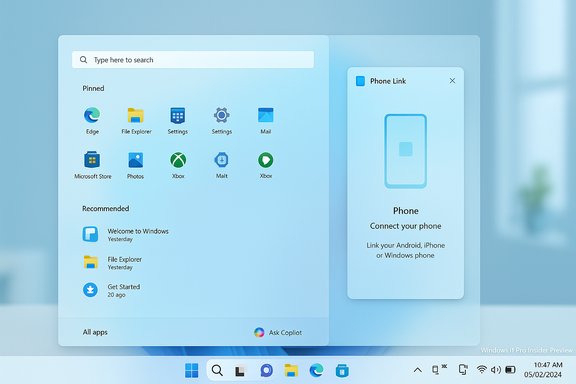
Windows 11’s Start menu has been a recurring focal point since the OS debuted: praised for its cleaner aesthetic, but criticized for discoverability and density compared with earlier Windows versions. Microsoft’s October preview (packaged as KB5067036 and released to Release Preview and Insider channels) reframes Start around a single, vertically scrollable canvas that exposes the full All‑apps inventory on the main surface and introduces three browsing modes — Category, Grid, and List — while folding in a Phone Link panel and additional personalization toggles. The update is being delivered as servicing binaries for both 24H2 and 25H2, with feature exposure controlled by server‑side flags rather than a binary-only flip; that’s why installing the KB may be necessary but not always sufficient to see every change immediately. Concurrently, Microsoft’s Insider channels published previews (for example Build 26220.7051 to Dev/Beta) that expand Copilot integration to the taskbar (the “Ask Copilot” experience) and add other Copilot+ hardware features. On the corporate side, Microsoft reported a strong quarter in late October, with revenue and net income growth that the company attributes to cloud and AI investments; those results underscore why Microsoft is accelerating Copilot and on‑device AI work across Windows. The redesigned Start menu: what changed, and why it matters
Key functional changes
- A single, vertically scrollable Start surface that places Pinned apps, the Recommended area (if enabled), and All apps on one continuous canvas rather than forcing a secondary “All apps” page. This reduces click friction and mirrors the single‑surface launchers common on modern mobile platforms.
- Three “All apps” views:
- Category view — automatically groups apps into buckets such as Productivity, Games, Creativity and Communication; frequently used apps surface within each category.
- Grid view — a denser, alphabetized tile grid for faster horizontal scanning.
- List view — the classic A→Z list preserved for keyboard and power users.
The Start menu remembers your last selected view so the preference persists across sessions. - Responsive, screen‑aware layout: defaults (like the number of pinned columns and visible recommendations) scale with display size and DPI so larger monitors show more content by default.
- Tighter Phone Link integration: a small phone icon next to Search opens a collapsible Phone Link panel inside Start for quick access to calls, messages, and photos from a paired mobile device.
- New personalization toggles in Settings → Personalization → Start to hide the Recommended area entirely, turn off recently added or most used reveals, and show all pins by default. These controls address one of the most persistent user complaints about Start clutter.
Practical benefits for users
- Fewer clicks to reach installed apps: The single surface eliminates the extra step of opening a separate All‑apps page, which matters most to people with large app libraries or those who prefer muscle‑memory launches.
- Layout choice for different workflows: Category view helps people think by task rather than app name; Grid suits visual scanning on widescreen displays; List keeps the keyboard-centric flow intact.
- Better use of large/touch screens: The responsive defaults make Start more useful on high‑DPI and ultrawide monitors and on tablets or handheld Windows devices.
How to get it (and the rollout model)
Microsoft shipped the redesign in KB5067036 as an optional, non‑security preview on October 28, 2025, targeting Windows 11 24H2 and 25H2 servicing builds (examples: 26100.7019 and 26200.7019). It’s also been surfaced in Insider channels. Critically, the experience is staged: Microsoft publishes the servicing binaries but enables features progressively via server‑side flags (A/B testing). That means installing KB5067036 (or joining the Release Preview/Beta channels) is frequently necessary but not always sufficient to unlock the new Start immediately. Enthusiasts and power users can accelerate exposure through community tools, but this carries support and stability trade‑offs.Copilot on the taskbar and on‑device AI: integration, privacy, and gating
What Microsoft shipped in previews
Insider notes and the Windows Insider blog highlight a new Ask Copilot experience that integrates a Copilot shortcut into the taskbar. This feature is designed to return apps, files and settings alongside Copilot suggestions in a way that complements — not replaces — traditional Windows Search. The taskbar Copilot claims to use existing Windows APIs for results and emphasizes user control for privacy, with toggles in taskbar personalization and Copilot settings for auto‑start behavior. Other AI work arriving in parallel includes on‑device small language models for Voice Access (real‑time grammar and punctuation correction on supported Copilot+ hardware), File Explorer recommendations and hover actions tied to Copilot Vision, and click‑to‑do enhancements on Copilot+ PCs (for example, converts and translations detected in content). Many of these features are hardware‑, region‑, or licensing‑gated (Copilot+ hardware, Microsoft 365 in commercial scenarios).Strengths and trade‑offs
- Strengths: Bringing Copilot into the taskbar lowers the activation cost for AI assistance and blends discovery with generative help. On‑device language models reduce latency and offer offline‑resilient capabilities on supported hardware. These are coherent moves that match Microsoft’s cloud + device AI strategy.
- Risks / concerns: The rollout’s staged nature and hardware gating create uneven user experiences. Enterprises and administrators need to test Group Policy and MDM behaviors because end users may see Copilot functionality vary across identical‑spec machines if server flags differ. Privacy and data‑handling questions persist when Copilot features surface personal files and recommendations; Microsoft documents controls, but administrators and privacy‑conscious users must validate telemetry and enforcement in their environments.
The Task Manager duplication bug: what happened and how Microsoft responded
The bug in plain terms
Shortly after KB5067036 and associated Insider builds circulated, testers and outlets reported a reproducible anomaly: clicking the close “X” in Task Manager sometimes failed to terminate the underlying taskmgr.exe process. Reopening Task Manager created a new UI instance while the original process continued running in the background, leading to multiple Task Manager processes consuming memory and, in some cases, noticeable CPU. Independent reporters and community threads reproduced the behavior across affected preview systems.Scope, mitigation, and the official response
The bug was tied to the October preview (KB5067036) and appeared in servicing families that include the 26100 and 26200 build lines. Community workarounds that mitigated immediate impact included using Task Manager’s built‑in End Task on offending entries or running command‑line kills like taskkill /im taskmgr.exe /f to remove ghost processes. Microsoft acknowledged the issue publicly and committed to a fix in a forthcoming update; because KB5067036 is a preview release, Microsoft’s staged rollback/fix approach was applied rather than a broad emergency patch.Why this matters beyond the annoyance
- Stability vs. speed trade‑off: The incident highlights the tension between shipping visible UI improvements quickly and preserving the stability expectations of everyday users. Packaging visible changes in optional previews plus staged server gating helps reduce blast radius, but when fixes are bundled with feature work, regression surface area expands.
- Operational impact for administrators: Multiple hidden Task Manager processes can be more than a cosmetic issue in managed environments; on low‑spec or tightly provisioned VMs it can create measurable resource pressure and complicate automated monitoring.
- Reputation and testing signal: Rapid replication and reporting of the bug across outlets underscore the value of conservative pilot rings and robust telemetry before enabling UI‑level changes broadly.
Other notable changes and ecosystem context
Settings vs. Control Panel migration, dark mode improvements, and Windows Update fixes
Microsoft’s recent servicing has nudged legacy Control Panel applets into Settings for items where modern replacements exist, while several classic applets await further migration. Dark mode polishing continues across classic UI elements — recent updates and PowerToys improvements have helped bring more consistent dark styling to legacy dialogs — but gaps remain in certain system dialogs and third‑party applications. Windows Update, meanwhile, picked up a few quality fixes (for example addressing error 0x800f0983 and a bug where “Update and Shutdown” unintentionally forced a restart) and simplified update naming to improve clarity for end users. These changes are incremental but important for everyday UX and update transparency.Windows Insider channel movement and builds
Microsoft released build 26220.7051 to Dev & Beta, offering a chance for Dev users to migrate to Beta while both channels shared 25H2‑based updates. The Insider blog also details which Copilot features are being rolled out with toggles for early testing and feedback channels, helping Insiders try features like Ask Copilot in the taskbar and a broader full‑screen gaming experience for select handheld devices. These Insider notes are important reading for testers and admins who plan pilot rings.Gaming and app ecosystem updates
Alongside OS work, updates landed in the Xbox app (faster downloads, Advanced Shader Delivery on certain handhelds) and the broader PC gaming ecosystem. Nvidia added titles to GeForce NOW, EA introduced new modes for Battlefield 6, and storefront promotions continue to shape PC gaming lifecycle. These items are part of the broader Microsoft/Windows experience that matters to gamers testing Start and taskbar evolutions on handheld and desktop hardware.Business context: Microsoft’s financials and regulatory pressure
Microsoft reported robust first‑quarter fiscal results anchored by cloud + AI strength: revenue and net income rose materially in the quarter, which the company links to AI investments across platforms and services. The recent earnings release shows revenue of $77.7 billion with GAAP net income at $27.7 billion, underscoring why the company is intensifying Copilot and on‑device AI pushes across Windows and Office. Regulatory pressure is also mounting: Australia’s ACCC filed suit alleging Microsoft misled customers around Microsoft 365 price increases tied to Copilot integration, claiming the company did not adequately disclose a lower‑priced “classic” plan in communications and renewal flows. The lawsuit seeks penalties, consumer redress and injunctive relief; Microsoft said it is reviewing the claims. This case highlights the business and reputational risks of bundling AI features and changing subscription economics without crystal‑clear customer communication.Practical guidance: for everyday users, power users, and IT admins
Everyday users (non‑Insiders)
- Install cumulative and security patches through the standard Windows Update path and wait for the redesigned Start to arrive via Microsoft’s staged enablement rather than forcing preview packages. The staged rollout reduces risk of encountering preview‑level regressions like the Task Manager duplication bug.
- If you want the new Start now, use the optional preview (KB5067036) or join the Release Preview channel — but only if you’re comfortable accepting preview‑class risk and prepared to troubleshoot regressions.
Power users and enthusiasts
- If you accelerate the Start redesign with community tooling, keep a clean baseline image and test profiles for rollback; enablement via third‑party tools can produce inconsistent behavior or block official updates.
- Backup critical settings and know how to use taskkill /im taskmgr.exe /f or end tasks from Task Manager if ghost processes appear after installing the preview.
IT administrators and enterprises
- Treat KB5067036 as a preview: run it in a pilot ring with representative hardware profiles (including Copilot+ and non‑Copilot devices) and validate MDM/Group Policy interactions for Start, taskbar, and Copilot toggles.
- Maintain documented rollback and imaging processes in case a feature flag flips or a regression is encountered in production.
- Review Copilot privacy controls and telemetry settings before enabling Copilot‑adjacent features broadly; update internal guidance for users about how Copilot uses files and local signals.
Strengths, weaknesses, and final assessment
Strengths
- Meaningful usability wins: The Start redesign addresses long‑standing discoverability complaints in a pragmatic way, offering multiple views and explicit toggles that restore user control. Early reports found real productivity wins on large displays and for users with many apps.
- Coherent AI strategy: Copilot’s presence in the taskbar and File Explorer hover actions signal a consistent push to make assistance discoverable without making it mandatory; on‑device models for supported hardware reduce latency and improve privacy posture for some scenarios.
- Measured deployment model: Staged enablement and optional previews reduce the chance of wholesale breakage, and allow Microsoft to iterate using telemetry and A/B results.
Weaknesses and risks
- Regression surface and preview mixing: Bundling visible UI changes and fixes in optional preview packages increases the chance that a bug (like the Task Manager duplication) escapes early testing and affects testers unexpectedly. That bug demonstrates how even small UI changes can trigger unexpected process lifecycle regressions.
- Uneven user experience: Server‑side gating and hardware gating mean that two identical machines may show different Start behavior or Copilot availability, complicating support and training in managed environments.
- Regulatory and pricing friction: Microsoft’s aggressive Copilot integration and subscription repositioning are attracting regulatory scrutiny (for example, the ACCC action in Australia), which raises the reputational stakes of moving AI features into core products without exhaustive clarity for consumers.
Bottom line
The Start menu refresh is a welcome, practical UX evolution that resolves a multi‑year pain point for many Windows users. When combined with Copilot’s gradual, context‑sensitive arrival in the taskbar and File Explorer, Microsoft is aligning desktop productivity with its broader AI narrative. However, the mixed deployment model, the mingling of feature previews and fixes, and recent regressions highlight why organizations and cautious users should pilot changes deliberately. The release is an encouraging step forward, but it also reinforces the perennial Windows truth: visible UX gains must be balanced with disciplined testing and clear communication to avoid eroding trust.Microsoft’s October servicing cycle is a useful case study: visible design progress and AI integration can meaningfully improve daily workflows, but rapid innovation must be tempered with conservative rollout mechanics and crystal‑clear communications — especially when subscription economics and regulatory scrutiny are also in play. For users and IT teams, the practical path is simple: test early, deploy conservatively, and prioritize rollback plans when enabling staged features that touch core system flows like Start, Task Manager and the taskbar.
Source: Neowin Microsoft Weekly: the redesigned Start menu and more for Windows 11
