Windows 11 Storage Pane Now Behind UAC: What It Means for Home and IT

  • Thread Author
Microsoft’s recent servicing changes have quietly moved the Settings > System > Storage page behind a User Account Control (UAC) elevation, and while that single line in an update note reads like a minor tweak, it changes who can see and remove system-level storage items — with real consequences for families, help desks, and automated maintenance pipelines.

Two people present a screen about storage and consent, featuring a gear, shield, and lock icons.Background / Overview​

For years the Storage pane in Windows 11’s Settings app acted as a broadly accessible, user‑friendly dashboard: any signed‑in user could open Settings > System > Storage and see disk usage, temporary files, and cleanup suggestions. That model changed when Microsoft included a short but consequential note in the January 29, 2026 preview update (KB5074105): the Storage page now triggers a UAC prompt when opened, intended to “help ensure that only authorized Windows users es.” The behavior was folded into the February 2026 security rollup distributed on Patch Tuesday.
This is not an isolated experiment: it’s part of a broader, programmatic push toward least‑privilege and what Micrdministrator Protection” and platform hardening across Windows 11. The company has been progressively gating sensitive diagnostic and management surfaces behind elevation as it tightens the default privilege model. The Storage elevation is one more step along that path.

What exactly changed?​

  • Opening Settings > System > Storage now triggers a UAC elevation request before any Storage content is rendered. If the current account consents or provides admin credentials, Settings runs elevated and enumerates both user‑level and admin‑only cleanup buckets. If the user declines, Settings remains non‑elevated and intentionally hides admin‑only cleanup items such as Windows Update Cleanup and certain driver‑package cleanup entries.
  • The change arrived first in preview (KB5074105, January 29, 2026) and then in the February 10, 2026 Patch Tuesday rollup, which means it moved quickly from optional test to broad deployment. That rollout explains why some users saw it in late January while others only noticed the behavior after February updates landed.
  • The reclassification is both aboupability*: not only are some cleanup categories hidden when Settings runs non‑elevated, but attempts to remove certain system‑level items from that non‑elevated UI are blocked. Legacy elevated tools (for example, Disk Cleanup launched with “Clean up system files” or DISM) continue to show and remove admin‑only items, because those tools already run with the required privileges.
These are concrete behavioral facts — the KB note and community testing align on what happens when the update is present.

Why Microsoft did it: the security argument​

Microsoft frames the change as a sensible hardening under the principle of least privilege. The Storage page can enumerate installer caches, Windows Update artifacts, and system component stores — data that, if exposed or manipulated by a low‑privileged user or malware running with a non‑elevated token, could enable information discovery or accidental destructive actions. By gating that surface behind UAC, Microsoft reduces the chance that a standard user or an attacker with only standard rights can enumerate or tamper with those system‑level artifacts without explicit admin consent.
Security goals Microsoft is targeting:
  • Limit unauthorized enumeration of system files that could reveal system internals.
  • Reduce accidental removal of destructive or irreversible items (for example, Windows Update Cleanup or removal of previous Windows installations).
  • Harden the UI surface against local attack vectors where scripts or low‑privilege processes could exploit broad visibility.
From a pure security posture, these goals are defensible: many long‑running hardening efforts target UI surfaces that expose privileged operations and transform them into explicit admin flows.

this feels confusing or frustrating​

Security hardenings rarely arrive without cost. The Storage elevation introduces immediate and visible friction for a wide class of users and workflows.

For home and shared PCs​

  • On single‑admin consumer PCs, the impact is mostly an extra UAC click during a session — small but noticeable.
  • On shared family machines where peonon‑admin) accounts, the change is disruptive: children, guests, or other household users can no longer run the same cleanup tasks or even view the same storage breakdowns without an adult entering credentials. That increases help‑desk phone calls and social friction.

For power users and tech‑savvy individuals​

  • The inconsistency between Settings and legacy elevated tools is confusing: Disk Cleanup run elevated still shows Windows Update Cleanup, e it unless elevated. Users will ask, “Why does Disk Cleanup show more than Settings?” The answer — different privilege tokens — is accurate but unsatisfying.

For IT admins and automation​

  • Scripts and scheduled maintenance that relied on non‑elevated enumeration of Storage may break. Automations that scraped Settings or invoked non‑elevated Settings flows to clear caches must be converted to run elevated (SYSTEM or an appropriate service account) or to rely on management tooling (Intune, Autopatch, SCCM) that runs with elevated rights. Enterprises must plan and test the change as a compatibility item.

UX and discoverability problems​

  • Microsoft’s initial KB wording was terse — it took community testing to reveal which individual cleanup buckets are affected. The company has not published a granular matrix mapping each Temporary files bucket to privilege requirements, which leaves the community to fill gaps. That mix of terse documentation and practical user confusion amplifies the perception that Microsoft “made Windows more confusing.”

Evaluating the risk model: is this a net positive?​

On balance, the change is security‑positive but usability‑costly — particularly for mixed households and certain automation scenarios. Consider these points:
  • Strengths
  • It narrows attack surface and enforces explicit admin consent on actions that can affect system stability.
  • It aligns with broader platform hardening trends (Administrator Protection, Smart App Control improvements and other Windows 11 security investments).
  • For organizations, it reduces the risk of unauthorized local discovery or deletion of system artifacts by non‑admin users.
  • Risks and downsides
  • Increased support burden for multi‑user consumer devices and kiosks.
  • Breakage of scripts or scheduled tasks that assumed unrestricted Settings enumeration.
  • Confusion from mismatched behavior between Settings and long‑standing elevated tools (Disk Cleanup, DISM).
In plain terms: administrators and security‑minded organizations should welcome the change; casual users or households that relied on Settings for ad hoc maintenance will feel the friction.

Practical guidance: what users and admins should do now​

Whether you’re a home user, an IT admin, or a help desk technician, these are the practical steps to adap and families
  • Accept the UAC prompt when you need to run Storage cleanup — if your account is an administrator, the impact is minimal.
  • For standard account users who must tidy space, ask an administrator to approve the prompt or to run the cleanup for them.
  • Use legacy elevated tools when needed:
  • Run Disk Cleanup with “Clean up system files” elevated to access admin‑only buckets.
  • Use elevated command line tools (for advanced users) such as DISM for image servicing tasks.

For IT administrators and help desks​

  • Inventory impacted workflows. Any schedenance that used non‑elevated Settings enumeration must be inspected and converted to one of:
  • Elevated scheduled tasks running as SYSTEM or an administrative service account.
  • Management tooling (Intunr) that performs cleanup from an elevated context.
  • Communicate changes to end users. Put a short note in employee onboarding or family‑tech instructions that Storage may ask for admin consent. That reduces confusion and support tickets.
  • Test automation in a controlled pilot. Because the update moved from preview to rollup quickly, organizations should pilot on a small fleet before broad deployment to detect unexpected dependency failures.

Quick workarounds and diagnostics​

  • If you need to view admin‑only cleanup items temporarily, right‑click on Settings (or launch an elevated Settings instance) and choose to run as administrator so the Storage pane loads elevated and the buckets appear. If you can’t elevate, use Disk Cleanup elevated instead. Community testing has repeatedly shown this behavior.

Longer term: where this fits in Microsoft’s strategy​

The Storage elevation is part of a larger architecture shift in Windows 11. Microsoft’s Administrator Protection, Smart App Control changes (enabling toggling without reinstall), and other security investments show a trajectory: reduce default admin exposure, move destructive capabilities behind explicit authentication, and shrink the window of opportunity for local exploitation. Those efforts are consistent and deliberate.
That trajectory has practical consequences:
  • Expect more previously “open” UI surfaces to otentially gated.
  • Expect greater reliance on management tooling for enterprise maintenance.
  • Expect Microsoft to prefer explicit elevation flows for destructive or information‑sensitive actions.
From a product management perspective, this is sensible. From a consumer UX perspective, it demands better communication and smoother approval flows (for example, easier remote approval for parents or delegated admin consent models). The current minimal documentation around each affected Settings surface increases confusion and will need improvement.

Counterarguments and community concerns​

Community reactions have focused on two themes: (1) the change was too quiet and under‑documented, and (2) it disrupts convenience for shared devices.
  • Quiet rollout: The preview KB briefly mentioned the change and Microsoft updated the notes shortly after release to explicitly call out UAC behavior. Still, the terse initial wording left many users surprised. Communities filled the documentation gap with practical tests that identified which Temporary files buckets are hidden when non‑elevaesting illuminated the impacts faster than official channels.
  • Convenience vs. security: Critics argue that gating a common maintenance page redctly the people who most often perform casual cleanups (family helpers, shared device users). Proponents counter that the changes protect devices from accidental and malicious damage. Both positions are valid; the right balance depends on the device context (single‑user admin vs. shared standard accounts vs. managed enterprise).
Where the discussion becomes nuanced is in edge cases: kiosks, school labs, and library PCs may require different remediation (for instance, local kiosk policies or a managed maintenance service that runs elevated outside the user session). Organizations must apply device‑appropriate controls rather than one‑size‑fits‑all expectations.

Recommendations for Microsoft (journalist’s view)​

If Microsoft wants this security move to land cleanly with users, it should consider three practical improvements:
  • Publish a granular matrix mapping each Temporary files bucket and Storage sub‑feature to its required privilege level. Transparency reduces support volume and confusion.
  • Add delegated consent flows for home scenarios: allow an administrator to approve a Storage elevation remotely (for example, through a secure OTP or companion device flow) so parents need not physically enter credentials.
  • Improve KB communications: when bet widely used UI surfaces, Microsoft should include a short “impacts and mitigations” section in the KB to assist consumers and IT pros alike.
These steps would preserve the security gainsability friction and support burden. Community testing did the heavy lifting on practical implications; Microsoft can close the loop with clearer documentation and targeted UX work.

Bottom line for different audiences​

  • Home users with admin ara UAC confirmation when you open Storage. Minor annoyance, strong security rationale. Use Disk Cleanup elevated when necessary.
  • Shared household devices with standard accounts: This change removes some self‑sequires an admin to step in. Plan for extra support or a delegated approval process.
  • IT administrators and automation teams: Audit scripts and scheduled jobs that relied on non‑elevated Settings enumeration. Convert those workflows to run elevated under management tooling or service accounts, and pilot broadly before mass deployment.
  • Security teams: View this as a positive platform hardening consistent with Microsoft’s Administrator Protection initiative. But verify that the UX and documentation gaps won’t cause unnecessary support churn.

Final analysis: security win, communication miss​

The Storage settings elevation is a textbook trade‑off: it reduces attack surface and enforces least privilege, but it arrives with friction and confusion where users expect low‑friction maintenance. That combination — a defensible security step delivered with light documentation — is what prompted the headlines saying “Microsoft makes Windows 11 more confusing.” The criticism is not about the technical intent; it’s about how the change was communicated and the practical support burden it creates for certain user communities.
If you manage Windows devices, treat this as a control point to audit now: find any automation that presumes Settings is unconstrained, update processes to run with the right privileges, and prepare short user guidance for family or frontline staff. Do that, and the security benefits are clear — the confusion is solvable with a small amount of operational planning.
Conclusion: the UAC‑gated Storage pane is worth the security rationale, but Microsoft and IT teams must close the communication and automation gaps quickly to prevent this well‑intentioned hardening from becoming a recurring help‑desk headache.

Source: TechRadar https://www.techradar.com/computing...t-cause-confusion-heres-what-it-does-and-why/
Source: FilmoGaz Windows 11 Limits Storage Settings Access to Admins Only
 

Microsoft has quietly reclassified the Storage pane in Windows 11 as a privileged management surface: beginning with the optional preview update KB5074105 released on January 29, 2026, opening Settings > System > Storage now triggers a User Account Control (UAC) elevation request, and the change is scheduled to roll into the broader February 2026 security update distribution starting February 10, 2026. What was once a low-friction place for anyone signed in to check disk usage and run routine cleanups has been gated behind administrator consent — a deliberate security decision with clear benefits and tangible costs for everyday users and IT teams alike.

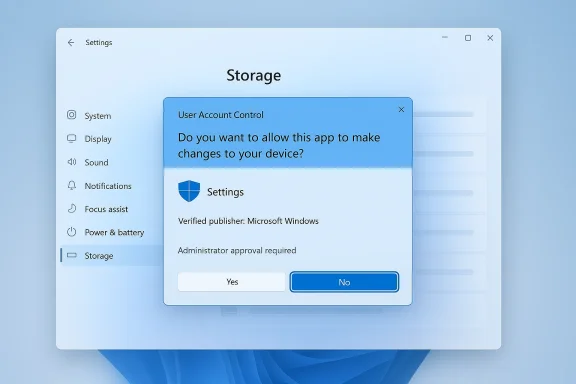
Windows Settings screen showing a User Account Control prompt to allow app changes.Background and overview​

For more than a decade Windows has balanced convenience and administrative control using User Account Control (UAC): most users operate with limited tokens while administrators approve higher‑risk actions through elevation prompts. Historically the Storage page in the Settings app sat on the low‑risk side of that boundary — users could view disk usage, delete temporary files, and run cleanup utilities without ever seeing an elevation prompt.
That model changed in late January 2026 when Microsoft shipped the non‑security preview update KB5074105 (OS builds 26200.7705 and 26100.7705). The update’s release notes were updated shortly after publication to make explicit what many early adopters discovered by accident: the Storage settings page now displays a UAC prompt when opened, and if the user declines or cannot provide administrator credentials the page intentionally hides admin‑only cleanup buckets and system items that require elevated enumeration.
Microsoft’s stated rationale is straightforward: Storage settings can expose and act on system files, installer caches, update artifacts and other items that can meaningfully affect system stability and security. Treating that UI as privileged aligns with a broader platform push toward least‑privilege, Administrator Protection mechanisms, and tighter default controls across Windows 11.

What changed — concrete behavior​

The functional shift is small to trigger but large in consequence:
  • Opening Settings > System > Storage now immediately shows a UAC consent dialog. The prompt appears before any Storage content is rendered.
  • If the session accepts elevation (or the signed‑in user is an administrator and consents), Settings survives elevated and enumerates both user‑visible and admin‑only cleanup categories.
  • If the elevation is refused or credentials aren’t supplied, Settings remains un‑elevated and hides cleanup items that require administrative permissions — for example, Windows Update Cleanup, some driver package cleanup entries, and other system‑only storage buckets.
  • Legacy elevated utilities — such as launching Disk Cleanup (cleanmgr.exe) and choosing “Clean up system files,” or running DISM and other servicing commands under an elevated token — continue to function as before and can remove the system items that the un‑elevated Storage pane no longer shows.
Put plainly: Microsoft has reclassified the Storage pane as a privileged UI surface. Visibility and capability are now filtered by privilege.

Why Microsoft did this — the security rationale​

This is not an accidental bug: the shift is intentional and consistent with three clear platform trends.
  • Least‑privilege hardening. Windows teams are increasingly treating diagnostic and management surfaces that enumerate or manipulate system‑level data as privileged. The access pattern for Storage is a textbook candidate: the pane can list OS installers, update caches, and other artifacts that — in the hands of an unprivileged local user or a malicious actor — can leak information or be abused to destabilize a device.
  • Administrator Protection and improved elevation semantics. Microsoft has been evolving elevation models (including the newer Administrator Protection designs) to make elevation more auditable and to limit silent or automatic privilege escalations. Requiring explicit admin consent before showing system‑level storage artifacts reduces the attack surface for local information discovery and unauthorized cleanup.
  • Platform encryption and data protection alignment. Windows 11 increasingly assumes device encryption (BitLocker / Device Encryption) as a core part of the platform security posture. Locking down access to storage‑level system details aligns with efforts to protect the confidentiality and integrity of system artifacts — particularly on devices where encryption is automatically enabled during setup.
Taken together, Microsoft’s move aims to make privilege boundaries more conservative: you now must prove you are authorized before Windows will expose certain system internals.

Who this affects and how​

The elevation of Storage settings does not affect everyone the same way. The practical impacts break down into several user groups.

Home users on single‑admin machines​

If your daily account is an administrator — the common setup for single‑user home PCs — the effect is a minor UX interruption. You’ll see a UAC dialog the first time you open Storage in a session and then continue as normal after consenting. The primary cost is convenience: an extra click or two to get to the same controls.

Households, shared machines, and family PCs​

Here the change is more disruptive. Many families set up secondary accounts as standard (non‑admin) users precisely to limit accidental system changes. Those standard users used to be able to run temporary file cleanup and free up disk space on their own. After this change they cannot enumerate or remove admin‑only cleanup items unless an administrator is present to approve the UAC prompt.
Consequences include:
  • Increased support friction for parents or household admins asked to elevate on behalf of others.
  • Students or casual users on shared machines unable to complete simple maintenance without reaching an admin.
  • Misunderstandings: users may assume features were removed rather than gated by privilege.

Education and small business environments​

Devices in labs, classrooms, or small offices often use standard accounts for policy reasons. System maintenance in those settings typically relies on IT‑deployed scripts or scheduled tasks. The change demands that administrators adapt runbooks:
  • Convert interactive maintenance tasks into centrally scheduled elevated jobs.
  • Use management tooling (Intune, Group Policy) to perform cleanup without interactive elevation.
  • Update helpdesk procedures to accommodate the new UAC requirement.

Enterprise and managed estates​

From a corporate security standpoint, gating Storage is largely compatible with established practices: IT already performs system cleanups using elevated service accounts, MDM/Group Policy, and endpoint management tools. However:
  • Some automation or helpdesk workflows that implicitly relied on non‑elevated Settings enumeration must be revised.
  • Remote support tooling should be reviewed to confirm it can elevate Settings where necessary (or run equivalent admin commands off‑UI).
  • Administrators should validate scripts that parse Settings output for telemetry or automation: the un‑elevated Settings view now intentionally omits certain entries.

Strengths: what this change buys you​

  • Reduced information exposure: System‑level storage metadata and cleanup buckets are no longer trivially visible to any signed‑in user, limiting local information discovery.
  • Fewer accidental system changes: Ordinary users are less likely to accidentally remove critical system files or caches that could break upgrades or updates.
  • Alignment with contemporary privilege models: The change fits a broader strategy to enforce explicit authorization for sensitive system actions and to bolster Administrator Protection mechanisms.
  • Supportable for enterprises: Centralized management already assumes elevated maintenance, so corporate security postures generally benefit from a more conservative default at the endpoint.

Trade‑offs and risks — where this causes friction​

  • Usability and accessibility costs: Gating an area that many consumers considered “basic” increases the cognitive and support burden on households and novice users.
  • Support and operational overhead: Helpdesks may see more tickets for routine cleanup tasks, or need to maintain temporary elevation workflows for end users.
  • Social engineering surface: While gating is protective, UAC prompts remain an attack vector if users are trained to approve prompts reflexively. Elevating Settings still requires a human to make a trust decision, and attackers can exploit that behavior with convincing prompts or social pressure.
  • Potential for mistaken assumptions and data‑loss risk: Users may assume functionality is removed and attempt alternative measures — including disabling encryption, running unvetted cleanup utilities, or attempting complex fixes — which carry their own risks.
  • Automation breakage: Scripts and third‑party tools that inspected Settings > Storage without elevation will likely fail or return incomplete data, possibly affecting monitoring and capacity planning.
Importantly, some early reports indicate that certain temporary file cleanup operations appeared broken for some files and folders after the update; these are user‑reported behaviors that should be treated as observations rather than confirmed systemic bugs until reproducible cases are reviewed by Microsoft and vendors.

Practical guidance — what to do now​

Whether you are a home user, IT admin, or support technician, here are pragmatic, safe options for adapting to the change.

Quick actions for home users​

  • If you are the device owner and use an administrator account, accept the UAC prompt and continue; the change is a one‑time prompt per elevated session.
  • If you are a standard user on a shared device, ask the administrator to elevate for you, or:
  • Use legacy Disk Cleanup launched as an administrator (right‑click → Run as administrator → Clean up system files).
  • Ask your admin to schedule automated cleanups using Storage Sense or a scheduled elevated script.

For IT and support teams — recommended steps​

  • Update maintenance runbooks:
  • Replace interactive, non‑elevated Storage enumeration steps with scheduled tasks running under SYSTEM or a service account.
  • Use DISM, cleanup APIs, or PowerShell cmdlets under elevated contexts for unattended maintenance.
  • Manage through central tooling:
  • Configure Storage Sense and cleanup cadence with Group Policy or MDM profiles to reduce the need for ad‑hoc, interactive cleanups.
  • Use the Intune Settings Catalog / Configuration Service Provider (CSP) to control device cleanup behavior at scale.
  • Update remote support procedures:
  • Ensure remote assistance tools can elevate the Settings process when necessary, or execute equivalent elevated commands.
  • Communicate with users:
  • Publish a short, step‑by‑step help note showing how to request elevation and how admins can perform cleanups on their behalf.
  • Train helpdesk staff to verify UAC prompts and to avoid reflexive elevation acceptance.

Safe step‑by‑step: elevate Settings when you need the full Storage view​

  • Right‑click Start → Windows Terminal (Admin) or open an elevated Command Prompt.
  • In the elevated shell run: start ms-settings:storage
  • Accept the UAC prompt when it appears. The Storage pane will now enumerate admin‑only buckets.
Note: Elevating Settings runs a user‑facing UI with an administrative token. Use this pattern sparingly and only on trusted systems, because any elevated UI increases exposure if misused.

Automation examples — admin‑friendly commands​

  • Disk Cleanup (legacy, reliable for admin cleanups)
  • Run: cleanmgr.exe
  • Click: Clean up system files (this relaunches elevated)
  • DISM and servicing cleanup:
  • Run elevated PowerShell:
  • Dism /Online /Cleanup-Image /StartComponentCleanup
  • or use: Dism /Online /Cleanup-Image /AnalyzeComponentStore
  • Scripted Windows Update and cache cleanup:
  • Use scheduled elevated PowerShell tasks for offline servicing and log rotation.
Wrap any automated cleanup with logging and dry‑run options to avoid accidental mass deletions.

Broader analysis: security gains vs. user cost​

The Storage elevation is a classic security trade‑off: it reduces information exposure and accidental privilege abuse while increasing user friction and operational overhead. On enterprise endpoints the balance tends to favor security: businesses usually enforce centralized maintenance and expect elevated operations to run under IT control. On consumer devices, the calculus is different — convenience matters, and Microsoft’s gradual rollout suggests they are willing to accept short‑term customer friction to achieve a long‑term security posture.
Two broader platform tensions are visible here:
  • Transparency vs. silent rollout. The update was first published in a Release Preview channel and the specific UAC note was added to the release notes shortly after the initial release. That sequence makes it appear reactive rather than proactively communicated. For consumer trust, clearly signaling privilege gating changes in advance — with guidance and opt‑outs where reasonable — would reduce confusion.
  • Security hardening vs. social engineering. Tighter privilege boundaries demand better user education and UI design to prevent prompt fatigue or deceptive elevation flows. Requiring administrators to confirm elevations helps, but the single human in the loop remains a potential weak link.

What Microsoft should consider next​

If the goal is to harden Windows while preserving usability, several steps would make this transition smoother and safer:
  • Publish clear documentation and FAQs explaining why Storage was gated, what exactly is hidden when un‑elevated, and safe workarounds for home users.
  • Provide IT‑centric guidance and sample scripts for common maintenance tasks, with tested PowerShell examples and recommended scheduling practices.
  • Consider a controlled toggle for managed devices (via MDM/GPO) that allows organizations to tailor the behavior per policy.
  • Improve the UAC prompt context to show what the elevated Settings process will reveal (e.g., "Elevating Settings will show system cleanup items such as Windows Update Cleanup") so users make more informed decisions.
  • Continue investing in UI and training to reduce reflexive approval of UAC prompts.

Final assessment and takeaways​

The Storage settings elevation in KB5074105 is a clear, reasoned hardening move: Microsoft is narrowing what ordinary users can see and do without admin oversight. In a threat landscape where local privilege escalation and information leakage provide footholds for attackers, gating access to system‑level storage artifacts is defensible.
That said, the rollout exposes a perennial tension between security and usability. For home and shared devices, the change will generate short‑term support friction and potential confusion. For IT‑managed environments, it is an expected shift that aligns with central automation and service patterns — but it still requires attention to scripts, monitoring, and support processes.
Practical steps for users: if you own your PC and are an administrator, accept the extra prompt and continue; if you are a standard user on a shared machine, ask your admin to either elevate on your behalf or to schedule centralized cleanups. For administrators: update runbooks, prefer MDM/GPO for automated maintenance, and ensure remote support tools can handle the new elevation semantics.
Security improvements often come with costs. This change is no exception: it tightens platform boundaries and reduces casual access to system internals, but it demands that Microsoft, IT teams, and end users adapt — through clearer communication, better tooling, and smarter automation — so the benefits are realized without unnecessary disruption.

Source: WinBuzzer Windows 11 Storage Settings Now Require Admin Rights
 

Microsoft has quietly added a locked door to Windows 11’s Storage settings: opening Settings > System > Storage now triggers a User Account Control (UAC) elevation, and unless you consent or supply administrator credentials the Storage pane will intentionally hide certain system-level cleanup items and controls.

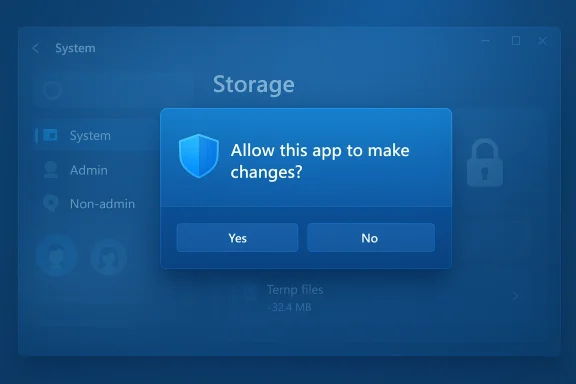
Blue system prompt asking to allow the app to make changes, with Yes and No buttons.Background / Overview​

Microsoft shipped an optional preview cumulative update on January 29, 2026 — identified as KB5074105 (OS builds 26200.7705 and 26100.7705) — and the package’s release notes were updated shortly afterward to document a small but consequential change: the Storage settings page now requests elevation via UAC when opened, “to help ensure that only authorized Windows users can access system files.” That brief note is the authoritative origin of the behavior many users began to see in late January.
The change moved quickly from preview to broad rollout: Microsoft planned to fold the preview’s content into the February 2026 cumulative rollup distributed on Patch Tuesday, meaning the behavior is expected to reach most devices receiving the normal security update cadence. Early adopters who installed the preview saw the prompt in late January; others began encountering it after the February rollup started to reach machines.
This update is part of a larger, deliberate push inside Windows engineering toward least privilege and additional administrator protections — a trend that has seen other system UI surfaces and diagnostic surfaces gated behind elevation over the past year. Microsoft frames the Storage elevation as protection for system files and installer/update artifacts that can affect system stability and leak sensitive details about installed updates.

What exactly changed​

How the new flow behaves​

  • When a user opens Settings > System > Storage, Windows now displays a UAC prompt before the Storage page renders.
  • If an administrator account or a user with rights consents to the prompt, Settings runs elevated and displays the full Storage UI, including admin-only cleanup buckets and system-level items.
  • If the user declines or cannot supply administrator credentials, Settings stays non-elevated and deliberately hides cleanup items that require administrative enumeration, and certain delete actions are unavailable from that non-elevated view.
This is not a cosmetic change. It affects both visibility (which buckets and entries the Settings UI lists) and capability (which cleanup operations can be initiated from the UI without elevation). Items tied to Windows Update cleanup and some driver package cleanup entries are explicitly called out by community testing as those that can disappear when Settings is not elevated.

Which builds and channels​

The preview that introduced the feature is KB5074105 (preview), published January 29, 2026, and it was marked for Release Preview distribution before being folded into the regular February security rollup. The relevant OS build numbers associated with that preview are 26200.7705 and 26100.7705. Systems that installed the preview saw the change immediately; devices that didn’t were slated to receive the same behavior when they installed the February cumulative update.

Who is affected — scenarios and user impact​

Home users and family PCs​

For machines where the signed-in account is an administrator, the experience is largely a minor interruption: a UAC prompt appears, the user clicks Yes, and the Storage page opens with the usual controls. The UI takes a fraction longer to appear because of the elevation, but functionality remains intact for that account.
The experience is more disruptive for non-admin users on shared or family PCs. Standard (non-admin) accounts that previously could open Storage to view disk usage or clear their own temporary files will now be blocked from seeing admin-only cleanup items and, in many cases, will not be able to proceed at all without admin credentials. For households where secondary accounts were used for routine maintenance or storage checks, that convenience is gone unless an administrator intervenes.

Enterprise and managed environments​

Enterprises already practice least-privilege and elevated-admin workflows; for many IT teams the change will be an incremental tightening that aligns with existing policies. However, there are practical considerations worth planning for:
  • Helpdesk and Tier 1 support workflows that relied on non-admin screenshots or instructions may need to be updated.
  • Automation and scripts that read or parse Storage settings through non-elevated user contexts could fail or return reduced data.
  • Remote support tools that expect a consistent, non-elevated Settings UX may need to run elevated or rely on other administrative tools.

Why Microsoft made the change (and whether it makes sense)​

Microsoft’s stated rationale is straightforward: the Storage pane can enumerate and act on system-level caches (Windows Update cleanup, driver caches, installer leftovers) and other artifacts that, if visible or modifiable by non-privileged users, could be misused or cause stability problems. Reclassifying the Storage UI as a privileged surface reduces the attack surface for local information discovery and accidental deletion, and makes the UX consistent with other admin-only settings.
There is a clear security logic here. Storage controls can reveal details about installed updates and leave behind artifacts that might assist a local attacker or a malware process. Requiring elevation to reveal and remove system-level items is a conservative, defensible approach when the goal is to harden default configurations on consumer and enterprise devices alike.
That said, the implementation and rollout have trade-offs. The UI interruption is visible to many users who were not expecting a permission gate for what has historically been a low-friction diagnostic area. The result is friction in day-to-day maintenance and a potential spike in support calls from confused users encountering an unexpected UAC prompt. Microsoft appears to have prioritized security hardening over seamless backwards compatibility in the Settings UX.

Practical consequences and documented oddities​

Admin-only cleanup entries disappearing​

Multiple community tests and early reports indicate that entries such as Windows Update Cleanup and some driver-package cleanup items are not shown when Settings runs without elevation. Those admin-only categories reappear after consenting to the UAC prompt and running Settings elevated. Legacy tools that already require elevation, like Disk Cleanup (cleanmgr.exe) launched with “Clean up system files,” continue to enumerate and remove those admin-only items when run elevated. This explains the discrepancy some users noticed between Settings and legacy cleanup tools.

Missing temporary-files options — oversight or intentional?​

Several reports surfaced that cleanup options tied to temporary files from old Windows updates and device drivers were missing from the Storage panel after the update. Importantly, those same files could still be removed by running Disk Cleanup and selecting “Clean up system files,” which implies the underlying cleanup providers are intact. That pattern suggests the missing entries in the Settings UI may be an enumeration restriction (by design) or a UI oversight, rather than a permanent removal of the cleanup capability. Until Microsoft explicitly addresses the discrepancy, treat the absence of listed buckets in Settings as intentional visibility gating for admin-only items — but with the possibility it could be corrected if it was an unintentional regression.

Real-world friction: confusion and helpdesk noise​

Because the change arrived quietly and with little consumer-facing communication, users encountering the UAC prompt for the first time frequently mistook it for a bug or a sign of system compromise. That ambiguity increases the cognitive load for support desks and family administrators who must explain the prompt and often type their credentials to help standard accounts. This user confusion is an avoidable operational cost when security UX changes are rolled out without clear messaging.

Workarounds and administrator guidance​

Below are practical, verifiable steps and options for users and IT to manage or adapt to the new behavior. These recommendations focus on minimizing disruption while preserving the tightened security model.
  • Run Settings elevated when you need full Storage visibility
  • Right-click the Settings app and choose “Run as administrator,” or consent at the UAC prompt when it appears. Elevated Settings will enumerate admin-only cleanup buckets. This is the straightforward, supported path when an admin needs to perform system-level cleanup.
  • Use legacy cleanup tools when appropriate
  • Disk Cleanup (cleanmgr.exe) with “Clean up system files” still shows and removes Windows Update cleanup and other admin-level items when run elevated. For one-off cleanups that used to be available from Settings, Disk Cleanup remains a reliable fallback.
  • Plan communication for household and helpdesk environments
  • Document the new behavior in internal support knowledge bases, provide brief user-facing guidance for family PCs, and instruct Tier 1 agents to ask for elevated consent or to schedule cleanup with an admin account.
  • Test automation and scripts in lab environments
  • Any automation that previously parsed Storage settings without elevation should be validated and adapted. Where automation needs to enumerate or remove system-level items, ensure the automation runs with elevated privileges and follows enterprise security policies.
  • Monitor Microsoft advisories for mitigations or toggles
  • As of the update, Microsoft did not publish a user-configurable toggle that reverts Storage elevation. Organizations that find the change disruptive can expect Microsoft to publish guidance if a configurable policy or Known Issue Rollback becomes available; in high-impact situations enterprises can use standard servicing controls (defer, test, or apply targeted rollbacks) per Microsoft’s servicing guidance. Note: Known Issue Rollback has been used previously for other update regressions but requires following Microsoft’s documented deployment steps before applying in production.
If you need to avoid clicking the UAC prompt repeatedly, the only legitimate long-term approach is to operate from an administrator session when performing system-level maintenance. Any attempt to bypass UAC through unsupported hacks or registry workarounds is ill-advised and increases security risk.

Enterprise considerations: policy, automation, and telemetry​

For IT teams, this change is less a disruption than an operational reminder: Storage management is now formally privileged. Still, there are a few actionable items administrators should prioritize.
  • Audit scripts and management tools that query storage details. Confirm they run with appropriate privileges or switch them to elevated contexts.
  • Update runbooks and automation logic used by helpdesk to account for elevated Storage access.
  • Communicate the change to end users and field technicians before broad rollout to avoid spikes in helpdesk tickets.
  • Where tight automation is required, prefer supported administrative APIs and elevated execution contexts rather than relying on user-facing Settings screens.
Enterprises that manage mixed fleets should also watch for side-effects in imaging, monitoring, or endpoint management software that relied on the non-elevated Settings UX. Early testing in lab environments is essential before a wide rollout.

Risks and unintended side effects​

The security rationale is sound, but hardening the UX in this way carries measurable risk vectors.
  • User confusion: sudden UAC prompts for routine checks will generate support calls and potentially lead to unsafe behaviors (users sharing credentials or permanently assigning admin rights to avoid prompts).
  • Script and automation breakage: tools that scraped the non-elevated Storage UI for telemetry or cleanup will return reduced data or fail.
  • Regression effects: earlier UAC and security hardening updates have sometimes produced unintended prompts or application compatibility problems; past incidents show Microsoft may need to follow up with fixes or rollbacks if compatibility regressions surface. The August 2025 security update that hardened UAC behavior produced several such compatibility headaches before being adjusted. That historical context suggests administrators should be cautious and validate functions that might be affected.
Finally, the way the change was communicated — a short line in the KB notes added after release — created avoidable alarm. Security changes that affect commonly used UI flows benefit from proactive, explicit notice and short guidance for users and IT alike.

The longer-term perspective: where Windows privilege management is headed​

This Storage gating is consistent with a broader evolution in Windows: a steady move toward stronger default protections for system surfaces and a more rigid separation between user-level and admin-level operations. Microsoft’s platform roadmap has emphasized Administrator Protection and least-privilege models, and this is another incremental implementation of that philosophy. For security-conscious environments, it’s a welcome tightening; for households and casual users, it’s an adjustment in expectations.
Expect more of these changes over time: UI surfaces that enumerate system-level or kernel-proximal artifacts are likely candidates for elevation gating. The trade-off is clear — fewer accidental deletions and reduced local reconnaissance for attackers, but more friction for routine management tasks that were previously frictionless.

Recommendations — what sensible users and admins should do now​

  • If you are a home user and you are the device owner, accept the prompt when you need to perform system-level cleanup and consider using an admin session for regular maintenance routines. Keep a note of which cleanup tools (Disk Cleanup with system files) still provide the capabilities you expect.
  • For shared family PCs, avoid giving persistent admin rights to secondary users. Instead, schedule maintenance windows or set up a simple process where the administrator consents for routine cleanup to keep the machine secure.
  • IT teams should test their management scripts and update runbooks, inform helpdesk teams, and add a short FAQ for end users explaining why the prompt appears and how to proceed. Validate that automation which needs system-level cleanup runs with elevated privileges or uses supported administrative APIs.
  • Keep systems patched and monitor Microsoft’s update notes and advisories. If an unexpected regression appears after the February rollup, Microsoft’s servicing channels and documented rollback/mitigation mechanisms are the supported path for remediation.

Final analysis — security win with usable friction​

Microsoft’s decision to lock Storage behind UAC is a defensible security hardening: it reduces risk for sensitive system artifacts and brings Storage in line with other privileged system surfaces. The downside is real — increased friction, potential user confusion, and a short-term operational cost for households and helpdesks that will see more UAC prompts. The rollout approach (preview → Patch Tuesday) is standard, but the quiet nature of the change and limited consumer-facing documentation amplified user surprise.
From a risk/benefit standpoint, the move is a modest net security gain that trades a little convenience for clearer privilege boundaries. The ideal follow-up would be explicit user messaging from Microsoft, a short in-OS explanation the first time a non-admin user sees the prompt, and rapid fixes if enumeration omissions prove to be unintentional regressions. Administrators and power users should treat this as a cue to tighten maintenance workflows, update documentation, and verify automation — and household users should prepare for a brief period of credential prompts until they get used to the new locked door to Storage.

Conclusion: Security and convenience are in constant tension on consumer platforms. Locking Storage behind an admin prompt is an unglamorous but practical step toward reducing unintended system changes and local information exposure. It will require minor adjustments — a few consent clicks for admins, clearer guidance for families, and a review of any scripts or tools that expected unprivileged access — but it also signals Microsoft’s willingness to reclassify familiar settings when the security calculus warrants it.

Source: Zoom Bangla News Windows 11 New Security Feature Adds A Locked Door To Storage Settings
 

Back
Top