

Windows 11 can be restored to an earlier working state by launching System Restore with
That distinction matters because “restore Windows to an earlier date” sounds broader than it is. As Microsoft’s own recovery documentation makes clear, classic System Restore is a system-state rollback tool, not a time machine for every file on the disk. And with Microsoft now previewing Point-in-time restore for newer Windows 11 builds, the recovery story is getting more capable — but also more fragmented.
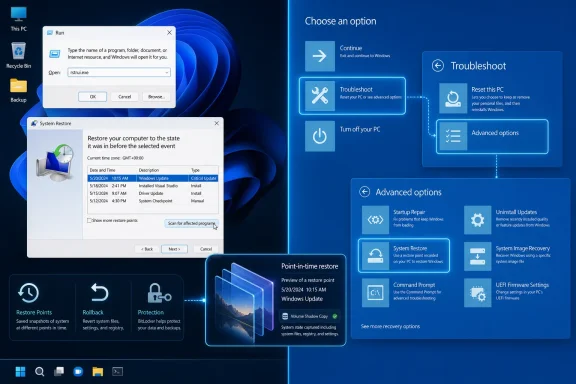
For all the Settings redesigns and recovery menus Microsoft has layered into Windows 11, the quickest way into classic System Restore remains stubbornly old-school: press Windows logo key + R, type
From there, the process is deliberately conservative. Choose a restore point, use “Scan for affected programs,” review what Windows expects to remove or restore, and then confirm. Windows restarts, replaces monitored system files and registry state with the selected snapshot, and attempts to return the operating system to the condition it was in at that point.
That “Scan for affected programs” button is not decorative. It is Windows admitting that a restore point can roll back installed applications, drivers, and system changes that landed after the selected date. If a GPU driver, VPN client, shell extension, printer package, or security tool was installed after the restore point, it may disappear or require repair after the rollback.
The conventional route still exists too: Control Panel, Recovery, Open System Restore. It is slower, but it is the more discoverable path for users who do not know the
The practical advice is simple: if Windows still boots, start with
That is why Microsoft’s documentation has long described System Restore in terms of monitored files and registry replacement rather than user-data recovery. A restore point may rescue a broken boot path or reverse a destabilizing driver install, but it is not the right mechanism for retrieving yesterday’s spreadsheet or a deleted photo folder. For personal files, the relevant tools are File History, Windows Backup, OneDrive version history, or a third-party backup image.
This is the first place many users misunderstand the feature. “Earlier date” sounds like a universal rewind. In practice, System Restore is closer to a surgical rollback of Windows’ operating environment.
That narrowness is also why System Restore can be relatively fast compared with a full reinstall. It does not rebuild the entire machine from scratch. It changes the parts of Windows that Microsoft tracks for restore purposes and leaves ordinary personal files alone.
But the same design limits its usefulness. If malware encrypted user documents, if an application corrupted its own data, or if a user deleted a folder outside the scope of Windows’ monitored system files, classic System Restore is not the recovery answer. It might improve the health of the operating system, but it will not reconstruct the user’s data universe.
System Protection is the setting that makes classic restore points possible. In Windows 11, users can still find it by opening Start, typing “Create a restore point,” selecting the matching result, and using the System Protection tab. From there, the system drive can be configured to turn on protection and reserve disk space for restore data.
Disk space matters because restore points are not free. Windows stores enough state to reverse monitored changes, and it eventually deletes older points as limits are reached. A machine with aggressive cleanup habits, low free space, or System Protection disabled can arrive at the exact moment of crisis with no rollback target.
For Windows enthusiasts, the manual “Create” button is still worth using before risky work. Installing a beta driver, changing storage software, removing security tools, editing low-level settings, or experimenting with shell modifications are all cases where creating a restore point first is cheap insurance.
For IT pros, the calculus is more complicated. Managed fleets may disable or control System Restore through policy, and many organizations lean instead on endpoint management, update rings, Autopilot, cloud backup, and reinstall workflows. But even in enterprise environments, the existence or absence of a local restore point can determine whether a deskside repair takes minutes or becomes a reimage ticket.
If the PC still reaches the sign-in screen, the cleanest path is to hold Shift while selecting Power and then Restart. If the machine cannot get that far, repeated interrupted startups may trigger automatic repair and expose the recovery screen. A recovery drive or Windows installation media can also get a broken machine into the repair environment.
The path is then Troubleshoot, Advanced options, System Restore. Windows may ask the user to select an account, enter credentials, and then choose from available restore points. On BitLocker-protected systems, the recovery key may be required before the drive can be accessed.
That BitLocker prompt is not a corner case anymore. Modern Windows 11 PCs, especially those using device encryption or business security baselines, can easily require a recovery key when booting into offline repair modes. Anyone responsible for a fleet — or even a household laptop — should know where that key is stored before disaster arrives.
Running System Restore from WinRE is often the better choice when a driver or boot-start service has made Windows unstable. Because the installed OS is offline, fewer files are in use and fewer third-party services are active. The recovery environment gives Windows a quieter operating room.
The distinction is important. Classic System Restore rolls back monitored system files and settings. Point-in-time restore is positioned as a broader snapshot-style recovery that can return a PC — including apps, settings, and local files — to a recent restore point. Microsoft says the feature uses Volume Shadow Copy Service and stores restore points locally.
That makes Point-in-time restore more ambitious and more dangerous. A fuller rollback can be more useful after a botched change, but it also raises the stakes around data loss. Microsoft’s own preview documentation emphasizes restoration from WinRE and includes warnings before the restore proceeds.
As of Microsoft’s June 2026 messaging, Point-in-time restore is associated with newer Windows 11 updates and remains a preview experience. The company says restore points are captured automatically, with a default cadence of roughly every 24 hours, and that the feature focuses on a recent recovery window rather than an open-ended archive.
This is Microsoft trying to close a long-standing gap in Windows recovery. Macs have Time Machine as a familiar metaphor, enterprise PCs have imaging and management systems, and enthusiasts have third-party backup tools. Windows’ built-in consumer recovery story has often felt like a cabinet full of separate tools. Point-in-time restore is an attempt to make rollback feel more like a first-class feature.
The feature’s short recovery window also matters. Microsoft’s documentation describes restore points being removed when they age out, when VSS storage limits are reached, when disk space drops too low, or when other storage constraints intervene. A local snapshot system is useful precisely because it is nearby and fast; it is vulnerable for the same reason.
Classic System Restore has similar limits, though with a different scope. Microsoft’s System Restore documentation also notes a 60-day restore point limit for Windows 11 version 24H2 and Windows Server 2025 after the June 2025 security update, with future versions expected to follow that newer model. That is generous enough for many driver and update problems, but it is not a historical archive.
For users, the lesson is blunt: restore points are for operational recovery. Backups are for data survival. The two overlap less than their names suggest.
For administrators, Point-in-time restore will need testing before trust. Its interaction with BitLocker, endpoint detection tools, user profile redirection, OneDrive Known Folder Move, compliance logging, and managed update workflows will matter more than the marketing phrase “restore in minutes.” Recovery tools succeed or fail in the ugly edge cases.
Not every update can be removed. Servicing stack changes, cumulative update behavior, supersedence, and policy controls can all limit what Windows exposes. Still, when the option exists, uninstalling the latest problematic update is often cleaner than rolling the whole system back to an earlier restore point.
When Windows cannot start after an update, WinRE again becomes the front door. Troubleshoot, Advanced options, Uninstall Updates offers separate choices for the latest quality update and the latest feature update. That split matters because monthly cumulative updates and major Windows version upgrades are not the same kind of event.
Microsoft’s own Windows release health pages routinely track known issues, mitigations, and resolved problems for Windows 11 versions. In managed environments, Known Issue Rollback, safeguard holds, and update rings may be more appropriate than asking users to run System Restore. But for a standalone PC, the built-in uninstall path is often the first targeted move.
This is where recovery becomes diagnosis. A driver failure after a vendor package points toward System Restore or Device Manager rollback. A boot failure after Patch Tuesday points toward uninstalling the latest quality update. A mess after a feature upgrade points toward Go back. The recovery tool should match the blast radius.
Those files matter. Folders such as
The user-facing route is Settings, System, Recovery, Go back. The prompts ask why the user is returning, warn about consequences, and then attempt to restore the previous Windows version. This is the correct move when a feature update itself is the problem, not when a single app install or driver tweak caused damage.
For enthusiasts running the latest Windows 11 releases, this distinction is not academic. A major version transition can change drivers, security baselines, inbox apps, shell behavior, and compatibility assumptions all at once. A restore point may not be the cleanest way to unwind that kind of platform-level change.
For IT departments, the 10-day rollback window is another reason deployment rings matter. If a business discovers a showstopper on day eleven, the easy local rollback path may already be gone. That is not a System Restore failure. It is a planning failure.
The most consumer-friendly version is “Fix problems using Windows Update,” found under Settings, System, Recovery on supported PCs. Microsoft describes it as a way to reinstall the current Windows version through Windows Update while keeping apps, files, and settings. It is not available in every scenario, and Microsoft notes that managed work or school PCs may not expose it.
This matters because System Restore can fail for reasons that have nothing to do with the original problem. VSS errors, insufficient disk space, damaged restore data, policy restrictions, and security software interference can all derail the rollback. A repair reinstall gives Windows another way to reconstruct itself without necessarily destroying the user environment.
Reset this PC remains the deeper option. “Keep my files” preserves user data while reinstalling Windows, while “Remove everything” is the more drastic path for recycling, transfer, or severe compromise. Cloud download and local reinstall add another fork, with cloud download pulling a fresh image and local reinstall using files already on the device.
The hierarchy is important. Try the smallest reversible fix first. Then move to broader repair. Only reset when the narrower tools are unavailable, inappropriate, or unsuccessful.
For administrators, the problem is almost the opposite. Recovery tools have to be controlled, documented, and compatible with fleet policy. A user restoring a machine to a previous state can remove agents, roll back configuration, reintroduce vulnerable components, or complicate forensic analysis after an incident.
That does not make System Restore bad for business. It makes it a tool that needs boundaries. On some endpoints, a local rollback is a productivity win. On regulated or tightly managed devices, IT may prefer Autopilot reset, known-good deployment baselines, controlled update rollback, or remote remediation scripts.
BitLocker is the bridge between these worlds. It protects data at rest, but it also makes recovery workflows more dependent on key escrow and identity. A user who cannot retrieve a BitLocker recovery key may be locked out of the very environment needed to run the restore.
This is why recovery planning should be boring. Users should know where their recovery keys live. Admins should know which recovery options policy exposes. Everyone should know whether restore points are being created before they are needed.
Point-in-time restore complicates that map by promising a broader rollback for newer Windows 11 machines. If it matures beyond preview into a reliable default, it could become the first stop for many consumer disasters. But its local storage model, limited restore window, and WinRE-centered restore flow mean it still belongs in a layered recovery strategy.
The one habit that improves every path is preparation. Turn on System Protection where appropriate. Create a manual restore point before risky changes. Keep BitLocker recovery keys accessible. Maintain real backups for personal and business data. Do not wait until the machine is stuck at automatic repair to discover which safety nets were imaginary.
For WindowsForum readers, the editorial takeaway is that Microsoft’s recovery stack is finally becoming more capable, but not necessarily simpler. Windows 11 now offers multiple rollback mechanisms because modern Windows failures have multiple causes. The operating system is no longer just an OS; it is a constantly serviced platform with drivers, firmware dependencies, cloud identity, security baselines, and monthly cumulative changes.
rstrui.exe, choosing an existing restore point, scanning for affected programs, and confirming the rollback; if Windows will not boot, the same recovery path is available through Windows Recovery Environment. The catch is not the wizard. The catch is whether Windows had the foresight — or the configuration — to create a usable restore point before the breakage happened.That distinction matters because “restore Windows to an earlier date” sounds broader than it is. As Microsoft’s own recovery documentation makes clear, classic System Restore is a system-state rollback tool, not a time machine for every file on the disk. And with Microsoft now previewing Point-in-time restore for newer Windows 11 builds, the recovery story is getting more capable — but also more fragmented.
 The Fastest Restore Path Is Still the Oldest One
For all the Settings redesigns and recovery menus Microsoft has layered into Windows 11, the quickest way into classic System Restore remains stubbornly old-school: press Windows logo key + R, type rstrui.exe, and press Enter. That command opens the System Restore wizard directly, bypassing Control Panel, Settings, and the usual scavenger hunt through Windows recovery terminology.From there, the process is deliberately conservative. Choose a restore point, use “Scan for affected programs,” review what Windows expects to remove or restore, and then confirm. Windows restarts, replaces monitored system files and registry state with the selected snapshot, and attempts to return the operating system to the condition it was in at that point.
That “Scan for affected programs” button is not decorative. It is Windows admitting that a restore point can roll back installed applications, drivers, and system changes that landed after the selected date. If a GPU driver, VPN client, shell extension, printer package, or security tool was installed after the restore point, it may disappear or require repair after the rollback.
The conventional route still exists too: Control Panel, Recovery, Open System Restore. It is slower, but it is the more discoverable path for users who do not know the
rstrui.exe command. On a working desktop, both roads end at the same wizard.The practical advice is simple: if Windows still boots, start with
rstrui.exe. It is the least dramatic recovery option that can reverse a bad driver, broken setting, failed installer, or misbehaving system component without escalating immediately to a reset.System Restore Is Powerful Because It Is Narrow
Classic System Restore’s value comes from its restraint. It targets Windows system files, registry state, drivers, and monitored application components. It is designed to undo system-level changes, not to behave like a full disk image backup.That is why Microsoft’s documentation has long described System Restore in terms of monitored files and registry replacement rather than user-data recovery. A restore point may rescue a broken boot path or reverse a destabilizing driver install, but it is not the right mechanism for retrieving yesterday’s spreadsheet or a deleted photo folder. For personal files, the relevant tools are File History, Windows Backup, OneDrive version history, or a third-party backup image.
This is the first place many users misunderstand the feature. “Earlier date” sounds like a universal rewind. In practice, System Restore is closer to a surgical rollback of Windows’ operating environment.
That narrowness is also why System Restore can be relatively fast compared with a full reinstall. It does not rebuild the entire machine from scratch. It changes the parts of Windows that Microsoft tracks for restore purposes and leaves ordinary personal files alone.
But the same design limits its usefulness. If malware encrypted user documents, if an application corrupted its own data, or if a user deleted a folder outside the scope of Windows’ monitored system files, classic System Restore is not the recovery answer. It might improve the health of the operating system, but it will not reconstruct the user’s data universe.
The Restore Point Is the Real Feature
The most important part of System Restore happens before anyone needs it. Without an existing restore point, the wizard has nothing to offer. That is the line in the sand between a five-minute rollback and a long evening of uninstalling updates, repairing Windows, or resetting the PC.System Protection is the setting that makes classic restore points possible. In Windows 11, users can still find it by opening Start, typing “Create a restore point,” selecting the matching result, and using the System Protection tab. From there, the system drive can be configured to turn on protection and reserve disk space for restore data.
Disk space matters because restore points are not free. Windows stores enough state to reverse monitored changes, and it eventually deletes older points as limits are reached. A machine with aggressive cleanup habits, low free space, or System Protection disabled can arrive at the exact moment of crisis with no rollback target.
For Windows enthusiasts, the manual “Create” button is still worth using before risky work. Installing a beta driver, changing storage software, removing security tools, editing low-level settings, or experimenting with shell modifications are all cases where creating a restore point first is cheap insurance.
For IT pros, the calculus is more complicated. Managed fleets may disable or control System Restore through policy, and many organizations lean instead on endpoint management, update rings, Autopilot, cloud backup, and reinstall workflows. But even in enterprise environments, the existence or absence of a local restore point can determine whether a deskside repair takes minutes or becomes a reimage ticket.
When Windows Will Not Start, WinRE Becomes the Front Door
System Restore is not limited to a healthy desktop session. If Windows will not start, the same basic rollback mechanism is exposed through Windows Recovery Environment, better known as WinRE. This is the blue recovery interface that appears after repeated boot failures or when a user deliberately restarts into advanced startup.If the PC still reaches the sign-in screen, the cleanest path is to hold Shift while selecting Power and then Restart. If the machine cannot get that far, repeated interrupted startups may trigger automatic repair and expose the recovery screen. A recovery drive or Windows installation media can also get a broken machine into the repair environment.
The path is then Troubleshoot, Advanced options, System Restore. Windows may ask the user to select an account, enter credentials, and then choose from available restore points. On BitLocker-protected systems, the recovery key may be required before the drive can be accessed.
That BitLocker prompt is not a corner case anymore. Modern Windows 11 PCs, especially those using device encryption or business security baselines, can easily require a recovery key when booting into offline repair modes. Anyone responsible for a fleet — or even a household laptop — should know where that key is stored before disaster arrives.
Running System Restore from WinRE is often the better choice when a driver or boot-start service has made Windows unstable. Because the installed OS is offline, fewer files are in use and fewer third-party services are active. The recovery environment gives Windows a quieter operating room.
Microsoft’s New Restore Story Is Bigger Than System Restore
The most interesting change in 2026 is not classic System Restore itself. It is Microsoft’s preview of Point-in-time restore for Windows, which the company describes in Microsoft Learn and Windows release messaging as a newer recovery capability for Windows 11 devices receiving recent updates.The distinction is important. Classic System Restore rolls back monitored system files and settings. Point-in-time restore is positioned as a broader snapshot-style recovery that can return a PC — including apps, settings, and local files — to a recent restore point. Microsoft says the feature uses Volume Shadow Copy Service and stores restore points locally.
That makes Point-in-time restore more ambitious and more dangerous. A fuller rollback can be more useful after a botched change, but it also raises the stakes around data loss. Microsoft’s own preview documentation emphasizes restoration from WinRE and includes warnings before the restore proceeds.
As of Microsoft’s June 2026 messaging, Point-in-time restore is associated with newer Windows 11 updates and remains a preview experience. The company says restore points are captured automatically, with a default cadence of roughly every 24 hours, and that the feature focuses on a recent recovery window rather than an open-ended archive.
This is Microsoft trying to close a long-standing gap in Windows recovery. Macs have Time Machine as a familiar metaphor, enterprise PCs have imaging and management systems, and enthusiasts have third-party backup tools. Windows’ built-in consumer recovery story has often felt like a cabinet full of separate tools. Point-in-time restore is an attempt to make rollback feel more like a first-class feature.
Preview Recovery Is Still Not a Backup Strategy
Point-in-time restore’s promise should not be confused with a backup plan. Microsoft says the feature stores restore points locally. That means the same physical device remains the foundation. If the disk fails, the laptop is stolen, or storage corruption damages the snapshots, local restore points may not help.The feature’s short recovery window also matters. Microsoft’s documentation describes restore points being removed when they age out, when VSS storage limits are reached, when disk space drops too low, or when other storage constraints intervene. A local snapshot system is useful precisely because it is nearby and fast; it is vulnerable for the same reason.
Classic System Restore has similar limits, though with a different scope. Microsoft’s System Restore documentation also notes a 60-day restore point limit for Windows 11 version 24H2 and Windows Server 2025 after the June 2025 security update, with future versions expected to follow that newer model. That is generous enough for many driver and update problems, but it is not a historical archive.
For users, the lesson is blunt: restore points are for operational recovery. Backups are for data survival. The two overlap less than their names suggest.
For administrators, Point-in-time restore will need testing before trust. Its interaction with BitLocker, endpoint detection tools, user profile redirection, OneDrive Known Folder Move, compliance logging, and managed update workflows will matter more than the marketing phrase “restore in minutes.” Recovery tools succeed or fail in the ugly edge cases.
A Broken Update Calls for a Smaller Hammer
If the problem began immediately after a Windows update, System Restore may not be the most precise fix. Windows 11 includes update uninstall paths that target the suspected update directly. In a working desktop session, that route runs through Settings, Windows Update, Update history, and Uninstall updates.Not every update can be removed. Servicing stack changes, cumulative update behavior, supersedence, and policy controls can all limit what Windows exposes. Still, when the option exists, uninstalling the latest problematic update is often cleaner than rolling the whole system back to an earlier restore point.
When Windows cannot start after an update, WinRE again becomes the front door. Troubleshoot, Advanced options, Uninstall Updates offers separate choices for the latest quality update and the latest feature update. That split matters because monthly cumulative updates and major Windows version upgrades are not the same kind of event.
Microsoft’s own Windows release health pages routinely track known issues, mitigations, and resolved problems for Windows 11 versions. In managed environments, Known Issue Rollback, safeguard holds, and update rings may be more appropriate than asking users to run System Restore. But for a standalone PC, the built-in uninstall path is often the first targeted move.
This is where recovery becomes diagnosis. A driver failure after a vendor package points toward System Restore or Device Manager rollback. A boot failure after Patch Tuesday points toward uninstalling the latest quality update. A mess after a feature upgrade points toward Go back. The recovery tool should match the blast radius.
The 10-Day Upgrade Window Is a Different Escape Hatch
Windows 11’s “Go back” option is another commonly confused recovery path. It is not System Restore. It does not let the user choose any arbitrary restore date. It exists to reverse a recent Windows version upgrade or build change, and Microsoft generally frames the rollback window as 10 days after upgrading, assuming the required rollback files remain present.Those files matter. Folders such as
windows.old and other setup rollback data are not sentimental keepsakes; they are the machinery that makes the downgrade possible. Disk Cleanup, Storage Sense, or manual deletion can remove them. Once they are gone, the “Go back” path disappears or fails.The user-facing route is Settings, System, Recovery, Go back. The prompts ask why the user is returning, warn about consequences, and then attempt to restore the previous Windows version. This is the correct move when a feature update itself is the problem, not when a single app install or driver tweak caused damage.
For enthusiasts running the latest Windows 11 releases, this distinction is not academic. A major version transition can change drivers, security baselines, inbox apps, shell behavior, and compatibility assumptions all at once. A restore point may not be the cleanest way to unwind that kind of platform-level change.
For IT departments, the 10-day rollback window is another reason deployment rings matter. If a business discovers a showstopper on day eleven, the easy local rollback path may already be gone. That is not a System Restore failure. It is a planning failure.
Repair Install Has Become the Middle Path
When there is no restore point, no removable update, and no useful Go back option, Windows 11 no longer forces users immediately into the old binary choice between “live with it” and “reset everything.” Microsoft has been pushing repair reinstall options that preserve apps, files, and settings while refreshing the current Windows installation.The most consumer-friendly version is “Fix problems using Windows Update,” found under Settings, System, Recovery on supported PCs. Microsoft describes it as a way to reinstall the current Windows version through Windows Update while keeping apps, files, and settings. It is not available in every scenario, and Microsoft notes that managed work or school PCs may not expose it.
This matters because System Restore can fail for reasons that have nothing to do with the original problem. VSS errors, insufficient disk space, damaged restore data, policy restrictions, and security software interference can all derail the rollback. A repair reinstall gives Windows another way to reconstruct itself without necessarily destroying the user environment.
Reset this PC remains the deeper option. “Keep my files” preserves user data while reinstalling Windows, while “Remove everything” is the more drastic path for recycling, transfer, or severe compromise. Cloud download and local reinstall add another fork, with cloud download pulling a fresh image and local reinstall using files already on the device.
The hierarchy is important. Try the smallest reversible fix first. Then move to broader repair. Only reset when the narrower tools are unavailable, inappropriate, or unsuccessful.
The Home User’s Problem Is Discovery; the Admin’s Problem Is Control
For home users, the biggest System Restore problem is finding it and having a restore point available. Windows 11’s Settings app surfaces many recovery options, but classic System Restore still feels like a legacy tool living behind Control Panel language. The fastest method,rstrui.exe, is effective precisely because it ignores the modern UI maze.For administrators, the problem is almost the opposite. Recovery tools have to be controlled, documented, and compatible with fleet policy. A user restoring a machine to a previous state can remove agents, roll back configuration, reintroduce vulnerable components, or complicate forensic analysis after an incident.
That does not make System Restore bad for business. It makes it a tool that needs boundaries. On some endpoints, a local rollback is a productivity win. On regulated or tightly managed devices, IT may prefer Autopilot reset, known-good deployment baselines, controlled update rollback, or remote remediation scripts.
BitLocker is the bridge between these worlds. It protects data at rest, but it also makes recovery workflows more dependent on key escrow and identity. A user who cannot retrieve a BitLocker recovery key may be locked out of the very environment needed to run the restore.
This is why recovery planning should be boring. Users should know where their recovery keys live. Admins should know which recovery options policy exposes. Everyone should know whether restore points are being created before they are needed.
The New Windows Recovery Stack Rewards Triage
The right recovery path depends on the failure, not on which button sounds most reassuring. System Restore is best for undoing local system changes when a restore point exists. Update uninstall is best for a bad patch. Go back is best for a recent feature upgrade. Repair reinstall is best when Windows itself is damaged but the user environment should be preserved.Point-in-time restore complicates that map by promising a broader rollback for newer Windows 11 machines. If it matures beyond preview into a reliable default, it could become the first stop for many consumer disasters. But its local storage model, limited restore window, and WinRE-centered restore flow mean it still belongs in a layered recovery strategy.
The one habit that improves every path is preparation. Turn on System Protection where appropriate. Create a manual restore point before risky changes. Keep BitLocker recovery keys accessible. Maintain real backups for personal and business data. Do not wait until the machine is stuck at automatic repair to discover which safety nets were imaginary.
For WindowsForum readers, the editorial takeaway is that Microsoft’s recovery stack is finally becoming more capable, but not necessarily simpler. Windows 11 now offers multiple rollback mechanisms because modern Windows failures have multiple causes. The operating system is no longer just an OS; it is a constantly serviced platform with drivers, firmware dependencies, cloud identity, security baselines, and monthly cumulative changes.
The Restore Menu Is Really a Decision Tree
Before clicking the most dramatic recovery button, match the symptom to the tool. The goal is not to use System Restore at all costs. The goal is to lose the least time, the least configuration, and the least data.- Use
rstrui.exefirst when Windows still starts and the problem followed a driver, app, setting, or local system change. - Use Windows Recovery Environment when the PC will not boot, and expect BitLocker to require a recovery key on protected devices.
- Use Uninstall updates when the failure appeared immediately after a Windows quality update or feature update.
- Use Go back only for a recent Windows version upgrade, and remember that the rollback files and the 10-day window are both perishable.
- Turn on System Protection before the next failure, because System Restore cannot restore to a point that was never created.
- Treat Point-in-time restore as a promising newer rollback layer on supported Windows 11 PCs, not as a replacement for real backups.
References
- Primary source: Technobezz
Published: 2026-07-04T08:10:13.170493
How to Use System Restore to an Earlier Date in Windows 11 | Technobezz
Use System Restore to an earlier date in Windows 11, with recovery options for updates, upgrades, and missing restore points.www.technobezz.com
