

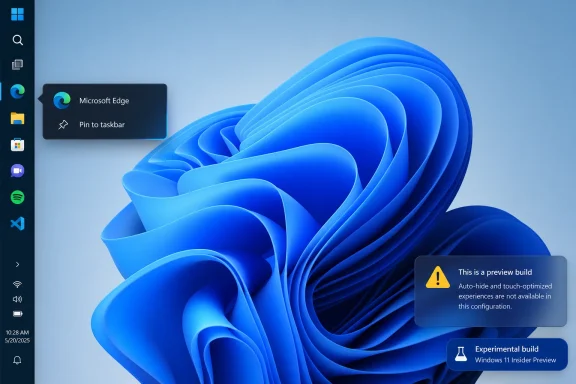
Windows 11’s movable taskbar returned on May 15, 2026, for Windows Insiders in the Experimental channel, where Microsoft now lets testers place the taskbar on the top, bottom, left, or right edge of the screen in preview builds tied to 25H2 testing. Verdict: do not upgrade a production PC just for this yet. It is a welcome daily-work improvement for mouse-and-keyboard power users, but its missing auto-hide, unfinished touch behavior, and absent search-box support make it a preview win rather than a fully rebuilt taskbar.
To try it, you need an eligible Windows Insider PC in the Experimental channel running the relevant preview build. Open Settings > Personalization > Taskbar > Taskbar behaviors, then choose the taskbar position you want: bottom, top, left, or right. In the same area, Microsoft is also testing a smaller taskbar mode under Show smaller taskbar buttons, which reduces icon size and taskbar height without requiring a restart.
The return of taskbar positioning is not a small cosmetic toggle. It reverses one of the most stubborn Windows 11 regressions: the loss of a basic desktop habit that had survived across generations of Windows before being cut from the original Windows 11 taskbar.
Microsoft’s May 15 Insider release brings back the four-edge layout that longtime users expected from Windows 10 and earlier versions. The taskbar can sit at the bottom, top, left, or right, and Windows 11 now adjusts related interface elements around that choice. Start, Search, flyouts, tooltips, and animations open relative to the taskbar rather than pretending everything still lives along the bottom edge.
That last detail matters. A movable taskbar that merely relocates icons while menus still erupt from the wrong place would feel like a registry hack with a nicer front end. Microsoft is instead trying to make the taskbar’s position part of the shell’s geometry again, which is the difference between it works and it belongs.
But the current implementation is not a full restoration of the classic Windows taskbar. It is a staged reconstruction in Insider clothing. The taskbar has moved, but the surrounding assumptions of Windows 11 have not all moved with it.
That smaller taskbar mode is more than a footnote. Microsoft says it uses smaller icons and a reduced taskbar height while keeping core elements like Start, Search, and the system tray aligned. On compact laptops, low-resolution remote sessions, or dense admin workstations, reclaiming even a narrow strip of vertical space can make the desktop feel less cramped.
The better test, though, is not whether the setting appears. It is whether the configuration survives a normal day: opening Start repeatedly, juggling notifications, using Search, launching tray utilities, docking and undocking displays, touching the screen, and living with the layout for hours rather than admiring it in a screenshot.
That is where the preview label starts to matter. Microsoft has put the right controls in the right place, but the feature’s edges still show.
That omission is especially awkward because vertical taskbars are often chosen precisely to manage space. On ultrawide monitors, a left or right taskbar can make better use of horizontal abundance. On smaller displays, however, a permanently visible vertical taskbar can feel expensive unless auto-hide works reliably.
Touch is the second production blocker. Microsoft says support for touch gestures is still in progress, and the tablet-optimized taskbar is not yet supported in alternate positions. That makes the feature a poor fit for convertibles, tablets, kiosk-like devices, field machines, and shared hardware where users do not always interact with Windows by mouse.
The third limitation is Search. Search boxes are not supported on alternate taskbar positions, which means users who prefer the full box instead of a compact search entry point will lose that specific layout when moving the taskbar away from the bottom. For some enthusiasts, that is a minor concession. For organizations that standardize user training around a visible Search box, it is one more reason to wait.
That matters for sysadmins and IT pros because their desktops often look nothing like the marketing screenshots. A real admin session may include PowerShell, Event Viewer, a browser with vendor documentation, a remote desktop window, Teams, a ticketing system, and a monitoring dashboard. In that environment, labels can beat icons because recognition is faster than interpretation.
Top taskbars serve a different audience. Some users prefer the menu-bar-like feel of controls along the upper edge, especially when apps already cluster important controls near the top of the screen. Others want the bottom edge clear for remote desktops, virtual machines, or apps that assume bottom-edge space.
The trouble is that these are exactly the users most likely to notice incomplete behavior. Power users are not satisfied by a checkbox existing. They stress the shell with multi-window, multi-monitor, remote, and utility-heavy workflows. If alternate positioning is going to graduate from novelty to default-worthy, it has to survive those patterns without visual weirdness or missing affordances.
For production-minded users, that distinction matters. A smaller bottom taskbar preserves the most tested Windows 11 layout while reducing the amount of screen real estate consumed by the shell. It is evolutionary rather than architectural.
The movable taskbar, by contrast, asks more of Windows. Start, Search, flyouts, animations, labels, the system tray, touch gestures, auto-hide, and tablet behavior all have to become edge-aware. Microsoft has made visible progress, but the missing items prove that the work is not finished.
That does not make the preview unimportant. It suggests Microsoft is finally willing to revisit the assumptions baked into the Windows 11 shell. The company is no longer merely polishing the centered taskbar idea; it is loosening it.
That is an uncomfortable mismatch for a feature with such a familiar history. Users see a movable taskbar and think of decades of Windows behavior. Microsoft sees a modern Windows 11 shell feature still under construction.
IT departments should treat those two interpretations differently. The nostalgia is real, but nostalgia is not a deployment plan. If a feature is missing auto-hide and touch support today, it should not become the basis for an enterprise desktop standard tomorrow.
For enthusiasts, the calculus is different. A spare laptop, secondary desktop, VM, or noncritical Insider machine is a fine place to test whether the new taskbar position improves your daily rhythm. A primary workstation used for billable work, production support, or executive computing is not the place to chase one taskbar toggle.
That means the sensible answer is not “upgrade now” but “test now if you already accept Insider risk.” Moving to an Insider channel solely for taskbar positioning is a disproportionate tradeoff for most users. You are not installing a finished taskbar feature; you are moving your operating system into a preview lane where the taskbar feature happens to be visible.
WindowsForum readers following the 25H2 build stream have already been discussing build 26300.8493 as the return of official taskbar positioning and smaller mode after years of complaints. That community context is useful because it frames the change correctly: this is a major signal from Microsoft, not yet a guarantee of finished behavior.
The more important watch item is not the first build that exposes the toggle. It is the build where Microsoft closes the gaps: auto-hide on top, left, and right; working touch gestures; tablet-optimized behavior; and Search-box parity. Until those arrive, the feature is still in the “promising shell work” category.
Then test the layouts that matter to your hardware. A left taskbar on an ultrawide monitor is a different experience from a left taskbar on a 13-inch laptop. A top taskbar on a desktop monitor is a different bet from a top taskbar on a touchscreen convertible.
If you rely on auto-hide, stop there. The alternate-position implementation is not ready for your workflow because Microsoft says auto-hidden taskbar support is not yet available for those positions. That is not a tweakable annoyance; it is a missing feature.
If you support users, document the difference between “available in Insider Experimental” and “available in Windows 11.” The former is a test condition. The latter is a supportable baseline. Confusing the two is how help desks inherit problems from YouTube demos.
That matters because Windows users have become wary of redesigns that trade agency for polish. The Windows 11 taskbar looked cleaner at launch, but it also told experienced users that long-held workflows were negotiable. The return of edge positioning suggests Microsoft has accepted that desktop customization is not just nostalgia; it is productivity infrastructure.
There is a broader pattern here. WindowsForum’s recent coverage of Windows 11 redesign concepts, Insider channel changes, and interface cleanup efforts all circles the same tension: Microsoft wants a modern, coherent, AI-aware Windows, while many users want a faster, quieter, more configurable desktop. The movable taskbar sits directly in that argument.
The best version of Windows 11 is not the one with the most dramatic redesign. It is the one that lets different classes of users adapt the desktop without turning every preference into an unsupported workaround. Taskbar positioning is a test of whether Microsoft still believes in that kind of Windows.
What IT teams can do is evaluate demand. If users in engineering, finance, operations, or support roles have been asking for vertical taskbars, now is the time to identify those workflows and test whether Microsoft’s implementation actually helps. That is especially true where Never combine labels are part of window management.
There is also a training angle. If Microsoft eventually ships this broadly, organizations may need to decide whether users can choose taskbar position freely or whether standardization still wins. More personalization can reduce friction for power users, but it can also complicate support scripts, screenshots, training material, and remote assistance.
The right middle ground is a pilot group, not a policy change. Let enthusiasts and technical users validate the behavior on noncritical machines. Track what breaks, what improves, and which missing features are blockers. If Microsoft fills the gaps, you will already know whether the feature matters in your environment.
The better comparison is not whether build 26300.8493 instantly recreates the old taskbar. It does not. The better comparison is whether Microsoft is rebuilding the missing behavior in a way that fits Windows 11’s current shell rather than stapling old code paths onto a new interface.
On that score, the signs are mixed but encouraging. Position-aware flyouts and animations suggest thoughtful integration. Missing auto-hide, touch gestures, tablet support, and search-box behavior show the work is still materially incomplete.
That is why the answer for most readers is “wait,” not “ignore it.” The feature is real enough to test, but not complete enough to anchor production decisions. Windows 11 users who have waited this long for a movable taskbar can afford to wait for the version that does not require asterisks.
Watch whether Microsoft adds auto-hide support for alternate positions. Watch whether touch gestures stop being “in progress” and become predictable. Watch whether tablet-optimized behavior works away from the bottom edge. Watch whether Search-box support expands beyond the standard layout.
Also watch how Microsoft handles feedback. If the company treats side and top taskbars as enthusiast edge cases, the feature may remain good enough for screenshots but not for every workflow. If it treats them as first-class shell positions, Windows 11 could regain one of the quiet strengths it lost at launch.
That distinction is the whole story. A movable taskbar is not just an option in Settings. It is a promise that Windows will respect the way different people arrange their work.
To try it, you need an eligible Windows Insider PC in the Experimental channel running the relevant preview build. Open Settings > Personalization > Taskbar > Taskbar behaviors, then choose the taskbar position you want: bottom, top, left, or right. In the same area, Microsoft is also testing a smaller taskbar mode under Show smaller taskbar buttons, which reduces icon size and taskbar height without requiring a restart.
 Microsoft Restores the Taskbar Choice Windows 11 Should Not Have Removed
The return of taskbar positioning is not a small cosmetic toggle. It reverses one of the most stubborn Windows 11 regressions: the loss of a basic desktop habit that had survived across generations of Windows before being cut from the original Windows 11 taskbar.Microsoft’s May 15 Insider release brings back the four-edge layout that longtime users expected from Windows 10 and earlier versions. The taskbar can sit at the bottom, top, left, or right, and Windows 11 now adjusts related interface elements around that choice. Start, Search, flyouts, tooltips, and animations open relative to the taskbar rather than pretending everything still lives along the bottom edge.
That last detail matters. A movable taskbar that merely relocates icons while menus still erupt from the wrong place would feel like a registry hack with a nicer front end. Microsoft is instead trying to make the taskbar’s position part of the shell’s geometry again, which is the difference between it works and it belongs.
But the current implementation is not a full restoration of the classic Windows taskbar. It is a staged reconstruction in Insider clothing. The taskbar has moved, but the surrounding assumptions of Windows 11 have not all moved with it.
The Setting Is Simple; the Decision Is Not
For testers, the procedure is refreshingly direct. Go to Settings > Personalization > Taskbar > Taskbar behaviors, choose the desired screen edge, and watch the shell adapt. If you also want the smaller taskbar, use Show smaller taskbar buttons in the same Taskbar behaviors section and set it to Always.That smaller taskbar mode is more than a footnote. Microsoft says it uses smaller icons and a reduced taskbar height while keeping core elements like Start, Search, and the system tray aligned. On compact laptops, low-resolution remote sessions, or dense admin workstations, reclaiming even a narrow strip of vertical space can make the desktop feel less cramped.
The better test, though, is not whether the setting appears. It is whether the configuration survives a normal day: opening Start repeatedly, juggling notifications, using Search, launching tray utilities, docking and undocking displays, touching the screen, and living with the layout for hours rather than admiring it in a screenshot.
That is where the preview label starts to matter. Microsoft has put the right controls in the right place, but the feature’s edges still show.
The Missing Pieces Are Exactly Where Production Users Feel Them
The most important caveat is not hidden in fine print: auto-hide is not yet supported for alternate taskbar positions. If your workflow depends on a left or right taskbar that disappears until summoned, this preview does not deliver the old muscle memory. It gives you position, but not the space-saving behavior that made side taskbars appealing to many users in the first place.That omission is especially awkward because vertical taskbars are often chosen precisely to manage space. On ultrawide monitors, a left or right taskbar can make better use of horizontal abundance. On smaller displays, however, a permanently visible vertical taskbar can feel expensive unless auto-hide works reliably.
Touch is the second production blocker. Microsoft says support for touch gestures is still in progress, and the tablet-optimized taskbar is not yet supported in alternate positions. That makes the feature a poor fit for convertibles, tablets, kiosk-like devices, field machines, and shared hardware where users do not always interact with Windows by mouse.
The third limitation is Search. Search boxes are not supported on alternate taskbar positions, which means users who prefer the full box instead of a compact search entry point will lose that specific layout when moving the taskbar away from the bottom. For some enthusiasts, that is a minor concession. For organizations that standardize user training around a visible Search box, it is one more reason to wait.
Vertical Taskbars Are Back, but They Are Not Back for Everyone
The strongest early use case is the traditional keyboard-and-mouse desktop with a wide display. Put the taskbar on the left or right, enable separate labeled buttons with “Never combine,” and Windows 11 starts to recover a workflow that many power users never stopped wanting. Microsoft says vertical taskbars can show separate labeled buttons when Never combine is enabled, which is a meaningful concession to people who manage many open windows by title rather than icon memory.That matters for sysadmins and IT pros because their desktops often look nothing like the marketing screenshots. A real admin session may include PowerShell, Event Viewer, a browser with vendor documentation, a remote desktop window, Teams, a ticketing system, and a monitoring dashboard. In that environment, labels can beat icons because recognition is faster than interpretation.
Top taskbars serve a different audience. Some users prefer the menu-bar-like feel of controls along the upper edge, especially when apps already cluster important controls near the top of the screen. Others want the bottom edge clear for remote desktops, virtual machines, or apps that assume bottom-edge space.
The trouble is that these are exactly the users most likely to notice incomplete behavior. Power users are not satisfied by a checkbox existing. They stress the shell with multi-window, multi-monitor, remote, and utility-heavy workflows. If alternate positioning is going to graduate from novelty to default-worthy, it has to survive those patterns without visual weirdness or missing affordances.
Smaller Taskbar Mode Is the Safer Upgrade Than Moving the Taskbar
The smaller taskbar may turn out to be the more practical near-term feature. It changes less about the shell’s spatial model while giving users an immediate density improvement. Microsoft says it requires no restart, which makes it easy to test and easy to undo.For production-minded users, that distinction matters. A smaller bottom taskbar preserves the most tested Windows 11 layout while reducing the amount of screen real estate consumed by the shell. It is evolutionary rather than architectural.
The movable taskbar, by contrast, asks more of Windows. Start, Search, flyouts, animations, labels, the system tray, touch gestures, auto-hide, and tablet behavior all have to become edge-aware. Microsoft has made visible progress, but the missing items prove that the work is not finished.
That does not make the preview unimportant. It suggests Microsoft is finally willing to revisit the assumptions baked into the Windows 11 shell. The company is no longer merely polishing the centered taskbar idea; it is loosening it.
Experimental Means Experimental, Even When the Feature Feels Familiar
Windows Central reports the change is in Experimental build 26300.8493 for the 25H2 track, which reinforces the practical point: this is preview-stage functionality. The word “Experimental” is not decoration. It is Microsoft’s warning label for features that can change, disappear, break, or arrive unevenly.That is an uncomfortable mismatch for a feature with such a familiar history. Users see a movable taskbar and think of decades of Windows behavior. Microsoft sees a modern Windows 11 shell feature still under construction.
IT departments should treat those two interpretations differently. The nostalgia is real, but nostalgia is not a deployment plan. If a feature is missing auto-hide and touch support today, it should not become the basis for an enterprise desktop standard tomorrow.
For enthusiasts, the calculus is different. A spare laptop, secondary desktop, VM, or noncritical Insider machine is a fine place to test whether the new taskbar position improves your daily rhythm. A primary workstation used for billable work, production support, or executive computing is not the place to chase one taskbar toggle.
The Rollout Scope Is the Real Answer to “Should I Upgrade?”
The key deployment fact is that this is not a general Windows 11 release. Microsoft said the feature is available to Windows Insiders in the Experimental channel, and the reported build context is 26300.8493 on the 25H2 testing track. If your stable Windows 11 PC does not show the option, that is expected.That means the sensible answer is not “upgrade now” but “test now if you already accept Insider risk.” Moving to an Insider channel solely for taskbar positioning is a disproportionate tradeoff for most users. You are not installing a finished taskbar feature; you are moving your operating system into a preview lane where the taskbar feature happens to be visible.
WindowsForum readers following the 25H2 build stream have already been discussing build 26300.8493 as the return of official taskbar positioning and smaller mode after years of complaints. That community context is useful because it frames the change correctly: this is a major signal from Microsoft, not yet a guarantee of finished behavior.
The more important watch item is not the first build that exposes the toggle. It is the build where Microsoft closes the gaps: auto-hide on top, left, and right; working touch gestures; tablet-optimized behavior; and Search-box parity. Until those arrive, the feature is still in the “promising shell work” category.
The Practical Setup Advice Is to Test Like a Skeptic
If you do test the movable taskbar, do not merely move it and declare victory. Spend time with the workflows that usually break preview UI. Open Start from every edge. Launch Search. Trigger system tray flyouts. Open notification surfaces. Use pinned apps, unpinned apps, multiple windows of the same app, and Never combine labels.Then test the layouts that matter to your hardware. A left taskbar on an ultrawide monitor is a different experience from a left taskbar on a 13-inch laptop. A top taskbar on a desktop monitor is a different bet from a top taskbar on a touchscreen convertible.
If you rely on auto-hide, stop there. The alternate-position implementation is not ready for your workflow because Microsoft says auto-hidden taskbar support is not yet available for those positions. That is not a tweakable annoyance; it is a missing feature.
If you support users, document the difference between “available in Insider Experimental” and “available in Windows 11.” The former is a test condition. The latter is a supportable baseline. Confusing the two is how help desks inherit problems from YouTube demos.
Microsoft’s Personalization Push Is Also a Trust Repair Job
Microsoft frames the work as making Taskbar and Start more personal, but the subtext is bigger than personalization. Windows 11 removed familiar taskbar flexibility and then spent years absorbing complaints from the users most likely to notice. Restoring positioning is a design concession as much as a feature addition.That matters because Windows users have become wary of redesigns that trade agency for polish. The Windows 11 taskbar looked cleaner at launch, but it also told experienced users that long-held workflows were negotiable. The return of edge positioning suggests Microsoft has accepted that desktop customization is not just nostalgia; it is productivity infrastructure.
There is a broader pattern here. WindowsForum’s recent coverage of Windows 11 redesign concepts, Insider channel changes, and interface cleanup efforts all circles the same tension: Microsoft wants a modern, coherent, AI-aware Windows, while many users want a faster, quieter, more configurable desktop. The movable taskbar sits directly in that argument.
The best version of Windows 11 is not the one with the most dramatic redesign. It is the one that lets different classes of users adapt the desktop without turning every preference into an unsupported workaround. Taskbar positioning is a test of whether Microsoft still believes in that kind of Windows.
IT Pros Should Pilot the Behavior, Not Promise the Feature
For administrators, the immediate recommendation is conservative. Do not plan a rollout around movable taskbar positioning yet, and do not promise users that 25H2 will necessarily deliver the exact behavior currently seen in Experimental builds. Preview features are evidence of direction, not deployment commitments.What IT teams can do is evaluate demand. If users in engineering, finance, operations, or support roles have been asking for vertical taskbars, now is the time to identify those workflows and test whether Microsoft’s implementation actually helps. That is especially true where Never combine labels are part of window management.
There is also a training angle. If Microsoft eventually ships this broadly, organizations may need to decide whether users can choose taskbar position freely or whether standardization still wins. More personalization can reduce friction for power users, but it can also complicate support scripts, screenshots, training material, and remote assistance.
The right middle ground is a pilot group, not a policy change. Let enthusiasts and technical users validate the behavior on noncritical machines. Track what breaks, what improves, and which missing features are blockers. If Microsoft fills the gaps, you will already know whether the feature matters in your environment.
The Windows 10 Comparison Cuts Both Ways
It is tempting to judge the preview against Windows 10 and declare it incomplete. That is fair, but only partly. Windows 10 had years of mature taskbar behavior behind it, and Windows 11 rebuilt enough of the shell that old assumptions did not simply carry forward.The better comparison is not whether build 26300.8493 instantly recreates the old taskbar. It does not. The better comparison is whether Microsoft is rebuilding the missing behavior in a way that fits Windows 11’s current shell rather than stapling old code paths onto a new interface.
On that score, the signs are mixed but encouraging. Position-aware flyouts and animations suggest thoughtful integration. Missing auto-hide, touch gestures, tablet support, and search-box behavior show the work is still materially incomplete.
That is why the answer for most readers is “wait,” not “ignore it.” The feature is real enough to test, but not complete enough to anchor production decisions. Windows 11 users who have waited this long for a movable taskbar can afford to wait for the version that does not require asterisks.
The Build Number Is Less Important Than the Behavior That Follows
Build 26300.8493 will matter historically because it is the build that put official taskbar positioning back in front of Insiders. But the build number is not the finish line. The next meaningful milestone is functional parity across the awkward cases.Watch whether Microsoft adds auto-hide support for alternate positions. Watch whether touch gestures stop being “in progress” and become predictable. Watch whether tablet-optimized behavior works away from the bottom edge. Watch whether Search-box support expands beyond the standard layout.
Also watch how Microsoft handles feedback. If the company treats side and top taskbars as enthusiast edge cases, the feature may remain good enough for screenshots but not for every workflow. If it treats them as first-class shell positions, Windows 11 could regain one of the quiet strengths it lost at launch.
That distinction is the whole story. A movable taskbar is not just an option in Settings. It is a promise that Windows will respect the way different people arrange their work.
The Smart Move Is to Test the Toggle and Wait for the Redesign
The practical answer is clear for most WindowsForum readers:- You should not move a production PC to the Experimental channel solely to get taskbar positioning.
- You should test the feature on a spare or noncritical Insider machine if top, left, or right taskbar placement would materially improve your workflow.
- You should avoid relying on alternate taskbar positions if auto-hide, touch gestures, tablet mode behavior, or the full Search box are important to you.
- You should consider the smaller taskbar mode the safer near-term productivity tweak because it changes less about the Windows shell.
- You should watch future Insider builds for missing-feature closures rather than treating the May 15 preview as a finished redesign.
References
- Primary source: blogs.windows.com
Improving Windows quality: Making Taskbar and Start more personal
In our commitment to Windows quality, we outlined our plans to deliver improvements in performance, reliability, and craft. We are also committed toblogs.windows.com - Independent coverage: windowscentral.com
Windows 11 is finally rethinking the Start menu and Taskbar, and it might win back people who gave up on it | Windows Central
Microsoft rebalances Windows 11, adding more flexibility to the Taskbar and Start menu.www.windowscentral.com - Independent coverage: windowslatest.com
Microsoft is bringing 10 new features to Windows 11's taskbar and Start menu
Microsoft is finally delivering a movable Windows 11 taskbar, a resizable Start menu, and native WinUI performance upgrades to fix Start menu. www.windowslatest.com
- Independent coverage: alternativeto.net
More than 5 years after launch, Windows 11 is finally bringing back the movable Taskbar | AlternativeTo
Windows 11 is finally bringing back the movable Taskbar years after launch, allowing users to move it to any screen edge. There are also new updates to the Start menu design and Search improvementsalternativeto.net
- Independent coverage: techrepublic.com
Windows 11 Start Menu, Taskbar Are Getting More Customization
Microsoft is testing Windows 11 taskbar and Start menu updates, including movable taskbar positions, cleaner Start controls, and compact layout options.www.techrepublic.com
- Primary source: WindowsForum
Windows 11 Build 26300.8493 Brings Back Movable Taskbar and Smaller Buttons | Windows Forum
Microsoft released Windows 11 Build 26300.8493 to the Experimental channel on May 15, 2026, restoring official taskbar placement options, adding a smaller...windowsforum.com
