

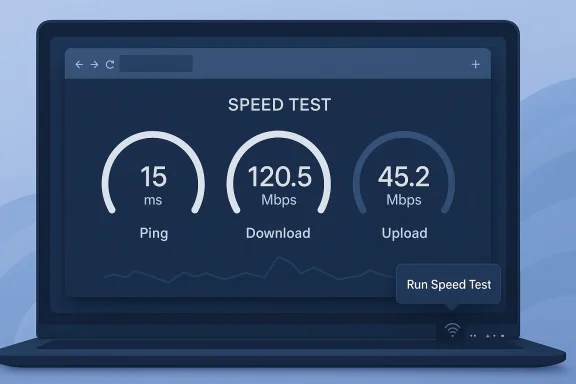
Microsoft’s quiet addition of a built-in internet speed test to the Windows 11 taskbar is exactly the sort of small feature that can become hugely practical once people notice it. What looks like a minor convenience is really another sign that Windows 11 is steadily absorbing everyday troubleshooting tasks that users used to reach for third-party utilities to solve. The feature is now appearing in recent Windows 11 builds, and Microsoft says it can be launched from the network icon in the system tray or the Wi-Fi and Cellular quick settings, opening a browser-based test that checks ping, download speed, and upload speed.
Windows has long provided the plumbing for network diagnostics, but the experience has usually been fragmented. Users could open Settings, dig into network status pages, run a troubleshooter, or search for a website that could measure connection speed, yet none of those routes felt especially immediate. This new shortcut is notable because it collapses that process into a single right-click on the taskbar, which is where many users already go when something feels off with the network.
The feature is not fully native in the way some people might assume from the phrase “built-in.” Instead, Microsoft is sending users to a browser-based experience powered by Ookla, the same company behind Speedtest. That means the speed test itself is familiar and credible, but the integration layer is still fairly lightweight: Windows is acting as a launcher rather than hosting the entire measurement experience inside the shell.
That distinction matters. A truly integrated diagnostic tool could store historical results, compare outcomes over time, and feed directly into Windows networking controls. What Microsoft has rolled out instead is a fast path to a well-known web test, which is less ambitious but also easier to maintain and less likely to break core OS components. In practice, that may be the right trade-off for a feature aimed at mainstream users rather than IT admins.
It is also worth noting that Microsoft’s approach appears intentionally browser-agnostic. The page opens in the user’s default browser rather than forcing Edge, which is a small but meaningful signal that Microsoft is not trying to turn a network diagnostic into a browser promotion moment. For users, that means the shortcut is less annoying than some Microsoft ecosystem features of the past.
Microsoft has gradually moved more common actions into Windows 11’s quick settings and system tray areas because those are the places people look first when something is wrong. The network icon already opens a compact interface for Wi-Fi, Ethernet, and related settings, so adding a speed test there is a logical extension of the same design philosophy. It reduces friction, and in troubleshooting, friction is often the difference between a user diagnosing a problem and just rebooting the PC out of habit.
The current implementation also reflects Microsoft’s broader Windows 11 strategy: modernize the shell, surface useful actions in context, and push less-used tasks behind lightweight entry points. Recent Insider builds have shown a steady stream of these incremental improvements, and the network speed test fits that pattern neatly. It is not flashy, but it is very much the kind of quality-of-life feature Microsoft likes to add when it wants Windows 11 to feel more complete.
Historically, Microsoft has experimented with separate speed test apps and diagnostic tools, but those offerings never became core Windows habits for the average user. That helps explain why the company is now embedding the shortcut inside the system tray rather than asking users to install another app. In an era where many people already distrust app sprawl, a one-click shortcut carries more appeal than a dedicated utility they may never open again.
That is especially relevant in mixed-use environments where users may not know whether they should blame the router, the modem, or the laptop itself. A quick browser-based test can confirm whether performance is broadly poor before more technical troubleshooting begins. It is not a full repair tool, but it is a useful first step.
The browser-based part is key because it explains both the convenience and the limitation. Microsoft is not shipping a deeply integrated diagnostic engine inside the shell; instead, it is creating a direct route to a trusted web tool. That keeps the feature flexible and easy to update, but it also means the experience depends on the browser environment and the loading of a web page before the user can even start the test.
There is also a subtle product-design advantage here. By using a web page, Microsoft can keep the feature lightweight while still making it accessible from a place that feels native to Windows 11. That lowers the maintenance burden for the OS team and avoids creating another permanently installed diagnostic module that could become stale. Small shortcut, low overhead is a sensible formula for this kind of utility.
This also makes the feature feel more compatible with enterprise fleets, where browser choice is often governed by policy. If a company standardizes on Chrome or another browser, the speed test still launches as expected. In other words, Microsoft has made the shortcut more politically neutral inside the desktop environment.
This design also reflects the way people troubleshoot in real life. Most users do not start with packet loss charts or router logs; they start with “Is my connection bad?” A taskbar shortcut answers that question faster than a search engine query, and faster than opening multiple settings panels. That makes it a consumer-facing feature with real utility.
The feature may look small, but it could reduce support overhead in homes and workplaces alike. If a user can verify a bad connection in seconds, they are less likely to file a vague complaint that “the computer is broken.” That is valuable for help desks, family tech support, and anyone trying to isolate whether a slowdown is local or external.
That distinction also explains why the feature can coexist with more advanced network tools. Windows still has settings pages, adapters, diagnostics, and command-line options for those who want them. The new shortcut simply makes the common “let me check my speed” action easier to reach.
That said, relying on a third-party web test also keeps Microsoft from having to own the full metrology stack. Network speed testing is deceptively tricky, because results vary based on server selection, peering, browser behavior, background processes, and local congestion. Using an established provider reduces the chance that the test itself becomes the story.
The broader implication is that Microsoft is comfortable outsourcing the measurement engine while owning the user journey. That is a smart product strategy in a world where users care less about what powers a feature than how quickly they can get to it. The OS provides the doorway; the partner provides the engine.
But for a lightweight feature aimed at broad adoption, that may be the right compromise. Users benefit from a trusted name, while Microsoft avoids rebuilding a commodity function from scratch. In feature economics, that is often the most rational choice.
Microsoft’s release notes around Windows 11 25H2 show a platform that is still evolving through cumulative updates and feature gates. The company continues to adjust taskbar behaviors, recovery workflows, and shell features in incremental pieces rather than through dramatic annual redesigns. The new speed test fits that incrementalism perfectly.
This also signals that Microsoft still sees the taskbar as a viable place for practical utility. Recent Windows work has focused on balance: improving discoverability without overcomplicating the interface. A speed test shortcut is a classic example of that philosophy because it adds value without asking the user to learn a new subsystem.
That means the feature is more likely to reduce front-line support noise than to replace professional diagnostics. If anything, it can serve as a triage tool that helps ordinary employees describe problems more accurately. That is useful, even if it is not revolutionary. Better context from end users often saves the most time.
This is particularly relevant because networking failures are often ambiguous. A video call can stutter because of Wi-Fi interference, ISP congestion, DNS problems, a VPN tunnel, or the remote service itself. A quick speed test will not solve all of that, but it can at least rule out one common layer of suspicion. That makes it an efficient diagnostic filter.
The old model also forced users to choose between low-level tools and generic websites. Either you were in Settings or the command line, or you were using a third-party service in the browser. Microsoft’s shortcut collapses those options into something much more approachable. That is a meaningful user-experience improvement even if the underlying measurement is still web-based.
The move also echoes the general direction of Windows 11: fewer deep menu dives, more contextual actions. That is not always enough for power users, but it does help normalize Windows as a platform that can handle common tasks without a scavenger hunt. Convenience wins hearts even when technical purists want more depth.
For browser-centric and cloud-centric rivals, this is a reminder that OS-level convenience still matters. A web page can be excellent, but an action surfaced directly from the taskbar is faster than typing or searching. Microsoft is using the OS to reduce the number of steps between intention and result, and that kind of integration is hard for competitors to match without their own shell-level control.
There is also a competitive signal aimed at support and productivity tools. If Microsoft can keep adding small, context-aware utilities to Windows, it weakens the case for downloading separate helper apps. That may not sound dramatic, but in desktop software, friction is market share. The easier the built-in path, the less room there is for third-party alternatives.
That could be a competitive advantage if Microsoft keeps the additions focused and nonintrusive. But if the shell becomes cluttered, the benefit turns into noise. The company will need to balance usefulness against bloat, which is one of Windows’ eternal challenges.
The opportunity lies in how Microsoft builds around this foundation. A simple launcher can evolve into a smarter diagnostics experience if Microsoft chooses to add history, smarter context, or integration with network status signals. Even if it never becomes that rich, the current shortcut still improves the day-to-day Windows 11 experience in a way that users can feel immediately. That kind of payoff matters.
There is also the question of dependency. If the page changes, loads slowly, or becomes temporarily unavailable, the “built-in” feature will feel less built-in than advertised. Microsoft is effectively outsourcing the heart of the experience, and that introduces a layer of fragility that a fully native tool would avoid. Convenience with a dependency is still a dependency.
Another concern is clutter. Windows 11 already walks a fine line between helpful quick actions and an interface that can feel crowded with icons, flyouts, and settings links. Microsoft will need to be careful not to turn the taskbar into a dumping ground for every possible utility.
The real test will be whether Microsoft adds polish around the action rather than merely adding the action itself. If future builds offer more context, smarter troubleshooting guidance, or easier access to related network tools, the speed test could be the start of a broader usability upgrade. If not, it will remain a solid but modest convenience feature. Modest features can still matter when they save time every week.
For now, the best way to interpret this addition is as a signal of Microsoft’s priorities. Windows 11 is increasingly about making everyday operations quicker, more discoverable, and less annoying. A speed test on the taskbar is not headline-grabbing engineering, but it is exactly the kind of practical detail that makes an operating system feel more mature.
Source: YugaTech Windows 11 adds built-in internet speed test to taskbar
 Overview
Windows has long provided the plumbing for network diagnostics, but the experience has usually been fragmented. Users could open Settings, dig into network status pages, run a troubleshooter, or search for a website that could measure connection speed, yet none of those routes felt especially immediate. This new shortcut is notable because it collapses that process into a single right-click on the taskbar, which is where many users already go when something feels off with the network.The feature is not fully native in the way some people might assume from the phrase “built-in.” Instead, Microsoft is sending users to a browser-based experience powered by Ookla, the same company behind Speedtest. That means the speed test itself is familiar and credible, but the integration layer is still fairly lightweight: Windows is acting as a launcher rather than hosting the entire measurement experience inside the shell.
That distinction matters. A truly integrated diagnostic tool could store historical results, compare outcomes over time, and feed directly into Windows networking controls. What Microsoft has rolled out instead is a fast path to a well-known web test, which is less ambitious but also easier to maintain and less likely to break core OS components. In practice, that may be the right trade-off for a feature aimed at mainstream users rather than IT admins.
It is also worth noting that Microsoft’s approach appears intentionally browser-agnostic. The page opens in the user’s default browser rather than forcing Edge, which is a small but meaningful signal that Microsoft is not trying to turn a network diagnostic into a browser promotion moment. For users, that means the shortcut is less annoying than some Microsoft ecosystem features of the past.
Background
Windows users have had a long relationship with network troubleshooting tools, but they have rarely been elegant. For years, the operating system relied on a mix of Settings pages, legacy troubleshooters, Command Prompt utilities, and vendor-specific apps to help users figure out why the internet felt slow or unstable. That patchwork approach worked, but it was never consumer-friendly in the way a simple taskbar shortcut can be.Microsoft has gradually moved more common actions into Windows 11’s quick settings and system tray areas because those are the places people look first when something is wrong. The network icon already opens a compact interface for Wi-Fi, Ethernet, and related settings, so adding a speed test there is a logical extension of the same design philosophy. It reduces friction, and in troubleshooting, friction is often the difference between a user diagnosing a problem and just rebooting the PC out of habit.
The current implementation also reflects Microsoft’s broader Windows 11 strategy: modernize the shell, surface useful actions in context, and push less-used tasks behind lightweight entry points. Recent Insider builds have shown a steady stream of these incremental improvements, and the network speed test fits that pattern neatly. It is not flashy, but it is very much the kind of quality-of-life feature Microsoft likes to add when it wants Windows 11 to feel more complete.
Historically, Microsoft has experimented with separate speed test apps and diagnostic tools, but those offerings never became core Windows habits for the average user. That helps explain why the company is now embedding the shortcut inside the system tray rather than asking users to install another app. In an era where many people already distrust app sprawl, a one-click shortcut carries more appeal than a dedicated utility they may never open again.
Why this matters now
The timing is important because home and office networks are more complex than they used to be. People are juggling Wi-Fi 6/6E/7 routers, mesh systems, VPNs, cellular tethering, and multi-device households, so knowing whether the bottleneck is local, ISP-side, or device-side can save a lot of guesswork. A built-in shortcut lowers the barrier to at least starting that diagnosis.That is especially relevant in mixed-use environments where users may not know whether they should blame the router, the modem, or the laptop itself. A quick browser-based test can confirm whether performance is broadly poor before more technical troubleshooting begins. It is not a full repair tool, but it is a useful first step.
- The shortcut is surfaced where users already look for connection status.
- It reduces the need to search the web for a speed test site.
- It helps separate “real” network slowness from app-specific issues.
- It makes Windows feel a bit more self-sufficient.
- It reinforces the system tray as a utility hub rather than just an icon row.
How the Feature Works
According to Microsoft’s Insider notes, the speed test can be opened from the Wi-Fi or Cellular quick settings pages or by right-clicking the network icon in the system tray. Once launched, it opens in the user’s default browser and supports Ethernet, Wi-Fi, and cellular connections. The test then measures familiar metrics such as ping, download, and upload performance.The browser-based part is key because it explains both the convenience and the limitation. Microsoft is not shipping a deeply integrated diagnostic engine inside the shell; instead, it is creating a direct route to a trusted web tool. That keeps the feature flexible and easy to update, but it also means the experience depends on the browser environment and the loading of a web page before the user can even start the test.
There is also a subtle product-design advantage here. By using a web page, Microsoft can keep the feature lightweight while still making it accessible from a place that feels native to Windows 11. That lowers the maintenance burden for the OS team and avoids creating another permanently installed diagnostic module that could become stale. Small shortcut, low overhead is a sensible formula for this kind of utility.
Default browser behavior
One of the nicer details is that the shortcut respects the user’s default browser rather than hard-coding Edge. That may sound obvious in a modern operating system, but Microsoft has a long history of nudging users toward its own browser ecosystem, so this restraint stands out. It suggests the company wants the feature to be useful first and promotional second.This also makes the feature feel more compatible with enterprise fleets, where browser choice is often governed by policy. If a company standardizes on Chrome or another browser, the speed test still launches as expected. In other words, Microsoft has made the shortcut more politically neutral inside the desktop environment.
- Opens in the default browser.
- Supports common connection types.
- Shows standard throughput metrics.
- Can be accessed quickly from the taskbar.
- Avoids forcing a Microsoft-specific browsing flow.
Why Microsoft Chose the Taskbar
The taskbar is still the most efficient piece of real estate in Windows for immediate action. It is where users go to check volume, battery, notifications, and connectivity, so putting a speed test there makes behavioral sense. Microsoft is leaning on muscle memory: if the internet feels slow, users do not want a tutorial, they want a button.This design also reflects the way people troubleshoot in real life. Most users do not start with packet loss charts or router logs; they start with “Is my connection bad?” A taskbar shortcut answers that question faster than a search engine query, and faster than opening multiple settings panels. That makes it a consumer-facing feature with real utility.
The feature may look small, but it could reduce support overhead in homes and workplaces alike. If a user can verify a bad connection in seconds, they are less likely to file a vague complaint that “the computer is broken.” That is valuable for help desks, family tech support, and anyone trying to isolate whether a slowdown is local or external.
A shortcut, not a destination
It is important to understand that Microsoft is not turning the taskbar into a full network control center. The shortcut is a launch point, not a dashboard, which means it solves the first mile of troubleshooting rather than the full journey. That is probably acceptable for most people, but power users may still want richer telemetry.That distinction also explains why the feature can coexist with more advanced network tools. Windows still has settings pages, adapters, diagnostics, and command-line options for those who want them. The new shortcut simply makes the common “let me check my speed” action easier to reach.
- Faster than opening a separate website manually.
- Easier for nontechnical users to discover.
- More aligned with taskbar-based habits.
- Less intimidating than command-line tools.
- Better suited to everyday checks than deep analysis.
The Ookla Connection
Microsoft’s decision to use Ookla is unsurprising, but it is still significant. Ookla’s Speedtest is one of the most recognizable consumer network tests in the world, which gives the shortcut instant legitimacy. For Microsoft, that means fewer questions about measurement quality and fewer accusations that the company is using a proprietary test whose results might be harder to compare with other services.That said, relying on a third-party web test also keeps Microsoft from having to own the full metrology stack. Network speed testing is deceptively tricky, because results vary based on server selection, peering, browser behavior, background processes, and local congestion. Using an established provider reduces the chance that the test itself becomes the story.
The broader implication is that Microsoft is comfortable outsourcing the measurement engine while owning the user journey. That is a smart product strategy in a world where users care less about what powers a feature than how quickly they can get to it. The OS provides the doorway; the partner provides the engine.
Reliability versus ownership
There is a trade-off here, of course. Because Microsoft does not fully control the test experience, it also does not fully control the page’s evolution, performance, or future branding. If Ookla changes the layout or the page behavior, Windows will inherit those changes. That is the price of convenience.But for a lightweight feature aimed at broad adoption, that may be the right compromise. Users benefit from a trusted name, while Microsoft avoids rebuilding a commodity function from scratch. In feature economics, that is often the most rational choice.
- Leverages a familiar brand.
- Reduces pressure on Microsoft to build its own measurement engine.
- Keeps the shortcut simple and low-risk.
- Introduces some dependence on a third-party page.
- Improves trust through recognizability.
Windows 11 24H2 and 25H2 Context
The speed test is now showing up in recent Windows 11 updates, including builds associated with version 24H2 and 25H2. That matters because Microsoft has been using staged rollouts and Insider channels to test user-facing changes before they reach broader release rings. In other words, this is not a one-off experiment buried in a preview build; it is part of a wider pattern of Windows 11 refinement.Microsoft’s release notes around Windows 11 25H2 show a platform that is still evolving through cumulative updates and feature gates. The company continues to adjust taskbar behaviors, recovery workflows, and shell features in incremental pieces rather than through dramatic annual redesigns. The new speed test fits that incrementalism perfectly.
This also signals that Microsoft still sees the taskbar as a viable place for practical utility. Recent Windows work has focused on balance: improving discoverability without overcomplicating the interface. A speed test shortcut is a classic example of that philosophy because it adds value without asking the user to learn a new subsystem.
Enterprise and consumer differences
For consumers, the appeal is obvious: quick, simple, low-ceremony troubleshooting. For enterprises, the value is a bit more nuanced. IT teams may appreciate that users have an easy first-step diagnostic tool, but managed environments will still want policies, reporting, and documentation rather than a browser-initiated page.That means the feature is more likely to reduce front-line support noise than to replace professional diagnostics. If anything, it can serve as a triage tool that helps ordinary employees describe problems more accurately. That is useful, even if it is not revolutionary. Better context from end users often saves the most time.
- Appears in recent Windows 11 build streams.
- Matches Microsoft’s gradual feature rollout model.
- Helps consumers more directly than enterprise admins.
- Could reduce vague network complaints.
- Leaves advanced fleet diagnostics untouched.
The Old Windows Network Tooling Problem
Microsoft has always had enough network tooling; the problem has been packaging and discoverability. Features like connection status, troubleshooting, and wireless diagnostics have existed for years, but they were often buried in places only enthusiasts or administrators knew to look. A shortcut on the taskbar addresses that age-old Windows weakness: finding the right tool at the right moment.This is particularly relevant because networking failures are often ambiguous. A video call can stutter because of Wi-Fi interference, ISP congestion, DNS problems, a VPN tunnel, or the remote service itself. A quick speed test will not solve all of that, but it can at least rule out one common layer of suspicion. That makes it an efficient diagnostic filter.
The old model also forced users to choose between low-level tools and generic websites. Either you were in Settings or the command line, or you were using a third-party service in the browser. Microsoft’s shortcut collapses those options into something much more approachable. That is a meaningful user-experience improvement even if the underlying measurement is still web-based.
Historical comparison
If you remember earlier Windows versions, Microsoft often solved network problems by offering a separate utility or a static troubleshooting wizard. Those tools were useful in theory but frequently invisible in practice. The new speed test is smarter because it is embedded in a place people already inspect when connectivity goes bad.The move also echoes the general direction of Windows 11: fewer deep menu dives, more contextual actions. That is not always enough for power users, but it does help normalize Windows as a platform that can handle common tasks without a scavenger hunt. Convenience wins hearts even when technical purists want more depth.
- Older tools existed but were harder to find.
- The new shortcut improves discoverability.
- Users still retain access to richer diagnostics.
- The feature favors speed over depth.
- It reflects Windows 11’s context-first design trend.
What It Means for Rivals
Microsoft’s move is not happening in a vacuum. Competing desktop ecosystems and device makers have long offered their own utilities for connectivity, diagnostics, or system health, but Windows still has the biggest installed base of everyday PCs. If Microsoft makes a simple task easier, that raises the baseline expectation for what a desktop OS should provide out of the box.For browser-centric and cloud-centric rivals, this is a reminder that OS-level convenience still matters. A web page can be excellent, but an action surfaced directly from the taskbar is faster than typing or searching. Microsoft is using the OS to reduce the number of steps between intention and result, and that kind of integration is hard for competitors to match without their own shell-level control.
There is also a competitive signal aimed at support and productivity tools. If Microsoft can keep adding small, context-aware utilities to Windows, it weakens the case for downloading separate helper apps. That may not sound dramatic, but in desktop software, friction is market share. The easier the built-in path, the less room there is for third-party alternatives.
The user expectation shift
Once a feature like this becomes normal, users begin to expect similar shortcuts for other common checks. Battery health, Wi-Fi signal quality, VPN status, and printer diagnostics are all plausible candidates for future quick-access tooling. Microsoft may be setting a precedent that makes Windows feel more utility-rich over time.That could be a competitive advantage if Microsoft keeps the additions focused and nonintrusive. But if the shell becomes cluttered, the benefit turns into noise. The company will need to balance usefulness against bloat, which is one of Windows’ eternal challenges.
- Raises expectations for built-in OS utilities.
- Challenges the case for third-party helper apps.
- Strengthens Windows’ everyday convenience story.
- Could inspire more quick-access diagnostics.
- Risks contributing to interface clutter if overdone.
Strengths and Opportunities
This is a feature that succeeds by being obvious, and that is not a small thing. Microsoft has plenty of ambitious platform work to manage, but the speed test shortcut is a reminder that the best Windows improvements are sometimes the least glamorous ones. It saves time, reduces friction, and gives users a quick way to validate whether a connection is behaving the way it should.The opportunity lies in how Microsoft builds around this foundation. A simple launcher can evolve into a smarter diagnostics experience if Microsoft chooses to add history, smarter context, or integration with network status signals. Even if it never becomes that rich, the current shortcut still improves the day-to-day Windows 11 experience in a way that users can feel immediately. That kind of payoff matters.
- Reduces the steps needed to test internet speed.
- Makes network troubleshooting more accessible.
- Uses a familiar, trusted measurement engine.
- Respects the user’s browser choice.
- Improves the taskbar’s utility value.
- Can help support staff triage complaints faster.
- Fits neatly into Windows 11’s design direction.
Risks and Concerns
The biggest limitation is that the feature may look more integrated than it really is. Because it launches a browser page, some users may expect deeper Windows-native diagnostics that simply are not there. That gap between perception and reality can lead to disappointment, especially among enthusiasts who want tighter system integration.There is also the question of dependency. If the page changes, loads slowly, or becomes temporarily unavailable, the “built-in” feature will feel less built-in than advertised. Microsoft is effectively outsourcing the heart of the experience, and that introduces a layer of fragility that a fully native tool would avoid. Convenience with a dependency is still a dependency.
Another concern is clutter. Windows 11 already walks a fine line between helpful quick actions and an interface that can feel crowded with icons, flyouts, and settings links. Microsoft will need to be careful not to turn the taskbar into a dumping ground for every possible utility.
- Could overpromise “built-in” depth.
- Depends on a web page and third-party service.
- May not satisfy advanced users.
- Risks making the taskbar feel busier over time.
- Could become another feature users forget exists.
- Still does not replace richer network diagnostics.
Looking Ahead
If Microsoft treats this as the first step in a broader utility strategy, the taskbar could become much more valuable than it is today. The company has a chance to turn quick settings and system tray actions into a genuinely useful troubleshooting surface, not just a menu of shortcuts. That would align well with how people actually use Windows when something goes wrong.The real test will be whether Microsoft adds polish around the action rather than merely adding the action itself. If future builds offer more context, smarter troubleshooting guidance, or easier access to related network tools, the speed test could be the start of a broader usability upgrade. If not, it will remain a solid but modest convenience feature. Modest features can still matter when they save time every week.
For now, the best way to interpret this addition is as a signal of Microsoft’s priorities. Windows 11 is increasingly about making everyday operations quicker, more discoverable, and less annoying. A speed test on the taskbar is not headline-grabbing engineering, but it is exactly the kind of practical detail that makes an operating system feel more mature.
- Watch for broader rollout beyond Insider and preview builds.
- Look for possible enhancements to network diagnostics.
- See whether Microsoft adds history or deeper telemetry.
- Monitor whether enterprise admins get policy controls.
- Pay attention to any changes in the browser-based experience.
Source: YugaTech Windows 11 adds built-in internet speed test to taskbar
Last edited:
