

Windows 11’s “Get the latest updates as soon as they’re available” switch is meant to give enthusiasts faster access to new features and fixes, but it can also change the practical meaning of “automatic updates” in ways many users may not expect. Reports surrounding a recent out-of-band Windows update aimed at a limited set of Dell systems underline the issue: a setting enabled for early feature access can also cause a PC to receive optional or narrowly targeted updates that it does not strictly need.
For most Windows 11 PCs, turning the toggle off is the sensible default. Required security updates will still arrive normally, while optional previews, controlled feature rollouts, non-security fixes, and certain out-of-band releases will no longer be prioritized automatically. That distinction matters for anyone who wants a stable Windows 11 experience without becoming an early deployment target for every newly released patch.
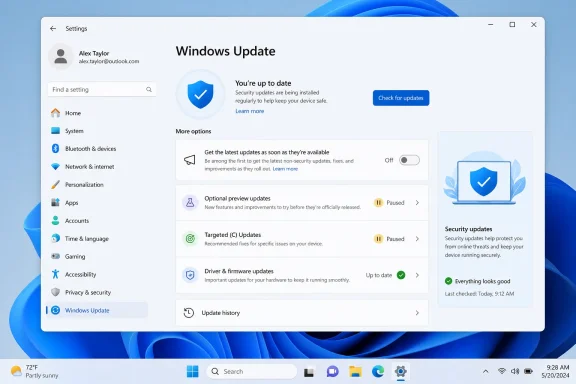
The option appears in Settings > Windows Update as Get the latest updates as soon as they’re available. Its wording sounds reassuringly simple: turn it on, and Windows delivers newer changes earlier.
That is true, but incomplete.
The setting does not merely accelerate major Windows 11 features such as Start menu revisions, File Explorer improvements, updated Settings pages, Copilot-related changes, or quality-of-life refinements. It can also make a device eligible to automatically receive optional update content earlier than it otherwise would.
In practical terms, enabling the switch tells Microsoft’s update service that the PC is willing to accept a more aggressive servicing cadence. The device may be prioritized for:
That makes the setting useful for enthusiasts. It also makes it a poor fit for users who prefer maximum predictability.
The important detail is not whether a particular PC was harmed by receiving that patch. A cumulative Windows update designed for a subset of hardware is not automatically dangerous simply because it appears on another machine. The more important point is that it may be unnecessary.
That is a meaningful difference.
Windows Update has traditionally tried to strike a balance between installing essential protections automatically and allowing users to decide whether to install optional fixes. When an out-of-band release addresses a very specific hardware issue, Microsoft may describe it as recommended only for affected devices. Yet users who have chosen the “get updates early” option may see the same package download and wait for a restart.
For a Windows 11 user who enabled the switch months ago to receive a new Start menu design sooner, that behavior can be surprising. The setting becomes an umbrella preference for early and optional servicing, not merely a feature-access button.
Several factors can influence whether Windows Update offers a package:
The result is an awkward user experience. Microsoft can reasonably say that unaffected devices do not need to take action, while Windows Update can still offer the package to users whose settings signal a willingness to receive it early.
That is not necessarily a software defect. But it is a communication problem.
This approach has clear advantages. It allows Microsoft to respond more quickly, make smaller adjustments, test features across diverse hardware, and stop or slow a rollout if problems emerge. It also means that two fully updated Windows 11 PCs can look slightly different for a period of time.
The “Get the latest updates as soon as they’re available” setting acts as an opt-in to the earlier side of that phased rollout.
A user who turns on the early-updates toggle may receive access sooner if the device is otherwise eligible. However, the setting is not a guarantee that every new feature will appear immediately.
Microsoft can still restrict availability based on:
Windows 11 regularly receives monthly security updates. These are the familiar cumulative updates that arrive on the second Tuesday of the month and are generally installed automatically on supported consumer devices. They include security protections and, at times, previously released non-security improvements.
Optional non-security preview updates are different. They are normally released later in the month, frequently as a preview of fixes expected to reach the broader population in the following month’s regular security release.
These previews can be valuable. They may solve a real problem involving:
When the early-updates toggle is enabled, the boundary between “available for manual installation” and “likely to install automatically” becomes less obvious. That is the trade-off Windows 11 users need to understand.
Turning off the early-updates setting does not stop monthly security updates.
That point cannot be overstated. Disabling the toggle is not equivalent to abandoning Windows Update. A Windows 11 PC will still receive the core security servicing Microsoft considers necessary for supported devices.
Without the early-updates preference enabled, Windows typically presents these updates as available content that requires a deliberate download-and-install action.
This gives users a useful decision point: Does this update fix a problem I actually have?
OOB updates may address:
Still, users who want a conservative servicing strategy should review all Windows Update settings, including optional updates and driver delivery behavior. The objective is not to block necessary fixes blindly; it is to reduce avoidable change.
A major Windows 11 change may be announced, included in an update, and then held back from many compatible systems while Microsoft collects telemetry and watches for compatibility issues. This can create frustration, especially when users compare screenshots, release notes, and feature lists.
The toggle gives enthusiasts a clear way to say, “Prioritize my device when it is eligible.”
That is a reasonable concept. It benefits users who value new functionality, want earlier bug fixes, or are comfortable accepting a small increase in update churn.
It is also less extreme than joining the Windows Insider Program. Users remain on a public Windows 11 release branch and continue receiving ordinary supported builds.
That assumption ignores the servicing content that can accompany those features. Windows updates are cumulative, complex, and deeply connected to drivers, applications, account services, hardware configurations, and enterprise management policies. A change that works perfectly for millions of devices can still create edge cases for a small but meaningful number of systems.
Potential downsides include:
After switching it off, Windows 11 will continue to receive normal security updates. The PC will simply stop signaling that it should be prioritized for optional updates, early feature rollouts, and related non-security servicing content.
If it is a normal security update, installing it promptly remains the best course. If it is a non-security optional update and there is no issue on the PC that it specifically addresses, it may be reasonable to avoid manually initiating installation and wait for the next regular cumulative security release.
However, Windows 11’s update behavior can vary according to classification and deployment status. Users should avoid forcing removals or interrupting installations unless there is a clear reason. An incomplete Windows servicing operation can create more trouble than an unwanted but compatible cumulative update.
A balanced approach looks like this:
A Windows enthusiast might want interface changes as soon as possible. A user experiencing a known Windows 11 bug may benefit from a newly offered preview fix. A technical professional may want to assess new features before they become widespread. A secondary PC can also serve as a low-risk environment for evaluating updates.
The key is intent.
Leave the setting enabled when early access is a conscious choice and the device is suitable for it. Do not leave it on merely because it was enabled once while searching for a particular feature.
Businesses depend on predictable update rings, tested applications, device management policies, and planned support processes. A Windows 11 PC that installs optional content early can complicate help-desk troubleshooting, introduce unexpected user-interface changes, or interfere with a carefully staged deployment plan.
On managed devices, an organization may hide, control, or enforce the setting through Group Policy, Microsoft Intune, Windows Autopatch, or other device-management tools. In those environments, the local Windows Update page may not tell the whole story.
IT administrators should distinguish among:
Microsoft has made progress by explaining that the setting affects non-security updates, fixes, improvements, and enhancements. But the Windows Update interface could still be clearer about the consequences.
A more transparent explanation would tell users, in plain language, that enabling the toggle may cause Windows to automatically install:
That would not diminish the value of the feature. It would let users make an informed choice.
But it is also more powerful than its friendly label suggests. By enabling it, users may receive optional or narrowly targeted updates automatically, even when those releases are not necessary for their individual hardware.
For the majority of PCs, the best Windows 11 update policy remains straightforward: keep automatic security updates enabled, install important fixes, and let optional releases prove themselves before bringing them into a daily-use system. Turning off Get the latest updates as soon as they’re available preserves that balance while ensuring the PC continues to receive the updates that matter most.
For most Windows 11 PCs, turning the toggle off is the sensible default. Required security updates will still arrive normally, while optional previews, controlled feature rollouts, non-security fixes, and certain out-of-band releases will no longer be prioritized automatically. That distinction matters for anyone who wants a stable Windows 11 experience without becoming an early deployment target for every newly released patch.
 The Windows Update Toggle That Does More Than It Appears To
The option appears in Settings > Windows Update as Get the latest updates as soon as they’re available. Its wording sounds reassuringly simple: turn it on, and Windows delivers newer changes earlier.That is true, but incomplete.
The setting does not merely accelerate major Windows 11 features such as Start menu revisions, File Explorer improvements, updated Settings pages, Copilot-related changes, or quality-of-life refinements. It can also make a device eligible to automatically receive optional update content earlier than it otherwise would.
In practical terms, enabling the switch tells Microsoft’s update service that the PC is willing to accept a more aggressive servicing cadence. The device may be prioritized for:
- Non-security cumulative preview updates
- Controlled feature rollouts
- Feature enablement changes
- Non-security bug fixes
- Quality improvements
- Selected out-of-band updates
- Other optional update content offered through Windows Update
That makes the setting useful for enthusiasts. It also makes it a poor fit for users who prefer maximum predictability.
Why the Recent Dell Update Reports Matter
The concern became more visible after reports that an out-of-band Windows update intended to address severe performance and overheating behavior on some Dell PCs was appearing on systems outside that affected group. The update was presented as a targeted response after a July 2026 security release reportedly caused problems for a limited number of Dell devices.The important detail is not whether a particular PC was harmed by receiving that patch. A cumulative Windows update designed for a subset of hardware is not automatically dangerous simply because it appears on another machine. The more important point is that it may be unnecessary.
That is a meaningful difference.
Windows Update has traditionally tried to strike a balance between installing essential protections automatically and allowing users to decide whether to install optional fixes. When an out-of-band release addresses a very specific hardware issue, Microsoft may describe it as recommended only for affected devices. Yet users who have chosen the “get updates early” option may see the same package download and wait for a restart.
For a Windows 11 user who enabled the switch months ago to receive a new Start menu design sooner, that behavior can be surprising. The setting becomes an umbrella preference for early and optional servicing, not merely a feature-access button.
Targeted Does Not Always Mean Exclusively Delivered
It is tempting to assume that Windows Update sends every update only to the exact machines that need it. In reality, update targeting can be broader than the wording in an advisory suggests.Several factors can influence whether Windows Update offers a package:
- The installed Windows 11 version
- The existing cumulative update level
- Hardware and driver compatibility data
- Safeguard holds and release blocks
- The update classification
- Microsoft’s deployment configuration
- Whether a device has opted into optional content
- Whether the update is cumulative and supersedes an earlier release
The result is an awkward user experience. Microsoft can reasonably say that unaffected devices do not need to take action, while Windows Update can still offer the package to users whose settings signal a willingness to receive it early.
That is not necessarily a software defect. But it is a communication problem.
What “Get Updates Early” Actually Changes
Windows 11 increasingly uses a servicing model often described as continuous innovation. Instead of reserving every visible change for one giant annual release, Microsoft can introduce new capabilities through regular cumulative updates and then activate them gradually.This approach has clear advantages. It allows Microsoft to respond more quickly, make smaller adjustments, test features across diverse hardware, and stop or slow a rollout if problems emerge. It also means that two fully updated Windows 11 PCs can look slightly different for a period of time.
The “Get the latest updates as soon as they’re available” setting acts as an opt-in to the earlier side of that phased rollout.
Controlled Feature Rollouts
Many Windows 11 features are delivered through controlled feature rollouts, sometimes abbreviated as CFRs. Code may already be present in a cumulative update, while the visible feature is enabled gradually through configuration changes and server-side rollout controls.A user who turns on the early-updates toggle may receive access sooner if the device is otherwise eligible. However, the setting is not a guarantee that every new feature will appear immediately.
Microsoft can still restrict availability based on:
- Hardware generation
- Region and language
- Device configuration
- Driver status
- Account type
- Known compatibility issues
- Staged deployment limits
- A/B testing and feature availability rules
Optional Non-Security Updates
The more consequential effect concerns optional updates.Windows 11 regularly receives monthly security updates. These are the familiar cumulative updates that arrive on the second Tuesday of the month and are generally installed automatically on supported consumer devices. They include security protections and, at times, previously released non-security improvements.
Optional non-security preview updates are different. They are normally released later in the month, frequently as a preview of fixes expected to reach the broader population in the following month’s regular security release.
These previews can be valuable. They may solve a real problem involving:
- File Explorer
- Windows Search
- Bluetooth devices
- Printers
- Remote Desktop
- Display behavior
- Audio
- Networking
- Gaming compatibility
- Power and battery behavior
- Specific enterprise scenarios
When the early-updates toggle is enabled, the boundary between “available for manual installation” and “likely to install automatically” becomes less obvious. That is the trade-off Windows 11 users need to understand.
The Difference Between Required and Optional Windows Updates
The simplest way to decide whether to leave the toggle on is to understand the categories of Windows updates.Required Security Updates
These are the updates most users should receive automatically. They address vulnerabilities and include cumulative Windows servicing changes necessary to keep a supported version of Windows 11 protected.Turning off the early-updates setting does not stop monthly security updates.
That point cannot be overstated. Disabling the toggle is not equivalent to abandoning Windows Update. A Windows 11 PC will still receive the core security servicing Microsoft considers necessary for supported devices.
Optional Preview Updates
Optional preview updates usually focus on non-security fixes and enhancements. They can be useful when a known issue affects a particular PC, but they are not mandatory for the majority of users.Without the early-updates preference enabled, Windows typically presents these updates as available content that requires a deliberate download-and-install action.
This gives users a useful decision point: Does this update fix a problem I actually have?
Out-of-Band Updates
An out-of-band, or OOB, update is released outside the normal monthly servicing schedule. Microsoft uses these releases when an issue cannot wait until the next planned update cycle.OOB updates may address:
- A high-impact quality regression
- A widespread compatibility issue
- A critical security problem
- A boot failure or installation issue
- Broken connectivity or authentication
- Hardware-specific faults
- Enterprise-impacting bugs
Driver and Firmware Updates
The early-updates switch should not be confused with Windows Update’s broader handling of drivers and firmware. Windows can offer driver packages and, on supported hardware, firmware updates through Windows Update independently of the feature rollout preference.Still, users who want a conservative servicing strategy should review all Windows Update settings, including optional updates and driver delivery behavior. The objective is not to block necessary fixes blindly; it is to reduce avoidable change.
Why Microsoft Built This System
The existence of the early-updates toggle reflects a genuine Windows 11 problem: users often see announcements for new features long before those features appear on their own PCs.A major Windows 11 change may be announced, included in an update, and then held back from many compatible systems while Microsoft collects telemetry and watches for compatibility issues. This can create frustration, especially when users compare screenshots, release notes, and feature lists.
The toggle gives enthusiasts a clear way to say, “Prioritize my device when it is eligible.”
That is a reasonable concept. It benefits users who value new functionality, want earlier bug fixes, or are comfortable accepting a small increase in update churn.
The Strengths of Early Access
For the right audience, enabling the setting has genuine advantages:- Faster access to new Windows 11 features
- Earlier availability of non-security bug fixes
- A better chance of receiving controlled rollouts promptly
- Less need to manually hunt for optional update packages
- Faster exposure to interface refinements and productivity improvements
- Useful access to fixes for users already affected by a known issue
It is also less extreme than joining the Windows Insider Program. Users remain on a public Windows 11 release branch and continue receiving ordinary supported builds.
The Risk of Treating It as a “Free Upgrade” Button
The problem begins when users view the toggle as a harmless way to get cosmetic features early.That assumption ignores the servicing content that can accompany those features. Windows updates are cumulative, complex, and deeply connected to drivers, applications, account services, hardware configurations, and enterprise management policies. A change that works perfectly for millions of devices can still create edge cases for a small but meaningful number of systems.
Potential downsides include:
- More frequent restarts
- Optional fixes that are irrelevant to the PC
- Earlier exposure to regressions
- Greater chance of encountering hardware-specific issues
- More change in business-critical environments
- Difficulty isolating the cause of a new problem
- Reduced ability to wait for broader validation from the Windows community
How to Turn Off “Get the Latest Updates as Soon as They’re Available”
Disabling the setting takes only a few seconds.- Open Settings.
- Select Windows Update from the left-hand navigation pane.
- Locate Get the latest updates as soon as they’re available.
- Move the toggle to Off.
After switching it off, Windows 11 will continue to receive normal security updates. The PC will simply stop signaling that it should be prioritized for optional updates, early feature rollouts, and related non-security servicing content.
What Turning It Off Does Not Do
Turning the setting off does not:- Remove updates that are already installed
- Cancel a download that has already completed in every case
- Guarantee that Windows will never offer an optional update again
- Block required security updates
- Stop critical updates from being delivered where Microsoft determines they are necessary
- Remove features already activated through previous updates
- Undo a Windows 11 version upgrade already installed
If an Update Is Already Downloaded
A downloaded update does not always need to be treated as an emergency. First, identify whether it is a security update, a feature update, a preview release, driver package, or out-of-band cumulative update.If it is a normal security update, installing it promptly remains the best course. If it is a non-security optional update and there is no issue on the PC that it specifically addresses, it may be reasonable to avoid manually initiating installation and wait for the next regular cumulative security release.
However, Windows 11’s update behavior can vary according to classification and deployment status. Users should avoid forcing removals or interrupting installations unless there is a clear reason. An incomplete Windows servicing operation can create more trouble than an unwanted but compatible cumulative update.
A Better Windows 11 Update Strategy for Most Home Users
The ideal Windows Update configuration is not the same for everyone. Still, most home users benefit from a middle path: install security updates reliably, avoid unnecessary previews, and make informed decisions about optional releases.A balanced approach looks like this:
- Keep Windows Update enabled.
- Leave Get the latest updates as soon as they’re available turned off.
- Install regular security updates promptly.
- Review optional updates only when they address a real problem.
- Avoid installing unfamiliar driver updates without checking whether the device manufacturer offers a newer recommended version.
- Create restore points or maintain current backups before significant Windows changes.
- Check Update history after an unexpected restart or behavior change.
- Wait for broader deployment of high-profile Windows 11 feature changes if system stability is more important than novelty.
When Leaving the Toggle On Makes Sense
There are valid reasons to keep the switch enabled.A Windows enthusiast might want interface changes as soon as possible. A user experiencing a known Windows 11 bug may benefit from a newly offered preview fix. A technical professional may want to assess new features before they become widespread. A secondary PC can also serve as a low-risk environment for evaluating updates.
The key is intent.
Leave the setting enabled when early access is a conscious choice and the device is suitable for it. Do not leave it on merely because it was enabled once while searching for a particular feature.
Managed PCs and Business Devices Need Different Rules
The early-updates toggle is especially inappropriate as a casual setting on many workplace devices.Businesses depend on predictable update rings, tested applications, device management policies, and planned support processes. A Windows 11 PC that installs optional content early can complicate help-desk troubleshooting, introduce unexpected user-interface changes, or interfere with a carefully staged deployment plan.
On managed devices, an organization may hide, control, or enforce the setting through Group Policy, Microsoft Intune, Windows Autopatch, or other device-management tools. In those environments, the local Windows Update page may not tell the whole story.
IT administrators should distinguish among:
- Monthly security update deployment
- Optional preview validation
- Controlled feature rollout participation
- Emergency out-of-band remediation
- Driver and firmware approval workflows
- Feature update scheduling
- Safeguard hold monitoring
The Larger Lesson: Windows Update Needs Clearer Consent
The Dell-focused out-of-band update reports reveal a broader issue with the language around Windows 11 servicing. “Get the latest updates” sounds like an uncomplicated preference for speed. In practice, it authorizes a more permissive update posture.Microsoft has made progress by explaining that the setting affects non-security updates, fixes, improvements, and enhancements. But the Windows Update interface could still be clearer about the consequences.
A more transparent explanation would tell users, in plain language, that enabling the toggle may cause Windows to automatically install:
- Optional cumulative previews
- Early feature rollout components
- Non-security fixes
- Select out-of-band packages where applicable
That would not diminish the value of the feature. It would let users make an informed choice.
Stability Should Be the Default, Not an Afterthought
Windows 11’s early-update toggle is not a trap, and it is not inherently unsafe. It is a useful control for users who actively want quicker access to Microsoft’s newest non-security changes.But it is also more powerful than its friendly label suggests. By enabling it, users may receive optional or narrowly targeted updates automatically, even when those releases are not necessary for their individual hardware.
For the majority of PCs, the best Windows 11 update policy remains straightforward: keep automatic security updates enabled, install important fixes, and let optional releases prove themselves before bringing them into a daily-use system. Turning off Get the latest updates as soon as they’re available preserves that balance while ensuring the PC continues to receive the updates that matter most.