

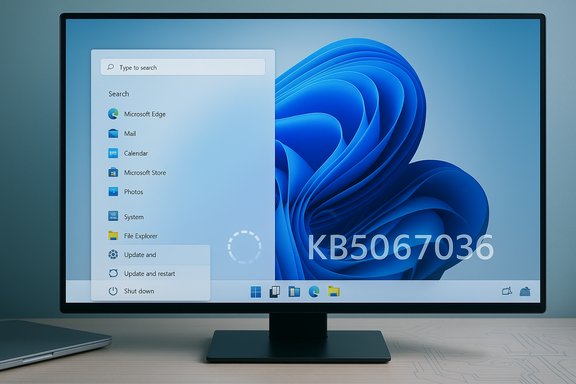
Microsoft has quietly confirmed what many Windows users have long suspected: the Start menu option labeled “Update and shut down” could, in some setups, install updates and then restart (or return to the lock screen) instead of powering the machine off — and Microsoft now says that behavior was a bug that it has addressed in its October 28, 2025 optional preview update (KB5067036).
For several years a steady trickle of complaints across forums, support tickets, and help-desk logs described the same confusing symptom: users would choose Update and shut down, walk away expecting a powered‑off PC, then return to a working, powered‑on machine — sometimes at the lock screen, sometimes fully logged in. The problem was intermittent and environment‑dependent, which made it difficult to reproduce and diagnose.
The distinction matters beyond annoyance. Laptops left “on” overnight can drain their batteries, scheduled maintenance windows that depend on deterministic shutdown behavior break, and automation or imaging workflows that assume a completed shutdown can fail. In short, a small UI mismatch became a measurable reliability and operational problem for both consumers and administrators.
The net effect of these events is ultimately positive: a real, user-visible problem was fixed, Microsoft documented the change, and the preview process surfaced a regression quickly enough for the company and community to react. The follow‑up work that matters now is fast, clear fixes to the Task Manager lifecycle regression and careful rollout management so the Update-and‑shutdown repair reaches everyone without collateral damage.
Microsoft’s terse acknowledgment — and the KB wording that follows it — resolves a long‑standing nagging inconsistency in day‑to‑day Windows use. The episode also underscores how modern OS maintenance is an exercise in orchestration and staged validation: fixing one part of the machine sometimes exposes brittle behavior in another. For users, the immediate practical advice is uncomplicated: don’t install preview updates on production machines; test them in the lab; and use the mainstream update cadence for stability.
The platform benefits when bugs like this are found and fixed. The challenge ahead is how quickly Microsoft can follow up on the Task Manager regression and complete a stable rollout that restores both the promised behavior and the trust users place in small interface actions.
Source: TechRadar https://www.techradar.com/computing...eeing-things-microsoft-confirms-it-was-a-bug/
 Background
For several years a steady trickle of complaints across forums, support tickets, and help-desk logs described the same confusing symptom: users would choose Update and shut down, walk away expecting a powered‑off PC, then return to a working, powered‑on machine — sometimes at the lock screen, sometimes fully logged in. The problem was intermittent and environment‑dependent, which made it difficult to reproduce and diagnose.The distinction matters beyond annoyance. Laptops left “on” overnight can drain their batteries, scheduled maintenance windows that depend on deterministic shutdown behavior break, and automation or imaging workflows that assume a completed shutdown can fail. In short, a small UI mismatch became a measurable reliability and operational problem for both consumers and administrators.
What Microsoft shipped (the facts)
The fix: KB5067036 (Preview)
Microsoft packaged a servicing change into an optional, non‑security cumulative preview update released on October 28, 2025, identified as KB5067036. The official Microsoft support entry for that preview lists the package as producing OS builds 26200.7019 (25H2) and 26100.7019 (24H2) and explicitly describes an improvement along these lines: “Addressed underlying issue which can cause ‘Update and shutdown’ to not actually shut down your PC after updating.” The KB entry also identifies the servicing stack update (SSU KB5067035) that accompanies the preview and provides the usual guidance on staged rollouts and gradual availability. That official page is the authoritative confirmation that the behavior was considered an underlying servicing/orchestration issue, not merely a cosmetic relabeling.Timeline and channels
- The correction first appeared in Windows Insider preview flights in late September 2025 and was subsequently packaged into the October 28 optional preview (KB5067036).
- Microsoft’s staged release process — Insider → optional preview → mainstream cumulative update (Patch Tuesday) — means general availability for all users was expected via the regular Patch Tuesday cadence following the preview cycle.
Why this bug was hard to fix: a short technical primer
On the surface, “Update and shut down” looks like a two‑step, deterministic action: install pending updates, then power off. In practice, modern Windows servicing and shutdown flows are multi‑stage orchestration problems that touch several subsystems:- Multi‑phase servicing — Many update components are staged while the OS runs, then require an offline commit during shutdown/boot. Some packages require intermediate reboots to complete certain commits.
- Fast Startup / hybrid shutdown semantics — Fast Startup writes kernel session state to disk to speed boot time, which changes the semantics of shutdown and can influence whether the system performs a full cold power‑off or preserves state that leads to a restart/resume path.
- Sign‑in finishing flows — Features like “Use my sign‑in info to finish setting up this device” can influence whether post‑update tasks run automatically or leave the system in an intermediate state.
- Driver and third‑party interactions — Drivers or third‑party agents holding file handles or requiring full restarts to replace in‑use files can nudge the servicing stack toward a reboot.
The Task Manager regression: the preview’s tradeoff
Ironically, the same optional preview update that corrected the Update-and‑shutdown mismatch also introduced a separate and visible regression in Task Manager. Multiple reputable outlets and community tests reported that, after installing KB5067036, clicking the window Close (X) on Task Manager could leave the process running in the background — and repeated closes would accumulate multiple hidden taskmgr.exe instances, slowly consuming CPU and RAM. Microsoft’s official KB page for KB5067036 lists this as a known issue: Task Manager might continue running in the background after the app is closed. The company notes the behavior is under investigation and describes symptoms and short‑term mitigations. That inclusion confirms both the Task Manager regression and Microsoft’s awareness of it. Why this matters: Task Manager is a core diagnostics tool used by power users, support staff, and administrators. A regression that leaks multiple instances of taskmgr.exe turns a relatively small flaw into a broader operational headache, particularly on machines used for diagnostics or those with limited memory. Community testing showed lingering instances can accumulate substantial memory usage if a user repeatedly opens and closes Task Manager without restarting.Cross‑checking the coverage (independent confirmation)
Multiple independent outlets corroborated the core facts:- Microsoft’s own support documentation documents the KB, the explicit wording about the Update-and‑shutdown fix, the OS builds, and the known Task Manager issue.
- Technical press and community sites (The Verge, Tom’s Guide, TechRadar, and others) reported both the corrected Update-and‑shutdown behavior and the Task Manager regression, adding first-hand test reports and practical guidance.
- Community posts and forum threads from power‑user communities reproduced the behaviors and discussed practical mitigations, matching the described Microsoft changelog and timelines.
What this means for end users and admins — practical guidance
The net lesson is a familiar one: preview updates fix real problems but can introduce regressions. Here’s a practical playbook tailored to different audiences.For everyday home users
- If you do not rely on preview features, wait for the mainstream cumulative update (Patch Tuesday) rather than installing the optional preview. The staged rollout is designed to reduce precisely this kind of trade‑off risk.
- If you’re experiencing the Update-and‑shutdown restart issue now, you can:
- Temporarily avoid using Update and shut down and prefer Update and restart where appropriate, or
- Disable Fast Startup (Control Panel → Power Options → Choose what the power buttons do → Change settings → Uncheck Turn on fast startup) to reduce hybrid shutdown interactions as a diagnostic step.
For power users and enthusiasts
- If you want the fix immediately, test KB5067036 on a non‑critical device first. Validate both shutdown semantics and Task Manager behavior before promoting the update to your primary workstation.
- If you encounter the Task Manager bug in the preview:
- Avoid using the window Close (X) to close Task Manager.
- Use Task Manager → End task on the process, or run: taskkill /im taskmgr.exe /f to terminate lingering instances.
- Restart the machine if resource usage becomes excessive.
For IT administrators and operations teams
- Pilot the preview in a ring of test devices that mirror your production hardware and configurations. Validate:
- Deterministic shutdown after Update-and‑shutdown (test with realistic update payloads).
- Task Manager lifecycle and other housekeeping tools.
- Automation and imaging workflows that assume a cold power‑off.
- If you require absolute stability, schedule the mainstream Patch Tuesday cumulative update into your normal deployment cadence instead of fast‑tracking preview updates. Microsoft’s gradual rollout model is designed to let them catch regressions like this before a broad enterprise push.
Deep analysis: strengths, risks, and what this reveals about Windows servicing
Strengths shown by Microsoft’s approach
- Telemetry-driven staged rollout — Microsoft’s pipeline (Insider → preview → Patch Tuesday) is working as intended: a real, user‑impacting bug was corrected in preview flights and then surfaced to a broader preview audience to validate across hardware variants. That’s how the Update-and‑shutdown fix made it out to real users while still under staged control.
- Transparent KB notes — The KB wording is concise but explicit: it recognises a servicing orchestration flaw rather than obfuscating the fix. Publishing the known Task Manager issue immediately in the KB support page is an honest, operationally useful move.
Real risks and weaknesses
- Regression risk inherent to complex systems — The very code paths that orchestrate update commits and power state decisions are intricate and interdependent. Small changes can ripple across unrelated subsystems, as the Task Manager regression demonstrates. This shows how easy it can be for correctness fixes in one area to cause lifecycle regressions elsewhere.
- Visibility and trust cost — For end users, the psychological cost of a longstanding UI promise behaving inconsistently is high. When a basic menu item like Update-and‑shutdown is unreliable, users adopt workarounds and lose faith in default workflows — and it takes significant engineering and communication effort to rebuild that trust.
- Preview uptake vs. stability tradeoffs — Enthusiasts and power users who install previews to test new features can become the early detection network for regressions — but their machines also become the testing ground for user-facing breakages. That’s acceptable when handled consciously, but not when users or admins accidentally upgrade production systems.
How to validate the fix on your machine (step‑by‑step checks)
- Check your build:
- Press Win+R, type winver, and verify your OS build number (compare to 26200.7019 / 26100.7019 for the preview).
- If you install the preview (optional updates → KB5067036), test this sequence:
- Ensure a pending update is staged (or schedule one).
- Choose Start → Power → Update and shut down.
- Wait for the update to complete, then confirm the machine is powered off (no fans, no power LED, no wake).
- Check Task Manager behavior:
- Open Task Manager, then close it using the window Close (X). Reopen and verify no hidden taskmgr.exe instances remain in the Details tab.
- If lingering instances appear, use taskkill /im taskmgr.exe /f to clear them and record traces (ProcMon, ETW) if you plan to file feedback.
Final assessment and reader takeaway
The October 28 preview (KB5067036) offers a meaningful — and long‑overdue — fix for a small UX bug that had outsized operational consequences for a subset of Windows users. Microsoft’s explicit description of the remediation as an orchestration fix is important: it acknowledges complexity rather than papering over symptoms. However, the Task Manager regression included in the same preview is a stark reminder that fixes can introduce new, tangible problems. That trade‑off is an intrinsic risk of broad, complex platforms where subsystems are tightly coupled. The prudent stance for most users and organizations remains unchanged: pilot changes in controlled rings, validate the specific behaviors that matter to you, and prefer the mainstream cumulative update pipeline for production systems.The net effect of these events is ultimately positive: a real, user-visible problem was fixed, Microsoft documented the change, and the preview process surfaced a regression quickly enough for the company and community to react. The follow‑up work that matters now is fast, clear fixes to the Task Manager lifecycle regression and careful rollout management so the Update-and‑shutdown repair reaches everyone without collateral damage.
Microsoft’s terse acknowledgment — and the KB wording that follows it — resolves a long‑standing nagging inconsistency in day‑to‑day Windows use. The episode also underscores how modern OS maintenance is an exercise in orchestration and staged validation: fixing one part of the machine sometimes exposes brittle behavior in another. For users, the immediate practical advice is uncomplicated: don’t install preview updates on production machines; test them in the lab; and use the mainstream update cadence for stability.
The platform benefits when bugs like this are found and fixed. The challenge ahead is how quickly Microsoft can follow up on the Task Manager regression and complete a stable rollout that restores both the promised behavior and the trust users place in small interface actions.
Source: TechRadar https://www.techradar.com/computing...eeing-things-microsoft-confirms-it-was-a-bug/
