Windows 11 Update and Shut Down Bug Fixed in KB5067036 (24H2 25H2)

  • Thread Author
Microsoft has quietly closed a small but irritating chapter in Windows update history: the Start menu’s “Update and shut down” option — which for years sometimes installed updates and then left machines powered on instead of powering them off — is now behaving as labeled in recent preview builds and the October 28, 2025 optional cumulative preview (KB5067036).

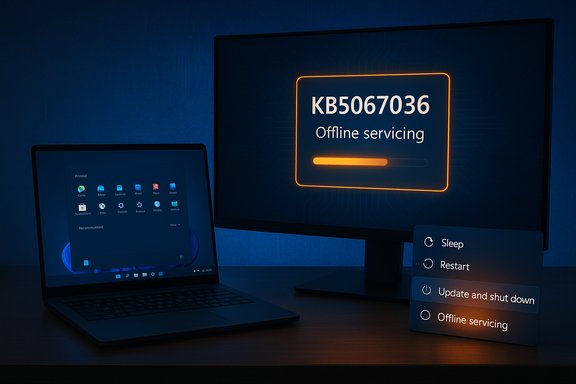
Desktop setup with a laptop and a monitor displaying KB5067036 Offline servicing and a power menu.Background / Overview​

For many users the two words Update and shut down were meant to be a simple time-saver: apply pending updates while you walk away, then return to a patched, powered‑off PC. That expectation broke intermittently on a non‑trivial subset of Windows machines: after the update sequence completed, the system sometimes returned to the lock screen or desktop — effectively performing a restart instead of a shutdown. The symptom was intermittent, environment‑dependent, and particularly painful for laptop owners (overnight battery drain) and administrators (broken maintenance windows). Microsoft documented the fix first in Windows Insider preview release notes (Dev/Beta channel) and then folded the same servicing change into the October 28, 2025 optional preview cumulative update, KB5067036, which produces OS builds 26200.7019 (25H2) and 26100.7019 (24H2). The official KB entry lists “Improved: Addressed underlying issue which can cause ‘Update and shutdown’ to not actually shut down your PC after updating.” That terse phrasing indicates a servicing/orchestration correction rather than a mere UI relabeling.

What changed in KB5067036 (quick facts)​

  • Update label: KB5067036 (optional, non‑security preview cumulative update).
  • Release date: October 28, 2025 (preview).
  • Target: Windows 11 versions 24H2 and 25H2 (OS builds 26100.7019 / 26200.7019).
  • Changelog text (engineering summary): “Addressed underlying issue which can cause ‘Update and shutdown’ to not actually shut down your PC after updating.”
These are the factual, verifiable touch points — Insider release notes and the Microsoft Support KB page — that confirm the repair and the mechanism used to stage it.

Why this bug looked trivial — and why it was surprisingly thorny​

At first glance the problem sounds like a simple label mismatch: a button says “shut down” but sometimes the PC reboots. Under the hood, however, modern Windows update mechanics are a multi‑phase orchestration with many conditional paths:
  • Multi‑phase servicing: updates are often staged while Windows runs and then committed during offline servicing at shutdown or boot. Some components require multiple commit phases and may force additional reboots.
  • Fast Startup (hybrid shutdown): Fast Startup does a hybrid shutdown that preserves some kernel state to speed boot. Hybrid semantics can alter the shutdown path and interact poorly with offline servicing.
  • Sign‑in/auto‑finish flows: features like “Use my sign‑in info to finish setting up my device” change whether certain configuration actions run immediately after a restart, affecting orchestration.
  • Driver/firmware handoffs: some drivers or processes require a full restart to replace in‑use files, nudging the servicing stack toward a restart path.
When these systems intersect, the orchestration logic that decides whether the update’s offline servicing ends with a shutdown or a restart must evaluate many moving parts. If that decision path loses the explicit shutdown intent (for instance because a step signals “restart required”), the final action can end up as a restart — even when the user chose Update and shut down. Those timing and state interactions made the bug intermittent and hard to reproduce across all device permutations.

What we do — and do not — know about the root cause​

Microsoft’s public change notes are intentionally concise: they state the behavioral fix but do not publish an exact root‑cause postmortem. The company confirmed the fix in Insider notes and the KB entry, but did not provide line‑by‑line engineering details in public documentation. Independent reporting, community analysis, and educated speculation converge on plausible technical culprits: race conditions in the servicing orchestration, interactions with the Servicing Stack, Fast Startup hybrid semantics, or timing‑sensitive handoffs between offline servicing and power‑state transitions. These are reasonable hypotheses given the symptom profile, but they remain theories unless Microsoft publishes a dedicated engineering breakdown. Treat them as probable explanations, not definitive root causes.

Timeline — how the fix reached users​

  • September 29, 2025: Windows Insider preview release notes (Dev/Beta) document a remediation line: “Fixed an underlying issue which could lead ‘Update and shutdown’ to not actually shut down your PC after.” That signaled that engineering had implemented an orchestration correction in preview builds.
  • October 28, 2025: Microsoft published optional non‑security preview cumulative update KB5067036 (OS builds 26100.7019 / 26200.7019), which bundled the same fix and made it available through the Optional updates area in Windows Update.
  • November 2025 (planned staged rollout): Microsoft typically folds validated preview fixes into the mainstream Patch Tuesday cumulative update after telemetry and validation; the October preview was staged toward the November Patch Tuesday distribution. Users on stable channels would receive the fix as part of the standard update cadence once rollout began.
This staged progression — Insider → optional preview → mainstream CU — is Microsoft’s standard path to reduce the chances of wide regressions while collecting telemetry across diverse hardware.

How to get the fix now (step‑by‑step)​

If you want the repair today and you are running a supported Windows 11 version, follow these steps. These are the same steps Microsoft publishes for optional preview packages; they are intended for testers and administrators who accept preview risk.
  • Confirm your device is on Windows 11 version 24H2 or 25H2.
  • Open Settings → Windows Update and install any pending feature updates to bring the device to the matching servicing baseline.
  • Go to Settings → Windows Update → Advanced options → Optional updates.
  • In Optional updates, find and install KB5067036 (October 28, 2025 preview). The package includes the servicing stack update (SSU) and the cumulative update (LCU).
  • Reboot when prompted. After the reboot, test: choose Update and shut down from the Start menu and confirm the PC powers off after the update sequence.
  • If you prefer to avoid preview risk, wait for the fix to be rolled into the regular November cumulative update (Patch Tuesday) and apply that instead.
Notes and cautions: optional preview updates can include unrelated feature changes and occasionally introduce new regressions. Always test on representative hardware before wide deployment. Microsoft’s KB page explains removal steps for the LCU if you need to roll back.

Notable strengths of Microsoft’s approach — what worked​

  • Staged validation path: the Insider → preview → mainstream sequence allowed Microsoft to collect telemetry and user feedback across many configurations before forcing the change on all devices. That reduces the blast radius for any unexpected regressions.
  • Targeted orchestration fix: wording in the changelog suggests engineers fixed the servicing orchestration control flow rather than merely relabeling the UI; that is the correct engineering choice for a behavioral mismatch. Fixing the control flow addresses the symptom at the system level rather than papering over it.
  • Clear engineering artifact: the KB and Insider notes provide concrete build numbers and dates, making it straightforward to verify whether a machine has the repair.

Potential risks and caveats — why you should still be cautious​

  • Preview regressions: several independent outlets and community reports flagged a Task Manager duplication/clone bug linked to the October preview (KB5067036) that can spawn multiple taskmgr.exe instances and consume resources. This demonstrates that optional previews, while useful for early fixes, can introduce new issues. Test before broad deployment.
  • Hardware and driver diversity: the original bug’s intermittent nature stemmed from hardware/driver interactions; those same permutations can reveal new edge cases when orchestration logic changes. Pilot the update on a device matrix representative of your fleet.
  • Windows 10 exclusion: Windows 10 reached end‑of‑life for the most part, and the KB’s fix targets Windows 11 (24H2/25H2). If you are on Windows 10 and see this symptom, options are limited other than choosing Update and restart or disabling Fast Startup as a workaround. Microsoft’s preview fix does not apply to EOS Windows 10 builds. Do not assume Windows 10 will receive this service-level repair.
Flag for administrators: if an optional preview contains both a desired fix and unrelated cosmetic or functional changes (Start menu tweaks, File Explorer improvements, Copilot integrations in KB5067036), deciding whether to install depends on risk appetite and test results. The KB page lists the bundle’s other features — be aware you’re taking everything in the preview, not just the single repair.

Practical mitigations for users still experiencing the symptom​

If you cannot or will not install the preview yet and you encounter the restart‑instead‑of‑shutdown problem, the community has documented reliable short‑term workarounds:
  • Choose Update and restart instead of Update and shut down (commonly yields the intended final state after manual action).
  • Disable Fast Startup (Control Panel → Power Options → Choose what the power buttons do → Change settings that are currently unavailable → uncheck Fast Startup). This can remove hybrid shutdown semantics that interact poorly with offline servicing. Note: disabling Fast Startup may lengthen boot time.
  • Use scheduled maintenance windows and scripting that explicitly power off after verifying update state, for critical automation where deterministic power state is essential.
These are practical workarounds, not solutions — installing the servicing fix remains the correct long‑term remedy once validated on your hardware.

For IT: rollout guidance and test checklist​

Before broad deployment, follow a simple pilot checklist to minimize operational risk:
  • Inventory: identify representative device models, firmware versions, and drivers.
  • Pilot group: select a small, diverse pilot cohort (laptops, desktops, managed workstations).
  • Baseline telemetry: record pre‑update behaviors (instances of update‑and‑shutdown misbehavior, battery reports, scheduled task failures).
  • Install KB5067036 on pilots and validate: test Update and shut down workflows, confirm devices power off, and monitor for regressions (e.g., Task Manager issues).
  • Rollout plan: stage deployment using phased rings (pilot → broader pilot → general availability) and include rollback instructions (how to uninstall LCU if necessary).
This cautious approach balances the benefit of the behavioral correction with the operational risk of preview regressions. Microsoft’s staged rollout model exists for precisely this reason.

Why it took so long — political and technical context​

A combination of engineering complexity, intermittent reproducibility, and platform risk-management explains why this UX problem persisted for years:
  • Intermittency is the real enemy. Bugs that only appear in certain driver/hardware combinations are harder to reproduce en masse and thus take longer to isolate and fix.
  • The servicing stack is a highly privileged, carefully tested subsystem; changes to orchestration logic require conservative validation to avoid new classes of update failures. Microsoft’s staged path reflects that caution.
  • The symptom intersects with performance features (Fast Startup), boot orchestration, and user‑facing sign‑in behaviors — a multi‑discipline fix that could not be trivially shipped as a small patch without risk.
From an operational perspective this is an example of how seemingly small user‑facing mismatches can expose deep coordination complexity across a century‑scale codebase and a vast hardware ecosystem.

Final verdict — what this means for users and admins​

The repair documented in Insider notes and KB5067036 restores a basic user expectation: when you choose Update and shut down, the system should respect that final intent and genuinely power off after update commit steps complete. For laptop owners and administrators who depend on deterministic power states, this is a welcome correction. That said, prudence matters: optional preview updates can and do introduce unrelated regressions (recent reports about Task Manager duplication illustrate that), so adopt a staged deployment plan, validate on representative hardware, and roll back if you see unacceptable side effects. The fix is real and concrete, but the surrounding environment remains complex.

Conclusion​

A decade‑long annoyance has been addressed via a servicing orchestration correction included in Windows Insider previews and packaged into the October 28, 2025 optional preview KB5067036 (OS builds 26100.7019 / 26200.7019). The official change log explicitly states the behavioral fix, and Microsoft’s staged release process gives administrators time to test before broad rollout. For users who rely on Update and shut down for predictable behavior, the fix restores trust — provided it is validated against your device mix and deployed carefully to avoid preview‑side regressions. The underlying lesson remains: small UX guarantees are important because users expect simple actions to be reliable, and resolving those guarantees in a complex ecosystem is neither trivial nor instantaneous.

Source: Pokde.Net Microsoft Finally Fixed The "Update And Shut Down" Bug That Doesn't Shut Down At Times - Pokde.Net
 

Microsoft has quietly closed a frustrating chapter in Windows reliability by shipping a servicing fix that, for many users, finally makes the “Update and shut down” command do exactly what it promises: install updates and power the PC off instead of unexpectedly restarting or returning to the sign‑in screen. The change first appeared in an optional October 28, 2025 preview cumulative update (KB5067036) for Windows 11 versions 25H2 and 24H2, and Microsoft has staged it for broader distribution in the mainstream monthly rollup cycle.

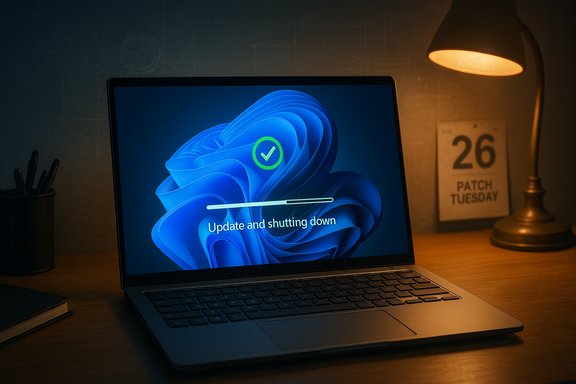
Laptop displays “Update and shutting down” on a blue abstract wallpaper, set on a desk beside a warm lamp.Background​

For years a subset of Windows users—particularly laptop owners and administrators running scheduled maintenance—reported a consistent mismatch between intention and outcome: selecting Update and shut down would complete update installation but the system would not power off. Instead, it would come back to the lock screen or desktop, effectively restarting the device and defeating the user’s intended power state. The symptom was intermittent and environment‑dependent, complicating reproduction and diagnosis across millions of hardware and driver combinations. Microsoft documented the correction in the preview cumulative update KB5067036, which produces OS build numbers 26200.7019 for 25H2 and 26100.7019 for 24H2. The KB changelog contains the succinct engineering note: “Improved: Addressed underlying issue which can cause ‘Update and shutdown’ to not actually shut down your PC after updating.” That single line is the authoritative confirmation that the company altered servicing logic rather than simply relabelling a menu item.

What went wrong: a short technical primer​

Modern Windows updates are not a simple “copy-and-reboot” operation. They involve multiple phases:
  • A live staging phase while the OS is running.
  • An offline servicing phase where locked files are replaced during shutdown or boot.
  • Coordination with power‑state features like Fast Startup (hybrid shutdown) and sign‑in resume options that can change how the kernel session is persisted.
When those phases interact poorly—because of timing, driver behavior, firmware quirks, or the servicing stack’s orchestration—the end of the offline phase can choose to resume the session rather than complete a full power‑off, which is what produced the observable behavior. Microsoft’s short changelog phrasing suggests an orchestration-level correction inside the servicing stack rather than a superficial UI fix. Independent analysis and community discussion have pointed at race conditions or servicing‑stack edge cases as plausible causes, but the exact low-level root cause remains unpublished by Microsoft. Treat deeper cause statements as plausible hypotheses rather than confirmed facts.

What Microsoft shipped: KB5067036 and the change log​

The October 28, 2025 preview cumulative update, KB5067036, bundles a servicing stack update (SSU) with the latest cumulative components and targets Windows 11 24H2 and 25H2, producing builds 26100.7019 and 26200.7019 respectively. The published release notes list multiple improvements and fixes; most pertinently:
  • Improved: Addressed underlying issue which can cause “Update and shutdown” to not actually shut down your PC after updating.
The KB is optional and non‑security in nature; it is distributed through Windows Update’s Optional updates pane for users who want early access. Microsoft describes the availability as a gradual rollout which means the change may be enabled server‑side and appear at different times for different devices even after the package is installed. Key facts you should verify on your machine:
  • The KB identifier: KB5067036 (October 28, 2025 preview).
  • Targeted OS builds: 26200.7019 (Windows 11 25H2) and 26100.7019 (Windows 11 24H2).

Scope: who gets the fix (and who doesn’t)​

  • Applies to: Windows 11 versions 24H2 and 25H2 (preview builds stated above). This is explicit on the Microsoft support page.
  • Does not apply to: Windows 10 under the normal servicing channels. Windows 10 reached end of standard support on October 14, 2025, and Microsoft’s KB for the October 28 package explicitly targets Windows 11 versions only. If you remain on Windows 10, you will not receive this correction through regular cumulative updates unless you are enrolled in an Extended Security Updates (ESU) offering or you upgrade to Windows 11.
Multiple independent outlets tracking the update confirmed the same boundaries: the October preview shipped for Windows 11 24H2/25H2 and the servicing path means the fix will be folded into mainstream monthly rollups. Users on Windows 10 have no equivalent fix in this KB and should plan migration or ESU enrollment if this behavior or other fixes are critical.

Rollout timing and distribution strategy​

Microsoft’s change entered Insider preview channels in late September and was packaged into the optional preview KB on October 28, 2025. The company’s standard cadence requires preview validation before broader rollouts, which is why the change was expected to be included in the mainstream monthly cumulative patch release on Patch Tuesday, November 11, 2025. Third‑party reporting that followed Microsoft’s preview agrees with that staged path. Important timing notes and caveats:
  • Optional preview = early access, but also greater exposure to regressions. If you prioritize immediate resolution, install KB5067036 from Optional updates. If you prioritize stability, wait for the mainstream cumulative update.
  • The KB’s fix may be delivered via gradual rollout, meaning even after installation the server-side enablement could be phased and not instantly active for every device.

Practical guidance for users and administrators​

How to confirm whether your PC has the fix:
  • Open Settings → System → About and look for the OS build, or run Win+R, type winver, and press Enter. Verify your build is 26100.7019 (24H2) or 26200.7019 (25H2) or later.
  • If the build is older and you want the fix immediately, go to Settings → Windows Update → Optional updates and install KB5067036. Back up important work before applying non‑security preview updates.
Best practices before installing optional previews:
  • Create a system restore point or a full image backup.
  • Pilot the update on a small set of representative devices before deploying to production.
  • Monitor for known regressions (see next section) and keep rollback plans ready.
For IT administrators:
  • Don’t rely solely on Update and shut down for deterministic maintenance workflows until you have validated the corrected behavior on your hardware and software stack. Use controlled restart‑based maintenance windows where determinism is required.
  • Stage updates through rings (test → pilot → broad) and confirm that critical applications and drivers behave as expected post update.

Regressions, caveats and the current risk profile​

No large update is risk‑free. Microsoft’s October 28 preview included a separate known issue: Task Manager may continue running in the background after the app is closed, causing multiple taskmgr.exe instances to linger. Microsoft documented that issue on the same KB and is investigating. That means users who install the preview may encounter unrelated regressions and should weigh risk vs. benefit. Another recent example that underscores update fragility: earlier October updates led to an emergency out‑of‑band patch that disabled USB keyboard and mouse in the Windows Recovery Environment on some devices, forcing Microsoft to rush a fix to restore WinRE input. Those incidents highlight the reality that changes to servicing or boot‑stage code carry outsized risk if any change interacts with recovery or low‑level driver paths. Administrators should treat updates that touch servicing and offline phases with extra caution. Finally, Microsoft has not provided a detailed post‑mortem explaining the exact root cause of the “Update and shut down” behavior. Community theories point to servicing stack orchestration and race conditions at the offline commit boundary, but absent an official engineering breakdown these remain unverified. That lack of transparency makes it harder for third‑party driver and OEM teams to validate fixes across the ecosystem. Flag this as an unverifiable area until Microsoft publishes deeper forensic details.

Why did this bug persist for so long?​

Several converging reasons explain the multi‑year persistence of the problem:
  • Intermittent reproducibility. The behavior only manifested under specific timing, driver, and firmware combinations, making telemetry noisy and bug triage slow.
  • Complex servicing orchestration. Windows update execution spans live and offline phases, involves multiple components (LCU, SSU, drivers, firmware) and must interact correctly with power management features like Fast Startup. Addressing a root orchestration issue requires careful change design and wide validation.
  • Risk of regressions. Fixing code that runs during boot and offline servicing creates a high bar for validation because failures can impact large classes of devices and even recovery paths. Microsoft’s staged rollout model aims to mitigate that risk but slows down widespread deployment.
In short, the combination of elusive repro conditions and the high stakes of boot/servicing code explains why a behavior that looks trivial on the surface took years to root out and remediate comprehensively.

The broader significance for users and Microsoft​

This fix is notable not because the symptom was catastrophic, but because it eroded user trust in the most basic power controls. When an OS label like Update and shut down is not reliable, the user experience degrades and real‑world consequences appear: laptops left in bags and overheating after updates, drained batteries that ruin mobility, and IT maintenance windows that fail to end when scheduled. Restoring alignment between label and behavior is therefore a meaningful win for reliability and user confidence. For Microsoft, the episode is a reminder that even mature platforms still carry latent orchestration bugs and that the company’s staged servicing model—Insider previews, optional preview cumulative updates, then mainstream Patch Tuesday distribution—remains necessary to protect broad populations from regressions while deploying fixes. It also highlights the importance of clearer technical post‑mortems so OEMs and driver developers can better prepare and validate at scale.

Quick checklist: what you should do right now​

  • Check your Windows build with Win+R → winver. Verify whether you are on 26100.7019 / 26200.7019 or later.
  • If your device is on Windows 11 24H2/25H2 and you want the fix immediately, install KB5067036 from Windows Update → Optional updates. Backup first.
  • If you prefer stability, wait for the mainstream cumulative update (scheduled for Patch Tuesday Nov 11, 2025) to receive the fix as part of normal rollout.
  • If you are on Windows 10, recognize that standard support ended on October 14, 2025; this KB targets Windows 11 and does not provide the same fix for Windows 10 via normal servicing channels. Consider ESU enrollment or upgrading to Windows 11 if this behavior matters to you.
  • For admins: pilot the update on test hardware, confirm Update and shut down now respects power‑off intent, and only then widen deployment. Maintain rollback procedures.

Final take: a small fix with outsized value​

On the surface, fixing “Update and shut down” sounds like housekeeping. In practice, it is a restoration of a basic contract between user intention and device behavior. The October 28 preview (KB5067036) and its planned mainstream distribution represent the responsible engineering path: validate in preview rings, monitor telemetry, then roll into broad distribution. The lack of a public root‑cause post‑mortem is disappointing for those who seek technical closure, but the practical outcome—Windows actually powering off when asked to after updates—is deliverable value for millions of users.
Still, the story also underlines an important truth about modern operating systems: small UI labels can hide complex, multi‑phase execution beneath them, and solving those problems requires patient engineering and conservative rollout discipline. Users and IT teams should adopt sensible update policies—pilot, verify, and then deploy—so that fixes deliver benefits without introducing new risks. In short: the bug has been fixed for Windows 11 24H2/25H2 via KB5067036; install cautiously if you need the fix today, or expect the change to arrive broadly via the mainstream November Patch Tuesday cycle. Flag any deep technical claims that go beyond Microsoft’s changelog as unverified until Microsoft publishes a formal post‑mortem.
Source: PCWorld Microsoft finally fixes years-old bug that kept Windows from shutting down
 

Back
Top