

Microsoft has quietly moved key virtualization controls out of the Control Panel and into the Settings app: the new Virtual Workspaces page in Windows 11 centralizes toggles for Hyper‑V, Windows Sandbox, the Virtual Machine Platform, Windows Hypervisor Platform, Containers and related components, making it far easier to discover and manage virtualization features without opening legacy dialogs.
Microsoft’s ongoing migration of legacy Control Panel functionality into the modern Settings app continues with Virtual Workspaces. Historically, enabling Hyper‑V, Windows Sandbox, or the Virtual Machine Platform required use of Control Panel → Turn Windows features on or off, or running DISM / PowerShell commands, which made these features less visible to casual users and added friction for IT documentation. The Virtual Workspaces page appears under Settings → System → Advanced and provides a single, discoverable control surface for most virtualization options. That change landed as part of Microsoft’s late‑2025 servicing packages (the KB5070311 preview and subsequent cumulative releases) and is being rolled out via Microsoft’s normal phased and device‑gated model — which means you may see the page only after installing the relevant preview or cumulative updates, and even then some UI surfaces can be staged by Microsoft depending on hardware and device entitlements.
Option A — a set of general virtualization features, where you can toggle:
However, this convenience comes with the same operational realities that always accompany hypervisor features: enabling a hypervisor changes host behavior and can lead to compatibility issues with other virtualizers and some gaming/anti‑cheat stacks. Treat the Virtual Workspaces page as a front‑end for existing kernel installs — use automated scripts for mass deployments, pilot updates before broad rollout, and always validate firmware and edition prerequisites before flipping switches.
Enabling Virtual Workspaces simplifies the path to modern virtualization scenarios on Windows, but the usual rules still apply: verify prerequisites, automate for scale, and test interactions with other virtualization layers before rolling changes into production.
Source: Windows Central https://www.windowscentral.com/micr...-how-to-use-virtual-workspaces-on-windows-11/
 Background / Overview
Microsoft’s ongoing migration of legacy Control Panel functionality into the modern Settings app continues with Virtual Workspaces. Historically, enabling Hyper‑V, Windows Sandbox, or the Virtual Machine Platform required use of Control Panel → Turn Windows features on or off, or running DISM / PowerShell commands, which made these features less visible to casual users and added friction for IT documentation. The Virtual Workspaces page appears under Settings → System → Advanced and provides a single, discoverable control surface for most virtualization options. That change landed as part of Microsoft’s late‑2025 servicing packages (the KB5070311 preview and subsequent cumulative releases) and is being rolled out via Microsoft’s normal phased and device‑gated model — which means you may see the page only after installing the relevant preview or cumulative updates, and even then some UI surfaces can be staged by Microsoft depending on hardware and device entitlements. What Virtual Workspaces is and what it does
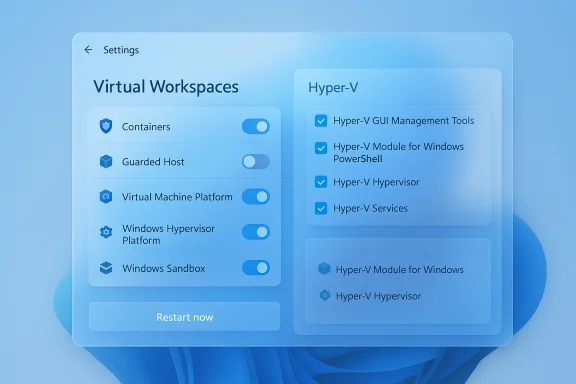
Virtual Workspaces is a Settings page that consolidates the toggles for kernel‑level and user‑facing virtualization features. Rather than hunting through legacy dialogs, admins and enthusiasts can now:- Enable or disable Hyper‑V components (hypervisor, management tools, PowerShell module, services).
- Turn on Windows Sandbox (lightweight ephemeral VM for testing).
- Toggle Virtual Machine Platform (used by WSL2, certain containers and virtual machine hosting).
- Enable Windows Hypervisor Platform (an API layer third‑party hypervisors can use).
- Manage Containers and Guarded Host for Shielded VMs and some Windows container scenarios.
Why this matters (for end users and IT)
Centralizing virtualization controls matters for several practical reasons:- Faster setup for dev/test scenarios. Developers who need WSL2, Docker, Android emulators, or VMs can find the right toggles in one place, reducing setup time and support tickets.
- Easier enablement of Windows Sandbox. Casual users can now enable a disposable testing environment without diving into old Control Panel paths.
- Simplified documentation and imaging. IT departments can reference a single Settings path in onboarding and internal support docs.
- More discoverable for security features that rely on hypervisor tech. Virtualization‑based security (VBS) features and Memory Integrity are still separate settings, but their underlying hypervisor dependencies are easier to visualize when other virtualization features are grouped together. Note: these security features may cause Hyper‑V components to be active even if Hyper‑V is not explicitly enabled.
What you can manage from Virtual Workspaces (detailed)
Hyper‑V (granular)
The Virtual Workspaces page exposes the familiar Hyper‑V subcomponents so you can choose just what you need:- Hyper‑V Hypervisor — the kernel hypervisor that runs virtual machines.
- Hyper‑V Services — management services used by Hyper‑V.
- Hyper‑V GUI Management Tools — Hyper‑V Manager and Virtual Machine Connection snap‑ins.
- Hyper‑V Module for Windows PowerShell — PowerShell cmdlets for automated management.
Windows Sandbox
A lightweight, disposable VM that runs a fresh Windows instance when launched. It’s intended for quick tests of untrusted files and software. Sandbox requires hardware virtualization and is available on Pro, Enterprise and Education editions (not Home). Microsoft Docs list the RAM, CPU and storage minimums and provide guidance on using .wsb configuration files or the Store‑updated app versions.Virtual Machine Platform
This is the generic platform component that WSL2 and other VM‑backed features rely on. It’s also used by some container and emulator stacks. If you want WSL2 or the modern Docker Desktop integration, this toggle is relevant.Windows Hypervisor Platform
An API layer that lets third‑party hypervisors leverage the Microsoft hypervisor. This is what some emulators and virtualization products use when they support Hyper‑V coexistence.Containers and Guarded Host
These are targeted at enterprise and server‑oriented scenarios — Windows Server Containers, Windows Server Guarded Host and Shielded VMs. Guarded Host functionality requires attestation and associated server‑side provisioning in many deployments. These are advanced capabilities; for most client‑side use cases you won’t touch them.How to enable virtualization features with Virtual Workspaces (step‑by‑step)
These steps use the new Settings UI. If you prefer legacy methods, a PowerShell/DISM alternative is shown below.- Open Settings (Win + I).
- Select System, then click Advanced on the right-hand pane.
- Click Virtual Workspaces.
Option A — a set of general virtualization features, where you can toggle:
- Containers
- Guarded Host
- Virtual Machine Platform
- Windows Hypervisor Platform
- Windows Sandbox
- Hyper‑V GUI Management Tools
- Hyper‑V Module for Windows PowerShell
- Hyper‑V Hypervisor
- Hyper‑V Services
- Turn on the components you need (check the boxes).
- Click Restart now when prompted to allow Windows to apply component changes.
PowerShell and DISM equivalents (quick reference)
For automation or imaging tasks you may prefer command line:- Enable Hyper‑V (PowerShell as Administrator):
- Enable-WindowsOptionalFeature -Online -FeatureName Microsoft-Hyper-V -All
- Respond Y to restart.
- Enable Hyper‑V (DISM as Administrator):
- DISM /Online /Enable-Feature /All /FeatureName:Microsoft‑Hyper‑V
- Disable Hyper‑V (PowerShell):
- Disable-WindowsOptionalFeature -Online -FeatureName Microsoft‑Hyper‑V‑Hypervisor -All
- You can also enable VirtualMachinePlatform, WindowsHypervisorPlatform, and WindowsSandbox via the same DISM/PowerShell patterns by using their feature names.
Pre‑checks and prerequisites you must verify first
Before enabling virtualization features, confirm the following:- Edition: Hyper‑V and Windows Sandbox are officially supported on Windows 11 Pro, Education and Enterprise. Home does not include Hyper‑V by default and Sandbox is not supported on Home. (Workarounds exist but are unsupported.
- Firmware virtualization: Ensure Intel VT‑x / AMD‑V (and SLAT for Hyper‑V) are enabled in UEFI/BIOS. Without hardware virtualization the features will not install or function.
- RAM and disk: Windows Sandbox officially recommends at least 4 GB RAM (8 GB recommended) and available disk space; Hyper‑V and VM hosting will be more demanding depending on guest workloads.
- Restart: Feature changes require a reboot. Schedule downtime if you’re working on a production system.
- Device gating and updates: Some UI elements are staged by Microsoft. If Virtual Workspaces doesn’t appear after updating, check your update channel and build number; features launched via KB5070311 are being staged in preview and cumulative packages.
Interactions and real‑world caveats (what can go wrong)
The virtualization stack is powerful but not isolated — enabling certain components changes the host environment and can affect other software in surprising ways. Key caveats:- Third‑party hypervisors and virtualization tools: Enabling the Microsoft hypervisor (Hyper‑V / Windows Hypervisor Platform) can prevent VMware Workstation and older VirtualBox versions from running because those hypervisors require direct access to CPU virtualization features. Many modern versions of VMware and VirtualBox have mitigations, but you should expect to disable Hyper‑V if you need exclusive access for another hypervisor.
- Gaming and anti‑cheat: On some systems, enabling Hyper‑V can impact gaming performance and compatibility with anti‑cheat systems. Competitive gamers sometimes disable Hyper‑V or Memory Integrity for consistent low‑latency performance. If gaming is a priority, test with Hyper‑V on and off.
- VBS / Memory Integrity: Virtualization‑based security features can keep parts of the hypervisor active even if you haven’t enabled Hyper‑V explicitly. That can cause the same compatibility problems described above, so check Core isolation settings when troubleshooting third‑party virtualization tools.
- WSL2 and Docker interactions: WSL2 uses a lightweight utility VM that relies on the Virtual Machine Platform and related components. Docker Desktop now supports both Hyper‑V and WSL2 backends; enabling the wrong combination without understanding which one you’ll use can complicate setup. Read Docker Desktop guidance before toggling features on production developer machines.
- Enterprise guardrails: Guarded Host and Shielded VM features require attestation and enterprise provisioning; don’t assume a single Settings toggle will make Shielded VMs function without the larger infrastructure in place.
Troubleshooting checklist
If a toggle fails, or a piece of software stops working, work through this checklist:- Confirm virtualization in UEFI/BIOS is enabled and saved.
- Check your Windows edition (Pro/Education/Enterprise for Hyper‑V and Sandbox).
- Reboot after any feature toggles — required for kernel components.
- If VMware/VirtualBox refuse to run, either disable Hyper‑V and associated features via Settings or use commands (bcdedit /set hypervisorlaunchtype Off) to prevent the hypervisor from launching at boot. (Use careful change control for systems used in labs.
- For Docker/Desktop or WSL‑related problems, check which backend (WSL2 or Hyper‑V) Docker is configured to use and align Windows features accordingly.
Security, enterprise and lifecycle considerations
- Controlled rollout and device entitlements: Microsoft stages some UI features and hardware‑dependent experiences. Enterprises should pilot KB5070311 and related cumulatives in test rings before broad deployment to validate driver and app behavior. The preview documentation explicitly recommends treating certain updates as pilot candidates for fleets.
- Patch management: The Virtual Workspaces UI is part of the servicing stream for Windows; it will be included in preview packages (optional, staged) before being folded into cumulative updates. Coordinate with patching windows if you rely on hypervisor behavior for production workloads.
- Policy and automation: For imaging and automated builds, PowerShell and DISM commands remain the supported way to ensure repeatable configuration. If you want Virtual Workspaces toggled across many devices, script the feature installs rather than relying on manual Settings clicks.
Quick reference: When to use which feature
- Use Windows Sandbox for quick, disposable testing of unknown binaries or one‑off app trials.
- Enable Virtual Machine Platform when you need WSL2 or VM platforms used by modern container tooling.
- Enable Windows Hypervisor Platform if you need third‑party hypervisors or emulators that can sit on top of the Microsoft hypervisor API.
- Turn on Hyper‑V (hypervisor + management tools) when you need full VM hosting, nested virtualization, or Hyper‑V Manager. Use only on supported editions.
Final verdict — practical guidance
Virtual Workspaces is a pragmatic UX win: it reduces friction when enabling virtualization features, helps less technical users find important capabilities like Windows Sandbox, and gives admins a clearer narrative to include in documentation. For developers and IT pros it’s a convenience — the underlying features and prerequisites remain the same, but the Settings surface reduces the support burden for onboarding machines.However, this convenience comes with the same operational realities that always accompany hypervisor features: enabling a hypervisor changes host behavior and can lead to compatibility issues with other virtualizers and some gaming/anti‑cheat stacks. Treat the Virtual Workspaces page as a front‑end for existing kernel installs — use automated scripts for mass deployments, pilot updates before broad rollout, and always validate firmware and edition prerequisites before flipping switches.
Additional reading and resources (what to check next)
- Check the Microsoft support announcement for KB5070311 for the official guidance on the Virtual Workspaces UI and rollout details.
- Consult Microsoft Learn documentation for Windows Sandbox and Hyper‑V to confirm edition and hardware requirements before enabling features.
- If you rely on Docker Desktop, verify whether you plan to use the WSL2 backend or the Hyper‑V backend and enable the matching Windows features accordingly.
Enabling Virtual Workspaces simplifies the path to modern virtualization scenarios on Windows, but the usual rules still apply: verify prerequisites, automate for scale, and test interactions with other virtualization layers before rolling changes into production.
Source: Windows Central https://www.windowscentral.com/micr...-how-to-use-virtual-workspaces-on-windows-11/
