

Windows 11 users should treat persistent idle resource spikes, overheating, post-update slowdowns, Defender alerts, repeated blue screens, Device Manager warnings, sudden storage losses, and random shutdowns as early signs of malware, driver faults, failing hardware, bad updates, or data-loss risks. The useful point is not that every odd fan burst or crash is an emergency. It is that Windows now exposes enough telemetry, health warnings, and recovery breadcrumbs that ignoring recurring symptoms is a choice. The PC usually starts whispering before it starts screaming.
The modern Windows desktop is a crowded place. It is an operating system, an app platform, a security layer, a driver ecosystem, a firmware broker, and, increasingly, a cloud-connected notification surface. That means users have learned to tune out a lot of its complaints.
That instinct is understandable, but it is also dangerous. A yellow icon here, a fan ramp there, a crash that “fixed itself” after reboot — these are easy to dismiss because Windows is famously capable of recovering from its own messes. The machine boots again, the spreadsheet opens, the browser restores its tabs, and the warning disappears into the backlog of daily annoyance.
The problem is that many serious Windows failures do not begin as dramatic failures. A dying SSD first looks like file copies taking too long. A bad graphics driver first looks like one game or browser tab crashing. Malware first looks like idle CPU usage that seems merely inconvenient. Bad RAM first looks like an occasional blue screen whose stop code nobody wrote down.
The TweakTown checklist is useful because it frames Windows 11 troubleshooting around symptoms instead of superstition. The more important argument is that these symptoms should be read as a pattern of evidence. Windows is imperfect, but it is rarely silent when something underneath it is deteriorating.
A sustained spike is different. If a system is sitting at the desktop with no demanding apps open and Task Manager shows high CPU, disk, memory, GPU, or network activity for minutes at a time, the user should not wave it away as “just Windows.” It may be Windows, but it may also be a memory leak, a broken updater, an indexing loop, a driver gone sideways, or something more hostile.
Crypto miners and commodity malware love the ambiguity of the modern PC. They do not need to announce themselves with ransom notes to be damaging. They only need to borrow enough compute cycles, network activity, or persistence tricks to make the machine feel slightly worse every day.
Task Manager remains the first stop because it is blunt but honest. Sorting by CPU, memory, disk, or network exposes the process making the biggest claim on the machine. Opening the file location is a simple but underrated test: a Microsoft-signed process living where it should live is one kind of problem, while a randomly named executable in a user temp folder is another.
The mistake is to kill the suspicious-looking process and declare victory. If it comes back after reboot, if it lives in a strange folder, or if Defender has related entries in Protection History, the real task is eradication and persistence hunting. Windows 11 can show the smoke; the user still has to look for the fire.
A system that runs hot while browsing, idling, editing documents, or sitting at the desktop is giving a different warning. Fans that run loudly but fail to bring temperatures down suggest blocked vents, dust accumulation, dried thermal compound, poor airflow, firmware fan-curve weirdness, or a background load that should not exist. In laptops, the problem can be as simple as using the machine on bedding or as irritating as an OEM thermal profile that prioritizes silence until throttling begins.
Thermal throttling is not merely an enthusiast benchmark complaint. It is Windows becoming less responsive because the processor, GPU, or storage controller is protecting itself from damage. Once that happens, the user experiences “Windows is slow,” but the operating system is not necessarily the root cause.
The right response is both physical and logical. Check vents, clear dust, improve airflow, update firmware where appropriate, and inspect background processes. A hot machine with idle CPU at 80 percent is not the same case as a hot machine with normal CPU and a clogged heatsink.
For IT departments, thermal symptoms deserve more respect than they usually get. Fleets of compact desktops and laptops spend years in dusty offices, conference rooms, kiosks, and classrooms. By the time users complain, heat may already have shortened battery life, reduced SSD performance, or turned routine updates into instability events.
But “the update broke my PC” is still a starting hypothesis, not a diagnosis. A newly installed update can expose an existing driver flaw, collide with OEM firmware, fail because a recovery or EFI partition is too small, or trigger a security mitigation that changes performance characteristics. The timing matters, but timing alone does not prove causation.
Windows 11 gives users a practical trail to follow. Update History shows the KB number, installation date, and category. Microsoft’s release health dashboard and support pages are where known issues generally surface, while enthusiast forums and admin communities often reveal emerging patterns before the official language catches up.
Uninstalling a recent update can be a reasonable temporary move when the issue is widespread and the update is known to be problematic. It should not become a reflexive habit. Security updates are not decorative; rolling one back may trade visible instability for invisible exposure.
The more disciplined approach is to preserve evidence. Note the KB number, the date installed, the symptom, any Event Viewer errors, and whether Safe Mode or a clean boot changes behavior. That is the difference between troubleshooting and ritual.
A single detection after downloading a questionable file may be contained. Multiple detections from the same folder, repeated blocks from the same app, or recurring quarantines after reboot suggest a source that remains active. At that point, Defender is not merely reporting a historical event; it is describing an ongoing conflict.
Protection History is the underused record here. It can show whether Windows blocked a threat, quarantined a file, stopped controlled folder access, or flagged a potentially unwanted app. It also helps separate an overzealous warning from a pattern that points to a compromised installer, browser extension, script, scheduled task, or persistence mechanism.
The consumer security market has trained people to think in terms of full scans and magic cleanup buttons. Full scans are useful, but they are not a substitute for asking where the threat came from and why it returned. If the same source keeps appearing, the source matters more than the individual file.
For administrators, Defender noise is a signal-quality problem. Too many low-value alerts teach users to ignore high-value ones. But a Windows 11 endpoint repeatedly generating detections is a machine asking to be isolated, investigated, or rebuilt before it becomes someone else’s incident report.
One blue screen across months of use may never be explained. A power blip, a transient driver failure, a one-off firmware misbehavior, or a marginal peripheral can produce a single crash and vanish. Repeated blue screens are another matter entirely.
The stop code matters. MEMORY_MANAGEMENT points the investigation in a different direction than CRITICAL_PROCESS_DIED, DRIVER_IRQL_NOT_LESS_OR_EQUAL, WHEA_UNCORRECTABLE_ERROR, or VIDEO_TDR_FAILURE. The code is not a full diagnosis, but it is a clue users too often fail to capture before rebooting.
Windows 11’s reliability tooling also deserves more attention than it gets. Reliability Monitor can show a timeline of crashes, failed updates, application faults, and hardware errors in a way Event Viewer often buries under noise. Event Viewer is still useful, especially for Kernel-Power events and bug check details, but it is less friendly to users who do not live in logs.
The practical rule is simple: write down the stop code, look for recurrence, and correlate it with change. Did the crashes begin after a driver update, BIOS update, new RAM kit, storage replacement, GPU swap, antivirus install, or Windows cumulative update? Blue screens are rarely solved by vibes.
The common home-user response is to ignore it if the device appears to work. That can be harmless for an unused Bluetooth adapter or a disconnected peripheral. It is less harmless when the warning sits next to storage controllers, display adapters, network interfaces, biometric devices, audio hardware, chipset components, or system devices.
Driver problems have become more complicated in Windows 11 because the driver supply chain is split among Microsoft, OEMs, silicon vendors, and peripheral makers. Windows Update may provide one driver, the OEM support app another, Intel or AMD a third, and the device manufacturer a fourth. The newest driver is not always the best one for a particular laptop or motherboard.
The yellow triangle is therefore not an instruction to click “Update driver” until morale improves. It is a prompt to identify the device, inspect the error code, and decide whether the driver should come from Windows Update, the PC maker, or the component vendor. In enterprise environments, it may also indicate that a driver has been blocked, replaced, or broken by policy.
Hardware failure is the uncomfortable possibility. A Wi-Fi card that disappears after sleep, a USB controller that intermittently fails, or a storage device that reappears after reboot may be telling the truth through Device Manager before the user sees a catastrophic failure. The icon is small because the UI is old, not because the risk is.
The temptation is to troubleshoot first. Users want to run cleanup tools, uninstall apps, reset indexes, move games, or blame Windows Update. Some of those steps may be appropriate eventually. But if there is even a credible chance the drive is failing, every minute spent experimenting before backup is a gamble with the only copy of the data.
Windows 11’s storage stack includes health reporting for some drives, Storage Sense for cleanup, Storage Spaces for pooling, BitLocker interactions, recovery partitions, and vendor-specific SSD firmware behaviors. That complexity makes storage symptoms easy to misattribute. A sudden drop in free space may be Windows.old after a feature update, but slow transfers plus corruption plus disappearing folders is a different class of warning.
SMART tools such as CrystalDiskInfo can provide useful hints, especially for reallocated sectors, pending sectors, temperature, wear level, and NVMe health percentages. They are not oracles. Drives can fail with clean SMART data, and some alarming counters are vendor-specific. The point is not to worship the dashboard; it is to use it as one more piece of evidence.
For IT pros, storage warnings are where policy matters most. Known Folder Move, OneDrive backup, enterprise backup agents, folder redirection, and endpoint management are boring until a laptop SSD starts dying in an airport lounge. Then boring becomes beautiful.
Kernel-Power events are a classic example. They often mean Windows detected that the previous shutdown was unexpected, not that Windows knows why power was lost. Treating every Kernel-Power entry as the cause is like blaming a smoke alarm for the fire.
The context is everything. Restarts under gaming or rendering load suggest PSU, GPU, thermal, or transient power issues. Restarts during sleep or wake suggest firmware, drivers, Modern Standby, USB devices, or power management. Restarts after updates may point to servicing, but they can also reveal systems that were already marginal.
RAM instability is another repeat offender. Consumer overclocking profiles, mismatched memory kits, aging modules, and motherboard firmware changes can all produce intermittent failure patterns. The machine may browse the web for hours and then collapse during decompression, virtualization, gaming, or a Windows update because those workloads stress memory differently.
Random shutdowns are the point where casual troubleshooting should become methodical. Check temperatures, disable unstable overclocks, test memory, inspect power supply capacity, update firmware cautiously, and examine whether the pattern follows load, time, sleep state, or a specific device. The machine is not being mysterious; it is failing under conditions you have not isolated yet.
The better lesson is recurrence and correlation. A single symptom is a data point. A repeated symptom is a pattern. A repeated symptom tied to a change — new update, new driver, new peripheral, new app, new BIOS, new workload — is the beginning of a diagnosis.
Windows 11 has enough built-in tools to support that discipline. Task Manager shows current load. Resource Monitor and Performance Monitor can go deeper. Reliability Monitor gives a human-readable failure timeline. Event Viewer records the ugly details. Windows Security shows detections and blocks. Device Manager exposes driver and hardware state. Update History anchors symptoms to patch chronology.
The ecosystem around Windows makes this more important, not less. A Windows 11 PC is rarely a pure Microsoft machine. It is Microsoft code running on OEM firmware, third-party drivers, vendor utilities, browser extensions, peripheral stacks, game anti-cheat systems, VPN clients, backup agents, and security tools. The failure may wear a Windows face while originating elsewhere.
That is why “search online” is both useful and risky advice. It can reveal a known bad update or driver within minutes, but it can also send users into superstition forums, registry hacks, and dubious cleanup utilities. The more concrete the search term — KB number, stop code, device error code, exact process name — the better the odds of finding signal.
Enterprise Windows management has spent years moving from reactive helpdesk tickets to proactive endpoint analytics. That transition is uneven, but the principle is sound: recurring local symptoms should be aggregated before they become outages. Ten users with fan noise after a BIOS update are not ten separate anecdotes. They are an incident.
The challenge is that Windows failures cross organizational boundaries. Security teams care about Defender detections and suspicious resource use. Desktop teams care about drivers, updates, and Device Manager health. Infrastructure teams care about VPNs, storage, and identity agents. Procurement cares only after a hardware model becomes visibly cursed.
Good endpoint operations require translating user complaints into technical patterns. “My computer is slow” becomes idle CPU, disk queue length, memory pressure, thermal throttling, or update failure. “It keeps restarting” becomes power events, bug checks, firmware versions, and workload correlation. “The internet drops” becomes driver version, access point behavior, VPN state, and device power management.
Windows 11 is not necessarily more fragile than earlier versions, but it is more layered. Virtualization-based security, modern driver requirements, firmware dependencies, cloud identity, and rapid cumulative servicing all add moving parts. The benefit is a more secure and manageable platform. The cost is that weak signals matter.
There are moments when the correct move is to stop changing the system. If files are disappearing, back up first. If Defender is repeatedly finding threats, disconnect from sensitive accounts and networks before experimenting. If a machine is blue-screening under load after a hardware change, preserve the stop codes before reinstalling Windows. If an update appears responsible, document the KB before removing it.
Reinstalling Windows remains the folk remedy of last resort, and occasionally it is the cleanest answer. But a reinstall will not fix a failing SSD, an overheating laptop, unstable RAM, a bad power supply, or a firmware defect. It may only reset the clock until the same underlying fault returns.
The same caution applies to driver updater utilities and cleanup tools. Windows’ driver ecosystem is messy, but random third-party tools that promise to “fix all drivers” often add risk. The boring path — OEM support pages, Windows Update optional drivers, component-vendor packages, and documented rollback — is slower but safer.
A PC is not a sealed appliance, even when Windows 11 tries to make it feel like one. It is a stack of hardware, firmware, drivers, services, apps, and policies. Warning signs are valuable because they tell you which layer deserves attention.
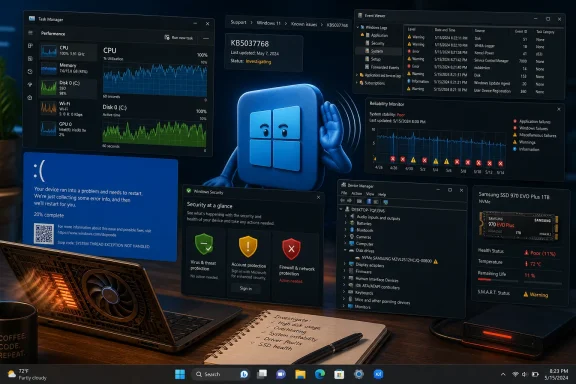 Windows 11 Is Noisy, but Some Noises Matter
The modern Windows desktop is a crowded place. It is an operating system, an app platform, a security layer, a driver ecosystem, a firmware broker, and, increasingly, a cloud-connected notification surface. That means users have learned to tune out a lot of its complaints.That instinct is understandable, but it is also dangerous. A yellow icon here, a fan ramp there, a crash that “fixed itself” after reboot — these are easy to dismiss because Windows is famously capable of recovering from its own messes. The machine boots again, the spreadsheet opens, the browser restores its tabs, and the warning disappears into the backlog of daily annoyance.
The problem is that many serious Windows failures do not begin as dramatic failures. A dying SSD first looks like file copies taking too long. A bad graphics driver first looks like one game or browser tab crashing. Malware first looks like idle CPU usage that seems merely inconvenient. Bad RAM first looks like an occasional blue screen whose stop code nobody wrote down.
The TweakTown checklist is useful because it frames Windows 11 troubleshooting around symptoms instead of superstition. The more important argument is that these symptoms should be read as a pattern of evidence. Windows is imperfect, but it is rarely silent when something underneath it is deteriorating.
Idle Resource Spikes Are the Canary in the Silicon Mine
A Windows 11 PC doing nothing is never truly doing nothing. Search indexing, Defender scans, OneDrive sync, Windows Update maintenance, telemetry, app updaters, browser background tasks, and OEM utilities all have a habit of waking up when the user stops typing. A brief spike in CPU, disk, memory, or network activity is not a scandal.A sustained spike is different. If a system is sitting at the desktop with no demanding apps open and Task Manager shows high CPU, disk, memory, GPU, or network activity for minutes at a time, the user should not wave it away as “just Windows.” It may be Windows, but it may also be a memory leak, a broken updater, an indexing loop, a driver gone sideways, or something more hostile.
Crypto miners and commodity malware love the ambiguity of the modern PC. They do not need to announce themselves with ransom notes to be damaging. They only need to borrow enough compute cycles, network activity, or persistence tricks to make the machine feel slightly worse every day.
Task Manager remains the first stop because it is blunt but honest. Sorting by CPU, memory, disk, or network exposes the process making the biggest claim on the machine. Opening the file location is a simple but underrated test: a Microsoft-signed process living where it should live is one kind of problem, while a randomly named executable in a user temp folder is another.
The mistake is to kill the suspicious-looking process and declare victory. If it comes back after reboot, if it lives in a strange folder, or if Defender has related entries in Protection History, the real task is eradication and persistence hunting. Windows 11 can show the smoke; the user still has to look for the fire.
Heat Is a Performance Problem Before It Becomes a Hardware Problem
Heat has become one of the most misread signals in everyday PC troubleshooting. Users expect thin laptops to run warm, gaming rigs to sound like leaf blowers under load, and workstations to spike when compiling code or exporting video. That expectation can make genuine thermal distress look normal.A system that runs hot while browsing, idling, editing documents, or sitting at the desktop is giving a different warning. Fans that run loudly but fail to bring temperatures down suggest blocked vents, dust accumulation, dried thermal compound, poor airflow, firmware fan-curve weirdness, or a background load that should not exist. In laptops, the problem can be as simple as using the machine on bedding or as irritating as an OEM thermal profile that prioritizes silence until throttling begins.
Thermal throttling is not merely an enthusiast benchmark complaint. It is Windows becoming less responsive because the processor, GPU, or storage controller is protecting itself from damage. Once that happens, the user experiences “Windows is slow,” but the operating system is not necessarily the root cause.
The right response is both physical and logical. Check vents, clear dust, improve airflow, update firmware where appropriate, and inspect background processes. A hot machine with idle CPU at 80 percent is not the same case as a hot machine with normal CPU and a clogged heatsink.
For IT departments, thermal symptoms deserve more respect than they usually get. Fleets of compact desktops and laptops spend years in dusty offices, conference rooms, kiosks, and classrooms. By the time users complain, heat may already have shortened battery life, reduced SSD performance, or turned routine updates into instability events.
The Bad Update Is Real, but It Is Not Always the Whole Story
Windows Update has earned its reputation for occasional collateral damage. Microsoft’s cumulative update model is better than the old patch sprawl in some ways, but it also means a single monthly package can touch security, servicing, drivers, file systems, networking, virtualization, and hardware compatibility at once. When performance falls off a cliff after Patch Tuesday, suspicion is rational.But “the update broke my PC” is still a starting hypothesis, not a diagnosis. A newly installed update can expose an existing driver flaw, collide with OEM firmware, fail because a recovery or EFI partition is too small, or trigger a security mitigation that changes performance characteristics. The timing matters, but timing alone does not prove causation.
Windows 11 gives users a practical trail to follow. Update History shows the KB number, installation date, and category. Microsoft’s release health dashboard and support pages are where known issues generally surface, while enthusiast forums and admin communities often reveal emerging patterns before the official language catches up.
Uninstalling a recent update can be a reasonable temporary move when the issue is widespread and the update is known to be problematic. It should not become a reflexive habit. Security updates are not decorative; rolling one back may trade visible instability for invisible exposure.
The more disciplined approach is to preserve evidence. Note the KB number, the date installed, the symptom, any Event Viewer errors, and whether Safe Mode or a clean boot changes behavior. That is the difference between troubleshooting and ritual.
Defender Alerts Are Not Nagging When They Repeat
Windows Security has become familiar enough that many users treat it as part of the wallpaper. A green checkmark is comforting, a yellow warning is annoying, and a red warning is something to click away quickly in the hope that Windows has handled it. That casual relationship is exactly why repeated Defender alerts deserve attention.A single detection after downloading a questionable file may be contained. Multiple detections from the same folder, repeated blocks from the same app, or recurring quarantines after reboot suggest a source that remains active. At that point, Defender is not merely reporting a historical event; it is describing an ongoing conflict.
Protection History is the underused record here. It can show whether Windows blocked a threat, quarantined a file, stopped controlled folder access, or flagged a potentially unwanted app. It also helps separate an overzealous warning from a pattern that points to a compromised installer, browser extension, script, scheduled task, or persistence mechanism.
The consumer security market has trained people to think in terms of full scans and magic cleanup buttons. Full scans are useful, but they are not a substitute for asking where the threat came from and why it returned. If the same source keeps appearing, the source matters more than the individual file.
For administrators, Defender noise is a signal-quality problem. Too many low-value alerts teach users to ignore high-value ones. But a Windows 11 endpoint repeatedly generating detections is a machine asking to be isolated, investigated, or rebuilt before it becomes someone else’s incident report.
Blue Screens Are Windows’ Least Subtle Form of Honesty
The blue screen has become a cultural punchline, but in technical terms it is Windows doing something relatively responsible: stopping rather than continuing in an unsafe state. A bug check means the kernel hit a condition it could not recover from safely. That is not normal application instability; it is a system-level failure.One blue screen across months of use may never be explained. A power blip, a transient driver failure, a one-off firmware misbehavior, or a marginal peripheral can produce a single crash and vanish. Repeated blue screens are another matter entirely.
The stop code matters. MEMORY_MANAGEMENT points the investigation in a different direction than CRITICAL_PROCESS_DIED, DRIVER_IRQL_NOT_LESS_OR_EQUAL, WHEA_UNCORRECTABLE_ERROR, or VIDEO_TDR_FAILURE. The code is not a full diagnosis, but it is a clue users too often fail to capture before rebooting.
Windows 11’s reliability tooling also deserves more attention than it gets. Reliability Monitor can show a timeline of crashes, failed updates, application faults, and hardware errors in a way Event Viewer often buries under noise. Event Viewer is still useful, especially for Kernel-Power events and bug check details, but it is less friendly to users who do not live in logs.
The practical rule is simple: write down the stop code, look for recurrence, and correlate it with change. Did the crashes begin after a driver update, BIOS update, new RAM kit, storage replacement, GPU swap, antivirus install, or Windows cumulative update? Blue screens are rarely solved by vibes.
Device Manager’s Yellow Triangle Is a Small Icon With Big Implications
Device Manager is old, ugly, and still one of the clearest windows into Windows’ relationship with hardware. A yellow exclamation mark is not cosmetic. It means Windows knows something is wrong with the device, its driver, its resources, or its ability to start.The common home-user response is to ignore it if the device appears to work. That can be harmless for an unused Bluetooth adapter or a disconnected peripheral. It is less harmless when the warning sits next to storage controllers, display adapters, network interfaces, biometric devices, audio hardware, chipset components, or system devices.
Driver problems have become more complicated in Windows 11 because the driver supply chain is split among Microsoft, OEMs, silicon vendors, and peripheral makers. Windows Update may provide one driver, the OEM support app another, Intel or AMD a third, and the device manufacturer a fourth. The newest driver is not always the best one for a particular laptop or motherboard.
The yellow triangle is therefore not an instruction to click “Update driver” until morale improves. It is a prompt to identify the device, inspect the error code, and decide whether the driver should come from Windows Update, the PC maker, or the component vendor. In enterprise environments, it may also indicate that a driver has been blocked, replaced, or broken by policy.
Hardware failure is the uncomfortable possibility. A Wi-Fi card that disappears after sleep, a USB controller that intermittently fails, or a storage device that reappears after reboot may be telling the truth through Device Manager before the user sees a catastrophic failure. The icon is small because the UI is old, not because the risk is.
Storage Warnings Are the Ones You Do Not Get to Ignore Twice
Storage failures are uniquely cruel because users often notice them only after the evidence is already compromised. A machine that loses free space unexpectedly, corrupts folders, drops partitions, slows file transfers, reports health warnings, or freezes during disk-heavy tasks should trigger immediate backup behavior. Not later. Immediately.The temptation is to troubleshoot first. Users want to run cleanup tools, uninstall apps, reset indexes, move games, or blame Windows Update. Some of those steps may be appropriate eventually. But if there is even a credible chance the drive is failing, every minute spent experimenting before backup is a gamble with the only copy of the data.
Windows 11’s storage stack includes health reporting for some drives, Storage Sense for cleanup, Storage Spaces for pooling, BitLocker interactions, recovery partitions, and vendor-specific SSD firmware behaviors. That complexity makes storage symptoms easy to misattribute. A sudden drop in free space may be Windows.old after a feature update, but slow transfers plus corruption plus disappearing folders is a different class of warning.
SMART tools such as CrystalDiskInfo can provide useful hints, especially for reallocated sectors, pending sectors, temperature, wear level, and NVMe health percentages. They are not oracles. Drives can fail with clean SMART data, and some alarming counters are vendor-specific. The point is not to worship the dashboard; it is to use it as one more piece of evidence.
For IT pros, storage warnings are where policy matters most. Known Folder Move, OneDrive backup, enterprise backup agents, folder redirection, and endpoint management are boring until a laptop SSD starts dying in an airport lounge. Then boring becomes beautiful.
Random Restarts Are Usually a Power Story, Even When Windows Gets Blamed
A random shutdown or restart feels like Windows betrayal because Windows is what disappears from the screen. But the root cause is often below the operating system: power delivery, thermals, memory instability, GPU faults, firmware, or a failing motherboard. Windows may log the aftermath without having caused the event.Kernel-Power events are a classic example. They often mean Windows detected that the previous shutdown was unexpected, not that Windows knows why power was lost. Treating every Kernel-Power entry as the cause is like blaming a smoke alarm for the fire.
The context is everything. Restarts under gaming or rendering load suggest PSU, GPU, thermal, or transient power issues. Restarts during sleep or wake suggest firmware, drivers, Modern Standby, USB devices, or power management. Restarts after updates may point to servicing, but they can also reveal systems that were already marginal.
RAM instability is another repeat offender. Consumer overclocking profiles, mismatched memory kits, aging modules, and motherboard firmware changes can all produce intermittent failure patterns. The machine may browse the web for hours and then collapse during decompression, virtualization, gaming, or a Windows update because those workloads stress memory differently.
Random shutdowns are the point where casual troubleshooting should become methodical. Check temperatures, disable unstable overclocks, test memory, inspect power supply capacity, update firmware cautiously, and examine whether the pattern follows load, time, sleep state, or a specific device. The machine is not being mysterious; it is failing under conditions you have not isolated yet.
The Pattern Matters More Than the Symptom
The danger in any warning-sign article is that it turns readers into hypochondriacs. A fan spins up and suddenly the laptop is “failing.” A Defender warning appears and the user assumes compromise. A blue screen happens once and the RAM goes in the trash. That is not troubleshooting; that is panic with a screwdriver.The better lesson is recurrence and correlation. A single symptom is a data point. A repeated symptom is a pattern. A repeated symptom tied to a change — new update, new driver, new peripheral, new app, new BIOS, new workload — is the beginning of a diagnosis.
Windows 11 has enough built-in tools to support that discipline. Task Manager shows current load. Resource Monitor and Performance Monitor can go deeper. Reliability Monitor gives a human-readable failure timeline. Event Viewer records the ugly details. Windows Security shows detections and blocks. Device Manager exposes driver and hardware state. Update History anchors symptoms to patch chronology.
The ecosystem around Windows makes this more important, not less. A Windows 11 PC is rarely a pure Microsoft machine. It is Microsoft code running on OEM firmware, third-party drivers, vendor utilities, browser extensions, peripheral stacks, game anti-cheat systems, VPN clients, backup agents, and security tools. The failure may wear a Windows face while originating elsewhere.
That is why “search online” is both useful and risky advice. It can reveal a known bad update or driver within minutes, but it can also send users into superstition forums, registry hacks, and dubious cleanup utilities. The more concrete the search term — KB number, stop code, device error code, exact process name — the better the odds of finding signal.
The Enterprise Version of the Same Problem Is Fleet Telemetry
For home users, these warning signs are personal inconvenience. For administrators, they are fleet telemetry. The same symptoms that annoy one user can reveal a bad driver rollout, a vulnerable app, a failing batch of SSDs, a thermal design problem in a laptop model, or a patch compatibility issue across a department.Enterprise Windows management has spent years moving from reactive helpdesk tickets to proactive endpoint analytics. That transition is uneven, but the principle is sound: recurring local symptoms should be aggregated before they become outages. Ten users with fan noise after a BIOS update are not ten separate anecdotes. They are an incident.
The challenge is that Windows failures cross organizational boundaries. Security teams care about Defender detections and suspicious resource use. Desktop teams care about drivers, updates, and Device Manager health. Infrastructure teams care about VPNs, storage, and identity agents. Procurement cares only after a hardware model becomes visibly cursed.
Good endpoint operations require translating user complaints into technical patterns. “My computer is slow” becomes idle CPU, disk queue length, memory pressure, thermal throttling, or update failure. “It keeps restarting” becomes power events, bug checks, firmware versions, and workload correlation. “The internet drops” becomes driver version, access point behavior, VPN state, and device power management.
Windows 11 is not necessarily more fragile than earlier versions, but it is more layered. Virtualization-based security, modern driver requirements, firmware dependencies, cloud identity, and rapid cumulative servicing all add moving parts. The benefit is a more secure and manageable platform. The cost is that weak signals matter.
The Real Skill Is Knowing When to Stop Clicking
Most Windows users have been trained to fix problems by clicking until the machine behaves. Restart. Update. Uninstall. Reinstall. Run a scan. Clear space. Search a forum. Try a command copied from somewhere. Sometimes this works because many Windows problems are transient. Sometimes it destroys the evidence.There are moments when the correct move is to stop changing the system. If files are disappearing, back up first. If Defender is repeatedly finding threats, disconnect from sensitive accounts and networks before experimenting. If a machine is blue-screening under load after a hardware change, preserve the stop codes before reinstalling Windows. If an update appears responsible, document the KB before removing it.
Reinstalling Windows remains the folk remedy of last resort, and occasionally it is the cleanest answer. But a reinstall will not fix a failing SSD, an overheating laptop, unstable RAM, a bad power supply, or a firmware defect. It may only reset the clock until the same underlying fault returns.
The same caution applies to driver updater utilities and cleanup tools. Windows’ driver ecosystem is messy, but random third-party tools that promise to “fix all drivers” often add risk. The boring path — OEM support pages, Windows Update optional drivers, component-vendor packages, and documented rollback — is slower but safer.
A PC is not a sealed appliance, even when Windows 11 tries to make it feel like one. It is a stack of hardware, firmware, drivers, services, apps, and policies. Warning signs are valuable because they tell you which layer deserves attention.
Eight Warnings, One Discipline
The practical message is not that every Windows 11 hiccup deserves a weekend of forensic analysis. It is that recurring warnings should move users from annoyance to evidence-gathering. The machine is already giving clues; the job is to capture them before rebooting them away.- Sustained high CPU, memory, disk, GPU, or network use while idle should be investigated in Task Manager and treated as suspicious if the responsible process has an odd name, location, publisher, or persistence behavior.
- Heat and fan noise during light work should be checked against airflow, dust, background load, firmware behavior, and thermal throttling rather than dismissed as normal laptop behavior.
- Slowdowns after Windows updates should be tied to the exact KB number, installation date, and known-issue status before users uninstall patches or blame the entire operating system.
- Repeated Windows Security detections should be traced back to their source, because recurring quarantines often matter more than the individual blocked file.
- Frequent blue screens, Device Manager warnings, sudden storage changes, and random restarts should be correlated with drivers, hardware changes, firmware, workload, and Event Viewer records before any drastic fix is attempted.
- Suspected storage failure should trigger immediate backup before cleanup, repair, reset, or reinstall steps, because data preservation outranks diagnosis.
References
- Primary source: TweakTown
Published: Mon, 15 Jun 2026 13:50:06 GMT
8 Critical Warning Signs You Should Never Ignore in Windows 11
Discover 8 critical warning signs in Windows 11, from performance drops to system crashes, that you should never ignore to keep your PC secure and stable. www.tweaktown.com
- Related coverage: windowscentral.com
Microsoft is usually blamed for every PC bug, but Dell and HP's latest Windows 11 BSOD reboot fiascos are all on them. | Windows Central
The endless reboot loops plaguing Dell PCs were a result of a botched update of the company's own software.www.windowscentral.com - Official source: support.microsoft.com
Storage Spaces in Windows - Microsoft Support
Learn how to create new storage spaces, choose between mirror, two-way, and parity spaces, optimize drive usage, and remove a drive from a pool.support.microsoft.com - Official source: learn.microsoft.com
Storage Spaces and Storage Spaces Direct health and operational states | Microsoft Learn
How to find and understand the different health and operational states of Storage Spaces Direct and Storage Spaces (including physical disks, pools, and virtual disks), and what to do about them.learn.microsoft.com - Related coverage: digitaltrends.com
Microsoft tells you to uninstall the latest Windows 11 update - Digital Trends
Microsoft says uninstall Windows 11 update KB5074109 to fix Outlook Classic hangs, black screens and other stability issues affecting users.www.digitaltrends.com - Related coverage: tomshardware.com
Microsoft issues emergency update for Windows 11 — fixes broken March preview update rollout from last week | Tom's Hardware
Out-of-band patch addresses installation failures.www.tomshardware.com
- Related coverage: techradar.com
Ever update and shut down your Windows 11 PC, and it restarts instead? Yeah, you're not seeing things – Microsoft confirms it was a bug | TechRadar
Finally, this annoying bug is gonewww.techradar.com - Related coverage: itpro.com
Microsoft pledged to simplify Windows 11 updates – it just paused a preview over installation errors | IT Pro
Two weeks after pledging to improve Windows 11 updates, Microsoft pulled a preview over installation errors.www.itpro.com
