

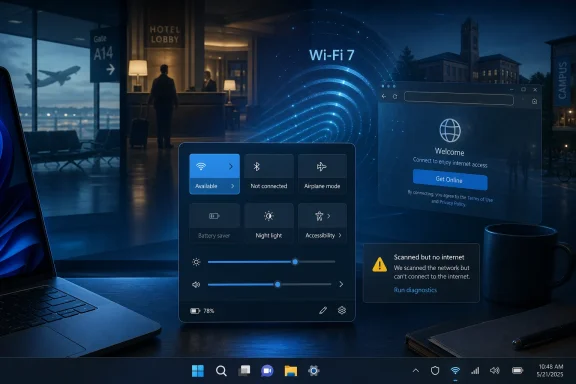
Windows 11 shows nearby wireless networks through Quick Settings when Wi‑Fi is enabled, using the “Available” state to indicate that the PC is not necessarily connected but can scan for and join networks from the taskbar interface. That tiny label is easy to dismiss as UI furniture. It is actually one of the places where Microsoft’s modern Windows philosophy is most visible: hide the plumbing until the moment the user needs it, then make the next click obvious. The trouble is that networking is no longer a convenience layer in Windows; it is the gate through which setup, identity, updates, cloud storage, security, and increasingly AI features all pass.
The “Wi‑Fi available” state looks like a small usability win. Open Quick Settings, click the Wi‑Fi split button, pick a network, connect, and move on. Compared with the older Control Panel maze, Windows 11’s networking surface is cleaner, more touch-friendly, and better aligned with the way people actually use laptops.
But that simplicity masks how much weight the connection now carries. Windows 11 Home and Windows 11 Pro for personal use require internet connectivity and a Microsoft account during initial setup, which means Wi‑Fi is not merely a post-install feature for many users. It is part of the front door.
That shift changes the meaning of a missing network list, a flaky driver, or a captive portal that refuses to appear. In Windows 7 or even Windows 10, Wi‑Fi trouble was a problem to fix after you reached the desktop. In modern Windows 11, it can be the thing that prevents a consumer from completing setup at all.
The interface says “available” because it is describing radio visibility. The operating system hears something in range. The user, however, reads the same word as a promise: you can get online from here. Those are not always the same thing.
The Wi‑Fi control is also doing more than toggling a radio. It is a split control, with one side acting as an on-off switch and the other opening the list of available networks. This is a small interaction detail, but it matters because users who click the wrong half can mistake a menu for a switch or a switch for a menu.
That is the bargain Windows 11 keeps making. It removes visible complexity, then relies on subtle affordances to preserve power-user functionality. Sometimes that works. Sometimes it creates a different kind of confusion, especially for users trained by decades of Windows to right-click, drill down, and hunt for adapter settings.
The old networking stack is still there, of course. Device Manager, adapter properties, advanced network settings, command-line tools, drivers, services, and policy controls remain part of the real machinery. Quick Settings is simply the front counter. For everyday users, though, the front counter increasingly is Windows networking.
When Wi‑Fi fails, the same minimalism becomes a liability. “Available” can mean that networks are visible, not that the device has a valid IP address, working DNS, internet reachability, or permission to pass through a captive portal. Windows may show signal strength while the browser cannot load a page, or it may show no networks while the adapter is present but disabled, misconfigured, or driver-broken.
This is where Microsoft’s language often under-serves the problem. Users do not think in terms of link layer, authentication layer, and internet layer. They think “the Wi‑Fi is broken,” and Windows often responds with labels that are technically defensible but practically thin.
The best Windows networking UI would not merely say whether networks are available. It would explain which part of the chain is failing. Microsoft has improved diagnostics over the years, but the first-run experience still leans too heavily on icons and too lightly on plain-English fault isolation.
A Microsoft account enables settings sync, Store access, OneDrive integration, device recovery, subscription hooks, and a smoother path into Microsoft 365 and Copilot-era services. From Redmond’s perspective, an offline local account is a dead end. From a user’s perspective, it can be a perfectly reasonable way to set up a machine before deciding which services to use.
This is why the setup requirement remains such a sore point among Windows enthusiasts. It is not just nostalgia for local accounts. It is resentment at a dependency chain that says the operating system is not really yours until it can phone home and bind itself to an online identity.
Wi‑Fi availability becomes the visible edge of that policy. If the machine lacks a driver during setup, if the router uses a problematic configuration, if the user is in a dorm, hotel, workshop, lab, or enterprise staging area with captive authentication, the clean consumer story gets messy quickly.
Windows has long tried to detect this situation. It performs connectivity checks, labels networks as having no internet when appropriate, and can open a sign-in page for captive portals. These mechanisms are useful, but they are not universal magic. Captive portals are inconsistent, often poorly implemented, and frequently hostile to privacy tools, VPNs, DNS changes, or hardened browser settings.
That creates a gap between the system’s setup assumptions and the real-world places where people unbox laptops. Airports, hotels, universities, hospitals, corporate guest networks, and coffee shops are precisely the places where a user may need to get a Windows PC online for the first time. They are also the places where the Wi‑Fi flow is least likely to be a simple password prompt.
The result is a familiar Windows pattern: the mainstream path is smoother than ever, while the edge cases feel more brittle because the escape hatches are less obvious.
But newer wireless standards also widen the gap between what the UI shows and what the system is doing. A user sees bars. An administrator sees band selection, channel width, encryption mode, driver maturity, roaming behavior, firmware, and compatibility with older clients. The more capable Wi‑Fi becomes, the less adequate a simple signal icon feels.
This is especially true in mixed environments. A household may have a Wi‑Fi 7 router, older Wi‑Fi 5 clients, IoT devices stuck on 2.4 GHz, a mesh system making its own band-steering decisions, and a Windows 11 laptop trying to pick the best path through all of it. The user just sees “available.”
For enterprises, the story is even more complicated. New wireless capabilities must be tested against authentication systems, certificate infrastructure, endpoint management, VPN clients, and security baselines. Windows can support a standard on paper while organizations still spend months validating the practical behavior of real devices.
That tension is not new, but Windows 11 makes it sharper. The consumer OOBE assumes connectivity and account identity as a normal baseline. Enterprise deployment often treats unmanaged connectivity as a risk. The same Wi‑Fi radio that gets a student online in seconds can be a governance problem in a regulated environment.
Modern management tools can solve much of this. Autopilot, Intune, provisioning packages, enterprise Wi‑Fi profiles, and identity-based access all exist for a reason. But they also assume planning, licensing, and administrative maturity. Smaller shops and break-fix technicians still live in the messy middle, where the machine in front of them needs to get online before the elegant management story can begin.
This is why Windows networking UX matters beyond aesthetics. A clearer Quick Settings panel helps, but it does not eliminate the need for recoverable setup paths, visible diagnostics, and offline-friendly repair options.
Sometimes the cause is mundane. The adapter is disabled, the driver failed, a firmware update changed behavior, a service did not start, or the hardware itself is failing. Sometimes Windows Update installs a driver that is technically newer but worse for a specific device. Sometimes the OEM support page has the real fix and Windows does not.
The problem is not that failures happen. Hardware and drivers are messy, particularly in the PC ecosystem. The problem is that Windows often collapses multiple possible failures into the same absence. No Wi‑Fi button can mean no adapter, no driver, no service, no policy permission, or no functioning radio.
That is bad UX because absence is harder to troubleshoot than error. A visible control with a warning can guide a user. A missing control makes the user suspect they are looking in the wrong place, which sends them into Settings, Device Manager, forums, OEM pages, and command prompts with no clear sequence.
It is also why networking failures are so hard to eliminate. Microsoft can improve the Windows networking stack, but the lived experience depends on silicon vendors, OEM integration, firmware quality, router behavior, and update distribution. A clean Microsoft support page cannot fully compensate for a cheap adapter with flaky drivers.
This is where enthusiasts sometimes understate the scale of the problem. Apple controls the full stack and ships far fewer Mac configurations. Microsoft has to make Windows work across an industry. That does not excuse bad outcomes, but it explains why Wi‑Fi remains a recurring support topic decades after wireless networking became mainstream.
The more Microsoft makes internet connectivity mandatory for core experiences, the more responsibility it assumes for this supply chain. If Windows requires the network to set up the PC, Windows has to be unusually good at surviving driver gaps, captive portals, and first-boot weirdness.
Windows has improved its connectivity detection, but the modern internet makes the job harder. A PC can reach Microsoft’s test endpoint while a corporate firewall blocks the user’s app. DNS can resolve some domains and fail others. IPv6 can behave differently from IPv4. VPN clients can intentionally route or block traffic in ways that confuse simplistic “internet/no internet” labels.
The answer is not to turn Quick Settings into Wireshark. Most users do not want packet traces in the taskbar. But Windows could do more to distinguish “connected to Wi‑Fi,” “connected to the local network,” “internet access detected,” “sign-in required,” and “adapter problem detected” in language that ordinary users can act on.
The best UI is not the one with the fewest words. It is the one that says the right thing at the right moment. Networking is one area where Microsoft’s minimalist Windows 11 aesthetic still needs more situational intelligence.
The confusion comes from Microsoft’s terminology. A “public Wi‑Fi network” and a “public network profile” sound like the same concept, but they are different things. One describes the access point environment. The other describes how Windows treats the PC on that network.
This distinction is familiar to IT pros and opaque to normal users. A home network can use a public profile. A private workplace network can be configured in ways that still restrict discovery. A user trying to share a printer may flip settings without understanding the security tradeoff.
Microsoft has spent years trying to hide technical complexity, but networking vocabulary keeps leaking through. Public, private, discoverable, metered, known network, available network, connected, secured, no internet: each term is defensible in isolation. Together, they form a glossary users never asked to study.
Yet it remains buried deeper than the Wi‑Fi picker. Windows is very eager to connect and sync, but less eager to ask whether the connection is expensive. That reflects a broadband assumption that is increasingly outdated. Plenty of users have fast Wi‑Fi that is not unlimited, and plenty of mobile hotspots look like ordinary wireless networks to the OS.
The cloud-first Windows experience makes this setting more important, not less. OneDrive sync, Store updates, Windows Update, browser downloads, Teams, Outlook, and background app traffic can chew through data quickly. A laptop that politely joins Wi‑Fi but aggressively consumes the connection is not being user-friendly.
Microsoft does not need to nag users on every network. But Windows could surface metered status more clearly when joining unfamiliar networks, especially open networks, mobile hotspots, and networks previously associated with cellular tethering. Connectivity is not just binary. Cost matters.
The “Connect automatically” checkbox is therefore more important than it looks. On a home network, it is convenience. On a hotel or airport network, it can be a bad habit. Automatically joining a network with a familiar name can expose users to evil-twin attacks or simply leak presence to infrastructure they do not control.
Windows does warn users indirectly through security defaults, but the flow still encourages connection first and reflection later. That is understandable; nobody wants an operating system that lectures them in a coffee shop. Still, the UI could better distinguish trusted recurring networks from one-off public access points.
For power users, this is manageable through known network cleanup and cautious connection habits. For everyone else, the operating system’s defaults carry the burden. Microsoft has generally moved in the right direction, but the convenience-security tradeoff remains embedded in every “available” network list.
The Settings app has improved here, especially with more coherent Network & internet pages and advanced network settings. But the troubleshooting journey is still scattered. A user may move from Quick Settings to Settings, then Device Manager, then Windows Update, then an OEM support site, then a forum post, then a command prompt.
That is not a workflow. It is a scavenger hunt.
A better Windows 11 networking experience would make failure-specific actions contextual. If no networks appear, offer adapter and driver checks. If a captive portal is likely, open the sign-in flow. If DNS fails, say so. If the adapter recently received a driver update, expose rollback. If the current network is open or reused suspiciously, warn clearly without sensationalism.
The problem is that users learn them as incantations rather than diagnosis. “Reset network settings” becomes the modern equivalent of “reinstall Windows”: sometimes effective, often excessive, and rarely satisfying. It can remove saved networks and adapters, causing additional friction for users who do not have passwords handy.
Microsoft’s challenge is to turn folk troubleshooting into guided repair. The OS has enough telemetry and local state to know whether a driver changed, whether the adapter is enumerating, whether DHCP succeeded, whether DNS is failing, and whether a captive portal is likely. The question is how much of that intelligence it exposes to the user.
Windows does not need to become a networking certification course. It needs to stop acting as though a single icon can represent the full truth.
But the PC is not a phone, and Windows is not a sealed appliance. It remains the operating system for field technicians, classrooms, factories, labs, small businesses, gaming rigs, air-gapped environments, remote workers, and enthusiasts who expect to understand and control the machine. A mobile-style surface cannot be the only good path.
The best version of Windows 11 networking would preserve the clean Quick Settings flow while making the deeper system more discoverable when reality gets complicated. That means better labels, better diagnostics, better offline recovery, and more respect for users who do not want every connection to become an account, sync, and services funnel.
The issue is not that Microsoft simplified Wi‑Fi. The issue is that Microsoft simplified the visible UI while making connectivity more central to the operating system’s business model and setup flow. That combination demands a higher standard.
 Microsoft Turned a Status Label Into a Dependency Map
The “Wi‑Fi available” state looks like a small usability win. Open Quick Settings, click the Wi‑Fi split button, pick a network, connect, and move on. Compared with the older Control Panel maze, Windows 11’s networking surface is cleaner, more touch-friendly, and better aligned with the way people actually use laptops.But that simplicity masks how much weight the connection now carries. Windows 11 Home and Windows 11 Pro for personal use require internet connectivity and a Microsoft account during initial setup, which means Wi‑Fi is not merely a post-install feature for many users. It is part of the front door.
That shift changes the meaning of a missing network list, a flaky driver, or a captive portal that refuses to appear. In Windows 7 or even Windows 10, Wi‑Fi trouble was a problem to fix after you reached the desktop. In modern Windows 11, it can be the thing that prevents a consumer from completing setup at all.
The interface says “available” because it is describing radio visibility. The operating system hears something in range. The user, however, reads the same word as a promise: you can get online from here. Those are not always the same thing.
Quick Settings Is the New Control Panel, Whether Microsoft Admits It or Not
Windows 11’s Quick Settings panel is one of the better examples of Microsoft finally learning from mobile operating systems without simply copying them. The old network flyout, Action Center, and Settings pages have been compressed into a compact surface reachable from the system tray or with Windows key + A. It is fast, glanceable, and generally less hostile than the old stack.The Wi‑Fi control is also doing more than toggling a radio. It is a split control, with one side acting as an on-off switch and the other opening the list of available networks. This is a small interaction detail, but it matters because users who click the wrong half can mistake a menu for a switch or a switch for a menu.
That is the bargain Windows 11 keeps making. It removes visible complexity, then relies on subtle affordances to preserve power-user functionality. Sometimes that works. Sometimes it creates a different kind of confusion, especially for users trained by decades of Windows to right-click, drill down, and hunt for adapter settings.
The old networking stack is still there, of course. Device Manager, adapter properties, advanced network settings, command-line tools, drivers, services, and policy controls remain part of the real machinery. Quick Settings is simply the front counter. For everyday users, though, the front counter increasingly is Windows networking.
The “Available” State Is Helpful Until Something Goes Wrong
When Wi‑Fi works, Windows 11’s flow is almost invisible. The taskbar icon changes, the network list appears, saved networks reconnect, and the user never thinks about DHCP, DNS, WPA, drivers, or radio bands. That is exactly how a consumer operating system should behave.When Wi‑Fi fails, the same minimalism becomes a liability. “Available” can mean that networks are visible, not that the device has a valid IP address, working DNS, internet reachability, or permission to pass through a captive portal. Windows may show signal strength while the browser cannot load a page, or it may show no networks while the adapter is present but disabled, misconfigured, or driver-broken.
This is where Microsoft’s language often under-serves the problem. Users do not think in terms of link layer, authentication layer, and internet layer. They think “the Wi‑Fi is broken,” and Windows often responds with labels that are technically defensible but practically thin.
The best Windows networking UI would not merely say whether networks are available. It would explain which part of the chain is failing. Microsoft has improved diagnostics over the years, but the first-run experience still leans too heavily on icons and too lightly on plain-English fault isolation.
The Internet Requirement Raises the Stakes for a Radio Button
The most controversial networking decision in Windows 11 was not the redesign of the flyout. It was Microsoft’s decision to tie consumer setup more tightly to internet connectivity and Microsoft accounts. That decision makes business sense for Microsoft, but it also makes the Wi‑Fi path far more consequential for users.A Microsoft account enables settings sync, Store access, OneDrive integration, device recovery, subscription hooks, and a smoother path into Microsoft 365 and Copilot-era services. From Redmond’s perspective, an offline local account is a dead end. From a user’s perspective, it can be a perfectly reasonable way to set up a machine before deciding which services to use.
This is why the setup requirement remains such a sore point among Windows enthusiasts. It is not just nostalgia for local accounts. It is resentment at a dependency chain that says the operating system is not really yours until it can phone home and bind itself to an online identity.
Wi‑Fi availability becomes the visible edge of that policy. If the machine lacks a driver during setup, if the router uses a problematic configuration, if the user is in a dorm, hotel, workshop, lab, or enterprise staging area with captive authentication, the clean consumer story gets messy quickly.
Captive Portals Are Where Elegant Setup Goes to Die
Public Wi‑Fi is a special kind of trap for operating-system designers. The network may be open, the signal may be strong, and the PC may successfully associate with the access point. But until the user accepts terms, enters a room number, validates an email address, or passes through some browser-mediated flow, the internet is functionally unavailable.Windows has long tried to detect this situation. It performs connectivity checks, labels networks as having no internet when appropriate, and can open a sign-in page for captive portals. These mechanisms are useful, but they are not universal magic. Captive portals are inconsistent, often poorly implemented, and frequently hostile to privacy tools, VPNs, DNS changes, or hardened browser settings.
That creates a gap between the system’s setup assumptions and the real-world places where people unbox laptops. Airports, hotels, universities, hospitals, corporate guest networks, and coffee shops are precisely the places where a user may need to get a Windows PC online for the first time. They are also the places where the Wi‑Fi flow is least likely to be a simple password prompt.
The result is a familiar Windows pattern: the mainstream path is smoother than ever, while the edge cases feel more brittle because the escape hatches are less obvious.
Wi‑Fi 7 Makes the Plumbing Faster, Not Simpler
Windows 11 version 24H2 brought official support for Wi‑Fi 7, and that is not a minor checkbox. Wi‑Fi 7 promises higher throughput, lower latency, wider channels, and features such as multi-link operation that can improve performance when client hardware, routers, drivers, and spectrum conditions all cooperate. For high-end laptops and modern access points, Windows is finally catching up with the newest wireless hardware wave.But newer wireless standards also widen the gap between what the UI shows and what the system is doing. A user sees bars. An administrator sees band selection, channel width, encryption mode, driver maturity, roaming behavior, firmware, and compatibility with older clients. The more capable Wi‑Fi becomes, the less adequate a simple signal icon feels.
This is especially true in mixed environments. A household may have a Wi‑Fi 7 router, older Wi‑Fi 5 clients, IoT devices stuck on 2.4 GHz, a mesh system making its own band-steering decisions, and a Windows 11 laptop trying to pick the best path through all of it. The user just sees “available.”
For enterprises, the story is even more complicated. New wireless capabilities must be tested against authentication systems, certificate infrastructure, endpoint management, VPN clients, and security baselines. Windows can support a standard on paper while organizations still spend months validating the practical behavior of real devices.
Microsoft’s Consumer UI Keeps Colliding With Enterprise Reality
Windows 11 is designed to look like one operating system, but networking exposes the split personality. For consumers, Microsoft wants a clean flow: select Wi‑Fi, sign in, sync, update, and start using cloud-backed services. For administrators, the same device may need to be provisioned, enrolled, restricted, segmented, audited, and sometimes kept away from the public internet until policy says otherwise.That tension is not new, but Windows 11 makes it sharper. The consumer OOBE assumes connectivity and account identity as a normal baseline. Enterprise deployment often treats unmanaged connectivity as a risk. The same Wi‑Fi radio that gets a student online in seconds can be a governance problem in a regulated environment.
Modern management tools can solve much of this. Autopilot, Intune, provisioning packages, enterprise Wi‑Fi profiles, and identity-based access all exist for a reason. But they also assume planning, licensing, and administrative maturity. Smaller shops and break-fix technicians still live in the messy middle, where the machine in front of them needs to get online before the elegant management story can begin.
This is why Windows networking UX matters beyond aesthetics. A clearer Quick Settings panel helps, but it does not eliminate the need for recoverable setup paths, visible diagnostics, and offline-friendly repair options.
The Disappearing Wi‑Fi Button Is Still the Nightmare Scenario
For all the focus on modern standards and cloud setup, the most alarming user complaint remains brutally simple: the Wi‑Fi option disappears. Not “the password failed.” Not “the network is slow.” The button is gone, the adapter is missing, and the user is left staring at Airplane mode as if Windows has forgotten the PC has a radio.Sometimes the cause is mundane. The adapter is disabled, the driver failed, a firmware update changed behavior, a service did not start, or the hardware itself is failing. Sometimes Windows Update installs a driver that is technically newer but worse for a specific device. Sometimes the OEM support page has the real fix and Windows does not.
The problem is not that failures happen. Hardware and drivers are messy, particularly in the PC ecosystem. The problem is that Windows often collapses multiple possible failures into the same absence. No Wi‑Fi button can mean no adapter, no driver, no service, no policy permission, or no functioning radio.
That is bad UX because absence is harder to troubleshoot than error. A visible control with a warning can guide a user. A missing control makes the user suspect they are looking in the wrong place, which sends them into Settings, Device Manager, forums, OEM pages, and command prompts with no clear sequence.
The Driver Model Is Still Windows’ Greatest Strength and Weakness
Windows supports an enormous range of Wi‑Fi hardware, and that breadth remains one of the platform’s selling points. The same OS can run on premium ultrabooks, gaming desktops, budget laptops, mini PCs, handhelds, workstations, and obscure OEM configurations. That flexibility is why Windows dominates the messy middle of computing.It is also why networking failures are so hard to eliminate. Microsoft can improve the Windows networking stack, but the lived experience depends on silicon vendors, OEM integration, firmware quality, router behavior, and update distribution. A clean Microsoft support page cannot fully compensate for a cheap adapter with flaky drivers.
This is where enthusiasts sometimes understate the scale of the problem. Apple controls the full stack and ships far fewer Mac configurations. Microsoft has to make Windows work across an industry. That does not excuse bad outcomes, but it explains why Wi‑Fi remains a recurring support topic decades after wireless networking became mainstream.
The more Microsoft makes internet connectivity mandatory for core experiences, the more responsibility it assumes for this supply chain. If Windows requires the network to set up the PC, Windows has to be unusually good at surviving driver gaps, captive portals, and first-boot weirdness.
The Taskbar Icon Has Become a Trust Signal
A network icon is not just a status indicator. It is a trust signal. Users glance at it before joining a call, submitting a form, downloading an update, or assuming their cloud files are synced. If the icon says everything is fine while apps fail, users learn to distrust the OS.Windows has improved its connectivity detection, but the modern internet makes the job harder. A PC can reach Microsoft’s test endpoint while a corporate firewall blocks the user’s app. DNS can resolve some domains and fail others. IPv6 can behave differently from IPv4. VPN clients can intentionally route or block traffic in ways that confuse simplistic “internet/no internet” labels.
The answer is not to turn Quick Settings into Wireshark. Most users do not want packet traces in the taskbar. But Windows could do more to distinguish “connected to Wi‑Fi,” “connected to the local network,” “internet access detected,” “sign-in required,” and “adapter problem detected” in language that ordinary users can act on.
The best UI is not the one with the fewest words. It is the one that says the right thing at the right moment. Networking is one area where Microsoft’s minimalist Windows 11 aesthetic still needs more situational intelligence.
Security Defaults Are Right, but the Vocabulary Is Terrible
Windows 11 generally defaults new networks to a public profile, reducing discoverability and limiting exposure to other devices on the same network. That is the safer default, and it reflects the reality that users connect to unfamiliar Wi‑Fi far more often than they understand local network trust. The public profile should usually remain the default for airports, hotels, cafés, and guest networks.The confusion comes from Microsoft’s terminology. A “public Wi‑Fi network” and a “public network profile” sound like the same concept, but they are different things. One describes the access point environment. The other describes how Windows treats the PC on that network.
This distinction is familiar to IT pros and opaque to normal users. A home network can use a public profile. A private workplace network can be configured in ways that still restrict discovery. A user trying to share a printer may flip settings without understanding the security tradeoff.
Microsoft has spent years trying to hide technical complexity, but networking vocabulary keeps leaking through. Public, private, discoverable, metered, known network, available network, connected, secured, no internet: each term is defensible in isolation. Together, they form a glossary users never asked to study.
The Metered Connection Switch Deserves More Respect
One of Windows’ more practical networking controls is the metered connection setting. It lets users tell Windows that a network has data limits or cost sensitivity, prompting the OS and some apps to reduce background usage. For anyone tethering from a phone, using fixed wireless, traveling internationally, or living under a capped broadband plan, this is not a niche feature.Yet it remains buried deeper than the Wi‑Fi picker. Windows is very eager to connect and sync, but less eager to ask whether the connection is expensive. That reflects a broadband assumption that is increasingly outdated. Plenty of users have fast Wi‑Fi that is not unlimited, and plenty of mobile hotspots look like ordinary wireless networks to the OS.
The cloud-first Windows experience makes this setting more important, not less. OneDrive sync, Store updates, Windows Update, browser downloads, Teams, Outlook, and background app traffic can chew through data quickly. A laptop that politely joins Wi‑Fi but aggressively consumes the connection is not being user-friendly.
Microsoft does not need to nag users on every network. But Windows could surface metered status more clearly when joining unfamiliar networks, especially open networks, mobile hotspots, and networks previously associated with cellular tethering. Connectivity is not just binary. Cost matters.
Privacy Is the Quiet Half of the Wi‑Fi Story
Wireless networking is also a privacy surface. Windows stores known networks, remembers credentials, can automatically reconnect, and exposes nearby network names in UI. Modern systems use techniques such as randomized hardware addresses to reduce tracking, but the broader issue remains: every automatic connection is a decision about trust.The “Connect automatically” checkbox is therefore more important than it looks. On a home network, it is convenience. On a hotel or airport network, it can be a bad habit. Automatically joining a network with a familiar name can expose users to evil-twin attacks or simply leak presence to infrastructure they do not control.
Windows does warn users indirectly through security defaults, but the flow still encourages connection first and reflection later. That is understandable; nobody wants an operating system that lectures them in a coffee shop. Still, the UI could better distinguish trusted recurring networks from one-off public access points.
For power users, this is manageable through known network cleanup and cautious connection habits. For everyone else, the operating system’s defaults carry the burden. Microsoft has generally moved in the right direction, but the convenience-security tradeoff remains embedded in every “available” network list.
Repair Still Belongs Closer to the Failure
Windows includes troubleshooters, network reset options, driver rollback paths, and command-line tools such asipconfig and netsh. These are useful, but they live too far from the moment of failure. When the Wi‑Fi list is empty or the connected network has no internet, the user should not have to know where Microsoft hid the next diagnostic step.The Settings app has improved here, especially with more coherent Network & internet pages and advanced network settings. But the troubleshooting journey is still scattered. A user may move from Quick Settings to Settings, then Device Manager, then Windows Update, then an OEM support site, then a forum post, then a command prompt.
That is not a workflow. It is a scavenger hunt.
A better Windows 11 networking experience would make failure-specific actions contextual. If no networks appear, offer adapter and driver checks. If a captive portal is likely, open the sign-in flow. If DNS fails, say so. If the adapter recently received a driver update, expose rollback. If the current network is open or reused suspiciously, warn clearly without sensationalism.
The Enthusiast Fixes Remain Useful, but They Should Not Be Folk Medicine
WindowsForum readers know the traditional ritual: reboot the router, toggle Wi‑Fi, forget and rejoin the network, update or roll back the driver, check Device Manager, run the troubleshooter, reset the network stack, and inspect services if everything has gone sideways. These steps often work because they target real layers of the networking chain.The problem is that users learn them as incantations rather than diagnosis. “Reset network settings” becomes the modern equivalent of “reinstall Windows”: sometimes effective, often excessive, and rarely satisfying. It can remove saved networks and adapters, causing additional friction for users who do not have passwords handy.
Microsoft’s challenge is to turn folk troubleshooting into guided repair. The OS has enough telemetry and local state to know whether a driver changed, whether the adapter is enumerating, whether DHCP succeeded, whether DNS is failing, and whether a captive portal is likely. The question is how much of that intelligence it exposes to the user.
Windows does not need to become a networking certification course. It needs to stop acting as though a single icon can represent the full truth.
The Small Wi‑Fi Flyout Shows the Big Windows Bet
The “Wi‑Fi available” UI is a small part of Windows 11, but it captures the operating system’s broader bet. Microsoft wants Windows to feel modern, connected, cloud-aware, and less intimidating. That is a reasonable goal. The PC should not require a networking manual to join a home router.But the PC is not a phone, and Windows is not a sealed appliance. It remains the operating system for field technicians, classrooms, factories, labs, small businesses, gaming rigs, air-gapped environments, remote workers, and enthusiasts who expect to understand and control the machine. A mobile-style surface cannot be the only good path.
The best version of Windows 11 networking would preserve the clean Quick Settings flow while making the deeper system more discoverable when reality gets complicated. That means better labels, better diagnostics, better offline recovery, and more respect for users who do not want every connection to become an account, sync, and services funnel.
The issue is not that Microsoft simplified Wi‑Fi. The issue is that Microsoft simplified the visible UI while making connectivity more central to the operating system’s business model and setup flow. That combination demands a higher standard.
The Signal Bars Now Carry the Weight of Windows Itself
The practical lessons from this little “available” state are bigger than the screenshot suggests. Windows 11’s networking experience is good when the environment is ordinary, but its weakest moments show up exactly where users need clarity most: first boot, public Wi‑Fi, driver failure, and managed networks.- Windows 11’s Quick Settings panel is now the primary Wi‑Fi interface for many users, not merely a shortcut to deeper settings.
- The word “available” means nearby networks can be scanned or shown, not that the PC has working internet access.
- Microsoft’s setup and account requirements make wireless reliability more important than it was in earlier Windows generations.
- Wi‑Fi 7 support modernizes Windows’ wireless capabilities, but it also makes the gap between simple UI and complex networking behavior wider.
- Public network defaults are generally safer, but Microsoft’s public/private terminology remains confusing for nontechnical users.
- Windows needs failure-specific repair prompts closer to the taskbar, because missing Wi‑Fi controls and vague connectivity labels still send users into avoidable troubleshooting spirals.
References
- Primary source: thurrott.com
Published: 2026-06-23T22:10:12.584427
wifi-available - Thurrott.com
 www.thurrott.com
- Related coverage: img1.wsimg.com
Aka ms network setup windows 11
Aka ms network setup windows 11. Windows 11 makes it easy to connect laptops, tablets, and desktop computers to a wireless network timg1.wsimg.com
- Official source: support.microsoft.com
- Official source: microsoft.com
Windows 11 Specs and System Requirements | Microsoft Windows
View Windows 11 specs, system requirements, and features from Microsoft. Learn about the device specifications, versions, and languages available for Windows 11.www.microsoft.com
- Official source: learn.microsoft.com
Windows 11 requirements | Microsoft Learn
Hardware requirements to deploy Windows 11.learn.microsoft.com - Related coverage: pcworld.com
How to unlock Wi-Fi 7's full, blistering speed in Windows 11 | PCWorld
With the 24H2 update, Windows 11 now fully supports Wi-Fi 7, adding new settings and details to help you get the most from your home network.www.pcworld.com
- Related coverage: windowslatest.com
Microsoft doc says Wi-Fi 7 is limited to Windows 11 24H2, at least for now
Windows 11 24H2 is available on Copilot+ PCs only, but it will also be available on all existing hardware in September or October. One of the significant changes is support for Wi-Fi 7, which is also referred to as 802.11be Extremely High Throughput (EHT). Unlike previous versions, Wi-Fi 7 with... www.windowslatest.com
- Related coverage: windowscentral.com
Microsoft wants Windows 11 installs to use a Microsoft Account — confirms removal of popular setup bypass | Windows Central
The popular "bypassnro" command, which let users to skip connecting to the Internet and signing into a Microsoft Account, is being removed.www.windowscentral.com - Related coverage: tomshardware.com
Microsoft to force updates to Windows 11 25H2 for PCs with older Windows 11 OS versions — 'intelligent' update system uses machine learning to determine when a device is ready | Tom's Hardware
Microsoft forces 25H2 rollout ahead of 24H2 end-of-supportwww.tomshardware.com - Related coverage: tomsguide.com
Microsoft might be cracking down on Windows 11 local account setups — here's what we know so far | Tom's Guide
Microsoft is attempting to restrict account access for local accounts.www.tomsguide.com - Related coverage: pcgamer.com
Microsoft is planning to make it harder than ever to install Windows without an internet connection and a Microsoft account | PC Gamer
The number of work arounds is ever shrinking...www.pcgamer.com - Related coverage: downloadmirror.intel.com
- Related coverage: bmccprodstroac.blob.core.windows.net
