

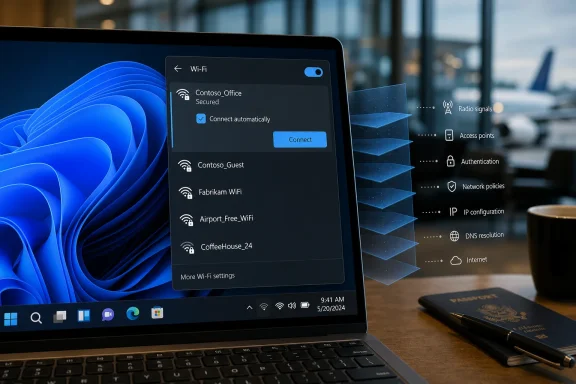
Paul Thurrott’s June 23, 2026 “wifi-nw-list” attachment is a Windows 11 Field Guide image showing the operating system’s available Wi-Fi network list, the flyout users reach from Quick Settings when connecting to wireless networks. That sounds mundane because it is. But in Windows 11, the mundane is where Microsoft’s design priorities are easiest to see: connectivity is treated less like a control panel and more like an onboarding surface. The Wi-Fi list is no longer just a list; it is a small referendum on how much of Windows has moved from administrator-readable machinery to consumer-friendly choreography.
Windows networking used to expose itself like plumbing. You could see adapters, protocols, status pages, properties dialogs, and enough acronyms to make a help desk technician feel either empowered or cursed. Windows 11 still has much of that machinery underneath, but the first stop for most people is now Quick Settings: a compact panel opened from the taskbar’s network, sound, or battery area.
That change is not cosmetic. It moves Wi-Fi from the old Windows habit of “show the subsystem” to the modern Windows habit of “show the action.” The user is not being invited to inspect networking; the user is being nudged to pick a network, connect, and move on.
For ordinary laptop owners, that is probably the right default. Nobody wants to think about adapters in an airport lounge or a conference center. But the simplification comes with a tradeoff: the interface is better at hiding complexity than explaining it, and wireless networking is still full of complexity that users discover only when something goes wrong.
The “wifi-nw-list” image matters because it captures that exact layer of abstraction. It is the place where Windows says: here are the networks, here is the lock icon, here is the signal strength, here is the connect button. Everything else—authentication method, profile behavior, MAC randomization, network category, DNS, captive portal behavior, driver capability—is pushed one or more clicks away.
This is the consumer operating system ideal: connection as a moment, not a project. Windows spent decades accumulating network interfaces that made sense to people who understood Windows internals but intimidated everyone else. Windows 11 reverses that default by putting the most common wireless action in a flyout that behaves more like a phone than a workstation.
That phone-like comparison is not accidental. Modern users expect networking controls to be immediate, visual, and disposable. They expect Wi-Fi to be a list of nearby names, not an administrative surface. Microsoft has spent the Windows 11 era sanding down old edges, and the Wi-Fi picker is one of the cleaner examples of that project.
Still, “boring” only works when the boring thing works. When Wi-Fi fails, Windows 11’s friendly front door can become a frustrating waiting room. The same abstraction that makes the first connection easy can make diagnosis feel like a scavenger hunt.
That distinction matters. Many users still interpret a lock as a broad signal of safety, when it is really a narrower signal of access control. A password-protected network in a hotel ballroom can still be hostile, mismanaged, or trivially shared among hundreds of strangers. An open network can still use a captive portal and transport-layer encryption for most web traffic, though it remains a poor place to leak metadata or trust local discovery.
Windows 11’s interface cannot solve that entire education problem in a flyout. But the OS does little to challenge the lazy mental model either. It presents Wi-Fi choices with the same visual grammar whether the user is at home, in an enterprise, in a coffee shop, or standing near a maliciously named hotspot.
The deeper security controls live elsewhere. Windows can use randomized hardware addresses, public and private network profiles, VPNs, enterprise authentication, and firewall rules. But in the Wi-Fi list itself, the strongest message is still the simplest one: locked or unlocked.
A public Wi-Fi network and a public Windows network profile are not the same thing. One describes the access environment; the other describes how Windows behaves after connecting. A private home Wi-Fi network can sensibly use a public Windows profile if the user does not need device discovery or file sharing. A network that feels “private” emotionally is not necessarily one where the PC should advertise itself.
This distinction is old, but Windows 11’s simplified networking path makes it easier to miss. The user connects in Quick Settings, sees that the internet works, and may never visit the properties page where the profile type is shown. That is acceptable for most people until they try to share a printer, browse another PC, cast media, or troubleshoot why a device cannot see another device on the same network.
For administrators, the terminology is merely annoying. For home users, it is actively misleading. Microsoft has made connection easier, but it has not made the consequences of network classification much clearer.
That is both sensible and revealing. Operating systems should not make every underlying protocol advancement into a new user-interface event. Nobody needs a carnival banner when a laptop connects using a newer radio standard. If the network is faster, lower-latency, and more reliable, the experience should simply feel better.
But there is a practical problem for enthusiasts and IT pros: Windows’ surface-level networking UI does not always make capability obvious. A user may buy a Wi-Fi 7 router and a new laptop, connect successfully, and still be unsure whether they are actually getting the expected mode, channel width, band, or performance. The consumer flyout has no interest in answering those questions.
That leaves a familiar Windows split. The mainstream UI is clean, while verification requires Settings, command-line tools, adapter properties, vendor utilities, router dashboards, or third-party diagnostics. Windows 11 has not eliminated the old complexity; it has moved it out of the first impression.
A refresh affordance is Microsoft admitting that wireless discovery is not magic. It gives users a harmless action to take before they start toggling Wi-Fi, rebooting the PC, blaming the router, or opening a support ticket. Small controls like this can reduce unnecessary troubleshooting because they map to what users already believe is happening: the list is stale, so refresh the list.
That said, refresh is not diagnosis. It will not explain a disabled adapter, a bad driver, a regulatory-domain mismatch, a hidden SSID, weak signal, enterprise certificate failure, or an access point that is refusing association. It simply gives the surface layer a way to ask the environment again.
This is where Windows 11’s design works best: when it gives users one more obvious step without exposing them to the whole stack. The trouble begins when that step fails and the interface has little more to say.
That is not purely neglect. Networking is too important and too entrenched to rewrite casually. Enterprise Wi-Fi, VPN clients, virtual adapters, Hyper-V switches, Group Policy, certificates, EAP profiles, and vendor drivers all depend on layers that cannot be replaced by a prettier panel overnight.
The result is a Windows 11 networking experience with a polished consumer lobby and a sprawling office complex behind it. Most people never leave the lobby. IT pros live in the building behind it and occasionally wonder why the lobby signage is so vague.
This split is one of the defining tensions of Windows 11. Microsoft wants the OS to feel modern and approachable, but Windows remains the platform where consumer habits, enterprise requirements, legacy compatibility, and hardware diversity all collide. Wi-Fi is a clean example because everyone uses it, but not everyone uses it in the same way.
But the broader risk is not simply that ordinary users know too little. It is that Windows gives them confidence at the exact moment it should give them context. A list of SSIDs looks authoritative, but it is only a partial view of the wireless environment. A successful connection looks like the end of the story, but it may be the beginning of captive portal trouble, DNS weirdness, roaming failures, or security exposure.
The best operating-system interfaces do not dump complexity on users, but they do provide progressive disclosure. They let simple tasks stay simple while making the next level of explanation available at the moment of confusion. Windows 11 is better than Windows 10 in some parts of that flow, but it still too often jumps from “friendly tile” to “you had better know what an adapter is.”
That gap matters more as PCs become more mobile again. Copilot+ PCs, Arm laptops, thinner devices, and modern standby all assume a world where connectivity is constant and invisible. When networking becomes the substrate for cloud AI, identity, backup, sync, management, and security, the Wi-Fi picker is no longer a minor convenience. It is the front door to the operating system’s actual operating model.
The consumer framing can obscure those concerns. A user sees available networks; an admin sees possible data paths. A user sees “connect automatically”; an admin sees persistence, priority, and risk. A user sees a hotel network; an admin sees an endpoint leaving the controlled perimeter.
This is why Windows networking cannot be judged only by the elegance of Quick Settings. For enterprises, the important parts are deployment, enforcement, telemetry, and recovery. Can the organization push profiles reliably? Can it prevent unsafe behavior? Can it diagnose failures remotely? Can it distinguish a bad password from a certificate problem from a driver regression?
Windows 11’s visible Wi-Fi experience is therefore only half the story. The other half lives in management tooling, update quality, driver reliability, and documentation. A pretty flyout does not compensate for a broken wireless driver in a fleet, but a coherent front end can reduce user confusion when the managed configuration is healthy.
The criticism is that Microsoft sometimes treats minimalism as an excuse not to explain. If a network cannot connect, Windows should be better at saying why. If a connection is weak, it should do more than show bars. If a public profile blocks discovery, the UI should make the tradeoff clearer. If the hardware supports newer Wi-Fi capabilities, Windows should offer a straightforward way to confirm what is actually in use.
This is not a call to bring back the worst of the old networking UI. Nobody should have to spelunk through legacy property sheets to answer basic questions. The point is the opposite: the modern UI should be good enough that fewer people need the old one.
Microsoft has shown it can do this in pieces. The Settings app is more coherent than it once was. Quick Settings is convenient. The Wi-Fi list is readable. But Windows still needs a better bridge between “connected” and “understood.”
For users and administrators, the concrete implications are straightforward:
 The Wi-Fi Flyout Is Where Windows 11 Shows Its Hand
Windows networking used to expose itself like plumbing. You could see adapters, protocols, status pages, properties dialogs, and enough acronyms to make a help desk technician feel either empowered or cursed. Windows 11 still has much of that machinery underneath, but the first stop for most people is now Quick Settings: a compact panel opened from the taskbar’s network, sound, or battery area.That change is not cosmetic. It moves Wi-Fi from the old Windows habit of “show the subsystem” to the modern Windows habit of “show the action.” The user is not being invited to inspect networking; the user is being nudged to pick a network, connect, and move on.
For ordinary laptop owners, that is probably the right default. Nobody wants to think about adapters in an airport lounge or a conference center. But the simplification comes with a tradeoff: the interface is better at hiding complexity than explaining it, and wireless networking is still full of complexity that users discover only when something goes wrong.
The “wifi-nw-list” image matters because it captures that exact layer of abstraction. It is the place where Windows says: here are the networks, here is the lock icon, here is the signal strength, here is the connect button. Everything else—authentication method, profile behavior, MAC randomization, network category, DNS, captive portal behavior, driver capability—is pushed one or more clicks away.
Microsoft Finally Made Connecting Boring, Which Is Mostly a Compliment
The best thing about Windows 11 Wi-Fi is that, on a healthy system, there is almost nothing to say about it. Click the network area, expand Wi-Fi, choose the SSID, enter the password if required, and Windows stores the profile. The network icon then becomes a quiet status indicator rather than a recurring task.This is the consumer operating system ideal: connection as a moment, not a project. Windows spent decades accumulating network interfaces that made sense to people who understood Windows internals but intimidated everyone else. Windows 11 reverses that default by putting the most common wireless action in a flyout that behaves more like a phone than a workstation.
That phone-like comparison is not accidental. Modern users expect networking controls to be immediate, visual, and disposable. They expect Wi-Fi to be a list of nearby names, not an administrative surface. Microsoft has spent the Windows 11 era sanding down old edges, and the Wi-Fi picker is one of the cleaner examples of that project.
Still, “boring” only works when the boring thing works. When Wi-Fi fails, Windows 11’s friendly front door can become a frustrating waiting room. The same abstraction that makes the first connection easy can make diagnosis feel like a scavenger hunt.
The Lock Icon Does Too Much Work
In the Wi-Fi list, the lock icon remains one of the most important pieces of visual language. It tells users that a network requires a key or managed authentication before connection. It does not tell them whether the network is trustworthy, well-configured, monitored, spoofed, overloaded, or using modern encryption.That distinction matters. Many users still interpret a lock as a broad signal of safety, when it is really a narrower signal of access control. A password-protected network in a hotel ballroom can still be hostile, mismanaged, or trivially shared among hundreds of strangers. An open network can still use a captive portal and transport-layer encryption for most web traffic, though it remains a poor place to leak metadata or trust local discovery.
Windows 11’s interface cannot solve that entire education problem in a flyout. But the OS does little to challenge the lazy mental model either. It presents Wi-Fi choices with the same visual grammar whether the user is at home, in an enterprise, in a coffee shop, or standing near a maliciously named hotspot.
The deeper security controls live elsewhere. Windows can use randomized hardware addresses, public and private network profiles, VPNs, enterprise authentication, and firewall rules. But in the Wi-Fi list itself, the strongest message is still the simplest one: locked or unlocked.
“Public” and “Private” Remain Windows’ Most Confusing Networking Words
Windows 11 defaults to treating networks conservatively, and that is good policy. A public network profile limits discoverability and sharing, which is exactly what most users should want on unfamiliar Wi-Fi. The problem is that Microsoft’s terminology continues to invite misunderstanding.A public Wi-Fi network and a public Windows network profile are not the same thing. One describes the access environment; the other describes how Windows behaves after connecting. A private home Wi-Fi network can sensibly use a public Windows profile if the user does not need device discovery or file sharing. A network that feels “private” emotionally is not necessarily one where the PC should advertise itself.
This distinction is old, but Windows 11’s simplified networking path makes it easier to miss. The user connects in Quick Settings, sees that the internet works, and may never visit the properties page where the profile type is shown. That is acceptable for most people until they try to share a printer, browse another PC, cast media, or troubleshoot why a device cannot see another device on the same network.
For administrators, the terminology is merely annoying. For home users, it is actively misleading. Microsoft has made connection easier, but it has not made the consequences of network classification much clearer.
Wi-Fi 7 Raises the Ceiling While the Interface Stays Flat
Windows 11 version 24H2 brought official Wi-Fi 7 support, and that is the kind of platform feature that sounds more dramatic than it looks in the UI. Users with the right PC, the right wireless adapter, the right drivers, and a compatible router can benefit from the new standard. But the Wi-Fi list itself still looks like a Wi-Fi list.That is both sensible and revealing. Operating systems should not make every underlying protocol advancement into a new user-interface event. Nobody needs a carnival banner when a laptop connects using a newer radio standard. If the network is faster, lower-latency, and more reliable, the experience should simply feel better.
But there is a practical problem for enthusiasts and IT pros: Windows’ surface-level networking UI does not always make capability obvious. A user may buy a Wi-Fi 7 router and a new laptop, connect successfully, and still be unsure whether they are actually getting the expected mode, channel width, band, or performance. The consumer flyout has no interest in answering those questions.
That leaves a familiar Windows split. The mainstream UI is clean, while verification requires Settings, command-line tools, adapter properties, vendor utilities, router dashboards, or third-party diagnostics. Windows 11 has not eliminated the old complexity; it has moved it out of the first impression.
The Refresh Button Is a Small Admission of Reality
One of the more useful modern touches in Windows 11’s Wi-Fi experience is the ability to refresh the available network list. That sounds trivial until you remember how often Wi-Fi discovery feels nondeterministic. Networks appear late, disappear briefly, rename themselves through mesh nodes, or fail to show up while a user is standing directly beside the access point.A refresh affordance is Microsoft admitting that wireless discovery is not magic. It gives users a harmless action to take before they start toggling Wi-Fi, rebooting the PC, blaming the router, or opening a support ticket. Small controls like this can reduce unnecessary troubleshooting because they map to what users already believe is happening: the list is stale, so refresh the list.
That said, refresh is not diagnosis. It will not explain a disabled adapter, a bad driver, a regulatory-domain mismatch, a hidden SSID, weak signal, enterprise certificate failure, or an access point that is refusing association. It simply gives the surface layer a way to ask the environment again.
This is where Windows 11’s design works best: when it gives users one more obvious step without exposing them to the whole stack. The trouble begins when that step fails and the interface has little more to say.
The Old Control Panel Ghost Still Haunts the New Settings App
Microsoft has spent years migrating Windows configuration into the Settings app, but networking remains one of the areas where the old and new worlds still overlap. Windows 11 users can manage Wi-Fi through Quick Settings and the Settings app, but advanced configuration and legacy behaviors still lurk behind older dialogs, device properties, and administrative consoles.That is not purely neglect. Networking is too important and too entrenched to rewrite casually. Enterprise Wi-Fi, VPN clients, virtual adapters, Hyper-V switches, Group Policy, certificates, EAP profiles, and vendor drivers all depend on layers that cannot be replaced by a prettier panel overnight.
The result is a Windows 11 networking experience with a polished consumer lobby and a sprawling office complex behind it. Most people never leave the lobby. IT pros live in the building behind it and occasionally wonder why the lobby signage is so vague.
This split is one of the defining tensions of Windows 11. Microsoft wants the OS to feel modern and approachable, but Windows remains the platform where consumer habits, enterprise requirements, legacy compatibility, and hardware diversity all collide. Wi-Fi is a clean example because everyone uses it, but not everyone uses it in the same way.
The Real Risk Is Not That Users Know Too Little
It is tempting to argue that Microsoft hides too much. Enthusiasts often want more status, more detail, more toggles, and more direct access to the underlying machinery. That instinct is understandable, especially when troubleshooting a flaky adapter or validating a new router.But the broader risk is not simply that ordinary users know too little. It is that Windows gives them confidence at the exact moment it should give them context. A list of SSIDs looks authoritative, but it is only a partial view of the wireless environment. A successful connection looks like the end of the story, but it may be the beginning of captive portal trouble, DNS weirdness, roaming failures, or security exposure.
The best operating-system interfaces do not dump complexity on users, but they do provide progressive disclosure. They let simple tasks stay simple while making the next level of explanation available at the moment of confusion. Windows 11 is better than Windows 10 in some parts of that flow, but it still too often jumps from “friendly tile” to “you had better know what an adapter is.”
That gap matters more as PCs become more mobile again. Copilot+ PCs, Arm laptops, thinner devices, and modern standby all assume a world where connectivity is constant and invisible. When networking becomes the substrate for cloud AI, identity, backup, sync, management, and security, the Wi-Fi picker is no longer a minor convenience. It is the front door to the operating system’s actual operating model.
Enterprise IT Sees a Different Wi-Fi List
For managed environments, the Wi-Fi list is not merely a user convenience. It is also a policy boundary. Administrators care about whether users can connect to unmanaged networks, whether corporate profiles are deployed correctly, whether certificate-based authentication works, and whether Windows chooses the expected network when multiple known SSIDs are present.The consumer framing can obscure those concerns. A user sees available networks; an admin sees possible data paths. A user sees “connect automatically”; an admin sees persistence, priority, and risk. A user sees a hotel network; an admin sees an endpoint leaving the controlled perimeter.
This is why Windows networking cannot be judged only by the elegance of Quick Settings. For enterprises, the important parts are deployment, enforcement, telemetry, and recovery. Can the organization push profiles reliably? Can it prevent unsafe behavior? Can it diagnose failures remotely? Can it distinguish a bad password from a certificate problem from a driver regression?
Windows 11’s visible Wi-Fi experience is therefore only half the story. The other half lives in management tooling, update quality, driver reliability, and documentation. A pretty flyout does not compensate for a broken wireless driver in a fleet, but a coherent front end can reduce user confusion when the managed configuration is healthy.
Microsoft’s Minimalism Works Until It Becomes Evasion
The strongest defense of Windows 11’s Wi-Fi interface is that it focuses on the common path. Most users most of the time need to join a network, forget a network, switch networks, or check whether Wi-Fi is on. Quick Settings handles that with fewer distractions than older Windows interfaces did.The criticism is that Microsoft sometimes treats minimalism as an excuse not to explain. If a network cannot connect, Windows should be better at saying why. If a connection is weak, it should do more than show bars. If a public profile blocks discovery, the UI should make the tradeoff clearer. If the hardware supports newer Wi-Fi capabilities, Windows should offer a straightforward way to confirm what is actually in use.
This is not a call to bring back the worst of the old networking UI. Nobody should have to spelunk through legacy property sheets to answer basic questions. The point is the opposite: the modern UI should be good enough that fewer people need the old one.
Microsoft has shown it can do this in pieces. The Settings app is more coherent than it once was. Quick Settings is convenient. The Wi-Fi list is readable. But Windows still needs a better bridge between “connected” and “understood.”
The Little Network List Carries a Lot of Windows’ Future
The practical lesson from Thurrott’s Wi-Fi network list image is that Windows 11’s connectivity story has become visually simple but operationally layered. That is not a failure; it is the unavoidable state of a mature operating system trying to look effortless while supporting everything from a student laptop to a domain-joined enterprise workstation.For users and administrators, the concrete implications are straightforward:
- The Wi-Fi list in Quick Settings is the right place to connect quickly, but it is not the place to understand every property of the connection.
- A locked Wi-Fi network should not be treated as automatically safe, especially in hotels, airports, conferences, and other shared spaces.
- The Windows public network profile is often the safest default, even on networks that users casually think of as private.
- Wi-Fi 7 support depends on Windows version, hardware, drivers, and router capability, not merely on seeing a network in the list.
- When connectivity fails, the modern interface may help with first steps, but serious diagnosis still often requires Settings, command-line tools, router logs, or administrator tooling.
References
- Primary source: thurrott.com
Published: 2026-06-23T22:10:09.837426
wifi-nw-list - Thurrott.com
 www.thurrott.com
- Related coverage: techradar.com
Microsoft confirms Windows 11 26H2 is another boring update that does nothing — but here's why I'm happy about that | TechRadar
It's all about avoiding a repeat of the bug-fest that was 24H2www.techradar.com - Official source: support.microsoft.com
- Official source: microsoft.com
Windows 11 Specs and System Requirements | Microsoft Windows
View Windows 11 specs, system requirements, and features from Microsoft. Learn about the device specifications, versions, and languages available for Windows 11.www.microsoft.com - Related coverage: pcworld.com
How to unlock Wi-Fi 7's full, blistering speed in Windows 11 | PCWorld
With the 24H2 update, Windows 11 now fully supports Wi-Fi 7, adding new settings and details to help you get the most from your home network.www.pcworld.com - Official source: learn.microsoft.com
Novedades de Windows 11, versión 24H2 para profesionales de TI | Microsoft Learn
Obtenga más información sobre las novedades de Windows 11 versión 24H2, incluidas las actualizaciones de mantenimiento, Subsistema de Windows para Linux, los CSP más recientes, etc.learn.microsoft.com
- Related coverage: windowslatest.com
Microsoft doc says Wi-Fi 7 is limited to Windows 11 24H2, at least for now
Windows 11 24H2 is available on Copilot+ PCs only, but it will also be available on all existing hardware in September or October. One of the significant changes is support for Wi-Fi 7, which is also referred to as 802.11be Extremely High Throughput (EHT). Unlike previous versions, Wi-Fi 7 with... www.windowslatest.com
- Related coverage: notebookcheck.net
Microsoft Windows 11 24H2 release preview has arrived with Copilot app, Wi-Fi 7 and HDR wallpapers - Notebookcheck News
Windows 11 24H2 is leaving the beta channel and can now be downloaded and installed as a release preview. The update introduces improvements for the Copilot AI assistant, as well as official support for Wi-Fi 7, HDR desktop wallpapers, and 7-zip support in Explorer. www.notebookcheck.net
- Related coverage: tomshardware.com
Microsoft to force updates to Windows 11 25H2 for PCs with older Windows 11 OS versions — 'intelligent' update system uses machine learning to determine when a device is ready | Tom's Hardware
Microsoft forces 25H2 rollout ahead of 24H2 end-of-supportwww.tomshardware.com - Related coverage: windowscentral.com
Microsoft forces Windows 11 update for PC security | Windows Central
Microsoft is starting to automatically install the latest feature update (25H2) on older Windows 11 versions like 23H2 because they have reached End-of-Service and pose a security risk without patches.www.windowscentral.com - Related coverage: downloadmirror.intel.com
- Related coverage: bmccprodstroac.blob.core.windows.net
