

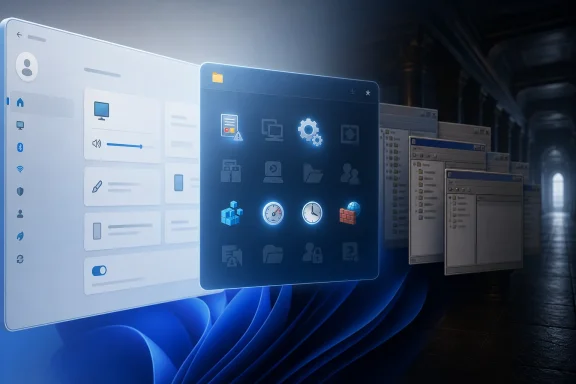
Windows 11 includes a built-in Windows Tools folder, reachable from Search or Control Panel under System and Security, that collects many first-party administrative and troubleshooting utilities, continuing the older Administrative Tools tradition rather than introducing a newly discovered secret feature. The surprise is not that Microsoft buried a magic control room in the OS. The surprise is that Windows still depends on this half-visible layer of inherited utilities while pretending the modern Settings app is the front door to everything. For enthusiasts, administrators, and support desks, that gap says more about Windows than any Start menu redesign ever could.
The Neowin discovery making the rounds is charming because it captures a familiar Windows experience: you stumble into a corner of the operating system that feels both official and forgotten. Windows Tools is not hidden in the technical sense. Type its name into Search, or walk through Control Panel, and it opens like any other shell folder.
But “not hidden” is not the same thing as surfaced. Microsoft has spent years moving ordinary users toward Settings, Microsoft account flows, simplified troubleshooters, and cloud-connected defaults. Meanwhile, Windows Tools sits in the old Control Panel geography, quietly preserving shortcuts to utilities that still matter when the glossy layer fails.
That is why the find resonates. Windows Tools is less a product feature than a museum corridor where Microsoft keeps the instruments it cannot quite retire. Some are still vital. Some are obscure because they serve narrow enterprise or legacy roles. Some are there because removing them would break workflows that were built before many current Windows 11 users were born.
The old name, Administrative Tools, was more honest. It told users this was a place for maintenance, diagnosis, and configuration. “Windows Tools” is broader and friendlier, but also fuzzier, a modern label pasted over a folder whose contents still speak fluent NT.
Windows Tools exposes that split with unusual clarity. Event Viewer, Services, Task Scheduler, Performance Monitor, Registry Editor, System Configuration, and Windows Defender Firewall with Advanced Security are not decorative extras. They are the places administrators go when the cheerful troubleshooting wizard has run out of ideas.
The folder also reminds us that Windows administration is not one thing. It is a patchwork of executable files, Microsoft Management Console snap-ins, legacy Control Panel applets, command-line shells, and migration-era utilities that have survived multiple design systems. The user sees one folder; the system sees decades of accumulated operational dependency.
That is why the interface feels oddly inconsistent. Some tools open classic MMC windows. Some launch modern-adjacent utilities. Some are mere shortcuts to binaries in System32. The folder is not a curated app suite in the way Microsoft Store users might understand it. It is an index of things Windows still needs nearby.
If they are legacy baggage, Microsoft should be actively retiring and replacing them. If they are professional infrastructure, they should be documented, organized, and made easier to discover for the people who are expected to use them. If they are power-user features, they should have a coherent place in the Windows experience rather than living as a renamed Control Panel folder.
Instead, Windows Tools exists in the awkward middle. It is present enough to be useful and obscure enough to surprise experienced users. That is a product management smell, not a user education problem.
The inconsistency is especially obvious when you notice what is missing. Group Policy Editor may not appear there, even though it fits the administrative theme. Other utilities live elsewhere, are edition-dependent, or are invoked primarily through command names. The folder is not an authoritative catalog of Windows power tools; it is a historically shaped shortcut collection.
This is the tension at the heart of Windows Tools. Enthusiasts see empowerment. Support teams see a lifeline. Product designers see risk. A consumer who discovers Character Map is unlikely to hurt anything; a consumer who starts experimenting with firewall rules, iSCSI targets, or service startup types can make a mess very quickly.
That does not excuse poor discoverability for professional users. But it does explain why Microsoft is reluctant to put this folder on a pedestal. Windows has always had to serve people who want a web browser and people who need to diagnose Kerberos, storage, drivers, scheduled tasks, and event logs before lunch.
The operating system’s compromise is to make the tools available without making them inviting. That compromise is rational, but it also leaves users learning the map through folklore: forum posts, Reddit threads, old certification books, and the occasional “I never knew this existed” article.
Then there are tools such as ODBC Data Sources, Component Services, iSCSI Initiator, and Print Management. These are not consumer nostalgia pieces. They are reminders that Windows is still a business operating system whose installed base includes line-of-business software, old databases, shared printers, storage arrays, compliance requirements, and small offices where “the server” might be a workstation under a desk.
That is why the modern Settings app can never be the whole story by decree. Settings can absorb common workflows, but Windows’ administrative surface area is enormous. Every time Microsoft moves one setting into the new interface, another dependency chain remains anchored in an older console.
For home users, that looks like clutter. For enterprise IT, it looks like continuity. The same backward compatibility that makes Windows feel messy is also what keeps it deployable in environments where “just replace it” is not an answer.
Microsoft has since marked Steps Recorder as deprecated and has pointed users toward alternatives such as Snipping Tool, Xbox Game Bar, and Clipchamp for screen capture workflows. That makes sense in a narrow product sense. Windows now has better capture tools, and PSR belonged to an older support model.
But the retirement also illustrates why these legacy utilities persist for so long. A tool does not have to be beautiful to be operationally important. It only has to be embedded in habits, scripts, documentation, training, and muscle memory.
When Microsoft removes or deprecates a utility, the technical replacement is only half the issue. The real cost is organizational: rewriting support instructions, retraining users, validating replacement workflows, and dealing with environments where the “modern” substitute is overbuilt, blocked, or dependent on policies that do not exist in the older tool.
That gap is why Windows Tools feels exciting even when it is basically a folder of shortcuts. It validates the power-user instinct that the real operating system is not always where Microsoft points the camera. There is another Windows underneath the marketed Windows, and it is often more useful.
The danger is that enthusiasts can romanticize this mess. Not every old console is better. Not every legacy workflow deserves preservation. Some tools are obscure because they are specialized; others are obscure because Microsoft has neglected the user experience around them.
Still, the persistence of these utilities is not accidental. Windows wins in part because it remains legible to people who know its internals. A Mac-style simplification of the administrative surface would make Windows prettier, but it would also make it less Windows.
That matters because Microsoft increasingly presents Windows as a managed cloud endpoint. Intune, Defender, Entra identity, Windows Update for Business, and policy-driven configuration are the strategic layer. Yet the local machine still matters when something breaks, when a device is offline, when a policy does not apply, or when a misbehaving service needs immediate attention.
The old tools remain the last mile of administration. They are not glamorous, but they are concrete. They show what the machine thinks is happening, not what the cloud dashboard hopes is happening.
That distinction is important in real support work. A management portal can tell you a device is compliant; Event Viewer can tell you why the user cannot print. A policy report can say configuration succeeded; Local Security Policy can show the effective setting on the box in front of you.
That means clearer grouping, better descriptions, edition-aware visibility, and plain-language warnings for tools that can cause damage. It means acknowledging that the folder exists for administrators and advanced users, not pretending it is a random assortment of accessories. It also means documenting why some tools appear and others do not.
There is a product opportunity here. Windows Tools could become a proper administrative launchpad: searchable, categorized, policy-aware, and explicit about whether a tool is legacy, current, deprecated, optional, or replaced by something else. Microsoft does not need to modernize every console overnight to make the collection more coherent.
The company’s habit has been to modernize the front porch while leaving the workshop unchanged. That may be good enough for compatibility, but it is not good enough for trust. If Windows is going to keep carrying this much history, it should label the shelves.
The most concrete lessons are simple, but they point to a larger truth:
 Microsoft’s “Hidden” Tool Chest Is Really a Fossil Record
The Neowin discovery making the rounds is charming because it captures a familiar Windows experience: you stumble into a corner of the operating system that feels both official and forgotten. Windows Tools is not hidden in the technical sense. Type its name into Search, or walk through Control Panel, and it opens like any other shell folder.But “not hidden” is not the same thing as surfaced. Microsoft has spent years moving ordinary users toward Settings, Microsoft account flows, simplified troubleshooters, and cloud-connected defaults. Meanwhile, Windows Tools sits in the old Control Panel geography, quietly preserving shortcuts to utilities that still matter when the glossy layer fails.
That is why the find resonates. Windows Tools is less a product feature than a museum corridor where Microsoft keeps the instruments it cannot quite retire. Some are still vital. Some are obscure because they serve narrow enterprise or legacy roles. Some are there because removing them would break workflows that were built before many current Windows 11 users were born.
The old name, Administrative Tools, was more honest. It told users this was a place for maintenance, diagnosis, and configuration. “Windows Tools” is broader and friendlier, but also fuzzier, a modern label pasted over a folder whose contents still speak fluent NT.
The Settings App Never Replaced the Machine Room
Microsoft’s modern Windows design story has always had a contradiction at its center. Settings is supposed to be the approachable control surface, but Windows remains too large, too old, and too institutionally important to be fully contained by a consumer-facing app. The result is an operating system with two personalities: one for onboarding and personalization, another for repair and authority.Windows Tools exposes that split with unusual clarity. Event Viewer, Services, Task Scheduler, Performance Monitor, Registry Editor, System Configuration, and Windows Defender Firewall with Advanced Security are not decorative extras. They are the places administrators go when the cheerful troubleshooting wizard has run out of ideas.
The folder also reminds us that Windows administration is not one thing. It is a patchwork of executable files, Microsoft Management Console snap-ins, legacy Control Panel applets, command-line shells, and migration-era utilities that have survived multiple design systems. The user sees one folder; the system sees decades of accumulated operational dependency.
That is why the interface feels oddly inconsistent. Some tools open classic MMC windows. Some launch modern-adjacent utilities. Some are mere shortcuts to binaries in System32. The folder is not a curated app suite in the way Microsoft Store users might understand it. It is an index of things Windows still needs nearby.
The Real Story Is Not Discovery, but Neglect
There is an easy version of this story that says Microsoft should simply advertise Windows Tools better. That is true, but incomplete. The deeper problem is that Microsoft has never resolved whether these tools are legacy baggage, professional infrastructure, or user-facing power features.If they are legacy baggage, Microsoft should be actively retiring and replacing them. If they are professional infrastructure, they should be documented, organized, and made easier to discover for the people who are expected to use them. If they are power-user features, they should have a coherent place in the Windows experience rather than living as a renamed Control Panel folder.
Instead, Windows Tools exists in the awkward middle. It is present enough to be useful and obscure enough to surprise experienced users. That is a product management smell, not a user education problem.
The inconsistency is especially obvious when you notice what is missing. Group Policy Editor may not appear there, even though it fits the administrative theme. Other utilities live elsewhere, are edition-dependent, or are invoked primarily through command names. The folder is not an authoritative catalog of Windows power tools; it is a historically shaped shortcut collection.
Obscurity Is Sometimes a Safety Feature
To Microsoft’s credit, not every administrative tool should be aggressively marketed to casual users. Registry Editor is powerful enough to fix problems and dangerous enough to create them. Local Security Policy can harden a system or lock a user into a confusing failure state. Services can help identify a broken dependency or disable something essential.This is the tension at the heart of Windows Tools. Enthusiasts see empowerment. Support teams see a lifeline. Product designers see risk. A consumer who discovers Character Map is unlikely to hurt anything; a consumer who starts experimenting with firewall rules, iSCSI targets, or service startup types can make a mess very quickly.
That does not excuse poor discoverability for professional users. But it does explain why Microsoft is reluctant to put this folder on a pedestal. Windows has always had to serve people who want a web browser and people who need to diagnose Kerberos, storage, drivers, scheduled tasks, and event logs before lunch.
The operating system’s compromise is to make the tools available without making them inviting. That compromise is rational, but it also leaves users learning the map through folklore: forum posts, Reddit threads, old certification books, and the occasional “I never knew this existed” article.
The Folder Is a Tour of Windows’ Unfinished Migration
The list itself tells a story about Microsoft’s long, incomplete migration from classic Windows to modern Windows. Command Prompt sits beside PowerShell. Windows PowerShell ISE remains even as Microsoft’s scripting future moved elsewhere. Control Panel appears inside a folder that itself lives under Control Panel. Windows Media Player Legacy still exists because compatibility dies hard.Then there are tools such as ODBC Data Sources, Component Services, iSCSI Initiator, and Print Management. These are not consumer nostalgia pieces. They are reminders that Windows is still a business operating system whose installed base includes line-of-business software, old databases, shared printers, storage arrays, compliance requirements, and small offices where “the server” might be a workstation under a desk.
That is why the modern Settings app can never be the whole story by decree. Settings can absorb common workflows, but Windows’ administrative surface area is enormous. Every time Microsoft moves one setting into the new interface, another dependency chain remains anchored in an older console.
For home users, that looks like clutter. For enterprise IT, it looks like continuity. The same backward compatibility that makes Windows feel messy is also what keeps it deployable in environments where “just replace it” is not an answer.
Steps Recorder Shows What Happens When the Old Layer Finally Moves
Steps Recorder is a useful example because it sits at the boundary between beloved obscurity and planned retirement. For years, it was the kind of tool support people could ask a user to run when screenshots and written descriptions were not enough. It recorded actions into a package that made troubleshooting easier, especially when the user could not explain what they had clicked.Microsoft has since marked Steps Recorder as deprecated and has pointed users toward alternatives such as Snipping Tool, Xbox Game Bar, and Clipchamp for screen capture workflows. That makes sense in a narrow product sense. Windows now has better capture tools, and PSR belonged to an older support model.
But the retirement also illustrates why these legacy utilities persist for so long. A tool does not have to be beautiful to be operationally important. It only has to be embedded in habits, scripts, documentation, training, and muscle memory.
When Microsoft removes or deprecates a utility, the technical replacement is only half the issue. The real cost is organizational: rewriting support instructions, retraining users, validating replacement workflows, and dealing with environments where the “modern” substitute is overbuilt, blocked, or dependent on policies that do not exist in the older tool.
Power Users Live in the Gap Between Official and Useful
Windows enthusiasts have always had a special relationship with this underlayer. The official story of Windows is told through Start menu changes, Copilot integration, Store apps, taskbar behavior, and visual refreshes. The practical story is told through Event Viewer logs,services.msc, taskschd.msc, msconfig, regedit, and whatever command fixed the thing at 2 a.m.That gap is why Windows Tools feels exciting even when it is basically a folder of shortcuts. It validates the power-user instinct that the real operating system is not always where Microsoft points the camera. There is another Windows underneath the marketed Windows, and it is often more useful.
The danger is that enthusiasts can romanticize this mess. Not every old console is better. Not every legacy workflow deserves preservation. Some tools are obscure because they are specialized; others are obscure because Microsoft has neglected the user experience around them.
Still, the persistence of these utilities is not accidental. Windows wins in part because it remains legible to people who know its internals. A Mac-style simplification of the administrative surface would make Windows prettier, but it would also make it less Windows.
The Enterprise Reading Is More Serious Than the Reddit Reading
For a home user, Windows Tools is a curiosity. For administrators, it is a reminder of how much Windows management still happens outside the consumer narrative. Many of the utilities gathered there are daily drivers for diagnosing system health, reviewing logs, managing scheduled jobs, checking firewall behavior, and understanding performance.That matters because Microsoft increasingly presents Windows as a managed cloud endpoint. Intune, Defender, Entra identity, Windows Update for Business, and policy-driven configuration are the strategic layer. Yet the local machine still matters when something breaks, when a device is offline, when a policy does not apply, or when a misbehaving service needs immediate attention.
The old tools remain the last mile of administration. They are not glamorous, but they are concrete. They show what the machine thinks is happening, not what the cloud dashboard hopes is happening.
That distinction is important in real support work. A management portal can tell you a device is compliant; Event Viewer can tell you why the user cannot print. A policy report can say configuration succeeded; Local Security Policy can show the effective setting on the box in front of you.
Microsoft Should Curate, Not Pretend
The right answer is not to delete Windows Tools or bury it deeper. Nor is it to dump every advanced utility into a giant power-user drawer and call the job done. Microsoft should curate this layer with the same seriousness it applies to consumer-facing features.That means clearer grouping, better descriptions, edition-aware visibility, and plain-language warnings for tools that can cause damage. It means acknowledging that the folder exists for administrators and advanced users, not pretending it is a random assortment of accessories. It also means documenting why some tools appear and others do not.
There is a product opportunity here. Windows Tools could become a proper administrative launchpad: searchable, categorized, policy-aware, and explicit about whether a tool is legacy, current, deprecated, optional, or replaced by something else. Microsoft does not need to modernize every console overnight to make the collection more coherent.
The company’s habit has been to modernize the front porch while leaving the workshop unchanged. That may be good enough for compatibility, but it is not good enough for trust. If Windows is going to keep carrying this much history, it should label the shelves.
This Little Folder Explains a Lot About Windows
Windows Tools is not a secret feature, but the reaction to it is revealing. It shows that even experienced users can miss parts of Windows when Microsoft stops narrating them. It also shows that the OS is still full of practical affordances that sit outside the polished consumer path.The most concrete lessons are simple, but they point to a larger truth:
- Windows Tools is a renamed continuation of the older Administrative Tools concept rather than a new hidden application.
- The folder is best understood as a shortcut hub for administrative, diagnostic, and legacy utilities, not as a complete inventory of every advanced Windows feature.
- Some entries remain highly relevant for troubleshooting, including Event Viewer, Services, Task Scheduler, Resource Monitor, and Windows Defender Firewall with Advanced Security.
- Some utilities are specialized enough that most home users will never need them, including iSCSI Initiator, ODBC Data Sources, Component Services, and Local Security Policy.
- The presence of deprecated or legacy-adjacent tools shows how slowly Windows can change when compatibility and support workflows are involved.
- Microsoft could make this area safer and more useful by curating it better instead of leaving discovery to search, forums, and accident.
References
- Primary source: Neowin
Published: Sat, 23 May 2026 23:49:17 GMT
I never knew Windows had a "hidden" collection of tools - Neowin
I just discovered this overlooked Windows section packed with built-in utilities I somehow never noticed before. www.neowin.net
- Official source: support.microsoft.com
Steps Recorder deprecation - Microsoft Support
Problems Steps Recorder (PSR) is deprecated. Review alternatives to capturing screen recordings.support.microsoft.com - Official source: learn.microsoft.com
Features and functionality removed in Windows client
In this article, learn about the features and functionality that have been removed or replaced in Windows client.learn.microsoft.com - Related coverage: windowscentral.com
Microsoft to remove Steps Recorder from Windows 11 | Windows Central
Steps Recorder will no longer receive updates and will be removed in future releases of Windows. Microsoft announced the change alongside its latest Insider Build of Windows 11.www.windowscentral.com - Related coverage: windowslatest.com
Windows 11 pushes Snipping Tool, Microsoft Clipchamp as it is set to remove Steps Recorder
Microsoft's recent Windows 11 update signals a move away from Steps Recorder, following plans to also phase out WordPad. www.windowslatest.com
- Related coverage: ginjfo.com
Windows 11, Microsoft fait le ménage dans son contenu natif - GinjFo
Microsoft fait un grand ménage dans le contenu natif de Windows 11. Plusieurs applications « historique » sont abandonnées.www.ginjfo.com
- Related coverage: techyorker.com
How to get to adminIstrative tools in Windows 11 - TechYorker
×AIDiscover the way to a Faster PC - Chipps AI AssistantNew Update: Boost Your Device Performance Today with Chipps.Fix My... techyorker.com
- Related coverage: makeuseof.com
7 Ways to Open the Windows Tools in Windows 11
It may have a new name, but the Windows Administrative Tools are as useful as they ever were. Here's how to find them on Windows 11. www.makeuseof.com
- Related coverage: cybersecurityhoy.com
