

Windows already includes Resource Monitor, Clipboard history, Windows Sandbox, and Reliability Monitor, four practical utilities that remain easy to miss in Windows 10 and Windows 11 despite solving everyday problems around performance, copying, testing unknown software, and diagnosing crashes. The larger story is not that Microsoft has secretly built a perfect toolkit. It is that Windows often ships competent answers to common annoyances, then buries them behind old interfaces, disabled defaults, or names that sound like sysadmin chores. The result is a strange kind of waste: users install more software to fix problems their PCs can already investigate.
Windows has always been two operating systems at once. One is the glossy consumer shell Microsoft advertises: centered taskbar, rounded corners, widgets, Copilot buttons, cloud sign-ins, and periodic promises that everything is now more modern. The other is the layered administrative machine underneath, where decades of diagnostic utilities, control panels, snap-ins, logs, and command shortcuts still do the real work.
That second Windows is where these four tools live. They are not glamorous, and they do not always look like they belong in 2026. Resource Monitor still feels like it missed a design meeting sometime around Windows 7. Reliability Monitor has the energy of a corporate dashboard from the era when Aero Glass was considered futuristic. Windows Sandbox is powerful enough to matter but hidden deeply enough that many eligible users never enable it.
Clipboard history is the exception visually, but not philosophically. It is genuinely convenient, yet Microsoft leaves it off until the user discovers Win + V or digs through Settings. That choice says a lot about Windows: the operating system is full of useful mechanisms, but it often treats discoverability as someone else’s problem.
This matters because the modern PC has become noisier. Applications auto-update in the background. Browsers behave like operating systems. Cloud sync clients, game launchers, meeting tools, security agents, and vendor utilities all compete for disk, memory, network, and attention. The average user’s instinct is to download yet another cleaner, monitor, clipboard manager, or sandboxing tool. Sometimes that is justified. Often, it adds one more resident process to the pile.
The better habit is to ask a simpler question first: what can Windows already show me?
But Task Manager is not where the investigation ends. It is where the investigation begins.
Resource Monitor, launched by searching for it in Start or running
That distinction matters because performance problems are rarely as simple as “CPU high, close app.” A PC can feel sluggish while CPU usage looks ordinary. A background process can make a system sticky by hammering storage, triggering antivirus scanning, syncing a mountain of small files, or writing logs in a loop. Task Manager may gesture toward the problem. Resource Monitor lets you follow the footprints.
The Disk tab is where the tool earns its keep. It shows which processes are reading and writing, which files are involved, and how much activity is occurring. That is the difference between vaguely blaming “Windows” and seeing that a cloud client is thrashing a local cache, a game launcher is patching in the background, or an indexing service is crawling a directory at the worst possible time.
The Network tab is similarly underrated. It will not replace a proper packet analyzer for serious traffic inspection, and nobody should pretend otherwise. But for everyday suspicion — why is this app using bandwidth, what process is opening connections, what remote addresses are involved — it is often enough. You get a direct, process-level view without installing a third-party network monitor that itself wants drivers, services, startup permissions, and trust.
There is a learning curve, because Resource Monitor uses the language of Windows internals rather than consumer reassurance. “Hard faults/sec” sounds catastrophic until you know it refers to memory pages being fetched from disk rather than physical RAM failure. “Disk queue length” can be meaningful, but only in context. The tool presents evidence, not a verdict.
That is exactly why it is valuable. It slows down the most destructive troubleshooting impulse: the leap from “my PC feels slow” to “I should uninstall half my system and install a cleaner from a search ad.” Resource Monitor does not fix the problem for you, but it helps you stop guessing.
That makes it particularly useful for Windows enthusiasts and IT pros who live between the consumer and enterprise worlds. You may not need Sysinternals Process Monitor every day. You may not want to install Wireshark on a family member’s laptop to answer one bandwidth question. You may not need PowerShell counters for a one-off slowdown. Resource Monitor sits in the middle: deeper than Task Manager, safer than random freeware, and already present.
Its weakness is that it does not teach well. Microsoft could do more here. A modern Resource Monitor could preserve the depth while adding explanations, filters, plain-language summaries, and exportable diagnostic snapshots. Instead, Windows leaves users to discover it by accident, usually after frustration has already set in.
Still, the tool’s continued presence is a reminder that Windows is not short on instrumentation. It is short on editorial judgment. The system can tell you a great deal about what is happening; it just rarely guides you toward the right built-in window at the right time.
Clipboard history is Microsoft’s quiet answer. Press Win + V, enable it if prompted, and Windows starts keeping a short list of recent copied items. It supports text, HTML, and small images, with a history capped at 25 entries. It is not a professional clipboard manager, but it eliminates the most common failure mode: overwriting the thing you needed five seconds ago.
The feature’s real value is not the number 25. It is the change in posture. Copy and paste stops being a one-shot action and becomes recoverable. You can copy a command, a code snippet, an address, an error message, and a screenshot without treating each one as a fragile object that must be pasted immediately or lost forever.
Pinning is the small power-user feature that turns clipboard history from convenience into workflow. A pinned entry survives ordinary clearing behavior and can be reused quickly. For people who repeat boilerplate — support replies, shipping addresses, test commands, shell snippets, meeting notes, template phrases — that is enough to avoid a dedicated text-expander or clipboard utility in many cases.
This is where Windows’ built-in approach has a real advantage. Third-party clipboard managers can be excellent, especially for search, automation, formatting control, and longer histories. But they also sit in an extremely sensitive place. A clipboard tool sees what you copy. That can include passwords, access tokens, financial information, medical details, customer records, legal text, and private messages. Installing a clipboard manager casually is a security decision disguised as a productivity tweak.
Microsoft’s clipboard history is not risk-free. In fact, enabling it creates a new surface of exposure on the machine. If you copy sensitive data, it may be visible in the Win + V panel until it ages out, is cleared, or is replaced. Clipboard sync across devices adds another layer of convenience and another layer of judgment, because copied content can move through a Microsoft account-backed experience.
The practical answer is not paranoia. It is awareness. Clipboard history is excellent for daily text fragments and recoverable copy-paste mistakes. It is not a vault, not a secrets manager, and not a place to park credentials. If you copy passwords from a password manager, clear the clipboard history or understand exactly how your password manager handles clipboard clearing. Convenience becomes safer when users know where their data lingers.
That is backwards. Clipboard history is not niche. It is useful to students, developers, office workers, admins, writers, support technicians, and casual users filling out forms. It solves a universal annoyance without demanding a subscription, a new app store download, or a conceptual leap.
Its limits are also sensible for a built-in tool. A 25-item cap prevents it from becoming a sprawling database of everything the user has copied. Size limits avoid turning the clipboard into an accidental media cache. Pinned items provide persistence without making every copied item permanent by default.
Still, Microsoft could surface the feature more responsibly. A first-run tip after a few copy-paste actions would do more good than another promotional tile. A clearer privacy reminder would help users understand sensitive content risks. Better enterprise controls and clearer sync messaging would make it more acceptable in managed environments where clipboard behavior can become a data-governance concern.
As it stands, Win + V is a perfect example of Windows’ split personality: genuinely helpful, reasonably mature, and hidden like a cheat code.
That disposable quality is the point. The modern Windows user is constantly asked to make trust decisions with incomplete information. A utility from a small developer. An installer linked from a forum. A file attached to a support ticket. A registry tweak. A batch script. A questionable driver package. A tool that is probably fine, but “probably” is doing too much work.
Sandbox gives those moments a safer place to happen. It is not magic, and it is not a substitute for layered security, but it changes the default experiment from “run this on my actual PC” to “run this in a temporary environment first.” For IT pros, that can be a quick triage space. For enthusiasts, it can be a playground. For cautious everyday users on supported editions, it can prevent a lot of regret.
The catch is editioning. Windows Sandbox is available on supported Pro, Enterprise, and Education editions, not the Home edition most consumer PCs ship with. It also requires hardware virtualization support, and the feature has to be enabled through the old “Turn Windows features on or off” interface before it appears. That combination all but guarantees underuse.
There is also a tension in how Microsoft has evolved Sandbox. In Windows 11 version 24H2, Microsoft introduced a newer Store-serviced version of Windows Sandbox with a refreshed experience and runtime controls, while also documenting that some inbox Store apps such as Notepad, Calculator, Photos, and Terminal are not available inside Sandbox by default. That makes the environment feel oddly bare for anyone expecting a normal Windows desktop. The functionality remains useful, but the first impression can be confusing.
The configuration model is another double-edged sword. Sandbox supports
A completely disposable environment is easiest to reason about when it has minimal contact with the host. The more bridges you build — shared folders, clipboard sharing, network access, device redirection — the more you must think about what can move between the sandbox and the real machine. Convenience and isolation are always negotiating with each other.
Networking is enabled in the default Sandbox experience. Clipboard redirection can make copying files and text between host and guest easy. Runtime controls in newer versions make changing some of these settings more convenient. Those features are useful precisely because they reduce friction, but reduced friction is not always the same as reduced risk.
The right mindset is to treat Windows Sandbox as a disposable test bench, not an invulnerable containment chamber. If you are handling malware, targeted documents, or anything that suggests active adversarial behavior, you need a more deliberate lab setup. If you are checking whether an unfamiliar installer bundles junk, seeing how a utility behaves, or opening a file you do not fully trust, Sandbox is often an excellent first stop.
This is also why the feature deserves broader education. Microsoft does not need to oversell it as a consumer antivirus replacement. It should instead present Sandbox as a practical safety habit: when in doubt, test in a disposable Windows session. That message would be easy to understand and immediately useful.
The absence from Windows Home remains frustrating. Microsoft can argue that virtualization-backed features require support boundaries and that Home users are not the intended audience. But Home users are exactly the people most likely to download random utilities, follow questionable tutorials, and lack enterprise controls. If Windows is going to push security as a mainstream value, a constrained consumer-friendly Sandbox mode would be a more meaningful addition than many of the features that receive more prominent billing.
Reliability Monitor is the civilized alternative. Open it by searching for “View reliability history” or running
Chronology is what most troubleshooting lacks. Users usually remember symptoms imprecisely: the laptop started freezing “a few days ago,” the game began crashing “after an update,” the machine became unreliable “recently.” Reliability Monitor anchors those impressions to actual events. If crashes started on Tuesday and a driver update landed Monday night, that is not proof, but it is a lead worth following.
This is especially useful because Windows failures often appear as patterns before they become obvious. One application crash may be noise. The same executable failing every day after a specific update is a clue. A hardware error appearing alongside display-driver resets points the investigation in a different direction from a misbehaving office add-in or a botched game patch.
Reliability Monitor also helps users search intelligently. Instead of typing “Windows crash help” into a browser and drowning in SEO sludge, a user can search for the failing executable, faulting module, error code, or KB number. That is a much better starting point. It turns troubleshooting from vibes into evidence.
It is not a complete diagnostic system. It will not explain every failure, and it can inherit the limitations of the underlying reporting mechanisms. A clean Reliability Monitor does not prove a machine is healthy, and a scary-looking entry does not prove disaster. But for the first pass, it is one of the most humane troubleshooting tools Windows has.
The tool’s timeline helps restore that sequence. It shows when software was installed, when updates appeared, when failures clustered, and whether the machine’s stability worsened gradually or suddenly. That can prevent the classic support mistake of treating every visible error as equally important.
For IT professionals, that timeline can accelerate conversations with users. Instead of asking someone to reconstruct a week of behavior from memory, Reliability Monitor provides a shared artifact. For enthusiasts helping relatives, it can reveal that the “Windows problem” started immediately after a vendor utility update. For admins dealing with a small fleet, it can inform whether a problem is local, update-related, or tied to a particular application version.
The tool’s biggest weakness is export and integration. Reliability data can be accessed in other ways, and enterprise environments have richer telemetry options, but the consumer-facing interface remains a local, somewhat old-fashioned view. Microsoft could make it easier to generate a clean diagnostic bundle or share a redacted timeline with support. Instead, users screenshot the graph like it is 2009.
Even so, Reliability Monitor remains a strong antidote to performative troubleshooting. It does not encourage ritual commands, registry superstition, or magical cleanup routines. It asks a better question: what changed around the time the machine became unreliable?
Every third-party utility asks for trust. A performance monitor needs visibility into processes. A clipboard manager sees copied data. A sandboxing tool may install drivers or virtualization components. A crash analyzer may ingest logs and telemetry. Many third-party tools are reputable and more capable than Microsoft’s built-ins, but installing them should be a choice made after understanding the built-in baseline, not a reflex.
Windows’ native tools are not automatically safer in every respect, but they reduce the number of parties involved. They also align better with the operating system’s own model. Resource Monitor reads what Windows already knows. Clipboard history is integrated into the shell. Sandbox uses Microsoft’s virtualization and container plumbing. Reliability Monitor surfaces Windows’ own stability records.
That integration matters in managed environments. Admins may block unapproved utilities for good reasons. Data-loss prevention rules, software inventory, licensing, privacy requirements, and incident response all get messier when users bring their own diagnostic stack. Teaching people the built-in tools gives them a safer first tier before escalation.
For enthusiasts, the benefit is different but related. Built-in tools are excellent baselines. If Resource Monitor shows a process constantly writing to disk, you can then decide whether deeper Sysinternals tracing is warranted. If Reliability Monitor shows a driver crash pattern, you can investigate that driver. If Sandbox reveals an installer dropping unwanted services, you can abandon it before it reaches the host. If clipboard history solves 80 percent of your reuse needs, you may not need a resident clipboard database at all.
This is the hierarchy Windows users should adopt: built-in first, specialized second, random download last. It is not anti-third-party. It is anti-unnecessary exposure.
Task Manager could point users toward Resource Monitor more prominently when disk or network questions exceed its view. Clipboard history could be introduced during onboarding with privacy-aware language. Windows Sandbox could have a simpler enablement path and clearer edition messaging. Reliability Monitor could appear in Settings under troubleshooting rather than living like a secret behind Control Panel-era plumbing.
Microsoft has shown that it can surface features when it wants to. Windows has no trouble advertising OneDrive backup, Microsoft account benefits, Edge defaults, Copilot, widgets, or subscription services. The asymmetry is hard to miss. Revenue-adjacent features get front doors. Diagnostic and self-help tools get side entrances.
That is a shame, because these utilities would improve Windows’ reputation if more people used them. A user who can identify the process hammering the disk is less likely to describe Windows as randomly slow. A user who can recover overwritten clipboard text feels less friction. A user who can test unknown software in a disposable environment is less likely to blame Windows after installing junk. A user who can correlate crashes with updates has a better support conversation.
In other words, these tools do not merely solve small problems. They make the operating system feel more knowable. That has become increasingly important as Windows grows more cloud-connected, policy-driven, and opaque.
Windows has spent years accumulating features faster than it has learned to explain them, and these four tools are proof that useful software can be both built in and effectively invisible. The next version of Windows does not need only more intelligence layered on top; it needs a clearer path to the intelligence already underneath. If Microsoft wants users to trust Windows as a platform rather than merely tolerate it as a substrate for other apps, it should start by teaching people to open the drawers it has already filled.
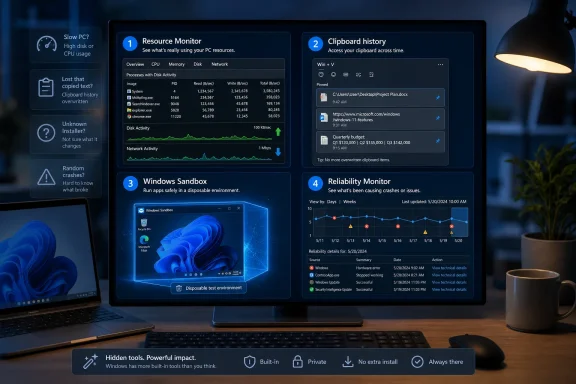 Windows Still Hides Its Best Tools Behind Its Worst Habits
Windows has always been two operating systems at once. One is the glossy consumer shell Microsoft advertises: centered taskbar, rounded corners, widgets, Copilot buttons, cloud sign-ins, and periodic promises that everything is now more modern. The other is the layered administrative machine underneath, where decades of diagnostic utilities, control panels, snap-ins, logs, and command shortcuts still do the real work.That second Windows is where these four tools live. They are not glamorous, and they do not always look like they belong in 2026. Resource Monitor still feels like it missed a design meeting sometime around Windows 7. Reliability Monitor has the energy of a corporate dashboard from the era when Aero Glass was considered futuristic. Windows Sandbox is powerful enough to matter but hidden deeply enough that many eligible users never enable it.
Clipboard history is the exception visually, but not philosophically. It is genuinely convenient, yet Microsoft leaves it off until the user discovers Win + V or digs through Settings. That choice says a lot about Windows: the operating system is full of useful mechanisms, but it often treats discoverability as someone else’s problem.
This matters because the modern PC has become noisier. Applications auto-update in the background. Browsers behave like operating systems. Cloud sync clients, game launchers, meeting tools, security agents, and vendor utilities all compete for disk, memory, network, and attention. The average user’s instinct is to download yet another cleaner, monitor, clipboard manager, or sandboxing tool. Sometimes that is justified. Often, it adds one more resident process to the pile.
The better habit is to ask a simpler question first: what can Windows already show me?
Resource Monitor Is the Diagnostic Tool Task Manager Outgrew
Task Manager is the celebrity utility. Everyone knows Ctrl + Shift + Esc. Everyone has used it to end a frozen browser tab, glare at a CPU graph, or confirm that, yes, Microsoft Teams really does want that much memory. In Windows 11, Task Manager has also become more visually aligned with the rest of the system, with a modernized interface that makes it feel less like an emergency hatch and more like a normal application.But Task Manager is not where the investigation ends. It is where the investigation begins.
Resource Monitor, launched by searching for it in Start or running
resmon, is the more revealing tool when a machine feels wrong but not obviously broken. Task Manager can tell you that disk usage is high or that a process is busy. Resource Monitor lets you inspect the relationship between processes and the system resources they are consuming in much finer detail: CPU threads, memory pressure, disk reads and writes, active files, network connections, and listening ports.That distinction matters because performance problems are rarely as simple as “CPU high, close app.” A PC can feel sluggish while CPU usage looks ordinary. A background process can make a system sticky by hammering storage, triggering antivirus scanning, syncing a mountain of small files, or writing logs in a loop. Task Manager may gesture toward the problem. Resource Monitor lets you follow the footprints.
The Disk tab is where the tool earns its keep. It shows which processes are reading and writing, which files are involved, and how much activity is occurring. That is the difference between vaguely blaming “Windows” and seeing that a cloud client is thrashing a local cache, a game launcher is patching in the background, or an indexing service is crawling a directory at the worst possible time.
The Network tab is similarly underrated. It will not replace a proper packet analyzer for serious traffic inspection, and nobody should pretend otherwise. But for everyday suspicion — why is this app using bandwidth, what process is opening connections, what remote addresses are involved — it is often enough. You get a direct, process-level view without installing a third-party network monitor that itself wants drivers, services, startup permissions, and trust.
There is a learning curve, because Resource Monitor uses the language of Windows internals rather than consumer reassurance. “Hard faults/sec” sounds catastrophic until you know it refers to memory pages being fetched from disk rather than physical RAM failure. “Disk queue length” can be meaningful, but only in context. The tool presents evidence, not a verdict.
That is exactly why it is valuable. It slows down the most destructive troubleshooting impulse: the leap from “my PC feels slow” to “I should uninstall half my system and install a cleaner from a search ad.” Resource Monitor does not fix the problem for you, but it helps you stop guessing.
The Old Interface Is Part of the Point
There is an irony in Resource Monitor’s age. Its interface looks neglected, but its neglect has also spared it from the simplification that often weakens diagnostic tools. It is dense, tabular, and unapologetically utilitarian. In other words, it behaves like a tool designed to answer questions rather than keep nervous users calm.That makes it particularly useful for Windows enthusiasts and IT pros who live between the consumer and enterprise worlds. You may not need Sysinternals Process Monitor every day. You may not want to install Wireshark on a family member’s laptop to answer one bandwidth question. You may not need PowerShell counters for a one-off slowdown. Resource Monitor sits in the middle: deeper than Task Manager, safer than random freeware, and already present.
Its weakness is that it does not teach well. Microsoft could do more here. A modern Resource Monitor could preserve the depth while adding explanations, filters, plain-language summaries, and exportable diagnostic snapshots. Instead, Windows leaves users to discover it by accident, usually after frustration has already set in.
Still, the tool’s continued presence is a reminder that Windows is not short on instrumentation. It is short on editorial judgment. The system can tell you a great deal about what is happening; it just rarely guides you toward the right built-in window at the right time.
Clipboard History Fixes a Tiny Failure That Happens All Day
Copy and paste is so basic that we forget how fragile it is. The traditional clipboard holds one thing. Copy something else, and the previous item disappears. That model made sense when computing sessions were simpler, but it feels absurd in modern work, where users bounce between browsers, editors, terminals, chat apps, forms, screenshots, and remote sessions.Clipboard history is Microsoft’s quiet answer. Press Win + V, enable it if prompted, and Windows starts keeping a short list of recent copied items. It supports text, HTML, and small images, with a history capped at 25 entries. It is not a professional clipboard manager, but it eliminates the most common failure mode: overwriting the thing you needed five seconds ago.
The feature’s real value is not the number 25. It is the change in posture. Copy and paste stops being a one-shot action and becomes recoverable. You can copy a command, a code snippet, an address, an error message, and a screenshot without treating each one as a fragile object that must be pasted immediately or lost forever.
Pinning is the small power-user feature that turns clipboard history from convenience into workflow. A pinned entry survives ordinary clearing behavior and can be reused quickly. For people who repeat boilerplate — support replies, shipping addresses, test commands, shell snippets, meeting notes, template phrases — that is enough to avoid a dedicated text-expander or clipboard utility in many cases.
This is where Windows’ built-in approach has a real advantage. Third-party clipboard managers can be excellent, especially for search, automation, formatting control, and longer histories. But they also sit in an extremely sensitive place. A clipboard tool sees what you copy. That can include passwords, access tokens, financial information, medical details, customer records, legal text, and private messages. Installing a clipboard manager casually is a security decision disguised as a productivity tweak.
Microsoft’s clipboard history is not risk-free. In fact, enabling it creates a new surface of exposure on the machine. If you copy sensitive data, it may be visible in the Win + V panel until it ages out, is cleared, or is replaced. Clipboard sync across devices adds another layer of convenience and another layer of judgment, because copied content can move through a Microsoft account-backed experience.
The practical answer is not paranoia. It is awareness. Clipboard history is excellent for daily text fragments and recoverable copy-paste mistakes. It is not a vault, not a secrets manager, and not a place to park credentials. If you copy passwords from a password manager, clear the clipboard history or understand exactly how your password manager handles clipboard clearing. Convenience becomes safer when users know where their data lingers.
Microsoft Should Stop Treating Win + V Like an Easter Egg
Clipboard history is one of those features that changes user behavior immediately, which makes its low visibility puzzling. Microsoft has spent years nudging users toward cloud accounts, widgets, search experiences, and AI entry points. Meanwhile, one of the most broadly useful productivity improvements in Windows is activated by a keyboard shortcut many users have never pressed.That is backwards. Clipboard history is not niche. It is useful to students, developers, office workers, admins, writers, support technicians, and casual users filling out forms. It solves a universal annoyance without demanding a subscription, a new app store download, or a conceptual leap.
Its limits are also sensible for a built-in tool. A 25-item cap prevents it from becoming a sprawling database of everything the user has copied. Size limits avoid turning the clipboard into an accidental media cache. Pinned items provide persistence without making every copied item permanent by default.
Still, Microsoft could surface the feature more responsibly. A first-run tip after a few copy-paste actions would do more good than another promotional tile. A clearer privacy reminder would help users understand sensitive content risks. Better enterprise controls and clearer sync messaging would make it more acceptable in managed environments where clipboard behavior can become a data-governance concern.
As it stands, Win + V is a perfect example of Windows’ split personality: genuinely helpful, reasonably mature, and hidden like a cheat code.
Windows Sandbox Is the Disposable PC Microsoft Should Advertise More Loudly
Windows Sandbox is the most powerful tool in this group and the one most likely to make a cautious user feel like they have acquired a new superpower. It creates a temporary, isolated Windows environment where software can be run, files can be opened, and settings can be tested without committing those changes to the host installation. Close the sandbox, and the session disappears.That disposable quality is the point. The modern Windows user is constantly asked to make trust decisions with incomplete information. A utility from a small developer. An installer linked from a forum. A file attached to a support ticket. A registry tweak. A batch script. A questionable driver package. A tool that is probably fine, but “probably” is doing too much work.
Sandbox gives those moments a safer place to happen. It is not magic, and it is not a substitute for layered security, but it changes the default experiment from “run this on my actual PC” to “run this in a temporary environment first.” For IT pros, that can be a quick triage space. For enthusiasts, it can be a playground. For cautious everyday users on supported editions, it can prevent a lot of regret.
The catch is editioning. Windows Sandbox is available on supported Pro, Enterprise, and Education editions, not the Home edition most consumer PCs ship with. It also requires hardware virtualization support, and the feature has to be enabled through the old “Turn Windows features on or off” interface before it appears. That combination all but guarantees underuse.
There is also a tension in how Microsoft has evolved Sandbox. In Windows 11 version 24H2, Microsoft introduced a newer Store-serviced version of Windows Sandbox with a refreshed experience and runtime controls, while also documenting that some inbox Store apps such as Notepad, Calculator, Photos, and Terminal are not available inside Sandbox by default. That makes the environment feel oddly bare for anyone expecting a normal Windows desktop. The functionality remains useful, but the first impression can be confusing.
The configuration model is another double-edged sword. Sandbox supports
.wsb configuration files that can control networking, clipboard redirection, mapped folders, audio and video input, printer redirection, protected client mode, and startup commands. That flexibility is valuable. It is also where the security story gets more complicated.A completely disposable environment is easiest to reason about when it has minimal contact with the host. The more bridges you build — shared folders, clipboard sharing, network access, device redirection — the more you must think about what can move between the sandbox and the real machine. Convenience and isolation are always negotiating with each other.
Isolation Is a Practice, Not a Checkbox
The danger with Sandbox is the name. It suggests a clean boundary, and for many ordinary tests it provides a meaningfully safer boundary than running unknown software directly on the host. But no serious security model should reduce risk to a single checkbox labeled “sandboxed.”Networking is enabled in the default Sandbox experience. Clipboard redirection can make copying files and text between host and guest easy. Runtime controls in newer versions make changing some of these settings more convenient. Those features are useful precisely because they reduce friction, but reduced friction is not always the same as reduced risk.
The right mindset is to treat Windows Sandbox as a disposable test bench, not an invulnerable containment chamber. If you are handling malware, targeted documents, or anything that suggests active adversarial behavior, you need a more deliberate lab setup. If you are checking whether an unfamiliar installer bundles junk, seeing how a utility behaves, or opening a file you do not fully trust, Sandbox is often an excellent first stop.
This is also why the feature deserves broader education. Microsoft does not need to oversell it as a consumer antivirus replacement. It should instead present Sandbox as a practical safety habit: when in doubt, test in a disposable Windows session. That message would be easy to understand and immediately useful.
The absence from Windows Home remains frustrating. Microsoft can argue that virtualization-backed features require support boundaries and that Home users are not the intended audience. But Home users are exactly the people most likely to download random utilities, follow questionable tutorials, and lack enterprise controls. If Windows is going to push security as a mainstream value, a constrained consumer-friendly Sandbox mode would be a more meaningful addition than many of the features that receive more prominent billing.
Reliability Monitor Turns Crashes Into a Timeline Instead of a Vibe
Event Viewer is powerful, but it is also where curiosity goes to be punished. It records an enormous amount of information, much of it routine, much of it alarming-looking, and much of it irrelevant to the problem the user actually has. The result is predictable: people open Event Viewer, see a wall of warnings and errors, and either panic or leave.Reliability Monitor is the civilized alternative. Open it by searching for “View reliability history” or running
perfmon /rel, and Windows presents a timeline of system stability. Application failures, Windows failures, hardware errors, driver events, updates, installs, and other incidents appear against dates. The system also assigns a stability index from 1 to 10, but the graph is less important than the chronology.Chronology is what most troubleshooting lacks. Users usually remember symptoms imprecisely: the laptop started freezing “a few days ago,” the game began crashing “after an update,” the machine became unreliable “recently.” Reliability Monitor anchors those impressions to actual events. If crashes started on Tuesday and a driver update landed Monday night, that is not proof, but it is a lead worth following.
This is especially useful because Windows failures often appear as patterns before they become obvious. One application crash may be noise. The same executable failing every day after a specific update is a clue. A hardware error appearing alongside display-driver resets points the investigation in a different direction from a misbehaving office add-in or a botched game patch.
Reliability Monitor also helps users search intelligently. Instead of typing “Windows crash help” into a browser and drowning in SEO sludge, a user can search for the failing executable, faulting module, error code, or KB number. That is a much better starting point. It turns troubleshooting from vibes into evidence.
It is not a complete diagnostic system. It will not explain every failure, and it can inherit the limitations of the underlying reporting mechanisms. A clean Reliability Monitor does not prove a machine is healthy, and a scary-looking entry does not prove disaster. But for the first pass, it is one of the most humane troubleshooting tools Windows has.
The Best Windows Troubleshooting Tool Is the One That Preserves Sequence
Reliability Monitor’s understated genius is that it respects time. Most PC troubleshooting advice is organized around categories: drivers, updates, malware, hardware, overheating, corrupted files, bad RAM, failing disks. Those categories matter, but users experience problems as sequences. Something changed, then something broke.The tool’s timeline helps restore that sequence. It shows when software was installed, when updates appeared, when failures clustered, and whether the machine’s stability worsened gradually or suddenly. That can prevent the classic support mistake of treating every visible error as equally important.
For IT professionals, that timeline can accelerate conversations with users. Instead of asking someone to reconstruct a week of behavior from memory, Reliability Monitor provides a shared artifact. For enthusiasts helping relatives, it can reveal that the “Windows problem” started immediately after a vendor utility update. For admins dealing with a small fleet, it can inform whether a problem is local, update-related, or tied to a particular application version.
The tool’s biggest weakness is export and integration. Reliability data can be accessed in other ways, and enterprise environments have richer telemetry options, but the consumer-facing interface remains a local, somewhat old-fashioned view. Microsoft could make it easier to generate a clean diagnostic bundle or share a redacted timeline with support. Instead, users screenshot the graph like it is 2009.
Even so, Reliability Monitor remains a strong antidote to performative troubleshooting. It does not encourage ritual commands, registry superstition, or magical cleanup routines. It asks a better question: what changed around the time the machine became unreliable?
The Common Thread Is Trust, Not Nostalgia
It would be easy to frame these tools as lovable relics, and in some cases they look the part. But their relevance is not nostalgia. Their relevance is trust.Every third-party utility asks for trust. A performance monitor needs visibility into processes. A clipboard manager sees copied data. A sandboxing tool may install drivers or virtualization components. A crash analyzer may ingest logs and telemetry. Many third-party tools are reputable and more capable than Microsoft’s built-ins, but installing them should be a choice made after understanding the built-in baseline, not a reflex.
Windows’ native tools are not automatically safer in every respect, but they reduce the number of parties involved. They also align better with the operating system’s own model. Resource Monitor reads what Windows already knows. Clipboard history is integrated into the shell. Sandbox uses Microsoft’s virtualization and container plumbing. Reliability Monitor surfaces Windows’ own stability records.
That integration matters in managed environments. Admins may block unapproved utilities for good reasons. Data-loss prevention rules, software inventory, licensing, privacy requirements, and incident response all get messier when users bring their own diagnostic stack. Teaching people the built-in tools gives them a safer first tier before escalation.
For enthusiasts, the benefit is different but related. Built-in tools are excellent baselines. If Resource Monitor shows a process constantly writing to disk, you can then decide whether deeper Sysinternals tracing is warranted. If Reliability Monitor shows a driver crash pattern, you can investigate that driver. If Sandbox reveals an installer dropping unwanted services, you can abandon it before it reaches the host. If clipboard history solves 80 percent of your reuse needs, you may not need a resident clipboard database at all.
This is the hierarchy Windows users should adopt: built-in first, specialized second, random download last. It is not anti-third-party. It is anti-unnecessary exposure.
Microsoft’s Biggest Failure Here Is Product Storytelling
The frustrating part is that none of this requires Microsoft to invent much. These tools already exist. The problem is that Windows does not narrate its own capabilities coherently.Task Manager could point users toward Resource Monitor more prominently when disk or network questions exceed its view. Clipboard history could be introduced during onboarding with privacy-aware language. Windows Sandbox could have a simpler enablement path and clearer edition messaging. Reliability Monitor could appear in Settings under troubleshooting rather than living like a secret behind Control Panel-era plumbing.
Microsoft has shown that it can surface features when it wants to. Windows has no trouble advertising OneDrive backup, Microsoft account benefits, Edge defaults, Copilot, widgets, or subscription services. The asymmetry is hard to miss. Revenue-adjacent features get front doors. Diagnostic and self-help tools get side entrances.
That is a shame, because these utilities would improve Windows’ reputation if more people used them. A user who can identify the process hammering the disk is less likely to describe Windows as randomly slow. A user who can recover overwritten clipboard text feels less friction. A user who can test unknown software in a disposable environment is less likely to blame Windows after installing junk. A user who can correlate crashes with updates has a better support conversation.
In other words, these tools do not merely solve small problems. They make the operating system feel more knowable. That has become increasingly important as Windows grows more cloud-connected, policy-driven, and opaque.
Four Neglected Tools That Change the First Five Minutes of Troubleshooting
The most important habit is not memorizing every option inside these utilities. It is knowing when to reach for them before adding more software to the machine. Each one gives Windows users a better first move.- Resource Monitor should be your next stop when Task Manager confirms activity but cannot explain the source clearly enough.
- Clipboard history is worth enabling if you regularly copy multiple snippets, but it should be treated carefully when passwords, tokens, financial details, or private data pass through the clipboard.
- Windows Sandbox is a strong first-run environment for unfamiliar installers and files on supported editions, provided you remember that shared folders, clipboard redirection, and networking reduce isolation.
- Reliability Monitor is often the fastest way to turn “it started crashing recently” into a dated sequence of failures, updates, installs, and driver events.
- None of these tools replaces specialized utilities for advanced work, but each can prevent unnecessary downloads, bad guesses, and premature escalation.
Windows has spent years accumulating features faster than it has learned to explain them, and these four tools are proof that useful software can be both built in and effectively invisible. The next version of Windows does not need only more intelligence layered on top; it needs a clearer path to the intelligence already underneath. If Microsoft wants users to trust Windows as a platform rather than merely tolerate it as a substrate for other apps, it should start by teaching people to open the drawers it has already filled.
References
- Primary source: MakeUseOf
Published: 2026-06-03T19:31:14.106561
4 built-in Windows tools you are probably ignoring but shouldn't
Some of Windows' best features are buried deep enough to qualify as treasure. www.makeuseof.com
- Official source: learn.microsoft.com
- Official source: techcommunity.microsoft.com

Windows Sandbox | Microsoft Community Hub
I had to reinstall my computer after the NVMe drive failed and was replaced. The current version of Windows is Windows 11 Business, version 25H2 (OS build...
techcommunity.microsoft.com
- Related coverage: superuser.com
Starting Windows Sandbox with mapped folder from network share on Windows 11 24H2 - Super User
Under Windows 11 23H2, I was able to start Windows Sandbox with a mapped folder that lived in a network share on the host with something like the following:
<Configuration>
 <MappedFold...superuser.com
- Related coverage: windowscentral.com
How to configure Windows Sandbox on Windows 11 and Windows 10 | Windows Central
In this guide, we'll show you the steps to create a configuration file to manage features on Windows Sandbox.www.windowscentral.com - Official source: support.microsoft.com

- Official source: microsoft.com
Clipboard History | Microsoft Windows
Get the most out of your Windows 11 experience with clipboard history. Explore ways accessing clipboard history can help you by using copied or cut items later so you can paste them in other apps when you use Windows.www.microsoft.com
- Related coverage: howtogeek.com
How to Pin Text and Images to Windows 10's Clipboard History
Do you frequently copy and paste the same items? If you pin them to the Clipboard history in Windows 10, you can access them in a snap! www.howtogeek.com
- Official source: answers.microsoft.com
Clipboard History does not record or missing items - Microsoft Q&A
Windows 10, version 22H2 Some problems I've experienced with Clipboard History. Any help will be appreciated. I will copy something (CTRL + C) and paste it (CTRL + V). When I look at the Clipboard History (Windows key + V) I get the message…answers.microsoft.com - Related coverage: elevenforum.com
Clear Clipboard History Data in Windows 11 | Windows 11 Forum
This tutorial will show you how to clear clipboard history data for your account in Windows 11. When you copy something on your Windows PC, it’s...www.elevenforum.com - Related coverage: windowsforum.com
Windows Clipboard History: 25-item History, Pin, Sync, and Productivity Tips | Windows Forum
Clipboard History is the kind of quietly powerful Windows convenience that rewards discovery: it turns one-shot copy‑and‑paste into a small, persistent...windowsforum.com
