

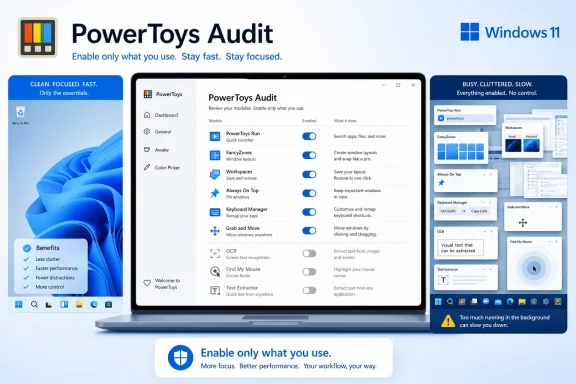
PowerToys, Microsoft’s free Windows utility suite for power users, now includes roughly thirty tools, and a new TweakTown audit argues that Windows 11 users should enable only the modules that solve daily problems instead of treating the whole package as a default install.
That is the right instinct, and it is overdue. PowerToys has become one of the most useful things Microsoft ships for Windows, but also one of the easiest to leave running on autopilot. The suite began as a relief valve for Windows annoyances; in 2026, it increasingly looks like a public staging ground for features Windows itself may eventually absorb.
The strongest argument for PowerToys is not that every utility is essential. It is that Microsoft has created a semi-official place for Windows ideas to prove themselves before the operating system team either copies them, ignores them, or leaves them to enthusiasts forever.
That makes PowerToys unusually valuable and unusually messy. It is not a polished productivity suite with a single design center. It is a drawer full of sharp tools: launchers, remappers, window managers, file utilities, mouse aids, paste helpers, OCR tools, and experiments that may matter intensely to one user and not at all to the next.
The TweakTown piece lands because it treats PowerToys less like a checklist and more like a startup folder. That is how administrators and power users should think about it. Every enabled module is a small bet that the convenience it provides outweighs its background presence, shortcut collisions, cognitive overhead, and possible duplication with Windows itself.
Microsoft’s challenge is that PowerToys has been successful enough to blur its own purpose. If a tool is indispensable, users ask why it is not just part of Windows. If a tool is obscure, users ask why it is running at all. The result is a suite that demands periodic pruning, not blind loyalty.
Windows has never lacked search boxes. It has lacked trust. Users do not want a launcher that sometimes prioritizes web results, sometimes surfaces settings, and sometimes behaves as though the thing installed yesterday does not exist. PowerToys Run earned affection because it felt direct, fast, and local in a way Windows’ default search experience often does not.
Command Palette complicates that story. Microsoft is positioning it as the evolution of PowerToys Run, with a broader command model and a more extensible future. That makes sense from a product architecture perspective, but users do not adopt launchers because the architecture is cleaner. They adopt them because a keyboard shortcut fires, results appear instantly, and the first result is usually correct.
This is where PowerToys reveals both Microsoft’s strength and its bad habit. The company can build multiple credible solutions to the same Windows problem, but it often leaves users to arbitrate the overlap. PowerToys Run and Command Palette can coexist for now, but coexistence is not a strategy forever. At some point, Microsoft will need to decide whether it is replacing a beloved utility or merely adding another surface that competes for the same keystroke.
For WindowsForum readers, the practical takeaway is simple: treat launcher migration cautiously. If PowerToys Run is wired into your hands, keep it until Command Palette proves not just feature parity but reflex parity. A launcher is not a spreadsheet app. The milliseconds and ordering quirks matter because the whole utility lives in the gap between intention and action.
That distinction matters. Microsoft has spent years improving window management in Windows 11, but the built-in model is still mostly about common arrangements. FancyZones is about personal geometry. It lets a user turn a monitor into a working surface rather than a rectangle waiting to be subdivided by defaults.
On ultrawide displays, this becomes more than preference. A 34-inch or 49-inch screen is not just a bigger laptop panel. It changes the ergonomics of work, and window placement becomes a workflow primitive. If the operating system does not understand that, users reach for tools that do.
Workspaces adds the other half of the equation. FancyZones answers where windows should go; Workspaces answers which apps should open together. That may sound like a small distinction, but anyone who restarts after Patch Tuesday and spends five minutes reconstructing a working desktop knows the tax.
This is where PowerToys feels less like a toy box and more like missing OS memory. Windows remembers plenty of things users do not care about, yet often fails to restore the exact arrangement that made a machine feel ready for work. Workspaces is not glamorous, but it points to a future Windows should already be chasing: sessions that survive interruption without turning every reboot into a reset ritual.
Always On Top is the purest example. Pinning a calculator, reference window, chat, video, or monitoring tool above the rest of the desktop is not a revolutionary idea. It is simply absurd that users still need a utility for something so basic in a modern desktop environment.
PowerRename is similar, but with a more administrative flavor. File Explorer can rename files, but bulk renaming with patterns, previews, regular expressions, and undo belongs to a different class of work. For photographers, developers, lab admins, content editors, and anyone cleaning up exported data, PowerRename is the difference between a controlled operation and a risky sequence of manual edits.
Keyboard Manager is perhaps the most revealing of the lot. System-wide key remapping should not feel exotic in 2026. Yet it remains the sort of power feature Windows exposes awkwardly or not at all, leaving PowerToys to serve users with broken keys, custom layouts, ergonomic keyboards, muscle-memory conflicts, or institutional requirements.
Find My Mouse belongs in the “quietly indispensable” category. On a single 13-inch laptop panel, spotlighting the cursor may feel silly. Across two or three high-resolution displays, or during screen sharing, it becomes a minor accessibility feature disguised as a convenience toggle.
The broader point is that the best PowerToys utilities often do one thing Windows should have done years ago. They are not exciting because they are complex. They are exciting because they remove tiny frictions that compound over thousands of interactions.
That is not a failure. It is exactly how this ecosystem should work. PowerToys proves demand, Windows absorbs the pattern, and users retire the extra utility when the native implementation becomes good enough.
Text Extractor had a clear job: copy text from anywhere on screen. For a long time, that made it feel like magic, especially when dealing with screenshots, videos, locked-down apps, remote sessions, or images containing error messages. But once OCR sits inside the screenshot workflow most users already invoke, the separate shortcut starts to look like baggage.
There will still be edge cases. A dedicated overlay may be faster in some contexts, more direct for certain workflows, or better suited to grabbing text from awkward windows. But the burden of proof changes once Windows ships the same broad capability in a default app.
This is the cycle administrators should watch closely. PowerToys can become clutter not because its tools are bad, but because Windows catches up. A utility that was essential in 2023 may be duplicative in 2026. That is why an annual or semiannual PowerToys audit is not fussy housekeeping; it is how you keep a tuned system from becoming a museum of solved problems.
For someone running two towers under one monitor arrangement, it may be indispensable. For someone already using Logitech’s software ecosystem, a hardware KVM, Remote Desktop, or a single laptop-dock setup, it may solve a problem that no longer exists. That does not make it bad. It makes it situational.
The mouse utility bundle is another reminder that discoverability and usefulness are not the same thing. Crosshairs, Highlighter, Jump, and Find My Mouse live near one another, but they serve different audiences. A streamer, presenter, accessibility-minded user, or gamer may value cursor visualization tools that a writer or sysadmin finds distracting.
Hosts File Editor falls into the same category. If you edit hosts entries weekly, a dedicated interface is sensible. If you touch the file twice a year, launching Notepad as administrator is not a hardship. A utility that saves thirty seconds twice a year is not obviously worth another permanent place in your PowerToys mental model.
Power Display, introduced as part of Microsoft’s recent push into monitor control, faces the classic Windows hardware problem: the feature is only as good as the ecosystem beneath it. DDC/CI support varies by monitor, cable path, firmware, dock, GPU, and vendor implementation. When it works, software brightness and display control can feel civilized. When it does not, the monitor’s buttons or manufacturer app remain the less elegant but more predictable answer.
This is the part of PowerToys that Microsoft cannot solve by polish alone. Some utilities are limited not by code quality but by the uneven hardware and software substrate Windows must span. Enthusiasts can tolerate that. Enterprise IT has to document it.
On Windows, it feels both new and overdue. The title bar remains a tiny historical artifact that users are expected to target, even as displays grow wider, window chrome gets flatter, touchpads get more precise, and multi-monitor arrangements become normal for office work. Grab and Move acknowledges that the old target is often the wrong one.
The feature is especially compelling on ultrawide displays because distance changes behavior. Moving a window from one side of a huge screen to another is not just a drag; it is a small trip. If a modifier key lets the user grab the window from wherever the pointer already is, the desktop feels less like a pane of glass and more like a workspace.
The resize half may matter even more. Window borders have become visually thinner over time, and grabbing the right edge of the right window on a busy desktop can be more annoying than it should be. Alt-right-click resizing is one of those interactions that feels strange for a day and obvious after a week.
There are caveats. Modifier conflicts are real, especially for users with custom keyboard layouts, developer tools, accessibility utilities, screen recorders, or remote desktop sessions. Microsoft allowing the activation key to move from Alt to Win is not a detail; it is the difference between a clever feature and one that breaks an established workflow.
Still, Grab and Move is the sort of addition that justifies PowerToys’ continued existence. It does not need to become everyone’s default. It only needs to show that Windows still has room for desktop ergonomics that are not dictated by the Start menu, taskbar, and Settings app.
The visible costs are easy to name: background processes, tray presence, update notifications, shortcut registrations, and settings pages that grow longer with every release. On modern hardware, most of this is tolerable. On managed fleets, older PCs, or carefully tuned workstations, tolerable is not the same as invisible.
The subtler cost is cognitive. Every enabled utility adds a possible shortcut, behavior, overlay, or failure mode. When something odd happens to a window, keyboard shortcut, mouse cursor, paste operation, file rename, or display setting, PowerToys becomes one more layer to check.
That matters for support. A sysadmin troubleshooting a user’s machine needs to know whether a behavior is native Windows, OEM software, accessibility configuration, Group Policy, a shell extension, or PowerToys. The more modules enabled by default, the more PowerToys shifts from productivity aid to environmental variable.
This is why the audit model is healthy. The right question is not “Which PowerToys utilities are good?” Many are good. The question is “Which utilities do you actually use enough to justify keeping active?” That is a different standard, and it produces a smaller, sharper setup.
FancyZones says Snap Layouts still does not satisfy serious desktop workflows. PowerToys Run says Windows Search still has trust problems. Keyboard Manager says basic remapping remains too obscure. Text Extractor’s retirement says native apps can catch up when Microsoft decides the feature belongs in the box.
The danger is that PowerToys becomes a convenient excuse not to fix Windows proper. Enthusiasts will install it. IT pros will script it. Developers will recommend it. But mainstream users will never discover most of these tools, and many managed environments will hesitate to deploy an ever-expanding utility suite just to patch over desktop friction.
Microsoft needs to be more deliberate about graduating features. Some PowerToys should remain niche utilities forever. Others should become Windows features, perhaps hidden behind advanced settings but maintained as part of the platform. The distinction should not be accidental.
There is also a communication problem. When Command Palette is the future of PowerToys Run, Microsoft should say so clearly inside the product and provide a migration path that respects muscle memory. When Windows absorbs a PowerToys capability, PowerToys should help users turn off the duplicate. A suite this broad needs lifecycle management, not just release notes.
A sensible audit starts with a simple rule. If you cannot remember using a utility in the last month, turn it off and see whether you miss it. The answer will be more honest than any feature roundup.
Microsoft’s best Windows ideas increasingly arrive as optional utilities before they become native features, and PowerToys is where that negotiation now happens in public. The suite is worth installing, but it is also worth questioning. If Windows 11 is going to keep borrowing from PowerToys, users should do the same in reverse: keep what earns its place, retire what Windows has absorbed, and leave room for the next small fix that makes the desktop feel unexpectedly modern.
That is the right instinct, and it is overdue. PowerToys has become one of the most useful things Microsoft ships for Windows, but also one of the easiest to leave running on autopilot. The suite began as a relief valve for Windows annoyances; in 2026, it increasingly looks like a public staging ground for features Windows itself may eventually absorb.
 PowerToys Has Become Windows’ Unofficial Product Lab
The strongest argument for PowerToys is not that every utility is essential. It is that Microsoft has created a semi-official place for Windows ideas to prove themselves before the operating system team either copies them, ignores them, or leaves them to enthusiasts forever.That makes PowerToys unusually valuable and unusually messy. It is not a polished productivity suite with a single design center. It is a drawer full of sharp tools: launchers, remappers, window managers, file utilities, mouse aids, paste helpers, OCR tools, and experiments that may matter intensely to one user and not at all to the next.
The TweakTown piece lands because it treats PowerToys less like a checklist and more like a startup folder. That is how administrators and power users should think about it. Every enabled module is a small bet that the convenience it provides outweighs its background presence, shortcut collisions, cognitive overhead, and possible duplication with Windows itself.
Microsoft’s challenge is that PowerToys has been successful enough to blur its own purpose. If a tool is indispensable, users ask why it is not just part of Windows. If a tool is obscure, users ask why it is running at all. The result is a suite that demands periodic pruning, not blind loyalty.
The Launcher War Shows Why Defaults Still Matter
The article’s first keeper is PowerToys Run, and that choice will feel familiar to anyone who has spent years being disappointed by Windows Search. Alt + Space becomes muscle memory quickly because it does the thing a launcher should do: get out of the way while opening apps, folders, files, settings, and commands.Windows has never lacked search boxes. It has lacked trust. Users do not want a launcher that sometimes prioritizes web results, sometimes surfaces settings, and sometimes behaves as though the thing installed yesterday does not exist. PowerToys Run earned affection because it felt direct, fast, and local in a way Windows’ default search experience often does not.
Command Palette complicates that story. Microsoft is positioning it as the evolution of PowerToys Run, with a broader command model and a more extensible future. That makes sense from a product architecture perspective, but users do not adopt launchers because the architecture is cleaner. They adopt them because a keyboard shortcut fires, results appear instantly, and the first result is usually correct.
This is where PowerToys reveals both Microsoft’s strength and its bad habit. The company can build multiple credible solutions to the same Windows problem, but it often leaves users to arbitrate the overlap. PowerToys Run and Command Palette can coexist for now, but coexistence is not a strategy forever. At some point, Microsoft will need to decide whether it is replacing a beloved utility or merely adding another surface that competes for the same keystroke.
For WindowsForum readers, the practical takeaway is simple: treat launcher migration cautiously. If PowerToys Run is wired into your hands, keep it until Command Palette proves not just feature parity but reflex parity. A launcher is not a spreadsheet app. The milliseconds and ordering quirks matter because the whole utility lives in the gap between intention and action.
FancyZones Remains the Case Study in Windows Being Almost Good Enough
FancyZones survives the audit because Windows Snap Layouts still do not fully answer the needs of large, wide, and multi-monitor setups. Snap Layouts is good enough for casual side-by-side work. FancyZones is for people who know exactly where their editor, browser, terminal, documentation, chat window, and file manager should land.That distinction matters. Microsoft has spent years improving window management in Windows 11, but the built-in model is still mostly about common arrangements. FancyZones is about personal geometry. It lets a user turn a monitor into a working surface rather than a rectangle waiting to be subdivided by defaults.
On ultrawide displays, this becomes more than preference. A 34-inch or 49-inch screen is not just a bigger laptop panel. It changes the ergonomics of work, and window placement becomes a workflow primitive. If the operating system does not understand that, users reach for tools that do.
Workspaces adds the other half of the equation. FancyZones answers where windows should go; Workspaces answers which apps should open together. That may sound like a small distinction, but anyone who restarts after Patch Tuesday and spends five minutes reconstructing a working desktop knows the tax.
This is where PowerToys feels less like a toy box and more like missing OS memory. Windows remembers plenty of things users do not care about, yet often fails to restore the exact arrangement that made a machine feel ready for work. Workspaces is not glamorous, but it points to a future Windows should already be chasing: sessions that survive interruption without turning every reboot into a reset ritual.
The Small Utilities Win by Removing One Annoyance at a Time
Always On Top, PowerRename, Keyboard Manager, and Find My Mouse are not headline utilities. They are the kind of features that justify themselves only after the tenth time they save you from a needless detour.Always On Top is the purest example. Pinning a calculator, reference window, chat, video, or monitoring tool above the rest of the desktop is not a revolutionary idea. It is simply absurd that users still need a utility for something so basic in a modern desktop environment.
PowerRename is similar, but with a more administrative flavor. File Explorer can rename files, but bulk renaming with patterns, previews, regular expressions, and undo belongs to a different class of work. For photographers, developers, lab admins, content editors, and anyone cleaning up exported data, PowerRename is the difference between a controlled operation and a risky sequence of manual edits.
Keyboard Manager is perhaps the most revealing of the lot. System-wide key remapping should not feel exotic in 2026. Yet it remains the sort of power feature Windows exposes awkwardly or not at all, leaving PowerToys to serve users with broken keys, custom layouts, ergonomic keyboards, muscle-memory conflicts, or institutional requirements.
Find My Mouse belongs in the “quietly indispensable” category. On a single 13-inch laptop panel, spotlighting the cursor may feel silly. Across two or three high-resolution displays, or during screen sharing, it becomes a minor accessibility feature disguised as a convenience toggle.
The broader point is that the best PowerToys utilities often do one thing Windows should have done years ago. They are not exciting because they are complex. They are exciting because they remove tiny frictions that compound over thousands of interactions.
Text Extractor’s Demotion Is a Victory for Windows
The most interesting part of the TweakTown audit is not the list of tools kept. It is the tool removed: Text Extractor. Once Windows’ Snipping Tool gained built-in OCR, the standalone PowerToys OCR overlay became redundant for many users.That is not a failure. It is exactly how this ecosystem should work. PowerToys proves demand, Windows absorbs the pattern, and users retire the extra utility when the native implementation becomes good enough.
Text Extractor had a clear job: copy text from anywhere on screen. For a long time, that made it feel like magic, especially when dealing with screenshots, videos, locked-down apps, remote sessions, or images containing error messages. But once OCR sits inside the screenshot workflow most users already invoke, the separate shortcut starts to look like baggage.
There will still be edge cases. A dedicated overlay may be faster in some contexts, more direct for certain workflows, or better suited to grabbing text from awkward windows. But the burden of proof changes once Windows ships the same broad capability in a default app.
This is the cycle administrators should watch closely. PowerToys can become clutter not because its tools are bad, but because Windows catches up. A utility that was essential in 2023 may be duplicative in 2026. That is why an annual or semiannual PowerToys audit is not fussy housekeeping; it is how you keep a tuned system from becoming a museum of solved problems.
The Utilities You Turn Off Say More Than the Ones You Keep
Mouse Without Borders is the kind of feature that demos beautifully. One keyboard and mouse across multiple PCs on the same network sounds like the sort of seamless computing Windows should champion. In practice, its value depends almost entirely on the user’s desk, hardware, and tolerance for setup quirks.For someone running two towers under one monitor arrangement, it may be indispensable. For someone already using Logitech’s software ecosystem, a hardware KVM, Remote Desktop, or a single laptop-dock setup, it may solve a problem that no longer exists. That does not make it bad. It makes it situational.
The mouse utility bundle is another reminder that discoverability and usefulness are not the same thing. Crosshairs, Highlighter, Jump, and Find My Mouse live near one another, but they serve different audiences. A streamer, presenter, accessibility-minded user, or gamer may value cursor visualization tools that a writer or sysadmin finds distracting.
Hosts File Editor falls into the same category. If you edit hosts entries weekly, a dedicated interface is sensible. If you touch the file twice a year, launching Notepad as administrator is not a hardship. A utility that saves thirty seconds twice a year is not obviously worth another permanent place in your PowerToys mental model.
Power Display, introduced as part of Microsoft’s recent push into monitor control, faces the classic Windows hardware problem: the feature is only as good as the ecosystem beneath it. DDC/CI support varies by monitor, cable path, firmware, dock, GPU, and vendor implementation. When it works, software brightness and display control can feel civilized. When it does not, the monitor’s buttons or manufacturer app remain the less elegant but more predictable answer.
This is the part of PowerToys that Microsoft cannot solve by polish alone. Some utilities are limited not by code quality but by the uneven hardware and software substrate Windows must span. Enthusiasts can tolerate that. Enterprise IT has to document it.
Grab and Move Feels Like Windows Learning From Linux Too Late
Grab and Move is the new utility in the TweakTown list, and it is exactly the sort of feature that makes longtime Linux users smirk. Hold a modifier, drag a window from anywhere, or resize it without hunting for the border. On GNOME, KDE, and other Linux desktops, that pattern has been familiar for years.On Windows, it feels both new and overdue. The title bar remains a tiny historical artifact that users are expected to target, even as displays grow wider, window chrome gets flatter, touchpads get more precise, and multi-monitor arrangements become normal for office work. Grab and Move acknowledges that the old target is often the wrong one.
The feature is especially compelling on ultrawide displays because distance changes behavior. Moving a window from one side of a huge screen to another is not just a drag; it is a small trip. If a modifier key lets the user grab the window from wherever the pointer already is, the desktop feels less like a pane of glass and more like a workspace.
The resize half may matter even more. Window borders have become visually thinner over time, and grabbing the right edge of the right window on a busy desktop can be more annoying than it should be. Alt-right-click resizing is one of those interactions that feels strange for a day and obvious after a week.
There are caveats. Modifier conflicts are real, especially for users with custom keyboard layouts, developer tools, accessibility utilities, screen recorders, or remote desktop sessions. Microsoft allowing the activation key to move from Alt to Win is not a detail; it is the difference between a clever feature and one that breaks an established workflow.
Still, Grab and Move is the sort of addition that justifies PowerToys’ continued existence. It does not need to become everyone’s default. It only needs to show that Windows still has room for desktop ergonomics that are not dictated by the Start menu, taskbar, and Settings app.
The Cost of “Enable Everything” Is Not Just RAM
PowerToys is not bloatware in the usual sense. It is free, Microsoft-maintained, enthusiast-friendly, and often more respectful of users than many bundled Windows experiences. But “not bloatware” does not mean “cost-free.”The visible costs are easy to name: background processes, tray presence, update notifications, shortcut registrations, and settings pages that grow longer with every release. On modern hardware, most of this is tolerable. On managed fleets, older PCs, or carefully tuned workstations, tolerable is not the same as invisible.
The subtler cost is cognitive. Every enabled utility adds a possible shortcut, behavior, overlay, or failure mode. When something odd happens to a window, keyboard shortcut, mouse cursor, paste operation, file rename, or display setting, PowerToys becomes one more layer to check.
That matters for support. A sysadmin troubleshooting a user’s machine needs to know whether a behavior is native Windows, OEM software, accessibility configuration, Group Policy, a shell extension, or PowerToys. The more modules enabled by default, the more PowerToys shifts from productivity aid to environmental variable.
This is why the audit model is healthy. The right question is not “Which PowerToys utilities are good?” Many are good. The question is “Which utilities do you actually use enough to justify keeping active?” That is a different standard, and it produces a smaller, sharper setup.
Microsoft Should Treat PowerToys as a Signal, Not a Substitute
PowerToys’ popularity should be flattering to Microsoft, but also embarrassing in places. Every indispensable utility is a vote for Windows’ extensibility and a complaint about Windows’ defaults.FancyZones says Snap Layouts still does not satisfy serious desktop workflows. PowerToys Run says Windows Search still has trust problems. Keyboard Manager says basic remapping remains too obscure. Text Extractor’s retirement says native apps can catch up when Microsoft decides the feature belongs in the box.
The danger is that PowerToys becomes a convenient excuse not to fix Windows proper. Enthusiasts will install it. IT pros will script it. Developers will recommend it. But mainstream users will never discover most of these tools, and many managed environments will hesitate to deploy an ever-expanding utility suite just to patch over desktop friction.
Microsoft needs to be more deliberate about graduating features. Some PowerToys should remain niche utilities forever. Others should become Windows features, perhaps hidden behind advanced settings but maintained as part of the platform. The distinction should not be accidental.
There is also a communication problem. When Command Palette is the future of PowerToys Run, Microsoft should say so clearly inside the product and provide a migration path that respects muscle memory. When Windows absorbs a PowerToys capability, PowerToys should help users turn off the duplicate. A suite this broad needs lifecycle management, not just release notes.
The PowerToys Audit Every Windows 11 PC Deserves
The best PowerToys configuration is not the longest one. It is the one where every enabled utility has survived contact with your actual work. That sounds obvious, but the suite’s charm encourages the opposite behavior: install it, toggle liberally, and forget what you changed.A sensible audit starts with a simple rule. If you cannot remember using a utility in the last month, turn it off and see whether you miss it. The answer will be more honest than any feature roundup.
- PowerToys Run remains worth keeping if its shortcut is already part of your muscle memory, but Command Palette deserves a parallel trial before Microsoft pushes the transition harder.
- FancyZones and Workspaces are strongest on ultrawide, multi-monitor, and restart-heavy workflows where Windows’ built-in window management still feels too generic.
- Text Extractor is easier to retire now that Snipping Tool includes OCR for many everyday screenshot-to-text jobs.
- Mouse Without Borders, Hosts File Editor, Crosshairs, and Power Display are situational tools that should stay off unless your hardware or routine clearly needs them.
- Grab and Move is the rare new utility that can change daily desktop ergonomics within a week, especially on large displays.
Microsoft’s best Windows ideas increasingly arrive as optional utilities before they become native features, and PowerToys is where that negotiation now happens in public. The suite is worth installing, but it is also worth questioning. If Windows 11 is going to keep borrowing from PowerToys, users should do the same in reverse: keep what earns its place, retire what Windows has absorbed, and leave room for the next small fix that makes the desktop feel unexpectedly modern.
References
- Primary source: TweakTown
Published: Fri, 05 Jun 2026 14:50:06 GMT
The PowerToys utilities I keep enabled on every Windows 11 PC, and the ones I turned off within a week
PowerToys ships with around thirty utilities, and most people enable them all. After an audit, my active list is half that size, with one new addition. www.tweaktown.com
- Official source: learn.microsoft.com
PowerToys Command Palette Utility for Windows | Microsoft Learn
Learn how to use PowerToys Command Palette, a quick launcher for Windows power users. Access apps, commands, and tools instantly with customizable shortcuts and extensions.learn.microsoft.com - Related coverage: gitclear.com
- Related coverage: windowslatest.com
PowerToys brings "Command Palette" to Windows 11 as a new launcher experience
PowerToys introduces an upgraded version of Run that works faster, boosts Peek and Color Picker tools' performance. www.windowslatest.com
- Related coverage: techrepublic.com
Microsoft PowerToys 0.99 Adds Multi-Monitor Tools for Windows Users - TechRepublic
Microsoft PowerToys 0.99 adds Grab And Move, Power Display, Command Palette Dock upgrades, and other Windows utility improvements.www.techrepublic.com
- Official source: github.com
Fancy Zones deep dive · microsoft/PowerToys Wiki · GitHub
Microsoft PowerToys is a collection of utilities that supercharge productivity and customization on Windows - Fancy Zones deep dive · microsoft/PowerToys Wiki github.com
- Related coverage: maketecheasier.com
A Power User's Guide to PowerToys Command Palette - Make Tech Easier
For Windows power users, the new PowerToys Command Palette utility makes it easy to open almost anything on your Windows PC quickly.www.maketecheasier.com - Related coverage: windowscentral.com
How to use PowerToys Command Palette on Windows 11 | Windows Central
Is Windows 11 Search not good enough for you? Try PowerToys Command Palette, and here's how to get started.www.windowscentral.com - Related coverage: itmagazine.ch
Powertoys 0.99 mit neuem Fenster-Handling und Monitorsteuerung
Die Utility-Sammlung Powertoys bringt in Version 0.99 ein praktisches Tool zum Verschieben und Skalieren von Anwendungsfenstern. Dazu kommt eine recht ausgefeilte Steuerung für angeschlossene Monitore, die mit dem mühsamen Einstellen via Buttons am Screen Schluss macht.www.itmagazine.ch
- Related coverage: techradar.com
I'm transforming Windows 11 in 2026 using PowerToys – here's how you can too | TechRadar
PowerToys isn't just for power-userswww.techradar.com - Related coverage: gitee.com
Login - Gitee
Gitee.com(码云) 是 OSCHINA.NET 推出的代码托管平台,支持 Git 和 SVN,提供免费的私有仓库托管。目前已有超过 1400万的开发者选择 Gitee。gitee.com
- Related coverage: nwsgenealogy.org
