

Windows Package Manager (
You need:
Check that Windows Package Manager is available:
A version number confirms that it is installed and ready.
If Windows says that
On a newly created Windows account, App Installer registration can take place after the first sign-in. If
Close PowerShell, open a new command window, and retry:
For example, to find VLC:
The results normally include columns such as Name, Id, Version, and Source. Read all of them. A search can return:
To narrow a search to the standard
To look specifically in Microsoft Store:
Windows Package Manager normally includes these default sources:
Do not add a source supplied by an untrusted website or an unsolicited support message. A package source controls what package information Windows Package Manager can discover and install.
Replace
Check that the displayed package name and publisher are what you expect. This is particularly important when search results have similar names. The
If the package is from Microsoft Store, use its Store ID and source instead:
This is preferable to:
An app-name command can work, but the exact ID plus
During installation, Windows Package Manager downloads the installer and starts it. Depending on the package, you may see:
After the command finishes, open the app from Start and complete any first-run setup required by its publisher.
Copy the ID shown in the results, then install it:
Unlike community-repository IDs, Store IDs do not need
The account requirements and licensing behavior for a Store app can differ from a conventional desktop installer. If your device is managed by work or school, Store access or app installation may be restricted by policy.
Do not assume a custom location worked just because the command completed. Verify the installed app launches and, if the location matters, check the app’s own installation details or publisher documentation.
Warning: This suppresses normal installer UI and accepts source and package agreements. Use it only after you have inspected the exact package with
For a normal personal installation, omit these switches and review prompts interactively.
Windows Package Manager processes the packages in sequence. Each package can still require a separate license acceptance, administrator approval, or reboot.
For a new PC, test a single app first. Do not paste a long command from a random web page without checking every ID and source.
To see installed apps for which an update is available:
To see details for a specific installed application:
If the installation required a restart, restart Windows before treating the result as a failure. Microsoft’s
Then use the exact ID where possible:
This is the rollback method for a successful installation that you no longer want. It runs the application’s registered uninstaller; personal files and settings may remain if the publisher’s uninstaller retains them.
If you are prompted for a Microsoft Store agreement while removing a community-repository package, specifying
Or send verbose output to a log file you can write to:
Use the exact command output and log when escalating an installation issue to the app publisher or your IT administrator.
winget) lets you find and install apps on a Windows 11 PC from Command Prompt, PowerShell, or Windows Terminal without manually downloading installers in a browser. These steps also apply to supported Windows 10 versions and Windows Server 2025, but the instructions below focus on Windows 11 and a standard local, Microsoft, work, or school account.
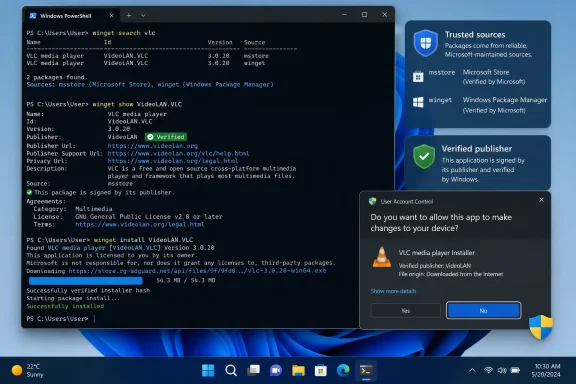 Before you install an app
You need:- An internet connection.
- Permission to install software on the PC. Some installers require administrator approval.
- Windows Package Manager, which is included with Microsoft’s App Installer system component on Windows 11.
- The exact app you intend to install—not merely a similar name returned by search.
- Select Start.
- Type Terminal, Command Prompt, or PowerShell.
- Open the result normally. Do not start it as administrator unless the app or your organization requires it.
winget normally is safer because Windows will request elevation only when an installer needs it. In an Administrator command window, installers that require elevation can run without the usual approval prompt.Check that Windows Package Manager is available:
winget --versionA version number confirms that it is installed and ready.
If Windows says that
winget is not recognized, open Microsoft Store, search for App Installer, and select Get or Update. Then close and reopen Terminal, Command Prompt, or PowerShell and run the version command again.On a newly created Windows account, App Installer registration can take place after the first sign-in. If
winget is still unavailable, open PowerShell and run:Add-AppxPackage -RegisterByFamilyName -MainPackage Microsoft.DesktopAppInstaller_8wekyb3d8bbweClose PowerShell, open a new command window, and retry:
winget --versionSearch for the correct package
Usewinget search before installing. A basic search matches text in package names, IDs, descriptions, monikers, and tags.For example, to find VLC:
winget search vlcThe results normally include columns such as Name, Id, Version, and Source. Read all of them. A search can return:
- The same app from both the Windows Package Manager community repository and Microsoft Store.
- A publisher’s official application alongside third-party tools with similar names.
- Stable, preview, portable, and architecture-specific entries.
To narrow a search to the standard
winget community repository:winget search vlc --source wingetTo look specifically in Microsoft Store:
winget search vlc --source msstoreWindows Package Manager normally includes these default sources:
wingetfor applications in the WinGet Community Repository.msstorefor Microsoft Store catalog entries.winget-fontfor fonts; this source is explicit by default, so it must be named when used.
winget source listDo not add a source supplied by an untrusted website or an unsolicited support message. A package source controls what package information Windows Package Manager can discover and install.
Inspect the package before installing it
Once you have identified an ID, inspect its published metadata and the installer thatwinget selects for your PC:winget show --id VideoLAN.VLC --exact --source wingetReplace
VideoLAN.VLC with the ID you found.Check that the displayed package name and publisher are what you expect. This is particularly important when search results have similar names. The
show command displays available metadata and the installer information selected for the current device; not every package submission includes every field.If the package is from Microsoft Store, use its Store ID and source instead:
winget show --id <Store-ID> --source msstoreInstall an app using its package ID
Install the confirmed VLC package with:winget install --id VideoLAN.VLC --exact --source wingetThis is preferable to:
winget install "VLC media player"An app-name command can work, but the exact ID plus
--exact and --source avoids ambiguity if multiple similarly named packages or sources exist.During installation, Windows Package Manager downloads the installer and starts it. Depending on the package, you may see:
- A source agreement prompt.
- A package license or EULA prompt.
- A User Account Control prompt asking for administrator permission.
- An installer window with options supplied by the software publisher.
After the command finishes, open the app from Start and complete any first-run setup required by its publisher.
Install a Microsoft Store app
A Microsoft Store package uses a Store-specific ID. First, search the Store catalog:winget search "Windows Terminal" --source msstoreCopy the ID shown in the results, then install it:
winget install --id <Store-ID> --source msstoreUnlike community-repository IDs, Store IDs do not need
--exact.The account requirements and licensing behavior for a Store app can differ from a conventional desktop installer. If your device is managed by work or school, Store access or app installation may be restricted by policy.
Choose an install location only when supported
Some installers support a custom installation location. When the package and its installer support it, use--location:winget install --id VideoLAN.VLC --exact --source winget --location "D:\Apps"--location is not a universal override. Windows Package Manager passes the request to the selected installer, and the installer determines whether it supports the location and how it uses it. Microsoft Store apps and many packaged applications use Windows-managed locations rather than a folder you choose.Do not assume a custom location worked just because the command completed. Verify the installed app launches and, if the location matters, check the app’s own installation details or publisher documentation.
Install without prompts only for a reviewed package
For automation, Windows Package Manager supports silent installation and agreement acceptance:winget install --id VideoLAN.VLC --exact --source winget --silent --accept-source-agreements --accept-package-agreementsWarning: This suppresses normal installer UI and accepts source and package agreements. Use it only after you have inspected the exact package with
winget show and understand what you are installing. It does not automatically approve optional components or bundled offers that may be handled separately by an installer.For a normal personal installation, omit these switches and review prompts interactively.
Install several known apps in sequence
You can install several package IDs in one command:winget install Microsoft.VisualStudioCode Microsoft.PowerShell Git.GitWindows Package Manager processes the packages in sequence. Each package can still require a separate license acceptance, administrator approval, or reboot.
For a new PC, test a single app first. Do not paste a long command from a random web page without checking every ID and source.
Verify the installation and find updates
To confirm that Windows Package Manager detects the installed app:winget list vlcwinget list can show applications installed through winget as well as many applications installed by other methods. It is useful for checking what Windows recognizes, but its presence is not the only test—launch the app from Start as well.To see installed apps for which an update is available:
winget list --upgrade-availableTo see details for a specific installed application:
winget list --id VideoLAN.VLC --exactIf the installation required a restart, restart Windows before treating the result as a failure. Microsoft’s
winget install command does not normally reboot the PC unless you explicitly allow it with --allow-reboot.Remove an app installed with winget
To remove an app, first identify its installed entry:winget list vlcThen use the exact ID where possible:
winget uninstall --id VideoLAN.VLC --exact --source wingetThis is the rollback method for a successful installation that you no longer want. It runs the application’s registered uninstaller; personal files and settings may remain if the publisher’s uninstaller retains them.
If you are prompted for a Microsoft Store agreement while removing a community-repository package, specifying
--source winget as shown above can avoid the Store query. You can also uninstall through Settings > Apps > Installed apps, find the app, select More options (three dots), and choose Uninstall.Fix common winget installation problems
winget is not recognized
- Install or update App Installer from Microsoft Store.
- Close and reopen the command window after installation.
- On a newly created account, run the App Installer registration command shown earlier.
- Confirm that your Windows version is supported. Microsoft supports the
wingetcommand on Windows 10 version 1809 (build 17763) and later, Windows 11, and Windows Server 2025.
The search finds no results or source updates fail
- Check your connection and any corporate proxy or VPN requirements.
- Display configured sources:
winget source list - Refresh the source catalogs:
winget source update - Repeat the search and specify the intended source:
winget search vlc --source winget
Multiple packages match the app name
Do not select an arbitrary result. Search again, copy the Id, inspect it, and install using ID, exact matching, and source:
Code:
winget show --id <Package-ID> --exact --source winget
winget install --id <Package-ID> --exact --source winget
The installer needs administrator approval
Run the command normally first and approve the Windows UAC prompt only after confirming the publisher and package. If you do not have administrator credentials, a machine-wide installation may not be possible; look for a supported per-user installer or ask the PC administrator.A hash or security validation failure appears
Do not use--ignore-security-hash to force the installation. Microsoft marks that option as not recommended. Refresh sources, retry later, and verify that you selected the official package and source. If the issue persists, obtain the installer through the publisher’s official support channel.You need diagnostic details
Open the Windows Package Manager log folder with:winget install --logsOr send verbose output to a log file you can write to:
winget install --id <Package-ID> --exact --source winget --verbose-logs --log "C:\Temp\winget-install.log"Use the exact command output and log when escalating an installation issue to the app publisher or your IT administrator.
References
- Primary source: Neowin
Published: 2026-07-19T16:00:02+00:00
How to install apps on your Windows 11 PC with Windows Package Manager (winget) - Neowin
Learn how to use Windows Package Manager (winget) to search for, install, uninstall, and manage apps from the Command Prompt. www.neowin.net
- Official source: learn.microsoft.com