

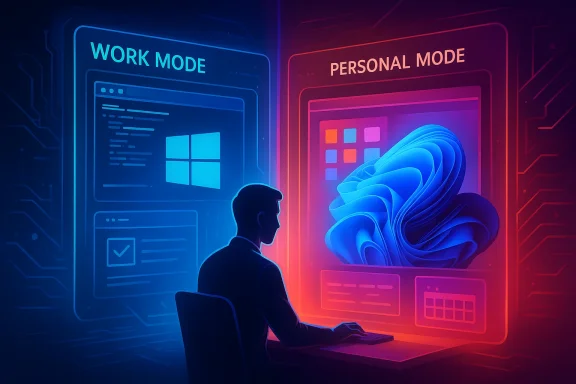
I finally separated my work and personal life on Windows 11, and the biggest surprise is not that it works, but how quickly it changes the way a PC feels. Windows 11 already gives power users enough room to build a cleaner boundary between office hours and off-hours, and the combination of virtual desktops, PowerShell, and Task Scheduler can turn that boundary into a repeatable routine. The result is less clutter, fewer interruptions, and a desktop that behaves more like two distinct environments than one endless pile of windows and notifications. That same idea fits a broader Windows 11 trend: Microsoft has been steadily adding more ways to reduce friction, reduce noise, and give users back a little control over the shell.
The appeal of separating work and personal life on the same Windows 11 machine is easy to understand. Most people do not have the luxury of a dedicated work laptop, a separate personal PC, and a third device for everything else. Instead, they make one computer do everything, which means the same screen must handle spreadsheets, Slack, streaming, family photos, social media, and the occasional game launch. That overlap is where mental fatigue starts to creep in, because every open app competes for attention whether you want it to or not. Windows 11’s built-in features are useful because they help users impose structure on that chaos rather than simply tolerate it.
Microsoft’s own direction for Windows 11 has increasingly leaned toward reducing interruption and making the system feel more intentional. The company has been using built-in tools to quiet notifications, make setup less disruptive, and improve the sense that the operating system can adapt to a user’s routine instead of constantly challenging it. That matters here because a work/personal split is really just another expression of the same philosophy: when the computer knows what mode you are in, it can stop acting like a single undifferentiated attention vacuum.
Virtual desktops are the most visible part of that strategy, and they are also the easiest for most people to adopt. A dedicated desktop for work and another for personal use gives you an immediate visual and behavioral reset, especially if you assign different wallpapers and keep different app groups on each desktop. The feature is not new in Windows, but Windows 11 makes it friendlier and more practical for day-to-day use. That is important because separation only works if it is easy enough to stick with after the novelty wears off.
Automation is the second half of the story. A clean desktop is useful, but a clean desktop that appears automatically at 9:00 in the morning or disappears at 5:00 in the afternoon is much better. That is where PowerShell and Task Scheduler become the quiet heroes of the workflow. The article’s core idea is not that every Windows user should become a script author; it is that a few simple scripts can eliminate a lot of low-value switching, and that automation can make healthy boundaries feel almost effortless.
There is also a benefit that is easy to overlook: a clean separation reduces what I would call ambient guilt. When work notifications are always visible, you can never fully stop feeling like you should be checking them. Likewise, if personal apps remain open while you are trying to work, they keep whispering for attention. The point of separation is not perfection; it is to lower the background noise enough that your brain can settle down.
A second reason it matters is consistency. Once the computer behaves predictably, you are more likely to follow the routine without resistance. That kind of predictability is exactly what users have been asking for across Windows 11 more broadly, from update scheduling to taskbar control and quieter defaults. In other words, the work/personal split works because it matches the broader direction of the platform.
The real power here is not just that desktops are separate; it is that they can be visually distinct. Different wallpapers give you an immediate cue about where you are, and those cues matter more than people think. The brain responds to environment, even when the environment is digital, and a distinct desktop can help switch you from “open inbox mode” to “off-duty mode” with less friction.
Windows 11 also makes the whole idea feel less gimmicky than it once did because the desktop switching experience is fast and stable enough for routine use. A feature like this only becomes meaningful when it is frictionless. If it feels like a setup trick rather than a daily habit, it will not stick. The article’s point is that Windows 11 finally makes it easy enough to become habit-forming.
That shift is important because it moves the split from “I should probably do this” to “the machine already does this for me.” PowerShell gives Windows users a lightweight automation layer that can be surprisingly effective even without advanced scripting knowledge. The article frames this as a productivity win, but the deeper value is consistency: your boundary becomes repeatable, not aspirational.
There is, of course, a tradeoff. The more aggressive the script, the more careful you need to be about what it terminates. Nobody wants a “clean work mode” script that shuts down the wrong app or discards a state you still need. But that is a manageable risk, and it is worth taking seriously because the payoff is a much calmer desktop.
This is also the point where Windows 11 starts acting less like a passive tool and more like a boundary enforcer. The machine is no longer waiting for your willpower to kick in. It is taking over the boring part of the routine so that the routine itself can survive on busy days, low-energy days, and days when you simply forget. That is a classic case of good automation: it protects you from your own inconsistency.
That predictability is especially helpful for remote workers. Remote work blurs boundaries by default, and many people end up letting their PC drift into a permanent half-work, half-home state. Scheduled scripts are a neat antidote to that drift because they reintroduce a sense of office hours without needing a literal office.
What makes the routine feel powerful is that it creates a digital version of leaving the office. When the work apps close and the personal desktop comes into view, you get a small but meaningful psychological reset. That reset is not just nice to have; it can help prevent work from bleeding into dinner, family time, or the last hour before sleep.
There is also a subtle discipline effect. When the machine itself stops presenting work tools after hours, you are less likely to slide into perpetual availability. That is a healthier relationship with the computer, and in a world where laptops are rarely fully off, that matters more than it used to.
It also makes the computer feel more personal. A work desktop can be minimal and efficient, while a personal desktop can be more relaxed or expressive. That distinction matters because it turns Windows from a single utility surface into a space that reflects different parts of your day. In that sense, the system becomes less generic and more humane.
That is consistent with a broader Windows 11 theme: the best changes are often the ones that reduce friction rather than adding visible complexity. Focus sessions, quieter defaults, and more controllable update behavior all point in the same direction. Separation of work and personal life fits that mold perfectly.
It is also worth noting that Microsoft has been gradually making Windows feel more respectful of user timing in other areas, especially around updates and interruptions. That aligns with the work/personal split because both are about reclaiming some control from the operating system’s default behavior. In enterprise environments, control is not just convenience; it is part of support quality.
That said, enterprise use also raises the bar for consistency. If company policy, device configuration, or Windows edition differences get in the way, the nice idea can become an inconsistent reality. So while the concept is broadly useful, the actual deployment needs good policy management and clear expectations.
It also aligns with Microsoft’s broader effort to make Windows less noisy and more predictable. If the OS is already moving toward fewer interruptions and better timing, then a structured work/personal split fits naturally into that design direction. The opportunity here is not just cleaner desktops; it is a more respectful relationship between people and their PCs.
Another concern is maintenance. A good workflow should reduce stress, not add a hidden obligation to keep checking whether your automation still works. This is especially true if your work software changes often or if you rely on multiple profiles and cloud services that can behave differently from week to week. Automation is only liberating when it remains trustworthy.
Security and policy are worth mentioning too. If your computer is managed by an employer, some automation and startup behavior may be constrained by policy. That does not make the approach bad; it simply means the best version of the workflow depends on your level of control over the device.
The interesting part is that none of this depends on a dramatic redesign. Windows 11 does not need to reinvent the desktop to improve it. It just needs to keep making the existing controls easier to use, easier to automate, and easier to trust. That is why the combination of desktops, scripts, and scheduling feels so effective: it reflects the best kind of Windows progress, which is not flashy but deeply practical.
Source: How-To Geek I finally separated my work and personal life on Windows 11 and it’s a game-changer
 Overview
The appeal of separating work and personal life on the same Windows 11 machine is easy to understand. Most people do not have the luxury of a dedicated work laptop, a separate personal PC, and a third device for everything else. Instead, they make one computer do everything, which means the same screen must handle spreadsheets, Slack, streaming, family photos, social media, and the occasional game launch. That overlap is where mental fatigue starts to creep in, because every open app competes for attention whether you want it to or not. Windows 11’s built-in features are useful because they help users impose structure on that chaos rather than simply tolerate it.Microsoft’s own direction for Windows 11 has increasingly leaned toward reducing interruption and making the system feel more intentional. The company has been using built-in tools to quiet notifications, make setup less disruptive, and improve the sense that the operating system can adapt to a user’s routine instead of constantly challenging it. That matters here because a work/personal split is really just another expression of the same philosophy: when the computer knows what mode you are in, it can stop acting like a single undifferentiated attention vacuum.
Virtual desktops are the most visible part of that strategy, and they are also the easiest for most people to adopt. A dedicated desktop for work and another for personal use gives you an immediate visual and behavioral reset, especially if you assign different wallpapers and keep different app groups on each desktop. The feature is not new in Windows, but Windows 11 makes it friendlier and more practical for day-to-day use. That is important because separation only works if it is easy enough to stick with after the novelty wears off.
Automation is the second half of the story. A clean desktop is useful, but a clean desktop that appears automatically at 9:00 in the morning or disappears at 5:00 in the afternoon is much better. That is where PowerShell and Task Scheduler become the quiet heroes of the workflow. The article’s core idea is not that every Windows user should become a script author; it is that a few simple scripts can eliminate a lot of low-value switching, and that automation can make healthy boundaries feel almost effortless.
Why Separation Matters
The value of splitting work and personal life on the same machine is partly practical and partly psychological. Practically, it keeps work apps from sprawling across the desktop and burying personal windows underneath half-finished tasks. Psychologically, it creates a cue that says, this is the mode I am in right now, which is a surprisingly powerful way to reduce context switching. Windows 11’s desktop model is especially suited to that because it lets you create more than one workspace without needing a second monitor or a second computer.There is also a benefit that is easy to overlook: a clean separation reduces what I would call ambient guilt. When work notifications are always visible, you can never fully stop feeling like you should be checking them. Likewise, if personal apps remain open while you are trying to work, they keep whispering for attention. The point of separation is not perfection; it is to lower the background noise enough that your brain can settle down.
Context switching costs are real
One of the strongest arguments for this approach is simply that switching costs add up. If every transition from work to personal life requires manually opening or closing a handful of apps, moving windows around, and reorienting yourself to a different set of tasks, the process becomes tiring before the evening even begins. Windows 11 can help by making the transition feel like a mode change instead of a chore. That alone makes the system feel more respectful of your time.A second reason it matters is consistency. Once the computer behaves predictably, you are more likely to follow the routine without resistance. That kind of predictability is exactly what users have been asking for across Windows 11 more broadly, from update scheduling to taskbar control and quieter defaults. In other words, the work/personal split works because it matches the broader direction of the platform.
- It cuts down on accidental app overlap.
- It lowers the mental cost of switching roles.
- It reduces the chance of mixing work and leisure windows.
- It creates a visible signal for focus.
- It makes end-of-day shutdown feel deliberate.
Virtual Desktops as the Foundation
Windows 11 virtual desktops are the cleanest starting point because they do not require deep setup or administrative privileges. You open Task View, create a desktop for work, create another for personal use, and then keep each environment tidy from that point forward. If you are disciplined about app placement, the separation starts to feel surprisingly natural after only a few days.The real power here is not just that desktops are separate; it is that they can be visually distinct. Different wallpapers give you an immediate cue about where you are, and those cues matter more than people think. The brain responds to environment, even when the environment is digital, and a distinct desktop can help switch you from “open inbox mode” to “off-duty mode” with less friction.
Why wallpapers matter more than they sound
A wallpaper is not just decoration in this context. It is a status signal. If your work desktop uses a muted background and your personal desktop uses something warmer or more expressive, you gain a split-second reminder of what kind of attention the current screen deserves. That subtle nudge can help prevent accidental email checking after hours or unrelated browsing during the workday.Windows 11 also makes the whole idea feel less gimmicky than it once did because the desktop switching experience is fast and stable enough for routine use. A feature like this only becomes meaningful when it is frictionless. If it feels like a setup trick rather than a daily habit, it will not stick. The article’s point is that Windows 11 finally makes it easy enough to become habit-forming.
- Keep work apps on one desktop only.
- Keep entertainment and casual browsing on another.
- Use different wallpapers to reinforce the split.
- Avoid mixing urgent work tools with personal utilities.
- Treat the desktop as a mode, not just a workspace.
PowerShell as the Automation Layer
Virtual desktops solve the visual problem, but they do not solve the repetitive startup and shutdown problem. That is where PowerShell becomes useful. Instead of manually launching your browser profile, communication tools, and work software every morning, you can let a script do it for you. Instead of hunting down every work app at the end of the day, you can let another script close them in one pass.That shift is important because it moves the split from “I should probably do this” to “the machine already does this for me.” PowerShell gives Windows users a lightweight automation layer that can be surprisingly effective even without advanced scripting knowledge. The article frames this as a productivity win, but the deeper value is consistency: your boundary becomes repeatable, not aspirational.
The two-script model
The most practical approach is to think in pairs. One script launches the work environment and closes personal distractions, while the other does the reverse at the end of the day. This symmetry matters because it creates a cleaner mental model: work on, work off. Once the routine is established, it can become as natural as signing in or locking the screen.There is, of course, a tradeoff. The more aggressive the script, the more careful you need to be about what it terminates. Nobody wants a “clean work mode” script that shuts down the wrong app or discards a state you still need. But that is a manageable risk, and it is worth taking seriously because the payoff is a much calmer desktop.
- Launch the browser profile you actually use for work.
- Open chat, mail, and project tools automatically.
- Close game launchers and leisure apps during work mode.
- Reverse the process when the workday ends.
- Keep the scripts simple enough to maintain.
Task Scheduler Makes the Boundary Stick
Task Scheduler is where the whole idea becomes operational rather than theoretical. A script you remember to run is helpful; a script that runs on its own at 9:00 in the morning and again at 5:00 in the evening is better. That automatic transition removes one more point of friction, which is exactly what makes the setup feel like a real system instead of a clever habit.This is also the point where Windows 11 starts acting less like a passive tool and more like a boundary enforcer. The machine is no longer waiting for your willpower to kick in. It is taking over the boring part of the routine so that the routine itself can survive on busy days, low-energy days, and days when you simply forget. That is a classic case of good automation: it protects you from your own inconsistency.
Scheduling work hours
The obvious setup is straightforward. You create a task for the beginning of the workday, another for the end, and use those tasks to call the appropriate PowerShell scripts. The article’s example of a 9:00 AM to 5:00 PM schedule is not the point; the point is that the computer can enforce the same boundary every weekday without requiring constant manual intervention.That predictability is especially helpful for remote workers. Remote work blurs boundaries by default, and many people end up letting their PC drift into a permanent half-work, half-home state. Scheduled scripts are a neat antidote to that drift because they reintroduce a sense of office hours without needing a literal office.
- Create a work-start task.
- Attach it to your work-mode PowerShell script.
- Create a work-end task.
- Attach it to your personal-mode script.
- Test the schedule before relying on it daily.
A Better Daily Flow for Remote Workers
The broader significance of this setup is that it gives remote work more structure without making it feel rigid. Many productivity systems fail because they add too much ceremony. This one succeeds because Windows 11 already provides the underlying building blocks, and the user only needs to assemble them into a pattern that fits real life.What makes the routine feel powerful is that it creates a digital version of leaving the office. When the work apps close and the personal desktop comes into view, you get a small but meaningful psychological reset. That reset is not just nice to have; it can help prevent work from bleeding into dinner, family time, or the last hour before sleep.
Why the end-of-day cutoff matters
The end-of-day transition is arguably more valuable than the morning startup. Starting work is usually easier than stopping it, especially when notifications keep dragging you back in. By automating the cutoff, Windows 11 removes the temptation to “just check one more thing” and makes the off switch feel official.There is also a subtle discipline effect. When the machine itself stops presenting work tools after hours, you are less likely to slide into perpetual availability. That is a healthier relationship with the computer, and in a world where laptops are rarely fully off, that matters more than it used to.
- Work starts when the system switches into work mode.
- Work ends when the scripts close the work stack.
- Personal time becomes visually and functionally distinct.
- Notifications feel less invasive outside office hours.
- The PC stops acting like one endless workspace.
Consumer Impact
For consumers, the biggest benefit is emotional relief. Windows updates, notifications, and overlapping app groups can create a constant low-level sense that the computer is never fully done asking for attention. Separating work and personal life helps reduce that feeling, and it does so using tools that are already inside Windows 11 rather than expensive third-party products.It also makes the computer feel more personal. A work desktop can be minimal and efficient, while a personal desktop can be more relaxed or expressive. That distinction matters because it turns Windows from a single utility surface into a space that reflects different parts of your day. In that sense, the system becomes less generic and more humane.
Small changes, big behavior shifts
The most interesting thing about this consumer setup is how small the changes are relative to the payoff. A wallpaper change, a desktop switch, and a pair of scripts are not dramatic on paper. Yet together they create a stronger boundary than many people achieve with much more elaborate productivity systems.That is consistent with a broader Windows 11 theme: the best changes are often the ones that reduce friction rather than adding visible complexity. Focus sessions, quieter defaults, and more controllable update behavior all point in the same direction. Separation of work and personal life fits that mold perfectly.
- Less accidental exposure to work notifications.
- Cleaner evenings and weekends.
- Fewer open windows competing for attention.
- Better mental separation between roles.
- More control without buying extra software.
Enterprise Relevance
For enterprises, the appeal is different but just as strong. Managed organizations care about predictability, supportability, and reducing human error, and the same ideas that make a personal work/life split attractive also help IT teams create more disciplined desktops. A consistent Windows 11 baseline can support these workflows more easily than a mixed environment, which is one reason the platform’s built-in controls matter.It is also worth noting that Microsoft has been gradually making Windows feel more respectful of user timing in other areas, especially around updates and interruptions. That aligns with the work/personal split because both are about reclaiming some control from the operating system’s default behavior. In enterprise environments, control is not just convenience; it is part of support quality.
Standardization helps adoption
If an organization wants employees to adopt a better work/personal workflow, it helps when the tools are native and familiar. Built-in features are easier to document than a random collection of productivity apps. They are also easier to support when something breaks, which is why administrators often prefer system-level options over ad hoc solutions.That said, enterprise use also raises the bar for consistency. If company policy, device configuration, or Windows edition differences get in the way, the nice idea can become an inconsistent reality. So while the concept is broadly useful, the actual deployment needs good policy management and clear expectations.
- Native tools are easier to support.
- Policies can standardize behavior across devices.
- Predictable schedules reduce confusion.
- Cleaner desktops reduce distraction in knowledge work.
- Built-in features are easier to explain to employees.
Strengths and Opportunities
The strongest part of this approach is that it uses what Windows 11 already does well: workspaces, scripting, and scheduling. The system is flexible enough to support a serious separation between work and personal life without forcing users into a new ecosystem or subscription. That makes the method accessible, scalable, and easy to tailor to different habits.It also aligns with Microsoft’s broader effort to make Windows less noisy and more predictable. If the OS is already moving toward fewer interruptions and better timing, then a structured work/personal split fits naturally into that design direction. The opportunity here is not just cleaner desktops; it is a more respectful relationship between people and their PCs.
- Built-in tools mean no extra software burden.
- Virtual desktops give clear visual separation.
- PowerShell adds useful automation.
- Task Scheduler makes the split stick.
- Different wallpapers reinforce the mode change.
- Repeatable routines reduce decision fatigue.
- Scalability makes the method useful for many user types.
Risks and Concerns
The biggest risk is overcomplication. Once users start writing scripts and layering on automation, it becomes possible to create a system that is clever but fragile. If a script closes the wrong app, fails to start correctly, or conflicts with an update or login change, the whole routine can become frustrating fast.Another concern is maintenance. A good workflow should reduce stress, not add a hidden obligation to keep checking whether your automation still works. This is especially true if your work software changes often or if you rely on multiple profiles and cloud services that can behave differently from week to week. Automation is only liberating when it remains trustworthy.
The human factor
There is also the obvious temptation to ignore the boundary when you are tired, busy, or anxious. A perfect system cannot fully solve the habit of reopening work apps after hours or letting personal distractions creep into the day. What it can do is make the healthier choice easier, and that distinction matters.Security and policy are worth mentioning too. If your computer is managed by an employer, some automation and startup behavior may be constrained by policy. That does not make the approach bad; it simply means the best version of the workflow depends on your level of control over the device.
- Scripts can break if app paths change.
- Overly aggressive shutdowns may close important work.
- Habitual overrides can undermine the boundary.
- Managed devices may limit customization.
- Too much automation can become hard to maintain.
- Mixed work/personal usage can still blur over time.
Looking Ahead
Windows 11 is moving in a direction that makes this kind of separation more realistic, not less. Microsoft has been steadily adding or restoring controls that make the desktop feel more deliberate: better timing for updates, more respectful notification behavior, and a stronger emphasis on helping users avoid interruptions they did not ask for. That trend suggests the platform is becoming more compatible with structured work habits, even if Microsoft does not frame it that way in marketing language.The interesting part is that none of this depends on a dramatic redesign. Windows 11 does not need to reinvent the desktop to improve it. It just needs to keep making the existing controls easier to use, easier to automate, and easier to trust. That is why the combination of desktops, scripts, and scheduling feels so effective: it reflects the best kind of Windows progress, which is not flashy but deeply practical.
What to watch next
- More built-in ways to reduce notification noise.
- Continued improvements to scheduling and update timing.
- Better shell customization for power users.
- Faster, smoother core apps like File Explorer.
- New productivity features that support focus without clutter.
Source: How-To Geek I finally separated my work and personal life on Windows 11 and it’s a game-changer
Last edited:
