

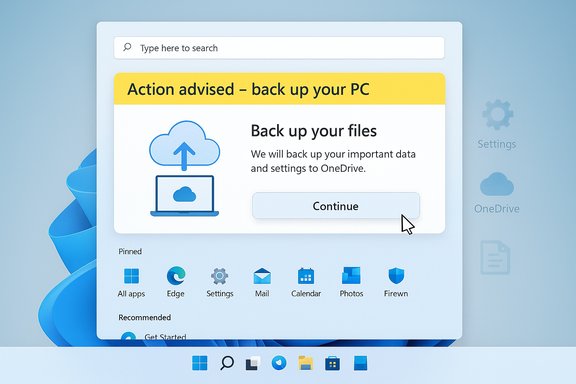
Microsoft’s newest Windows 11 prompt — a yellow “Action advised — back up your PC” banner that appears in the Start menu and Settings — is rolling out broadly and is being used to steer users toward OneDrive-based backups, a move that is useful for guiding novices but has reignited long-running complaints about persistent in‑OS upsells and the erosion of user choice.
Windows has long nudged users toward Microsoft cloud services, but the latest behavior is more conspicuous: Windows 11 now surfaces a yellow-themed alert attached to the Microsoft account area in the Start menu and as a banner in Settings, explicitly urging users to back up files, apps, settings, and passwords via OneDrive and the Windows Backup experience. Clicking “Continue” opens the OneDrive‑based Windows Backup app; the prompt can be dismissed, but users report it reappears and currently lacks an official, permanent “do not show again” control in many builds.
This isn’t an isolated incident — Windows 11 has shown repeated, increasingly prominent prompts encouraging the use of Microsoft services (Edge, Bing, OneDrive). The community has documented recurring banners, address‑bar “Start Backup” prompts in File Explorer, and app‑level upsells (for example, Bing Wallpaper nudging users to switch browser defaults). The reaction has been a mix of appreciation for the safety reminder and frustration at the persistence and perceived marketing intent.
There’s also a strategic corporate logic: nudging users toward OneDrive increases cloud uptake, deepens Microsoft account engagement, and bolsters subscription economics when users outgrow free storage tiers. Industry observers and community threads have flagged the dual purpose of safety plus service adoption.
The best approach for most users: accept the nudge as a reminder to ensure you have backups, then choose a backup plan that matches your needs — whether that’s OneDrive plus local images, a third‑party cloud provider, or an enterprise‑grade managed solution. For those who find the prompts intolerable, targeted mitigations exist, but they either trade permanence for engagement (performing a minimal backup) or require advanced, riskier steps (feature flags/ViVeTool). Keep systems patched, verify your restore plan periodically, and treat any single in‑OS prompt as one component of a broader resilience strategy.
Source: Windows Latest Windows 11 Start menu nags you to use OneDrive for backup to ensure you always have access to files, apps
 Background
Windows has long nudged users toward Microsoft cloud services, but the latest behavior is more conspicuous: Windows 11 now surfaces a yellow-themed alert attached to the Microsoft account area in the Start menu and as a banner in Settings, explicitly urging users to back up files, apps, settings, and passwords via OneDrive and the Windows Backup experience. Clicking “Continue” opens the OneDrive‑based Windows Backup app; the prompt can be dismissed, but users report it reappears and currently lacks an official, permanent “do not show again” control in many builds.This isn’t an isolated incident — Windows 11 has shown repeated, increasingly prominent prompts encouraging the use of Microsoft services (Edge, Bing, OneDrive). The community has documented recurring banners, address‑bar “Start Backup” prompts in File Explorer, and app‑level upsells (for example, Bing Wallpaper nudging users to switch browser defaults). The reaction has been a mix of appreciation for the safety reminder and frustration at the persistence and perceived marketing intent.
What the new Start‑menu backup prompt does
The visible behavior
- A yellow banner labeled “Action advised – back up your PC” appears in the Start menu under the Microsoft account profile and/or at the top of Settings.
- The banner warns that backing up will ensure access to files, apps, settings, and passwords, and it offers a Continue button that launches the Windows Backup flow powered by OneDrive.
What the backup flow covers (and what it does not)
- The guided Windows Backup process focuses on personal files, user settings, and key preferences that OneDrive and related Microsoft cloud services can capture.
- Importantly, this built‑in backup mechanism does not comprehensively back up third‑party applications — you will likely still need to reinstall or restore many desktop apps manually after a reset or new device setup. Several community analyses explicitly call this limitation out.
Regional differences and third‑party options
- Reports indicate that in some jurisdictions (notably parts of the EU) users may see additional backup options or choices as regulators and competition rules influence product flows, but in many markets — including the United States — the prompt channels users predominantly to OneDrive. This regional nuance is one reason the experience can vary from device to device.
Why Microsoft is doing this (the company rationale)
Microsoft’s design rationale appears straightforward: make backups easier and reduce the incidence of permanent data loss by prompting users directly in the OS. For less technical users, an explicit reminder plus a simple, integrated setup path can materially increase backup adoption and recovery readiness.There’s also a strategic corporate logic: nudging users toward OneDrive increases cloud uptake, deepens Microsoft account engagement, and bolsters subscription economics when users outgrow free storage tiers. Industry observers and community threads have flagged the dual purpose of safety plus service adoption.
Community response: helpful or heavy‑handed?
Positive view: safety and simplicity
- For novices and users who have never set up backups, the prompt is a practical reminder and an easy on‑ramp to an integrated recovery solution.
- The one‑click flow reduces friction and can make a big difference during device migrations or when recovering from hardware failure.
Negative view: persistent nagging and reduced choice
- Power users and those with established backup routines see the banner as intrusive and unnecessary.
- Many users report the prompt reappears even after dismissal, creating a persistent UI annoyance.
- There is a perception that the OS is serving marketing goals (OneDrive adoption) under the guise of safety nudges. Community threads are replete with suggestions, workarounds, and complaints.
Technical and policy implications
Scope and completeness of the backup
- The Windows Backup experience is useful but incomplete for full system restoration because it excludes third‑party program binaries and many application‑level settings. Relying solely on it could give users a false sense of full system protection.
Storage and cost
- OneDrive’s free allocation is often insufficient for large data sets; users who opt for full folder backups may encounter storage shortfalls and be prompted to purchase additional space. That creates a commercial friction in what is presented as a safety feature.
Availability and cloud risk
- Cloud backups are only as reliable as the service; Microsoft outages (and broader cloud incidents) are rare but real. Relying exclusively on a single cloud vendor for critical backups raises a concentration risk. Industry discussions and forum posts highlight that cloud dependency merits planning for offline or multi‑location redundancy.
Privacy and governance
- Storing settings, passwords, and files in a cloud service raises legitimate privacy considerations. Users and organizations with strict compliance regimes may need to weigh the convenience against governance policies or look to enterprise-managed alternatives.
Practical guidance: how to manage or reduce the nagging prompts
Below are practical steps collected from community research and tests to regain control without sacrificing data safety.1. Basic, no‑risk options (Windows settings)
- Open Settings > Privacy & security (or Notifications), and reduce suggested content or non‑critical system prompts.
- Dismiss the banner when it appears; in some configurations this causes the alert to suppress temporarily.
2. Perform a minimal OneDrive backup
- Engaging briefly with the backup flow and performing a small, initial sync (for example, one folder) can satisfy the built‑in checks and stop repeated prompts — at least temporarily. This is an effective stopgap for users who want fewer reminders but do not plan to rely on OneDrive long term.
3. Use the new “Turn off reminder” option in beta builds
- Microsoft has started testing an option in beta channels and Insider builds that allows users to suppress the “Start Backup” reminder in File Explorer (for example, choices like “Remind me in 1 month” or “Turn off reminder” were observed in testing). This functionality exists behind a feature flag in some preview builds and can be enabled via community tools in the short term. Exercise caution: enabling hidden flags modifies undocumented behavior.
4. Advanced: ViVeTool to enable/disable experimental controls (use with caution)
- Tech‑savvy users have enabled the new control by using ViVeTool to toggle a feature ID in Insider/beta builds; community posts show the commands and steps required.
- Warning: ViVeTool is a third‑party utility that flips internal Windows feature flags; it’s unsupported by Microsoft and can change system behavior in unexpected ways. Only advanced users who understand the risk should use it.
5. Alternative long‑term strategy
- Adopt a multi‑layered backup strategy:
- Local backups (external drives, NAS, or system images) for full‑system recovery.
- Cloud backups (OneDrive or third‑party) for offsite redundancy.
- Periodic verification and test restores to ensure the integrity of backups.
Critical analysis: strengths, trade‑offs, and risks
Strengths
- Improves baseline safety. For inexperienced users, a persistent but easy-to-follow prompt that leads to a backup flow is likely to increase the proportion of users with meaningful backups.
- Seamless integration. OneDrive and Windows Backup tie into Microsoft account sync, making device migration and settings carryover simpler for many consumers.
Trade‑offs and risks
- User autonomy vs. guidance. The most important design tension is between protecting users and preserving their ability to control their desktop experience. Repeated, unavoidable prompts push the balance toward guidance at the expense of autonomy. Community feedback suggests that the current balance feels tilted.
- Potential for commercial nudge. The backup prompt functions as both a safety reminder and a soft upsell to OneDrive, especially given the free tier limits and frequent storage prompts. That dual role can create mistrust among users who view in‑OS prompts as marketing rather than pure safety.
- Incomplete protection. Because third‑party application states are largely excluded from the backup, users who rely on the built‑in flow alone may still face time‑consuming restores and app reinstallations after a reset. This gap can lead to unexpected downtime for users who over‑trust the “backup” label.
- Regulatory and regional complexity. Variations in the experience by region — and the potential for regulatory scrutiny in markets sensitive to bundling practices — increases product complexity and may trigger localized changes. Reports indicate different options may appear in the EU vs. the US. These inconsistencies risk confusing users and fragmenting support.
What this means for Windows users and admins
For home users
- Treat the banner as a friendly reminder but audit what the backup actually protects. Use the Windows Backup/OneDrive flow for quick redundancy, but augment it with local system images or a full backup solution if you want complete recoverability.
- If the reminders are disruptive, try the settings and minimal backup workarounds listed above; for tech‑savvy users, the beta controls and ViVeTool option offer short‑term relief but come with risk.
For IT administrators and organizations
- Inform users about the scope of the new backup capability so they don’t assume full app/product protection.
- Maintain established corporate backup policies that include image‑level backups, centralized management, and verified restore procedures.
- Monitor for regional policy changes that could alter the in‑OS prompts or available backup options as regulators and market forces react to bundled experiences.
Final verdict
Microsoft’s Start‑menu backup prompt is a well‑intentioned nudge wrapped up in a familiar tension: safety versus sovereignty. On balance, the feature will help less experienced users adopt a basic backup habit — a positive outcome — but the execution risks frustrating long‑time Windows users through repetition, incomplete promises of full‑system recovery, and the appearance of a commercial push toward paid storage.The best approach for most users: accept the nudge as a reminder to ensure you have backups, then choose a backup plan that matches your needs — whether that’s OneDrive plus local images, a third‑party cloud provider, or an enterprise‑grade managed solution. For those who find the prompts intolerable, targeted mitigations exist, but they either trade permanence for engagement (performing a minimal backup) or require advanced, riskier steps (feature flags/ViVeTool). Keep systems patched, verify your restore plan periodically, and treat any single in‑OS prompt as one component of a broader resilience strategy.
Quick reference: actions to take now
- If you don’t have a backup, use the Windows Backup flow to protect key files and settings immediately.
- If you want to avoid repeated prompts but still be safe, perform a minimal OneDrive backup to satisfy system checks.
- Power users who want permanent suppression in the File Explorer “Start Backup” area can explore beta options or ViVeTool‑backed flags — proceed only if you accept the unsupported nature of those methods.
- For complete protection, combine cloud backup with local disk images or trusted third‑party backup solutions, and test restores regularly.
Source: Windows Latest Windows 11 Start menu nags you to use OneDrive for backup to ensure you always have access to files, apps
