

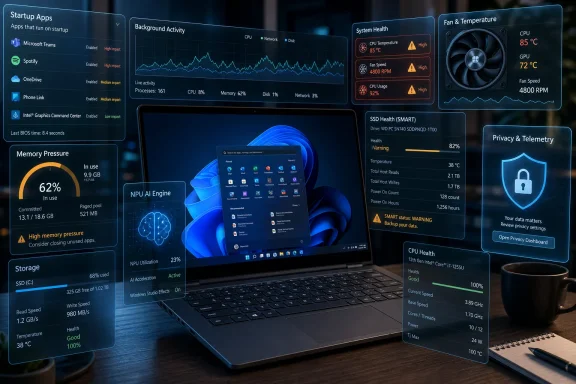
Microsoft’s latest Windows performance story in June 2026 is not a single “update” so much as a widening class of Microsoft and third-party utilities that clean startup items, manage background activity, tune memory pressure, and warn users when hardware health starts to slide. The pitch is simple: Windows should not merely wait for a PC to become miserable, then ask the user to troubleshoot it like a part-time administrator. It should notice the patterns, surface the likely causes, and in some cases make the small fixes itself. The risk is that the cure can look a lot like the disease: another always-on layer watching the machine, consuming resources, and deciding what “better” means.
For years, “make Windows faster” was a phrase that belonged to dubious registry cleaners, toolbar-riddled download sites, and late-night support calls from relatives whose laptops had turned into space heaters. Microsoft spent much of the Windows 10 and Windows 11 era trying to pull those chores back into the operating system itself. Storage Sense, Startup Apps, Task Manager, Defender, disk health reporting, and Windows Update all chipped away at the need for a third-party optimizer.
Now the optimizer is back, but wearing a more respectable suit. Microsoft’s own PC Manager and a growing ecosystem of OEM and third-party tools offer the same old promises in more modern language: smart cleanup, health check, boost, predictive maintenance, and increasingly, AI PC optimization. The old vocabulary of “junk files” and “RAM freeing” has been replaced by telemetry, usage patterns, and local inference.
That change matters because it reflects a different theory of Windows maintenance. The classic cleaner assumed the PC was cluttered and needed a broom. The new tool assumes the PC is a living system whose behavior can be modeled, ranked, and nudged over time.
The better versions of these tools are not magic. They mostly consolidate things Windows already exposes: startup impact, temporary files, storage pressure, background processes, app permissions, update status, and security posture. But consolidation is not trivial. A slow Windows PC is often not broken in one dramatic way; it is burdened by a dozen small frictions that ordinary users rarely inspect.
Windows already rates startup impact, and Task Manager has long allowed users to disable items. The problem is not that the switch is hidden in an underground bunker. The problem is that the average user does not know whether “Helper Service,” “Update Agent,” or a vendor-branded tray app is useful, useless, or dangerous to disable.
This is where smarter utilities can help if they are careful. A good startup recommendation is not merely “disable everything with a high impact score.” It should understand whether the app is user-facing, security-related, hardware-critical, or merely a convenience wrapper. Killing a game launcher at boot is usually harmless. Killing a touchpad enhancement service, VPN agent, backup client, or enterprise endpoint tool may not be.
The same logic applies to background apps. Windows has accumulated more ways for applications to linger than most users realize: services, scheduled tasks, startup entries, system tray components, browser helpers, update agents, widgets, indexing, sync providers, and notification frameworks. A tool that can show the user which of those are routinely consuming CPU, memory, disk, or network time can make the machine feel saner.
But the verb matters. “Show” is safer than “fix.” The moment a utility starts terminating apps automatically, it enters a messy world of unsaved work, delayed sync, broken notifications, failed updates, and enterprise policy conflicts. The smarter the tool claims to be, the more transparent it needs to become.
There is a long-running tension here. Microsoft has spent decades telling users not to trust aggressive cleaners, especially tools that promise miracles by deleting caches, pruning registry entries, or “freeing” RAM for its own sake. Yet Microsoft now offers a utility whose surface-level appeal resembles the very category it once wanted users to avoid.
The distinction is that PC Manager is not supposed to be a deep surgery tool. Its safer role is as a guided maintenance panel: remove obvious temporary files, identify startup bloat, surface storage hogs, and point users toward existing Windows protections. Used that way, it is closer to a household checklist than a performance engine.
Still, Microsoft has to be careful. If a built-in or Microsoft-branded optimizer pushes Edge, Bing, defaults restoration, or vendor-preferred settings under the language of “health,” users will rightly see the maintenance layer as a marketing layer. A PC is not healthier because it has been steered back toward Microsoft’s preferred apps. It is healthier when it boots reliably, preserves user choice, protects data, and makes resource use legible.
Windows users have historically discovered hardware trouble through symptoms: random freezes, fan noise, long boot times, app crashes, file copy stalls, or the dreaded machine that no longer starts at all. SMART data, Event Viewer logs, reliability history, and performance counters have existed for years, but they are not consumer-friendly instruments. They are gauges hidden behind the dashboard.
A good predictive maintenance layer turns those signals into plain-language warnings. It can say, in effect, “Your SSD is showing risk indicators; back up now,” or “Your CPU is throttling under routine workloads; check ventilation or firmware,” or “Memory usage is hitting the ceiling every morning after sign-in; these three apps are the likely cause.” That is the kind of intelligence Windows actually needs.
For IT pros, the value is even clearer. Fleet management is about catching weak signals before they become tickets. If a class of devices is overheating after a firmware update, if a storage model shows abnormal failure rates, or if a background agent is causing widespread sign-in delays, the organization wants evidence before users flood the help desk.
The catch is trust. Predictive maintenance depends on persistent observation. Persistent observation depends on data collection. Data collection demands clear boundaries, especially on machines used for work, health, finance, education, or family life. The feature that could save users from data loss is also the feature most likely to raise privacy questions if vendors get vague about what is monitored and where it goes.
That does not mean every Windows user suddenly needs an AI PC. NPUs are accelerators, not general-purpose fairy dust. They are valuable when software is written to use them, drivers are mature, models fit the hardware, and the workload runs often enough for power savings or responsiveness to matter.
For image editing and media workflows, the case is increasingly credible. If a creator can apply an AI filter locally faster and with less battery drain, the NPU has done something concrete. If a video call can maintain background effects without waking the GPU or hammering the CPU, the user may never know why the battery lasted longer, but the benefit is real.
For the average office worker, the case is less settled. Much of what people currently call “AI” still happens in cloud services: chatbots, writing assistants, search summaries, coding tools, meeting summaries, and document analysis. Those tools may run inside a browser or Microsoft 365 window without caring much about the NPU under the keyboard.
This is why Dell’s reported skepticism about AI-first PC branding lands with such force. Consumers buy PCs around price, screen quality, keyboard feel, battery life, performance, reliability, ports, weight, and brand familiarity. “Has an NPU” may become a baseline specification, but baseline specifications rarely move buyers on their own.
The difficulty is that local AI has not yet produced a universally compelling Windows feature. Recall became a privacy controversy before it became a daily habit. Studio Effects are useful but not machine-selling. Cocreator, image generation, live captions, local search enhancements, and assistant features may appeal to subsets of users, but they do not yet equal the step-change that SSDs delivered over hard drives or high-DPI screens delivered over muddy laptop panels.
That gap creates awkward marketing. Vendors are selling hardware capacity before software necessity. In enterprise, that can still make sense because refresh cycles are long and IT departments may prefer to buy machines that will support future local AI workloads. In consumer retail, it is harder. A shopper standing in front of two laptops wants to know which one is faster, quieter, cheaper, and longer-lasting today.
Asus and others may be right that AI PCs will account for more than half of PC sales in 2026. But that may happen because the industry redefines the default PC, not because buyers wake up demanding NPUs. If most midrange and premium laptops ship with neural accelerators, AI PC penetration rises automatically.
That is not a failure. Many important PC transitions happened that way. Wi-Fi, webcams, TPMs, fingerprint readers, and hardware video decode all became normal before most buyers could explain them. The question is whether vendors can resist overselling the label before the software catches up.
On older machines, the best fixes are often blunt and boring. Remove unnecessary startup apps. Uninstall abandoned software. Free meaningful disk space. Check SSD health. Update firmware and drivers carefully. Confirm that Windows Security is not fighting another antivirus suite. Replace a failing battery or clogged fan. Upgrade RAM or storage where possible. Reinstall Windows if years of cruft have made the system untrustworthy.
A smart utility can guide that work, but it should not pretend that software can overcome every hardware bottleneck. If the system is paging constantly because it lacks memory, “boosting” RAM by closing background processes may briefly help, but it is not a cure. If the SSD is nearly full or failing, deleting caches buys time, not reliability. If the CPU is thermally throttling because the cooling system is clogged, an algorithm cannot negotiate with dust.
There is also a class divide in PC optimization that the industry rarely acknowledges. Premium AI PCs get the glamour: NPUs, battery claims, local model demos, and sleek productivity narratives. Older low-cost PCs get the cleanup tools. The danger is that vendors market the same “smart” language to both groups when their needs are different.
For an older PC, intelligence should mean restraint. Do less in the background. Explain what changed. Avoid aggressive cleanup. Preserve restore points and backups. Make reversible recommendations. The machine is already constrained; the optimizer must not become another burden.
That does not mean these tools are inherently invasive. Much of this data can be processed locally, aggregated safely, or limited to system-level signals rather than content. But vendors need to say that clearly. Users should know whether telemetry leaves the device, whether it is tied to an account, whether app usage is collected, whether enterprise admins can inspect it, and whether recommendations are influenced by commercial partnerships.
Windows users are already primed to be suspicious. Microsoft’s long campaign to make Windows more cloud-connected has produced real benefits, but also repeated moments where users felt nudged, tracked, or overridden. A performance tool that quietly observes everything in the name of “health” will inherit that baggage.
The safest design is one that separates diagnosis from automation. Show the evidence. Explain the recommendation. Let the user approve the action. Provide an undo path. In managed environments, expose policy controls so administrators can decide which signals are collected and which automated actions are allowed.
This is not merely a privacy nicety. It is an operational requirement. If a cleanup tool deletes logs needed for an investigation, terminates a line-of-business background process, disables a required startup agent, or masks an underlying hardware issue with repeated “boosts,” it creates work rather than saving it.
A well-governed tool could identify device models that age badly, apps that drag down boot time across departments, memory configurations that no longer match workloads, and disks that should be replaced before they fail. It could also help security teams distinguish between normal background load and suspicious persistence.
But the enterprise cannot treat consumer optimizer logic as fleet policy. Automated cleanup at scale is risky. A startup item that looks unnecessary on a home PC may be part of compliance, endpoint detection, backup, device management, accessibility, remote support, or VPN posture in a corporate environment.
The right model is recommendation plus policy. IT should decide what can be disabled, what can be cleaned, what must be preserved, and what requires user consent. The tool should integrate with existing management stacks rather than becoming another shadow agent with its own dashboard, update cadence, and telemetry pipeline.
There is a further complication: AI PC hardware will enter enterprises unevenly. Some departments will get NPU-equipped laptops because they are on the premium refresh path. Others will remain on older hardware for years. Software vendors that assume local AI capacity too quickly will fragment support. IT departments will need to know which features degrade gracefully and which simply vanish on non-NPU machines.
Deleting temporary files can free space. It can also slow the next launch if the cache was useful. Closing background processes can reduce memory pressure. It can also interrupt sync, indexing, updates, notifications, or hardware support. Disabling startup apps can shorten sign-in time. It can also remove conveniences users depend on without realizing why.
This is why aggressive PC cleaners earned their bad reputation. They treated the operating system as a mess to be purified rather than an ecosystem to be understood. The new generation must not repeat that mistake with better icons and an AI label.
The best maintenance tools will be conservative by default. They will prioritize obvious wins, such as large abandoned files, redundant startup launchers, repeated crashes, failing disks, high-impact background apps, and thermal throttling. They will avoid performative actions whose main purpose is to make a dashboard number look better.
“Free RAM” is the classic example. Empty memory is not automatically good; modern operating systems use available memory for caching precisely because unused RAM is wasted RAM. A tool that chases low memory usage as a virtue can make the system slower. A tool that identifies sustained memory pressure and the apps causing it is doing something more valuable.
That matters because performance frustration is often vague. Users say “Windows is slow” when they mean boot is slow, sign-in is slow, Explorer is slow, the browser is slow, the disk is full, Teams is eating RAM, the SSD is failing, the laptop is overheating, or Windows Update is busy in the background. Different problems require different fixes.
A smart diagnostic layer can turn a complaint into a cause. It can tell a user that the bottleneck is startup load, not malware. Or storage pressure, not age. Or thermal throttling, not Windows 11. Or a dying drive, not “too many files.” That kind of clarity is worth more than a big green “Boost” button.
The same clarity should apply to AI acceleration. If an image editor is using the NPU, say so. If a feature requires a Copilot+ PC, say so. If a workload will run in the cloud regardless of local hardware, say so. Users are more likely to trust AI PCs when vendors stop pretending that every AI-branded feature proves the same hardware point.
 Windows Performance Has Become a Product Category Again
For years, “make Windows faster” was a phrase that belonged to dubious registry cleaners, toolbar-riddled download sites, and late-night support calls from relatives whose laptops had turned into space heaters. Microsoft spent much of the Windows 10 and Windows 11 era trying to pull those chores back into the operating system itself. Storage Sense, Startup Apps, Task Manager, Defender, disk health reporting, and Windows Update all chipped away at the need for a third-party optimizer.Now the optimizer is back, but wearing a more respectable suit. Microsoft’s own PC Manager and a growing ecosystem of OEM and third-party tools offer the same old promises in more modern language: smart cleanup, health check, boost, predictive maintenance, and increasingly, AI PC optimization. The old vocabulary of “junk files” and “RAM freeing” has been replaced by telemetry, usage patterns, and local inference.
That change matters because it reflects a different theory of Windows maintenance. The classic cleaner assumed the PC was cluttered and needed a broom. The new tool assumes the PC is a living system whose behavior can be modeled, ranked, and nudged over time.
The better versions of these tools are not magic. They mostly consolidate things Windows already exposes: startup impact, temporary files, storage pressure, background processes, app permissions, update status, and security posture. But consolidation is not trivial. A slow Windows PC is often not broken in one dramatic way; it is burdened by a dozen small frictions that ordinary users rarely inspect.
The Slow PC Is Usually a Death by a Thousand Background Tasks
The first place these tools go is startup, and for good reason. A PC that takes too long to become usable after sign-in is often not waiting on Windows alone. It is waiting on chat clients, launchers, cloud sync tools, printer helpers, GPU overlays, RGB utilities, updater services, meeting apps, password managers, and vendor control panels all trying to announce themselves at once.Windows already rates startup impact, and Task Manager has long allowed users to disable items. The problem is not that the switch is hidden in an underground bunker. The problem is that the average user does not know whether “Helper Service,” “Update Agent,” or a vendor-branded tray app is useful, useless, or dangerous to disable.
This is where smarter utilities can help if they are careful. A good startup recommendation is not merely “disable everything with a high impact score.” It should understand whether the app is user-facing, security-related, hardware-critical, or merely a convenience wrapper. Killing a game launcher at boot is usually harmless. Killing a touchpad enhancement service, VPN agent, backup client, or enterprise endpoint tool may not be.
The same logic applies to background apps. Windows has accumulated more ways for applications to linger than most users realize: services, scheduled tasks, startup entries, system tray components, browser helpers, update agents, widgets, indexing, sync providers, and notification frameworks. A tool that can show the user which of those are routinely consuming CPU, memory, disk, or network time can make the machine feel saner.
But the verb matters. “Show” is safer than “fix.” The moment a utility starts terminating apps automatically, it enters a messy world of unsaved work, delayed sync, broken notifications, failed updates, and enterprise policy conflicts. The smarter the tool claims to be, the more transparent it needs to become.
Microsoft’s PC Manager Is Less Revolutionary Than Its Branding Suggests
Microsoft PC Manager is best understood as a first-party dashboard for chores that already existed across Windows. It offers cleanup, storage management, health checks, process management, startup controls, pop-up management, and security-adjacent shortcuts. That does not make it useless. It makes it a confession that Windows settings have sprawled badly enough for Microsoft to ship a simpler front door.There is a long-running tension here. Microsoft has spent decades telling users not to trust aggressive cleaners, especially tools that promise miracles by deleting caches, pruning registry entries, or “freeing” RAM for its own sake. Yet Microsoft now offers a utility whose surface-level appeal resembles the very category it once wanted users to avoid.
The distinction is that PC Manager is not supposed to be a deep surgery tool. Its safer role is as a guided maintenance panel: remove obvious temporary files, identify startup bloat, surface storage hogs, and point users toward existing Windows protections. Used that way, it is closer to a household checklist than a performance engine.
Still, Microsoft has to be careful. If a built-in or Microsoft-branded optimizer pushes Edge, Bing, defaults restoration, or vendor-preferred settings under the language of “health,” users will rightly see the maintenance layer as a marketing layer. A PC is not healthier because it has been steered back toward Microsoft’s preferred apps. It is healthier when it boots reliably, preserves user choice, protects data, and makes resource use legible.
Predictive Maintenance Is the Feature That Deserves the Hype
The most interesting part of this wave is not RAM cleanup. It is early warning. If a utility can alert a user that CPU temperatures are consistently high, memory pressure is chronic, disk latency is worsening, or a drive is beginning to show signs of failure, that is not cosmetic optimization. That is damage prevention.Windows users have historically discovered hardware trouble through symptoms: random freezes, fan noise, long boot times, app crashes, file copy stalls, or the dreaded machine that no longer starts at all. SMART data, Event Viewer logs, reliability history, and performance counters have existed for years, but they are not consumer-friendly instruments. They are gauges hidden behind the dashboard.
A good predictive maintenance layer turns those signals into plain-language warnings. It can say, in effect, “Your SSD is showing risk indicators; back up now,” or “Your CPU is throttling under routine workloads; check ventilation or firmware,” or “Memory usage is hitting the ceiling every morning after sign-in; these three apps are the likely cause.” That is the kind of intelligence Windows actually needs.
For IT pros, the value is even clearer. Fleet management is about catching weak signals before they become tickets. If a class of devices is overheating after a firmware update, if a storage model shows abnormal failure rates, or if a background agent is causing widespread sign-in delays, the organization wants evidence before users flood the help desk.
The catch is trust. Predictive maintenance depends on persistent observation. Persistent observation depends on data collection. Data collection demands clear boundaries, especially on machines used for work, health, finance, education, or family life. The feature that could save users from data loss is also the feature most likely to raise privacy questions if vendors get vague about what is monitored and where it goes.
The NPU Is Real, but the Use Case Is Still Narrow
The AI PC angle is where the story becomes more complicated. Newer laptops with neural processing units can run certain local AI workloads more efficiently than a CPU or GPU. Image effects, background blur, subject selection, noise reduction, upscaling, transcription, and similar tasks can benefit when they are optimized for the NPU. In the right workload, claims of several-times-faster processing and sharply reduced power use are plausible.That does not mean every Windows user suddenly needs an AI PC. NPUs are accelerators, not general-purpose fairy dust. They are valuable when software is written to use them, drivers are mature, models fit the hardware, and the workload runs often enough for power savings or responsiveness to matter.
For image editing and media workflows, the case is increasingly credible. If a creator can apply an AI filter locally faster and with less battery drain, the NPU has done something concrete. If a video call can maintain background effects without waking the GPU or hammering the CPU, the user may never know why the battery lasted longer, but the benefit is real.
For the average office worker, the case is less settled. Much of what people currently call “AI” still happens in cloud services: chatbots, writing assistants, search summaries, coding tools, meeting summaries, and document analysis. Those tools may run inside a browser or Microsoft 365 window without caring much about the NPU under the keyboard.
This is why Dell’s reported skepticism about AI-first PC branding lands with such force. Consumers buy PCs around price, screen quality, keyboard feel, battery life, performance, reliability, ports, weight, and brand familiarity. “Has an NPU” may become a baseline specification, but baseline specifications rarely move buyers on their own.
AI PC Marketing Is Running Ahead of AI PC Necessity
The PC industry wants the AI PC to become the next obvious upgrade cycle. That is understandable. Windows 10’s end of support, aging pandemic-era laptops, Qualcomm’s Arm push, Intel’s Core Ultra strategy, AMD’s Ryzen AI branding, and Microsoft’s Copilot+ requirements all create a convenient commercial moment. Everyone in the chain wants buyers to believe that the old PC is not merely old, but pre-AI.The difficulty is that local AI has not yet produced a universally compelling Windows feature. Recall became a privacy controversy before it became a daily habit. Studio Effects are useful but not machine-selling. Cocreator, image generation, live captions, local search enhancements, and assistant features may appeal to subsets of users, but they do not yet equal the step-change that SSDs delivered over hard drives or high-DPI screens delivered over muddy laptop panels.
That gap creates awkward marketing. Vendors are selling hardware capacity before software necessity. In enterprise, that can still make sense because refresh cycles are long and IT departments may prefer to buy machines that will support future local AI workloads. In consumer retail, it is harder. A shopper standing in front of two laptops wants to know which one is faster, quieter, cheaper, and longer-lasting today.
Asus and others may be right that AI PCs will account for more than half of PC sales in 2026. But that may happen because the industry redefines the default PC, not because buyers wake up demanding NPUs. If most midrange and premium laptops ship with neural accelerators, AI PC penetration rises automatically.
That is not a failure. Many important PC transitions happened that way. Wi-Fi, webcams, TPMs, fingerprint readers, and hardware video decode all became normal before most buyers could explain them. The question is whether vendors can resist overselling the label before the software catches up.
Older PCs Need Boring Maintenance More Than Smart Monitoring
The Softonic framing usefully warns that older PCs may have a harder time with these tools because monitoring itself can consume resources. That point deserves emphasis. A five-year-old budget laptop with 8GB of RAM, a tired SSD, a weak thermal design, and a dozen vendor utilities does not need another resident agent fighting for memory.On older machines, the best fixes are often blunt and boring. Remove unnecessary startup apps. Uninstall abandoned software. Free meaningful disk space. Check SSD health. Update firmware and drivers carefully. Confirm that Windows Security is not fighting another antivirus suite. Replace a failing battery or clogged fan. Upgrade RAM or storage where possible. Reinstall Windows if years of cruft have made the system untrustworthy.
A smart utility can guide that work, but it should not pretend that software can overcome every hardware bottleneck. If the system is paging constantly because it lacks memory, “boosting” RAM by closing background processes may briefly help, but it is not a cure. If the SSD is nearly full or failing, deleting caches buys time, not reliability. If the CPU is thermally throttling because the cooling system is clogged, an algorithm cannot negotiate with dust.
There is also a class divide in PC optimization that the industry rarely acknowledges. Premium AI PCs get the glamour: NPUs, battery claims, local model demos, and sleek productivity narratives. Older low-cost PCs get the cleanup tools. The danger is that vendors market the same “smart” language to both groups when their needs are different.
For an older PC, intelligence should mean restraint. Do less in the background. Explain what changed. Avoid aggressive cleanup. Preserve restore points and backups. Make reversible recommendations. The machine is already constrained; the optimizer must not become another burden.
Privacy Is the Tax on Always-On Helpfulness
Every smart maintenance tool faces the same bargain: the more it knows, the more useful it can be. Startup timing, app usage, crash frequency, temperature trends, disk latency, battery wear, memory pressure, and network behavior can produce excellent recommendations. They can also produce a surprisingly detailed portrait of how someone uses a computer.That does not mean these tools are inherently invasive. Much of this data can be processed locally, aggregated safely, or limited to system-level signals rather than content. But vendors need to say that clearly. Users should know whether telemetry leaves the device, whether it is tied to an account, whether app usage is collected, whether enterprise admins can inspect it, and whether recommendations are influenced by commercial partnerships.
Windows users are already primed to be suspicious. Microsoft’s long campaign to make Windows more cloud-connected has produced real benefits, but also repeated moments where users felt nudged, tracked, or overridden. A performance tool that quietly observes everything in the name of “health” will inherit that baggage.
The safest design is one that separates diagnosis from automation. Show the evidence. Explain the recommendation. Let the user approve the action. Provide an undo path. In managed environments, expose policy controls so administrators can decide which signals are collected and which automated actions are allowed.
This is not merely a privacy nicety. It is an operational requirement. If a cleanup tool deletes logs needed for an investigation, terminates a line-of-business background process, disables a required startup agent, or masks an underlying hardware issue with repeated “boosts,” it creates work rather than saving it.
The Enterprise Version of This Story Is About Governance, Not Speed
For home users, the promise is a faster desktop. For enterprise IT, the promise is fewer tickets, shorter sign-ins, healthier fleets, and better refresh decisions. The vocabulary may be consumer-friendly, but the most serious use case is operational telemetry.A well-governed tool could identify device models that age badly, apps that drag down boot time across departments, memory configurations that no longer match workloads, and disks that should be replaced before they fail. It could also help security teams distinguish between normal background load and suspicious persistence.
But the enterprise cannot treat consumer optimizer logic as fleet policy. Automated cleanup at scale is risky. A startup item that looks unnecessary on a home PC may be part of compliance, endpoint detection, backup, device management, accessibility, remote support, or VPN posture in a corporate environment.
The right model is recommendation plus policy. IT should decide what can be disabled, what can be cleaned, what must be preserved, and what requires user consent. The tool should integrate with existing management stacks rather than becoming another shadow agent with its own dashboard, update cadence, and telemetry pipeline.
There is a further complication: AI PC hardware will enter enterprises unevenly. Some departments will get NPU-equipped laptops because they are on the premium refresh path. Others will remain on older hardware for years. Software vendors that assume local AI capacity too quickly will fragment support. IT departments will need to know which features degrade gracefully and which simply vanish on non-NPU machines.
The Cleanup Button Is a Tempting but Dangerous Metaphor
The word “cleanup” implies that the tool is removing dirt. That is emotionally satisfying and technically misleading. On a modern OS, one person’s clutter is another component’s cache, index, log, restore path, diagnostic trace, or offline data store.Deleting temporary files can free space. It can also slow the next launch if the cache was useful. Closing background processes can reduce memory pressure. It can also interrupt sync, indexing, updates, notifications, or hardware support. Disabling startup apps can shorten sign-in time. It can also remove conveniences users depend on without realizing why.
This is why aggressive PC cleaners earned their bad reputation. They treated the operating system as a mess to be purified rather than an ecosystem to be understood. The new generation must not repeat that mistake with better icons and an AI label.
The best maintenance tools will be conservative by default. They will prioritize obvious wins, such as large abandoned files, redundant startup launchers, repeated crashes, failing disks, high-impact background apps, and thermal throttling. They will avoid performative actions whose main purpose is to make a dashboard number look better.
“Free RAM” is the classic example. Empty memory is not automatically good; modern operating systems use available memory for caching precisely because unused RAM is wasted RAM. A tool that chases low memory usage as a virtue can make the system slower. A tool that identifies sustained memory pressure and the apps causing it is doing something more valuable.
The User Benefit Is Real When the Tool Admits Its Limits
There is a version of this trend that is genuinely good for Windows users. It is not the fantasy of a self-healing PC that silently optimizes everything. It is a calmer Windows experience where the system explains why it feels slow and offers safe, reversible ways to improve it.That matters because performance frustration is often vague. Users say “Windows is slow” when they mean boot is slow, sign-in is slow, Explorer is slow, the browser is slow, the disk is full, Teams is eating RAM, the SSD is failing, the laptop is overheating, or Windows Update is busy in the background. Different problems require different fixes.
A smart diagnostic layer can turn a complaint into a cause. It can tell a user that the bottleneck is startup load, not malware. Or storage pressure, not age. Or thermal throttling, not Windows 11. Or a dying drive, not “too many files.” That kind of clarity is worth more than a big green “Boost” button.
The same clarity should apply to AI acceleration. If an image editor is using the NPU, say so. If a feature requires a Copilot+ PC, say so. If a workload will run in the cloud regardless of local hardware, say so. Users are more likely to trust AI PCs when vendors stop pretending that every AI-branded feature proves the same hardware point.
The Practical Wins Are Smaller Than the Marketing, and More Useful
The most useful version of this Windows maintenance wave is not glamorous, but it is concrete. It gives users fewer startup surprises, better visibility into background load, earlier warnings about failing hardware, and more efficient local acceleration where the hardware and software line up.- Users with newer NPU-equipped laptops may see real gains in supported image, video, camera, and local AI workloads, especially when battery life matters.
- Users with older PCs should treat always-on optimization carefully, because monitoring agents can add overhead to machines that are already resource-constrained.
- Startup cleanup remains one of the safest performance wins, but only when recommendations explain what each app does and preserve easy reversal.
- Predictive alerts for drive health, temperature, memory pressure, and disk performance are more important than cosmetic “boost” scores.
- Enterprise administrators should demand policy controls, telemetry transparency, and auditability before allowing automated cleanup across fleets.
- AI PC adoption may rise quickly in 2026 because new hardware makes NPUs standard, not necessarily because most buyers are choosing PCs for local AI features.
References
- Primary source: en.softonic.com
Published: 2026-06-19T09:23:09.094281
Windows update is here: smarter fixes for slow PCs - Softonic
Microsoft and third-party developers are rolling out a new batch of smart Windows utilities. They take care of startup cleanup, manage background appsen.softonic.com - Official source: support.microsoft.com
System configuration tools in Windows - Microsoft Support
Learn about the different system tools to configure Windows.support.microsoft.com - Official source: microsoft.com
Take Control of Your Windows Startup | Microsoft Windows
You get to control which applications launch when you start up your Windows computer. Customize your computer by learning how to stop apps from opening on startup.www.microsoft.com
- Related coverage: windowsforum.com
Microsoft PC Manager review: one-click cleanup to speed Windows | Windows Forum
Microsoft’s new PC Manager arrives as a tidy, free utility that promises to “speed up your PC with just one click” — and in hands‑on testing it does deliver...windowsforum.com - Related coverage: windowscentral.com
What is PC Manager and how to get started using it on Windows 11 | Windows Central
On Windows 11, you can now install the PC Manager app to improve performance with features to quickly and easily optimize memory updates, delete junk files, disable startup apps, scan for malware, and more.www.windowscentral.com - Related coverage: askvg.com
Microsoft PC Manager: Official Cleanup Tool for Windows 10 and 11 – AskVG
NOTE: The official PC Manager tool might come bundled or included with future versions of Windows 11 such as the upcoming 24H2. Microsoft has already started buwww.askvg.com
- Official source: cdn-dynmedia-1.microsoft.com
- Related coverage: nyacc.org
