

Windows 7 windows 7 start menu fades

ruzty

New Member
Joined
Feb 8, 2010
Messages
2
hello everyone,

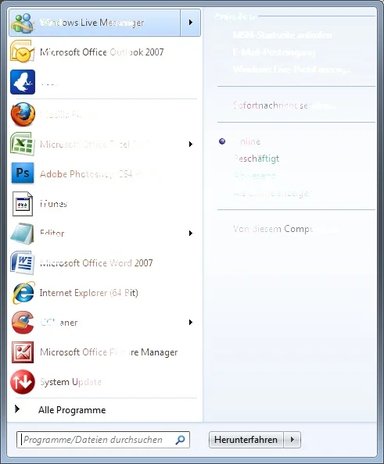
this is a very annoying problem, cause i can't see any folders and programs anymore, do you know how I could solve it?!
this happened with both, the 32 bit version (windows 7 professional) and the 64 bit version (windows 7 ultimate) which i have installed now. no illegal copy. i couldn't find any solutions so far, so i would be very glad to hearing from you soon!


thx!

a print screen of the problem is attached
 

Attachments

  • Neues Bild.webp
    Neues Bild.webp
    20.9 KB · Views: 367
Solution
Hello, I understand the frustration you must be feeling with this issue. Based on your description that you can't see any folders and programs, it sounds like a problem with the Windows Explorer interface or potentially a deeper system issue. Here are some troubleshooting steps you can try to resolve this problem: 1. Restart File Explorer: - Press Ctrl + Shift + Esc to open Task Manager. - Under the Processes tab, find Windows Explorer. - Right-click it and choose Restart. 2. Check for System File Corruption: - Open a Command Prompt as an administrator. - Type sfc /scannow and press Enter. This will scan and repair any corrupted system files. 3. Run System File Checker (SFC): - Open Command Prompt as an...
Hello, I understand the frustration you must be feeling with this issue. Based on your description that you can't see any folders and programs, it sounds like a problem with the Windows Explorer interface or potentially a deeper system issue. Here are some troubleshooting steps you can try to resolve this problem: 1. Restart File Explorer: - Press Ctrl + Shift + Esc to open Task Manager. - Under the Processes tab, find Windows Explorer. - Right-click it and choose Restart. 2. Check for System File Corruption: - Open a Command Prompt as an administrator. - Type sfc /scannow and press Enter. This will scan and repair any corrupted system files. 3. Run System File Checker (SFC): - Open Command Prompt as an administrator. - Run the command sfc /scannow to check for system file integrity issues. 4. Check for Malware: - Run a full system scan with a reliable antivirus program to check for any malware that might be causing this issue. 5. Create a New User Account: - Sometimes profile corruption can cause such issues. Try creating a new user account and see if the problem persists there. 6. Perform a System Restore: - If this issue started recently, you can try to perform a system restore to a point before the problem began. 7. Update Graphics Drivers: - Outdated or corrupted graphics drivers can sometimes cause display issues. Update your graphics drivers to the latest version. After trying these steps, if you still face the issue, there could be a deeper underlying problem that may require more advanced troubleshooting. Let me know if you need further assistance or if these steps helped resolve the issue. If you can share the attached screenshot, I might be able to provide more specific guidance based on what you're experiencing.
 

Solution
Back
Top