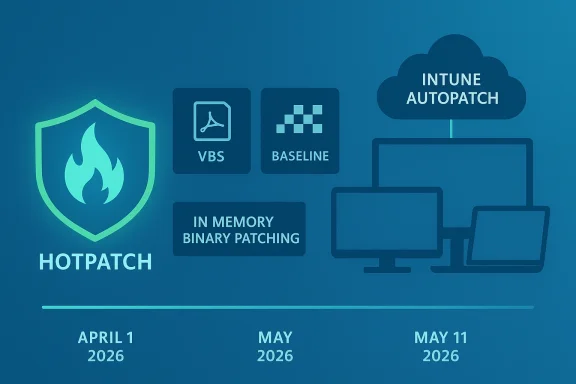
Microsoft is flipping a default switch in Windows Autopatch that will make hotpatch security updates the standard behavior for eligible devices — a change that promises dramatically faster compliance but also requires IT teams to make explicit readiness decisions before the May 2026 security update arrives.
Microsoft announced in March 2026 that Windows Autopatch will enable hotpatch updates by default for all eligible devices managed through Microsoft Intune or the Windows updates API (Microsoft Graph) starting with the May 2026 security update. One month prior — beginning April 1, 2026 — tenant-level controls will be available to opt out if you are not ready; administrators have until May 11, 2026 before hotpatch deployments begin against the new default.
Hotpatch is a rebootless patching capability for qualifying Monthly B security updates. Instead of waiting for a device restart to complete installation and reach compliance, hotpatch updates take effect immediately after installation, removing the restart bottleneck that historically delays security coverage. Microsoft’s announcement pairs that operational benefit with concrete policy controls: tenant defaults, per-policy overrides via Intune quality update policies, and reports to help identify which devices are hotpatch-ready.
This change is a meaningful step in reducing risk exposure time for enterprise fleets — but it’s not automatic for every device, and it introduces operational tradeoffs that security and device management teams must weigh carefully.
Key prerequisites and constraints:
Where to look:
Opt out across the tenant (available starting April 1, 2026):
Phase 1 — Preparation
Tenant-level toggle (available April 1, 2026):
Conclusion
The move to enable hotpatch by default signals a firm push toward restartless security patching as a mainstream option for enterprise Windows fleets. It lowers the time to secure for many environments and aligns with modern expectations for continuous, low-impact maintenance. But it also shifts responsibilities: validating prerequisites, expanding monitoring, and refining rollback procedures become central operational tasks. Use the April opt-out window wisely, validate with a pilot, and then expand deliberately — that will let you capture the security benefits of hotpatch while keeping costs and risks controlled.
Source: Microsoft - Message Center Securing devices faster with hotpatch updates on by default - Windows IT Pro Blog
 Background / Overview
Microsoft announced in March 2026 that Windows Autopatch will enable hotpatch updates by default for all eligible devices managed through Microsoft Intune or the Windows updates API (Microsoft Graph) starting with the May 2026 security update. One month prior — beginning April 1, 2026 — tenant-level controls will be available to opt out if you are not ready; administrators have until May 11, 2026 before hotpatch deployments begin against the new default.Hotpatch is a rebootless patching capability for qualifying Monthly B security updates. Instead of waiting for a device restart to complete installation and reach compliance, hotpatch updates take effect immediately after installation, removing the restart bottleneck that historically delays security coverage. Microsoft’s announcement pairs that operational benefit with concrete policy controls: tenant defaults, per-policy overrides via Intune quality update policies, and reports to help identify which devices are hotpatch-ready.
This change is a meaningful step in reducing risk exposure time for enterprise fleets — but it’s not automatic for every device, and it introduces operational tradeoffs that security and device management teams must weigh carefully.
Why hotpatch matters: the security and compliance argument
Hotpatch changes one of the longest-standing friction points in Windows patching: the restart requirement.- Traditionally, critical monthly security fixes install but do not make a device fully compliant until the system is restarted. Many organizations defer restarts for 3–5 days to avoid productivity disruption.
- Hotpatch eliminates that waiting period for eligible security updates: updates take effect as soon as they finish installing, with no restart required.
- Microsoft shared operational telemetry showing that several organizations reached 90% patch compliance in roughly half the time after adopting hotpatch, without changing existing deployment policies. That kind of acceleration matters for mitigation of rapidly exploited vulnerabilities.
- Faster reduction of exposure windows after a patch is published.
- Smaller, quicker downloads for hotpatch payloads because hotpatches are built incrementally on the latest baseline.
- Reduced user disruption and fewer forced maintenance windows.
What is changing, exactly — and when
Microsoft’s rollout is simple in concept but nuanced in practice.- Effective date for the default change: hotpatch updates will be enabled by default for eligible devices starting with the May 2026 Windows security update.
- Tenant opt-out control availability: April 1, 2026 — administrators can change the default hotpatch behavior for their tenant in Microsoft Intune.
- Deadline before deployments begin: Microsoft states organizations have until May 11, 2026 before any hotpatch updates are deployed under the new default.
- Policy precedence: if a device is assigned to a quality update policy in Intune, the hotpatch setting defined in that policy overrides the tenant default. That means you can opt out at the tenant level but allow hotpatch for specific groups—or the inverse.
- Hotpatches apply only to devices that meet the hotpatch prerequisites (see next section).
- If a device is enrolled for hotpatch but is not yet on the current baseline release, Windows Autopatch will first install the latest baseline (which does require a restart). After that baseline is installed and the device restarts, subsequent hotpatch updates will be installed without restarting going forward.
- Hotpatch is an extension of Windows Update and is orchestrated through Windows Autopatch and Intune quality update policies.
Prerequisites and limitations: what makes a device eligible
Hotpatch is not universal; devices must satisfy a list of configuration and licensing requirements before they’ll be offered hotpatch updates.Key prerequisites and constraints:
- Operating system: Windows 11 (and Windows Server with specific Azure/Automanage scenarios) on supported versions — typically Windows 11 version 24H2 or later for client hotpatching.
- Baseline status: devices must be on the latest baseline release (quarterly cumulative baseline) to qualify. If they are not, the baseline will be installed first and a restart will be required.
- Virtualization-based Security (VBS): VBS must be enabled on the device for hotpatch to be offered. This is a firm requirement for hotpatch installer functionality.
- Licensing: eligible licenses are required (for example, certain Enterprise and education SKUs and specific Microsoft 365 bundles). Confirm your licenses before assuming eligibility.
- Management: Microsoft Intune management with a Windows quality update policy and Windows Autopatch enrollment is required for orchestrated hotpatch deployments.
- ARM64 caveat: Arm64 devices require an additional registry change to disable CHPE (Compiled Hybrid Portable Executable) usage before hotpatching; Arm64 support is treated specially and may be in preview for certain scenarios.
- Not all update types are hotpatchable: hotpatch applies to specified security updates (Monthly B releases) and does not replace the quarterly baseline cumulative updates that still require restarts. Some patches may still require restarts for security or functional reasons even during hotpatch months.
How to check readiness and target hotpatch safely
Microsoft provides reporting and tooling in Intune to help identify which devices are hotpatch-ready and which will actually receive hotpatch updates.Where to look:
- The Hotpatch quality updates report in Intune shows which devices meet prerequisites, which have hotpatch enabled, and which were successfully hotpatched.
- The Quality update status report gains new columns such as Hotpatch Readiness and Hotpatch enabled, helping you track per-device status.
- Use Windows Autopatch update readiness tools to verify enrollment and eligibility before the May 2026 hotpatch release.
- Inventory: list all devices by OS version, VBS status, baseline version, and management status.
- Pilot group: choose a modest pilot (hundreds to low thousands depending on org size) that represents a cross-section of hardware, line-of-business apps, and user activity patterns.
- Simulate worst-case: test hotpatch rollback and LCU fallback procedures in lab or pilot devices so you can quickly respond if an update behaves unexpectedly.
- Monitor: add hotpatch readiness and hotpatch quality reports to your routine monitoring dashboards.
How to opt out: tenant and policy controls
Microsoft gives clear ways to prevent hotpatch from being applied by default across your tenant or to specific device groups.Opt out across the tenant (available starting April 1, 2026):
- Open Microsoft Intune.
- Navigate to Tenant administration > Windows Autopatch > Tenant management.
- Select the Tenant settings tab.
- Toggle the setting labeled When available, apply updates without restarting the device ("hotpatch") to Block.
- In Microsoft Intune go to Devices > Manage updates > Windows updates.
- Choose the Quality updates tab and select Create.
- Pick Windows quality update policy and complete the Basics tab.
- On the Settings tab toggle When available, apply without restarting the device ("hotpatch") to Block or Allow as desired.
- Assign the policy to Microsoft Entra groups representing the targeted devices.
- A device assigned to a quality update policy uses that policy’s hotpatch setting; policy-level intention always takes precedence over tenant default.
- You can mix approaches: block the tenant by default but enable hotpatch for carefully chosen groups, or enable tenant default and block specific groups that require restarts for operational reasons.
Risks, operational tradeoffs, and real-world signals
There are several practical tradeoffs and operational risks to evaluate before enabling hotpatch broadly.- Visibility and reboot-based health checks
- Many IT teams rely on regular restarts to flush transient issues, trigger firmware initialization, and reduce some classes of support tickets. Fewer restarts might hide issues until a later baseline install or manual restart surfaces them.
- Some service desks have reported that fewer restarts correlate with increased user tickets for problems that would otherwise have been implicitly resolved by a reboot.
- Uncommon but possible non-hotpatch updates
- Microsoft’s model still requires baseline (quarterly) updates that necessitate restarts. On rare occasions, Microsoft may ship a non-hotpatch update during a hotpatch month that will require a reboot. Your change-control procedures must account for those exceptions.
- Rollback and troubleshooting
- Automatic rollback of a hotpatch update is not supported; if a hotpatch causes issues, you must uninstall the hotpatch and install the latest standard cumulative update (LCU) and perform a restart. That makes testing and rollback plans essential.
- Compatibility with third-party tooling
- Third-party patch management and inventory tools may need updates to detect hotpatch states correctly. Some organizations have reported false positives in scanners or reconciliation discrepancies that required vendor updates or custom detection logic.
- Claims and adoption metrics — treat with caution
- Microsoft’s announcement cites adoption metrics (for example, a statement of “over 10 million production devices enrolled in hotpatch updates”). While this signals strong uptake, independent reports and earlier Microsoft communications showed lower published figures in prior months. Treat vendor adoption numbers as directional rather than absolute, and validate assumptions against your own telemetry.
- Application and driver updates
- Hotpatch addresses specific security updates; it does not cover all update categories (e.g., driver updates or many.NET/runtime updates often still need a restart). Plan your maintenance windows accordingly.
Recommended rollout plan and checklist for IT teams
If you decide to embrace hotpatch, follow a controlled and documented approach. If you decide to delay, use the tenant setting to block and enable hotpatch only for tightly controlled pilots.Phase 1 — Preparation
- Confirm licensing and OS versions for all endpoints.
- Inventory VBS status and configure VBS at scale where required.
- Verify baseline versions; schedule baseline installs for devices not on the latest baseline well before May 2026 to avoid unexpected reboots during baseline rollout.
- Identify and prepare pilot device groups (diverse hardware, critical LOB apps).
- Create a quality update policy with hotpatch Allow and scope to pilot groups.
- Use Hotpatch quality updates report and Quality update status report to track Hotpatch readiness, Hotpatch enabled, and Hotpatched columns.
- Test application compatibility, telemetry, user experience, and helpdesk workflows for the pilot.
- Document rollback procedures and rehearse them in a lab environment.
- Expand to additional rings after successful pilots, maintaining policy-level controls and monitoring.
- Apply a staged cadence: pilot → small production ring → broad production.
- Keep an eye on the release calendar and ensure devices are on the required baseline before entering broader hotpatch phases.
- Either switch tenant default to Allow (if you previously opted out) or keep tenant default Block and rely on quality update policies to permit hotpatch only where appropriate.
- Maintain dashboards and automated alerts for hotpatch-relevant signals, including VBS status, CHPE flags on Arm64, and hotpatch deployment failures.
- [ ] Confirm Windows 11 version 24H2 or later for candidate devices.
- [ ] Enable Virtualization-based Security (VBS) where required and confirm via inventory.
- [ ] Ensure required licenses are in place for target devices.
- [ ] Verify Intune enrollment and Windows Autopatch registration for groups.
- [ ] Schedule baseline update installs for out-of-date devices before May 2026.
- [ ] Create a pilot quality update policy in Intune and scope to pilot groups.
- [ ] Add Hotpatch quality updates report to your monitoring suite.
Tactical examples: commands and UI paths (what to click)
Microsoft’s UI steps are the authoritative path for tenant- and policy-level control. Summary of the Intune navigation described by Microsoft:Tenant-level toggle (available April 1, 2026):
- Microsoft Intune → Tenant administration → Windows Autopatch → Tenant management → Tenant settings.
- Toggle When available, apply updates without restarting the device ("hotpatch") to Allow or Block.
- Microsoft Intune → Devices → Manage updates → Windows updates → Quality updates → Create → Windows quality update policy.
- In Settings set When available, apply without restarting the device ("hotpatch") to Allow or Block.
- Assign to Microsoft Entra groups and create.
What to watch for after enabling hotpatch
Operational monitoring topics:- Hotpatch deployment success/failure rates by policy and device model.
- Rate of unexpected user incidents or helpdesk tickets that correlate with hotpatch installations.
- Third-party scanner and inventory tool reports — reconcile them with Intune hotpatch reporting to avoid blind spots.
- Baseline deployment schedule adherence — ensure your baseline installs are completed before hotpatch months.
- Exceptions where Microsoft ships a non-hotpatch fix in a hotpatch month.
- Update service desk runbooks to reflect new troubleshooting and rollback steps for hotpatches.
- Notify stakeholders of the change in restart cadence and rationale: fewer restarts, faster compliance, but new operational implications.
- Provide end-user guidance where necessary (for example, when a baseline restart will be required).
Final assessment — strengths and cautionary notes
Strengths- Security-first: hotpatch meaningfully shortens time-to-compliance on eligible security fixes, which is a clear win in the face of fast-moving exploit campaigns.
- User experience: Reduced forced restarts improve end-user productivity and reduce friction for always-on work modes.
- Operational efficiency: Smaller, incremental hotpatch payloads lower bandwidth and reduce installation time for qualifying fixes.
- Eligibility constraints: Not all devices qualify — VBS, baseline status, licensing, and management are gating factors that must be addressed beforehand.
- Hidden issues: Fewer restarts can delay the surfacing of intermittent hardware/firmware/software issues that reboots would normally reveal.
- Rollback friction: No automatic rollback for hotpatches means your remediation playbook needs to be practiced and reliable.
- Tooling gaps and third-party impacts: Some third-party scanning and recon tools may require updates to correctly detect hotpatch states and compliance.
- Vendor claims warrant scrutiny: Adoption or effectiveness figures published by vendors are directional; validate against your own telemetry and pilot results.
Bottom line — what IT leaders should do this month
- Treat April 1, 2026 as your decision point: if you need more time, plan to set the tenant-level hotpatch toggle to Block as soon as the control appears.
- Immediately inventory and remediate prerequisites: VBS enablement, OS baseline status, Intune enrollment, and licensing.
- Spin up a representative pilot and validate hotpatch behavior against your most important line-of-business apps and hardware classes.
- Update runbooks, monitoring, and helpdesk procedures to handle hotpatch-specific troubleshooting and rollback.
- Use policy-level overrides to adopt a mixed strategy: enable hotpatch for low-risk groups and keep critical or restart-sensitive workloads on a Block policy until you are confident.
Conclusion
The move to enable hotpatch by default signals a firm push toward restartless security patching as a mainstream option for enterprise Windows fleets. It lowers the time to secure for many environments and aligns with modern expectations for continuous, low-impact maintenance. But it also shifts responsibilities: validating prerequisites, expanding monitoring, and refining rollback procedures become central operational tasks. Use the April opt-out window wisely, validate with a pilot, and then expand deliberately — that will let you capture the security benefits of hotpatch while keeping costs and risks controlled.
Source: Microsoft - Message Center Securing devices faster with hotpatch updates on by default - Windows IT Pro Blog