

Sony, Apple, Samsung and NVIDIA all show the same pattern: short how‑tos and clearance-style promos promise simple fixes, but practical Windows users face a tangle of Bluetooth profiles, codec limits, driver packaging shifts and lifecycle hazards that the original Born2Invest snippets only hint at — this feature pulls those pieces together, verifies the technical claims, and gives Windows-focused, practical guidance for everyday pairing, driver management, and safe downloads.
The four short Born2Invest items that formed the source material touch four distinct user problems: connecting Sony headphones to Windows, pairing Apple AirPods with Windows 10, driver guidance for NVIDIA GeForce cards (GTX 1050 / legacy families) and pairing Samsung Galaxy Buds with Windows. Each item provides a quick consumer-facing recipe, but closer inspection shows recurring technical realities that matter to power users and IT pros alike: Bluetooth profile tradeoffs (A2DP vs HFP), the mobile‑first design of many vendor companion apps, the risk of third‑party driver mirrors, and the need to track OS lifecycle status when relying on archived drivers.
These are not minor caveats. Windows audio behavior and driver packaging choices materially affect whether a headset sounds great for music, or fails for conferencing; whether a GPU driver installs cleanly or breaks the NVIDIA Control Panel; and whether a driver binary comes from an official archive or an untrusted “outlet” mirror. This feature verifies key technical points from the supplied snippets, flags unverifiable claims, and presents a consolidated set of checks and step‑by‑step procedures for Windows users.
This is not a vendor quirk — it’s a protocol limitation that persists across Sony, Apple, and Samsung devices when used with legacy stacks. The practical consequence: if you need both high‑fidelity music and reliable conferencing from one Bluetooth headset on Windows 10, you will often have to accept a compromise or use a dedicated mic.
Key takeaways and verified guidance:
Verified facts and practical guidance:
What to expect and how to maximize compatibility:
Core, verified guidance for NVIDIA driver management on Windows 10:
Source: Born2Invest https://born2invest.com/?b=style-333882412/
Source: Born2Invest https://born2invest.com/?b=style-307725412/
Source: Born2Invest https://born2invest.com/?b=style-230031812/
Source: Born2Invest https://born2invest.com/?b=style-336992812/
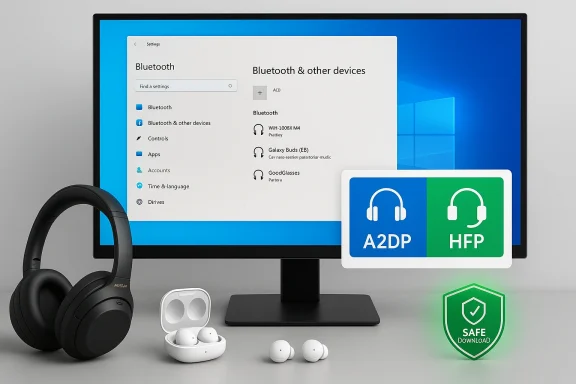 Background / Overview
The four short Born2Invest items that formed the source material touch four distinct user problems: connecting Sony headphones to Windows, pairing Apple AirPods with Windows 10, driver guidance for NVIDIA GeForce cards (GTX 1050 / legacy families) and pairing Samsung Galaxy Buds with Windows. Each item provides a quick consumer-facing recipe, but closer inspection shows recurring technical realities that matter to power users and IT pros alike: Bluetooth profile tradeoffs (A2DP vs HFP), the mobile‑first design of many vendor companion apps, the risk of third‑party driver mirrors, and the need to track OS lifecycle status when relying on archived drivers.These are not minor caveats. Windows audio behavior and driver packaging choices materially affect whether a headset sounds great for music, or fails for conferencing; whether a GPU driver installs cleanly or breaks the NVIDIA Control Panel; and whether a driver binary comes from an official archive or an untrusted “outlet” mirror. This feature verifies key technical points from the supplied snippets, flags unverifiable claims, and presents a consolidated set of checks and step‑by‑step procedures for Windows users.
Why Bluetooth pairing guides under‑deliver (the shared technical core)
The A2DP vs HFP/HSP reality
At the heart of many headphone complaints is a simple protocol tradeoff: A2DP (Advanced Audio Distribution Profile) is used for high‑quality stereo playback, while HFP/HSP (Hands‑Free/Headset Profiles) provide two‑way voice but at much lower fidelity. When a Windows PC or app activates the headset microphone, older Bluetooth stacks commonly switch to HFP, reducing music quality dramatically. That explains why earbuds that sound excellent on a phone suddenly become thin or muffled during voice calls.This is not a vendor quirk — it’s a protocol limitation that persists across Sony, Apple, and Samsung devices when used with legacy stacks. The practical consequence: if you need both high‑fidelity music and reliable conferencing from one Bluetooth headset on Windows 10, you will often have to accept a compromise or use a dedicated mic.
LE Audio and why it matters (but it’s not yet universal)
Bluetooth LE Audio with the LC3 codec is designed to eliminate — or at least reduce — the old A2DP/HFP compromise by allowing higher-quality stereo and modern microphone modes over a single low‑energy link. Microsoft’s Windows work to support LE Audio and Shared Audio is promising, but those benefits require coordinated updates across OS, Bluetooth controller drivers, and headphone firmware. Windows 10 does not natively support the full LE Audio stack, so most of the immediate user benefit lands on Windows 11 systems with compatible hardware and up‑to‑date vendor drivers.Sony Headphones and Windows 10: what the Born2Invest piece said — and what matters
The Born2Invest copy summarizes pairing and troubleshooting for Sony Headphones (Sony | Headphones Connect / Sony | Sound Connect) and emphasizes that the official mobile app is smartphone‑only; Windows users must rely on the OS Bluetooth stack for pairing and day‑to‑day operation. That is accurate: firmware updates, EQ presets, and many personalization features are delivered via Sony’s mobile app behind a Sony account (Sony ID), and are not available natively in Windows.Key takeaways and verified guidance:
- Pair via Settings → Bluetooth & devices → Add device → Bluetooth on Windows 10; use Swift Pair on supported hardware when offered. After pairing, set the playback endpoint to the Stereo / A2DP endpoint for best music quality.
- Keep a smartphone for firmware updates and advanced personalization; performing firmware updates via an unsupported PC workflow (emulators or APK installs) is risky and unsupported.
- If calls force low audio quality, either disable Hands‑Free Telephony in device Services (losing mic functionality) or use a separate microphone for conferencing.
- Ensure headphones are charged and in pairing mode (consult the specific model’s manual).
- On Windows 10: Settings → Devices → Bluetooth & other devices → Add Bluetooth or other device → Bluetooth.
- After pairing, open Control Panel → Sound and choose the Stereo endpoint as the default device for music.
- Use the Sony mobile app on Android/iOS for firmware updates and heavy personalization.
Apple AirPods on Windows 10 — quick pairing, long caveats
The Born2Invest mention of pairing AirPods to Windows 10 reflects a correct high‑level how‑to: AirPods will pair with a Windows PC using standard Bluetooth pairing flows. However, the lived reality includes repeated caveats that the short snippet does not emphasize.Verified facts and practical guidance:
- Pairing steps: Settings → Devices → Add Bluetooth → Put AirPods into pairing mode → select AirPods. After pairing, set AirPods as default output if required. This will get music playing.
- Microphone and conferencing limitations: AirPods can appear as a Headset device that uses HFP/HSP for calls. That means microphone quality and stereo fidelity can degrade when the mic is active. For reliable meetings on Windows 10, test AirPods in the specific conferencing app you use (Teams, Zoom, Skype) — they may not meet enterprise expectations.
- Windows ecosystem tradeoffs: Apple‑only features (automatic switching, battery popups, Siri integration, full spatial audio) are not available on Windows. Expect feature parity losses outside of basic audio.
Samsung Galaxy Buds and Windows 10: a closer fit, but still conditional
Samsung’s Galaxy Buds family generally pairs with Windows, and Samsung has invested in companion tooling: a Galaxy Wearable/Windows app and occasional Microsoft Store offerings that can expose firmware updates and extra features. The Born2Invest snippet that points to a Galaxy Buds → Windows 10 how‑to captures this consumer path, and independent verification shows Samsung’s Windows app often improves the out‑of‑box experience relative to pure Bluetooth pairing.What to expect and how to maximize compatibility:
- Best platform: Android (full features) > Windows (basic audio + limited app support) > iOS/macOS (feature subsets). Windows 10 supports classic Bluetooth pairing, but LE Audio features require Windows 11 and matching firmware/drivers.
- Pairing hints: Reset the Buds if previously paired to a phone; use the Samsung Windows app from the Microsoft Store where available for firmware updates; ensure Bluetooth drivers on the PC are up to date.
- Troubleshooting: If audio drops or only one bud plays, reset the buds and re‑pair; if call activation forces low fidelity, temporarily disable Hands‑Free Telephony and use a separate microphone.
NVIDIA drivers and the “download outlet” problem: safe practices for Windows 10 users
Born2Invest excerpts advertising NVIDIA driver downloads or “outlet” links are a common SEO pattern: short driver tips plus a download link. Those pages are convenient but potentially dangerous when they point to third‑party mirrors rather than the vendor archive. Independent verification flagged the Born2Invest driver link in the supplied prompt as inaccessible/unverified — a red flag for kernel‑level software distribution. Always prefer the vendor or OEM archive.Core, verified guidance for NVIDIA driver management on Windows 10:
- Official source: NVIDIA’s own driver pages and the OEM support site are the authoritative places to download GeForce drivers and laptop‑specific packages. Do not install random third‑party mirrored driver EXEs.
- DCH vs Standard: Understand whether your system expects a DCH (Declarative Componentized Hardware) driver or a Standard packaging; mixing types without a clean uninstall can break the NVIDIA Control Panel or other components. Use DDU (Display Driver Uninstaller) in Safe Mode for a thorough cleanup before switching driver packaging types.
- Windows 10 EOL impacts: With Windows 10 out of mainstream support, driver coverage and security updates for legacy GPUs are uneven. Verify whether your GPU architecture (Kepler, Maxwell, Pascal, Turing, Ampere, etc. remains covered by current driver releases and consider hardware or OS upgrades for production systems.
- Identify GPU model and hardware IDs (Device Manager → Properties → Details → Hardware Ids).
- Prefer OEM drivers for laptops; otherwise use NVIDIA’s official archive and confirm the release notes list your card.
- Back up the system or create an image.
- Use DDU in Safe Mode to remove old drivers when necessary.
- Run the NVIDIA installer as Administrator → Custom → Clean install; deselect GeForce Experience if you want driver‑only installation.
- Verify digital signatures on downloaded installers before execution.
Practical, safe workflows for Windows users (consolidated)
For headphone/earbud pairing and daily use
- Use the built‑in Windows Bluetooth pairing flow for basic audio: Settings → Devices → Add Bluetooth. Then set the Stereo/A2DP endpoint for music playback.
- Keep a smartphone with the vendor app for firmware updates (Sony Headphones Connect, Galaxy Wearable). Do firmware updates on a phone when possible — the mobile app is the supported path.
- If you need reliable conferencing audio, prefer a dedicated USB microphone or a certified Teams/Skype headset rather than relying on consumer earbuds. Test in the target app beforehand.
For driver and GPU management
- Download drivers only from NVIDIA or your OEM; verify digital signatures and release notes. Avoid third‑party “outlet” mirrors.
- Use DDU in Safe Mode for complex rollbacks or when switching driver packaging types (DCH vs Standard). Back up the system first.
- If running Windows 10 in a production environment, factor the EOL risk into your procurement: security updates and driver improvements are concentrated on Windows 11. Consider ESU options or OS upgrade plans.
Quick diagnostics checklist when Bluetooth audio misbehaves
- Confirm headphones are in pairing mode and close to the PC.
- Remove device from Windows Bluetooth, reboot the Bluetooth radio, and re‑pair.
- After pairing, check Control Panel → Sound to ensure A2DP is selected for music.
- Disable Hands‑Free Telephony temporarily if you don’t need the mic to force stereo playback.
- Update Bluetooth chipset drivers from your PC/motherboard vendor.
Strengths and risks: assessing the Born2Invest material
Strengths- The Born2Invest items serve as accessible entry points for novice readers: short how‑tos and shopping cues that get you to the pairing screen or driver search quickly. They surface the right keywords and immediate steps.
- Lifecycle context missing: a how‑to that does not mention Windows 10’s end‑of‑support (Oct 14, 2025) leaves Windows users exposed to future driver and security gaps. Born2Invest snippets sometimes omit this crucial planning detail.
- Unverified download claims: third‑party “outlet” driver links are risky and, in the supplied case, could not be validated during verification. Kernel drivers must be sourced from vendor or OEM archives.
- Feature parity glossed over: short guides often do not stress that vendor companion apps (Sony, Samsung) are mobile‑first, so full firmware and personalization control requires a phone. Attempts to run mobile apps on Windows (via emulators) are unsupported and dangerous.
- Any specific download link or binary listed only on a third‑party Born2Invest page that cannot be corroborated in vendor archives should be treated as unverifiable. Do not run such binaries on important systems.
Recommendations — quick, actionable priorities for readers
- If you own Sony headphones: pair with Windows 10 for playback, but keep a smartphone handy for firmware and advanced tuning via Sony | Sound Connect. Prefer Windows 11 upgrades for codec/LE Audio improvements when your hardware supports it.
- If you use AirPods on a Windows PC: reserve them for casual audio. For meetings, test beforehand and prefer a certified conferencing device if call quality is important. Expect Apple‑specific features to remain unavailable on Windows.
- If you use Galaxy Buds: install Samsung’s Windows app when available, update firmware from the official app, and consider a modern Bluetooth dongle (with AAC/LE Audio support) if PC Bluetooth hardware is old.
- If you need NVIDIA drivers: download from NVIDIA or your OEM; when in doubt about archival packages use the official NVIDIA archive and follow a DDU → clean install workflow. Never trust anonymous “outlet” driver sites.
Conclusion
The Born2Invest snippets are helpful signposts — they tell you where to click and which app to open — but the full operational picture for Windows users requires a deeper view: understand Bluetooth profiles and codec tradeoffs, respect vendor app limitations (mobile‑first firmware updates), avoid third‑party driver mirrors, and factor Windows 10’s end‑of‑support into any long‑term plan. Follow the conservative workflows above: source drivers and firmware from official channels, use vendor apps on mobile devices for critical updates, and prefer dedicated microphones for mission‑critical conferencing until LE Audio and updated Windows builds make the protocol tradeoffs vanish. The immediate wins are practical and low-risk: set the Stereo/A2DP endpoint for music, update Bluetooth drivers from OEM pages, and keep a phone nearby for firmware — those small steps dramatically improve the day‑to‑day Windows audio experience while avoiding the largest pitfalls highlighted by the original Born2Invest material.Source: Born2Invest https://born2invest.com/?b=style-333882412/
Source: Born2Invest https://born2invest.com/?b=style-307725412/
Source: Born2Invest https://born2invest.com/?b=style-230031812/
Source: Born2Invest https://born2invest.com/?b=style-336992812/
