

The Windows Camera Frame Server can be a helpful behind‑the‑scenes coordinator for webcams — and, for a growing number of Windows users, an unexpected source of sustained RAM and CPU drain that grinds systems to a crawl. In this feature I explain what the Frame Server actually does, why it sometimes eats memory and CPU, how to diagnose the true culprit, step‑by‑step fixes (from safe settings changes to surgical registry edits), and the tradeoffs and security implications you need to understand before you act.
The Camera Frame Server (often reported in Task Manager as FrameServer (Windows Camera Frame Server) or as a FrameServer‑related entry under svchost) is a Windows service introduced to centralize camera capture and allow multiple apps to request camera frames without each one taking exclusive control of the hardware. That shared pipeline simplifies multi‑app scenarios (Teams + Zoom + the Camera app, for example) but it also introduces an extra layer — a process that can malfunction, leak memory, or stay wedged holding buffers in RAM and CPU if anything upstream (drivers, codecs, or apps) misbehaves.
What started as a helpful design shift has become a persistent support item: community and Microsoft forum threads going back years describe symptoms ranging from memory growth and frame freezes to 100% CPU on a single core until reboot. These reports are widespread enough that Microsoft and several independent support sites have guidance and troubleshooting guidance devoted specifically to camera frame server problems.
d vulnerabilities and security advisories related to camera subsystem components; the broader community monitors the camera frame server and adjacent services for information‑disclosure or elevation‑of‑privilege issues. Administrators should treat camera‑related service crashes and repeated memory faults as potential attack surface indicators, and keep systems patched. Recent forum and editorial listings highlight tracked CVEs and security rollups that touch camera‑related components.
From a reliability and systems‑engineering perspective, the solution path is straightforward: insist on robust vendor drivers, better virtual webcam software hygiene, and faster platform patches for regressions. From a user perspective, the pragmatic approach is to prioritize safe, reversible actions: driver reinstallation, app permission control, vendor updates, clean boot isolation, and, as a last resort, registry workarounds — all while preserving system backups and restore points.
If you rely heavily on multi‑app camera usage (streaming while conferencing, for example), keep your webcam vendor and OS fully patched. If the Frame Server leak impacts a business or multi‑user environment, escalate to your vendor or Microsoft support with collected logs — these problems are often resolved only when vendors receive complete diagnostic bundles.
The Frame Server problem can be frustrating, but it is resolvable in the majority of cases with diagnostic discipline and an ordered approach: confirm, isolate, update, and then remediate. Community reports and official documentation show the path; use the steps above, start with low‑risk actions, and escalate only when necessary.
Source: Guiding Tech Windows Camera Frame Server High RAM and CPU Usage
 Background / Overview
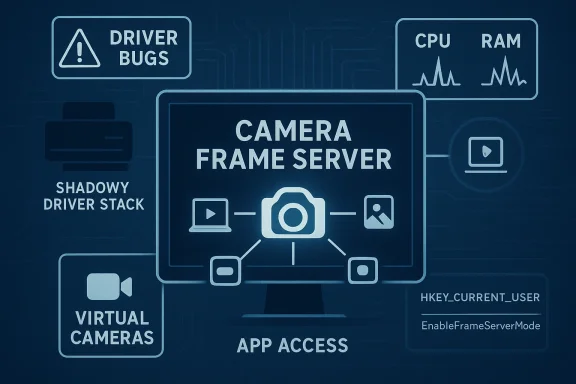
The Camera Frame Server (often reported in Task Manager as FrameServer (Windows Camera Frame Server) or as a FrameServer‑related entry under svchost) is a Windows service introduced to centralize camera capture and allow multiple apps to request camera frames without each one taking exclusive control of the hardware. That shared pipeline simplifies multi‑app scenarios (Teams + Zoom + the Camera app, for example) but it also introduces an extra layer — a process that can malfunction, leak memory, or stay wedged holding buffers in RAM and CPU if anything upstream (drivers, codecs, or apps) misbehaves.What started as a helpful design shift has become a persistent support item: community and Microsoft forum threads going back years describe symptoms ranging from memory growth and frame freezes to 100% CPU on a single core until reboot. These reports are widespread enough that Microsoft and several independent support sites have guidance and troubleshooting guidance devoted specifically to camera frame server problems.
How the Frame Server Works (a short technical primer)
At a high level the Frame Server acts as an intermediary that:- Opens and decodes the camera stream from the device driver.
- Provides decoded frames to multiple client applications via a common API (so apps don't need exclusive hardware access).
- Runs as a service with relatively low privileges (frame server components operate via Local Service contexts in recent Windows builds).
Why Camera Frame Server Can Spike RAM and CPU
There isn’t a single root cause — instead, several recurring categories appear in field reports and vendor guidance:- Driver bugs and incompatibilities: Outdated, buggy, or OEM‑modified camera drivers can produce leaks or repeated retries that inflate memory and CPU. Microsoft’s camera troubleshooting pages and device‑driver documentation emphasize driver updates and, when necessary, rolling back to a known‑good version.
- Third‑party camera utilities and virtual webcam drivers: Tools such as vendor webcam utilities, virtual camera providers (OBS virtual camera, Canon/EOS webcam utilities, etc.), or camera middleware sometimes depend on Frame Server internals and can hold frames or register callbacks that don’t tear down correctly. Several vendor support threads and community posts show that uninstalling or updating such utilities often eliminates the symptom.
- Apps that fail to release the camera: Video conferencing apps (Teams, Zoom) or browser tabs with camera permissions may crash without releasing handles, leaving the frame server doing the heavy lifting. Task Manager traces frequently point to these apps as triggers.
- Platform bugs and regressions: Windows updates and platform changes have occasionally introduced regressions in Frame Server behavior; historic examples include bundled updates that changed how camera buffers are managed and required temporary workarounds. Majorlists and Microsoft Q&A threads documents some of these incidents and the registry toggles or patches that followed.
- Resource‑heavy camera streams: High resolution, high FPS streams (1080p/60, 4K/30) impose much greater processing and buffer pressure; when the camera frame server is active for many clients or for codecs that use heavy CPU decode, aggregate CPU and RAM usage will climb. This is especially visible on low‑power laptops and integrated GPU systems.
Diagnostic checklist — quickly find the true culprystem settings that affect multiple apps or drivers, run a short diagnostic sequence. This reduces downtime and avoids unnecessary changes.
- Open Task Manager (Ctrl+Shift+Esc) and sort by Memory and CPU to confirm the Frame Server process is the primary consumer.
- Use Resource Monitor (resmon) to map the Frame Server to specific handles and network activity, if any.
- If the Frame Server is pegged after you start or stop a particular app, note the exact app and the sequence — many reproductions reveal a single offending app or virtual camera driver.
- Reproduce the issue in a clean environment: disable camera access for all non‑essential apps (Settings > Privacy & security > Camera) and retest. If the Frame Server drops back to normal, you’ve isolated the problem to an app or web process.
- For deeper traces on persistent CPU/ISR/DPC or driver‑level problems, Windows Performance Recorder and Windows Performance Analyzer can identify the kernel modules responsible for DPC/ISR or other driver activity. The technique is advanced but invaluable when a driver is misbehaving.
Quick, safe fixes (the ones to try first)
- Restart the system and the Camera app — many Frame Server hangs clear with a reboot. If that solves it, you still need to find the cause if it recurs.
- Update Windows and drivers — install optional camera/driver updates via Windows Update, and check the device OEM for updated camera drivers. Microsoft’s guidance for camera errors explicitly recommends checking for driver updates and using the generic USB Video Device driver if necessary.
- Temporarily restrict camera access — use Settings > Privacy & security > Camera to turn off camera access for non‑essential apps and see whether the Frame Server returns to normal. This isolates the app level without changing drivers.
- Unplug external cameras and test — switch between internal and external webcams. Some users report the spike occurs when switching between devices and the frame server doesn’t release the old device handle.
- Remove or update virtual camera software — uninstall or update utilities such as vendor webcam tools, webcam overlays, or virtual cameras (OBS Virtual Camera, vendor drivers) that hook into the camera pipeline; these are frequent culprits.
Step‑by‑step: Update, roll back, or reinstall camera drivers
Device Manager is where most driver fixes start. Follow these steps carefully:- Press Win+R, type devmgmt.msc, and press Enter to open Device Manager.
- Expand the Cameras (or Imaging devices / Sound, video and game controllers) node and double‑click your webcam device.
- Click Driver tab to see options:
- Click Update Driver → Search automatically for drivers to let Windows try to find an updated driver.
- If the problem started after a recent driver update, click Roll Back Driver if available. Rolling back restores the previously installed driver package.
- To do a full reinstall, choose Uninstall Device, check any "Delete the driver software for this device" box if present, reboot, and let Windows reinstall drivers automatically.
- If the Roll Back option is grayed out, an older driver snapshot isn’t available — you can manually download a previous driver from the vendor and use Update Driver → Browse my computer → Let me pick from a list to install it.
- Use vendor support tools (Intel Driver & Support Assistant, Dell/HP driver pages) when OEM camera drivers are not available via Windows Update.
Control app access: targeted isolation with Privacy settings
If updating drivers doesn’t resolve the leak, the Frame Server will often reveal the problematic app by dropping CPU usage after you revoke its camera permission.- Open Settings > Privacy & security > Camera.
- Use the toggles under Let apps access your camera and Let desktop apps access your camera to turn off specific apps or to temporarily block all desktop apps. This is safer than uninstalling because it’s reversible without affecting other system components.
Clean boot: isolate third‑party interference
A clean boot starts Windows with only essential Microsoft services and minimal drivers; it’s an efficient way to confirm third‑party software interference.- Press Win+R, type msconfig, and press Enter.
- On the General tab, choose Selective startup and uncheck Load startup items.
- On the Services tab, check Hide all Microsoft services, then click Disable all.
- Restart and test — if Frame Server is calm, re‑enable services / startup items in batches until you find the offender. The classic clean‑boot workflow remains an effective troubleshooting method.
Advanced: registry toggle to disable Frame Server mode (use with caution)
As a last resort — and only when you understand the functional tradeoffs — WinFrame Server mode system‑wide via a registry DWORD. Historically this bypass has been used as a workaround for compatibility regressions introduced by the Frame Server architecture. The change forces apps to use exclusive camera access behavior similar to older Windows models.- The registry keys touched in past guidance are:
- HKEY_LOCAL_MACHINE\SOFTWARE\Microsoft\Windows Media Foundation\Platform
- On 64‑bit machines, also the WOW6432Node path for 32‑bit apps.
- Create a 32‑bit DWORD named EnableFrameServerMode and set its value to 0 to disable Frame Server mode; set it to 1 (or delete the value) to re‑enable. This has been documented as a compatibility workaround in past Windows updates.
- Disabling Frame Server removes the multi‑app frame‑sharing benefit; some modern apps and virtual camera drivers expect Frame Server and may lose functionality or produce errors. Vendor tools that rely on the frame server can break. Back up the registry and create a restore point before changing this key.
When to escalate: driver verifier, logs, and Microsoft support
If none of the above resolves the issue:- Enable Driver Verifier for problematic drivers to collect crash dumps that can be analyzed with the Windows Debugging Tools. Driver Verifier is powerful but should be used carefully — it can trigger crashes to expose buggy drivers.
- Collect Event Viewer logs and X‑perf/WPR recordings and submit them to Microsoft or your OEM’s support channels if you’re under warranty.
- If the behavior followed a Windows update, check Microsoft’s support forums and Q&A for known regressions — Microsoft has acknowledged Frame Server crashes and memory leaks on multiple occasions and sometimes issues hotfix guidance or security patches where appropriate.
Security and privacy considerations
The camera is one of the most sensitive peripherals from a privacy perspective. Two important points:d vulnerabilities and security advisories related to camera subsystem components; the broader community monitors the camera frame server and adjacent services for information‑disclosure or elevation‑of‑privilege issues. Administrators should treat camera‑related service crashes and repeated memory faults as potential attack surface indicators, and keep systems patched. Recent forum and editorial listings highlight tracked CVEs and security rollups that touch camera‑related components.
- Disabling the Frame Server via registry is a functional workaround but not a security fix. If you suspect malicious use of the camera (unexpected activation, persistent access when no app is in use), prioritize log collection, an offline malware scan using a reputable tool, and, if necessary, hardware measures (cover the camera, remove or physically disable external webcams). Microsoft’s privacy controls are the recommended first stop for limiting app access to the camera.
Real‑world case studies and lessons from the field
- Multiple users have reported steady memory growth and CPU usage after Teams or Skype calls, sometimes requiring a reboot to clear the Frame Server; these user cases illustrate interaction problems between conferencing apps and the shared frame pipeline. When Teams or an external webcam driver are implicated, updating or reinstalling the app and drivers often resolves the problem.
- Some photographers and creators using vendor webcam utilities (for example, Canon’s EOS Webcam Utility) have seen high Frame Server usage tied specifically to those virtual drivers. Support threads n recommend using the vendor’s latest builds or switching to the manufacturer’s native driver instead of the virtual camera bridge. This demonstrates that vendor middleware remains a common, fixable cause.
- Historical platform regressions (for example around Windows 10 anniversary updates) required a registry toggle or a driver update to restore expected behavior; that precedent shows both the power and risk of the Frame Server design: it solves a lot of use cases but increases the blast radius of a single bug.
Practical checklist — what to do right now (concise)
- Restart and confirm the problem persists.
- Update Windows (including optional driver updates) and the camera driver via Device Manager.
- In Settings > Privacy & security > Camera, temporarily revoke non‑essential app access and retest.
- Uninstall or update any virtual camera or vendor webcam utility and retest.
- If still present, perform a clean boot to isolate third‑party services.
- If you need an emergency workaround and accept the feature tradeoffs, consider the registry toggle to disable Frame Server mode — only after backing up the registry and understanding the consequences.
Closing analysis: strengths, tradeoffs, and long‑term outlook
The Frame Server is a sensible architectural improvement — it enables multiple apps to share one camera feed and allows Windows to centrally manage formats and buffers. That design reduces device resets and simplifies app integration. However, in practice the Frame Server has broadened the failure modes: a single driver or third‑party utility bug can now affect every camera client; memory leaks and stuck frame buffers become system‑level problems rather than the domain of a single app.From a reliability and systems‑engineering perspective, the solution path is straightforward: insist on robust vendor drivers, better virtual webcam software hygiene, and faster platform patches for regressions. From a user perspective, the pragmatic approach is to prioritize safe, reversible actions: driver reinstallation, app permission control, vendor updates, clean boot isolation, and, as a last resort, registry workarounds — all while preserving system backups and restore points.
If you rely heavily on multi‑app camera usage (streaming while conferencing, for example), keep your webcam vendor and OS fully patched. If the Frame Server leak impacts a business or multi‑user environment, escalate to your vendor or Microsoft support with collected logs — these problems are often resolved only when vendors receive complete diagnostic bundles.
The Frame Server problem can be frustrating, but it is resolvable in the majority of cases with diagnostic discipline and an ordered approach: confirm, isolate, update, and then remediate. Community reports and official documentation show the path; use the steps above, start with low‑risk actions, and escalate only when necessary.
Source: Guiding Tech Windows Camera Frame Server High RAM and CPU Usage
