

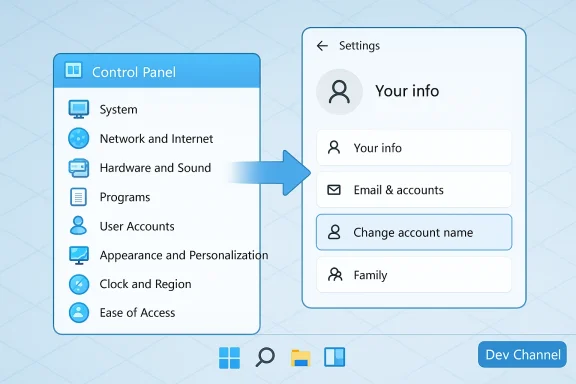
Microsoft’s slow-motion migration of the Control Panel continues: Insiders are now seeing the familiar “change account name” option surface inside the modern Settings app, a fresh sign that Microsoft is steadily consolidating legacy configuration surfaces even as it stages changes in the Dev channel and steers the OS roadmap toward a single, touch‑friendly configuration experience.
For more than a decade Microsoft has been nudging configuration tasks from the decades‑old Control Panel into the modern Settings app. The process is deliberate and iterative; Microsoft frequently ships UI work to Insider channels first and then stages rollouts through Dev, Beta, and Stable rings. Community trackers and forum threads show that migration has touched keyboard settings, time & language options, Windows Search, and device-specific controls in recent flights.
What’s new: community observers and tech sites recently flagged an addition to the Settings surface that traditionally lived in the Control Panel — the ability to change a user’s display name — appearing in Dev‑channel builds. This isn’t a trivial UI relocation. The account‑name area affects how users see each other on the sign‑in screen, in Start and other system surfaces, and it sits at the intersection of local account behavior, Microsoft Account (MSA) sync, and the legacy user profile folder (C:\Users\<name>) that has long caused headaches when trying to rename accounts. Community eports indicate the change is present in Dev builds and will likely be staged before broad release.
This article explains what was observed, verifies the finding against Microsoft’s Insider notes and long‑standing documentation about account management, and assesses the usability and administrative implications of continuing to move Control Panel features into Settings. If you administer PCs or just like to keep control of where settings live, this is a practical, forward‑looking guide.
Separately, Insider notes for builds that touched setup/OOBE behavior (for example the Build 26220.x family) document changes that affect account creation and the default user folder name during setup. Those entries are not the same as moving the account rename UI, but they show Microsoft is actively changing how account identity is handled across the OS surface.
That said, this is a migration, not a coup. The company moves deliberately because the stakes are high: user identity touches security, enterprise lifecycle management, installed apps, and customer expectations. The risk of breaking workflows or creating support churn explains Microsoft’s measured staging through Dev, Beta, and Controlled Feature Rollouts, and it explains why some Power Users still lament the "glacial" pace. Community trackers and forum posts show both frustration at the slow pace and cautious optimism that eventual consolidation will simplify the overall user experience — if it’s done carefully.
If you’re an IT pro: use the Insider builds as a rehearsal stage. If you’re a home user: don’t panic — Control Panel isn’t disappearing from your machine overnight, but expect to find some familiar settings in Settings sooner rather than later. And if all you want to do is change the name that appears on your PC, follow the supported display‑name methods listed above rather than attempting risky profile folder surgeries.
Microsoft’s Control Panel migration is a story of many small moves rather than a single headline grab. Each relocation — from keyboard and time settings to the account rename flow — chips away at overlap, but also raises important questions about compatibility and admin tooling. Watch the Dev channel for signs of change, test proactively, and treat the Control Panel’s slow exit as an operational reality: gradual, inevitable, and worthy of careful planning.
Source: XDA Microsoft moves yet another feature to Settings as it plans to scrap the Control Panel
 Background / Overview
For more than a decade Microsoft has been nudging configuration tasks from the decades‑old Control Panel into the modern Settings app. The process is deliberate and iterative; Microsoft frequently ships UI work to Insider channels first and then stages rollouts through Dev, Beta, and Stable rings. Community trackers and forum threads show that migration has touched keyboard settings, time & language options, Windows Search, and device-specific controls in recent flights.What’s new: community observers and tech sites recently flagged an addition to the Settings surface that traditionally lived in the Control Panel — the ability to change a user’s display name — appearing in Dev‑channel builds. This isn’t a trivial UI relocation. The account‑name area affects how users see each other on the sign‑in screen, in Start and other system surfaces, and it sits at the intersection of local account behavior, Microsoft Account (MSA) sync, and the legacy user profile folder (C:\Users\<name>) that has long caused headaches when trying to rename accounts. Community eports indicate the change is present in Dev builds and will likely be staged before broad release.
This article explains what was observed, verifies the finding against Microsoft’s Insider notes and long‑standing documentation about account management, and assesses the usability and administrative implications of continuing to move Control Panel features into Settings. If you administer PCs or just like to keep control of where settings live, this is a practical, forward‑looking guide.
What exactly changed (and where it was seen)
The reported observation
Community sleuths monitoring Insider builds noticed a Settings page that exposes a Change account name flow which historically required opening the Control Panel or using netplwiz / Local Users & Groups for local accounts. The reporting identifies the change as visible in Dev‑channel builds, which are where Microsoft often experiments with UI consolidations and new flows before wider rollout. Forum posts tracking recent Dev builds and Settings migration explicitly describe the move of several Control Panel i ed UI work in the same preview builds.Official build notes that matter
Microsoft’s Windows Insider release notes for recent Dev builds confirm continued migration activity — for example, the announcement for Build 26200.5742 lists moves of time & language settings from Control Panel into Settings, and other Insider posts summarize similar consolidations in related preview flights. These official notes, while not listing every tiny relocation, make it plain that Settings consolidation is an ongoing effort in the Insider program.Separately, Insider notes for builds that touched setup/OOBE behavior (for example the Build 26220.x family) document changes that affect account creation and the default user folder name during setup. Those entries are not the same as moving the account rename UI, but they show Microsoft is actively changing how account identity is handled across the OS surface.
Why this matters: user experience, admin scripts, and expectations
Moving a feature from Control Panel to Settings is more than cosmetic. Here’s why it matters:- Discoverability and consistency. For mainstream users the modern Settings ape and consistent with the Windows 11 design language. Microsoft’s argument for migration is simple: fewer overlapping surfaces reduces confusion. Documented migration of language, time, and keyboard settings shows Microsoft is prioritizing touch‑friendly, searchable, and accessible paths.
- Power‑user disruption. Power users and IT pros still lean on the Control Panel for advanced operations, batch scripts, troubleshooting, and workflows that assume certain applets exist in a fixed location. Moving the rename function weakens long‑standing mental models and can break documentation and automation that target Control Panel components.
- Partial fixes vs. systemic changes. There’s an important distinction between changing the display name (what you see in sign‑in and account UI) and changing the user profile folder (C:\Users\<name>). Historically, changing the display name did not rename the underlying profile folder and still doesn’t without manual registry or migration steps. That technical reality remains true and must be emphasized: renaming a display name is low‑risk, but renaming profile folders is a high‑risk operation that can break installed apps and paths. Microsoft’s documentation and major how‑to guides still explain these two as separate operations.
How the current mechanics work — what you can do today
Whether Settings now includes an account rename flow or not, these are the reliable options administrators and users have for changing account display names and profile names today.Change the account display name (safe, reversible)
- For Microsoft accounts (MSA): change the name via the Microsoft account page in a browser so the display name syncs back to Windows; Windows will pull the new display name and show it on the sign‑in screen and other surfaces. Many modern Guides still point to the MSA web portal for this reason.
- For local accounts: use Control Panel > User Accounts, or the advanced netplwiz UI (run netplwiz), or Local Users and Groups (lusrmgr.msc) on Pro/Enterprise SKUs. These update the account display name that appears in the Start menu and sign‑in screen. These methods do not rename C:\Users.
Change the user profile folder (advanced, risky)
- Create a new administrator account (temporary).
- Sign in with the temporary admin account.
- Rename the old profile folder under C:\Users.
- Edit the ProfileImagePath for the corresponding SID under HKLM\SOFTWARE\Microsoft\Windows NT\CurrentVersion\ProfileList in the Registry.
- Reboot and sign in as the renamed user; verify settings and app behavior.
This process is error‑prone; many guides recommend creating a new user, migrating files, and removing the old account. Make a full backup before attempting.
If you rely on automation or Group Policy
- Expect scripts targeting Control Panel applets to fail once those applets are fully deprecated or removed. Replace those with modern equivalents (PowerShell commands, Settings URIs, or MDM/Intune policies) as Microsoft surfaces APIs. The Insider program’s gradual rollout is intended to give admins time to adapt; nevertheless, test your scripts against Insider images if you operate mixed environments. Community trackers and forum threads show IT pros actively testing for breakage in Dev/Beta builds.
Technical verification: what Microsoft’s own notes and community testing say
To avoid hearsay, we cross‑checked the community observation against Microsoft’s Insider notes and independent community reporting.- Microsoft’s Insider blog entries for recent Dev builds explicitly list collections of settings being moved to Settings (for example time & language moves surfaced in Build 26200.5742). Those blog posts do not always enumerate every Control Panel item, but they establish the programmatic pattern and official intent to migrate legacy applets into Settings.
- Independent community testers and forum reports documented the same Dev‑channel builds and observed numerous Control Panel migrations — keyboard settings, search settings, and account/OOBE behavior were specifically mentioned in multiple threads and posts that track Insider builds. Combined, those threads give a reproducible picture: Microsoft is consolidating settings across several builds, and the account‑related UI work has appeared in the Dev ring for some users.
- Insider notes for Build 26220.x documented OOBE and account creation changes (for example the SetDefaultUserFolder helper and removal of "local‑only" commands in setup), which shows Microsoft is also changing the first‑run account flow and profile creation semantics — adjacent work that signals an intention to centralize account management. This is relevant because it shows Microsoft is treating account identity surface area as a unit to be reworked, not merely moving a single link.
Practical guidance: what to watch for and how to prepare
For everyday users
- If you only want to change your display name (what appears on the sign‑in screen and in Start), wait and look in Settings > Accounts — Microsoft is gradually consolidating that flow. If you use a Microsoft account, editing your name via the Microsoft account web portal remains the canonical approach and may sync into Windows.
- If you care about the C:\Users folder name (your profile folder), don’t rely on a Settings rename to change it. Changing the profile folder is still a manual/advanced procedure; expect migration steps or third‑party utilities if you need a folder-name change.
For power users and IT admins
- Audit scripts and group policies that point to Control Panel applets. Replace them proactively with supported alternatives:
- PowerShell user management (Add‑LocalUser, Rename‑LocalUser) for local accounts.
- MDM/Intune or Group Policy alternatives where available.
- Settings URIs or ms-settings: links where Microsoft exposes them.
- Test your standard images against current Dev/Beta channel builds in a lab to see whether UI changes break provisioning flows or automation. Recent Insider notes and community reproductions show that OOBE and account setup behavior have been adjusted in specific builds; run the same scenarios you rely on to catch regressions early.
For documentation authors and tech writers
- Update screenshots and navigation paths to reflect both old and new locations. Many users will still have older screenshots and expect Control Panel, while newer images will show Settings. To be safe, show both and explain the differences.
- Call out the profile folder vs. display name difference explicitly — it’s the single largest source of confusion around renaming accounts, and it’s unchanged by the UI relocation.
Risks, tradeoffs, and edge cases
Fragmentation during transition
Microsoft’s staged approach creates a transition period where the same setting may exist in two places, exist in neither, or be moved behind a feature flag for some users. That inconsistency is a usability risk; users will search both Control Panel and Settings and expect consistent results. Community threads show users already tripping over these inconsistencies.Automation and enterprise management risk
- Scripts, management tools, and third‑party documentation that assume Control Panel presence will eventually fail. Even if Control Panel remains for compatibility, its contents can be removed or repointed. Administrators should start migrating to supported APIs now.
Backwards compatibility with legacy apps
- Some legacy applications hard‑code paths or inspect registry keys that assume conventional profile folder names. A display‑name change will not fix those scenarios, and renaming profile folders remains risky and often unsupported by vendors. Multiple help guides and community posts stress caution and advocate for new profile creation or file migration instead of renaming an active profile.
Privacy and identity considerations
- For users who sign in with a Microsoft account, changing the display name may be a privacy concern if it syncs to other devices or cloud services. Educate end users that editing their MSA profile affects all services tied to that account.
What Microsoft hasn’t (and probably won’t) do immediately
- Microsoft has not published a firm date to “remove” the Control Panel entirely. While the movement of specific applets into Settings is visible and intentional, the company is keeping the transition staged and subject to feedback and telemetry. Public Insider notes and community reporting show migration steps, but an explicit “kill the Control Panel” deadline has not been declared. Treat such claims as speculative unless Microsoft publishes an official deprecation timeline.
- The technical constraints around profile folder renaming remain. Even with a Settings‑based rename flow for display names, Microsoft is unlikely to automate profile folder renames in a way that could break existing installations. That’s a high‑risk operation and will stay manual or supported via migration tooling for the foreseeable future.
Recommended actions (concise checklist)
- Inventory: locate scripts, docs, and tools that reference Control Panel applets. Prioritize items that affect provisioning or first‑run flows.
- Test: run your provisioning and OOBE sequences against current Dev and Beta images in a lab. Pay attention to account creation and profile folder behavior.
- Migrate: replace Control Panel–targeted automation with PowerShell, Settings URIs, or MDM policies where possible.
- Document: update user guides to explain display name vs. profile folder differences and provide safe steps for each.
- Communicate: tell helpdesk and support staff that display-name changes may appear in Settings in new builds and that profile-folder renames are still advanced operations.
Final analysis: progress, pragmatism, and realistic expectations
Microsoft’s migration of Control Panel functionality into the Settings app is predictable and, in many ways, overdue. The modern Settings experience is more searchable, touch friendly, and consistent with Windows 11’s visual language. The appearance of an account rename flow (observed in Dev builds by community trackers) is another data point in the long arc toward consolidation. Community reporting and Insider release notes corroborate that Microsoft is actively migrating many Control Panel responsibilities into Settings and adjusting setup/OOBE account flows as part of the same effort.That said, this is a migration, not a coup. The company moves deliberately because the stakes are high: user identity touches security, enterprise lifecycle management, installed apps, and customer expectations. The risk of breaking workflows or creating support churn explains Microsoft’s measured staging through Dev, Beta, and Controlled Feature Rollouts, and it explains why some Power Users still lament the "glacial" pace. Community trackers and forum posts show both frustration at the slow pace and cautious optimism that eventual consolidation will simplify the overall user experience — if it’s done carefully.
If you’re an IT pro: use the Insider builds as a rehearsal stage. If you’re a home user: don’t panic — Control Panel isn’t disappearing from your machine overnight, but expect to find some familiar settings in Settings sooner rather than later. And if all you want to do is change the name that appears on your PC, follow the supported display‑name methods listed above rather than attempting risky profile folder surgeries.
Microsoft’s Control Panel migration is a story of many small moves rather than a single headline grab. Each relocation — from keyboard and time settings to the account rename flow — chips away at overlap, but also raises important questions about compatibility and admin tooling. Watch the Dev channel for signs of change, test proactively, and treat the Control Panel’s slow exit as an operational reality: gradual, inevitable, and worthy of careful planning.
Source: XDA Microsoft moves yet another feature to Settings as it plans to scrap the Control Panel
