

A short social-media ad meant to sell Copilot for Windows 11 instead became a mini case study in why AI assistants still struggle with context, precision, and basic usability — the clip shows Copilot pointing to the wrong place, recommending a setting that’s already selected, and failing to surface the accessibility option that would have actually answered the user’s question about making text bigger. The result: viewers mocked the influencer, users amplified their long-standing frustration with Copilot’s integration into Windows, and the exchange revived a broader debate about Microsoft’s AI-first push for the OS.
Microsoft has been aggressively positioning Copilot as a central part of the Windows experience, branding many consumer-facing AI features under the Copilot umbrella and promoting influencer-led demos on social media. That effort sits alongside a public-facing vision from Windows leadership describing Windows’ evolution into an “agentic OS,” a plan that has drawn intense user pushback online. Recent coverage shows that the messaging around an AI-first Windows has provoked widespread negative reaction and concern about usability and control. At the technical level, Windows provides two distinct controls that affect on-screen size:
Note: attempts to locate the primary social post for complete verification encountered difficulty; the narrative above is drawn from recent reporting and community reaction. The original clip was widely discussed in tech coverage and user replies, but the primary source post could not be independently retrieved at the time of verification and therefore should be treated as unconfirmed visual evidence until the original video post is located.
Microsoft can recover from this by tightening Copilot’s context-sensing, prioritizing accessibility flows, and aligning marketing with real-world performance. Until then, every awkward demo will reinforce the same concern users have voiced in forums and comment threads: that an AI-first Windows risks adding noise and friction where people simply want an operating system that works reliably and respects their choices.
Source: Windows Central Baffling Microsoft ad shows Copilot incorrectly identifying Windows 11 setting and pretending it worked as intended
 Background / Overview
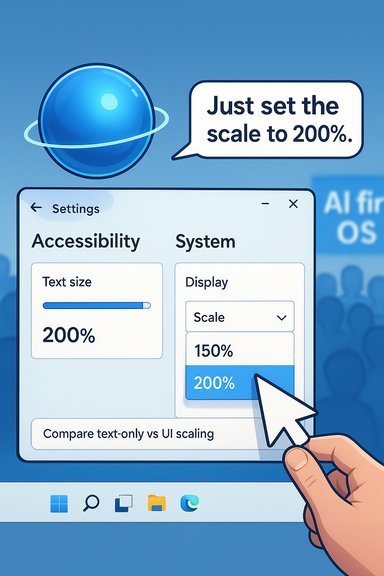
Microsoft has been aggressively positioning Copilot as a central part of the Windows experience, branding many consumer-facing AI features under the Copilot umbrella and promoting influencer-led demos on social media. That effort sits alongside a public-facing vision from Windows leadership describing Windows’ evolution into an “agentic OS,” a plan that has drawn intense user pushback online. Recent coverage shows that the messaging around an AI-first Windows has provoked widespread negative reaction and concern about usability and control. At the technical level, Windows provides two distinct controls that affect on-screen size:- Scale (Settings > System > Display > Scale) changes the size of text, apps, and UI elements across the system; it’s the global display scaling option.
- Text size (Settings > Accessibility > Text size) changes only the text (menus, title bars, labels) and is the accessibility setting intended for users who need larger text without enlarging every UI element.
What the ad shows — a step-by-step recount
The ad clip — reported in detail by industry coverage and circulating reactions on social platforms — follows this sequence:- The user asks Copilot: “Hey Copilot, I want to make the text on my screen bigger.”
- Copilot opens Settings and highlights the place to begin clicking, but does not initially guide the user fully to the Text size accessibility control.
- The user asks, “Can you show me where to click next?” Copilot then highlights the Scale option and explains that changing it will affect text, apps, and other on-screen UI elements.
- When asked “what percentage should I click?” Copilot tells the user to select 150%, but the dialog in the ad shows 150% already selected.
- The user ignores Copilot’s advice and selects 200% to get the desired result.
Note: attempts to locate the primary social post for complete verification encountered difficulty; the narrative above is drawn from recent reporting and community reaction. The original clip was widely discussed in tech coverage and user replies, but the primary source post could not be independently retrieved at the time of verification and therefore should be treated as unconfirmed visual evidence until the original video post is located.
Why this matters: the usability and trust angles
There are three overlapping reasons this short ad matters beyond being an embarrassing clip.- Expectations vs. reality. Ads and influencer demos create expectations of fluid, reliable behavior from AI assistants. When Copilot’s behavior is visibly inconsistent — highlighting the wrong path, offering a redundant suggestion, or failing to understand “text” vs “UI” — the credibility of the assistant erodes quickly.
- Accessibility implications. People who need text-only enlargement for vision reasons depend on the Accessibility > Text size setting. Steering a user to scaling instead of text size is not just a minor UX misdirection — it could force unnecessary broader UI changes that interfere with workflows or app layouts. Microsoft’s official guidance makes this distinction clear; the Accessibility slider adjusts text only, while Scale is for changing the size of “text, apps, and other items.”
- Branding and trust costs. This ad sits inside a larger narrative where some users already feel Windows is being reshaped into a vehicle for pushing AI features and subscription upsells. A misfiring demo will not calm those concerns; it fuels them. Independent reporting and forums show rising public pushback against the idea of Windows evolving into an agentic, AI-first OS.
Technical reality check: changing text vs changing scale (what should have happened)
For readers who want the exact, correct steps:- To change only text size (recommended for accessibility adjustments):
- Open Settings (Win + I) → Accessibility → Text size.
- Drag the Text size slider to the desired percentage (sample text updates).
- Click Apply.
- To change global scaling (text + apps + UI):
- Open Settings (Win + I) → System → Display.
- Under Scale & layout, open the Scale dropdown and pick a percent (e.g., 125%, 150%, 200%).
- Some changes may require signing out and back in for all apps to apply correctly.
- Use Text size when you need only bigger type (menus, dialog labels).
- Use Scale when you need everything larger (touch targets, app interfaces, icons).
What likely went wrong with Copilot in the clip
Several plausible causes explain Copilot’s misdirection in the ad:- Context misunderstanding. The assistant may have mapped the user’s intent (“make the text bigger”) to the common scaling workflow rather than the more precise accessibility control. Large-language-model (LLM) assistants often translate intent to the most frequent or highest-surface action unless prompted to disambiguate.
- Interface-parsing limitations. If Copilot’s UI integration reads display elements imperfectly (for example, misreading an already-selected dropdown value), it can present guidance that contradicts the visible state. That’s a classic state-observation mismatch.
- Demo editing and staging. Ads are sometimes staged and edited. Without the original clip it’s possible the sequence was compressed or the visual state changed during editing, leading to a perception of error even if the live interaction differed. The absence of the primary post during verification is why this remains a cautious inference.
- Agentic behavior limitations. If Copilot is implemented as a webview or remote assistant rather than a tightly integrated local agent with reliable access to Settings state, it may fall back to generalized guidance rather than step-by-step, state-aware instructions. Microsoft’s Copilot has multiple front-ends and modes; some are deeper integrations while others use hybrid web approaches. That heterogeneity can explain inconsistent tutorial guidance.
Broader context: user sentiment and Microsoft's AI strategy
This ad doesn’t exist in a vacuum. Microsoft’s public pronouncements — and internal reorganization — indicate a deliberate pivot to make Windows more “AI-native” and agentic. The messaging has sparked visible backlash from users and commentators who say the company is prioritizing AI over polish, control, and the fundamentals of a reliable OS. Coverage across multiple outlets and lively community threads back this up: the agentic-OS language in particular provoked sharp responses from users who are tired of forced integrations and frequent regressions in Windows. Community forums also reflect long-standing frustrations with Copilot’s presence: duplicated Copilot experiences, confusing naming (Copilot vs Microsoft 365 Copilot), and monetization features tied into the AI experience have all been discussed as contributing factors to user annoyance. The ad’s awkward demonstration fed directly into those conversations.Strengths visible in Microsoft’s approach (despite the fumble)
It’s important to separate tactical failure from strategic merit.- Ambition and investment. Microsoft is investing heavily in AI integration across devices, and the Copilot concept can yield real productivity wins when it’s tightly engineered and context-aware.
- Accessible goals. The aim to place helpful, plain-language assistance inside the OS — like “show me where to click” — is a useful idea that could reduce friction for many users who don’t want to hunt through nested menus.
- On-device improvements and fixes are arriving. Microsoft continues to address scaling and dialog-size inconsistencies across Insider and servicing channels, and some display-scaling regressions have been targeted for fixes in recent updates. Those efforts show the company is iterating on the underlying plumbing that Copilot needs to do a better job.
Risks and what Microsoft must fix
The ad highlighted four concrete risks that extend beyond this single clip:- Erosion of user trust. Repeated missteps — from Recall controversies to inconsistent AI guidance — create a credibility deficit. Once users feel an assistant cannot be trusted for basic tasks, adoption stalls.
- Accessibility harm. Guiding visually impaired users to the wrong control can exacerbate accessibility problems or force them into workarounds that reduce productivity.
- Marketing vs. reality gap. Ads that dramatize AI helpers but show them failing risk backfiring — they provide fodder for criticism and confirm worst-case user expectations.
- Fragmented Copilot experiences. Multiple Copilot products with similar names (standalone Copilot app, Microsoft 365 Copilot, in-app copilots) create confusion. Better product differentiation and clearer UX are essential.
Practical recommendations (for Microsoft and product teams)
- Clarify intent detection. Make Copilot ask a short clarifying question when user intent is ambiguous: “Do you want only the text to be larger, or everything on the screen?”
- Prioritize accessibility. Ensure Copilot’s accessibility use-cases route to Accessibility > Text size when asked about text. Accessibility should be the default path when the user mentions "text."
- Improve state awareness. Copilot should read and reliably reflect UI state (selected values, toggles) and avoid telling users to perform already-completed steps.
- Audit marketing. Vet influencer demos for accuracy; require live footage or post-demo verification to ensure promotional clips don’t show confusing behavior.
- Unify Copilot nomenclature. Make it obvious which Copilot the user is interacting with and why — a brief in-app label like “Productivity Copilot (Microsoft 365)” vs “System Copilot (Windows)” would reduce accidental confusion.
- Give users control. Provide clear, accessible toggles for opting out of agentic/auto-action behavior and ensure those choices persist across updates.
How to verify what Copilot is doing on your PC
If you want to test Copilot’s guidance yourself:- Ask a clarifying question first: “Make the text bigger — not the whole interface.”
- When Copilot opens Settings, watch for which Settings page is highlighted:
- If it opens Accessibility > Text size, you’re on the right path.
- If it opens System > Display > Scale, verify whether the recommended percent is selected and whether that’s what you actually want.
- If Copilot misguides, use the manual path above (Settings → Accessibility → Text size) and record the sequence — submit feedback through the Feedback Hub so Microsoft can see where the assistant failed.
Conclusion
The clip of Copilot pointing the wrong way is more than a single marketing misfire; it’s a symptom of a broader risk when complex AI assistants are rolled out before their UX and state-awareness are rock-solid. Copilot’s promise — natural-language, point-and-click help inside Windows — is useful and worth pursuing, but execution matters. For a tool whose selling point is reducing friction, showing it create extra friction is a public relations and product problem.Microsoft can recover from this by tightening Copilot’s context-sensing, prioritizing accessibility flows, and aligning marketing with real-world performance. Until then, every awkward demo will reinforce the same concern users have voiced in forums and comment threads: that an AI-first Windows risks adding noise and friction where people simply want an operating system that works reliably and respects their choices.
Source: Windows Central Baffling Microsoft ad shows Copilot incorrectly identifying Windows 11 setting and pretending it worked as intended
