

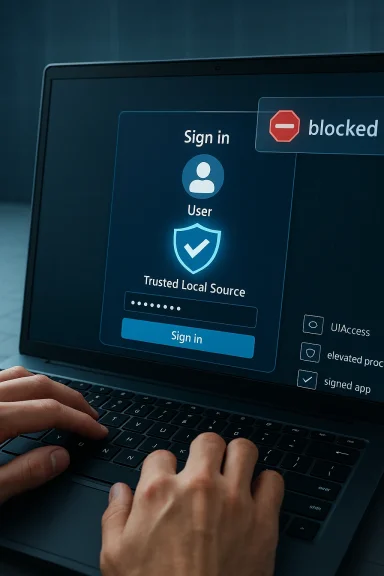
After the January 2026 Windows security rollup, Microsoft quietly but deliberately tightened how Windows credential dialogs accept input — and the change is now visible to administrators and helpdesk teams: credential prompts, sign-in dialogs, and Windows authentication interfaces will no longer accept input originating from untrusted remote or automated sources. The move, driven by the fix for CVE-2026-20824, blocks virtual keyboards, injected keystrokes from screen‑sharing and remote‑control tools, and many scripted autofill flows unless the supplying application is a trusted local source (for example, physical keyboards, properly signed and installed UIAccess assistive apps, or processes running with elevated integrity). That hardening closes a real attack surface but also breaks long‑standing operational patterns for remote support, automation, and certain remote desktop scenarios — and administrators need a clear plan to adapt without compromising security.
Microsoft’s January 2026 security baseline introduced a set of mitigations to prevent untrusted input injection into high‑value system UI surfaces. The kernel of the change is simple and security‑first: the Windows credential UI (CredUI) and sign‑in dialogs will ignore input that cannot be reliably attributed to a trusted, local, interactive source. The vendor documented this behavioral change as an intentional hardening tied to CVE‑2026‑20824 and followed it with targeted out‑of‑band fixes in the following weeks to address related regressions affecting remote desktop and cloud PC sign‑in flows.
This affects a broad range of supported Windows releases and servicing branches, spanning current Windows 11 and Windows 10 builds and recent server releases. Administrators who manage remote support tooling, automated deployment systems, session brokers, or RMM/IT automation platforms should treat this as a high‑priority operational change: legacy autofill-by-simulated-keyboard will fail on patched systems, and automation that relied on programmatically sending keystrokes to the credential prompt will stop working.
Use these steps — only in tightly controlled situations:
Operationally, the change is painful in the short term. It will force organizations to revisit remote support tooling and automation scripts, coordinate with vendors, and — in some cases — accept temporary disruption. The short‑term temptation to “just elevate everything” is dangerous: elevation mitigations restore functionality at the cost of a larger trusted surface and increased exposure. The correct course is deliberate: identify impacted workflows, apply measured temporary mitigations only where absolutely necessary, and accelerate development or procurement of solutions that use native credential APIs and secure delegation models.
Source: Microsoft Support New behavior restricting certain applications to autofill credentials introduced by the Windows January 2026 security update - Microsoft Support
 Background / Overview
Microsoft’s January 2026 security baseline introduced a set of mitigations to prevent untrusted input injection into high‑value system UI surfaces. The kernel of the change is simple and security‑first: the Windows credential UI (CredUI) and sign‑in dialogs will ignore input that cannot be reliably attributed to a trusted, local, interactive source. The vendor documented this behavioral change as an intentional hardening tied to CVE‑2026‑20824 and followed it with targeted out‑of‑band fixes in the following weeks to address related regressions affecting remote desktop and cloud PC sign‑in flows.This affects a broad range of supported Windows releases and servicing branches, spanning current Windows 11 and Windows 10 builds and recent server releases. Administrators who manage remote support tooling, automated deployment systems, session brokers, or RMM/IT automation platforms should treat this as a high‑priority operational change: legacy autofill-by-simulated-keyboard will fail on patched systems, and automation that relied on programmatically sending keystrokes to the credential prompt will stop working.
What exactly changed — a technical breakdown
How Windows now validates credential input
- Trusted local sources only: After the update, Windows authentication dialogs accept input from trusted local sources. That includes physical keyboards attached to the endpoint, accessibility applications that present the UIAccess flag correctly (signed and installed in a secure location), and applications running with elevated (administrator/high) integrity.
- Blocked vectors: Input injected by remote screen‑sharing tools, virtual keyboards inside remote sessions, third‑party automation agents that simulate keyboard events, and many RMM‑style script‑based credential injections are now ignored by the credential UI.
- Behavioral result: When input is not accepted, authentication dialogs either ignore the keystrokes entirely or the automated authentication workflow stalls — the UI does not receive the characters and the session halts waiting for a user‑typed password.
Why Microsoft changed the behavior
The mitigation addresses a class of protection‑mechanism failures in remote assistance and automated remote input flows where an attacker or compromised application could inject keystrokes into credential prompts. Credential prompts are high‑value targets: if a malicious process can programmatically send characters to a sign‑in box or trick a virtual keyboard into supplying secrets, the attacker can harvest or reuse credentials. Restricting input sources reduces the risk of remote or programmatic credential capture and closes an avenue for privilege escalation and lateral movement.What counts as a “trusted” input source
- Physical, local keyboard input is inherently trusted as originating from the interactive user.
- UIAccess (assistive technology) apps — these are special accessibility apps that can interact with higher integrity UI when they meet strict requirements: they must be digitally signed, installed in secure locations (for example, Program Files or Windows\system32), and explicitly declare UIAccess in their manifest.
- Elevated processes — applications launched with administrator (high) integrity can interact where appropriate, because elevation introduces an additional consent boundary and accountability.
Who and what will be affected
Likely to see immediate, visible impact
- Helpdesk and remote support sessions using screen sharing and built‑in virtual keyboards (for example, when a technician remotely types the user’s password into a sign‑in box).
- Third‑party remote tools that historically relied on synthesizing key events to fill authentication dialogs (including some versions of remote control/meeting apps and older RMM agents).
- Automated deployment scripts and test harnesses that inject passwords into interactive credential prompts as part of bootstrapping or unattended setups.
- Continuous integration / lab automation environments that depend on virtual keyboard injection to script interactive credential entry.
Unlikely or unaffected cases
- Credential providers and bona fide Windows credential APIs (when used correctly) remain supported. Applications that integrate using the system‑provided credential UI APIs will continue to function.
- Windows Hello, smart card, and token‑based sign‑ins that use the platform’s credential provider stack and do not rely on keyboard injection.
- Local interactive entry by the user and properly configured accessibility tools with UIAccess privileges.
The operational tradeoffs: security gains vs availability pain
This hardening presents a classic security vs. convenience tradeoff.- Strengths and positive outcomes
- Reduces credential capture risk: Blocking remote and programmatic input to sign‑in dialogs closes an attack path for malicious software and man‑in‑the‑middle scenarios inside remote support sessions.
- Aligns platform behavior with least privilege: Only privileged and signed, local helpers — or explicit, user‑initiated keyboard events — can supply authentication data to protected UI surfaces.
- Makes credential UIs more tamper‑resistant: Credential UI processes are shielded from lower integrity processes and remote input fuzzing.
- Practical risks and operational costs
- Breaks established workflows: Many helpdesk teams and automation pipelines will experience immediate disruption where remote agents previously typed credentials on behalf of users.
- Pressure to elevate: Short‑term mitigations encourage running remote tools elevated to restore behavior, which raises the attack surface and undermines the original security goal.
- Vendor compatibility gap: Third‑party remote assistance and automation vendors must update their products; until they do, customers face a gap between security posture and operational capability.
Short‑term mitigations — what administrators can do now
Microsoft documented a temporary mitigation: allow the application performing remote credential submission to run elevated (administrator). That will restore the previous behavior because elevated processes are accepted as trusted for interacting with credential dialogs. This mitigation is explicitly temporary and must be applied cautiously.Use these steps — only in tightly controlled situations:
- Limit the scope: Apply elevation only to the specific management or remote assistance application, not broadly to whole machines or user sessions.
- Prefer service‑based integration: Where possible, configure remote management tools to use a secure service or agent running locally with the minimum necessary privileges rather than interactive elevated sessions from technician workstations.
- Tighten network and access controls: If you elevate a remote tool, place those endpoints behind strict VLANs, strong MFA, conditional access policies, and narrow firewall rules.
- Audit and monitor: Enable detailed event logging for the credential UI and the remote tool; review logs for suspicious activity.
- Plan to revert: Treat elevation as a stopgap; track affected devices and vendor updates so you can remove the elevated configuration as soon as an approved fix is available.
Medium‑ and long‑term remediation: how vendors and administrators should adapt
The sustainable path is to stop using keyboard simulation for credential entry and instead adopt supported Windows authentication mechanisms.For application and remote‑tool vendors
- Use the Windows Credential UI APIs rather than simulating keystrokes. The CredUI functions (for example, CredUIPromptForWindowsCredentials) integrate with the platform, allow pre‑populating targets, and are designed to interoperate with credential providers and modern authentication flows.
- Offer non‑interactive credential delegation when appropriate (for remote maintenance use cases). Implement secure token delegation or service‑based authentication that does not require placing passwords into an interactive dialog.
- If accessibility behavior is required, implement proper UIAccess behavior:
- Sign the binaries with a trusted code signing certificate.
- Install the application under secure folders (e.g., Program Files).
- Include the UIAccess manifest flag and meet the platform requirements so the app can be granted UIAccess rights.
- Avoid encouraging elevation as a primary fix. If an elevated component is necessary, split the product into a minimal elevated service and an unprivileged UI so the attack surface is minimized.
For administrators and IT architects
- Refactor automation: Replace scripts that simulate keyboard input with automation that calls the platform credential APIs or uses service accounts and delegated authorization flows.
- Adopt secure delegation patterns:
- Use managed service accounts or certificate‑based authentication for automated tasks where possible.
- For remote support, prefer solutions that implement secure remote credential delegation models rather than typing the user’s password.
- Test and validate: Build a pilot plan for the credential‑input‑hardening change — test all remote support workflows, RMM scripts, and automated provisioning flows in a lab before broad rollout.
- Vendor coordination: Maintain an inventory of remote access and automation vendors; request compatibility roadmaps and patch schedules. Pressure vendors to publish timelines and versions that use supported APIs.
Practical checklist for IT teams (step‑by‑step)
- Inventory impacted workflows
- Identify remote support tools, RMM agents, automation scripts, and any process that simulates keyboard input to credential prompts.
- Patch and verify
- Confirm that January and follow‑up hotpatches are installed where appropriate; note that some fixes were delivered out‑of‑band to address regressions in remote auth flows.
- Apply temporary mitigations carefully (if needed)
- Only elevate specific management apps in tightly controlled environments and add compensating controls (network segmentation, MFA).
- Replace keyboard simulation
- For each affected workflow, plan a replacement path to use platform credential APIs or tokenized delegation.
- Coordinate with vendors
- Request updates and test new versions in your staging environment.
- Monitor and alert
- Configure logging for credential UI events and review for suspicious or anomalous behavior.
- Communicate to helpdesk and end users
- Prepare scripts and procedures for helpdesk technicians explaining that the remote technician cannot type passwords into Windows sign‑in dialogs — instead, users may need to enter credentials locally or use staged delegation flows.
Example technical guidance (developer‑facing)
- Replace keyboard injection with the Windows credential APIs:
- Use CredUIPromptForWindowsCredentials (recommended for modern apps) to display a credential dialog that interoperates with credential providers and modern authentication mechanisms.
- Avoid SendInput, keybd_event, PostMessage, or SetForegroundWindow tricks against protected dialogs.
- If your product must interact with protected UI for accessibility reasons, follow the UIAccess model:
- Sign your application with a trusted certificate.
- Install to Program Files or Windows\System32.
- Set uiAccess="true" in the manifest and ensure deployment and launching follow Microsoft’s documented requirements.
- Where automated machine‑to‑machine authentication is required, prefer service principals, managed identities, or token exchange rather than interactive credential prompts.
Communications and policy recommendations
- Talk to stakeholders early: Inform support teams, automation owners, and vendors about the changes and the expected timeline for remediation.
- Update runbooks: Remove steps that instruct technicians to enter or remotely type passwords; provide alternative, documented escalation paths.
- Train staff: Helpdesk and field engineers must understand the difference between local trusted input and remote injected input, and how to use new approved workflows.
- Policy and compliance: Record exceptions (like temporary elevation) in risk registers and time‑limit them; require post‑incident review for any event where elevated credentials were used as a workaround.
Final assessment: do the benefits outweigh the disruption?
From a security standpoint, yes — the change is warranted. Credential dialogs and sensitive sign‑in surfaces are among the most attractive targets for attackers; reducing the ways those dialogs can accept remote or scripted input materially reduces the risk of credential theft, automated exploitation, and tricking users during remote support. The hardening aligns with long‑standing platform security goals: ensure high‑value UI runs in a trust‑anchored context and that only verified, auditable interactions can provide secrets.Operationally, the change is painful in the short term. It will force organizations to revisit remote support tooling and automation scripts, coordinate with vendors, and — in some cases — accept temporary disruption. The short‑term temptation to “just elevate everything” is dangerous: elevation mitigations restore functionality at the cost of a larger trusted surface and increased exposure. The correct course is deliberate: identify impacted workflows, apply measured temporary mitigations only where absolutely necessary, and accelerate development or procurement of solutions that use native credential APIs and secure delegation models.
Bottom line and recommended action plan (priority list)
- Inventory: Within 48 hours, identify affected remote support, automation, and RMM workflows.
- Communicate: Notify helpdesk and automation owners that keyboard injection into credential dialogs will fail on patched systems; provide interim procedures.
- Mitigate carefully: Use elevation only as a short‑term fix in tightly controlled circumstances and document every exception.
- Replace and modernize: Prioritize replacing keyboard‑based autofill with platform credential APIs and tokenized delegation in the next 30–90 days.
- Vendor follow‑up: Track vendor updates and patches; require proof that new versions no longer rely on simulated keyboard input.
- Audit: Enable and review credential UI and accessibility event logs; verify no unauthorized elevation or input bypasses occur.
Source: Microsoft Support New behavior restricting certain applications to autofill credentials introduced by the Windows January 2026 security update - Microsoft Support
