

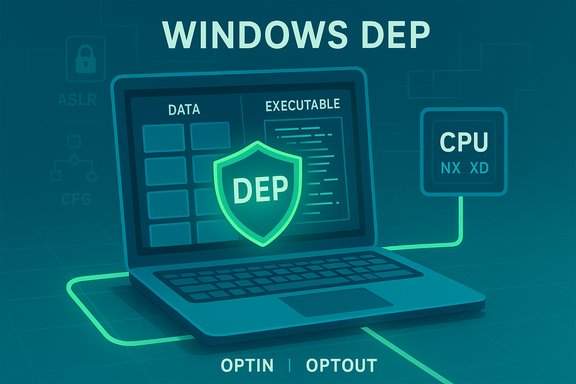
Data Execution Prevention (DEP) is one of those quietly powerful Windows defenses that rarely makes headlines — until it blocks something you’re trying to run. Built to stop code from executing in memory regions reserved for data, DEP reduces the damage that buffer overflows and similar memory exploits can cause. This feature uses both CPU hardware flags (NX/XD) and software fallbacks to enforce execution policies, and it’s enabled by default on modern Windows installations. For most users DEP should stay turned on; for administrators and power users, understanding how DEP works, how to check its status, and how to safely troubleshoot exceptions is essential to balancing compatibility and security.
Open an elevated Command Prompt and run:
DEP is not glamorous — it rarely gets credit when it succeeds — but it is a quietly important piece of the modern Windows security picture. Understanding how it works, how to check and adjust it responsibly, and how it interacts with other mitigations will help you keep systems both usable and secure.
Source: Windows Report What Is Data Execution Prevention And How It Works
 Background
Why DEP exists
DEP was introduced to close a simple but dangerous attack vector: attackers who trick programs into executing code that an application mistakenly wrote into data memory (for example, via buffer overflows). By preventing execution from pages that are marked as data-only, DEP raises the bar for successful exploitation and forces attackers to chain more complex techniques that are harder to pull off reliably. The DEP concept became widely available in Windows starting with Windows XP Service Pack 2 and has been expanded and hardened in subsequent Windows releases.Where DEP fits in the mitigation stack
DEP is one of several complementary mitigations Microsoft and OS vendors use to defend memory corruption exploits. Important sibling technologies include:- ASLR (Address Space Layout Randomization) — randomizes the addresses where modules and heaps load to make it harder for attackers to predict memory layout.
- Control Flow Guard (CFG) / CFI — checks indirect calls to ensure they’re going to valid, expected targets.
- Core Isolation / Memory Integrity (HVCI) — hypervisor-based protections that validate and isolate critical code and drivers.
What DEP actually does (technical overview)
The core idea
At runtime, the operating system and the CPU cooperate to label memory pages as executable or non-executable. DEP enforces the rule: code may only execute from pages that are explicitly marked executable. Any attempt to fetch-execute instructions from a page marked as data triggers a fault; the OS handles that exception, usually by terminating the offending process. This prevents an attacker from simply injecting machine code into a data buffer and running it.Hardware-enforced vs software-enforced DEP
- Hardware-enforced DEP uses CPU features: Intel calls it Execute Disable (XD), AMD calls it No-eXecute (NX). When present, the CPU will refuse to execute code from pages with the NX/XD bit set. Windows will prefer hardware DEP when the processor supports it.
- Software-enforced DEP is a fallback used on some older hardware that lacks NX/XD. It provides more limited protections (for example, protections for exceptions like Structured Exception Handler overwrites) and is not as comprehensive as hardware DEP.
What DEP does not stop
DEP is not a silver bullet. It primarily prevents execution from data pages. It does not by itself:- Prevent ROP (return-oriented programming) attacks that reuse existing executable code snippets;
- Replace the need for ASLR, CFG, and driver signing;
- Guarantee protection against all classes of memory corruption.
How to check whether DEP is enabled
Windows provides several simple ways to view DEP status; use the method that best fits your comfort level.1. System Information (GUI)
- Press Windows + R, type
msinfo32, and press Enter. - In the System Summary, look for Data Execution Prevention. It will say whether DEP is enabled and how it’s applied (for example, “OptIn” or “OptOut” in some builds). This is a quick, user-friendly check that works across Windows versions.
2. Command-line: WMIC
For an authoritative quick check from an administrator prompt:Open an elevated Command Prompt and run:
- wmic OS Get DataExecutionPrevention_Available
- wmic OS Get DataExecutionPrevention_SupportPolicy
- 0 = AlwaysOff
- 1 = AlwaysOn
- 2 = OptIn (default on most desktop installs — OS components only)
- 3 = OptOut (DEP for all processes, with manual exceptions permitted)
3. systeminfo (quick one-liner)
From a command prompt you can also run:- systeminfo | find "Data Execution Prevention"
How to change DEP behavior (GUI and command-line)
GUI: Data Execution Prevention tab
Most users who need to make exceptions should use the System Properties dialog:- Press Windows + R, type
sysdm.cpl, and press Enter. - Open the Advanced tab and click Settings under Performance.
- Select the Data Execution Prevention tab.
- Choose either:
- Turn on DEP for essential Windows programs and services only (OptIn default), or
- Turn on DEP for all programs and services except those I select (OptOut, allows you to add exceptions).
- Use Add to create exceptions for specific executables, click Apply, and then restart the PC.
Command-line / boot configuration: BCDEdit
For system-wide policy changes you can use BCDEdit (requires Administrator):- bcdedit /set {current} nx OptIn
- bcdedit /set {current} nx OptOut
- bcdedit /set {current} nx AlwaysOn
- bcdedit /set {current} nx AlwaysOff
When (and when not) to change DEP settings
Best practice
- Leave DEP enabled. Security benefits far outweigh any minor compatibility headaches. For most systems, the default OptIn setting (protecting Windows system components) keeps things safe while maintaining compatibility for older apps.
When to consider an exception
- A trusted legacy application fails to run and all other compatibility fixes (updates, compatibility mode, vendor patches) have been exhausted. When that happens:
- Validate the software’s origin and integrity.
- Prefer adding a per-application exception via the Performance → Data Execution Prevention dialog rather than turning DEP off globally.
- Document the change and monitor the system for unexpected behavior.
When to avoid changing DEP
- Never disable DEP system-wide on production servers or devices that handle sensitive data unless you have a compensating control and a compelling reason. Disabling DEP removes a significant barrier to exploitation and is routinely flagged in security baseline assessments.
Common DEP error causes and how to troubleshoot them
Typical causes
- Incompatible legacy software — older programs or poorly written installers may use memory techniques that DEP flags as unsafe. The usual remedy is to update the application, run it in compatibility mode, or add a specific exception if the software is trusted.
- Unsigned or incompatible drivers — kernel-mode components that misbehave can trigger DEP-related faults or prevent DEP-related features (like Memory Integrity) from activating. Keep drivers updated and check Device Manager for flagged devices.
- Malware or tampering — some malicious tools try to disable protections; if DEP is off unexpectedly, scan the system and investigate recent system changes. Advanced malware can attempt to subvert protections, so unexpected changes warrant a security incident response. This is a high-risk sign; treat it accordingly.
- Corrupted system files — damaged OS components can cause crashes that look like DEP violations. Run SFC and DISM scans to repair system files.
Troubleshooting steps (practical sequence)
- Confirm DEP policy and availability with WMIC or msinfo32.
- If an app crashes with an access violation, check Event Viewer to capture the faulting module and exception codes. This information helps determine whether the problem is application logic, a driver, or DEP enforcement.
- Update the app and drivers. Reinstall if necessary. Device and driver updates often resolve compatibility issues with DEP and Core Isolation.
- If the app is trusted and still fails, add it as a DEP exception via System Properties → Performance → Data Execution Prevention. Reboot and retest.
- If system-wide intervention is required (rare), use BCDEdit with caution and record the change for rollback. Prefer OptOut (system-wide with exceptions) rather than AlwaysOff.
- Run system integrity checks: sfc /scannow and DISM /Online /Cleanup-Image /RestoreHealth. These can repair corruption that triggers DEP-like crashes.
- If you suspect tampering or malware, isolate the machine from the network, perform a full AV/endpoint scan, and escalate to security operations.
DEP in enterprise environments and interactions with other protections
Group Policy and centralized management
Enterprises can control DEP behavior centrally via Group Policy and deployment tooling. For managed fleets, AlwaysOn or OptOut might be appropriate when paired with application allow-listing and robust compatibility testing. Always document such decisions; system-wide disabling of DEP should be treated as a risk exception and logged.DEP and virtualization-based protections
Modern Windows versions couple DEP with virtualization-based protections like Memory Integrity (HVCI). These features can block unsigned or misbehaving drivers and provide stronger guarantees about kernel and driver integrity. Conflicts between HVCI and drivers are common and should be resolved by updating or replacing drivers rather than turning off mitigations.DEP vs modern exploitation techniques
Attackers have adapted; techniques such as ROP chains reuse legitimate code to bypass DEP. That’s why DEP is effective but not sufficient alone — combining DEP with ASLR and CFG materially raises the difficulty of exploitation and increases the reliability of detection.Risks and cautionary notes
- Disabling DEP weakens security — turning DEP off (especially using AlwaysOff) increases attack surface and is discouraged except as a temporary diagnostic step. Microsoft documentation and security practice warn against global disabling.
- Malware can attempt to modify settings — while DEP and related features are designed to resist tampering, some sophisticated threats try to disable protections. If DEP settings change unexpectedly or protections are disabled without authorization, treat the machine as potentially compromised.
- Compatibility exceptions must be justified — adding a permanent exception for an application means that application will not benefit from DEP’s protections; perform code signing validation, vendor checks, and restrict the machine’s network access if necessary.
Practical examples and real-world notes
- Game launchers and older games sometimes surface DEP errors; many gamer-focused troubleshooting guides recommend adding a DEP exception as a diagnostic step, but warn against leaving DEP off permanently. Use compatibility mode and driver updates first.
- Legacy commercial applications written in the 1990s or early 2000s may rely on memory techniques that modern DEP interprets as unsafe. Work with the vendor to obtain an updated build or run the app in an isolated VM where exceptions are acceptable.
Practical checklist for ordinary users and IT admins
- Confirm the default: DEP is enabled by default on modern Windows — leave it on.
- If an app fails: update the app and drivers, try compatibility settings, then add a per-app DEP exception only if the app is trusted.
- For enterprise rollouts: test application compatibility in a lab before changing global DEP policies; prefer OptOut with documented exceptions over AlwaysOff.
- If you see unexpected DEP changes: scan for malware and investigate system change history and event logs.
Conclusion
Data Execution Prevention is a foundational memory-protection mechanism built into Windows that prevents many straightforward code-injection attacks by stopping execution from data-marked pages. It works best as part of a layered security strategy that includes ASLR, Control Flow Guard, kernel code signing, and virtualization-based integrity features. For most users, the right approach is simple: keep DEP enabled, update software and drivers, and only create exceptions for genuinely trusted legacy applications when all other compatibility options fail. Administrators should centralize DEP policies, test changes carefully, and treat any unexpected alteration to DEP settings as a potential security incident.DEP is not glamorous — it rarely gets credit when it succeeds — but it is a quietly important piece of the modern Windows security picture. Understanding how it works, how to check and adjust it responsibly, and how it interacts with other mitigations will help you keep systems both usable and secure.
Source: Windows Report What Is Data Execution Prevention And How It Works
