

Microsoft quietly pushed another, unmistakable notch toward an “agentic” Windows: Copilot is moving out of a sidebar and into the taskbar, File Explorer is getting inline Copilot insights, and Microsoft is baking a new on‑device agent framework into the operating system so AI can run as first‑class, background helpers you summon with simple prompts.
Microsoft’s long march to fold generative AI into everyday Windows workflows has accelerated from sidebar experiments to deeper system integration. What began as Copilot as a docked helper and a chat window has evolved into three connected ideas: an Ask Copilot entry point on the taskbar, long‑running agents that can operate in the background and surface progress in the taskbar, and an operating‑level runtime for agent tooling called the Model Context Protocol (MCP) and an on‑device registry. Together, these pieces signal Microsoft’s ambition to make Windows not merely a shell for apps, but a platform where AI agents discover local tools, access permitted data, and finish multi‑step tasks on your behalf.
This is a significant pivot for Windows UX. Rather than forcing users to open a browser tab or switch to a separate Copilot app, Microsoft is bringing AI to the places people already work: the taskbar and File Explorer. The experience is explicitly opt‑in, and the company says it will respect existing permissions and search boundaries; still, the technical and security surface area grows considerably when agents are allowed to call tools, read files, and run for minutes at a time.
For Microsoft, this also means greater platform control. By making Windows the place agents discover tools (via MCP), the company creates a new extension surface to monetize or manage through enterprise agreements and Copilot licensing while enabling third‑party integrations that don’t require each developer to reimplement complex agent plumbing.
Examples of real‑world worries:
At the same time, Microsoft appears to be consolidating and rebalancing: some earlier, deeper Copilot integrations were dialed back in favor of app‑based and opt‑in affordances. That suggests Microsoft is learning to balance usefulness, privacy, enterprise complexity, and a rapidly evolving AI risk profile.
However, the upside comes with real complexity. Security, data governance, and accuracy are not solved by a single toggle. The Model Context Protocol and on‑device registry open tremendous possibilities for productivity tooling—but they also demand disciplined vetting, strong logging, and clear enterprise policies. Administrators need to treat MCP connectors as high‑risk integration points, and users need to be taught when to trust and when to verify agent outputs.
For workers and small teams who value speed and can tolerate cloud‑backed assistance, Ask Copilot and File Explorer Copilot will be immediately useful. For security‑sensitive environments, the benefits will likely require additional guardrails before wide deployment.
In short: Microsoft’s agentic Windows is a practical next step toward embedding AI into everyday computing—capable of real gains, but only as safe and useful as the governance, transparency, and verification practices organizations put around it.
Source: Windows Latest Microsoft shows off AI running on the Windows 11 taskbar and File Explorer
 Background / Overview
Microsoft’s long march to fold generative AI into everyday Windows workflows has accelerated from sidebar experiments to deeper system integration. What began as Copilot as a docked helper and a chat window has evolved into three connected ideas: an Ask Copilot entry point on the taskbar, long‑running agents that can operate in the background and surface progress in the taskbar, and an operating‑level runtime for agent tooling called the Model Context Protocol (MCP) and an on‑device registry. Together, these pieces signal Microsoft’s ambition to make Windows not merely a shell for apps, but a platform where AI agents discover local tools, access permitted data, and finish multi‑step tasks on your behalf.This is a significant pivot for Windows UX. Rather than forcing users to open a browser tab or switch to a separate Copilot app, Microsoft is bringing AI to the places people already work: the taskbar and File Explorer. The experience is explicitly opt‑in, and the company says it will respect existing permissions and search boundaries; still, the technical and security surface area grows considerably when agents are allowed to call tools, read files, and run for minutes at a time.
What Microsoft showed — the new pieces explained
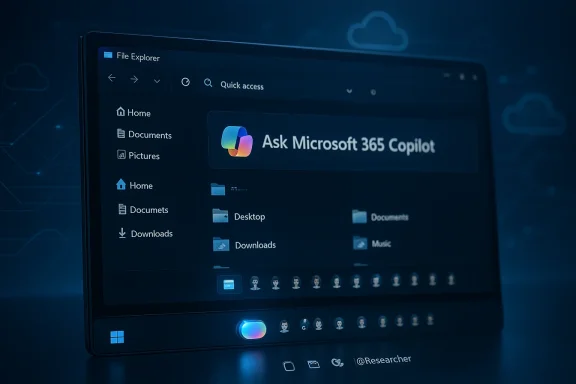
Ask Copilot on the taskbar: a direct line to AI from the place you click most
- The taskbar can host an Ask Copilot pill that replaces the old search box when enabled. It’s opt‑in, off by default, and designed to be visually familiar while enabling voice, vision, and typed prompts.
- Ask Copilot returns both local results and Copilot‑generated answers. Microsoft stresses it uses the same indexing APIs as Windows Search for apps, files, and settings, while layering Copilot’s contextual understanding on top.
- The UI includes a single waveform‑style action to trigger voice and vision inputs, plus a typed input area that promises faster, more resource‑efficient lookups than heavy browser tabs.
Agents: background work and taskbar presence
- Agents are persistent, discoverable pieces of Copilot functionality you can summon with an “@” inside the Ask Copilot box (for example, @Researcher).
- Once started, agents become visible on the taskbar like running apps: they can show progress indicators, hover previews, and completion states—so an agent doing a multi‑step literature search can be monitored without burying its work in a browser tab.
- Agents are designed to run for minutes (some demonstrations mention 10 minutes or more for deeper tasks) and produce a short summary you can act on. If you want to go deeper, you can open the full Copilot app from that same UI.
Copilot in File Explorer: context where files live
- File Explorer gains an “Ask Microsoft 365 Copilot” affordance for synced files. When you select a file in OneDrive or SharePoint sync locations, Copilot can generate:
- Summaries and “what’s next” suggestions for the document,
- Context about who last edited a file, and
- Suggested actions when the content is shared.
- In practice this is meant to speed up triage—summarize a long deck without opening PowerPoint, or get a quick brief on an incoming proposal directly from the file list.
Model Context Protocol (MCP) and the on‑device agent registry
- Microsoft is embracing the Model Context Protocol (MCP) approach on Windows. MCP is an open standard for how agents discover and securely call tools and data sources.
- Windows will expose an on‑device registry (sometimes described as the ODR) where MCP “servers” (connectors that expose capabilities such as file access, window management, or app‑specific actions) can be listed and discovered by agents.
- Developers and third parties can add MCP servers to expose specialized functionality to agents, making the agent ecosystem extensible across native apps, cloud services, and OS features.
How these pieces are meant to behave in daily use
From question to answer without leaving your flow
Imagine typing “When is my performance review scheduled?” in the Ask Copilot pill. If you use classic Windows Search, it might return nothing. With Ask Copilot connected to Microsoft 365, Copilot can check Outlook and Teams context, find the calendar item, and reply with date/time, participants, and related files. That contextual bridging is the selling point: AI that understands both local system state and cloud‑hosted business context.Background multi‑step work you check on the taskbar
A Researcher agent example: you ask an agent to assemble a 3‑slide executive brief on a competitor. The agent plans a research sequence, runs web lookups and internal document checks, synthesizes notes, and returns a short summary. During that process a small icon on the taskbar indicates progress; hover it for a snapshot of intermediate findings. When finished, a green check and a short summary appear—no tab‑hunting required.File‑centric assistance without opening apps
Selecting a synced file and invoking “Ask Microsoft 365 Copilot” will surface contextual cues: summaries, action lists, and people involved. The idea is to reduce friction—no loading PowerPoint to know the key takeaways; Copilot reads the file and gives you the TL;DR.Under the hood: models, Deep Research, and hybrid execution
- Microsoft’s richer “Researcher” agent is being positioned as a reasoning agent—capable of multi‑step browsing, evidence collection, and synthesis. That functionality maps closely to what other agent platforms call “deep research.”
- The underlying provider for deep, multi‑step research capability originates with agentic research tools from the wider AI ecosystem. Implementations often mix on‑device models for light tasks with cloud models for heavy reasoning, and Microsoft’s approach is hybrid: local indexing + cloud reasoning when needed.
- Deep research tasks can take minutes; demonstrators mention tasks in the 5–30 minute range. For interactive UX, Microsoft surfaces progress and enables interruption or refinement while the agent runs.
Why Microsoft is doing this: productivity, retention, and platform control
Microsoft frames the move as a productivity play: remove context switches, surface answers where work happens, and let agents handle repetitive or research‑heavy tasks. That improves throughput for knowledge workers and gives Microsoft a better integrated, subscription‑anchored experience that ties Windows, Microsoft 365, OneDrive, and the Copilot licensing model together.For Microsoft, this also means greater platform control. By making Windows the place agents discover tools (via MCP), the company creates a new extension surface to monetize or manage through enterprise agreements and Copilot licensing while enabling third‑party integrations that don’t require each developer to reimplement complex agent plumbing.
Strengths: where this architecture genuinely helps
- Less friction, more speed. Bringing AI into the taskbar and File Explorer reduces app switching. Short answers and summaries appear in your workflow rather than forcing you to open apps or browser tabs.
- Background work that’s visible. Long‑running research jobs that used to be browser‑bound can now be monitored from the shell, reducing tab clutter and improving continuity.
- Extensibility with MCP. By supporting a common connector protocol, Windows can allow vetted third‑party tools and enterprise services to expose capabilities to agents in a controlled way.
- Edge cases handled better. Copilot’s ability to combine calendar, Teams, and email context with local files addresses real, repetitive pain points (e.g., finding the context for a meeting or the latest draft of a document).
- Administrative control. The opt‑in model and integration with enterprise identity and Microsoft 365 licensing let IT decide which features to allow, and the Windows ODR offers a place to audit and manage agent connectors.
Risks and limitations: what to watch out for
Security and data‑exfiltration surface increases
Agents that can call tools and read files create new attack vectors. The MCP ecosystem in particular requires careful vetting—badly implemented or malicious MCP servers could be abused to exfiltrate files, execute commands, or trick agents into leaking secrets.Examples of real‑world worries:
- Prompt injection and tool chaining can be used to escalate access.
- Combined MCP servers (filesystem + git connectors, for example) create composability risks—one server might be benign alone but dangerous when paired with another.
- Third‑party MCP servers have already surfaced critical bugs in testing—showing that this integration layer can expose exploitable code paths if not strictly governed.
Trust, hallucinations, and auditability
Generative agents can be convincingly wrong. Summaries and decisions produced by Researcher‑style agents must be auditable and verifiable. Enterprises need logs and the ability to see sources and steps the agent took—otherwise users may accept incorrect outputs that look authoritative.Licensing and fragmentation
Not all Copilot features are the same. Some agent capabilities will be tied to Microsoft 365 Copilot licensing, while core Windows Copilot features may remain free or limited. That creates user confusion and complicates IT procurement: does a user need a Copilot license to get file summaries in File Explorer? In many cases yes—enterprise Copilot licenses unlock richer, cloud‑powered behavior.Performance and resource tradeoffs
Although Microsoft claims Ask Copilot is faster and lighter than browser‑based systems, running agents—even sandboxed—consumes CPU, memory, and network. On older hardware or bandwidth‑constrained environments, those background agents could become a nuisance if not throttled or limited.Enterprise considerations and recommended controls
IT teams should plan for agents the way they plan for any new platform capability: policy, monitoring, and training.- Audit and policy:
- Inventory which MCP servers are allowed in your environment and restrict the ODR to approved connectors.
- Use conditional access and tenant‑level controls to limit which users can invoke cloud‑backed agents.
- Logging and traceability:
- Ensure agent actions are logged and correlate agent activity with user accounts. This is essential when an agent touches sensitive files.
- Require Copilot outputs to include traceable citations or a digest of sources used for each summary.
- Throttling and resource governance:
- Enforce usage quotas for heavyweight deep research tasks to prevent runaway resource consumption.
- Deploy bandwidth and CPU policies on managed devices to reduce user impact.
- User education:
- Train teams on agent strengths and failure modes: when to trust a summary, how to verify sources, and how to escalate questionable outputs.
- Provide quick guidance on how to turn off Ask Copilot and disable agent features on managed machines.
- Patch and supply‑chain vigilance:
- Monitor MCP server vendors and keep connectors up to date; treat connector updates with the same scrutiny you give to browser and OS patches.
- Engage in vendor risk management for third‑party MCP implementations.
Practical tips for regular users
- Opt in deliberately. The Ask Copilot experience is optional—enable it when you want context‑aware assistance and turn it off if you prefer a lighter, less networked desktop.
- Verify important outputs. If an agent produces a legal, financial, or operational summary, treat it as a first draft and check the underlying documents.
- Understand licensing. Some File Explorer Copilot features and file summaries require a Microsoft 365 Copilot license. If you don’t have that license, you may still see lightweight Copilot actions but not full enterprise summaries.
- Use taskbar progress indicators. Agents surface progress on the taskbar—learn to hover and review intermediate results rather than waiting for the final summary.
The user experience: polishing the rough edges
Microsoft’s demo UX addresses many friction points: use of the @ prefix to call agents, taskbar progress that avoids tab bloat, and file‑centric Copilot entries in File Explorer. Yet real user acceptance will hinge on a few factors:- Reliability of results. If agents frequently hallucinate or return shallow summaries, users will abandon them.
- Speed and predictability. Background agents must be responsive and clearly show when they’re waiting for network or human input.
- Granularity of permissions. Users and admins alike need clear, easy controls to grant or deny access to data sources for each agent.
- Clear delineation between local vs. cloud processing. Users should know whether a result was generated entirely on device, or whether private files were uploaded to a cloud service for processing.
Where this fits in Microsoft’s longer roadmap
Microsoft’s agent work ties together wins on several fronts: Windows as a productivity surface, Copilot as a subscription anchor, and MCP as an interoperability standard. The company has already moved Copilot around—at times as a deep OS integration, at other times as a PWA—and the current emphasis is on making Copilot indispensable inside the flow of work.At the same time, Microsoft appears to be consolidating and rebalancing: some earlier, deeper Copilot integrations were dialed back in favor of app‑based and opt‑in affordances. That suggests Microsoft is learning to balance usefulness, privacy, enterprise complexity, and a rapidly evolving AI risk profile.
Final assessment: opportunity, but approach with care
Microsoft’s push to put AI agents into the Windows taskbar and File Explorer is, in plain terms, one of the most consequential shifts in the Windows UX since Cortana and the modern taskbar arrived. The approach has clear, practical upside: fewer context switches, visible background work, and faster access to shared file intelligence.However, the upside comes with real complexity. Security, data governance, and accuracy are not solved by a single toggle. The Model Context Protocol and on‑device registry open tremendous possibilities for productivity tooling—but they also demand disciplined vetting, strong logging, and clear enterprise policies. Administrators need to treat MCP connectors as high‑risk integration points, and users need to be taught when to trust and when to verify agent outputs.
For workers and small teams who value speed and can tolerate cloud‑backed assistance, Ask Copilot and File Explorer Copilot will be immediately useful. For security‑sensitive environments, the benefits will likely require additional guardrails before wide deployment.
In short: Microsoft’s agentic Windows is a practical next step toward embedding AI into everyday computing—capable of real gains, but only as safe and useful as the governance, transparency, and verification practices organizations put around it.
Source: Windows Latest Microsoft shows off AI running on the Windows 11 taskbar and File Explorer
