The latest Windows Insider changes to Windows Update are less about flashy new features than about a long-overdue reset of user control. Microsoft is rolling out a set of improvements that let Insiders skip setup-time updates, pause updates more flexibly, restart or shut down without being forced into an install, and see clearer labels for driver updates. At the same time, the company is also trying to reduce how often Windows asks for reboots by coordinating more update types into a single monthly cadence and tightening up recovery when updates fail.

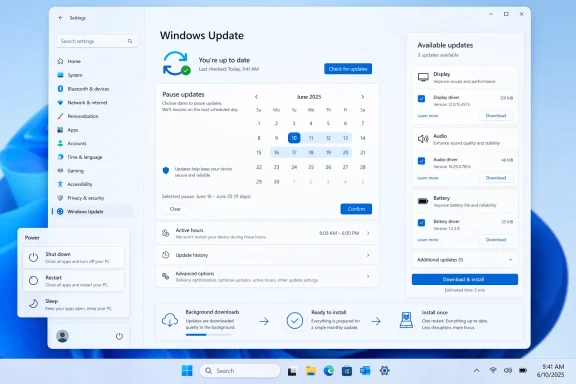
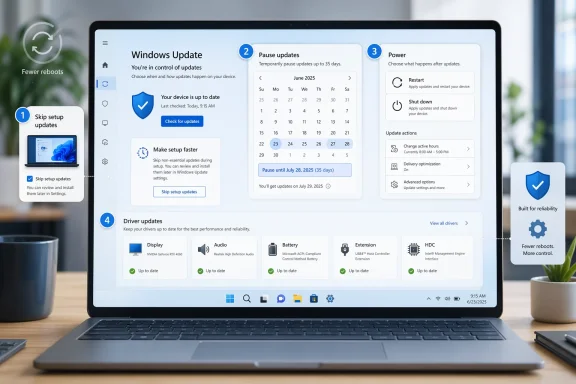
Laptop display shows the Windows Update settings page with options to pause updates and manage power actions.Background​

Windows Update has always lived in tension between two valid goals: protecting users and not interrupting them. Microsoft’s own support materials still emphasize that updates are important, but also acknowledge the practical need for pause controls and scheduled restarts when people are busy. That balance has become more important as Windows has moved from a simple patching model to a layered system of quality updates, feature updates, driver updates, firmware updates, and out-of-band fixes.
This new Insider rollout is the result of a familiar feedback loop. Microsoft says it reviewed thousands of user comments and heard two themes over and over again: updates arrive at the wrong time, and users do not feel they have enough control over when they happen. That is not a surprising complaint, but it is a revealing one, because it cuts across both consumer frustration and enterprise manageability. A patching platform that feels unpredictable is a platform that users learn to delay, defer, or distrust.
The timing matters, too. Over the last year, Microsoft has increasingly framed Windows through its Secure Future Initiative, a broader push to make products secure by design, secure by default, and secure in operations. The company says that initiative, launched in November 2023, is meant to improve how Microsoft designs, builds, tests, and operates its technology. Windows Update is a natural place to show that philosophy in action, because patching is where security policy meets user experience most directly.
There is also a practical business context behind the redesign. Microsoft has spent the past several release cycles trying to make Windows more predictable for Insiders and more reliable for everyone else. The March 2026 “commitment to Windows quality” post laid the groundwork for several of the same ideas now appearing in the update experience: skipping setup updates, separating restart behavior from update behavior, and reducing notification noise. What is rolling out now looks less like a one-off experiment and more like the next step in a longer update-architecture cleanup.
A subtle but important part of the story is that Windows Update is no longer just “update checking.” It is now the front door to reliability, servicing, driver quality, and increasingly even recovery behavior. Microsoft’s support docs and Insider posts show an ecosystem where setup dynamic updates, recovery mechanisms, preview channels, and hotpatch-like servicing models all intersect. The more complex the servicing stack becomes, the more valuable a clear and predictable control surface becomes for users.

What Microsoft Changed​

The headline change is not one feature but a bundle of four user-facing controls. Microsoft is giving Insiders more flexibility to skip updates during out-of-box experience, pause updates with a calendar-based control, shut down or restart without being forced into an update path, and get more descriptive information about driver updates. These are small changes individually, but together they reshape the emotional texture of Windows Update from pushy to negotiable.

Four controls, one philosophy​

The first change is setup-time choice. If a user wants to get to the desktop quickly, they can now skip updates during OOBE and deal with them later. That might sound modest, but setup is where first impressions are formed, and first impressions matter in operating systems more than in most software. Microsoft says this does not apply to managed commercial devices or situations where updates are required for functionality, which is an important limiter for enterprise scenarios.
The second change is a more flexible pause mechanism. Instead of a generic pause interval, users can choose a specific calendar day and extend that pause repeatedly in 35-day increments. That is a meaningful shift because it lets people align update pauses with real events such as travel, exams, conferences, or project deadlines rather than forcing them into a rigid one-size-fits-all schedule. It also acknowledges that control is often not about disabling updates forever, but about controlling when the pain lands.
The third change may be the most visible one in daily use: the Power menu will now always show standard Restart and Shut down options, even if updates are pending. Update-specific choices remain available, but the menu is being split into plain power actions and update actions. That is a significant user-experience correction because it eliminates the “surprise update” feeling that many Windows users have been conditioned to expect.
The fourth change is informational rather than behavioral. Windows Update will now add device class labels to driver titles, making it easier to tell whether a pending driver applies to display, audio, battery, extension, HDC, or another class. This is a small but practical improvement, especially because driver update names have often been too vague for average users to interpret confidently. Clearer labels reduce confusion, and reduced confusion tends to reduce hesitation.

Why this matters​

This is really an argument about agency. Microsoft is not giving up on forced security outcomes; it is trying to make the path to those outcomes less abrasive. That is a subtle but important distinction, because the company still wants users on secure builds quickly, but no longer wants the user interface to feel like a trap.
For consumers, the benefit is obvious: fewer moments where the computer seems to decide for you. For Microsoft, the benefit is more strategic: a calmer update experience may reduce resistance, lower the temptation to defer patches, and improve satisfaction without weakening the underlying servicing model. That is the kind of soft infrastructure change that can affect trust over time.
  • Setup can now be faster for people who want the desktop first.
  • Pause controls are becoming calendar-aware instead of purely interval-based.
  • Power actions are being decoupled from update actions.
  • Driver titles are becoming more understandable.
  • The update experience is being redesigned around predictability, not just compliance.

Fewer Reboots, More Coordination​

Microsoft is also trying to reduce the number of times Windows asks for a reboot each month. That is a deeper operational change than the UI tweaks, because it involves coordinating driver,.NET, and firmware updates to line up with monthly quality updates. If the company can make that work consistently, users should see fewer separate update events and a more unified servicing rhythm.

Consolidation is the real story​

The company says Windows quality updates already include monthly security updates, emergency out-of-band patches, and user-initiated optional non-security updates. The new approach appears to collapse more of the nearby update noise into the same general installation and restart window, rather than scattering reboots throughout the month. That should make Windows feel less chatty and more deterministic.
This matters because reboot fatigue is real. Many users are willing to accept one predictable restart, but fewer are willing to tolerate repeated interruptions that appear to come from unrelated subsystems. When the OS asks for multiple reboots in the same month, it creates the impression that patching is fragmented or poorly coordinated, even if each individual update is technically justified.
The reduction in restart count also ties into Microsoft’s broader reliability message. The company has been working to improve quality, reduce update noise, and make build channels clearer across the Insider Program. A more coherent servicing cadence is one of the simplest ways to make that message real. It is also a quiet admission that update complexity itself has become a user-facing problem.

Consumer versus enterprise impact​

For home users, fewer reboots mean less annoyance and fewer “I’ll do it later” moments. The practical benefit is not just saved time; it is reduced friction between the person and the machine. If Windows feels less likely to interrupt a work session, users are more likely to keep it current.
For enterprises, the picture is more complicated. Consolidation can simplify patch windows, but it can also make change management feel more clustered if admins rely on staggered component servicing. Microsoft says it will share more about commercial controls later, which suggests the company is still working out how much of this consumer-oriented flexibility should be exposed to managed environments.
  • Fewer separate reboots should reduce user disruption.
  • Coordinated servicing may improve perceived reliability.
  • Admins may need new scheduling expectations.
  • Consolidation is useful only if it does not create larger failure domains.
  • Windows is trying to become quietly consistent, not just more secure.

Security by Default, but Less Abrupt​

Microsoft keeps stressing that these changes do not weaken its security posture. In fact, the company frames them as part of a Secure Future Initiative approach: secure by design, secure by default, and secure in operations. That framing is important because it explains why Microsoft is comfortable offering more control to users while still insisting that devices should get onto the latest security update soon after release.

The security trade-off​

There is an unavoidable tension here. The more freedom users have to delay or avoid updates, the more likely some devices will remain exposed for longer. Microsoft is clearly aware of that risk, which is why it keeps recommending that users take updates shortly after release and why it is tightening recovery behavior in the background. The design challenge is to reduce user frustration without normalizing dangerous postponement habits.
One way Microsoft is handling that tension is by improving automatic recovery from update failures. The company says devices will attempt to recover in real time if an installation fails, with some updates taking longer but succeeding more often. That is an interesting trade-off: more time per update in exchange for fewer broken installs and fewer manual interventions. It is a quality over speed decision, and it aligns well with a security-first operating model.
Microsoft has been moving in this direction elsewhere, too. The company has repeatedly emphasized secure-by-default ideas in Windows security materials, and its support ecosystem shows a growing reliance on automated recovery paths and servicing orchestration. The new update behavior fits that pattern neatly. It is not abandoning enforcement; it is making enforcement feel less chaotic.

What this means for trust​

The most interesting security question is not whether the new controls are permissive enough. It is whether users will trust Windows Update more because it is more predictable. Trust is often the missing variable in patch compliance, and a predictable system tends to produce better user behavior than a surprising one.
If users believe they can pause, postpone, restart, and still understand what is happening, they are less likely to think of updates as an ambush. That, in turn, may improve the odds that they accept important security updates sooner rather than later. In that sense, the redesign is not anti-security; it is an attempt to make security feel less coercive.
  • More predictable update timing can improve user trust.
  • Automatic recovery aims to raise installation success rates.
  • Longer pauses increase convenience but also increase exposure windows.
  • Security messaging remains central to Microsoft’s pitch.
  • The company is betting that clarity encourages compliance.

The OOBE and Setup Experience​

Skipping updates during device setup is one of the most consumer-friendly pieces of this rollout. OOBE is already a cognitively dense moment, and forcing updates at that exact point often feels like a tax on excitement. Giving users the option to get to the desktop first is a smart acknowledgment that setup and servicing do not have to be the same moment.

Why setup control is powerful​

A first boot can shape a user’s entire impression of a device. If the device spends its first minutes installing patches, restarting, and waiting, the user experiences the machine as slow before they have done anything meaningful with it. Allowing a skip path changes that emotional arc, even if the update still has to happen later.
Microsoft notes that this option is not available for commercial devices where OOBE is managed, or in cases where updates are required for the device to function. That caveat is important because it makes clear that this is a consumer flexibility feature, not a general loophole around provisioning policy. In enterprise settings, administrators still need deterministic setup flows.
There is also a bandwidth angle. For some users, especially on weaker connections, the first-update experience can be a pain point in itself. Microsoft has been talking about improving download and apply times, but choice during setup remains a useful pressure valve for people who simply want the machine usable now.

A practical ranking of OOBE priorities​

  • Get the user to the desktop.
  • Preserve the option to update immediately.
  • Avoid making setup feel like a forced maintenance window.
  • Keep managed devices on policy-driven paths.
  • Maintain security requirements where device functionality depends on them.
  • Setup should feel like activation, not administration.
  • A skip option is meaningful because it happens at the start of the relationship.
  • Managed fleets need different rules than retail devices.
  • Faster first-use experiences can improve satisfaction.
  • The change acknowledges that first-run friction can damage goodwill.

The New Pause Model​

The updated pause system looks simple on the surface, but it is actually one of the more carefully chosen changes in the batch. Microsoft is not just making pauses longer; it is making them more legible by letting users pick a specific day and then re-pause as needed. That turns a blunt tool into a planning tool.

Planning instead of improvising​

The old mental model for pauses was basically “buy time.” The new model is “schedule around life.” That matters because users rarely think in neat seven-day blocks; they think in terms of deadlines, travel, and bad weeks. A calendar-based pause aligns the product with real human routines rather than with engineering convenience.
Still, pause controls are only as good as the user’s discipline. The ability to extend pauses repeatedly makes the tool more flexible, but it also raises the odds that some users will defer updates far longer than is wise. That is why Microsoft keeps pairing this flexibility with reminders that security updates should be taken soon after release.
The real test will be whether the new pause experience reduces accidental conflict without encouraging chronic avoidance. If the feature is used as a scheduling tool, it is a win. If it becomes a de facto “never update” button, then Microsoft will need to adjust the balance again.

Why 35 days is a compromise​

A 35-day pause window is long enough to cover most short-term disruptions, but short enough to keep update debt from growing without bound. Microsoft’s repeated focus on this number suggests a compromise between convenience and mandatory security hygiene. In other words, it is meant to be a relief valve, not an escape hatch.
That compromise is sensible. Users often need a few weeks, not a permanent exemption, and the system should recognize the difference. The better Windows gets at making pauses transparent, the less likely users are to feel tricked when a pause expires.
  • Calendar-based pauses are easier to reason about.
  • Re-pause capability increases flexibility.
  • 35 days is a compromise, not an unlimited delay.
  • Better pause controls should reduce surprise.
  • The risk is turning convenience into prolonged exposure.

Restart and Shutdown, Reimagined​

The restart and shutdown change is probably the one most people will notice first, because it affects a behavior users perform constantly. Microsoft is explicitly separating power actions from update actions, so “Restart” and “Shut down” do what they say even if updates are pending. That may sound obvious, but Windows users know it has not always felt that way.

The psychology of the Power menu​

When a system changes your chosen action into a different action, even for a good reason, the user experience becomes adversarial. Microsoft seems to understand that the Power menu should be a place of certainty, not negotiation. By keeping standard restart and shutdown options always visible, the company is restoring a basic expectation of control.
The update-specific options still remain, which is the right compromise. People who want to install now can still choose “Update and restart” or “Update and shut down,” but those choices are no longer conflated with ordinary power behavior. That separation may also reduce accidental update timing, especially when users are in a hurry.
Microsoft also says Windows will try to restore previously opened apps faster after a restart, helping users return to work more quickly. That is a meaningful companion feature because it softens the cost of a reboot. The company is effectively saying, “We still need restarts, but we can make the after-effect less annoying.”

Usability gains that matter​

For many people, the value here is not conceptual but emotional. A shutdown that feels like a shutdown is less stressful than one that might secretly become a patch operation. Reducing that uncertainty may seem minor, but software interfaces are built out of thousands of small trust decisions, and this is one of them.
The move also helps Windows compete on predictability. On a modern PC, users expect the operating system to be responsive and respectful of intent. If Microsoft can make power actions feel boringly literal, it will have improved the everyday texture of the platform in a way that actually matters.
  • Restart now means restart now.
  • Shut down now means shut down now.
  • Update actions remain available for people who want them.
  • Restoring apps faster reduces reboot friction.
  • Predictable power behavior is a quiet but important UX win.

Driver Updates Get Clearer​

Driver updates have long been one of Windows Update’s least transparent categories. Titles were often vague, similar, or nearly identical, which left users guessing what was actually about to change. Microsoft’s new device-class labeling is a sensible response because it adds context without overwhelming the interface.

Why labels matter​

A driver update labeled only with a hardware ID or generic package name is not especially useful to most users. By contrast, seeing whether an update applies to display, audio, battery, extension, or HDC gives a user at least a rough sense of impact. That can help people prioritize critical changes and avoid unnecessary anxiety.
This is especially relevant because Microsoft simplified update titles near the end of 2025, then received feedback that the simplification made some driver updates too opaque. The new device-class addition is a correction, not a reversal, and it shows Microsoft is still tuning the balance between simplicity and useful detail.
For power users and IT staff, clearer driver labels could also reduce troubleshooting time. If a user can tell that a driver update is related to audio or display, they are more likely to connect a later issue to a recent change. That kind of traceability is a small but valuable quality-of-life improvement.

More insight, less guesswork​

This is the kind of change that rarely gets headlines but pays off in support efficiency. Users who understand what they are installing are more likely to feel confident doing it, and confidence is an underrated part of update adoption. Microsoft is trying to create less mystery around the system, and mystery is often what turns routine maintenance into unnecessary resistance.
It also reflects a broader design trend inside Windows: use just enough language to be comprehensible without exposing the user to raw technical noise. That is a difficult line to walk, but device-class labels are a decent example of the middle ground.
  • Driver update titles are becoming more readable.
  • Device class labels reduce ambiguity.
  • Better labels can improve support and troubleshooting.
  • Clarity helps users decide what to install now versus later.
  • This is a small change with outsized trust benefits.

What It Means for Windows’ Broader Strategy​

Viewed together, these changes suggest Microsoft is trying to make Windows Update feel less like a compliance engine and more like a managed service with user-visible guardrails. That is a strategic repositioning, not just a cosmetic refresh. It acknowledges that reliability and control are no longer competing goals; they are mutually dependent if Microsoft wants users to stop dreading updates.

Competition and market implications​

Against competitors, the messaging is subtle but important. Windows is not trying to win by promising the fewest updates; it is trying to win by promising better-timed updates and fewer surprises. That is a more mature position for a desktop operating system that still has to support a sprawling hardware ecosystem.
The change also speaks to Microsoft’s relationship with OEMs and silicon partners. Better driver labeling and fewer disruptive update moments can only help if hardware vendors cooperate with cleaner servicing practices. In that sense, this is as much an ecosystem story as an OS story.
For enterprise IT, Microsoft’s promise to say more about commercial controls later will be closely watched. Admins will want to know whether these consumer-facing gains can be mapped cleanly onto policy, compliance, and update rings. If Microsoft can do that, it will have created a more convincing pitch for Windows as a platform that is both manageable and humane.

The bigger design shift​

The deeper shift is philosophical. Microsoft is admitting that forcing important maintenance is not the same as making it feel well designed. The company is now spending product capital on reducing the stress around updates, and that suggests it believes trust itself is a competitive asset. That is a very different tone from the old era of Windows patching.
  • Windows is moving toward a calmer servicing model.
  • User control is being treated as part of security, not opposed to it.
  • OEM and driver ecosystems remain essential to the plan.
  • Enterprise policy support will determine how broadly this succeeds.
  • Trust is becoming a first-class product objective.

Strengths and Opportunities​

Microsoft’s update redesign has real upside because it addresses one of Windows’ most persistent pain points without backing away from the company’s security stance. The strongest part of the strategy is that it improves everyday control while preserving the underlying pressure to stay current. That combination could make users more willing to cooperate with Windows Update rather than treat it as a nuisance.
  • More predictable restart behavior should reduce frustration.
  • Calendar-based pauses better match real-world schedules.
  • Setup skipping can improve first-impression experiences.
  • Better driver labels help users make informed choices.
  • Recovery improvements may reduce update failures.
  • Consolidated update timing should lower reboot fatigue.
  • Microsoft can present this as security with less drama.

Risks and Concerns​

The biggest risk is that more flexibility can become more deferral. If users repeatedly pause updates, they may unknowingly keep security fixes at arm’s length for too long. Microsoft’s challenge is to preserve autonomy without encouraging bad habits, and that balance will be harder to maintain if users experience fewer forced reminders.
  • Longer pauses may increase exposure to known vulnerabilities.
  • Some users will interpret new control as a license to delay indefinitely.
  • Consolidated updates could create more noticeable failure moments if something goes wrong.
  • Enterprise admins may need new policies to keep fleets aligned.
  • UI clarity alone will not solve driver quality issues.
  • Automatic recovery may increase completion time on slow devices.
  • If commercial controls lag behind consumer changes, management gaps could appear.

Looking Ahead​

The next phase will be whether these changes survive Insider testing and arrive intact in mainstream Windows releases. Microsoft says many of the features are already beginning to roll out to Dev Channel and the new Experimental channel, which suggests the company is serious about gathering signal before broad deployment. The commercial story is still unfinished, and that may turn out to be the most important part for organizations that care about control, compliance, and consistency.

What to watch​

  • Whether pause flexibility is retained in final retail builds.
  • How Microsoft exposes these controls to enterprise admins.
  • Whether fewer update restarts measurably improve user satisfaction.
  • Whether clearer driver titles reduce support confusion.
  • Whether recovery improvements shorten failure rates enough to matter.
  • Whether monthly update coordination remains stable across hardware families.
If Microsoft executes well, this could become a model for how Windows handles servicing in the second half of the decade: more transparent, more flexible, and still uncompromising on security. If it executes poorly, the changes could end up feeling like cosmetic relief layered over the same old update anxiety. The difference will come down to consistency, because Windows users do not just want fewer interruptions — they want to trust that the interruptions that do happen are the ones they chose.

Source: Microsoft - Windows Insiders Blog Your Windows update experience just got updated
 

Microsoft is finally giving Windows users something they have wanted for years: real control over Windows Update. The company says it is rolling out changes that let people skip updates during setup, extend update pauses beyond the old one-and-done feel, separate shutdown and restart from update actions, and see clearer information about what each update actually contains. That may sound modest on paper, but in practice it strikes at two of the most persistent complaints about Windows: disruption at the worst possible moment and too little say over when maintenance happens.

Windows Update settings screen showing “You’re up to date” and available display/audio/battery updates.Background​

For years, Windows Update has occupied a strange place in the Windows experience. It is essential for security, reliability, and feature delivery, yet it has also been one of the most common sources of frustration for everyday users and IT teams alike. A forced reboot in the middle of work, an unexpected update prompt at shutdown, or a long setup sequence that won’t let you reach the desktop quickly enough can turn a routine maintenance task into a productivity problem. Microsoft has repeatedly tried to soften that pain, but the balance between protecting devices and respecting the user’s time has never been easy.
Historically, the default philosophy behind Windows Update has been simple: keep devices secure first, ask questions later. That made sense in the era of rampant malware, insecure home systems, and users who would otherwise never patch. But the world changed. Windows PCs now sit in remote work environments, hybrid classrooms, creative studios, and enterprise fleets where an ill-timed reboot can break a presentation, interrupt a video render, or derail a managed deployment. Microsoft has been pushed to evolve from a model of enforcement to one of guided control.
The new changes reflect that shift. Microsoft says the improvements are based directly on user feedback and on thousands of verbatim comments it reviewed in recent months. The company is not abandoning the security-first model; instead, it is trying to make it less intrusive by giving users more obvious choices and consolidating update activity into fewer, more predictable moments. That is a subtle but important distinction. A forced system that is simply more polished is still forced; a system that can be shaped by the user is a different product category altogether.
The timing also matters. Windows 10 support ended on October 14, 2025, which has pushed many users and organizations to reconsider their update policies, upgrade plans, and patching expectations. At the same time, Windows 11 has been steadily absorbing more of the platform’s long-term future, and Microsoft has been under pressure to make that future feel less disruptive. In that context, update control is not a minor quality-of-life tweak; it is part of the platform’s credibility story.

What Microsoft Changed​

The headline change is not one feature but four. Microsoft says it is improving Windows Update in four ways: skipping updates during the out-of-box experience, extending update pauses as many times as needed, separating power actions from update actions, and making update titles and categories clearer. On their own, each adjustment sounds incremental. Together, they add up to a meaningful redesign of how Windows users interact with maintenance.

1. Skipping updates during setup​

The first improvement lets users skip updates during device setup and reach the desktop faster. That is a big deal because the Windows setup flow has long served as the first impression of the OS, and first impressions matter. If you are setting up a new PC after a purchase, a repair, or a refresh, the difference between immediately landing in the desktop versus waiting through an update cycle can feel substantial.
This is not an open invitation to ignore updates forever. Microsoft is careful to note that if you skip, the latest features and security updates will not be available until you choose to install them. That distinction is important. The company is giving users the choice to defer, not the ability to escape patching altogether. In other words, control is being expanded, but responsibility is still being retained.

2. Extending update pauses​

The second change is more flexible pause controls. Windows already allowed pausing updates, but the new version introduces a calendar-based model that lets users pick a specific day of the month and pause for up to 35 days. When that period ends, users can re-pause for another 35 days, with no limit on how many times the pause end date can be reset. That effectively creates a rolling pause mechanism that gives users much more breathing room than the old approach.
This is probably the most controversial part of the new system. Security-minded admins will correctly note that the longer a machine stays unpatched, the larger the exposure window. Microsoft acknowledges that it still recommends taking updates shortly after release. But from a usability perspective, the new pause system is a rare admission that the old model often treated every device as if it were operating in exactly the same context. It is not. A laptop on a travel-heavy schedule is not the same as a kiosk in a managed network.

3. Restarting and shutting down on your terms​

The third change addresses one of Windows’ oldest irritations: the shutdown or restart prompt that quietly morphs into an update trigger. Microsoft says the Power menu will now clearly separate standard restart and shut down options from update-specific actions such as “Update and restart” or “Update and shut down.” That means users can power off a machine without accidentally kicking off a pending update.
This matters because power actions are one of the few moments when users often expect finality. You click shut down because you are done. You restart because you need a clean boot. If the system silently repurposes that action into maintenance, it breaks trust. The change may seem small, but predictable power behavior is foundational to perceived OS quality. Predictability is a feature.

4. Better update details​

The fourth change is about clarity. Microsoft says it is improving driver update titles by adding the device class, such as display, audio, battery, extension, HDC, and other categories. The company says this came after feedback that simplified update titles made it harder to tell what a driver update actually affected. For users and admins alike, that extra context can reduce uncertainty and duplicate troubleshooting.
This may not sound glamorous, but it is the kind of detail that determines whether an update experience feels like a polished service or a black box. If two driver updates look identical, people assume they are interchangeable. If titles are more specific, users can make better decisions, and support staff can diagnose issues more quickly. That is especially valuable in environments where one driver affects performance, another affects battery life, and another changes audio behavior.

Why Users Are So Frustrated​

Microsoft’s update changes are not happening in a vacuum. They are reacting to a well-documented pattern of frustration that has followed Windows for years. Users do not hate updates because they oppose security. They hate the timing, the interruptions, and the feeling that the machine is making decisions on their behalf. That is a subtle but crucial distinction.

Disruption is the real problem​

The main complaint is not the update itself. It is the way an update interrupts a session, resets momentum, or appears at the worst possible moment. If you are editing video, compiling code, managing spreadsheets, or presenting to a client, an update prompt can feel like an ambush rather than maintenance. Microsoft explicitly acknowledges this by saying updates can “critically break your flow” when they land at the wrong time.
That language matters because it shows Microsoft is finally treating interruption as a design problem rather than an unavoidable side effect. In a world where other platforms increasingly allow deferred patching, staged restarts, and more transparent background work, Windows has looked stubbornly rigid at times. The new changes suggest Microsoft knows rigidity is no longer a selling point. Users expect software to adapt to them, not the other way around.

The trust gap around restarts​

The restart issue has been especially annoying because it often feels like Windows is winning an argument the user never started. You choose to shut down, and the system pushes you toward update-and-restart instead. That has long made the Power menu feel less like a control center and more like a negotiation. Microsoft is trying to repair that trust by making the actions separate and explicit.
This is also a usability lesson. When users feel their choices are being rewritten, they start working around the system, deferring updates longer, or ignoring prompts altogether. That is worse for security than a more honest model that clearly exposes the tradeoff. Give people a predictable choice, and many will choose to patch on their own timetable. Force the choice, and they will resist.

The setup experience has been too slow​

The ability to skip updates during device setup reflects a different but related frustration: waiting before you can even use the machine. For a new PC, a reset device, or a freshly imaged system, setup time is emotional time. The longer Windows keeps you from the desktop, the more the experience feels like overhead rather than progress. Microsoft’s new option recognizes that some users would rather get to work first and update later.
Commercial devices are partly exempt from this convenience, and that makes sense. Managed systems often need to meet baseline policy or compliance requirements before first use. But for consumers, the change is likely to be welcomed as a simple quality-of-life improvement. It turns setup into a choice, which is exactly what most people expected the first time they saw a PC with a welcome screen.

How the New Pause System Works​

The pause changes are worth a closer look because they appear to be the most flexible piece of the update. Microsoft is moving from a more limited pause approach to a calendar-driven one that is easier to understand and easier to extend. That is a clever design choice, because calendar language feels more intuitive than abstract days-left counters.

A calendar, not a countdown​

A calendar-based pause lets users choose a specific resume day rather than just selecting a duration. That makes the feature more human-readable. If you know you will be busy until the 20th, selecting the 20th is more natural than choosing “28 days” and then calculating what that means later. It is a small UI detail that reduces cognitive friction.
Microsoft says the pause period can still last up to 35 days, which matches the current overall pause limit described in Microsoft Support. What changes is the ease with which users can reapply that pause. This effectively turns update deferral into a repeatable, calendar-aware workflow rather than a one-time escape hatch.

More flexibility, more responsibility​

There is an obvious upside and an obvious downside. The upside is that people with short-term conflicts can avoid a disruptive restart, travel week, or deadline crunch. The downside is that some users will stretch the pause much longer than is wise, especially if they are not security-conscious. Microsoft knows this, which is why it keeps repeating the recommendation to install updates soon after release.
Still, the company seems to have accepted a practical truth: users already delay updates in messy, unofficial ways when the official tools are too rigid. A better-controlled deferral system may be safer than one that encourages people to hack around it. That is not a license to skip patching, but it is a realistic acknowledgment of human behavior.

Enterprise implications​

For enterprise environments, the pause model is more complicated. Microsoft notes that the skip-updates-at-setup feature is not applicable to commercial devices where out-of-box experience is managed, and it says more details about commercial controls are coming later. That suggests consumer flexibility and enterprise governance will remain intentionally different.
That split is appropriate. Businesses need compliance, repeatability, and policy enforcement. Consumers need convenience, comprehension, and a way to survive busy periods. The best update systems recognize that one size does not fit both. Microsoft appears to be moving in that direction, but the real test will be how well the admin controls mirror the consumer-facing polish.

Power Menu Predictability Matters More Than It Seems​

It is easy to dismiss the power-menu changes as cosmetic, but they are more important than they look. Power actions are among the most basic interactions a user has with a PC, and basic interactions should never feel ambiguous. When shutdown behavior is predictable, the system feels trustworthy. When it is not, every future prompt becomes suspect.

Clearer choices reduce friction​

Microsoft says the menu will now always show standard Restart and Shut down options, while keeping update-specific options available when applicable. That means the system is no longer conflating ordinary power actions with maintenance prompts. For people who just want to leave the office or close the laptop lid, that is a welcome simplification.
There is also a subtle psychological benefit here. Users hate being cornered into a maintenance action when they are trying to finish a session. Separating the commands restores the sense that the PC is a tool under the user’s control. That sounds obvious, but software often forgets the obvious first. User intent should be legible.

Restoring open apps faster​

Microsoft also says Windows will attempt to restore previously opened applications faster after a restart. That is an important complement to the power-menu redesign because it reduces the cost of rebooting. If restarts are less painful, people are less likely to avoid them, and update compliance becomes less emotionally loaded.
This is the kind of systems thinking Windows has often needed more of. You do not improve the update experience by changing a single button. You improve it by reducing the penalty associated with the action, making state restoration faster, and ensuring the restart itself feels less destructive. When all of those things improve together, users notice.

A better model for modern Windows​

Modern Windows is no longer a one-purpose desktop OS. It is a work platform, a gaming platform, a creative tool, and an enterprise endpoint all at once. The more roles it tries to serve, the more important predictable power behavior becomes. A gamer wants to shut down quickly after a session. A remote worker wants to restart without losing momentum. An IT admin wants updates to happen without support tickets. The new design is trying to satisfy all three.
That is ambitious, but it also reflects reality. If Windows Update feels hostile, people resent the platform. If it feels transparent and optional without being reckless, it becomes part of the background of work. That is the target Microsoft is now chasing. Better late than never may be an understatement, but it is still fitting.

Fewer Reboots, More Consolidation​

Another major theme in Microsoft’s rollout is consolidation. The company says it is coordinating driver,.NET, and firmware updates to align with the monthly quality update, reducing the experience to a single monthly restart for many users. That is a significant shift because reboot frequency has always been one of the biggest practical complaints about Windows maintenance.

One restart instead of several​

Multiple reboots are more than an inconvenience. They interrupt work, increase the odds of deferred patching, and create the impression that updates are fragmented or poorly coordinated. By bundling more update types into the monthly cadence, Microsoft is trying to make the system feel less chaotic. Fewer restart events also means fewer moments when users can lose trust in the machine.
This is especially relevant for businesses that need to minimize support load. Each extra reboot is another chance for a machine to fail, a user to miss a deadline, or a help desk to receive a complaint. Consolidation does not eliminate those risks, but it reduces the number of times they can happen. That is a practical win.

New update visibility​

Microsoft says all updates will now appear in a single Available updates section inside Windows Update. That makes the system easier to scan and gives users a better sense of what is pending without forcing them to dig through multiple categories. It is also a sign that Microsoft is trying to move from a segmented update worldview to a more holistic one.
The upside is clarity. The downside is that a single bucket can hide important distinctions if the interface is not careful. Microsoft seems aware of that, which is why it is also improving labels and categories. The goal is not just to consolidate but to consolidate without losing meaning. That is a much harder design problem than it looks.

Background downloads, coordinated installs​

Microsoft says updates will download in the background and then wait for a coordinated installation and restart. Users can still take updates earlier if they want, but if they do nothing, the system will align them with the next scheduled Windows quality update or another manually approved moment. That balances automation with optional control.
This approach should reduce the “why is Windows updating again?” complaint that has plagued the platform for years. It also creates a more comprehensible rhythm for users: background prep, single installation window, clearer reboot. Rhythm matters because people tolerate maintenance better when they can predict it. Predictable inconvenience is still inconvenience, but it is far easier to live with.

Security Still Comes First​

For all the user-friendly language, Microsoft is not backing away from its security posture. In fact, the company explicitly frames the changes as compatible with its Secure Future Initiative and its broader goal of keeping devices secure by default. The message is clear: flexibility is being added, but the company still believes security should be the baseline state of Windows.

Security and flexibility are not opposites​

That tension is not unique to Microsoft. Every platform vendor has to decide how much discretion users should have over patching. Too little discretion and users rebel. Too much discretion and systems linger unpatched. Microsoft’s challenge is to land in the narrow middle where security remains the default but the user no longer feels trapped.
The company’s own wording suggests it understands this. It says Windows aims to get devices onto the latest security update shortly after release, but also recognizes that some users face bandwidth constraints and update failures. That is a notably more realistic tone than older “just update” messaging. It implies Microsoft is paying attention to the messy operational realities of home and small-business computing.

Automatic recovery is an underrated improvement​

Microsoft says it is also improving automatic recovery for update failures, allowing Windows to attempt additional background steps when an installation doesn’t succeed. That could reduce the number of broken update attempts users need to babysit. It also suggests Microsoft is increasingly treating update reliability as an engineering discipline, not just a policy setting.
That is an important evolution. Most users do not care about the mechanics of recovery, only the outcome. If Windows can silently repair a failed update more often, the overall experience becomes less stressful. The tradeoff is that some updates may take longer to finish. Most users will accept that tradeoff if it means fewer failures and fewer interventions.

Bandwidth and connectivity still matter​

Microsoft’s reference to poor connectivity is also telling. Update performance is not the same for every user, and it never has been. Devices that spend less time online, roam across different networks, or operate in constrained environments can fail more often or take longer to patch. Improvements that help these systems are especially valuable because they target the exact machines most likely to be left behind.
That is where the new controls feel more thoughtful than theatrical. This is not just a convenience update for enthusiasts. It is also a response to the realities of patching devices that are not always connected, not always idle, and not always easy to service. Reliability at scale is what matters here.

Enterprise vs Consumer Impact​

The consumer experience is where these changes will be felt most immediately, but the enterprise implications may be larger over time. Consumers want freedom from surprise restarts and better timing. Enterprises want policy, repeatability, and fewer service tickets. Microsoft’s challenge is to deliver both without making the system fragmented.

Consumer wins are obvious​

For home users, the benefit is straightforward. You can get to the desktop faster, delay a patch if you are busy, and shut down without worrying that Windows will hijack the power action into an update cycle. That alone should reduce a lot of day-to-day frustration. It also makes Windows feel more respectful of the owner’s time.
Consumers are also the group most likely to appreciate simpler language and clearer update labels. Not everyone knows what a driver package does, but most people can understand “audio” or “display.” Better labels reduce anxiety, and reduced anxiety improves compliance. That is an underappreciated part of good software design.

Enterprise needs are more complex​

Commercial devices are handled differently for a reason. Microsoft says the skip-updates-at-setup feature is not applicable to commercial devices where the out-of-box experience is managed, and it promises more information about commercial controls soon. That strongly suggests Microsoft is preserving policy control for admins while loosening the reins for consumers.
That separation is wise. Enterprises do not want every end user independently deciding to pause updates for 35 days at a time. At the same time, IT departments will likely welcome fewer reboots and better visibility into what updates are pending. If Microsoft can expose these improvements in a way that complements Intune, Autopatch, and other management tools, enterprise adoption should be strong.

Different users, different rhythms​

The larger insight is that update cadence should vary by context. Retail users may tolerate monthly reboots. Persistent seekers may want faster access to features. Businesses may want alignment with maintenance windows. Microsoft’s update strategy increasingly reflects that segmentation, and that is healthy. A single update policy for everyone has always been too blunt.
What remains to be seen is whether Microsoft can keep the user-facing simplicity while exposing enough control underneath for advanced and commercial scenarios. If it can, the new Windows Update experience could become one of the platform’s best under-the-hood stories. If it cannot, the improvements risk being remembered as a consumer-only polish layer.

Strengths and Opportunities​

These changes are strongest when viewed as a package, not as isolated tweaks. They reduce friction, improve predictability, and make Windows feel less like a system that acts on its own and more like one that responds to the person using it. If Microsoft sustains this direction, it could meaningfully improve user satisfaction across both consumer and enterprise editions.
  • Less disruption during work sessions thanks to more predictable restart behavior.
  • Better setup flow because users can skip updates and reach the desktop faster.
  • More flexible deferral with a calendar-style pause experience.
  • Clearer update labels that reduce confusion around driver updates.
  • Fewer reboots by consolidating more update types into a monthly cadence.
  • Improved trust in the Power menu because shutdown and restart are now explicit actions.
  • Stronger update reliability thanks to automatic recovery efforts in the background.

A better user relationship​

The biggest opportunity may be psychological rather than technical. When users feel in control, they are more likely to trust the platform and keep it current. That can translate into better compliance, fewer support complaints, and a less adversarial relationship with Windows itself.

Risks and Concerns​

The obvious risk is that greater flexibility will encourage more people to delay important updates for too long. Microsoft is still recommending prompt installation, but once a pause system becomes easier and more forgiving, some users will inevitably treat it as a permanent escape hatch. Security teams will not like that, and they will have reason to worry.
  • Longer deferrals can increase exposure to known vulnerabilities.
  • User confusion may persist if update categories remain too technical.
  • Consumer and enterprise parity may be incomplete if admin tools lag behind.
  • Consolidation could make failures harder to isolate if a bundled update goes wrong.
  • Perceived complexity may rise if the menu gains more choices without enough guidance.
  • Security messaging may be drowned out by the convenience narrative.
  • Rollout unevenness could leave some devices with old behaviors for a while.

Security tradeoffs remain real​

The best-case scenario is that users install updates on a sensible schedule. The worst case is that they pause updates repeatedly and forget to return. Microsoft is gambling that better control will improve compliance, not undermine it. That is plausible, but it will need monitoring once the features reach more devices.

Looking Ahead​

The most important question now is whether these changes stay confined to Insiders for long or move quickly into the broader Windows 11 release cycle. Microsoft says many of the improvements are rolling out to the Dev and new Experimental channels first, which means the company still wants feedback before broad deployment. That is sensible, because the update experience touches nearly everyone and small mistakes can have outsized consequences.
The next phase will also reveal whether Microsoft extends similar controls to commercial management tools, where the stakes are different but the benefits could be substantial. If the company can bring more predictability to enterprise patch windows while preserving policy enforcement, it will have solved a long-standing pain point on both sides of the market. That would be more than a UI refresh; it would be a structural improvement to Windows operations.

What to watch​

  • Whether the new pause calendar reaches all Windows 11 users quickly.
  • How Microsoft exposes the changes in managed enterprise environments.
  • Whether clearer driver labels reduce support incidents.
  • How often users actually take advantage of “Restart” without updating.
  • Whether the consolidated update model truly lowers reboot frequency in the wild.
  • How Microsoft balances convenience against the need for fast security patching.
Microsoft is finally addressing a complaint that has lived far too long in the Windows experience: that updates are necessary but too often feel invasive, opaque, and badly timed. The company’s new approach does not remove the need for patching, and it does not solve every reliability problem overnight, but it does move Windows in a more respectful direction. If Microsoft keeps refining this balance between control and protection, Windows Update could go from being a symbol of frustration to a model of managed convenience—and that would be a real win for everyone who has ever stared at a restart prompt with no patience left.

Source: TweakTown Microsoft is finally fixing Windows Update, letting you skip updates during setup, extend pauses, and avoid forced restarts
 

Microsoft is testing one of the most meaningful Windows Update control changes in years, and it lands squarely on a frustration that Windows users have been airing since the Windows 10 era: updates that arrive at the wrong time, hide too much detail, and turn basic power actions into negotiations. The new Windows 11 experience, now beginning in Insider testing, adds options to skip setup updates, repeatedly pause updates in 35-day blocks, and shut down or restart without being forced into pending patches. This is not Microsoft abandoning security updates; it is Microsoft finally admitting that security by default works better when users trust the mechanism delivering it.

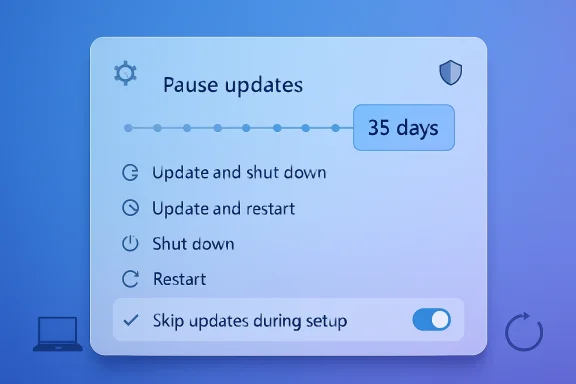
Blue UI screen showing “Pause updates” for 35 days with options like update, restart, and shutdown.Background​

For more than a decade, Windows Update has sat at the center of Microsoft’s modern operating system strategy. Windows 10 turned the old boxed-software model into “Windows as a service,” with cumulative updates, feature releases, driver delivery, and security patches arriving through a constantly maintained pipeline. That model made sense for a world of active exploitation, connected devices, and increasingly complex hardware ecosystems.
The problem was never that updates existed. The problem was that Windows often behaved as if timing did not matter, even when a laptop was about to go into a meeting bag, a desktop was rendering work overnight, or a new PC was being set up under time pressure. The classic complaint was not anti-security; it was anti-surprise.
Windows 11 improved parts of the update stack, including smaller update packages, faster installation work, and clearer release health information. But the emotional experience remained familiar: users still saw update prompts at inconvenient moments, setup could be delayed by mandatory update checks, and the power menu could make a simple shutdown feel conditional. That mismatch between technical improvement and user perception is exactly why these latest changes matter.
Microsoft says the new controls are based on user feedback, including complaints about untimely updates and insufficient control. That framing is important. This is not merely a settings-page redesign; it is an attempt to repair the social contract between Windows and the people who depend on it daily.

The Core Change: Windows Update Becomes More Negotiable​

Microsoft’s new approach gives Windows 11 users more agency without removing the expectation that devices should stay patched. The headline feature is not one toggle but a cluster of changes that alter how Windows behaves at setup, during pause periods, and at shutdown. Together, they make updates feel less like commands and more like scheduled maintenance.

Four Control Points​

The most visible changes fall into four practical areas. Each one addresses a different pain point in the Windows lifecycle, from first boot to daily operation.
  • Skip updates during out-of-box setup when applicable.
  • Pause updates for up to 35 days using a calendar-style experience.
  • Extend that pause repeatedly with no fixed number of re-pauses.
  • Choose standard shutdown or restart even when updates are waiting.
  • See clearer update details, especially for driver update categories.
The significance is that Microsoft is separating availability from immediacy. Updates can still download, wait, and apply when approved or scheduled, but Windows is less likely to hijack the moment. That distinction may sound subtle, but it changes the user experience dramatically.
For years, Microsoft optimized Windows Update around successful deployment at scale. The new model still protects that goal, but it acknowledges a second requirement: the update process must be predictable enough that users do not actively fight it.

OOBE Update Skipping: Faster First Boot, Fewer Setup Frictions​

The Out-of-Box Experience, or OOBE, is the setup flow users encounter when configuring a new PC or fresh Windows installation. In recent Windows 11 builds, that experience has often included update work before the user reaches the desktop. On paper, that means the machine starts life with newer fixes; in practice, it can turn unboxing into a waiting-room exercise.

Why Setup Timing Matters​

New-device setup is a uniquely sensitive moment. The user has not yet developed trust in the machine, has not configured preferences, and may be trying to get productive quickly. A forced update during this stage can make a new PC feel slow before Windows has even had a chance to prove itself.
The new option to skip updates during setup addresses that perception problem. Users can choose to land on the desktop sooner and install updates later, accepting that the device may temporarily lack the latest features or security fixes. That is a fair trade-off when presented clearly.
This does not appear to apply universally. Microsoft has indicated that commercial devices with managed setup flows are treated differently, and some devices may still require updates if they are necessary for basic functionality. That caveat matters because enterprise provisioning is often governed by compliance, Autopilot rules, device enrollment, and security baselines.
  • Consumers gain speed when setting up a new laptop or desktop.
  • Reviewers and technicians save time during repeated clean installs.
  • Retail and support scenarios become less awkward when customers need quick access.
  • Managed business devices remain subject to administrator policy where appropriate.
The best version of this feature is not “skip forever.” It is “skip now, update soon.” Microsoft’s challenge will be making that distinction visible without reintroducing nagging or confusion.

The 35-Day Pause: A Bigger Psychological Shift Than It Looks​

The new pause model allows users to pick a date up to 35 days away, then extend the pause again when that period ends. This effectively creates a repeatable delay mechanism for everyday Windows 11 users, though Microsoft still frames each pause as a temporary window. That design keeps the security message intact while giving users far more room to plan.

Calendar Control Beats Abstract Deferral​

A calendar-based pause is more understandable than a vague “pause for five weeks” button. People organize around trips, exams, conferences, projects, payroll runs, and deadlines. A date picker maps the update decision to real life rather than forcing users to count days backward from a system limit.
The ability to re-pause is the bigger change. Historically, Windows pause controls were useful but bounded; eventually, the operating system would insist on catching up before another pause was allowed. The new experience loosens that policy, giving users repeated 35-day blocks if they actively choose to continue delaying.
That creates a delicate balance. Microsoft clearly does not want users ignoring security fixes indefinitely, but it also recognizes that heavy-handed enforcement can cause people to disable services, use registry hacks, or avoid restarts altogether. A supported pause mechanism is safer than forcing determined users into unsupported workarounds.
  • Open Settings.
  • Go to Windows Update.
  • Select the new pause calendar control.
  • Choose a date up to 35 days away.
  • Revisit the setting before the pause expires if another delay is necessary.
The real win is predictability. If Windows users know they can defer updates during a critical window, they are more likely to install them calmly afterward. Trust, not force, may turn out to be the better compliance strategy.

Shutdown and Restart Finally Mean What They Say​

Few Windows behaviors have generated more everyday irritation than the power menu changing meaning when updates are pending. A user clicks shutdown expecting the PC to power off, only to discover that Windows has begun installing updates. That is technically defensible in some scenarios, but emotionally disastrous when the user is about to board a flight or leave the office.

Separating Power From Patching​

Microsoft’s new power menu behavior restores a basic principle: Restart should restart, and Shut down should shut down. When updates are waiting, Windows can still offer Update and restart and Update and shut down, but those options no longer replace the standard choices. The user decides which action happens next.
This change is deceptively important because the power menu is one of the most trusted interfaces in an operating system. It should not require interpretation. If Microsoft wants users to accept update-specific actions, those actions should be explicit rather than smuggled into ordinary power controls.
There are technical reasons Windows historically preferred installing updates during restarts and shutdowns. Some files can only be replaced when components are offline, and coordinated restart windows improve update reliability. But the user-facing language often collapsed too many states into too few buttons.
  • Shut down should power off without beginning update installation.
  • Restart should reboot without surprise patch work.
  • Update and shut down should clearly mean patch first, then power off.
  • Update and restart should clearly mean patch first, then reboot.
  • Pending updates should remain visible without hijacking every power action.
This is the kind of interface change that sounds obvious only after it happens. It removes a source of resentment that made Windows Update feel less like maintenance and more like a trap.

Fewer Reboots: The Other Half of the Story​

The update control changes are not only about delaying patches. Microsoft is also trying to reduce the number of separate restart events by coordinating driver, .NET, and firmware updates with the monthly Windows quality update. If successful, that could make update weeks feel less fragmented.

One Restart Is Better Than Three​

Modern Windows servicing is complicated because the operating system is not the only moving part. Drivers arrive through Windows Update, firmware packages may require restarts, .NET updates can need installation work, and optional updates may appear outside the main Patch Tuesday rhythm. For users, the distinction between these categories is often invisible; all they see is another reboot request.
By aligning more update types with the monthly quality update, Microsoft is trying to consolidate disruption. The goal is to download work in the background and apply it during a coordinated installation and restart. That is especially useful for users who do not closely follow update categories.
This approach also benefits support teams. Fewer reboot events mean fewer chances for users to ignore prompts, force power-offs, or call the help desk because Windows is “updating again.” It may also reduce confusion over whether a reboot came from a security patch, a GPU driver, or a firmware component.
  • Driver updates can be grouped more predictably.
  • .NET updates can align with the broader Windows servicing rhythm.
  • Firmware updates may become less disruptive when coordinated.
  • Available updates can be collapsed into a clearer Settings view.
  • Manual installation remains available for users who want specific updates sooner.
The risk is that bundling can make update sessions feel heavier. If one monthly restart carries more payload, Microsoft must ensure installation time remains reasonable. The promise of fewer interruptions only works if the consolidated interruption is not too painful.

Better Update Information: Small Labels, Big Support Value​

Microsoft is also improving the way Windows describes available updates, particularly driver updates. Driver names have long been cryptic, repetitive, or insufficiently differentiated. Adding the device class to driver titles may sound minor, but for support, troubleshooting, and user confidence, it matters.

Why Driver Clarity Matters​

A driver update titled with only a vendor name and version number tells most users very little. Is it for audio, display, battery, storage, camera, Bluetooth, or chipset behavior? Without context, users either install blindly or avoid the update entirely. Neither outcome is ideal.
Adding categories such as display, audio, battery, extension, or controller class helps users understand the target area. That can be especially useful after a bad update, when identifying the likely cause quickly matters. It also helps enthusiasts decide whether to take a Windows-delivered driver or obtain one directly from an OEM or component vendor.
For enterprises, clearer labels can reduce ticket friction. A help desk technician asking a user what changed can get a more meaningful answer if Windows Update itself exposes better metadata. For power users, it reduces the need to dig through Device Manager, update history, and driver store entries.
  • Display driver labels help diagnose graphics or monitor problems.
  • Audio driver labels make sound-related regressions easier to trace.
  • Battery driver labels matter for laptops and tablets.
  • Firmware labels should help users understand higher-risk updates.
  • Extension driver labels can clarify vendor-specific add-ons.
This is not as flashy as an unlimited pause mechanism, but it may prove just as important. Transparency is a prerequisite for trust, and Windows Update has historically asked for trust while offering too little explanation.

Enterprise Impact: Admins Still Need the Final Word​

For business environments, the consumer-facing story is only part of the picture. Enterprises already manage Windows updates through tools such as Microsoft Intune, Windows Update for Business, Autopatch, Group Policy, and device management policies. The key question is how these new user controls interact with managed compliance requirements.

Managed Devices Are Different​

Microsoft has already signaled that some OOBE behavior does not apply to commercial devices where setup is managed. That is sensible. A company provisioning hundreds or thousands of devices cannot allow every user’s first-run preference to override enrollment, baseline security, and compliance obligations.
Still, the broader design philosophy could influence enterprise update policy. Administrators have spent years balancing security deadlines against user disruption, especially for mobile workers and executives. If Microsoft can provide more flexible user-facing controls while preserving admin enforcement, enterprises may get a better experience without sacrificing governance.
The crucial detail will be policy precedence. If an administrator sets deadlines, grace periods, active hours, expedited security updates, or feature update holds, Windows must communicate clearly when a user can pause and when policy overrides that pause. Ambiguity would create support pain.
  • IT admins need policy clarity before broad deployment.
  • Compliance deadlines must remain enforceable for regulated environments.
  • User pauses should not silently break security baselines.
  • Autopilot and managed OOBE flows need predictable behavior.
  • Reporting tools must show pause states and update readiness.
The best enterprise outcome would be a layered model. Users get more say within safe boundaries, while admins retain final authority for security-critical updates and mandated deployment windows.

Consumer Impact: Trust Is the Real Feature​

For home users, students, creators, and gamers, these changes are mostly about control at inconvenient moments. Windows Update became infamous not because it patched systems, but because it sometimes seemed indifferent to what users were doing. Microsoft is now addressing the human side of maintenance.

The Everyday Scenarios​

A student can pause updates during exams. A traveler can avoid installing patches on unreliable hotel Wi-Fi. A gamer can restart quickly before a session without triggering an update cycle. A creator can defer updates while finishing a render, stream, or production deadline.
These scenarios may sound ordinary, but ordinary frustrations shape platform loyalty. macOS, ChromeOS, Linux distributions, and mobile operating systems all have different update cultures, and Windows is judged against that broader expectation. Users increasingly expect devices to maintain themselves quietly without taking control at the wrong time.
The repeatable pause mechanism also helps households with older PCs or slower connections. A user on limited bandwidth may prefer to schedule updates when connectivity is stable. A family PC used for schoolwork may need a predictable maintenance window rather than surprise restarts during homework.
  • Students benefit from predictable pause periods.
  • Gamers benefit from clearer restart choices.
  • Creators benefit from avoiding update interruptions during long tasks.
  • Travelers benefit from delaying updates on weak networks.
  • Families benefit from scheduling maintenance around shared use.
This is why the change resonates beyond technical circles. Microsoft is not simply adding controls; it is acknowledging that a PC is often part of a schedule, a job, a class, or a household routine.

Competitive Implications: Microsoft Responds to Platform Fatigue​

The Windows ecosystem remains enormous, but user patience is not infinite. Complaints about forced updates, unwanted restarts, and opaque system behavior have contributed to a broader sense of platform fatigue. At the same time, Microsoft is pushing Windows 11 harder as Windows 10 exits mainstream support, making update trust strategically important.

Windows 11 Needs Goodwill​

The timing matters. With Windows 10 now past its mainstream support deadline, Microsoft needs users and businesses to feel that Windows 11 is not merely mandatory but meaningfully better. Update control is one of the areas where Windows 11 can demonstrate maturity instead of just adding visual polish or AI integrations.
Competitors have their own update trade-offs. macOS can still surprise users with large upgrades, Linux distributions vary widely by release model, and ChromeOS succeeds partly because it abstracts much of the maintenance process. Windows has the hardest job because it supports an enormous range of hardware, drivers, legacy applications, and enterprise policies.
That complexity does not excuse poor user experience, but it explains why progress is difficult. A firmware update for one vendor’s laptop, a GPU driver from another, and a cumulative Windows security fix may all converge in the same settings screen. Microsoft’s challenge is to make that complexity feel orderly.
  • Windows 11 adoption depends partly on trust.
  • Update frustration can slow migrations from older systems.
  • Enterprise buyers compare manageability across platforms.
  • Consumer perception affects PC brand satisfaction, even when OEMs are involved.
  • AI-era Windows features need a stable servicing foundation.
In that sense, update controls are not a side issue. They are part of whether Microsoft can persuade users that modern Windows respects their time.

Security Tension: Flexibility Must Not Become Neglect​

There is an unavoidable security trade-off in giving users more power to delay updates. A fully patched system is safer than one that has postponed fixes for weeks or months. Attackers routinely reverse-engineer patches, and once a vulnerability is publicly fixed, unpatched systems can become easier targets.

The Patch Gap Problem​

Microsoft’s position is that updates remain critical and should be installed shortly after release. The new controls do not change that reality. They simply allow users to plan timing more deliberately, which may improve cooperation but can also create longer exposure windows if abused.
The repeatable pause option is the most controversial element. A disciplined user may use it for travel or a deadline, then update promptly. A careless user may treat it as an indefinite escape hatch and run months behind. Microsoft will need to design reminders, warnings, and perhaps risk indicators carefully.
There is also a difference between feature updates and security updates. Many users do not understand the distinction, and Windows Update itself often blends multiple categories into a single experience. Better labeling and clear language will be essential if users are expected to make informed decisions.
  • Security updates should remain strongly recommended.
  • Pause warnings must be understandable, not merely legalistic.
  • High-risk vulnerabilities may require special handling.
  • Users need visibility into how far behind they are.
  • Enterprises need reporting when devices remain paused too long.
The best security model is not one that assumes users are irresponsible. It is one that gives them control while making the consequences of delay obvious, specific, and hard to ignore.

Insider Testing and Rollout Reality​

These changes are beginning in Windows Insider channels, including Dev and the newer Experimental channel. That distinction matters because Insider features can change, roll out gradually, or remain unavailable on stable systems for some time. Users on production Windows 11 PCs should not assume the full experience will appear immediately.

What Insider Channels Mean​

The Dev Channel is where Microsoft tests features that may not be tied to a specific public release. The Experimental channel suggests an even more flexible testing ground for ideas that Microsoft wants to validate before broader exposure. That means the update-control experience may evolve before general availability.
Microsoft frequently uses controlled feature rollouts, A/B testing, and staged enablement. Two Insider PCs on similar builds may not see the same interface at the same time. That can frustrate enthusiasts, but it also gives Microsoft telemetry before a change reaches hundreds of millions of devices.
The rollout path will likely depend on reliability metrics. If users pause updates repeatedly and then fail to install critical fixes, Microsoft may adjust messaging. If fewer users force power-offs or complain about surprise restarts, the company will have evidence that flexibility improves outcomes.
  • Insider availability does not equal stable availability.
  • Features may roll out gradually, even within the same channel.
  • Microsoft may revise wording or limits before public release.
  • Commercial policy details are still developing.
  • Stable-channel timing remains uncertain until Microsoft confirms it.
For Windows enthusiasts, this is a moment to test carefully rather than celebrate prematurely. The direction is promising, but the final production behavior will determine whether this becomes a genuine reset or another partial fix.

Strengths and Opportunities​

Microsoft’s update-control overhaul has the potential to improve Windows 11 in a way users will feel immediately. Unlike many platform changes that live deep in the stack, these controls touch everyday moments: setup, shutdown, restart, and scheduling. If Microsoft executes well, Windows Update could shift from a source of dread to a more predictable maintenance system.
  • More user agency without completely abandoning automatic servicing.
  • Faster first-run setup for consumers who want the desktop immediately.
  • Clearer power menu choices that reduce surprise update sessions.
  • Repeatable pause windows for travel, exams, deadlines, and limited connectivity.
  • Fewer monthly disruptions through coordinated driver, firmware, .NET, and quality updates.
  • Better driver labeling that helps troubleshooting and support.
  • Improved trust in Windows 11 at a critical moment for migration from older systems.

Risks and Concerns​

The same flexibility that makes these changes appealing also introduces potential problems. A poorly informed user could repeatedly delay security updates, while a managed organization could face confusion if user-facing pause controls conflict with administrator policy. Microsoft must make the boundaries clear, because control without clarity can become another support burden.
  • Repeated pauses may leave some PCs exposed to known vulnerabilities.
  • Users may misunderstand the difference between feature, driver, firmware, and security updates.
  • Bundled update sessions could feel heavier if too many components install at once.
  • Commercial policy interactions may create confusion unless clearly documented.
  • Insider features may change before reaching stable Windows 11 releases.
  • OEM-specific firmware updates still carry risk if installation fails or documentation is weak.
  • Notifications could become nagging if Microsoft overcorrects to push delayed users back into compliance.

Looking Ahead​

The next phase will be about implementation, not announcement. Microsoft has identified the right problems: untimely updates, insufficient control, unclear driver information, and too many restart moments. Now it must prove that the new design works across real hardware, slow networks, managed fleets, and users with very different levels of technical confidence.

What to Watch Next​

The most important signals will come from Insider feedback and Microsoft’s commercial guidance. If the company can explain how admins control these options, how security deadlines override pauses, and how update health is reported, enterprises may welcome the shift. If those answers remain vague, businesses will treat the consumer controls cautiously.
For consumers, the key question is whether the experience remains simple. A pause calendar, four power options, and clearer update labels should reduce confusion, not create another settings maze. Windows Update has often suffered when Microsoft tried to serve novices, enthusiasts, and administrators through the same interface.
  • Stable-channel rollout timing for Windows 11 users outside Insider testing.
  • Commercial management documentation for Intune, Autopatch, and policy controls.
  • Security behavior during urgent out-of-band patches.
  • Telemetry on reduced reboots and failed installations.
  • User feedback on whether the power menu feels predictable again.

The Bigger Windows 11 Signal​

This update-control push also says something broader about Microsoft’s Windows strategy in 2026. The company has spent enormous energy on AI features, cloud integration, security hardening, and new hardware categories, but the fundamentals still matter. A smarter assistant means little if the operating system interrupts users at the wrong moment.
Windows succeeds when it feels dependable. These changes do not solve every complaint about Windows 11, and they do not erase years of update frustration. But they do show Microsoft focusing on a core experience that affects every user, not just those buying new AI PCs or testing experimental features.
If Microsoft follows through, this could become one of the most practical Windows 11 improvements of the year. The update system will still need to protect users from real threats, and there will always be tension between convenience and security. But by giving people clearer choices, predictable power actions, and more honest update timing, Microsoft is moving Windows Update in the direction it should have gone years ago: less coercive, more transparent, and ultimately more trustworthy.

Source: OC3D Microsoft's finally fixing Windows Update - Here's how - OC3D
 

Microsoft is testing one of the most user-friendly Windows 11 update changes in years: the ability to skip updates during PC setup, pause updates in repeatable 35-day windows, and shut down or restart without being forced into an install. The change is rolling out first through the Windows Insider Program, where Microsoft says feedback about update disruption and lack of control has become impossible to ignore. For everyday users, IT pros, system builders, and anyone who has watched a brand-new PC sit helplessly on an update screen, this is a small interface change with unusually large practical consequences.

Screenshot shows Windows update options, including skipping updates during setup and downloading in background.Background​

Windows Update has always carried a difficult bargain. Microsoft needs to keep hundreds of millions of PCs patched against active threats, but users need their machines to be available when work, travel, school, gaming, or support calls demand it. Since the Windows 10 era, that balance has tilted heavily toward automatic servicing, with Microsoft treating Windows as a continuously updated platform rather than a product installed once and left alone.
That model improved security at scale, but it also created a cultural grievance around forced updates. Users became accustomed to seeing “Update and shut down” or “Update and restart” at the worst possible moment, sometimes with no obvious plain shutdown option. New PCs could also spend part of their first boot downloading updates before users ever reached the desktop.
Windows 11 inherited that servicing philosophy but added a more complex setup environment. The out-of-box experience, commonly called OOBE, now handles network setup, Microsoft Account sign-in, privacy choices, device naming, recovery options, and sometimes post-install update checks. On fast broadband and modern hardware, that can be tolerable; on slow networks or newly unboxed machines with stale factory images, it can be a frustrating wait.
Microsoft’s latest Insider update does not abandon automatic updating. Instead, it reframes the process around choice, scheduling, and transparency. Users can get to the desktop faster, decide when to install pending updates, and better understand what driver or firmware updates are waiting in the queue.
The timing matters. Microsoft has spent much of the Windows 11 era adding AI features, redesigning inbox apps, and refining visual surfaces, sometimes while core complaints about reliability, performance, and control remained unresolved. This update-control push suggests a more pragmatic phase: fewer flashy interruptions, more fixes to the daily friction points that shape whether people trust Windows.

Setup Gets a Long-Requested Escape Hatch​

The most immediate change is the new option to skip updates during setup. When a user is configuring a new or freshly installed Windows 11 PC, the setup flow can offer a path to update later rather than forcing the machine through downloads and installs before the desktop appears.
That matters because setup is not a normal computing session. Users may be standing in a retail store, preparing a laptop before a trip, deploying a system for a family member, or rebuilding a machine after a failure. In those moments, the priority is often access, not perfection.

Why OOBE Updates Became a Pain Point​

The OOBE update phase exists for defensible reasons. OEM images can be weeks or months old by the time a machine reaches a buyer, and Windows may need recent fixes for security, drivers, setup reliability, or device compatibility. But defensible engineering can still produce poor timing.
The old experience often treated setup as the best moment to patch because the user had not yet begun working. The problem is that users do not experience setup as idle time; they experience it as the moment between purchase and usefulness. Every extra reboot feels like the machine is withholding itself.
Key scenarios where skipping setup updates helps include:
  • New laptops needed immediately for school, travel, or work.
  • Clean installs performed to recover from corruption or malware.
  • Gaming PCs where users want to install GPU drivers manually.
  • Retail or repair environments where technicians must complete setup quickly.
  • Slow connections where setup updates can stretch into an hour or more.
Microsoft is not saying updates are unimportant. The more accurate message is that setup should not always be the mandatory patch window. A PC that reaches the desktop sooner can still be updated later under conditions the user controls.

Important Limits​

This will not apply universally. Microsoft has indicated that managed commercial devices may follow different rules, especially where organizations control setup through deployment tools, enrollment policies, or compliance requirements. There may also be cases where an update is required for a device to function properly.
That distinction is crucial. The new option is aimed primarily at user convenience, not at weakening enterprise governance or bypassing essential device fixes. It gives Windows 11 a more humane first-run experience without turning setup into a security free-for-all.

Update Pausing Becomes More Flexible​

The second major change is a new calendar-based pause experience. Users will be able to choose a specific pause end date up to 35 days away, then extend that pause again when the deadline arrives. In practical terms, Windows 11 is moving from a limited deferral model toward renewable update scheduling.
This is the most controversial part of the change because it gets close to indefinite postponement. Microsoft still recommends installing updates soon after release, but the interface now recognizes that users sometimes need longer than a single pause window. That is especially true after a problematic patch, a busy work period, or a compatibility scare.

The Meaning of Renewable 35-Day Windows​

A 35-day pause is not new in spirit, but repeatable pauses change the psychology. Instead of Windows saying, you may delay, but only briefly, it says the user can reset the pause as needed. That shifts responsibility toward the person operating the machine.
For power users, that is welcome. They often monitor known issues, wait for Patch Tuesday fallout, and install only after early adopters surface major bugs. For less technical users, however, more freedom can become more exposure if they repeatedly delay critical security fixes.
A practical update strategy may look like this:
  • Pause updates briefly when traveling, presenting, gaming competitively, or working on deadline-critical projects.
  • Check known issues after major cumulative updates, especially on systems with specialized hardware.
  • Install security updates promptly once no blocking issue appears.
  • Restart deliberately when the machine can be unavailable for several minutes.
  • Avoid indefinite deferral unless there is a documented compatibility or stability reason.
This is the grown-up version of Windows Update control. It assumes users can make scheduling decisions, but it also assumes Microsoft can communicate risk clearly enough for those decisions to be informed.

Why 35 Days Is a Carefully Chosen Number​

The 35-day limit still nudges users toward monthly servicing. Microsoft’s monthly quality updates remain central to how Windows receives security fixes, reliability improvements, and bug patches. By limiting each pause interval to 35 days, the company preserves a recurring checkpoint.
The renewal option, however, gives users an escape route when the checkpoint lands at the wrong time. That is a more subtle design than simply adding a giant “disable updates” switch. It preserves friction while reducing coercion.

Shutdown and Restart Finally Become Predictable​

Few Windows behaviors have annoyed users as consistently as the disappearing plain shutdown option. When updates were pending, Windows could emphasize Update and shut down or Update and restart, leaving users worried that powering off would trigger a long installation. Microsoft now says Windows 11 will keep normal restart and shutdown choices available.
This is not just cosmetic. The power menu is a trust surface. When a user clicks Shut down, they expect the PC to shut down; if Windows instead begins configuring updates, the operating system teaches users that commands do not always mean what they say.

Four Choices Are Better Than Two​

The new model separates power actions from update actions. If updates are pending, users should see standard restart and shutdown options alongside update-specific choices. That gives the user a clear decision: power off now, restart now, or explicitly install the update during the power transition.
The difference is especially valuable on laptops. A user leaving for a flight may need to shut down immediately. A parent closing a shared PC at night may not want a firmware update to begin. A gamer troubleshooting a driver issue may need a quick reboot without changing system state.
The power menu should communicate these options cleanly:
  • Shut down means power off without installing pending updates.
  • Restart means reboot without installing pending updates.
  • Update and shut down means install, then power off.
  • Update and restart means install, then reboot.
This sounds obvious, but obviousness is the point. Good operating systems reduce surprises in moments of urgency. A predictable power menu turns updates from a trapdoor into a choice.

Trust Is a Feature​

The long-term value of this change may be behavioral. If users trust that Windows will not ambush them, they may be less inclined to fight the update system with registry hacks, service disabling, metered-network tricks, or third-party tools. Better control can actually improve update compliance.
That is the irony Microsoft appears to be embracing. The more Windows respects the user’s timing, the more likely users are to install updates voluntarily. Coercion can produce compliance, but predictability produces trust.

Driver Updates Get Better Labels​

Microsoft is also promising more transparent driver update information. Driver updates have long been a murky corner of Windows Update, with titles that can look repetitive, cryptic, or nearly identical. The new approach adds device class information to driver titles so users can better understand whether an update applies to display, audio, battery, extension, storage, or another component.
This is a subtle improvement, but it directly addresses a real support problem. When users see three vague driver entries from the same vendor, they rarely know what changed or whether the update matters. Better labeling can prevent confusion and reduce risky guesswork.

Why Drivers Need Special Handling​

Drivers sit between Windows and hardware. A good driver update can improve battery life, fix sleep problems, stabilize Wi-Fi, or resolve crashes. A bad driver update can break audio, introduce display flicker, cause docking failures, or destabilize a machine that was otherwise working.
This is why driver transparency matters more than ordinary app update labeling. Users and technicians need to know which hardware class is being touched before deciding whether to install immediately or wait. A display driver update carries different risk than a Bluetooth driver or battery firmware-related package.
Better driver titles could help users answer basic questions:
  • What device category does this update affect?
  • Is this driver related to a problem I am currently troubleshooting?
  • Could this update disrupt my display, audio, docking, or networking setup?
  • Should I install it now, or wait until I have time to recover if needed?
  • Has Windows grouped it with other updates for a single restart?
This does not turn Windows Update into a full release-notes system for every driver. But it moves the experience away from opaque package names and toward practical context.

A Win for Support Technicians​

For repair shops and enterprise help desks, clearer driver labels can shorten diagnostic conversations. Instead of asking users to read out vague update names, technicians can identify whether recent changes touched graphics, networking, storage, or power management. That matters when troubleshooting intermittent faults.
The improvement also reflects a broader truth: Windows reliability depends heavily on the driver ecosystem. Microsoft can polish the shell all it wants, but a flaky driver can still define the user’s perception of the entire OS. Better update visibility is one step toward accountability.

Fewer Monthly Interruptions Could Change the Windows Rhythm​

Beyond user-facing controls, Microsoft is working to consolidate update experiences. The company says driver, .NET, and firmware updates can be coordinated with the monthly quality update, reducing the number of separate restarts users see. The goal is a more predictable servicing rhythm.
For most people, the problem is not just that Windows updates. It is that updates can feel scattered, repetitive, and poorly timed. One restart for Windows, another for a driver, another for firmware, and another for a framework update can make a PC feel administratively needy.

The Single-Restart Ideal​

The best version of this approach is simple: updates download quietly, wait for an appropriate servicing window, and install together when the user approves or when policy allows. That reduces interruption without reducing the availability of fixes. It also makes the monthly patch cycle easier to understand.
This matters for both home and professional users. A home user wants fewer surprise restarts. A small business owner wants fewer moments when the point-of-sale laptop, accounting machine, or presentation PC becomes unavailable. A developer wants a workstation that does not reboot twice in one week for unrelated components.
The single-restart model offers several advantages:
  • Less disruption during workdays and gaming sessions.
  • Clearer expectations around monthly maintenance.
  • Reduced update fatigue from repeated prompts.
  • Better coordination between Windows, drivers, firmware, and .NET.
  • More predictable troubleshooting after changes are applied together.
The downside is that bundling updates can make root-cause analysis harder if something breaks after a combined install. Microsoft will need strong update history, rollback tools, and diagnostic clarity to make consolidation work well.

Background Downloads Still Matter​

The updates are not disappearing. Windows will still download many updates in the background and prepare them for installation. The difference is that installation and restart timing should become more coordinated.
That is an important distinction for users on limited or unreliable connections. Background activity must remain respectful of bandwidth, battery, and metered-network settings. If Microsoft improves restart timing but ignores download timing, some users will still feel the system is acting behind their backs.

Security Remains the Hard Trade-Off​

Every update-control improvement runs into the same uncomfortable question: what happens when users delay security patches too long? Microsoft’s Secure Future Initiative and the broader security reality of Windows make this more than a philosophical issue. Attackers move quickly, and unpatched machines remain a favorite target.
Still, the old answer of “force everyone as quickly as possible” created its own problems. Failed updates, buggy releases, and poorly timed restarts undermined confidence. Users who distrust updates sometimes avoid them more aggressively than users who are simply allowed to schedule them.

Flexibility Is Not the Same as Safety​

Microsoft’s challenge is to make flexibility safe enough. That means using smart defaults, clear warnings, reliable recovery, and plain-language explanations when a security update is urgent. A calendar pause should not hide the fact that a zero-day fix is waiting.
The company also says it is improving automatic recovery for update failures. That matters because one reason users postpone updates is fear that something will go wrong and leave the PC unusable. If Windows can recover more reliably from failed installs, users may be less afraid to patch.
Security-conscious users should treat the new controls as scheduling tools, not escape tools. The smart use is to avoid disruption while still staying reasonably current. The risky use is to keep kicking updates down the road until the machine is months behind.

The Windows Ecosystem Problem​

Windows runs on an enormous range of hardware, from budget laptops to boutique desktops to industrial systems. That diversity makes updates harder than they are on more controlled platforms. A patch that behaves perfectly on most systems can still expose a driver flaw or firmware edge case on a subset of machines.
This is why update confidence matters. If Microsoft wants users to install quickly, it must reduce the number of high-profile patch regressions and communicate known issues faster. Update control is only half of the bargain; update quality is the other half.

Consumers Gain Convenience, Enterprises Gain Questions​

For consumers, the benefits are straightforward. Windows 11 becomes less bossy during setup, more flexible during busy periods, and more predictable at shutdown. That is a direct improvement to the daily relationship between user and PC.
For enterprises, the picture is more nuanced. Managed devices already operate under policies, deployment rings, maintenance windows, compliance baselines, and mobile device management systems. Microsoft has said more detail is coming for commercial controls, which means administrators should not assume consumer behavior will map directly to business fleets.

Home Users and Enthusiasts​

Enthusiasts will likely embrace these controls immediately. System builders can reach the desktop faster, install chipset and graphics drivers in their preferred order, and then run Windows Update when ready. Users who watch update forums before patching can delay without resorting to workarounds.
Mainstream home users may benefit most from the shutdown change. They may not understand servicing policies, but they understand wanting the PC to turn off when they click Shut down. Predictability is a universal upgrade.
Consumer benefits include:
  • Faster first use after buying or reinstalling a PC.
  • Less anxiety around shutting down with pending updates.
  • More control during travel, exams, deadlines, or presentations.
  • Clearer driver context for troubleshooting hardware issues.
  • Fewer repeated restarts across the month.
The caveat is that consumers also need education. A pause button without security context can become a bad habit. Microsoft must make the recommended path obvious without making the alternative feel punitive.

Businesses and Managed Devices​

Enterprises may view the change through a compliance lens. If users can pause updates repeatedly on unmanaged or lightly managed systems, organizations need to know how policy enforcement will override or constrain that behavior. Regulated industries will be especially cautious.
At the same time, the underlying philosophy is useful for business. Fewer unexpected restarts, better update grouping, and clearer driver labels align with enterprise goals. The question is not whether control is good; it is who gets to exercise it.

Competitive and Market Implications​

Windows does not compete only on features. It competes on how it feels to live with. Update behavior has become part of that competitive perception, especially among users who compare Windows with macOS, ChromeOS, Linux distributions, iPadOS, or Android.
Microsoft’s move acknowledges that operating system loyalty is partly built on trust. If a system interrupts less, explains more, and obeys power commands, users notice. That matters at a time when Windows PCs are being repositioned around AI, ARM processors, gaming handhelds, and premium hardware.

Rivals Have Their Own Update Trade-Offs​

No platform has solved updates perfectly. macOS can still demand large downloads and lengthy installs. Linux distributions vary widely depending on package manager and desktop environment. ChromeOS benefits from a more appliance-like model but offers less hardware diversity. Mobile platforms often hide complexity but still enforce security timelines.
Windows has the hardest job because of its massive legacy base, hardware variety, and enterprise footprint. That makes user control both more necessary and more dangerous. Microsoft must serve gamers, students, admins, developers, kiosk operators, and casual users without fragmenting the patch ecosystem.
The competitive opportunity is clear:
  • Make Windows feel less intrusive than its reputation suggests.
  • Reduce setup friction for new PC buyers.
  • Improve trust among enthusiasts who influence purchasing decisions.
  • Support AI PC adoption by smoothing first-run experiences.
  • Differentiate Windows through flexibility rather than lockstep control.
This is also a message to OEMs. A great laptop review can be undermined if the first hour involves setup delays and forced updates. Faster access to the desktop improves the perceived quality of the hardware itself.

A Reputation Reset​

Windows Update became a punchline because too many users had a bad experience at precisely the wrong time. Reversing that reputation will take more than one Insider rollout. But these changes address the right emotional targets: waiting, uncertainty, and lack of consent.
If Microsoft follows through, it can reposition Windows Update from a source of dread to a manageable maintenance system. That would be a meaningful win for Windows 11, especially as the OS continues to chase broader adoption and prepare users for future platform transitions.

Insider Testing and Rollout Uncertainty​

These changes are currently tied to Windows Insider testing, including early channels where Microsoft previews features before broad release. That means timing for stable Windows 11 users is not guaranteed. Features can change, roll out gradually, or appear only on certain builds at first.
This is especially important for readers who want to try the feature immediately. Insider builds are not the same as production builds. They can contain bugs, unfinished experiences, and experimental behavior that may not reflect the final release.

Why Gradual Rollouts Matter​

Microsoft often uses controlled feature rollouts to test reliability, telemetry, and feedback before making changes broadly available. Even within the same Insider channel, not every user receives every feature at the same moment. That can make online reports confusing.
The update-control changes also touch sensitive parts of the operating system. Setup, servicing, restart behavior, driver metadata, and update orchestration are foundational components. Microsoft has strong reasons to test carefully before enabling them at scale.
Readers should watch for several indicators:
  • Appearance in Release Preview, which often suggests broader readiness.
  • Official release notes confirming availability outside Dev or Experimental channels.
  • Policy documentation for commercial and managed devices.
  • Changes in Settings under Windows Update and pause controls.
  • OOBE behavior on fresh installs or newly purchased devices.
A cautious rollout would not be surprising. Microsoft must balance enthusiasm for user control with the risk of breaking patch compliance, especially on devices that are rarely online or used by less technical owners.

Not Every Claim Should Be Overread​

Some headlines frame the change as the ability to delay Windows updates forever. Technically, repeatable 35-day pauses can resemble indefinite deferral if a user keeps extending them. But Microsoft is still building around monthly servicing, security recommendations, and update recovery.
The more precise interpretation is that Windows 11 is gaining renewable pause control, not a simple permanent-off switch. That distinction matters because the company can still add guardrails, warnings, or policy controls before stable release. The feature is generous, but it exists inside an update system Microsoft still considers essential.

Strengths and Opportunities​

The strongest part of Microsoft’s update-control shift is that it targets ordinary pain rather than inventing a new headline feature. Windows 11 users have asked for fewer interruptions, clearer update choices, and more respect for timing; these changes answer those complaints directly. If implemented well, they could improve satisfaction more than many larger-looking interface updates.
  • Faster first-run experience makes new PCs feel ready sooner and reduces frustration during clean installs.
  • Renewable pause windows give users room to avoid known-bad patches, travel interruptions, or deadline conflicts.
  • Predictable power options restore trust in basic commands like Shut down and Restart.
  • Better driver labels help users and technicians understand what hardware is being updated.
  • Coordinated monthly restarts could reduce update fatigue and make servicing feel less chaotic.
  • Improved recovery behavior may reduce fear around failed installs and encourage more timely patching.
  • A more feedback-driven Windows strategy signals that Microsoft is listening to practical complaints, not just chasing new feature categories.

Risks and Concerns​

The risks are equally real because Windows Update is not just a convenience layer; it is a security and reliability pipeline. Giving users more control can improve trust, but it can also leave machines exposed if warnings are weak or if people misunderstand the consequences of repeated delays. Microsoft must design the experience so flexibility does not become accidental neglect.
  • Security exposure could increase if users repeatedly postpone critical patches without understanding the risk.
  • Support complexity may grow when machines are on different patch levels for longer periods.
  • Enterprise ambiguity remains until Microsoft fully documents policy behavior for managed devices.
  • Combined update installs may make troubleshooting harder when multiple components change before one reboot.
  • OEM image staleness could become more visible if users skip setup updates and encounter bugs already fixed upstream.
  • Driver update mistakes may still happen if labeling improves but release details remain thin.
  • Feature rollout confusion could frustrate users if Insider reports do not match stable-channel availability.

What to Watch Next​

The next milestone is not the first Insider appearance; it is how these controls mature as they move toward mainstream Windows 11 builds. Microsoft needs to show that the new setup option is reliable, that pause renewals are understandable, and that power-menu behavior does exactly what it promises. A single unexpected update during a supposedly plain shutdown would undermine the whole trust message.
The enterprise story will also be critical. Administrators need to know whether renewable pause behavior can be disabled, limited, audited, or overridden through policy. They will also want clarity on how driver, firmware, .NET, and quality updates are grouped across Windows Update for Business, Intune-managed devices, and traditional deployment rings.
Watch for these developments over the coming months:
  • Stable-channel rollout timing for consumer Windows 11 PCs.
  • Commercial policy documentation explaining admin control over pause and setup behavior.
  • Release Preview testing that indicates the feature is nearing general availability.
  • Known issue handling when users pause updates during active security events.
  • User feedback on whether shutdown and restart options remain predictable in real-world use.
The broader signal is that Microsoft may be entering a repair-and-refine phase for Windows 11. After years of ambitious bets around AI integration, redesigned apps, and new hardware categories, the company is now addressing the smaller daily irritants that define user sentiment. That is not less important than innovation; in many ways, it is what makes innovation tolerable.
If Microsoft gets this right, Windows Update could become less of an adversary and more of a negotiated maintenance system: still security-first, but no longer indifferent to timing. The challenge will be maintaining that balance when the next urgent vulnerability arrives, the next driver regression hits, or the next wave of PCs ships with outdated factory images. For now, Windows 11 users have reason to be cautiously optimistic that one of the platform’s oldest frustrations is finally being treated as a design problem worth solving.

Source: eTeknix Windows 11 Will Let Users Skip Updates During Setup and Delay Them for Longer
 

Microsoft’s most unpopular Windows 11 ritual is finally being reworked: the operating system is gaining broader controls to pause updates, avoid update-forced shutdowns, skip setup-time updates, and make pending driver updates easier to understand. The headline change is simple but consequential: Windows 11 users in testing can now re-pause updates in 35-day blocks with no stated limit on how many times that pause can be extended. Microsoft is framing the overhaul as a response to thousands of pieces of direct user feedback about untimely updates, workplace disruption, and a long-running sense that Windows sometimes treats the PC owner as a passenger rather than the driver.

Windows Update settings page shows updates paused and restart options on a laptop screen.Background​

Windows Update has always sat at the awkward intersection of security, reliability, convenience, and control. In the Windows 7 era, many users remember choosing whether to download, install, or ignore updates, while administrators relied on Group Policy, WSUS, and later cloud management tools to impose more disciplined patching. That freedom came with a cost: millions of PCs remained unpatched for long periods, leaving malware authors with a huge population of vulnerable targets.
With Windows 10, Microsoft moved decisively toward Windows as a service, a model in which the operating system is continuously maintained through cumulative updates, feature releases, driver packages, servicing stack changes, and emergency fixes. The company’s logic was defensible: fragmented patch states make support harder, increase compatibility problems, and leave known vulnerabilities exposed. But the lived experience for many users was less elegant than the engineering argument behind it.
Windows 11 inherited that servicing philosophy and refined parts of it, but it also inherited the anger. Users complained about restarts during meetings, updates appearing at shutdown when a laptop needed to be packed away, and confusing driver titles that made it hard to know whether a pending update touched graphics, audio, battery, firmware, or something else entirely. Microsoft says recent feedback showed two recurring themes: disruption caused by updates at the wrong time and not enough control over when updates happen.
The timing is important because Windows 10 has now passed its mainstream end-of-support milestone, pushing more users and organizations toward Windows 11. That migration has put fresh pressure on Microsoft to make Windows 11 feel less adversarial and more predictable. The new update controls are not just a small Settings tweak; they are part of a broader attempt to repair trust in the Windows 11 experience.

What Microsoft Is Actually Changing​

Microsoft is not abolishing Windows Update, and it is not saying security patches no longer matter. Instead, it is testing a more flexible update experience that gives users clearer choices about when an update is installed and how the PC behaves when updates are waiting. That distinction matters because the feature is easy to oversell as a permanent “off switch” for Windows updates.
The most visible change is the new pause updates calendar, which lets users choose a specific pause end date up to 35 days away. When that pause expires, users can extend the pause again for another period of up to 35 days. Microsoft says there is no limit on how many times the pause end date can be reset.

The Four-Part Control Package​

The update overhaul contains four practical changes that work together rather than one isolated button. Each addresses a different moment of friction in the Windows Update lifecycle, from first-run setup to shutdown. Together, they move Windows closer to a consent-based model without fully abandoning automatic maintenance.
  • Skip updates during device setup so new PC owners can reach the desktop faster.
  • Extend update pauses repeatedly in blocks of up to 35 days.
  • Restart or shut down without updating when pending updates are waiting.
  • See clearer update information, especially for driver categories.
  • Coordinate more update types around a single monthly restart.
This is a significant change in tone. For years, Microsoft’s consumer update policy often felt like a one-way instruction: the update would happen, and the user could only negotiate the timing within narrow limits. The new design suggests Microsoft now understands that predictability is itself a security feature, because users who trust updates are less likely to fight them with risky workarounds.

The 35-Day Pause Becomes Repeatable​

The 35-day pause limit is not new in concept, but the repeatability is the breakthrough. Current public support guidance has long told users that once the pause limit is reached, they must install the latest updates before pausing again. In practice, that meant Windows Update eventually reclaimed control, regardless of whether the user was traveling, testing software, dealing with limited bandwidth, or avoiding a known problematic patch.
Under the new test behavior, users can keep extending the pause end date. This does not mean one click disables updates forever; it means users who remain engaged with the Windows Update page can keep choosing another pause window. That is a subtle but meaningful difference because it still requires deliberate action rather than silent neglect.

Why 35 Days Still Matters​

Microsoft is keeping the individual pause window capped at 35 days for a reason. A short enough interval nudges users back into the update conversation, while the repeat option gives them autonomy when timing remains bad. It is a compromise between security hygiene and user sovereignty.
For consumers, this could prevent the classic “I just needed to close my laptop and leave” scenario. For power users, it creates a safer alternative to registry edits, disabled services, metered-connection tricks, or third-party utilities that may break Windows servicing. For Microsoft, it provides a pressure valve without fully surrendering the principle that supported Windows PCs should eventually be patched.
A practical workflow now looks more understandable:
  • Open Settings and go to Windows Update.
  • Choose the new pause calendar or pause control.
  • Select a date up to 35 days away.
  • Resume updates manually when ready, or extend the pause when the window ends.
  • Install security updates promptly once the disruptive period has passed.
That last step is essential. The new feature is best understood as a scheduling tool, not a recommendation to run an unpatched PC indefinitely. Control is useful only if users still take responsibility for the risk they are accepting.

Shutdown and Restart Are Becoming Predictable Again​

Few Windows behaviors generate more instant frustration than choosing to shut down and seeing the machine begin a lengthy update sequence instead. Microsoft is now separating basic power actions from update actions, meaning Restart and Shut down should remain available even when updates are pending. Update-specific choices such as Update and restart and Update and shut down can still appear, but they will no longer be the only obvious path.
This change addresses a small interface decision with enormous emotional weight. A power menu is supposed to answer a simple question: what should the computer do next? When Windows hides the plain shutdown path behind update-required wording, users feel ambushed.

Restoring Trust in the Power Menu​

The restored separation should help users make better decisions under time pressure. Someone leaving for an airport can shut down immediately, while someone ending the workday can choose to update overnight. The key improvement is that Windows no longer turns a basic power action into an unexpected maintenance event.
  • Plain restart means restart without installing pending updates.
  • Plain shut down means power off without beginning update installation.
  • Update and restart remains available when the user is ready.
  • Update and shut down remains available for planned maintenance.
  • Application restoration should help users return to prior work faster after restart.
This is also an accessibility and usability win. Users should not need to decode whether a shutdown label means “turn off now,” “install for 20 minutes,” or “possibly continue configuring after the next boot.” A predictable power menu makes Windows feel less like a system that springs traps and more like a tool that respects intent.

Fewer Reboots Through Monthly Coordination​

Microsoft is also trying to reduce update fatigue by coordinating driver, .NET, and firmware updates with the monthly Windows quality update. The goal is to collapse scattered update events into a single monthly restart for typical retail users who are not actively seeking early updates. That could be just as important as the pause button because repeated prompts can train users to resent every update notification.
Windows servicing has become more complex over time. A modern Windows 11 PC may receive cumulative OS updates, Defender intelligence updates, firmware packages from the hardware vendor, graphics and audio drivers, .NET fixes, Microsoft Store app updates, and optional preview releases. Even when each update is technically justified, the combined experience can feel chaotic.

The Patch Cadence Gets Cleaner​

Microsoft’s monthly security update rhythm remains the anchor. Those cumulative updates typically arrive on the second Tuesday of the month and include both new and previously released fixes. Optional preview updates and out-of-band releases can still appear, but the new coordination model aims to make the average user see fewer disruptive restart moments.
  • Monthly quality updates remain the core servicing event.
  • Driver updates can be aligned with the main update cycle.
  • .NET updates can be coordinated to avoid separate restarts.
  • Firmware updates may be grouped more cleanly where applicable.
  • Optional updates remain available for users who actively seek them.
There is an important caveat: Insider builds, preview channels, and users who opt into early updates will still see a faster cadence. That is appropriate because testing channels exist to expose new code to real-world configurations. The improvement is aimed mainly at ordinary retail users who want Windows to stay secure without behaving like a weekly chore.

Better Driver Labels Reduce Guesswork​

Microsoft says it is adding device class information to driver update titles, helping users see whether a driver applies to display, audio, battery, extension, HDC, or another category. That may sound minor, but driver updates are among the most anxiety-inducing parts of Windows Update. A vague hardware package name gives users little basis for judging whether an update is routine, urgent, or potentially disruptive.
This matters because driver failures can create highly visible problems. A bad graphics driver can break multi-monitor setups, a wireless driver can destabilize connectivity, and a firmware update can introduce boot or sleep issues that are difficult for ordinary users to diagnose. Clearer labels do not eliminate risk, but they help users understand the blast radius.

Information Is a Control Feature​

For years, Windows Update has often hidden complexity in the name of simplicity. That approach helps beginners avoid decision overload, but it frustrates users who need enough context to plan intelligently. The new labels suggest Microsoft is trying to expose useful information without returning to the noisy update lists of older Windows versions.
  • Display driver labels help users anticipate graphics-related changes.
  • Audio driver labels help musicians, streamers, and meeting-heavy workers plan.
  • Battery driver labels matter for laptop reliability and power management.
  • Firmware labels signal updates that may require extra caution.
  • Extension driver labels help identify companion packages tied to hardware stacks.
The real opportunity is for Microsoft to go further. Users should eventually see clearer explanations of whether an update is security-related, reliability-focused, optional, hardware-vendor-provided, or required for a known compatibility issue. A plain-English update history would do more for trust than another redesigned Settings page.

Setup-Time Updates Are No Longer Mandatory in All Cases​

The ability to skip updates during the out-of-box experience is another notable shift. A new Windows 11 PC often wants to install updates before the user reaches the desktop, which can be sensible when critical fixes are available. But for someone who just bought a device and wants to confirm it works, sign into apps, or retrieve files quickly, forced setup-time updating can make the first impression feel sluggish.
Microsoft is now allowing users in supported scenarios to land on the desktop faster and install updates later. That change acknowledges that the first hour with a new PC is not always the right moment for maintenance. It also recognizes that network conditions vary widely, especially for students, travelers, rural users, and households with data caps.

First Boot Should Feel Like Ownership​

Skipping setup updates does not mean the device is fully current. Microsoft is clear that if users skip, the latest features and security fixes will not be available until updates are installed. But the crucial change is that the choice moves closer to the user.
  • Consumers can start using a new PC faster.
  • Students can avoid losing setup time before classes or exams.
  • Travelers can defer large downloads on limited networks.
  • Reviewers and technicians can validate hardware before patching.
  • Families can finish account setup before a long update cycle begins.
Commercial devices remain a special case. If an organization manages the setup experience or requires specific updates for functionality, users may not see the same choices. That boundary is reasonable because enterprise PCs are governed by compliance, security baselines, and administrative policy rather than individual preference alone.

Consumer Impact: Relief, But Not a Free Pass​

For everyday Windows 11 users, the update overhaul is likely to feel like long-overdue respect. The most common Windows Update complaints are not ideological; they are practical. People want their PC to avoid interrupting work, gaming, exams, calls, travel, and creative projects.
The new controls should reduce moments when Windows feels hostile. A user can pause updates before a deadline, shut down without triggering a pending install, and understand whether a driver update might touch a sensitive hardware component. That adds up to a calmer daily experience.

The Home User Trade-Off​

The downside is that some users will inevitably overuse the pause feature. If a PC owner extends the pause every 35 days for months, they may miss critical security fixes that protect against real-world attacks. Microsoft will likely need to design reminders that are firm without becoming the very nagging behavior this update is meant to fix.
  • Better timing means fewer interrupted meetings and gaming sessions.
  • Repeatable pauses help during travel, exams, and major projects.
  • Clearer shutdown choices make laptops easier to manage on the go.
  • Driver labels help users avoid blind installation decisions.
  • Deferred setup updates make new PCs feel faster to start using.
  • Security reminders will still matter if users delay too long.
This is where user education becomes important. Pausing updates for a week or a month can be sensible when timing is bad. Pausing indefinitely because updates are annoying is a different risk calculation, especially for users who store passwords, tax documents, work files, and family photos on the same machine.

Enterprise Impact: Admins Need the Fine Print​

For enterprises, the announcement is promising but incomplete. Microsoft says more information will come about how these features light up for commercial customers and what controls administrators will receive. That caveat is crucial because managed Windows fleets already operate under a different update model from home PCs.
Businesses use tools such as Microsoft Intune, Windows Update for Business, Configuration Manager, Autopatch, and policy-based rings to stage deployments. They do not want every employee independently extending update pauses forever, especially in regulated environments. At the same time, they do want fewer surprise restarts and clearer user communication.

Managed Devices Are a Different World​

The best enterprise outcome would be administrative control over the new flexibility. IT teams should be able to permit short user-driven deferrals, block indefinite pause loops, define maintenance windows, and distinguish between critical security patches and lower-priority updates. That would preserve compliance while reducing help desk tickets.
  • Policy controls should define whether repeat pauses are allowed.
  • Deadline settings should override user deferral after a risk threshold.
  • Restart coordination should integrate with maintenance windows.
  • Driver classifications should improve troubleshooting and approvals.
  • OOBE skipping should respect provisioning and security baselines.
  • Reporting dashboards should show which devices are paused and why.
The enterprise opportunity is significant. If Microsoft gets the admin controls right, the consumer-friendly update changes could also reduce business disruption. If it gets them wrong, security teams may disable the new flexibility entirely, leaving corporate users with little practical benefit.

Competitive and Market Implications​

Windows competes not only with macOS, ChromeOS, and Linux distributions, but also with user expectations shaped by phones and tablets. Modern users expect devices to update quietly, explain what changed, and avoid hijacking active work. When Windows fails at that, it reinforces the perception that desktop operating systems are clumsy relics compared with mobile platforms.
Apple has faced its own update complaints, especially around large macOS downloads and compatibility issues, but macOS users generally perceive more visible consent around major upgrades. ChromeOS, by contrast, built its identity around background updating and fast reboots. Windows has the harder job because it supports a far wider hardware and software ecosystem.

Microsoft’s Trust Problem Is Strategic​

The Windows 11 update changes are therefore bigger than a Settings page improvement. They are part of Microsoft’s attempt to make Windows 11 feel modern at a moment when the company is also pushing Copilot, cloud services, new hardware requirements, and AI-enhanced PCs. Users who distrust basic OS maintenance are less likely to welcome more ambitious platform changes.
  • ChromeOS benefits from a simpler hardware ecosystem and faster update model.
  • macOS benefits from tighter control over hardware and drivers.
  • Linux gives power users deep control but demands more responsibility.
  • Windows must support legacy apps, broad hardware, and mainstream consumers.
  • Microsoft must balance patch adoption with user patience.
If the update experience becomes calmer, Microsoft gains room to promote Windows 11’s strengths. If it remains disruptive, every new AI feature or interface experiment risks being judged through the same lens: another change imposed from above. Trust is now a platform feature, not a public relations slogan.

Security Tension: Flexibility Can Cut Both Ways​

The security argument for automatic updating remains strong. Unpatched systems are a major entry point for malware, ransomware, credential theft, and botnet activity. Microsoft has spent years pushing cumulative updates because partial patch states can create reliability problems and leave known vulnerabilities exploitable.
The new flexibility therefore creates a governance challenge. Microsoft wants users to feel in control, but it also wants devices to remain secure by design and secure by default. Those goals can coexist only if the pause system is transparent, reversible, and paired with strong warnings when risk becomes too high.

The Line Between Delay and Neglect​

A well-designed pause feature should help users install updates at a better time, not encourage them to avoid updates permanently. Microsoft will need to decide how aggressively Windows should warn users who repeatedly extend the pause. Too little pressure creates security exposure; too much pressure recreates the old resentment.
  • Short pauses are useful for deadlines and travel.
  • Repeated pauses may be justified during known update problems.
  • Long-term deferral increases exposure to patched vulnerabilities.
  • Emergency updates may require different handling from routine updates.
  • Clear risk messaging should explain consequences without scaremongering.
There is also a social dimension. One unpatched home PC does not only affect its owner; compromised devices can participate in spam, credential theft, attacks on others, and lateral movement into workplace accounts. Microsoft’s challenge is to preserve individual control while remembering that Windows security is a collective ecosystem problem.

Strengths and Opportunities​

The most encouraging part of Microsoft’s update overhaul is that it targets the exact moments where users feel the least respected. Instead of merely promising faster updates or smaller packages, Microsoft is changing visible decisions: pause timing, setup choice, shutdown behavior, restart coordination, and update clarity. That gives Windows 11 a chance to rebuild credibility with users who have spent years assuming Windows Update will act at the worst possible moment.
  • User agency improves because updates can be paused repeatedly rather than forced after a single limit.
  • Daily usability improves because shutdown and restart choices become clearer and less coercive.
  • New PC setup improves because users can reach the desktop before committing to updates.
  • Driver transparency improves because device classes make hardware updates easier to interpret.
  • Restart fatigue may decline if driver, .NET, firmware, and quality updates align more cleanly.
  • Enterprise planning could improve if Microsoft exposes strong admin controls for the new behavior.
  • Windows 11’s reputation may benefit because update frustration is one of the platform’s most visible complaints.

Risks and Concerns​

The central risk is that Microsoft may solve the annoyance problem while creating a patch-lag problem. A repeatable 35-day pause is excellent for users who need temporary control, but it can become dangerous if people treat it as a permanent update avoidance strategy. The success of this change will depend on defaults, warnings, enterprise policy, and whether Microsoft distinguishes routine updates from urgent security fixes.
  • Security exposure could rise if users repeatedly defer critical patches without understanding the risk.
  • Feature fragmentation could grow if many consumer PCs sit on older cumulative update states.
  • Enterprise confusion could increase unless admin policy behavior is documented clearly.
  • Driver update trust may remain fragile if labels improve but release notes stay vague.
  • Emergency out-of-band patches may complicate the promise of user-controlled timing.
  • Insider-tested features may change before reaching stable Windows 11 releases.
  • User expectations may be inflated if headlines imply updates can be safely ignored forever.

What to Watch Next​

The first thing to watch is how quickly these features move from Insider testing into mainstream Windows 11 builds. Microsoft is rolling them out initially through development and experimental channels, which means behavior can change before general availability. Users should be cautious about assuming every Windows 11 PC will immediately receive the same controls.
The second issue is commercial policy. Microsoft has explicitly signaled that more details are coming for business customers, and that will determine whether the update overhaul becomes a consumer-only quality-of-life win or a broader shift in Windows fleet management. Administrators will want documentation, reporting, deadlines, and policy settings before allowing broad user-driven pauses.
  • Stable rollout timing will show how confident Microsoft is in the new update model.
  • Admin policy details will determine enterprise adoption.
  • Security warning design will reveal how Microsoft balances freedom and protection.
  • Driver metadata quality will show whether transparency improves beyond labels.
  • User behavior data will influence whether Microsoft keeps the repeatable pause open-ended.
The broader question is whether this marks a one-off concession or a philosophical shift. Microsoft has been under sustained pressure to make Windows 11 feel less cluttered, less forceful, and more responsive to feedback. If update control is followed by similarly pragmatic changes to taskbar flexibility, default apps, AI integration, and account requirements, Windows 11 could enter a more user-centered phase.
Microsoft’s Windows Update changes do not eliminate the fundamental tension between security and control, but they finally acknowledge that forced convenience is not convenience at all. A secure operating system must be patched, yet a personal computer must still feel personal. If Microsoft can preserve patch discipline while giving users predictable choices, this could become one of the most meaningful Windows 11 usability improvements of the year.

Source: GB News Microsoft is finally letting you stop Windows 11 updates after thousands complained
 

Back
Top