

Microsoft’s May 2026 Windows recap tells administrators that June will be dominated by Secure Boot certificate rollover work, default-on Windows hotpatching through Autopatch, new Intune-era management controls, and a fresh wave of Windows 11 features landing first through optional updates. The headline is not one feature; it is Microsoft tightening the Windows servicing loop around cloud management, security posture, and AI-era hardware. For home users, the month looks like another grab bag of File Explorer and accessibility improvements. For IT departments, it is a warning flare: the Windows client is becoming less forgiving of unmanaged drift.
The most important sentence in Microsoft’s May recap is not about Copilot, Task Manager, or the latest Windows 11 polish. It is the reminder that the first Secure Boot certificates begin expiring as June gets underway, with another Secure Boot Ask Microsoft Anything session scheduled for Thursday, June 4.
That timing matters because Secure Boot is one of those Windows security foundations most users never think about until something breaks. The certificate rollover is not a normal monthly patch story. It touches firmware trust, operating system boot validation, device readiness, and the messy space where Microsoft’s update machinery depends on OEM implementation.
Microsoft has spent months trying to get ahead of the problem with reporting, readiness checks, and administrator guidance. The May recap reinforces that this is no longer a distant lifecycle notice. It is now a live operational concern, especially for organizations with older PCs, inconsistent firmware update practices, or fleets that have been allowed to age into a “mostly works” state.
The AMA format is revealing. Microsoft knows the documentation alone will not absorb the edge cases. Secure Boot problems tend to be specific, local, and unpleasant: a vendor firmware revision here, a deferred update policy there, a device class that has not been touched since procurement. The company is effectively telling admins to bring their inventory questions before the deadline becomes a ticket storm.
That language sounds dry, but the product shift is significant. For years, Windows administrators have been told to “know your fleet,” while the tools for knowing it often required a patchwork of scripts, firmware dashboards, endpoint security signals, and hope. Secure Boot certificate readiness is exactly the kind of state that should not be discovered one device at a time.
Microsoft Defender is also gaining centralized visibility into Secure Boot 2023 certificate readiness, with devices categorized as exposed, compliant, or not applicable. That framing pushes the issue out of the firmware weeds and into the security operations dashboard. It turns Secure Boot from an arcane platform detail into an assessable risk state.
This is Microsoft’s broader endpoint strategy in miniature. The company is pulling more Windows health data into Intune, Defender, Autopatch, and Microsoft Graph so that compliance, servicing, and security become one administrative surface. The benefit is obvious: fewer blind spots. The cost is equally obvious: organizations outside that management model will increasingly feel like second-class citizens.
The most exposed environments are not necessarily the largest. A disciplined enterprise with thousands of devices may have the telemetry and process to manage the rollover. A midmarket shop with a handful of hardware generations, lightly governed update rings, and no clear owner for firmware posture may have a harder time. Secure Boot is showing how Windows security debt accumulates quietly until the calendar collects it.
This is not merely a convenience setting. Hotpatching changes the rhythm of Windows servicing by allowing some security updates to apply without the same reboot burden as traditional cumulative updates. For administrators, that means faster exposure reduction and fewer arguments with users over restart windows.
But Microsoft’s caveat is doing real work. The default tenant setting applies only to devices that are not members of a quality update policy, and Autopatch respects existing quality update policy configuration. In other words, Microsoft is making hotpatching the default path for eligible managed devices, but it is not bulldozing explicit admin intent.
That distinction matters because “default on” features have a way of being interpreted as “Microsoft changed everything overnight.” In practice, the impact depends on how cleanly an organization has modeled update policies. If a tenant has inherited years of overlapping rings, exceptions, pilot groups, and manual workarounds, the hotpatch transition may expose management clutter that was already there.
Hotpatching also cannot be treated as a magic reboot eliminator. Windows still needs baseline updates, and some changes still require restarts. The strategic point is narrower but important: Microsoft wants the default security posture for cloud-managed Windows devices to be faster than the old monthly reboot bargain.
That change is not glamorous, but licensing friction is often where good management ideas die. Removing a strange activation SKU requirement makes Autopatch easier to adopt in environments that are already constrained by procurement, compliance, and change-control bureaucracy.
The GCC move also signals confidence. Government tenants are not where Microsoft usually experiments casually. If Autopatch is being normalized there, Microsoft is telling the market that automated Windows update orchestration is no longer just for early adopters.
The practical takeaway is that Microsoft increasingly wants administrators to manage outcomes rather than handcraft every servicing step. Autopatch, Intune, Defender, Windows Backup for Organizations, and Graph are converging into a model where Microsoft supplies the rails and admins tune the risk appetite. That can be powerful, but it also demands trust in Microsoft’s defaults.
For some WindowsForum readers, that trust will be hard-earned. Microsoft’s recent Windows history includes rushed UI changes, confusing Copilot placement, uneven rollout messaging, and occasional quality issues. Autopatch succeeds only if it makes the boring parts boring. The moment it surprises administrators, it becomes another thing to audit.
That is a classic Microsoft platform migration: one control surface loses a feature, another gains it, and admins get a deadline. On paper, the move makes sense. User state, backup policy, endpoint configuration, and Windows device management belong closer together than scattered across identity and device portals.
In practice, portal churn is one of the quiet taxes of Microsoft 365 administration. Even when the destination is logical, the migration requires documentation updates, role review, help desk retraining, and a new round of “where did that setting go?” searches. Microsoft’s cloud management stack has improved dramatically, but its administrative geography still shifts often enough to frustrate seasoned operators.
The ESR move should be read alongside the Autopatch and Secure Boot reporting changes. Microsoft is consolidating Windows administration into Intune-centered workflows. The company is not saying every Windows management path outside Intune is dead. It is saying the best-lit path increasingly runs through Intune.
That is useful, and also an admission. Cloud PCs multiply the number of layers an admin must reason about: endpoint policy, user identity, network conditions, provisioning state, image configuration, performance, licensing, and service health. Windows 365 simplified the idea of delivering a Windows desktop, but it did not eliminate the complexity underneath.
A consolidated insights view is Microsoft trying to reduce the cost of that abstraction. If Windows 365 is going to be treated like part of the normal Windows estate, admins need operational visibility that does not require spelunking through separate blades and reports.
The preview label matters. IT teams should test Admin Insights, but they should not build incident response doctrine on it yet. Microsoft’s cloud dashboards often become more useful after several rounds of customer feedback, especially once real-world tenants reveal the weirdness that sample environments never show.
The Windows on Arm conversation has spent years orbiting performance, battery life, app compatibility, and Qualcomm’s platform ambitions. Those things matter. But enterprise adoption is often decided by the boring peripherals: printers, scanners, VPN clients, security agents, line-of-business apps, and management tooling.
Print support is especially symbolic because printing remains one of Windows’ oldest pain points and one of the hardest to modernize without breaking someone’s workflow. If Arm devices are going to be viable in ordinary offices, they need to survive the unglamorous parts of office life.
Microsoft is also using protected print mode as part of its security story. The May recap notes a new icon on the Printers & scanners settings page to help users identify devices that support a more secure printing experience with Windows protected print mode. That is a small UI cue, but it points to a larger effort to push the print ecosystem toward safer defaults after years of print subsystem vulnerabilities and driver headaches.
By mid-2026, Windows 10 should be a migration story, not a strategic platform for most organizations. Yet many enterprises still have hardware, application, budget, or operational reasons for dragging the transition. Microsoft’s training content is part education, part nudge, part liability management.
The Windows 10 issue also intersects with Secure Boot and hardware readiness. Older devices are more likely to have firmware quirks, less consistent update histories, and weaker compatibility with Windows 11’s security model. The longer an organization waits, the more the migration becomes entangled with lifecycle deadlines rather than feature planning.
That is why “stay current” has become Microsoft’s favorite euphemism. It means more than installing the latest update. It means aligning hardware, identity, management, security baselines, app compatibility, user training, and procurement cycles so Windows does not become a rolling exception list.
But the most concrete Windows AI feature in the recap is not a chatbot. It is Task Manager gaining enhanced visibility into NPU usage, including new metrics and AI activity insights. That is the sort of feature Windows needs if “AI PC” is going to mean something measurable rather than a sticker.
NPUs have been marketed aggressively, but users and admins need ways to see whether workloads are actually using the hardware. Task Manager has long been the place where Windows turns invisible system behavior into something legible. Adding NPU columns and AI activity visibility gives the AI PC category a basic diagnostic foundation.
This matters for developers too. If Windows apps are going to offload more local inference work to NPUs, performance troubleshooting cannot remain a vendor demo. Developers need to know whether their code is using the right silicon, admins need to understand power and performance impact, and users need to see why a supposedly AI-capable device behaves differently from a conventional laptop.
The taskbar agent-monitoring experience is the more speculative piece. Microsoft says Windows is adding a way to monitor agents from the taskbar, supporting first- and third-party apps, with Researcher in the Microsoft 365 Copilot app as the first adopter. If done well, this could make long-running AI actions more transparent. If done badly, it could become another notification surface begging for attention.
Copilot has appeared in Windows and Microsoft 365 with the confidence of a company determined to make AI unavoidable. But users often experience that ambition as surface-area creep. A faster Copilot app helps, but it does not answer the deeper question of when Copilot should appear, how much context it should have, and whether users understand what it is doing.
For enterprises, Copilot adoption resources are necessary because the product is not merely a feature. It is a change-management project involving data governance, permissions hygiene, user training, prompt literacy, compliance review, and cultural expectations about automation. The hardest part is not turning Copilot on. It is making sure it does not amplify existing information sprawl.
Windows is becoming an AI host environment, not just an operating system with an assistant. That distinction matters. An assistant can be ignored. A host environment changes APIs, hardware priorities, taskbar affordances, management policy, and developer incentives.
Windows Server administrators have always cared about uptime, but the economics of advanced servicing features can complicate adoption. Making Azure Arc-enabled hotpatching available without an extra charge lowers the barrier for organizations that want faster security deployment without negotiating another SKU.
It also reinforces Azure Arc’s strategic role. Microsoft is using Arc as a bridge between on-premises infrastructure and cloud-style management. Hotpatching becomes another reason to connect servers to Microsoft’s management plane, even when workloads remain outside Azure.
The obvious caution is that “no additional cost” does not mean “no operational cost.” Arc onboarding, eligibility checks, policy design, monitoring, and change-management integration still require work. But the direction is clear: Microsoft wants Windows Server 2025 to feel more cloud-managed even when it is running in a rack down the hall.
The availability of all 19 Windows Server Summit 2026 sessions on demand rounds out the message. Microsoft is asking server admins to modernize not only their deployments, but their habits. Hotpatching, Arc, hybrid management, and Windows Server 2025 are part of the same modernization pitch.
File Explorer now preserves View and Sort preferences in folders such as Downloads and Documents when apps launch File Explorer directly to those locations. It also adds support for uu, cpio, xar, and NuGet package archive formats. These are not keynote features, but they are the kind of refinements that make Windows feel less careless.
Voice typing on the touch keyboard gets a simpler design that removes the full-screen overlay and shows animations directly on the dictation key. This is a small accessibility and usability improvement, especially for devices where the touch keyboard is not a fallback but a primary input mode.
The May optional non-security update previews several features expected in the June security update. Shared audio allows two people to listen to the same audio from one Windows 11 PC at the same time, while Multi-App Camera allows multiple applications to access the camera stream simultaneously. These are user-visible quality-of-life improvements that feel overdue in a world of hybrid meetings, creator workflows, and shared-device scenarios.
Magnifier also gains clearer screen reader announcements and support for magnification of permitted protected content. Windows Search will find and prioritize files with as few as two characters. None of this will sell a PC, but it may reduce the daily irritation that makes users cynical about operating system updates.
That preview model is sensible, but it creates a communication challenge. Ordinary users often see “optional update” and assume it is either unnecessary or secretly important. IT teams see it as a validation window, but only if they have the time and discipline to treat it that way.
Microsoft’s gradual rollout language adds another layer. Two users can install the same monthly update and see different feature availability depending on rollout controls. That is defensible from a reliability standpoint, but it makes support documentation and user expectations harder.
The best reading is that optional updates are now part of Windows’ public staging system. Enthusiasts get early access, admins get a test window, and Microsoft gets telemetry before Patch Tuesday scale. The worst reading is that Windows has become too probabilistic for its own good. Both readings can be true.
Microsoft is turning Windows servicing into a continuously managed posture rather than a monthly event. Devices are expected to report readiness, accept policy-driven updates, expose security state, support faster patch application, and feed admin dashboards. The Windows endpoint is becoming a participant in a cloud-controlled system.
That has obvious upsides. Security updates can land faster. Fleet problems can be seen earlier. Admins can spend less time hand-building rings and more time managing exceptions. Users may experience fewer disruptive restarts and more incremental improvements.
But the trade-off is dependence. If your organization’s Windows management maturity is low, Microsoft’s defaults will increasingly define your security posture. If your Intune and Autopatch configuration is clean, that may be welcome. If it is messy, May 2026 is a reminder that the mess is not staying passive.
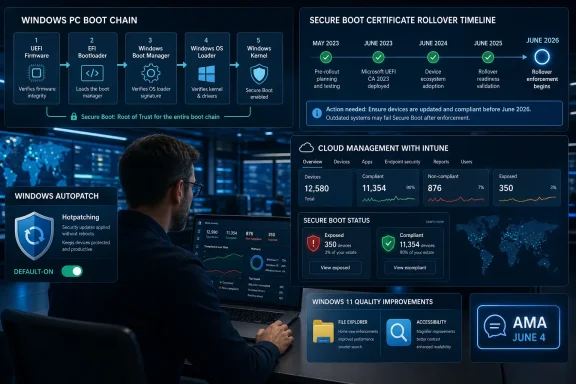 Microsoft’s June Starts With a Boot Chain Deadline, Not a Feature Drop
The most important sentence in Microsoft’s May recap is not about Copilot, Task Manager, or the latest Windows 11 polish. It is the reminder that the first Secure Boot certificates begin expiring as June gets underway, with another Secure Boot Ask Microsoft Anything session scheduled for Thursday, June 4.That timing matters because Secure Boot is one of those Windows security foundations most users never think about until something breaks. The certificate rollover is not a normal monthly patch story. It touches firmware trust, operating system boot validation, device readiness, and the messy space where Microsoft’s update machinery depends on OEM implementation.
Microsoft has spent months trying to get ahead of the problem with reporting, readiness checks, and administrator guidance. The May recap reinforces that this is no longer a distant lifecycle notice. It is now a live operational concern, especially for organizations with older PCs, inconsistent firmware update practices, or fleets that have been allowed to age into a “mostly works” state.
The AMA format is revealing. Microsoft knows the documentation alone will not absorb the edge cases. Secure Boot problems tend to be specific, local, and unpleasant: a vendor firmware revision here, a deferred update policy there, a device class that has not been touched since procurement. The company is effectively telling admins to bring their inventory questions before the deadline becomes a ticket storm.
Secure Boot Reporting Becomes the New Minimum Viable Inventory
The updated Secure Boot status report in Windows Autopatch is the most practical security item in the May recap. Microsoft says it now provides better device-level visibility into certificate status, trust configuration, and readiness for Secure Boot certificate updates, with interactive certificate-level details meant to fit directly into a rollout workflow.That language sounds dry, but the product shift is significant. For years, Windows administrators have been told to “know your fleet,” while the tools for knowing it often required a patchwork of scripts, firmware dashboards, endpoint security signals, and hope. Secure Boot certificate readiness is exactly the kind of state that should not be discovered one device at a time.
Microsoft Defender is also gaining centralized visibility into Secure Boot 2023 certificate readiness, with devices categorized as exposed, compliant, or not applicable. That framing pushes the issue out of the firmware weeds and into the security operations dashboard. It turns Secure Boot from an arcane platform detail into an assessable risk state.
This is Microsoft’s broader endpoint strategy in miniature. The company is pulling more Windows health data into Intune, Defender, Autopatch, and Microsoft Graph so that compliance, servicing, and security become one administrative surface. The benefit is obvious: fewer blind spots. The cost is equally obvious: organizations outside that management model will increasingly feel like second-class citizens.
The most exposed environments are not necessarily the largest. A disciplined enterprise with thousands of devices may have the telemetry and process to manage the rollover. A midmarket shop with a handful of hardware generations, lightly governed update rings, and no clear owner for firmware posture may have a harder time. Secure Boot is showing how Windows security debt accumulates quietly until the calendar collects it.
Hotpatching Moves From Special Handling to Default Expectation
The other major operational shift in May is hotpatching. Starting with the May 2026 Windows security update, Microsoft says hotpatch updates are on by default for eligible devices using Windows Autopatch through Microsoft Intune or the Windows updates API in Microsoft Graph.This is not merely a convenience setting. Hotpatching changes the rhythm of Windows servicing by allowing some security updates to apply without the same reboot burden as traditional cumulative updates. For administrators, that means faster exposure reduction and fewer arguments with users over restart windows.
But Microsoft’s caveat is doing real work. The default tenant setting applies only to devices that are not members of a quality update policy, and Autopatch respects existing quality update policy configuration. In other words, Microsoft is making hotpatching the default path for eligible managed devices, but it is not bulldozing explicit admin intent.
That distinction matters because “default on” features have a way of being interpreted as “Microsoft changed everything overnight.” In practice, the impact depends on how cleanly an organization has modeled update policies. If a tenant has inherited years of overlapping rings, exceptions, pilot groups, and manual workarounds, the hotpatch transition may expose management clutter that was already there.
Hotpatching also cannot be treated as a magic reboot eliminator. Windows still needs baseline updates, and some changes still require restarts. The strategic point is narrower but important: Microsoft wants the default security posture for cloud-managed Windows devices to be faster than the old monthly reboot bargain.
Autopatch Is Becoming the Administrative Center of Gravity
Microsoft’s expansion of Windows Autopatch for Government Community Cloud customers is another sign that Autopatch has moved past its “interesting managed service” phase. The recap says GCC customers using Microsoft 365 G3 GCC, Microsoft 365 GCC G5, or Microsoft 365 GCC G5 without WDATP/CAS Unified now get Windows Autopatch automatically, without needing the $0 Windows Enterprise activation SKU that previously complicated setup.That change is not glamorous, but licensing friction is often where good management ideas die. Removing a strange activation SKU requirement makes Autopatch easier to adopt in environments that are already constrained by procurement, compliance, and change-control bureaucracy.
The GCC move also signals confidence. Government tenants are not where Microsoft usually experiments casually. If Autopatch is being normalized there, Microsoft is telling the market that automated Windows update orchestration is no longer just for early adopters.
The practical takeaway is that Microsoft increasingly wants administrators to manage outcomes rather than handcraft every servicing step. Autopatch, Intune, Defender, Windows Backup for Organizations, and Graph are converging into a model where Microsoft supplies the rails and admins tune the risk appetite. That can be powerful, but it also demands trust in Microsoft’s defaults.
For some WindowsForum readers, that trust will be hard-earned. Microsoft’s recent Windows history includes rushed UI changes, confusing Copilot placement, uneven rollout messaging, and occasional quality issues. Autopatch succeeds only if it makes the boring parts boring. The moment it surprises administrators, it becomes another thing to audit.
Enterprise State Roaming Leaves the Entra Portal Era Behind
The Enterprise State Roaming change is a smaller item with a larger implication. Microsoft says organizations should start managing ESR through Windows Backup for Organizations policies, and that by the end of June, ESR policies will no longer be accessible through the Microsoft Entra portal. Instead, administrators will need to use Microsoft Intune.That is a classic Microsoft platform migration: one control surface loses a feature, another gains it, and admins get a deadline. On paper, the move makes sense. User state, backup policy, endpoint configuration, and Windows device management belong closer together than scattered across identity and device portals.
In practice, portal churn is one of the quiet taxes of Microsoft 365 administration. Even when the destination is logical, the migration requires documentation updates, role review, help desk retraining, and a new round of “where did that setting go?” searches. Microsoft’s cloud management stack has improved dramatically, but its administrative geography still shifts often enough to frustrate seasoned operators.
The ESR move should be read alongside the Autopatch and Secure Boot reporting changes. Microsoft is consolidating Windows administration into Intune-centered workflows. The company is not saying every Windows management path outside Intune is dead. It is saying the best-lit path increasingly runs through Intune.
Windows 365 Gets a Dashboard for the Problem Microsoft Created
Admin Insights for Windows 365, now in public preview, brings together signals from existing reporting, monitoring, and alerting in Intune. The stated goal is to help administrators quickly understand what is happening in their Windows 365 environment and where to focus.That is useful, and also an admission. Cloud PCs multiply the number of layers an admin must reason about: endpoint policy, user identity, network conditions, provisioning state, image configuration, performance, licensing, and service health. Windows 365 simplified the idea of delivering a Windows desktop, but it did not eliminate the complexity underneath.
A consolidated insights view is Microsoft trying to reduce the cost of that abstraction. If Windows 365 is going to be treated like part of the normal Windows estate, admins need operational visibility that does not require spelunking through separate blades and reports.
The preview label matters. IT teams should test Admin Insights, but they should not build incident response doctrine on it yet. Microsoft’s cloud dashboards often become more useful after several rounds of customer feedback, especially once real-world tenants reveal the weirdness that sample environments never show.
Windows on Arm Is Still Waiting for the Boring Stuff to Become Boring
Microsoft’s May recap points organizations toward a snapshot of companies that have delivered or expanded print solutions supporting Windows on Arm. That may sound like a niche procurement note, but printing support is exactly the kind of detail that determines whether Arm-based Windows devices can move from executive curiosity to fleet standard.The Windows on Arm conversation has spent years orbiting performance, battery life, app compatibility, and Qualcomm’s platform ambitions. Those things matter. But enterprise adoption is often decided by the boring peripherals: printers, scanners, VPN clients, security agents, line-of-business apps, and management tooling.
Print support is especially symbolic because printing remains one of Windows’ oldest pain points and one of the hardest to modernize without breaking someone’s workflow. If Arm devices are going to be viable in ordinary offices, they need to survive the unglamorous parts of office life.
Microsoft is also using protected print mode as part of its security story. The May recap notes a new icon on the Printers & scanners settings page to help users identify devices that support a more secure printing experience with Windows protected print mode. That is a small UI cue, but it points to a larger effort to push the print ecosystem toward safer defaults after years of print subsystem vulnerabilities and driver headaches.
Windows 10’s Shadow Still Hangs Over Every “Stay Current” Message
Microsoft’s updated Stay current with Windows learning path appears in the recap as a skilling resource for organizations still running Windows 10 or planning Windows and Microsoft 365 app rollouts. That wording is polite, but the subtext is blunt: the Windows 10 tail remains one of Microsoft’s largest deployment problems.By mid-2026, Windows 10 should be a migration story, not a strategic platform for most organizations. Yet many enterprises still have hardware, application, budget, or operational reasons for dragging the transition. Microsoft’s training content is part education, part nudge, part liability management.
The Windows 10 issue also intersects with Secure Boot and hardware readiness. Older devices are more likely to have firmware quirks, less consistent update histories, and weaker compatibility with Windows 11’s security model. The longer an organization waits, the more the migration becomes entangled with lifecycle deadlines rather than feature planning.
That is why “stay current” has become Microsoft’s favorite euphemism. It means more than installing the latest update. It means aligning hardware, identity, management, security baselines, app compatibility, user training, and procurement cycles so Windows does not become a rolling exception list.
Copilot Keeps Spreading, but the More Interesting AI Story Is in Task Manager
The May recap’s AI section is predictably heavy on Microsoft Build, Copilot, Windows app modernization, WinUI, GitHub Copilot, and Microsoft 365 Copilot adoption resources. Microsoft’s AI message remains expansive: developers should build with it, users should work with it, and administrators should prepare for it to appear across the stack.But the most concrete Windows AI feature in the recap is not a chatbot. It is Task Manager gaining enhanced visibility into NPU usage, including new metrics and AI activity insights. That is the sort of feature Windows needs if “AI PC” is going to mean something measurable rather than a sticker.
NPUs have been marketed aggressively, but users and admins need ways to see whether workloads are actually using the hardware. Task Manager has long been the place where Windows turns invisible system behavior into something legible. Adding NPU columns and AI activity visibility gives the AI PC category a basic diagnostic foundation.
This matters for developers too. If Windows apps are going to offload more local inference work to NPUs, performance troubleshooting cannot remain a vendor demo. Developers need to know whether their code is using the right silicon, admins need to understand power and performance impact, and users need to see why a supposedly AI-capable device behaves differently from a conventional laptop.
The taskbar agent-monitoring experience is the more speculative piece. Microsoft says Windows is adding a way to monitor agents from the taskbar, supporting first- and third-party apps, with Researcher in the Microsoft 365 Copilot app as the first adopter. If done well, this could make long-running AI actions more transparent. If done badly, it could become another notification surface begging for attention.
Copilot’s Interface Problem Is Now a Trust Problem
The redesigned Copilot app is described as faster and more responsive, and Microsoft asks what users think about the way Copilot shows up across Microsoft 365 apps. That second clause is the more revealing one. Microsoft knows Copilot’s value is no longer judged only by model capability; it is judged by placement, interruption, consistency, and trust.Copilot has appeared in Windows and Microsoft 365 with the confidence of a company determined to make AI unavoidable. But users often experience that ambition as surface-area creep. A faster Copilot app helps, but it does not answer the deeper question of when Copilot should appear, how much context it should have, and whether users understand what it is doing.
For enterprises, Copilot adoption resources are necessary because the product is not merely a feature. It is a change-management project involving data governance, permissions hygiene, user training, prompt literacy, compliance review, and cultural expectations about automation. The hardest part is not turning Copilot on. It is making sure it does not amplify existing information sprawl.
Windows is becoming an AI host environment, not just an operating system with an assistant. That distinction matters. An assistant can be ignored. A host environment changes APIs, hardware priorities, taskbar affordances, management policy, and developer incentives.
Windows Server Hotpatching Gets the Price Signal It Needed
On the server side, the recap’s standout item is that hotpatch updates enabled by Azure Arc are now available at no additional cost for Windows Server 2025, subject to eligibility. That is a meaningful change because server patching is where reboot avoidance has the clearest business value.Windows Server administrators have always cared about uptime, but the economics of advanced servicing features can complicate adoption. Making Azure Arc-enabled hotpatching available without an extra charge lowers the barrier for organizations that want faster security deployment without negotiating another SKU.
It also reinforces Azure Arc’s strategic role. Microsoft is using Arc as a bridge between on-premises infrastructure and cloud-style management. Hotpatching becomes another reason to connect servers to Microsoft’s management plane, even when workloads remain outside Azure.
The obvious caution is that “no additional cost” does not mean “no operational cost.” Arc onboarding, eligibility checks, policy design, monitoring, and change-management integration still require work. But the direction is clear: Microsoft wants Windows Server 2025 to feel more cloud-managed even when it is running in a rack down the hall.
The availability of all 19 Windows Server Summit 2026 sessions on demand rounds out the message. Microsoft is asking server admins to modernize not only their deployments, but their habits. Hotpatching, Arc, hybrid management, and Windows Server 2025 are part of the same modernization pitch.
The Windows 11 Feature Work Is Smaller, but More Grounded
The Windows 11 client changes in the May security update and May optional preview are not revolutionary. That is a compliment. Many of the listed improvements address everyday friction rather than chasing a new brand name.File Explorer now preserves View and Sort preferences in folders such as Downloads and Documents when apps launch File Explorer directly to those locations. It also adds support for uu, cpio, xar, and NuGet package archive formats. These are not keynote features, but they are the kind of refinements that make Windows feel less careless.
Voice typing on the touch keyboard gets a simpler design that removes the full-screen overlay and shows animations directly on the dictation key. This is a small accessibility and usability improvement, especially for devices where the touch keyboard is not a fallback but a primary input mode.
The May optional non-security update previews several features expected in the June security update. Shared audio allows two people to listen to the same audio from one Windows 11 PC at the same time, while Multi-App Camera allows multiple applications to access the camera stream simultaneously. These are user-visible quality-of-life improvements that feel overdue in a world of hybrid meetings, creator workflows, and shared-device scenarios.
Magnifier also gains clearer screen reader announcements and support for magnification of permitted protected content. Windows Search will find and prioritize files with as few as two characters. None of this will sell a PC, but it may reduce the daily irritation that makes users cynical about operating system updates.
Optional Updates Are Where Microsoft Tests the Patience Boundary
The May optional non-security update is doing what these previews increasingly do: it gives enthusiasts and IT testers an early look at next month’s payload while letting Microsoft stage rollout risk. For Windows 11 versions 25H2 and 24H2, that means shared audio, Multi-App Camera, Magnifier improvements, Search refinements, and deeper NPU metrics before broad deployment.That preview model is sensible, but it creates a communication challenge. Ordinary users often see “optional update” and assume it is either unnecessary or secretly important. IT teams see it as a validation window, but only if they have the time and discipline to treat it that way.
Microsoft’s gradual rollout language adds another layer. Two users can install the same monthly update and see different feature availability depending on rollout controls. That is defensible from a reliability standpoint, but it makes support documentation and user expectations harder.
The best reading is that optional updates are now part of Windows’ public staging system. Enthusiasts get early access, admins get a test window, and Microsoft gets telemetry before Patch Tuesday scale. The worst reading is that Windows has become too probabilistic for its own good. Both readings can be true.
The Month’s Practical Signal Is Hidden in the Management Details
May’s Windows news is easy to skim as a collection of unrelated product notes. Secure Boot reporting here, hotpatching there, Windows 365 insights, Windows Backup policy migration, Copilot resources, Server hotpatching, File Explorer tweaks. But the pattern is clear when viewed as a whole.Microsoft is turning Windows servicing into a continuously managed posture rather than a monthly event. Devices are expected to report readiness, accept policy-driven updates, expose security state, support faster patch application, and feed admin dashboards. The Windows endpoint is becoming a participant in a cloud-controlled system.
That has obvious upsides. Security updates can land faster. Fleet problems can be seen earlier. Admins can spend less time hand-building rings and more time managing exceptions. Users may experience fewer disruptive restarts and more incremental improvements.
But the trade-off is dependence. If your organization’s Windows management maturity is low, Microsoft’s defaults will increasingly define your security posture. If your Intune and Autopatch configuration is clean, that may be welcome. If it is messy, May 2026 is a reminder that the mess is not staying passive.
The May Recap Reads Like a Checklist for the Next Windows Operating Model
This is the month’s usable news, stripped of the marketing layer. The details differ by environment, but the direction is consistent: Microsoft is rewarding organizations that manage Windows as a living service and making life harder for those that treat it like a static image.- Secure Boot certificate readiness should be treated as a June operational priority, not a background lifecycle notice.
- Windows Autopatch hotpatching is now a default expectation for eligible cloud-managed devices unless existing quality update policies say otherwise.
- Intune is becoming the practical home for more Windows management tasks, including Enterprise State Roaming policy through Windows Backup for Organizations.
- Windows 365 Admin Insights and Defender Secure Boot assessments show Microsoft folding more endpoint state into centralized dashboards.
- Windows 11’s near-term feature work is focused on practical friction points, including File Explorer behavior, shared audio, Multi-App Camera, Magnifier, Search, and NPU visibility.
- The AI PC story becomes more credible when Windows exposes NPU activity in Task Manager rather than merely advertising Copilot-branded experiences.
References
- Primary source: Microsoft - Message Center
Published: 2026-06-01 16:00 PT
Windows news you can use: May 2026 | Microsoft Community Hub
Get up to speed on what’s new in Windows updates, security, AI, and device management. aka.ms
- Official source: learn.microsoft.com
What's new in Microsoft Intune - Microsoft Intune | Microsoft Learn
Find out what's new in Microsoft Intune.learn.microsoft.com - Related coverage: windowsreport.com

Windows PCs using Autopatch will receive hotpatch security updates by default starting May 2026
meta Microsoft will enable hotpatch security updates by default in Windows Autopatch, allowing eligible devices to apply fixes instantly without needing a restart.
windowsreport.com
- Related coverage: helpnetsecurity.com
Microsoft flips Windows Autopatch to default hotpatch security updates - Help Net Security
Windows Autopatch is enabling hotpatch security updates by default, allowing eligible devices to apply fixes without restarts.www.helpnetsecurity.com - Related coverage: windowsforum.com
Windows Autopatch Hotpatch Default May 2026: Opt Out Guide | Windows Forum
Microsoft is turning on hotpatch security updates by default in Windows Autopatch for eligible devices starting with the May 2026 Patch Tuesday—effectively...windowsforum.com - Related coverage: thurrott.com
Windows 11's May Optional Update Lands on the Release Preview Channel
Windows Insiders on the Release Preview Channel can download today the May optional update for Windows 11, which enables shared audio over Bluetooth LE and more.www.thurrott.com
- Related coverage: theregister.com
Windows 11 update preview promises faster launches, puts Task Manager on NPU patrol
Just mind the known issue that can still send installs rolling backwww.theregister.com - Related coverage: windowscentral.com
The 13 biggest Windows 11 changes from early May — and why these updates matter for how the OS evolves through the rest of 2026 | Windows Central
Microsoft is reshaping Windows 11 with practical fixes users have wanted for years.www.windowscentral.com - Related coverage: petri.com
Microsoft to Enable Hotpatch Security Updates by Default
Microsoft will enable hotpatch security updates by default in Windows Autopatch starting May 2026. petri.com
- Related coverage: techriver.com
- Official source: microsoft.com
